

The GROWTH function predicts future values when your numbers grow by a roughly steady percentage, rather than by a steady amount. It looks at the values you already have, fits an exponential curve to them, and extends that curve to the periods you ask about.
That makes it a good fit for things that snowball, like subscribers, followers, or downloads, where each month adds more than the month before.
In this tutorial, I’ll show you how to use GROWTH to forecast one value or several at once, how it compares with the TREND function, and how to fix the #NUM! error it gives on zero values.
Follow along with the example file
GROWTH Function Examples.xlsx
GROWTH Function Syntax
Here is the syntax of the GROWTH function:
=GROWTH(known_y's, [known_x's], [new_x's], [const])
- known_y’s – The values you already have, such as monthly sales or subscriber counts. All of them must be greater than zero.
- known_x’s – (Optional) The periods that go with those values, such as month numbers, week numbers, or dates. It must be the same size as known_y’s, or you get a #REF! error.
- new_x’s – (Optional) The periods you want predictions for. This can be a single cell or a range.
- const – (Optional) TRUE or FALSE. It decides whether b in the curve below is calculated or forced to 1.
If you leave out known_x’s, Excel numbers your values 1, 2, 3, and so on. That’s handy when your periods are text labels like month names.
If you leave out new_x’s, GROWTH returns the curve’s value for each period you already have, instead of predicting new ones.
Behind the scenes, GROWTH fits the curve y = b*m^x, where b is the curve’s value at x = 0 and m is how much the value multiplies by each period.
Setting const to FALSE forces b to 1, which wrecks a normal forecast, so it’s best to leave it out (you’ll see how far off it goes in Example 1).
The GROWTH function works in all Excel versions, including Microsoft 365, Excel 2024, 2021, 2019, 2016, Excel for Mac, and Excel for the web.
When to Use the GROWTH Function
Use this function when you need to:
- Forecast next month’s (or next year’s) value for something that grows by a percentage
- Forecast several future periods with one formula
- Get the trend value for each existing period, so you can see which ones beat the trend
- Check whether an exponential forecast suits your data better than a straight-line one
Let me show you a few practical examples of how to use GROWTH in Excel.
Example 1: Simple GROWTH Formula to Predict Next Month
Let’s start with a simple example.
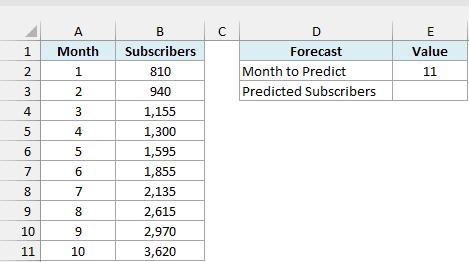
Below is the subscriber count of a newsletter for its first 10 months, and I want to predict the subscribers for month 11 (entered in E2) in cell E3.
Here is the formula:
=GROWTH(B2:B11,A2:A11,E2)
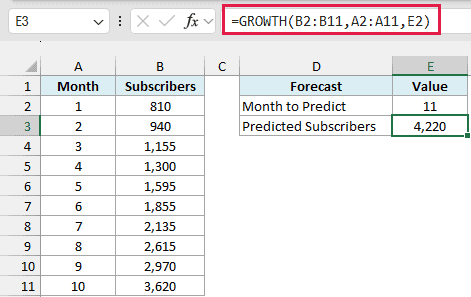
In the above formula, B2:B11 has the subscriber counts (known_y’s), A2:A11 has the month numbers (known_x’s), and E2 has the month we want a prediction for (new_x’s).
GROWTH finds the exponential curve that best fits the 10 months and extends it to month 11, which gives about 4,220 subscribers. The newsletter has been growing by roughly 18% a month, and GROWTH carries that pattern forward.
Keep in mind that GROWTH only extends the pattern in your past data. The further out you forecast, the more you’re betting that the growth rate stays the same.
Add FALSE as the fourth argument, and the same formula predicts 176,193 subscribers instead. Forcing b to 1 bends the curve away from the real data, which is why const is best left out.
Example 2: Forecast Several Weeks at Once
Now let’s predict more than one period with a single formula.
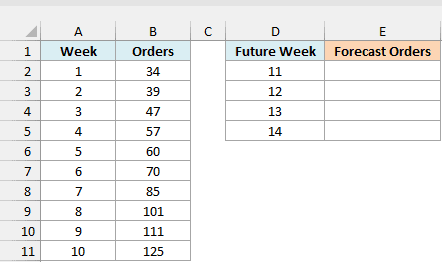
Below are the weekly orders of a new online candle shop for its first 10 weeks, and I want to forecast the orders for weeks 11 to 14 in column E.
Here is the formula:
=GROWTH(B2:B11,A2:A11,D2:D5)
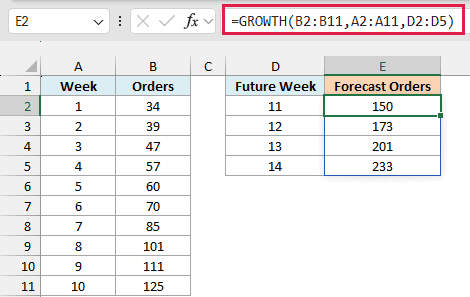
Since new_x’s is now a range of four weeks (D2:D5), GROWTH returns four forecasts, and they spill down into E2:E5. You enter the formula only once, in E2.
Spilling like this needs Excel 365 or Excel 2021 and later. If you are using Excel 2019 or earlier, enter the below formula in cell E2 and then copy it down to E5:
=GROWTH($B$2:$B$11,$A$2:$A$11,D2)
The dollar signs lock the known values in place, so only the week reference moves as you copy the formula down.
Pro Tip: The forecasts here show as whole numbers because of the cell’s number format, but the actual values have decimals (149.81 for week 11). If you need true whole numbers for later calculations, wrap the formula in ROUND, like =ROUND(GROWTH(B2:B11,A2:A11,D2:D5),0).
Example 3: Use GROWTH Without known_x’s
Here’s a case where you can skip the known_x’s argument completely.
Below are the monthly Instagram followers of a bakery from January to October, and I want to forecast the followers for November and December in column E.
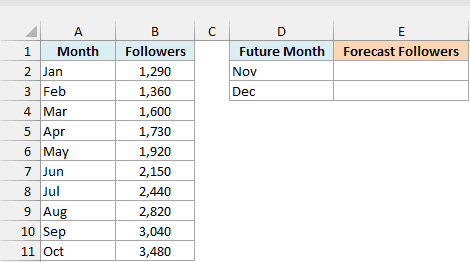
Here is the formula:
=GROWTH(B2:B11,,{11;12})
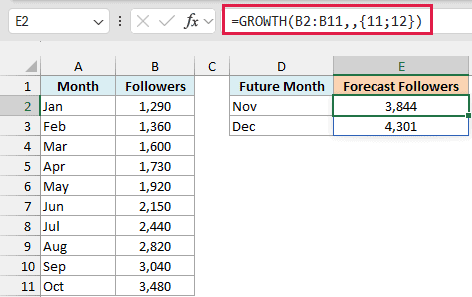
The months in column A are text, so they can’t be used as known_x’s. When you leave known_x’s out (note the two commas), Excel numbers the 10 months as 1 to 10 for you.
That means November is period 11 and December is period 12, which is why the formula uses {11;12} as new_x’s. The semicolon puts the two values in a column, so the results spill down.
The Nov and Dec cells in column D are only labels for the results. The formula doesn’t read them, so if you add more months of data, update the numbers inside the curly braces too.
Example 4: Get the Trend Value for Each Existing Month
GROWTH can also give you the trend value for the months you already have, not just for future ones.
Below are the active members of a new gym from January to October, and I want the trend value for each month in column C, and how far each month was above or below that trend in column D.
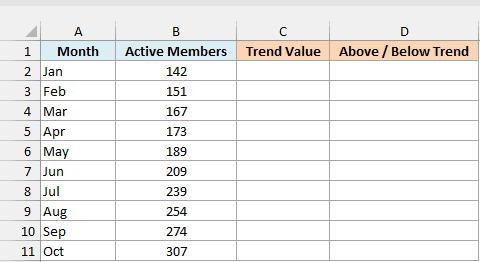
Here is the formula:
=GROWTH(B2:B11)
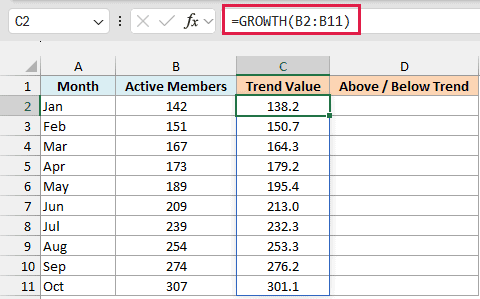
This is GROWTH with only the first argument. With both known_x’s and new_x’s left out, it numbers the months 1 to 10 and returns the curve’s value for each of them.
So C2:C11 shows where each month would land if the gym grew by the same percentage every month.
Now, here is the formula that gives the gap between the actual members and the trend, entered in cell D2:
=B2:B11-C2#
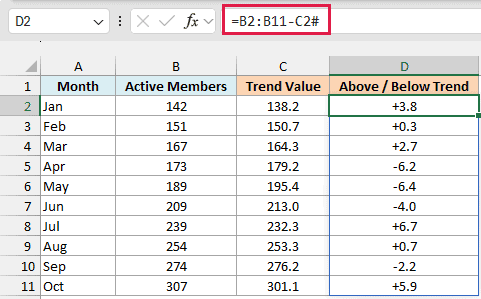
C2# refers to the whole range that spilled from C2, so the formula subtracts each trend value from the actual count. A positive number means the month beat the trend, and a negative number means it fell short.
Here, July was 6.7 members above the trend, while April and May were each more than 6 below it. Those are the months worth a closer look, to find out what was different about them.
The # spill reference works only in Excel 365 and Excel 2021 and later.
Example 5: GROWTH vs TREND (Exponential vs Linear Forecast)
The TREND function also forecasts future values, but it draws a straight line instead of a curve. Let’s see what that difference means.
Below are the monthly downloads of a mobile game for its first 10 months, and I want to forecast months 11 to 13 in column E, and then compare that forecast with the one from TREND.
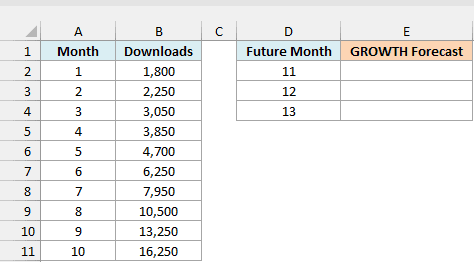
Here is the GROWTH formula:
=GROWTH(B2:B11,A2:A11,D2:D4)
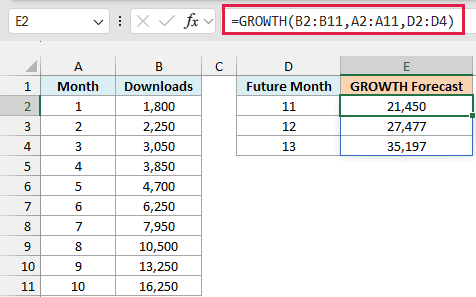
GROWTH predicts 21,450 downloads for month 11, rising to 35,197 by month 13. The downloads have been growing by about 28% a month, and the curve keeps that rate going.
And here is the TREND formula, with exactly the same arguments, entered in cell F2:
=TREND(B2:B11,A2:A11,D2:D4)
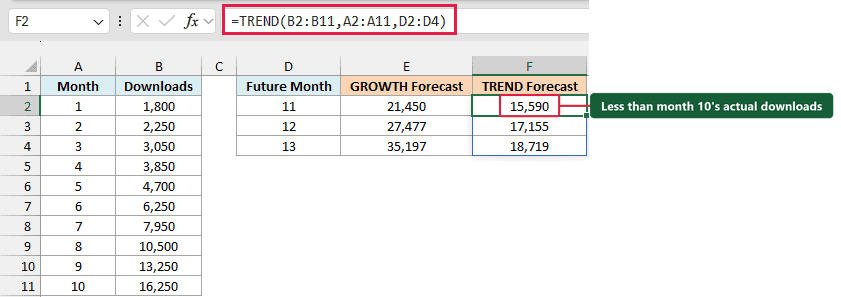
TREND predicts 15,590 downloads for month 11. That’s less than the 16,250 the game already got in month 10, which doesn’t match how these numbers have been moving.
This happens because a straight line adds the same amount each month, so it can’t keep up with numbers that grow faster every month.
So use GROWTH when your values grow by a similar percentage each period, and TREND when they grow by a similar amount.
If you’re not sure which one you have, calculate the month-over-month percentage change for your data. If it stays in the same range month after month, GROWTH is the better fit.
You can also plot the data in a chart and add a trendline. If the exponential trendline hugs the points more closely than the linear one, that’s another good sign that GROWTH fits.
Example 6: Use Dates as the x-Values
Your periods don’t have to be numbers like 1, 2, 3. GROWTH works with real dates too.
Below are the monthly enrollments of an online course from January to October 2026, and I want to forecast the enrollments for November and December 2026 in column E.
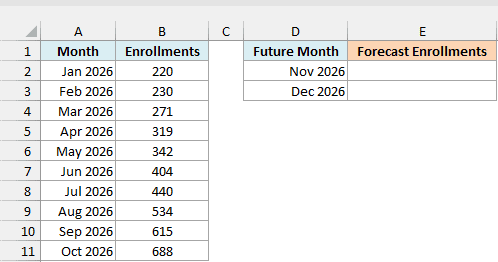
Here is the formula:
=GROWTH(B2:B11,A2:A11,D2:D3)
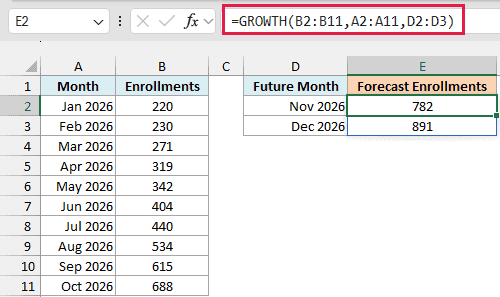
This works because Excel stores every date as a number (a count of days, where January 1, 1900 is day 1). So A2:A11 is just a set of numbers to GROWTH, and the dates in D2:D3 are the new periods it predicts for.
The result is about 782 enrollments for November and 891 for December. As long as the future dates in column D are real dates and not text, you can forecast any date you want.
Example 7: Fix the #NUM! Error From Zero Values
Let’s end with a common problem, where GROWTH returns an error instead of a forecast.
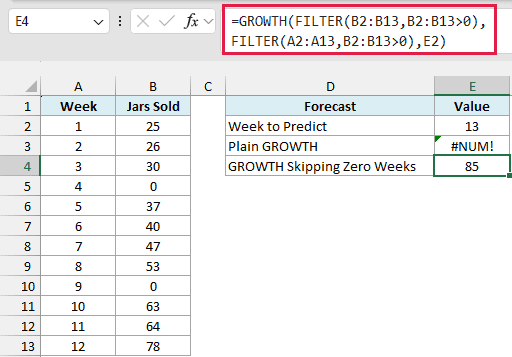
Below are the weekly sales of a jam stall at a farmers market, which was closed in weeks 4 and 9 because of rain.
I want to predict the jars sold in week 13 (entered in E2), first with a plain GROWTH formula in E3 and then with a fixed one in E4.
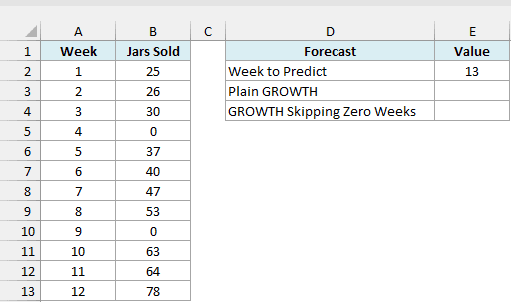
Here is the plain GROWTH formula, entered in cell E3:
=GROWTH(B2:B13,A2:A13,E2)
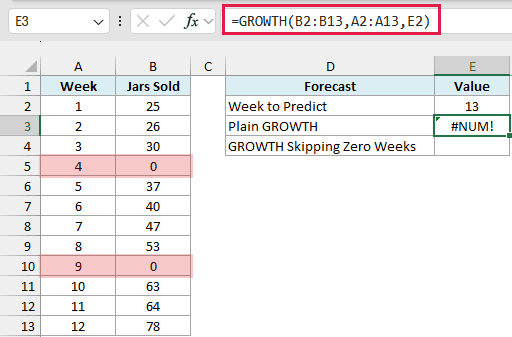
This returns a #NUM! error, because GROWTH works with the logarithm of each value to fit its curve. There’s no logarithm for zero or a negative number, so a single 0 in known_y’s breaks the whole formula.
If the sales sheet had a blank cell for those weeks instead of a 0, you’d get a #VALUE! error, because GROWTH needs every known_y to be a number.
Here is the formula that skips the zero weeks, entered in cell E4:
=GROWTH(FILTER(B2:B13,B2:B13>0),FILTER(A2:A13,B2:B13>0),E2)
How this formula works:
- FILTER(B2:B13,B2:B13>0) keeps only the weeks with sales above zero, which drops weeks 4 and 9. It also drops blank cells, so it fixes the #VALUE! case too.
- FILTER(A2:A13,B2:B13>0) uses the same condition on the week numbers, so each remaining sales value still lines up with its own week.
- GROWTH fits the curve on the 10 remaining weeks and predicts about 85 jars for week 13.
The FILTER function needs Excel 365 or Excel 2021 and later. In Excel 2019 or earlier, copy the week numbers and sales for the open weeks into two helper columns, and use those as known_x’s and known_y’s.
Important: Only skip zeros when they mean there’s no data, like a week the stall was closed. If the stall was open and sold nothing, that zero is real, and removing it makes the forecast look better than it should.
So these are some practical ways to use the GROWTH function in Excel, from a single forecast to spilling several periods, comparing it with TREND, and handling zero values.
If you want to see other ways to forecast in Excel, including the Forecast Sheet, I’ve covered them in a separate tutorial.
I hope you found this Excel tutorial useful.
Other Excel Articles You May Also Like:
