

The TAN function in Excel gives you the tangent of an angle. In a right triangle, that’s the opposite side divided by the adjacent side, so TAN helps whenever you know an angle and one side and need the other.
The catch is that TAN expects the angle in radians, while most of us think in degrees. I’ll show you how to handle both, plus a couple of practical uses and the odd thing TAN does at 90 degrees.
Follow along with the example file
TAN Function Examples.xlsx
TAN Function Syntax
Here is the syntax of the TAN function:
=TAN(number)
- number is the angle, in radians, that you want the tangent of. It can be a number, a cell reference, a calculation, or a range of angles.
If the cell you point TAN to has text like “abc”, the function returns a #VALUE! error.
An empty cell is read as 0, so TAN returns 0 instead of an error. If you see a 0 you didn’t expect, check whether the input cell is blank.
The TAN function works in all Excel versions, including Microsoft 365, 2024, 2021, 2019, 2016, Mac, and the web.
When to Use the TAN Function
Use this function when you need to:
- Get the tangent of an angle for a math, physics, or engineering calculation.
- Find a height or a length when you know an angle and one side of a right triangle.
- Turn a roof angle into a roof pitch (how much the roof rises per foot).
- Work out how far out from a wall something needs to sit to make a certain angle.
Let’s go through some examples to see how it works.
Example 1: Find the Tangent of Angles in Radians
Let’s start with the simplest case, where the angles are already in radians.
Below is a list of common angles written as fractions of π, along with their values in radians, and I want the tangent of each one in column C.
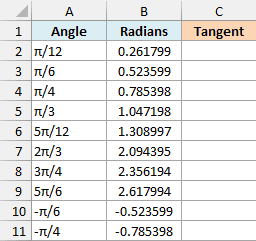
Here is the formula to enter in cell C2:
=TAN(B2:B11)
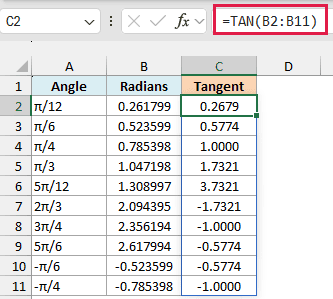
You only enter the formula in cell C2. Since B2:B11 is a range, the results spill down to C11 on their own.
Since the values in column B are already in radians, TAN can use them as they are. π/4 (0.785398) returns 1.0000, and π/3 (1.047198) returns 1.7321.
Angles between π/2 and π, like 2π/3 and 3π/4, give negative results, and so do the negative angles -π/6 and -π/4. That’s simply how the tangent behaves for those angles, not an error.
If you’d rather not type long decimals, you can build the angle with the PI function instead. For example, =TAN(PI()/4) also returns 1.
Important: If any cell in C3:C11 already has something in it, the formula returns a #SPILL! error, because the results have no room to spill. Clear those cells, and the results show up.
Spilling formulas need Excel for Microsoft 365 or Excel 2021 and later. If you are using Excel 2019 or earlier, enter the below formula in cell C2 and then copy it down to C11:
=TAN(B2)
The other spilling formulas in this article work the same way in older versions. Point the formula at the first row of the data and copy it down.
Example 2: Get the Tangent of an Angle in Degrees
Most of the time, your angles will be in degrees, and this is where TAN trips people up.
Below is a list of angles in degrees, and I want the tangent of each one in column B.
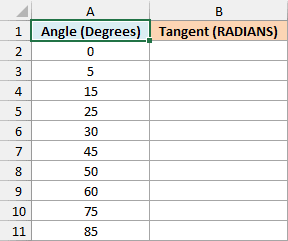
Important: TAN reads every number as radians, even when you meant degrees. So =TAN(A7) on the 45 in cell A7 returns 1.6198 instead of 1, with no error to warn you.
To get the right answer, convert the angles to radians first with the RADIANS function. Here is the formula to enter in cell B2:
=TAN(RADIANS(A2:A11))
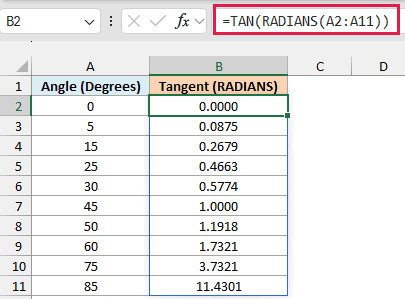
The RADIANS function turns each angle in A2:A11 into radians, and TAN then returns its tangent. 45 degrees gives 1.0000 and 60 degrees gives 1.7321, which are the values you’d find in a trig table.
You can also do the conversion yourself by multiplying the degrees by PI()/180, since 180 degrees is the same as π radians. Here is that version, entered in cell C2:
=TAN(A2:A11*PI()/180)
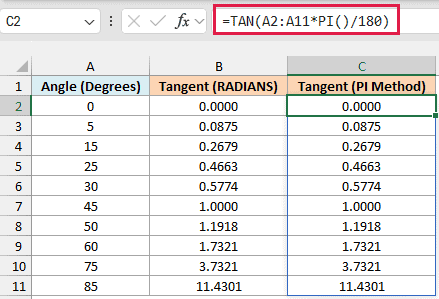
Both columns match row for row, because the RADIANS function does this same multiplication for you. It’s easier to read, so the rest of the examples use it.
Also notice how quickly the tangent grows near 90 degrees. 75 degrees gives 3.7321, but 85 degrees already gives 11.4301, and at 90 degrees things get odd (Example 5 covers that).
Example 3: Convert a Roof Angle to Roof Pitch With TAN
Now let’s use TAN for something practical.
Roof pitch is usually written as how many inches a roof rises for every 12 inches it runs across, like 6/12. The tangent of the roof angle is also the rise divided by the run, which is what a pitch measures.
Below is a list of roofs with the angle of each one in degrees, and I want the rise per foot (in inches) in column C.
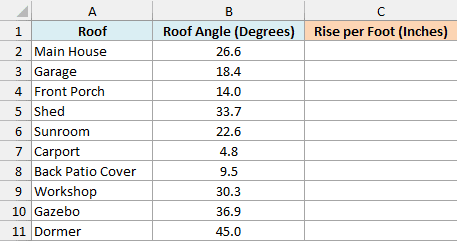
Here is the formula to enter in cell C2:
=12*TAN(RADIANS(B2:B11))
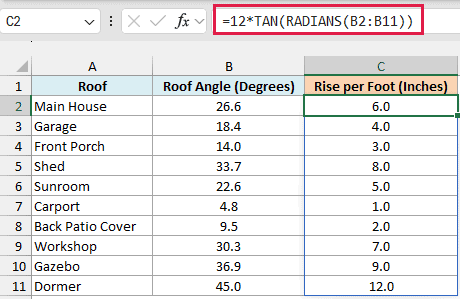
The formula converts each roof angle to radians, TAN gets the tangent (rise over run), and multiplying by 12 turns it into inches of rise per 12 inches of run.
The Main House roof is at 26.6 degrees and rises 6.0 inches per foot, so it has a 6/12 pitch. The Dormer, at 45 degrees, rises a full 12 inches for every 12 inches across, which is a 12/12 pitch.
Example 4: Find the Distance From a Height and an Angle
TAN also works when the distance is the unknown. Here, we know how high something needs to reach and the angle, and we want the distance along the ground.
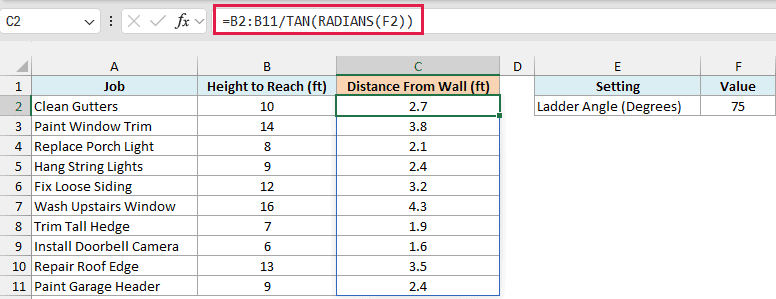
Below is a list of home repair jobs with the height the ladder needs to reach for each one, and I want the distance of the ladder’s feet from the wall in column C, using the ladder angle in cell F2.
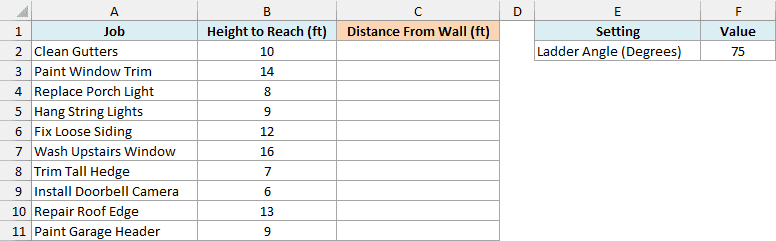
The angle in F2 is 75 degrees, which is about what the common 4-to-1 ladder safety rule works out to.
Here is the formula to enter in cell C2:
=B2:B11/TAN(RADIANS(F2))
How this formula works:
- The ladder, the wall, and the ground form a right triangle. The height on the wall is the side opposite the angle, and the distance from the wall is the side next to it.
- Since the tangent is opposite divided by adjacent, the distance is the height divided by the tangent of the angle.
TAN(RADIANS(F2))gets the tangent of 75 degrees, andB2:B11divided by it gives the distance for all ten jobs.
So to reach the gutters at 10 feet, the feet of the ladder go about 2.7 feet from the wall. To wash the upstairs window at 16 feet, they go about 4.3 feet out.
Since the angle sits in its own cell, you can change F2, and all ten distances update.
If you are using Excel 2019 or earlier, enter the below formula in cell C2 and then copy it down to C11. The dollar signs make $F$2 an absolute reference, so it stays fixed as you copy:
=B2/TAN(RADIANS($F$2))
Example 5: TAN of 90 Degrees (Why There’s No Error)
In math, the tangent of 90 degrees doesn’t exist, so you might expect Excel to show an error. It doesn’t, and that can quietly mess up your results.
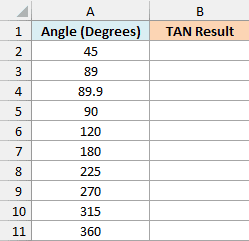
Below is a list of angles in degrees that includes 90 and 270, and I want the tangent of each one in column B.
Here is the formula to enter in cell B2:
=TAN(RADIANS(A2:A11))
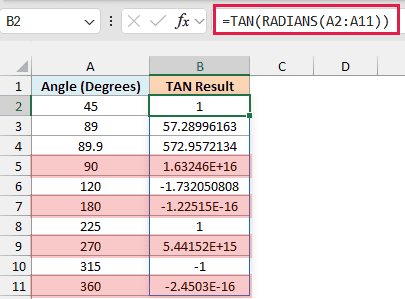
Look at the 90-degree row. Instead of an error, TAN returns 1.63246E+16, a huge number, and 270 degrees returns 5.44152E+15.
This happens because Excel can’t store π/2 exactly, so RADIANS(90) gives an angle that’s a tiny bit off. The tangent of that angle is enormous, but it’s still a number.
The same tiny rounding shows up at 180 and 360 degrees. They return -1.22515E-16 and -2.4503E-16 instead of 0.
The angles just under 90 are fine, though. They really do have big tangents, so 89 degrees gives 57.28996163 and 89.9 gives 572.9572134.
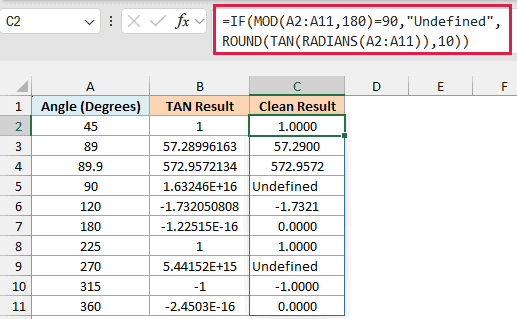
To show the undefined angles clearly and clean up the tiny numbers, here is the formula to enter in cell C2:
=IF(MOD(A2:A11,180)=90,"Undefined",ROUND(TAN(RADIANS(A2:A11)),10))
How this formula works:
MOD(A2:A11,180)uses the MOD function to get the remainder after dividing each angle by 180. That remainder is 90 for exactly the angles where the tangent is undefined, like 90 and 270.- When the remainder is 90, the IF function returns “Undefined”.
- For every other angle,
ROUND(TAN(RADIANS(A2:A11)),10)uses the ROUND function to round the tangent to 10 decimal places, which turns -1.22515E-16 into 0.
Now 90 and 270 say Undefined, and 180 and 360 show 0.0000. Rounding to 10 decimal places doesn’t change the real results, so 89 degrees still shows 57.2900.
So these are a few ways you can use the TAN function in Excel. The main thing to remember is to convert degrees with the RADIANS function before TAN sees them.
If you ever need to go the other way, from a tangent back to an angle, that’s what the ATAN function does.
I hope you found this tutorial useful.
Other Excel Articles You May Also Like:
