

The QUOTIENT function divides one number by another and gives you only the whole number part of the answer. So =QUOTIENT(17,5) returns 3, and the leftover 2 is simply dropped.
That makes it the function to use when you only care about complete units and want the leftover gone.
One thing that’s different from most functions in Excel 365 is that QUOTIENT doesn’t take a whole range of cells. So you enter it in one cell and copy it down.
Follow along with the example file
QUOTIENT Function Examples.xlsx
QUOTIENT Function Syntax
Here is the syntax of the QUOTIENT function:
=QUOTIENT(numerator, denominator)
- numerator – (Required) The number you want to divide. This can be a number, a cell reference, or a calculation.
- denominator – (Required) The number you want to divide by.
QUOTIENT cuts off everything after the decimal point of the result without rounding it, so =QUOTIENT(29,10) returns 2, not 3.
If the denominator is 0 or an empty cell, QUOTIENT returns the #DIV/0! error. And if either argument is text that isn’t a number, you get the #VALUE! error.
The QUOTIENT function works in Excel 2016, 2019, 2021, 2024, and Microsoft 365 on Windows, and in Excel 2021, 2024, and Microsoft 365 on Mac.
When to Use the QUOTIENT Function
Use this function when you need to:
- Find how many full items you can buy with a fixed amount of money
- Split a number into whole units and a leftover, like an age in months into years and months
- Count the full weeks, hours, or other complete blocks in a number
- Work out how many complete batches or sets you can make from what you have
Let me show you a few practical examples of how to use QUOTIENT in Excel.
Example 1: Divide and Keep Only the Whole Number
Let’s start with a simple example.
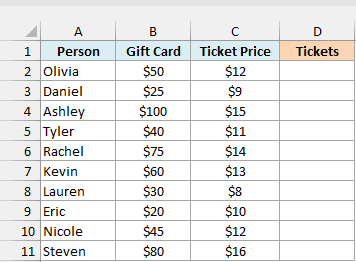
Below is a list of people with a movie gift card and the ticket price at their theater, and I want to know how many tickets each person can buy in column D.
Here is the formula, entered in cell D2 and copied down to D11:
=QUOTIENT(B2,C2)
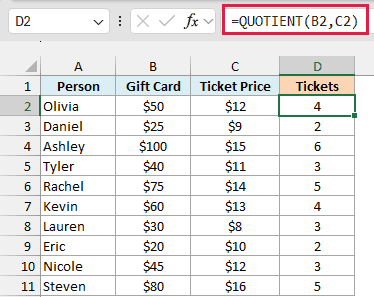
QUOTIENT divides the gift card amount by the ticket price and keeps only the whole number. Olivia’s $50 card divided by $12 tickets is 4.17, so she can buy 4 tickets, and the $2 left over isn’t enough for another one.
If you used the regular division operator instead (=B2/C2), you’d get 4.166666667, which isn’t a useful answer when you’re counting tickets.
Important: Don’t try to enter it once as =QUOTIENT(B2:B11,C2:C11) to get all ten results. QUOTIENT doesn’t accept a range, so that formula returns a #VALUE! error instead.
Example 2: Get the Quotient and Remainder (QUOTIENT With MOD)
QUOTIENT gets really useful when you pair it with the MOD function.
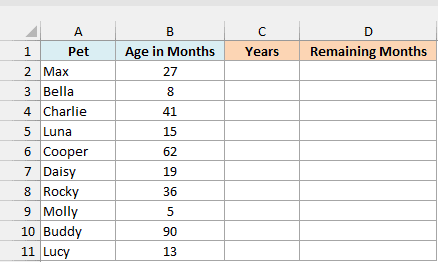
Below is a list of pets at an adoption center with each pet’s age in months, and I want to show each age as full years in column C and the leftover months in column D.
Here is the formula for the years, entered in cell C2 and copied down:
=QUOTIENT(B2,12)
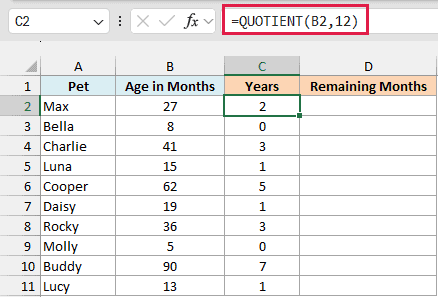
This divides each age by 12 and keeps the whole number, which is the number of full years. Max is 27 months old, so he’s 2 full years old.
Now here is the formula for the remaining months, entered in cell D2 and copied down:
=MOD(B2,12)
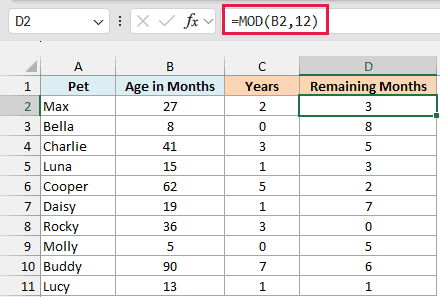
MOD gives you the other part of the division, the remainder, so for Max’s 27 months it returns 3 (27 minus the 24 months that make up 2 full years).
Together, the two columns tell you Max is 2 years and 3 months old. You can use the same pair to split minutes into hours and minutes (divide by 60), or inches into feet and inches (divide by 12).
Example 3: QUOTIENT With Negative Numbers (QUOTIENT vs INT)
Negative numbers are where QUOTIENT and the INT function give you different answers.
Below is a list of school assignments with the days left until each one is due, where a negative number means it’s overdue, and I want the number of full weeks left in column C.
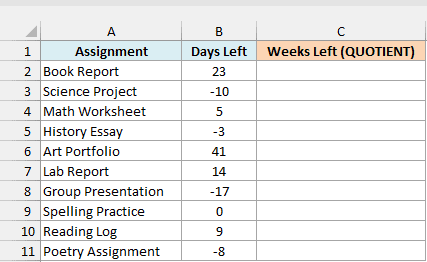
Here is the formula, entered in cell C2 and copied down:
=QUOTIENT(B2,7)
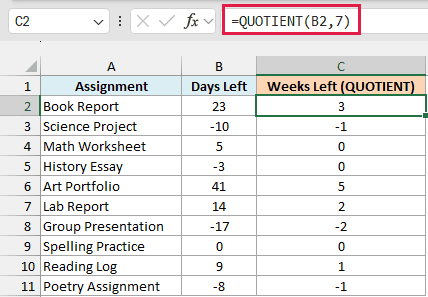
This divides the days by 7 and drops the decimal. The Book Report has 23 days left, which is 3 full weeks (plus 2 extra days).
For the overdue assignments, the result is negative. The Science Project is 10 days overdue, so QUOTIENT returns -1, which means it’s one full week overdue.
Now here is the same calculation with the INT function, entered in cell D2 and copied down:
=INT(B2/7)
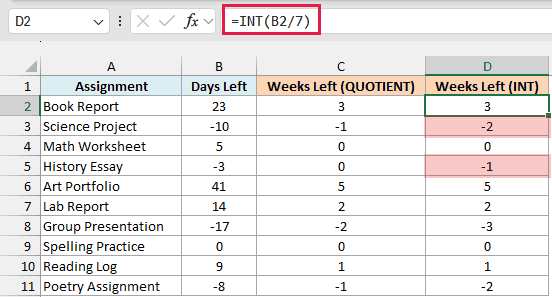
INT rounds down to the next lower whole number. For positive numbers that’s the same as QUOTIENT, but for negative numbers it moves away from zero, so -10/7 (which is -1.43) becomes -2.
That means INT says the Science Project is 2 full weeks overdue when only 10 days have passed. The History Essay is only 3 days overdue, and INT already shows -1 week, while QUOTIENT correctly shows 0.
So when your numbers can be negative, use QUOTIENT if you only want to count complete units, because it always cuts toward zero.
Example 4: QUOTIENT With Decimals (and Why It Can Be One Short)
QUOTIENT works with decimal numbers too, but there’s a catch you should know about.
Below is a list of arcade players with the balance on their game card and the cost of the game they want to play, and I want the number of games each player can play in column D.
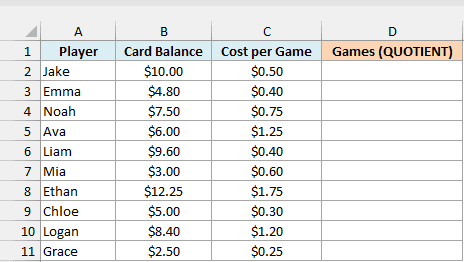
Here is the formula, entered in cell D2 and copied down:
=QUOTIENT(B2,C2)
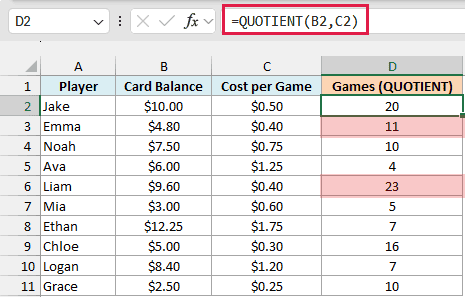
Most of these results are right. Jake has $10.00 and each game costs $0.50, so he can play 20 games.
But look at Emma. $4.80 divided by $0.40 is exactly 12, yet QUOTIENT returns 11, and Liam gets 23 instead of 24.
Important: With decimal numbers, QUOTIENT can return one less than the right answer when the division should come out exactly even. That’s because Excel stores 4.8 and 0.4 in binary, so 4.8/0.4 comes out as 11.999999999999998, and QUOTIENT drops everything after the decimal point.
If you do a regular division and wrap it in TRUNC, INT, or ROUNDDOWN instead, you get the right answers of 12 and 24.
So with decimal amounts like these, use TRUNC. Here is the formula, entered in cell E2 and copied down:
=TRUNC(B2/C2)
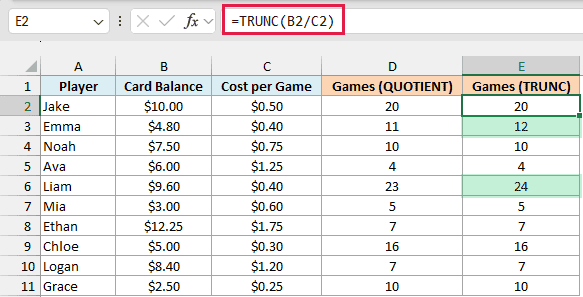
TRUNC removes the decimal part just like QUOTIENT does, but it gives Emma 12 games and Liam 24. And like QUOTIENT, TRUNC cuts toward zero, so it gives the same results as QUOTIENT for negative numbers (like the overdue days in Example 3).
Example 5: Find How Many Full Batches You Can Make (QUOTIENT With MIN)
Let’s finish with an example where QUOTIENT works together with the MIN function.
Below is a cookie recipe’s ingredient list with how much is in the pantry and how much one batch needs, and I want the batches each ingredient allows in column D and the total full batches in cell F2.
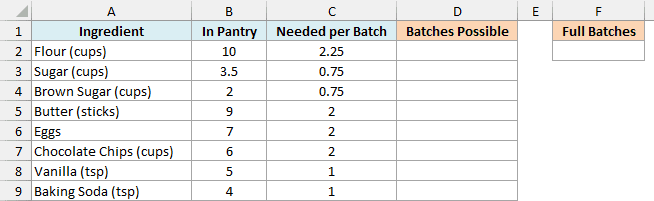
Here is the formula for the batches each ingredient allows, entered in cell D2 and copied down:
=QUOTIENT(B2,C2)
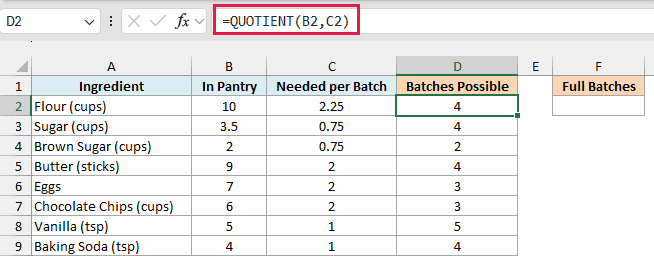
This tells you how many full batches each ingredient is enough for. There are 10 cups of flour and a batch needs 2.25 cups, so the flour is enough for 4 batches.
QUOTIENT is safe here even with decimals, because the problem from Example 4 only shows up when a division comes out exactly even. Each decimal amount here leaves something over (the flour leaves 1 cup after 4 batches, for example).
Now here is the formula that gives the number of full batches, in cell F2:
=MIN(D2:D9)
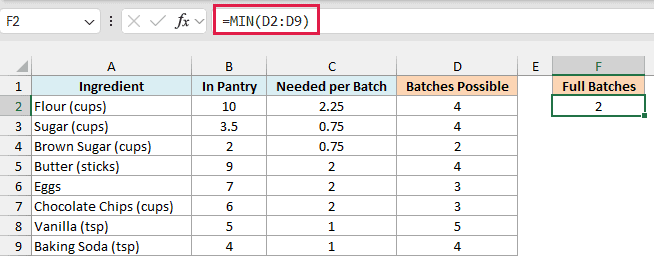
You can only bake as many batches as your scarcest ingredient allows. MIN picks the smallest number in column D, which is 2, because there’s only enough brown sugar for 2 batches.
Keeping the per-ingredient column also shows you which ingredient to buy more of if you want to bake more.
So these are a few practical ways to use the QUOTIENT function in Excel, from counting full items and splitting ages into years and months to handling negative numbers and decimals.
I hope you found this Excel tutorial useful.
Other Excel Articles You May Also Like:
