

The STDEV.P function in Excel calculates the standard deviation of a population. Put simply, it tells you how spread out your numbers are around their average when your data covers the entire group you care about.
That “entire group” part is what makes it different from STDEV.S. If your data includes every member of the group (every employee on a team, every month of a year), STDEV.P is the one to use.
In this article, I’ll show you how STDEV.P works with seven practical examples, from a basic calculation to getting the standard deviation for every category with a single formula.
Follow along with the example file
STDEV.P Function Examples.xlsx
STDEV.P Function Syntax
Here is the syntax of the STDEV.P function:
=STDEV.P(number1, [number2], ...)
- number1 – The first number, cell reference, or range in your population. This one is required.
- number2, … – Optional extra numbers, references, or ranges. STDEV.P accepts up to 254 arguments in total.
Most of the time, you’ll give STDEV.P a single range. You only need the extra arguments when your numbers sit in separate ranges, and STDEV.P then treats all of them as one population.
With only one number to work with, STDEV.P returns 0, because a single value has no spread. With no numbers at all, you get the #DIV/0! error.
An error in any cell of the range, such as #N/A, makes STDEV.P return that same error. So fix the error cells first, or the whole result breaks.
In a range, STDEV.P skips text and TRUE/FALSE values (Example 5 shows this). Values you type straight into the formula are treated differently, so =STDEV.P(2,4,TRUE) counts TRUE as 1, while typed text like “abc” gives a #VALUE! error.
The STDEV.P function works in Excel 2010 and later versions, including Excel for Microsoft 365, 2024, 2021, 2019, and 2016 on Windows and Mac.
When to Use the STDEV.P Function
Use this function when you need to:
- Measure how much values vary when you have data for the entire group (every store, every month, every team member)
- Compare how consistent two sets of numbers are, even when their averages are the same
- Check whether an average is a fair summary of the data or hides a lot of variation
- Get the spread for one category, or for every category in a list
Let me show you a few practical examples of how to use the STDEV.P function.
Example 1: Calculate Population Standard Deviation in Excel
Let’s start with a simple example.
Below is the monthly rent for all 10 apartments in a small building, and I want to find the standard deviation of these rents in cell E2.
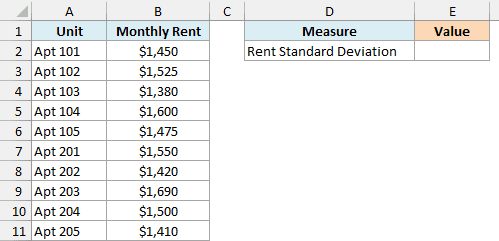
Here is the formula:
=STDEV.P(B2:B11)
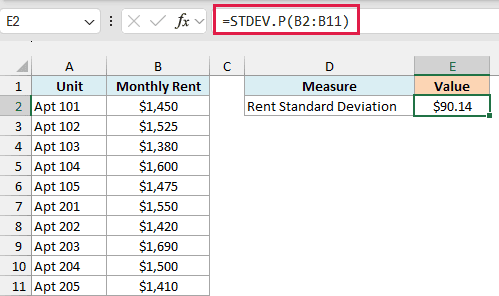
This returns $90.14. Since the list covers every apartment in the building, this is the whole population, and STDEV.P is the right function to use.
The average rent here is $1,500. A standard deviation of about $90 tells you that most rents sit within roughly $90 of that average, with a few further out, like the $1,690 unit.
In older workbooks, you may come across STDEVP (without the dot). It’s the older version of the same function and gives the same result, but STDEV.P is the one to use in new workbooks.
Example 2: Compare Consistency Using STDEV.P
This is where standard deviation gets really useful.
Here are the points two basketball players scored in every game of a 10-game season. Both average exactly 19 points a game, and I want to compare how consistent they were by getting each player’s standard deviation in F3 and G3.
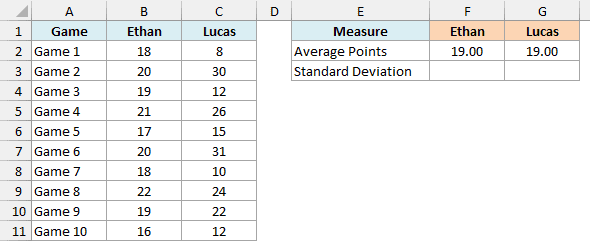
Here is the formula I entered in F3 and then copied to G3 (the range shifts to C2:C11 on its own, so G3 picks up Lucas’s points):
=STDEV.P(B2:B11)
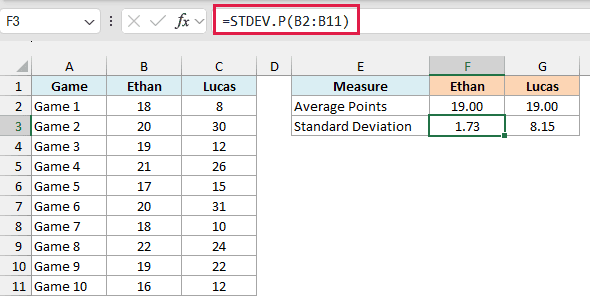
Ethan gets a standard deviation of 1.73, while Lucas gets 8.15.
Going by the average alone, the two players look the same. The standard deviation shows the real difference, because Ethan never strays more than 3 points from 19, while Lucas swings from 8 points to 31.
A lower standard deviation means more consistent numbers. So if you need a player you can count on for close to 19 points every night, Ethan is your pick.
Example 3: STDEV.P vs STDEV.S (Population vs Sample)
Now let’s look at something that confuses a lot of people, which is whether to use STDEV.P or STDEV.S.
Here I have the ages of all 10 people on a small team, and I want to calculate their standard deviation with both functions in column E.
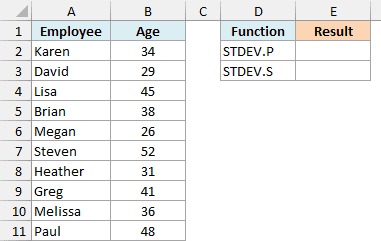
Here is the STDEV.P formula:
=STDEV.P(B2:B11)
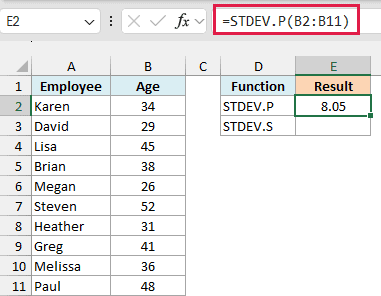
This returns 8.05.
And here is the STDEV.S formula on the same ages:
=STDEV.S(B2:B11)
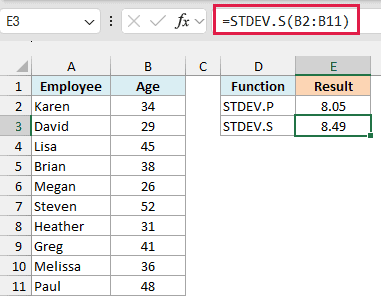
This returns 8.49, a little higher than STDEV.P.
The difference comes from one step in the math. STDEV.P divides by the number of values (10 here), while STDEV.S divides by one less (9), which makes its result slightly bigger.
Which one is right depends on what your data covers. These 10 people are the whole team, so if you only want to describe this team, STDEV.P is correct.
But say you picked these 10 people at random from a company of 2,000 and wanted to estimate the age spread across the whole company. Then your data is a sample, and STDEV.S is the right choice.
The gap between the two shrinks as your data grows. With 10 values, the difference is noticeable, but with thousands of values, both functions return almost the same number.
Example 4: How STDEV.P Calculates the Standard Deviation
If you’ve ever wondered what STDEV.P actually does with your numbers, this example walks through the math one step at a time.
Below is the number of books each of 8 friends read this year, and I want to work out the standard deviation by hand, with the squared deviations in column C and the results in column F.
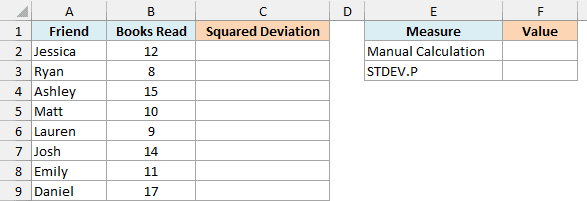
First, here is the formula for the squared deviations, entered in C2:
=(B2:B9-AVERAGE(B2:B9))^2
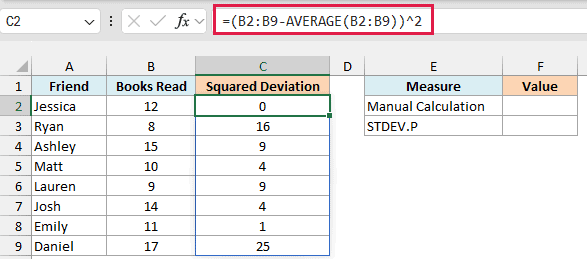
This subtracts the average (12 books) from each friend’s number and squares the result. The formula spills down to C9 on its own, so Ryan’s 8 books becomes (8-12)^2 = 16.
Spilling formulas work in Excel 2021, Excel 2024, and Microsoft 365. If you are using Excel 2019 or earlier, enter the below formula in cell C2 and then copy it down to C9:
=(B2-AVERAGE($B$2:$B$9))^2
Next, here is the formula that turns those squared deviations into the standard deviation:
=SQRT(AVERAGE(C2:C9))
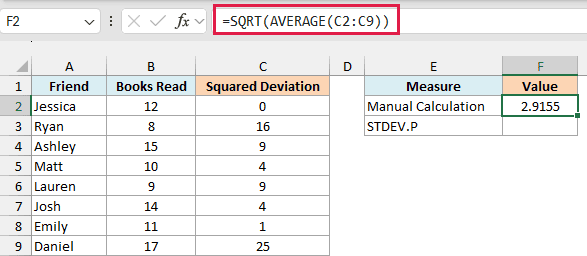
The average of the squared deviations is 8.5 (that’s the population variance, the same number the VAR.P function returns). Taking its square root gives 2.9155.
Finally, here is the STDEV.P formula on the original numbers:
=STDEV.P(B2:B9)
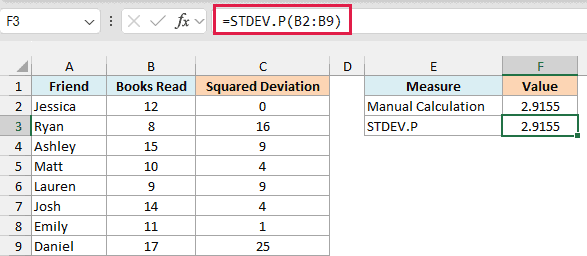
It returns the same 2.9155, so you can see STDEV.P does exactly these steps in one go.
STDEV.P gets there by dividing the total of the squared deviations (68) by the number of values (8). STDEV.S would divide by 7 instead, just like you saw in Example 3.
Example 5: How STDEV.P Handles Text and Blank Cells
Real data is rarely perfectly clean, so let’s see what STDEV.P does when a range has text and empty cells in it.
This is a 10-day sales log for a lemonade stand, where two rainy days say Closed and one day (7/6/2026) was left blank. I want the standard deviation of cups sold in column E.
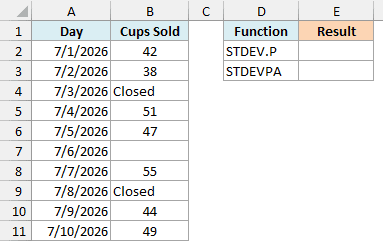
Here is the STDEV.P formula:
=STDEV.P(B2:B11)
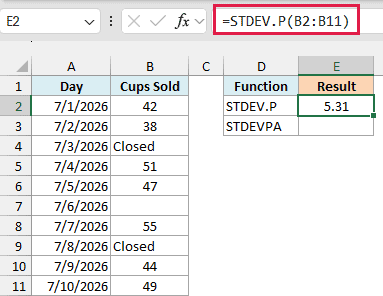
This returns 5.31. STDEV.P uses only the 7 days with numbers and quietly skips the two Closed cells and the blank one.
Now compare that with STDEVPA, a related function that treats text differently:
=STDEVPA(B2:B11)
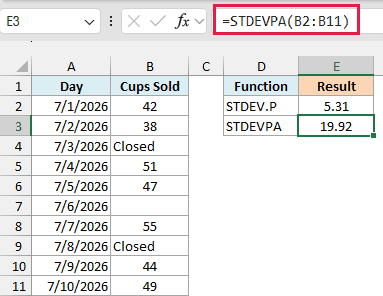
This returns 19.92, almost four times as much. STDEVPA counts each Closed cell as 0, so the two rainy days look like days with zero sales, while the blank cell is still skipped.
Which result is right depends on what the text means. The stand wasn’t open on those days, so they shouldn’t count as zero-sale days, and STDEV.P gives the honest answer here.
Important: If a day really had zero sales, type 0 in that cell. A blank cell or a text note gets left out of the calculation, which gives you the wrong spread.
Example 6: STDEV.P With a Condition (Using FILTER)
Sometimes you only want the standard deviation for part of your data.
Below is a list of hotels with their city and nightly rate, and I want the standard deviation of the rates for the city in cell F2 (Denver), with the result in F3.
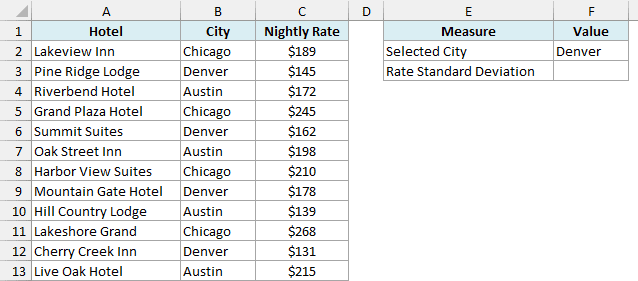
Here is the formula:
=STDEV.P(FILTER(C2:C13,B2:B13=F2))
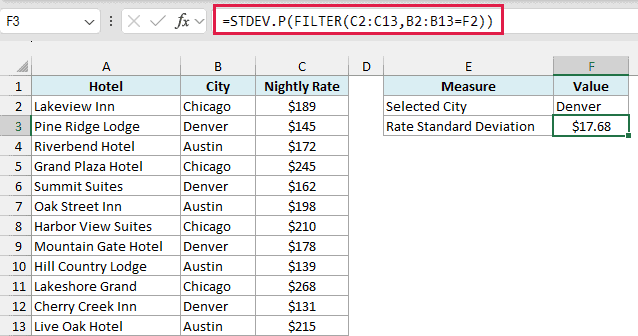
This returns $17.68 for the four Denver hotels.
How this formula works:
- B2:B13=F2 checks each hotel’s city against Denver and returns TRUE or FALSE for each row.
- FILTER(C2:C13,B2:B13=F2) keeps only the rates where that check is TRUE, which gives the four Denver rates (145, 162, 178, and 131).
- STDEV.P then calculates the standard deviation of just those four rates.
Since the city sits in F2, you can change it to Chicago and the result updates to $30.55 without touching the formula.
If the city in F2 doesn’t match any hotel (a typo, for example), FILTER has nothing to return and the formula shows a #CALC! error. Double-check the spelling in F2 if you see it.
The FILTER function works in Excel for Microsoft 365, Excel 2024, and Excel 2021. If you are using Excel 2019 or earlier, enter the below formula in cell F3 and press Control + Shift + Enter:
=STDEV.P(IF(B2:B13=F2,C2:C13))
Example 7: Standard Deviation by Group Using GROUPBY
Let’s step it up and get the standard deviation for every category at once.
The data below is a log of 12 trips to work, with the mode of transport and the minutes each trip took. I want the standard deviation of the minutes for each mode in columns E and F.
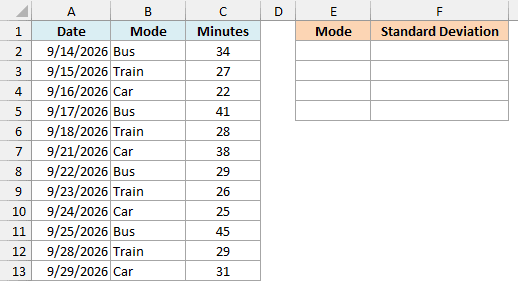
Here is the formula:
=GROUPBY(B2:B13,C2:C13,STDEV.P)
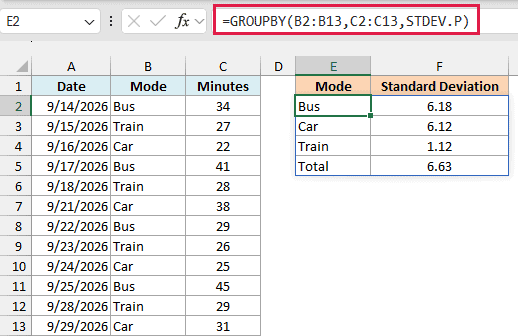
This one formula spills a small summary table with Bus 6.18, Car 6.12, and Train 1.12, plus a Total row at the bottom.
The GROUPBY function adds that Total row by default. Here, the Total of 6.63 is not a sum, it’s the standard deviation of all 12 trips taken together.
Pro Tip: If you don’t want the Total row, set the fifth argument of GROUPBY (total_depth) to 0. The formula then returns only the three modes.
How this formula works:
- B2:B13 is the column to group by, so GROUPBY makes one row for each mode (sorted A to Z).
- C2:C13 holds the minutes that get summarized for each mode.
- STDEV.P is the calculation to run on each group. You type only its name, without parentheses, and GROUPBY applies it to each mode’s minutes.
The results make the difference clear. The train takes almost the same time every day, while the bus and car both have a standard deviation of about 6 minutes, so the train is the most predictable way to get to work.
GROUPBY is only available in Excel for Microsoft 365. If you have Excel 2021 or 2024, you can use the FILTER formula from Example 6 once for each mode instead.
So these are the ways you can use the STDEV.P function in Excel. Just remember to use it when your data is the whole group, and switch to STDEV.S when it’s a sample.
I hope you found this article helpful.
Other Excel Articles You May Also Like:
