

The CHOOSEROWS function pulls specific rows out of a range of data. You give it the data and the positions of the rows you want (say the 1st, 3rd, and 5th), and it returns those full rows in the order you asked for.
You can count from the top or from the bottom, so getting the latest few entries of a list is as easy as getting the first few.
The row positions can come from cells or other formulas, so your picks can change without you touching the formula.
Below, I’ll start with simple row picks and then move on to a few formulas where CHOOSEROWS works with SEQUENCE, FILTER, and XMATCH.
Follow along with the example file
CHOOSEROWS Function Examples.xlsx
CHOOSEROWS Function Syntax
Here is the syntax of the CHOOSEROWS function:
=CHOOSEROWS(array, row_num1, [row_num2], ...)
- array – The range or array you want to get rows from. This can be a cell range or the result of another formula.
- row_num1 – The position of the first row you want to return.
- [row_num2], … – (Optional) The positions of any more rows you want.
The row numbers count from the first row of the array, not from row 1 of the sheet. So if your array is A2:D8, row 1 is the data in sheet row 2.
The rows come back in the order you list the numbers. You can also use the same number twice if you want a row to show up twice.
A negative number counts from the bottom of the array, so -1 is the last row and -2 is the one above it.
If a row number is 0 or points past the array (like 8 or -8 on a seven-row range), CHOOSEROWS returns a #VALUE! error.
Instead of typing each row number as a separate argument, you can also give all of them at once. That can be an array constant like {1,3,5}, a range of cells that holds the numbers, or a formula that returns them.
The CHOOSEROWS function is available in Excel for Microsoft 365 and Excel 2024, on Windows and Mac, and in Excel for the web. It isn’t available in Excel 2021, 2019, or 2016, where the formula returns a #NAME? error.
When to Use the CHOOSEROWS Function
Use this function when you need to:
- Pick a few rows from a longer list by their position
- Get the last few entries of a list, with the newest one on top
- Return every second, third, or nth row of your data
- Flip a list so the last row comes first
- Get the first and the last record that matches a condition
- Return the full details for a list of names, in the order you typed them
Let me show you some practical examples of how to use the CHOOSEROWS function in Excel.
Example 1: Extract Specific Rows with CHOOSEROWS
Let’s start with a simple example.
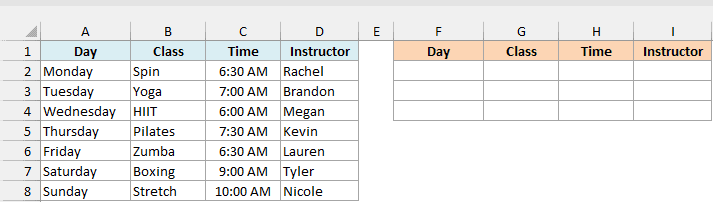
Below is a gym’s weekly class schedule, and I want only the Monday, Wednesday, and Friday classes in column F.
Here is the formula:
=CHOOSEROWS(A2:D8,1,3,5)
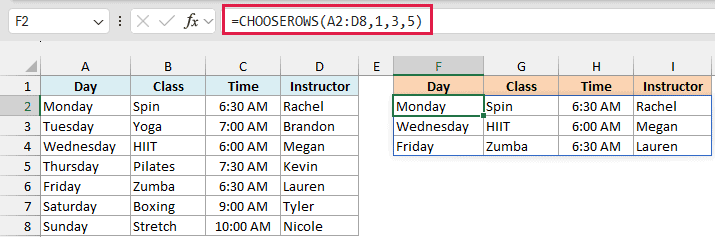
The schedule in A2:D8 has seven rows, one for each day. Row numbers 1, 3, and 5 point to Monday, Wednesday, and Friday, so CHOOSEROWS returns those three rows with all four columns.
You enter the formula only in cell F2, and the result spills into F2:I4. If any of those cells already has something in it, you get a #SPILL! error until you clear them.
I typed the headers in F1:I1 myself. If you’d rather have CHOOSEROWS bring the header row along, clear F1:I1 and enter =CHOOSEROWS(A1:D8,1,2,4,6) in cell F1 (the array now starts at row 1, so each position goes up by 1).
If you’re using Excel 2021, which doesn’t have CHOOSEROWS, enter the below formula in cell F2 to get the same three rows:
=INDEX(A2:D8,{1;3;5},{1,2,3,4})
Example 2: Get the Last Rows Using Negative Row Numbers
This one is handy when the newest entries sit at the bottom of your list.
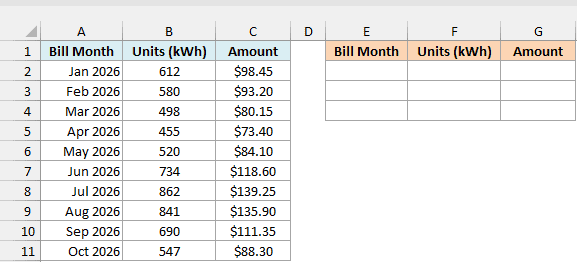
Below is a list of monthly electricity bills, and I want the last three months, with the latest month on top, in column E.
Here is the formula:
=CHOOSEROWS(A2:C11,-1,-2,-3)
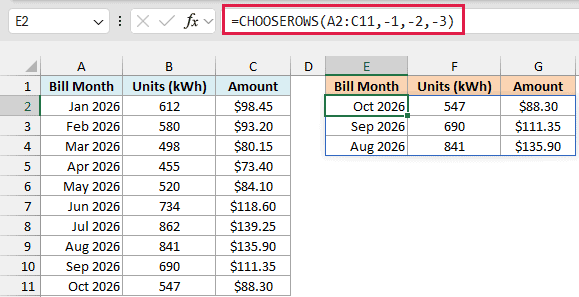
Here, -1 is the last row of A2:C11 (Oct 2026), -2 is the row above it, and -3 is the one above that. Since I listed them as -1, -2, -3, the result starts with October and goes back to August.
The good thing about negative numbers is that they always point to the bottom of the range. So when you add November’s bill and extend the range to A2:C12, the same formula returns November, October, and September.
If you want these three months in their original order (August to October), list the numbers as -3, -2, -1 instead. You could also use the TAKE function for that, with =TAKE(A2:C11,-3).
Example 3: Pick Rows Using Row Numbers in Cells
Here’s another practical scenario.
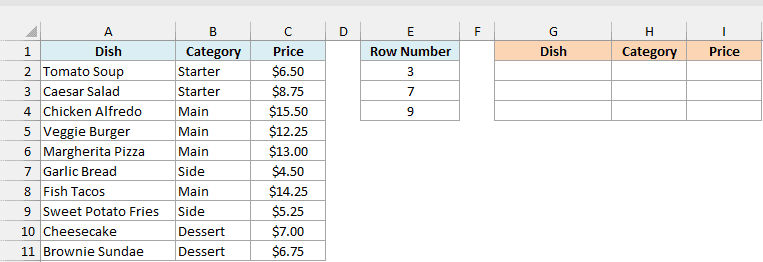
Below is a restaurant menu, and I want to show today’s three specials in column G, based on the row numbers I’ve typed in E2:E4.
Here is the formula:
=CHOOSEROWS(A2:C11,E2:E4)
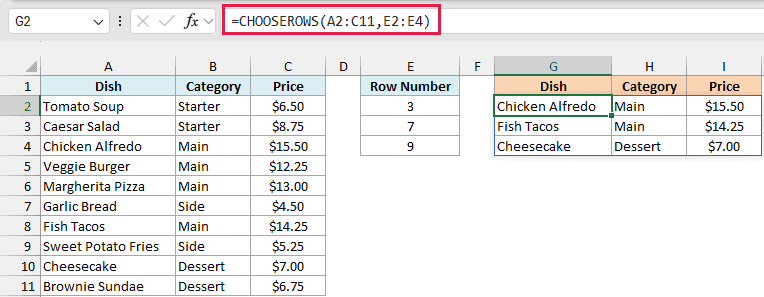
Instead of typing the row numbers inside the formula, this one reads them from E2:E4. The numbers 3, 7, and 9 point to the third, seventh, and ninth dishes on the menu, which are Chicken Alfredo, Fish Tacos, and Cheesecake.
To change the specials, you only change the numbers. Type 1 in cell E2, for example, and the first special becomes Tomato Soup, without any change to the formula.
Important: Every cell in E2:E4 needs a valid row number. If one of them is empty, or has a 0 or a number bigger than 10 (the number of dishes), the whole formula returns a #VALUE! error, not just that one row.
Example 4: Return Every Nth Row with CHOOSEROWS and SEQUENCE
Now let’s look at something a bit more interesting.
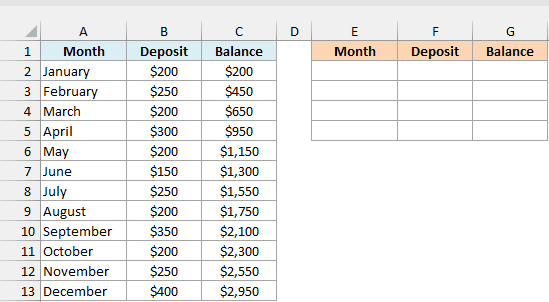
Below is a monthly savings log with each month’s deposit and the running balance, and I want just the quarter-end months (March, June, September, and December) in column E.
Here is the formula:
=CHOOSEROWS(A2:C13,SEQUENCE(4,1,3,3))
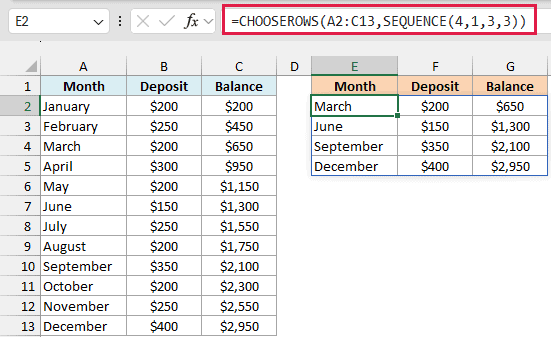
The SEQUENCE function creates the row numbers for you. SEQUENCE(4,1,3,3) makes a list of 4 numbers in 1 column, starting at 3 and going up by 3, which gives {3;6;9;12}.
CHOOSEROWS then returns rows 3, 6, 9, and 12 of the savings log, which are March, June, September, and December, along with their deposits and balances.
To get a different pattern, change the numbers in SEQUENCE. For example, SEQUENCE(6,1,2,2) gives {2;4;6;8;10;12}, so the formula would return every second month starting from February.
Example 5: Reverse the Order of Rows in Excel
Let’s step it up with a formula that flips a whole list.
Below is a playlist of ten songs, and I want the same playlist in reverse order (last song first) in column E.
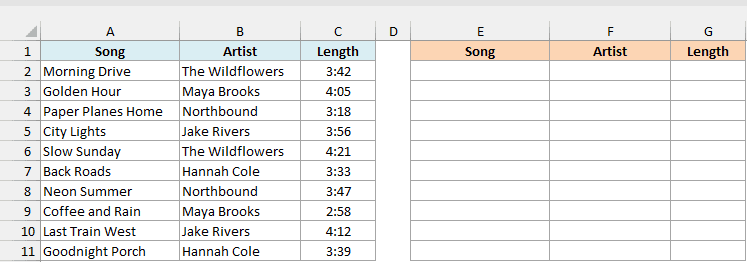
Here is the formula:
=CHOOSEROWS(A2:C11,-SEQUENCE(ROWS(A2:C11)))
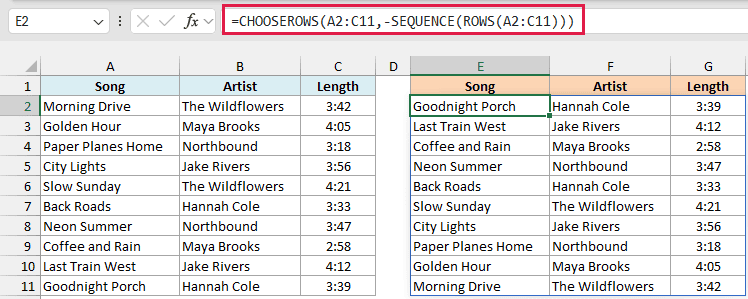
How this formula works:
ROWS(A2:C11)counts the rows in the playlist, which is 10.SEQUENCE(10)gives the numbers 1 to 10, and the minus sign in front turns them into -1 to -10.- CHOOSEROWS reads -1 as the last song, -2 as the second-last song, and so on. So the whole playlist comes back flipped, with Goodnight Porch on top and Morning Drive at the bottom.
Since the ROWS function counts the rows for you, this formula works on a list of any length. Just change A2:C11 to your own range (in both places).
Example 6: Get the First and Last Match with CHOOSEROWS and FILTER
This next one combines CHOOSEROWS with the FILTER function.
Below is a log of orders from an online pet store, and I want the first and the latest order placed by the customer in cell F2 (Sarah), in column H.
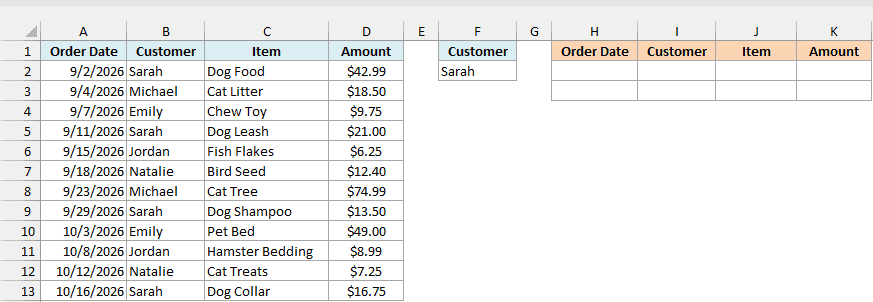
Here is the formula:
=CHOOSEROWS(FILTER(A2:D13,B2:B13=F2),1,-1)
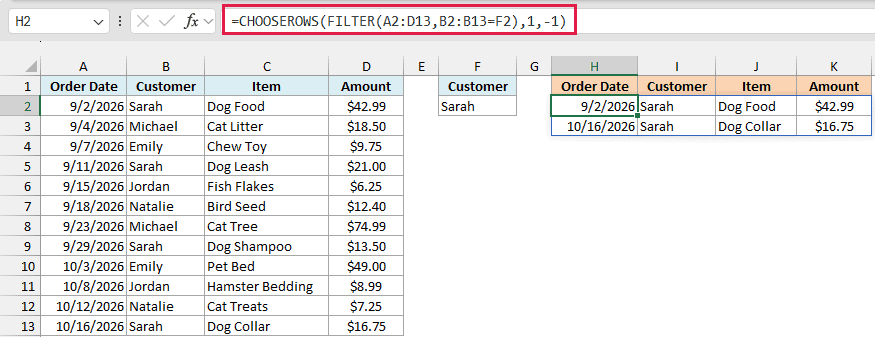
How this formula works:
FILTER(A2:D13,B2:B13=F2)returns only Sarah’s orders, which are the four rows where the Customer column matches the name in F2.CHOOSEROWS(...,1,-1)takes the first row and the last row of that filtered result.
So the first row of the result (H2:K2) is Sarah’s earliest order, Dog Food on 9/2/2026. The second row (H3:K3) is her latest order, Dog Collar on 10/16/2026.
This works because the orders are listed by date, from oldest to newest. If your data isn’t sorted by date, sort it first, or the first and last rows won’t be the earliest and latest orders.
Change the name in F2 and the result updates for that customer. If a customer has only one order, you’ll see it twice, because the first and last row are the same row.
And if you type a name with no orders at all, you get a #CALC! error, because FILTER has nothing to return.
Example 7: Get Rows for a List of Names with XMATCH
This last one works like a lookup that returns several columns for several names at once.
Below is an office phone directory, and I want the Department, Extension, and Email for the three names I’ve typed in F2:F4, in column G.
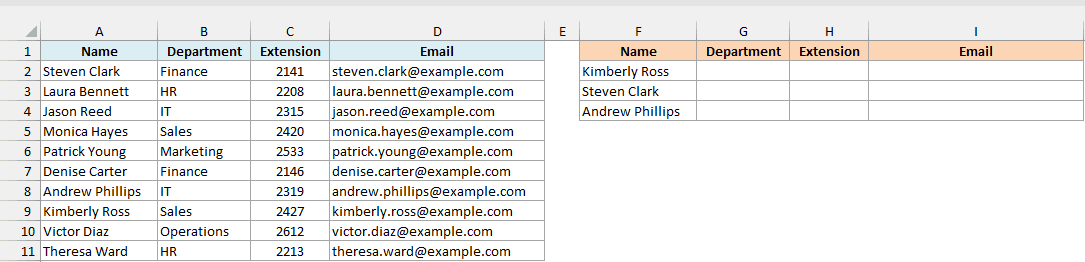
Here is the formula:
=CHOOSEROWS(B2:D11,XMATCH(F2:F4,A2:A11))
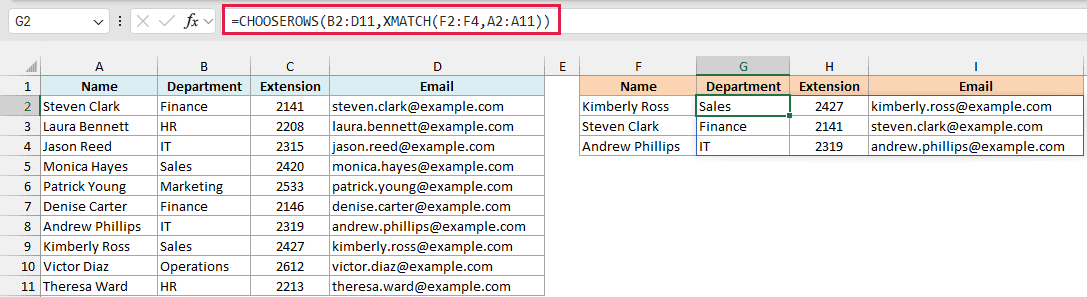
The XMATCH function looks for each name from F2:F4 in the names in A2:A11 and returns its position. For Kimberly Ross, Steven Clark, and Andrew Phillips, that’s {8;1;7}.
CHOOSEROWS then returns those rows from B2:D11. Since this array starts at column B, you get only the Department, Extension, and Email, and the result follows the order of the names you typed.
You might expect =XLOOKUP(F2:F4,A2:A11,B2:D11) to do the same job. But when you give XLOOKUP several lookup values, it returns only the first column (the Department) for each name.
Important: The names in F2:F4 must match the directory exactly. If even one name isn’t found, XMATCH returns #N/A for it, and the whole result shows #N/A instead of just that row.
So these are some practical ways to use the CHOOSEROWS function in Excel.
Use it on its own to pick rows by position, and pair it with SEQUENCE, FILTER, or XMATCH when the row numbers have to come from a number pattern, a filtered list, or a list of names.
Other Excel Articles You May Also Like:
