

The RADIANS function converts an angle from degrees to radians. You give it 90, and it gives you back 1.5708 (which is π/2).
That matters more than it sounds, because Excel’s SIN, COS, and TAN functions expect angles in radians. In this article, I’ll show you how to use RADIANS on its own, inside trig formulas, and in a couple of real-world calculations.
Follow along with the example file
RADIANS Function Examples.xlsx
RADIANS Function Syntax
Here is the syntax of the RADIANS function:
=RADIANS(angle)
- angle – the angle in degrees that you want to convert. It can be a number, a cell reference, or a range of cells.
A negative angle converts to a negative result, so =RADIANS(-90) returns -1.5708. Angles bigger than 360 aren’t wrapped around, so 720 degrees becomes 12.5664 (two full turns).
If the angle cell is empty, RADIANS treats it as 0 and returns 0, not an error. So a blank row in your data quietly shows 0 instead of warning you.
The RADIANS function works in all Excel versions, including Microsoft 365, Excel 2024, 2021, 2019, 2016, Excel for Mac, and Excel for the web.
When to Use the RADIANS Function
Use this function when you need to:
- Convert a list of angles from degrees to radians
- Use an angle in degrees with SIN, COS, TAN, or any other trig function
- Work out the length of a curve from its radius and angle
- Calculate distances from latitude and longitude values
Let me show you a few practical examples of how to use the RADIANS function.
Example 1: Convert Degrees to Radians in Excel
Let’s start with the basic conversion.
Below is a list of snowboard spin tricks with how far each one rotates in degrees, and I want to convert each spin to radians in column C.
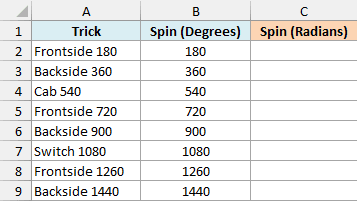
Here is the formula:
=RADIANS(B2:B9)
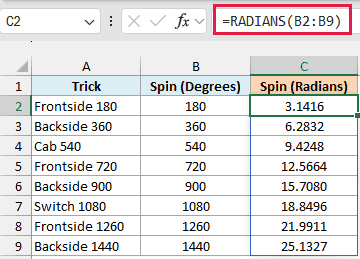
Since I gave RADIANS the whole range B2:B9, it returns one result for each row, and the results spill down into C2:C9 on their own.
If any cell in C2:C9 already has something in it, the formula can’t spill and shows a #SPILL! error. Clear those cells and the results appear.
A 180 spin comes out as 3.1416, which is π, and a 360 spin is 6.2832, which is 2π. That’s because RADIANS just multiplies the degrees by π/180.
So =B2:B9*PI()/180, which uses the PI function, would give you the exact same numbers. RADIANS is simply easier to read.
If you are using Excel 2019 or earlier, enter the below formula in cell C2 and then copy it down the range:
=RADIANS(B2)
Example 2: Use SIN With Angles in Degrees
Now let’s put RADIANS inside a trig function.
Below is a list of ladder jobs with the ladder length and the angle it makes with the ground, and I want to find how high up the wall each ladder reaches in column D.
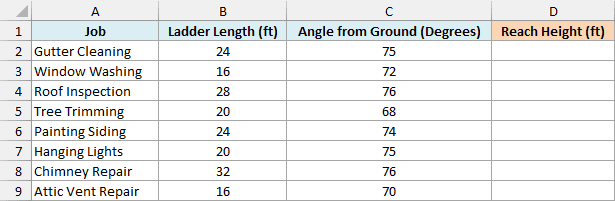
Here is the formula:
=B2:B9*SIN(RADIANS(C2:C9))
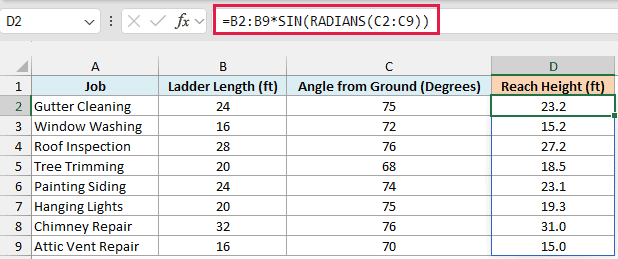
The ladder, the wall, and the ground make a right triangle. SIN of the ground angle gives the height as a fraction of the ladder’s length, so multiplying it by the length gives the height in feet.
For example, the 24-foot ladder at 75 degrees for gutter cleaning reaches 23.2 feet up the wall.
RADIANS sits inside SIN because SIN expects the angle in radians, not degrees.
Important: If you skip RADIANS and use =B2:B9*SIN(C2:C9), Excel reads 75 as 75 radians, and the 24-foot ladder “reaches” -9.3 feet. COS and TAN work the same way, so always wrap an angle in degrees in RADIANS first.
The ladder heights aren’t affected, but you may notice a tiny leftover whenever RADIANS sits inside a trig function and you expect an exact answer. For example, =COS(RADIANS(90)) returns 6.12574E-17 instead of 0, because π can’t be stored exactly.
If you need a clean 0, for example to check whether a result equals 0, wrap it in the ROUND function, as in =ROUND(COS(RADIANS(90)),10).
Example 3: Convert Angles That Have a Degree Symbol
Here’s a problem you’ll hit with data copied from a website or a report.
Below is a list of solar panel tilt angles for different cities, typed with a degree symbol, and I want to convert each angle to radians in column C.
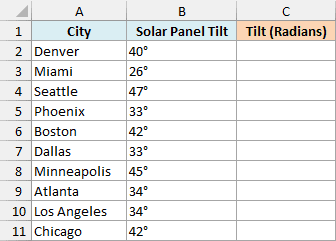
If you try =RADIANS(B2:B11) here, every cell shows a #VALUE! error. A value like 40° is text, and RADIANS can’t read the degree symbol as part of a number.
So we need to remove the symbol first. Here is the formula:
=RADIANS(SUBSTITUTE(B2:B11,"°",""))
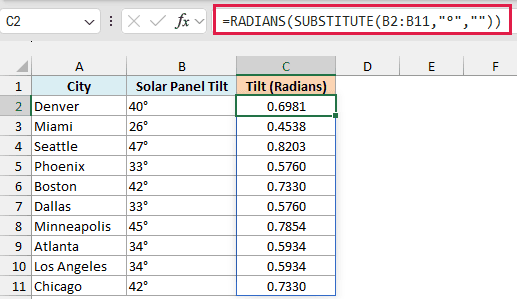
SUBSTITUTE replaces the ° sign with nothing, so 40° becomes 40. That’s still text, but RADIANS turns a number stored as text into a real number on its own, so Denver’s 40 degrees comes out as 0.6981.
This also works if some angles in the column were typed without the symbol, because SUBSTITUTE simply leaves those values unchanged.
Pro Tip: To type the ° sign inside the formula, hold the Alt key and type 0176 on the numeric keypad (Option + Shift + 8 on a Mac), or copy it from any cell in column B. Here are more ways to insert the degree symbol in Excel.
Example 4: Find the Length of a Curve (Arc Length)
RADIANS is also handy outside trig functions, for example when you need the length of a curve.
Below is a list of curved flower beds with the radius of each curve and how much of a circle it covers, and I want to work out how many feet of edging each bed needs in column D.
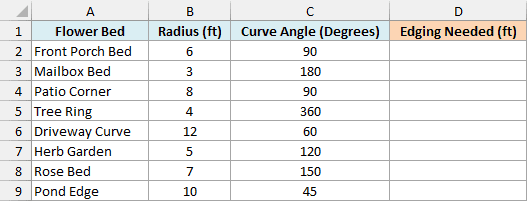
Here is the formula:
=B2:B9*RADIANS(C2:C9)
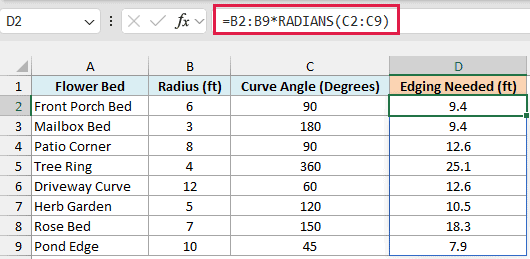
The length of a curve is its radius multiplied by its angle in radians. This works because one radian is defined as the angle at which the curve is exactly as long as the radius.
You can check the result with the Tree Ring row. A full 360-degree circle with a 4-foot radius needs 25.1 feet of edging, which matches the circumference formula 2 × π × 4.
Example 5: Distance Between Two Cities Using Latitude and Longitude
Let’s step it up with a real-world calculation.
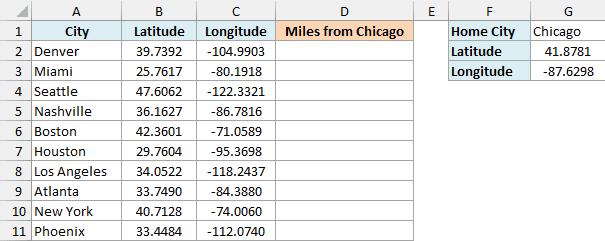
Below is a list of US cities with their latitude and longitude, and I want the distance from Chicago to each city in column D. Chicago’s latitude and longitude are in G2 and G3.
Here is the formula:
=LET(homeLat,RADIANS(G2),homeLon,RADIANS(G3),cityLat,RADIANS(B2:B11),cityLon,RADIANS(C2:C11),a,SIN((cityLat-homeLat)/2)^2+COS(homeLat)*COS(cityLat)*SIN((cityLon-homeLon)/2)^2,2*3959*ASIN(SQRT(a)))
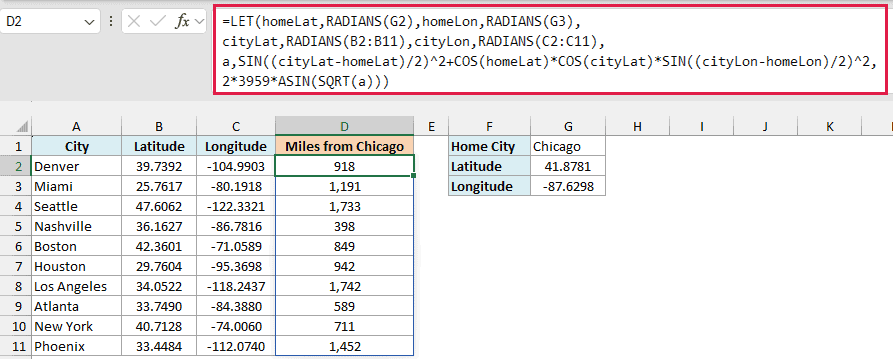
This is the haversine formula, the standard way to get the distance between two points on a globe. It needs every latitude and longitude in radians, which is why RADIANS shows up four times.
The LET function gives each piece a name, so the formula is easier to read.
How this formula works:
- homeLat and homeLon convert Chicago’s latitude (G2) and longitude (G3) to radians.
- cityLat and cityLon do the same for every city in B2:B11 and C2:C11.
- a combines the differences in latitude and longitude, adjusted for the curve of the Earth.
- 2\*3959\*ASIN(SQRT(a)) turns that into miles. 3959 is the Earth’s radius in miles, so use 6371 instead if you want kilometers.
The results spill down the column, and Chicago to New York comes out as 711 miles.
Keep in mind this is the straight-line distance (as the crow flies), so driving distances will be longer.
If you are using Excel 2019 or earlier, which doesn’t have the LET function, enter the below formula in cell D2 and then copy it down the range:
=2*3959*ASIN(SQRT(SIN((RADIANS(B2)-RADIANS($G$2))/2)^2+COS(RADIANS($G$2))*COS(RADIANS(B2))*SIN((RADIANS(C2)-RADIANS($G$3))/2)^2))
So these are five practical ways to use the RADIANS function in Excel. And when you need to go the other way, the DEGREES function converts radians back to degrees.
I hope you found this Excel tutorial useful.
Other Excel Articles You May Also Like:
