

The T function in Excel checks a value and gives it back only if it’s text. Most other values (a number, a date, TRUE or FALSE, or an empty cell) come back as an empty text string, so the cell looks blank.
You won’t need T every day. But it helps when a formula shows 0 for an empty cell, or when you want only the text from cells that mix text and numbers.
T also has one quirk worth knowing upfront. Point it at a range like C2:C11 and it checks the first cell only, instead of returning a result for every cell, but there’s an easy fix that I cover in Example 2.
Follow along with the example file
T Function Examples.xlsx
T Function Syntax
Here is the syntax of the T function:
=T(value)
- value – the value you want to check. It can be a cell reference, text in double quotes, a number, or the result of another formula.
When the value is text, T returns it exactly as it is, including any extra spaces at the start or end. T doesn’t trim or clean anything, because its only job is to decide whether the value is text.
The T function works in all Excel versions, including Microsoft 365, 2024, 2021, 2019, 2016, and Excel for Mac.
When to Use the T Function
Use this function when you need to:
- Show a text column (like notes or comments) somewhere else without getting 0 for the empty cells.
- Pick out only the text from cells that mix text and numbers, such as a timesheet with hours and absence reasons.
- Get a blank instead of 0 when a lookup formula lands on an empty cell.
- Leave a hidden note inside a formula that returns text.
Let me show you a few practical examples of how to use the T function.
Example 1: What the T Function Returns for Different Values
Let’s start with a simple example.
Below is a list of different kinds of values (text, a number, a date, TRUE and FALSE, a blank cell, an error, and a few more), and I want to see what T returns for each one in column C.
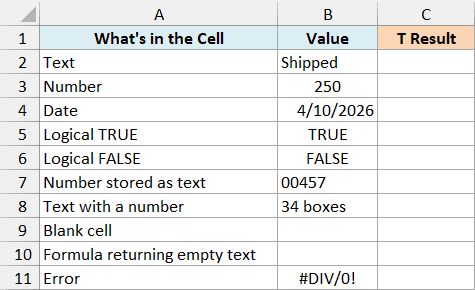
Here is the formula to enter in cell C2 and then copy down to C11:
=T(B2)
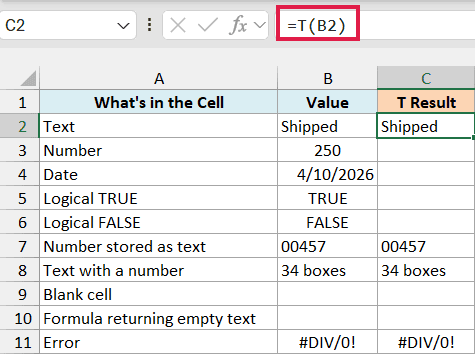
Here is what T did with each value:
- Shipped comes back as Shipped, because it’s text.
- The number 250, the date 4/10/2026, TRUE, and FALSE all return an empty string. None of them is text, so those cells in column C look blank.
- 00457 comes back as 00457. It looks like a number, but it was entered as text (that’s why it sits on the left side of the cell).
- 34 boxes comes back as it is. A number mixed with letters is still text.
- The blank cell in B9 and the formula that returns empty text in B10 both give an empty string.
- The #DIV/0! error in B11 comes back as #DIV/0!, because T passes errors through instead of hiding them.
Important: T checks how a value is stored, not how it looks. A number stored as text (like 00457) passes through T, so if your numbers came in as text, convert them to real numbers before you rely on T to drop them.
Example 2: Show a Comments Column Without the Zeros
Here’s a practical scenario where T makes things cleaner.
Below is a list of students with their scores and teacher comments, and I want to show the comments in column D, with a blank (not a 0) for students who didn’t get one.
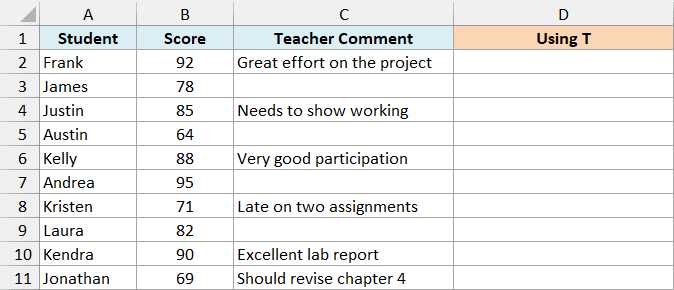
If you point a formula straight at C2:C11, Excel shows 0 for every student without a comment. T fixes that.
Here is the formula to enter in cell D2 (the results spill down to D11 on their own):
=T(+C2:C11)
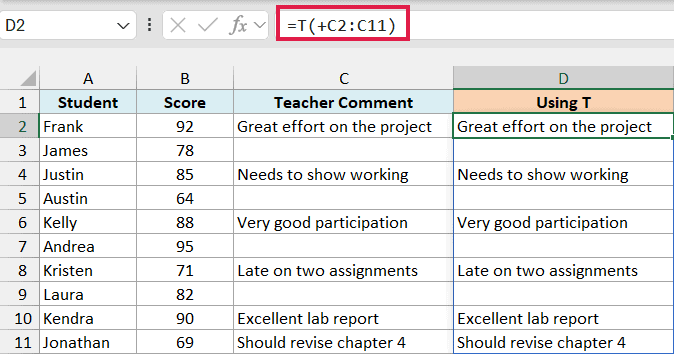
How this formula works:
- The plus sign in front of C2:C11 turns the range into a list of values. Without it, T would check only C2 and return just Frank’s comment.
- T then checks each value in that list. The comments are text, so they come back as they are.
- The four students without a comment get an empty string, so their cells look blank.
For comparison, this is what the plain reference to the same range returns in column E:
=C2:C11
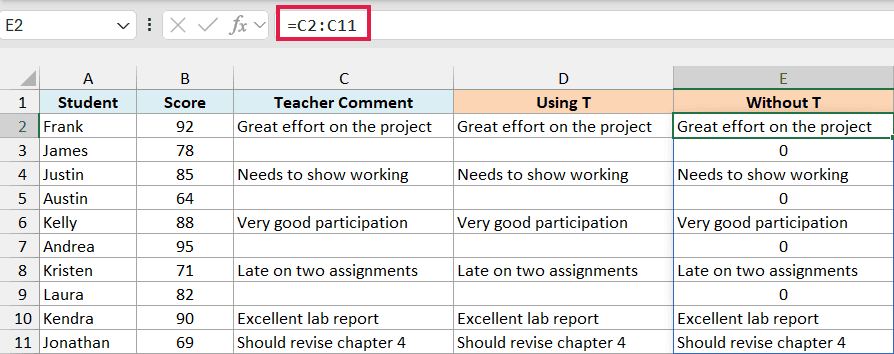
See the 0 next to James, Austin, Andrea, and Laura? Those are the empty comment cells, which show up blank in column D.
Important: T turns anything that isn’t text into a blank, numbers included. So use it only on columns that hold text (like these comments, or the gift messages in Example 4), because on a column of prices or quantities every value would disappear.
Spilling formulas need Excel for Microsoft 365 or Excel 2021 and later. If you are using Excel 2019 or earlier, enter the below formula in cell D2 and then copy it down to D11:
=T(C2)
Example 3: List Absence Reasons from a Timesheet
Now let’s use T to pick out only the text from cells that mix text and numbers.
Below is a weekly timesheet where each day shows either the hours worked or the reason someone was out, and I want to list each employee’s absence reasons in column G.
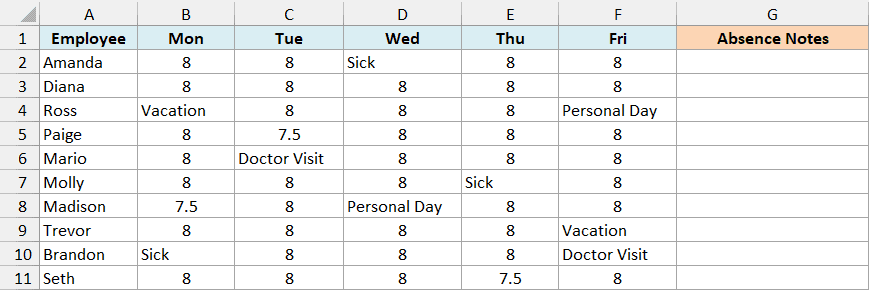
Here is the formula to enter in cell G2 and then copy down to G11:
=TEXTJOIN(", ",TRUE,T(+B2:F2))
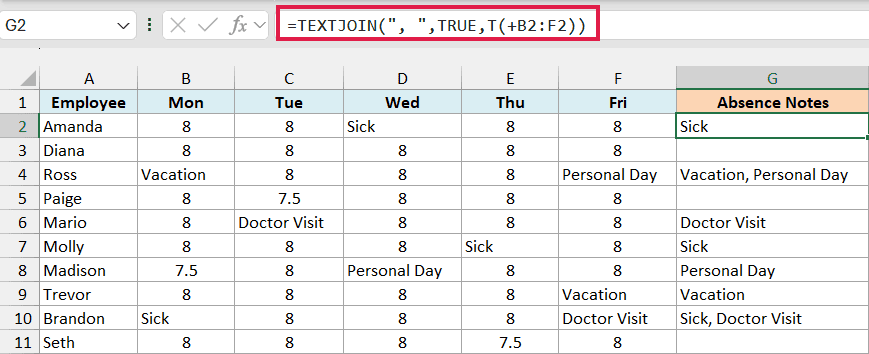
How this formula works:
- T(+B2:F2) checks all five days in the row (the plus sign makes it check every cell, just like in Example 2). The hours (like 8 and 7.5) become empty strings, while reasons like Sick or Vacation stay as they are.
- TEXTJOIN then joins whatever is left, with a comma and a space in between. Its second argument, TRUE, tells it to skip empty strings, so the hours don’t leave extra commas behind.
- Rows with no text at all, like Diana, Paige, and Seth, return an empty result.
So why not one spilling formula for the whole table, like in Example 2? TEXTJOIN combines everything it gets into one cell, so a single formula would merge all the employees into one result.
Important: TEXTJOIN works in Excel 2019 and later. In Excel 2019, confirm this formula with Ctrl + Shift + Enter instead of just Enter, because a regular Enter returns a #VALUE! error.
Example 4: Return a Blank Instead of 0 from XLOOKUP
Let’s step it up with a lookup formula.
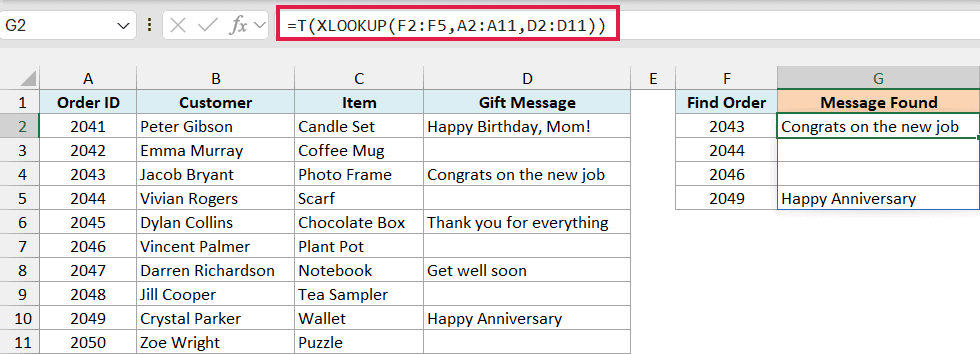
Below is a list of gift orders, some with a gift message and some without, and I want to look up the message for the order IDs in F2:F5 and show it in column G.
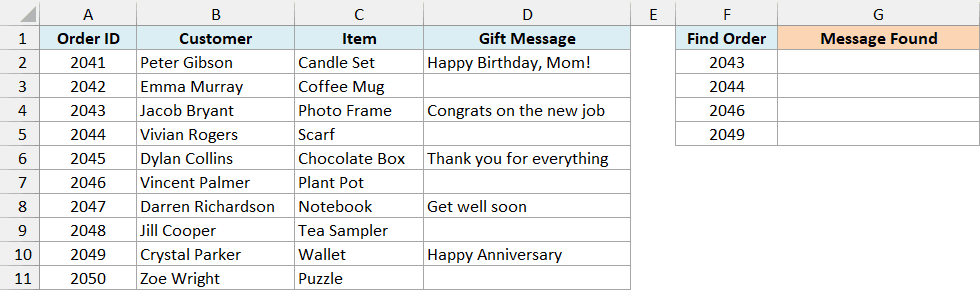
When XLOOKUP finds an order but its Gift Message cell is empty, it returns 0 instead of a blank. Wrapping it in T fixes that.
Here is the formula to enter in cell G2 (the results spill down to G5):
=T(XLOOKUP(F2:F5,A2:A11,D2:D11))
How this formula works:
- XLOOKUP looks up each order ID from F2:F5 in A2:A11 and returns the matching message from D2:D11. Since there are four IDs, it returns four results.
- Orders 2044 and 2046 have no gift message, so XLOOKUP returns 0 for them.
- T keeps the two messages, because they’re text, and turns both 0s into empty strings.
You don’t need the plus sign here. XLOOKUP already hands T a list of results, not a range.
You might think XLOOKUP’s own if_not_found argument would handle this, but it won’t remove the 0. The order is found, and only its message cell is empty.
XLOOKUP is available in Excel for Microsoft 365 and Excel 2021 and later. If you are using Excel 2019 or earlier, enter the below formula in cell G2 and then copy it down to G5:
=T(INDEX($D$2:$D$11,MATCH(F2,$A$2:$A$11,0)))
Example 5: Add a Hidden Note Inside a Text Formula
Here’s a handy trick that uses T together with the N function.
Below is a list of restaurant bookings with each guest’s name and party size, and I want a confirmation message for every guest in column C, with a note inside the formula about how the message gets sent.
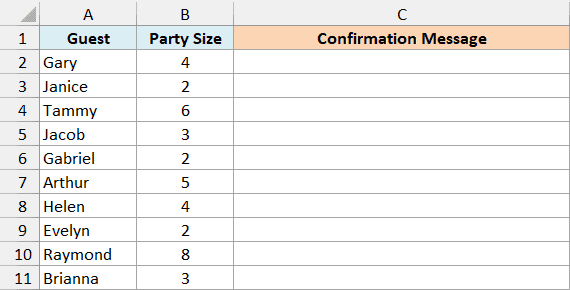
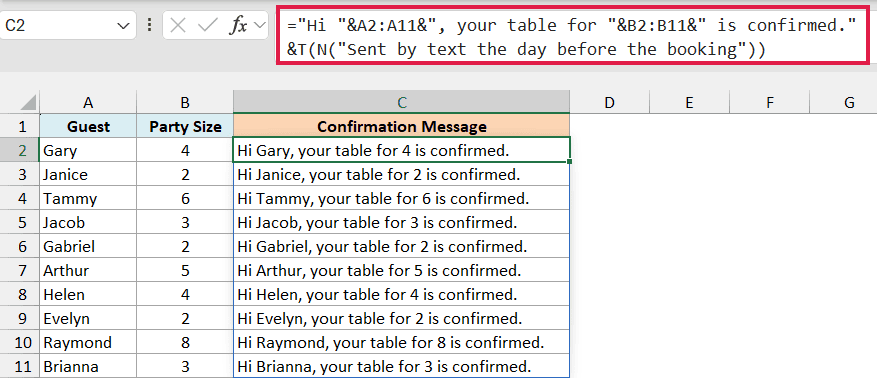
Here is the formula to enter in cell C2 (the results spill down to C11):
="Hi "&A2:A11&", your table for "&B2:B11&" is confirmed."&T(N("Sent by text the day before the booking"))
How this formula works:
- The first part builds each message by joining the text with the guest’s name and party size.
- N(“Sent by text the day before the booking”) returns 0, because the N function turns text into 0.
- T turns that 0 into an empty string, so joining it to the message adds nothing. The note stays in the formula, where anyone who clicks the cell can read it.
If you used N on its own, its 0 would get joined to the end, and every message would end with “confirmed.0”. N alone is fine only when a formula returns a number, because adding 0 to a number changes nothing.
This is a neat trick, but the note only shows up when someone looks at the formula. For notes that everyone should see, a regular cell note or comment works better.
If you are using Excel 2019 or earlier, enter the below formula in cell C2 and then copy it down to C11:
="Hi "&A2&", your table for "&B2&" is confirmed."&T(N("Sent by text the day before the booking"))
So these are a few practical ways to use the T function in Excel. It’s a small function, but it comes in handy whenever a formula shows 0 for an empty cell, or when you need only the text from mixed data.
Just remember to add the plus sign when you give T a range, so it checks every cell and not only the first one. I hope you found this article helpful.
Other Excel Articles You May Also Like:
