

The PERMUT function in Excel tells you how many ways you can pick a set number of items from a group and arrange them, when the order matters and the same item can’t be picked twice.
It’s the one to use whenever position counts, like who finishes first, second, and third, or which city comes first on a trip.
In this tutorial, I’ll show you how PERMUT works, how it differs from COMBIN and PERMUTATIONA, and how to list every arrangement it counts.
Follow along with the example file
PERMUT Function Examples.xlsx
PERMUT Function Syntax
Here is the syntax of the PERMUT function:
=PERMUT(number, number_chosen)
- number is the total number of items you can pick from.
- number_chosen is how many of those items you pick and arrange.
Both arguments are meant to be whole numbers. If you give PERMUT a decimal, it cuts off the decimal part instead of rounding, so =PERMUT(10.9,3.7) returns 720, the same as =PERMUT(10,3).
You can’t arrange more items than you have, so if number_chosen is bigger than number, PERMUT returns a #NUM! error. You get the same error when either argument is negative.
If number_chosen is 0, PERMUT returns 1, because there’s exactly one way to pick nothing. Excel reads an empty cell as 0, so an empty number_chosen cell also gives you 1, which can look like a real result.
A number stored as text, like “10”, still works. But text such as “ten” gives you a #VALUE! error.
The PERMUT function works in all Excel versions, including Excel 365, 2024, 2021, 2019, 2016, Mac, and the web. The formulas below that spill results need Excel 365, 2024, 2021, or the web.
When to Use the PERMUT Function
Use this function when you need to:
- Count the possible routes, running orders, or rankings when the order of the picks matters.
- See how quickly the number of arrangements grows as you pick more items.
- Work out the chance of guessing an exact finishing order.
- Count the games a league needs when every team hosts every other team.
Let me show you a few practical examples of how to use the PERMUT function.
Example 1: Calculate Permutations for Every Row at Once
Let’s start with a simple example.
Below is a road-trip planner with how many cities are on the shortlist for each trip and how many of them I’ll visit, and I want the number of possible routes for each trip in column D.
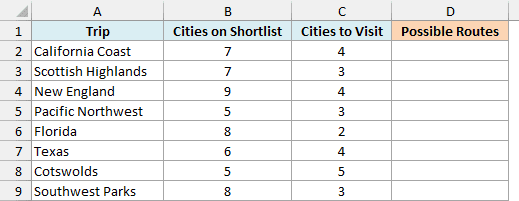
Here is the formula to enter in cell D2:
=PERMUT(B2:B9,C2:C9)
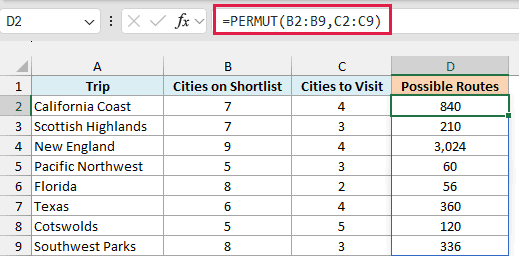
You only enter the formula in cell D2. Since both arguments are ranges, PERMUT works through the trips row by row, and the results spill down to D9.
Take the California Coast trip. There are 7 cities on the shortlist and I’ll visit 4 of them, so there are 840 different routes.
Order matters here. Starting in San Diego and ending in San Francisco is a different trip from doing the same stops the other way around, so PERMUT counts both.
Now look at the Cotswolds row, where I visit all 5 cities on the shortlist. Every route uses the same five towns, and only their order changes, which still gives 120 routes.
If any cell in D3:D9 already has something in it, you’ll get a #SPILL! error. Clear those cells, and the results show up.
If you are using Excel 2019 or earlier, enter the below formula in cell D2 and then copy it down to D9:
=PERMUT(B2,C2)
Example 2: See How Fast Permutations Grow
Here’s another practical scenario, where the group stays the same and the number of picks changes.
Below are playlist lengths from 1 to 12 songs, with 12 songs to choose from in cell E1, and I want the number of different playlists (song orders) for each length in column B.
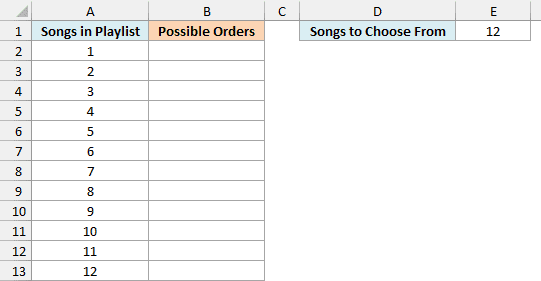
Here is the formula to enter in cell B2:
=PERMUT(E1,A2:A13)
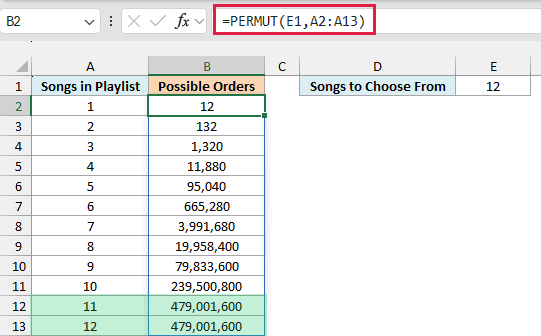
Here, number is the single cell E1, and number_chosen is the range A2:A13. So PERMUT works out one count for each playlist length.
A 3-song playlist already has 1,320 possible orders (12 x 11 x 10). Every extra song multiplies the count by the number of songs still left, which is why it reaches 479,001,600 so quickly.
Notice that the last two rows show the same number. Once 11 songs are picked and placed, only one song is left for the last spot, so adding it doesn’t create any new orders.
Picking all 12 songs gives the same result as =FACT(12). That’s because arranging every item in a group is the factorial of the group size, which is what the FACT function calculates.
If you are using Excel 2019 or earlier, enter the below formula in cell B2 and then copy it down to B13:
=PERMUT($E$1,A2)
The dollar signs keep the reference to E1 fixed while you copy the formula down.
Example 3: PERMUT vs COMBIN (Guessing the Top 3)
Now let’s use PERMUT to work out some odds, and see how it compares with COMBIN.
Below is a list of local contests with the number of contestants in each, and I want the chance of guessing the top 3 (the number in cell G1) in any order in column C, and in the exact order in column D.
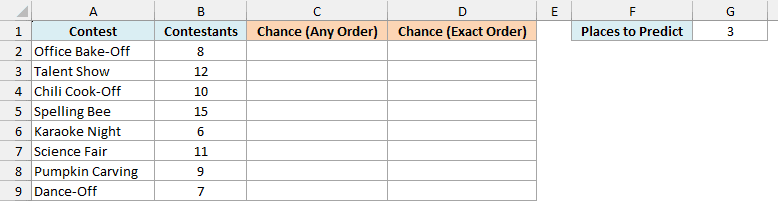
Here is the COMBIN formula to enter in cell C2:
=1/COMBIN(B2:B9,G1)
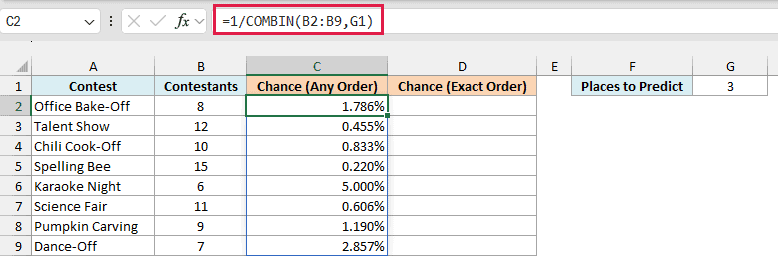
The COMBIN function counts the possible groups of 3 winners without caring who finishes where. The Office Bake-Off has 8 contestants, so there are 56 possible groups, and a random guess has a 1 in 56 chance (1.786%).
Now here is the PERMUT formula to enter in cell D2:
=1/PERMUT(B2:B9,G1)
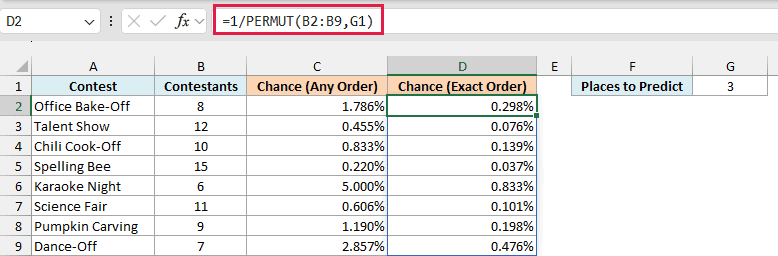
PERMUT treats first, second, and third place as different spots. So the same bake-off has 336 possible finishing orders, and guessing the exact one is a 1 in 336 chance (0.298%).
Every PERMUT count is 6 times the COMBIN count, because 3 winners can be lined up in 6 ways (3 x 2 x 1). That’s why the exact-order chance in each row is one-sixth of the any-order chance.
So here’s a simple way to decide. If swapping two picks gives you a different result, use PERMUT, and if it doesn’t, use COMBIN.
If you are using Excel 2019 or earlier, enter the below formula in cell C2 and then copy it down to C9:
=1/COMBIN(B2,$G$1)
And for the PERMUT column, enter the below formula in cell D2 and then copy it down to D9:
=1/PERMUT(B2,$G$1)
Example 4: PERMUT vs PERMUTATIONA (When Repeats Are Allowed)
PERMUT assumes an item can only be used once. Here’s what changes when it can be used again.
Below is a school raffle with 40 tickets in the draw and 3 ranked prizes, and I want the number of possible winner lists in cell B5 when a ticket can win only once, and in cell B6 when a ticket can win again.
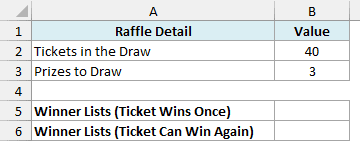
Here is the PERMUT formula to enter in cell B5:
=PERMUT(B2,B3)
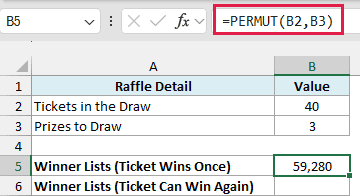
This returns 59,280. Once a ticket wins first prize, it’s out of the bowl, so second prize is drawn from 39 tickets and third prize from 38 (40 x 39 x 38).
Now here is the PERMUTATIONA formula to enter in cell B6:
=PERMUTATIONA(B2,B3)
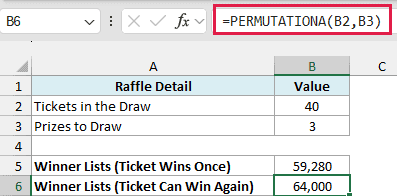
This returns 64,000. If every winning ticket goes back into the bowl, each prize is drawn from all 40 tickets (40 x 40 x 40), so the same ticket could win more than once.
The PERMUTATIONA function works in Excel 2013 and later. Use it when repeats are allowed, and stick with PERMUT when they aren’t.
Example 5: List Every Home-and-Away Fixture
Let’s finish with a league where every team plays every other team twice, once at its own home field and once away.
Below is a list of four teams in a youth soccer league with their home fields, and I want the number of fixtures needed in cell B7 and a list of every fixture in column D.
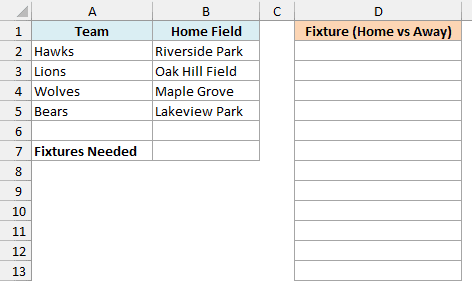
Here is the formula to enter in cell B7:
=PERMUT(COUNTA(A2:A5),2)
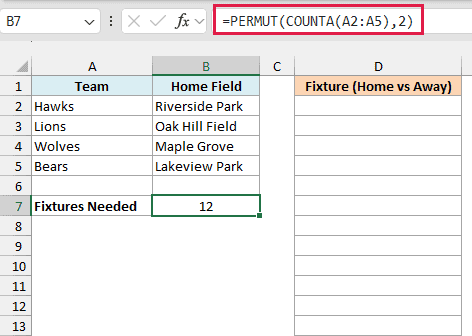
The COUNTA function counts the 4 teams, and PERMUT counts the ordered pairs of teams. Hawks vs Lions at Riverside Park is a different fixture from Lions vs Hawks at Oak Hill Field, so each pair counts twice, which gives 12 fixtures.
Now here is the formula to enter in cell D2 to list the fixtures:
=TOCOL(IF(A2:A5=TRANSPOSE(A2:A5),NA(),A2:A5&" vs "&TRANSPOSE(A2:A5)),2)
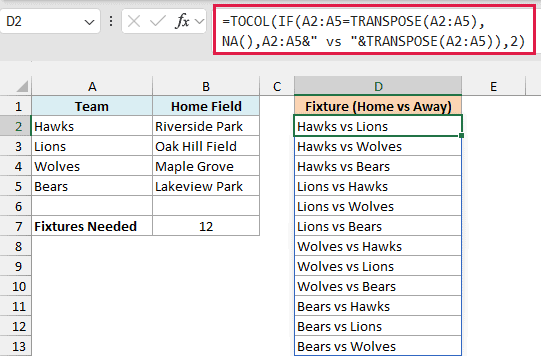
How this formula works:
TRANSPOSE(A2:A5)turns the team list into a row, so the IF function can pair every home team in the column with every away team in the row, in a 4 x 4 grid.- Where a team would play itself, IF returns the #N/A error from
NA(). Everywhere else, it joins the two names with ” vs ” in between, home team first. - The TOCOL function stacks that grid into a single column. Its second argument, 2, tells it to skip errors, so the 4 self-matches drop out and the 12 real fixtures spill down to D13.
The list has exactly as many rows as the PERMUT result in B7, which is a handy way to check that nothing is missing.
TOCOL needs Excel 365, Excel 2024, or the web, so this list formula doesn’t work in older versions. The PERMUT formula in B7 works in every version.
So these are a few ways you can use the PERMUT function in Excel. Whenever the order of the picks matters and nothing can be picked twice, PERMUT gives you the count in one step.
I hope you found this tutorial useful.
Other Excel Articles You May Also Like:
