

The IMTAN function in Excel returns the tangent of a complex number. You give it a value like 4+3i, written as text, and it hands back the tangent, which is also a complex number.
You’ll mostly need it in engineering, physics, or math sheets that work with complex numbers. It does the whole calculation in one step, so you don’t have to divide the sine by the cosine yourself.
Two things are worth knowing up front. The result comes back as text (that’s how Excel stores complex numbers), and IMTAN won’t accept a whole range of cells unless you add one extra character.
In this article, I’ll show you how to use IMTAN with five examples. They cover a basic tangent, a whole column in one formula, inputs split across two columns, tidier rounded results, and a comparison with the regular TAN function.
Follow along with the example file
IMTAN Function Examples.xlsx
IMTAN Function Syntax
Here is the syntax of the IMTAN function:
=IMTAN(inumber)
- inumber – The complex number whose tangent you want.
The inumber argument takes a complex number written as text, such as “4+3i” or “4+3j”, or a reference to a cell that holds one. If you type it straight into the formula, wrap it in double quotes, so =IMTAN("4+3i") returns 0.00490825806749606+1.00070953606723i.
The i or j has to be lowercase. Something like “4+3I” isn’t read as a complex number, so IMTAN returns the #NUM! error, and it does the same for any other text that isn’t a valid complex number.
If inumber is a logical value like TRUE or FALSE, you get the #VALUE! error instead.
The IMTAN function works in Excel 2013 and later versions, including Excel for Microsoft 365, Excel 2024, 2021, 2019, 2016, and Excel for Mac.
When to Use the IMTAN Function
Use this function when you need to:
- Find the tangent of a complex number in an engineering or math worksheet
- Check hand-worked answers for complex trigonometry exercises
- Get the tangent of a whole list of complex numbers with a single formula
- Calculate tangents when the real and imaginary parts are stored in separate columns
Let me show you a few practical examples of how to use the IMTAN function.
Example 1: Find the Tangent of a Complex Number
Let’s start with a simple example.
Below is an exercise sheet with a complex number in each row, and I want to find the tangent of each one in column C.
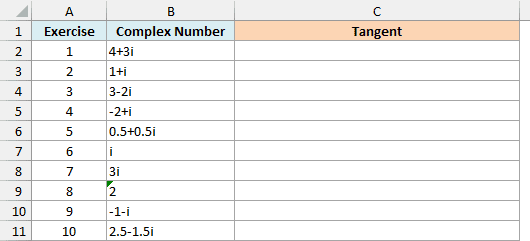
Here is the formula to enter in cell C2 and copy down:
=IMTAN(B2)
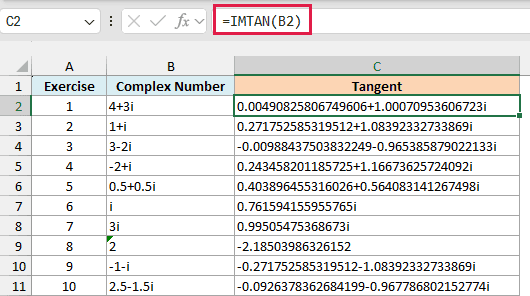
IMTAN reads the text in B2 as a complex number and returns its tangent. For exercise 1, 4+3i gives 0.00490825806749606+1.00070953606723i, which is the same result Microsoft shows in its own example.
The result has a real part and an imaginary part, just like the input. Excel writes each part with up to 15 significant digits, which is why the results are so long.
When the input is purely imaginary, the tangent is purely imaginary too. That’s why i in exercise 6 returns 0.761594155955765i, with no real part.
It also works the other way round. Exercise 8 is the plain number 2, which is a complex number with no imaginary part, so IMTAN returns -2.18503986326152, a result with no i at all.
I’ve kept this first example as a formula you copy down, so you can see IMTAN working on one number at a time. The next example handles the whole column with one formula.
Example 2: Get the Tangent of a Whole Column (j Notation)
In Excel 365 (and Excel 2021 or later), you can get the tangent of a whole column with a single formula, but IMTAN needs a small trick to do it.
Below is a list of complex numbers written with j instead of i, which is how electrical engineers usually write them, and I want the tangent of each one in column C.
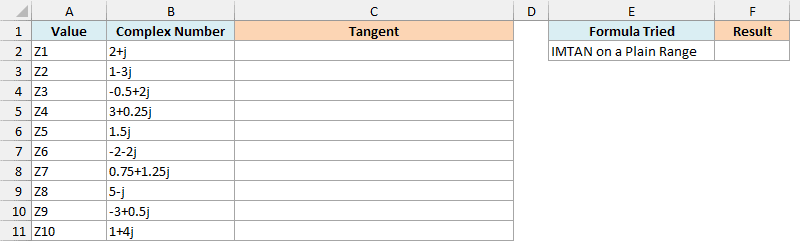
The obvious approach is to give IMTAN the whole range. I’ve put that attempt in cell F2, and it returns a #VALUE! error:
=IMTAN(B2:B11)
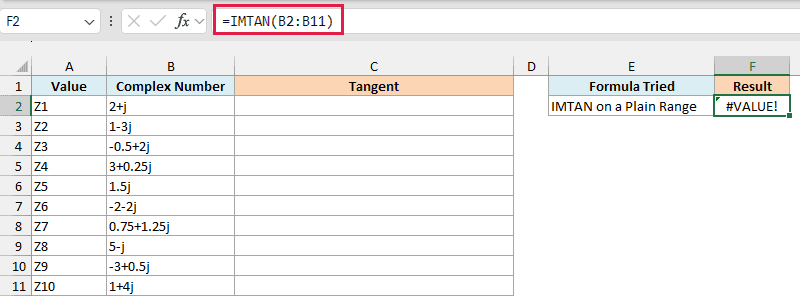
This happens because IMTAN can’t take a multi-cell range reference like B2:B11. It only works with a single value, or with a list of values held in memory (called an array).
Putting a plus sign (+) in front of the range fixes it, because Excel then passes the values to IMTAN as an array. Here is the formula that works:
=IMTAN(+B2:B11)
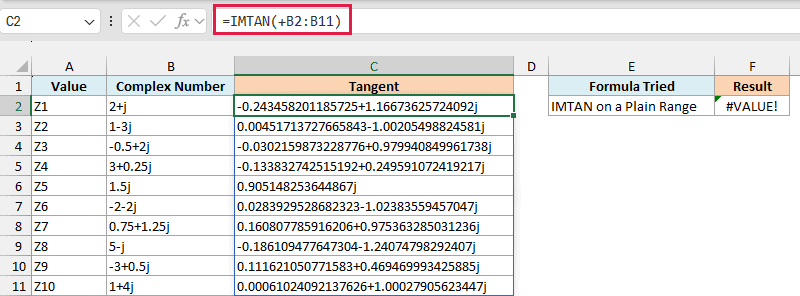
Enter it in cell C2, and the results spill down to C11. IMTAN also keeps the j from your input, so the tangent of 2+j comes back as -0.243458201185725+1.16673625724092j.
Important: Use a single plus sign here. A double minus (–) also creates an array, but it first tries to turn the text into numbers, so every complex number returns #VALUE!.
The same plus-sign trick works for other functions that won’t spill when you give them a range.
If you are using Excel 2019 or earlier, enter the below formula in cell C2 and then copy it down the range:
=IMTAN(B2)
Example 3: Use COMPLEX Inside IMTAN for Separate Real and Imaginary Parts
Sometimes your data doesn’t come as ready-made complex numbers. The real part and the imaginary part sit in two separate columns as regular numbers instead.
Below is a list of points with the real and imaginary parts in separate columns, and I want the tangent of each point in column D.
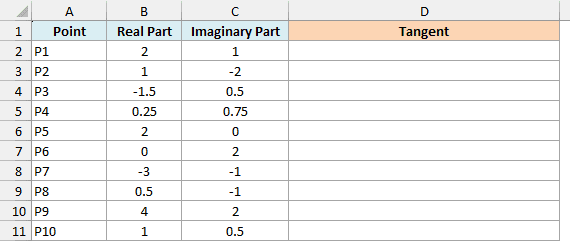
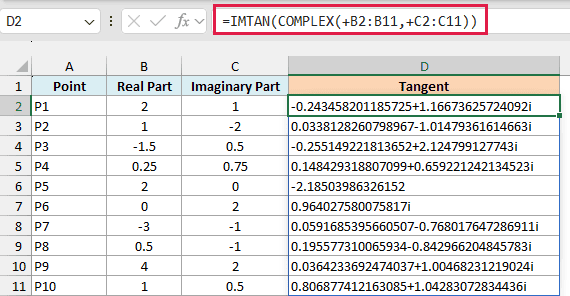
Here is the formula to enter in cell D2:
=IMTAN(COMPLEX(+B2:B11,+C2:C11))
How this formula works:
- COMPLEX(+B2:B11,+C2:C11) uses the COMPLEX function to join each real part with its imaginary part, so point P1 becomes 2+i.
- IMTAN(…) returns the tangent of each of those complex numbers and spills the results down to D11.
The plus signs go on the ranges inside COMPLEX, because the COMPLEX function has the same range limitation as IMTAN. IMTAN itself doesn’t need one here, since COMPLEX already hands it an array.
Point P5 has 0 as its imaginary part, so it’s just the real number 2, and its tangent -2.18503986326152 has no imaginary part.
Point P6 has 0 as its real part, so its tangent 0.964027580075817i is purely imaginary.
If you are using Excel 2019 or earlier, enter the below formula in cell D2 and then copy it down the range:
=IMTAN(COMPLEX(B2,C2))
Example 4: Round the IMTAN Result
IMTAN always returns every digit it can. That makes the results hard to read, and sometimes it shows a value so tiny that it’s really zero.
Below is a list of complex numbers, and I want their tangents in column B and the same results rounded to 4 decimal places in column C.
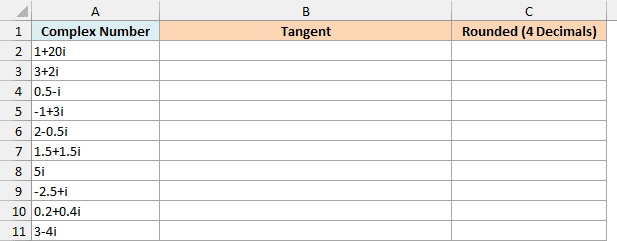
Here is the formula to enter in cell B2:
=IMTAN(+A2:A11)
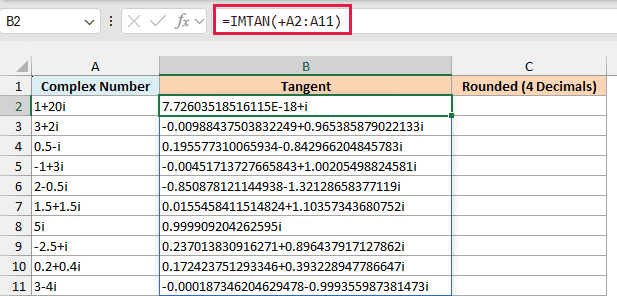
This spills the tangents down to B11, and most of them run to 15 or more digits. The first row is the odd one out, since 1+20i returns 7.72603518516115E-18+i.
That E-18 means the real part is about 0.0000000000000000077, which is zero for any practical purpose. When the imaginary part is a large positive number, the tangent gets extremely close to i, and IMTAN shows that tiny leftover instead of rounding it away.
You can’t fix this with the ROUND function directly, because the result is text and ROUND returns a #VALUE! error. Instead, round the real and imaginary parts separately and put them back together.
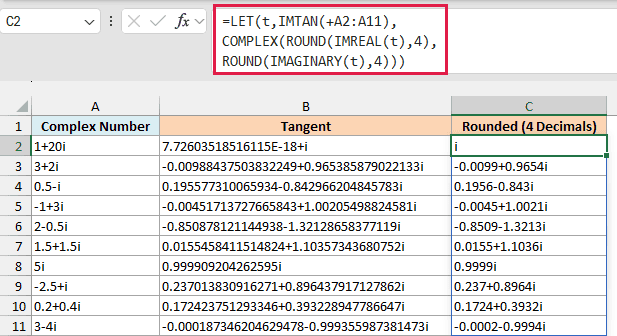
Here is the formula to enter in cell C2:
=LET(t,IMTAN(+A2:A11),COMPLEX(ROUND(IMREAL(t),4),ROUND(IMAGINARY(t),4)))
How this formula works:
- IMTAN(+A2:A11) calculates the tangents, and the LET function stores them as t, so IMTAN runs only once.
- IMREAL(t) and IMAGINARY(t) pull out the real and imaginary parts as regular numbers.
- ROUND(…,4) rounds each part to four decimal places.
- COMPLEX(…) joins the two rounded parts back into a complex number.
Now 1+20i shows just i, because its tiny real part rounds to 0 and COMPLEX leaves out a zero part.
The 5i row shows 0.9999i instead of 0.999909204262595i, and every other row is rounded to four decimals as well.
COMPLEX drops trailing zeros, so a part that rounds to 0.8430 shows as 0.843. You can see this in the third row, where 0.5-i comes out as 0.1956-0.843i.
COMPLEX also writes its results with i by default. If your numbers use j, add “j” as a third argument, like COMPLEX(ROUND(IMREAL(t),4),ROUND(IMAGINARY(t),4),"j"), so the results keep the same letter.
Both formulas in this example spill, and the LET function needs Excel 2021 or later. If you are using Excel 2019 or earlier, enter the below formula in cell B2 and then copy it down the range:
=IMTAN(A2)
And for the rounded results, enter the below formula in cell C2 and then copy it down the range:
=COMPLEX(ROUND(IMREAL(IMTAN(A2)),4),ROUND(IMAGINARY(IMTAN(A2)),4))
Example 5: IMTAN vs TAN for Regular Angles
IMTAN also accepts a regular number, since a real number is just a complex number with no imaginary part. That doesn’t make it the right tool for regular angles, though, and this example shows why.
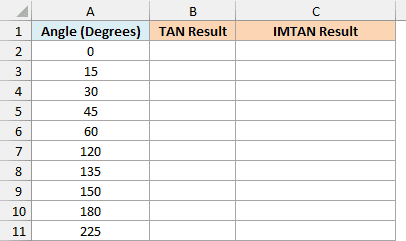
Below is a list of angles in degrees, and I want their tangents with the TAN function in column B and with IMTAN in column C. Both result columns are formatted to show four decimal places.
Here is the TAN formula to enter in cell B2:
=TAN(RADIANS(A2:A11))
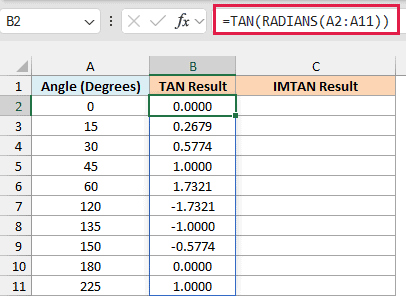
Both functions work in radians, so the RADIANS function converts the degrees first. TAN then spills the tangents down to B11 as regular numbers, and the four-decimal format applies, so 15 degrees shows 0.2679.
Here is the IMTAN formula to enter in cell C2:
=IMTAN(RADIANS(A2:A11))
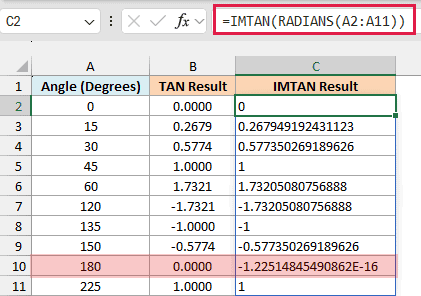
There’s no plus sign this time because RADIANS already hands IMTAN an array, just like COMPLEX did in Example 3.
The values match TAN, but they’re all text. They sit on the left side of the cells and ignore the four-decimal format, so 15 degrees shows 0.267949192431123 instead of 0.2679.
The 180-degree row shows why that matters. The tangent of 180 degrees should be 0, but Excel’s value of pi isn’t exact, so both functions get -1.22514845490862E-16.
TAN’s format displays that as 0.0000, while IMTAN shows the raw text.
Functions that skip text, like the SUM function, also ignore these IMTAN results, so you can’t total them the usual way.
So for regular angles, use TAN, and keep IMTAN for numbers that have an imaginary part.
If you are using Excel 2019 or earlier, enter the below formula in cell B2 and then copy it down the range:
=TAN(RADIANS(A2))
And for the IMTAN column, enter the below formula in cell C2 and then copy it down the range:
=IMTAN(RADIANS(A2))
So these are some practical ways to use the IMTAN function in Excel to find the tangent of complex numbers.
Just remember to put a plus sign in front of a range when you want one formula for a whole column. I hope you found this article helpful.
Other Excel Articles You May Also Like:
