

The CONFIDENCE.NORM function in Excel gives you the margin of error for an average. That’s the amount you add to and subtract from a sample’s average to get a confidence interval, the range the true average most likely falls in.
It works with the normal distribution (the bell curve), and it assumes you already know the standard deviation of the whole population, for example from a machine’s spec sheet or a large earlier study.
In this article, I’ll show you how the CONFIDENCE.NORM function works, with six practical examples, from a single margin of error to a full confidence interval and a quick comparison with the CONFIDENCE.T function.
Follow along with the example file
CONFIDENCE.NORM Function Examples.xlsx
CONFIDENCE.NORM Function Syntax
Here is the syntax of the CONFIDENCE.NORM function:
=CONFIDENCE.NORM(alpha, standard_dev, size)
- alpha – The significance level, which is 1 minus your confidence level. For a 95% confidence level, alpha is 0.05.
- standard_dev – The standard deviation of the whole population, which the function assumes you already know.
- size – The sample size, which is how many values are in your sample.
The function returns half the width of the confidence interval, not the interval itself. To get the interval, you subtract the result from your sample average for the lower limit and add it for the upper limit.
If size has decimals, Excel drops them, so 40.9 is treated as 40.
Alpha has to be more than 0 and less than 1, standard_dev has to be more than 0, and size has to be at least 1. Anything outside those limits returns a #NUM! error, and text that isn’t a number returns a #VALUE! error.
The CONFIDENCE.NORM function works in Excel 2010 and later versions, including 365, 2024, 2021, 2019, 2016, and Mac. Older versions have the CONFIDENCE function, which takes the same arguments and returns the same result.
When to Use the CONFIDENCE.NORM Function
Use this function when you need to:
- Find the margin of error for an average calculated from a sample
- Build a confidence interval (lower and upper limit) around a sample average
- See how the confidence level or the sample size changes the margin of error
- Check whether a target value, like a label weight, falls inside the interval
Let me show you a few practical examples of how to use the CONFIDENCE.NORM function in Excel.
Example 1: Calculate the Margin of Error in Excel
Let’s start with a simple example.
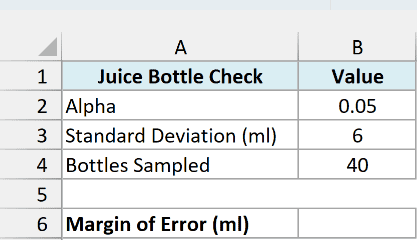
Below I have the numbers from a quality check on juice bottles, where 40 bottles were sampled from a filling machine with a standard deviation of 6 ml, and I want the margin of error at a 95% confidence level in cell B6.
Here is the formula:
=CONFIDENCE.NORM(B2,B3,B4)
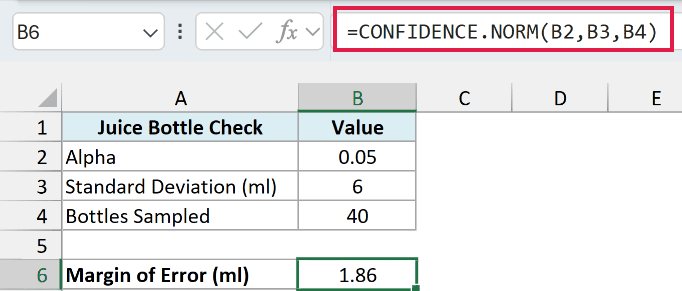
I’ve entered alpha as 0.05 in B2, which is what you use for a 95% confidence level.
The formula returns 1.86 ml. So whatever average fill you get from those 40 bottles, you can be 95% confident that the true average fill of the machine is within 1.86 ml of it.
Behind the scenes, the function multiplies 1.96 (the z-value for 95% confidence) by the standard deviation divided by the square root of the sample size. That’s 1.96 × 6 / √40, which comes out to 1.86.
Example 2: Margin of Error at Different Confidence Levels
Here’s another practical scenario.
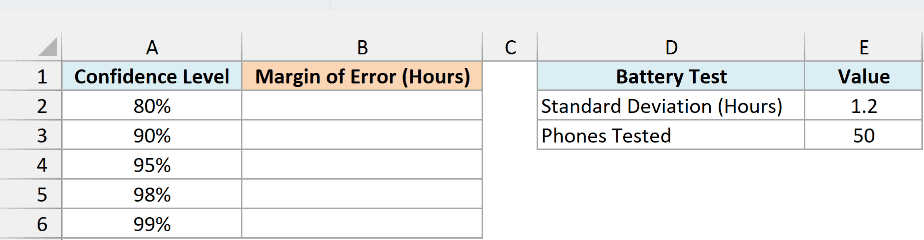
Below I have a list of confidence levels for a phone battery life test, and I want the margin of error for each level in column B, using the standard deviation in E2 and the number of phones tested in E3.
Here is the formula:
=CONFIDENCE.NORM(1-A2:A6,E2,E3)
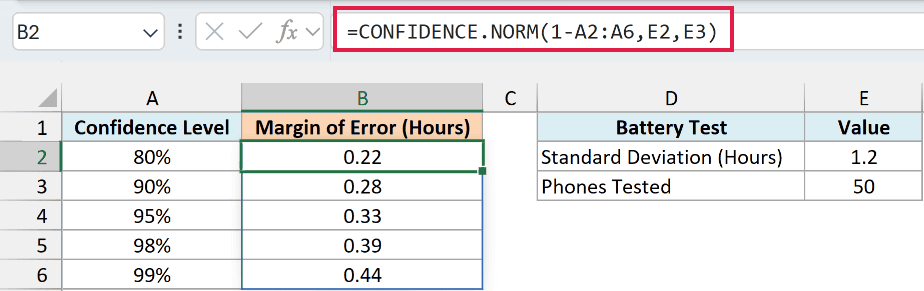
The 1-A2:A6 part turns each confidence level into its alpha (95% becomes 0.05), and since I’ve given the function a whole range, the results spill into B2:B6 from this one formula.
At 80% confidence, the margin of error is 0.22 hours, and at 99% it doubles to 0.44 hours.
A higher confidence level always gives a wider interval, because you’re asking to be more sure that it catches the true average.
Important: Don’t put the confidence level itself in the alpha argument. =CONFIDENCE.NORM(0.95,E2,E3) doesn’t give an error, it returns 0.01, the margin for a 5% confidence level, which is far too narrow.
If you are using Excel 2019 or earlier, enter the below formula in cell B2 and then copy it down the range:
=CONFIDENCE.NORM(1-A2,$E$2,$E$3)
Example 3: See How Sample Size Changes the Margin of Error
Now let’s look at what happens when you collect more data.
Below I have different numbers of people for a daily screen time survey, and I want the margin of error for each sample size in column B, using the confidence level in E2 and the standard deviation in E3.
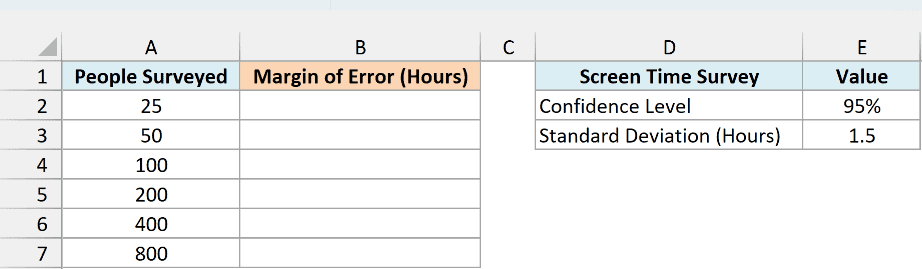
Here is the formula:
=CONFIDENCE.NORM(1-E2,E3,A2:A7)
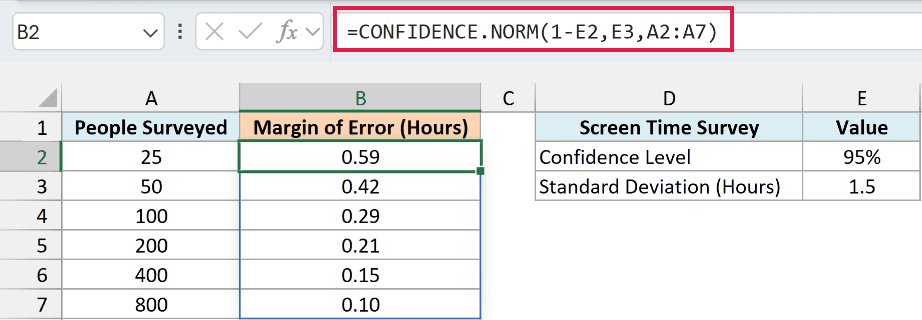
This time the range goes into the size argument, so the function returns one margin of error for each sample size, and the results spill into B2:B7.
The 1.5-hour standard deviation in E3 is an assumption taken from an earlier survey. That’s how you’d plan a survey before you run it, when you don’t have this survey’s data yet.
With 25 people, the margin of error is 0.59 hours. With 100 people it drops to 0.29, and with 400 people it’s 0.15.
Notice that every time the sample gets four times bigger, the margin of error is cut in half. That’s because the function divides by the square root of the sample size, so more data helps, but each extra person helps a little less.
If you are using Excel 2019 or earlier, enter the below formula in cell B2 and then copy it down the range:
=CONFIDENCE.NORM(1-$E$2,$E$3,A2)
Example 4: Build a Confidence Interval from Raw Data
Let’s step it up and build a complete confidence interval, starting from the raw data.
Below I have the weights of 12 bags of chips from a packing line, with the confidence level in D2 and the line’s known standard deviation in D3, and I want the 95% confidence interval for the average bag weight in column D.
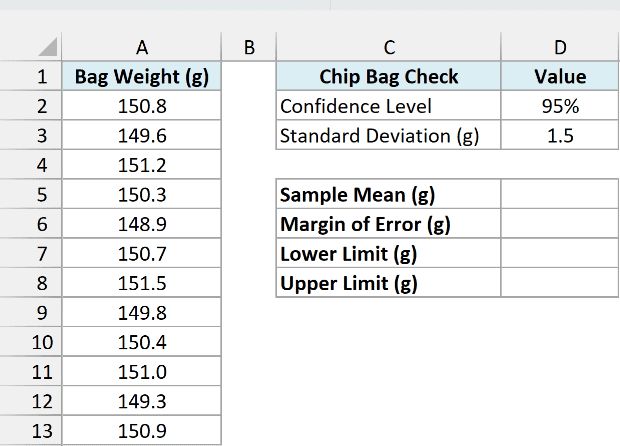
First, I need the sample average, which is the center of the interval. Here is the formula:
=AVERAGE(A2:A13)
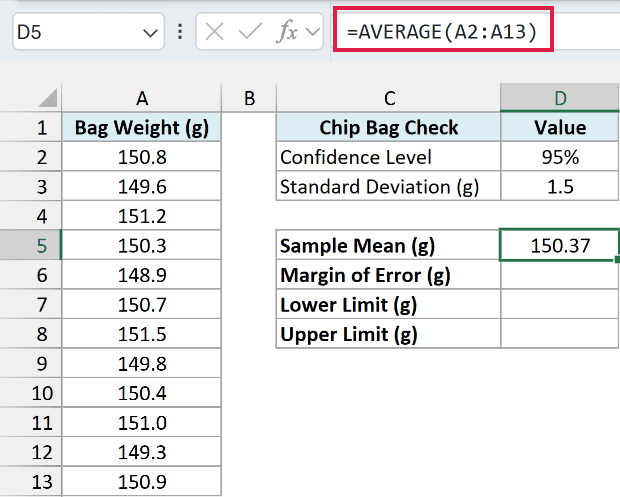
This gives 150.37 g in D5.
Next, the margin of error. Here is the formula:
=CONFIDENCE.NORM(1-D2,D3,COUNT(A2:A13))
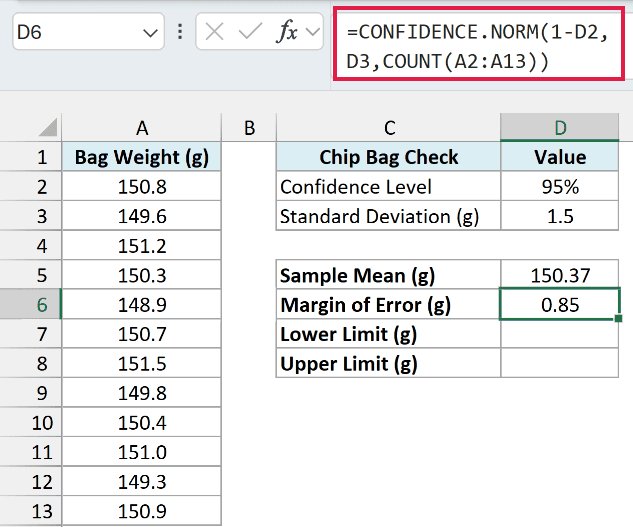
This returns 0.85 g in D6.
Instead of typing 12 as the size, I’ve used COUNT(A2:A13). The COUNT function counts the weights for me, so the size stays right if a cell in the list is left empty.
Now the lower limit, which is the average minus the margin of error. Here is the formula:
=D5-D6
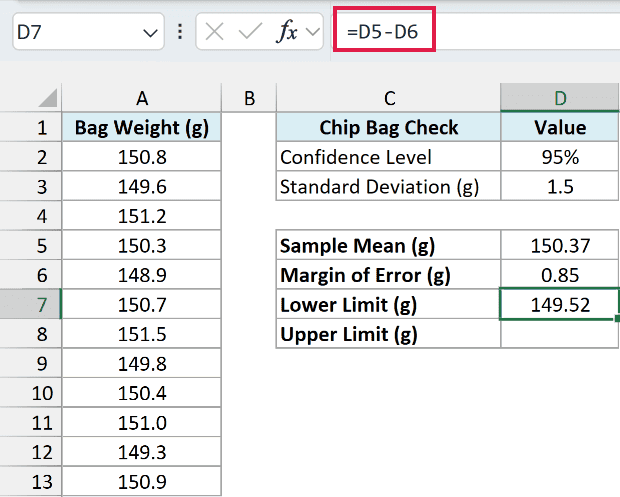
This gives 149.52 g in D7.
And the upper limit, which is the average plus the margin of error. Here is the formula:
=D5+D6
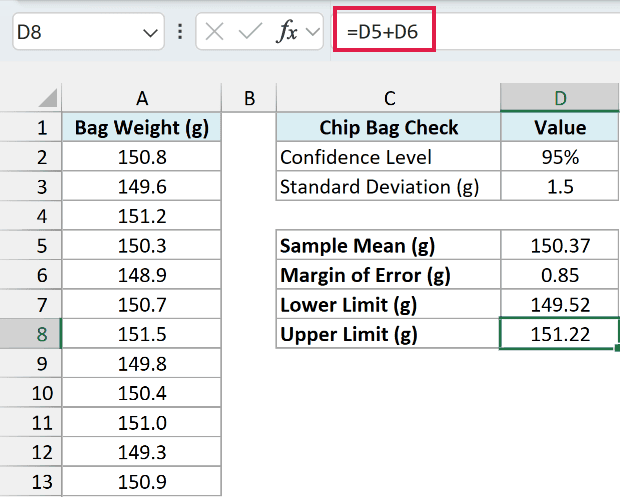
This gives 151.22 g in D8. So you can say, with 95% confidence, that the true average weight of all bags from this line is between 149.52 g and 151.22 g.
The 1.5 g standard deviation in D3 is the packing line’s known value, not something calculated from these 12 bags. If you only have the standard deviation of your sample, use the CONFIDENCE.T function instead (more on that in Example 6).
Example 5: Check Batches Against a Label Weight Using CONFIDENCE.NORM and IF
Let’s go back to the chip packing line from Example 4, and this time check several batches at once.
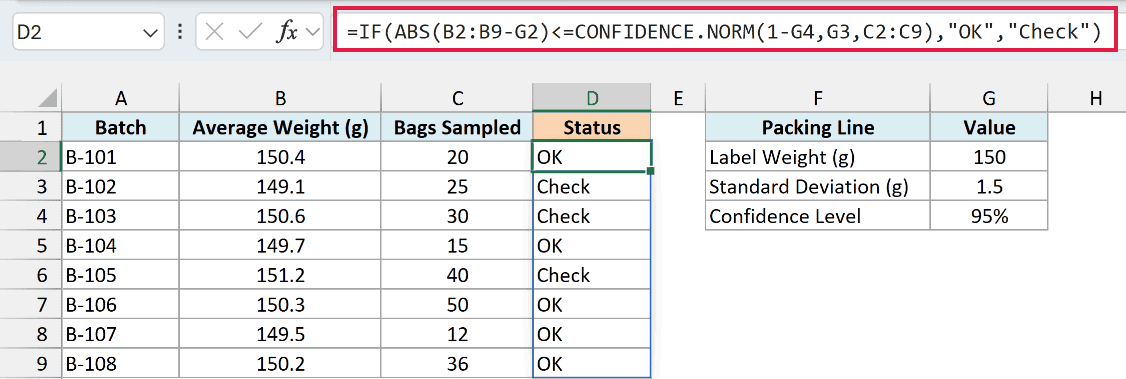
Below I have the average weight and the number of bags sampled for eight batches, and I want to mark each batch as OK or Check in column D, based on whether the label weight in G2 falls inside the batch’s 95% confidence interval.
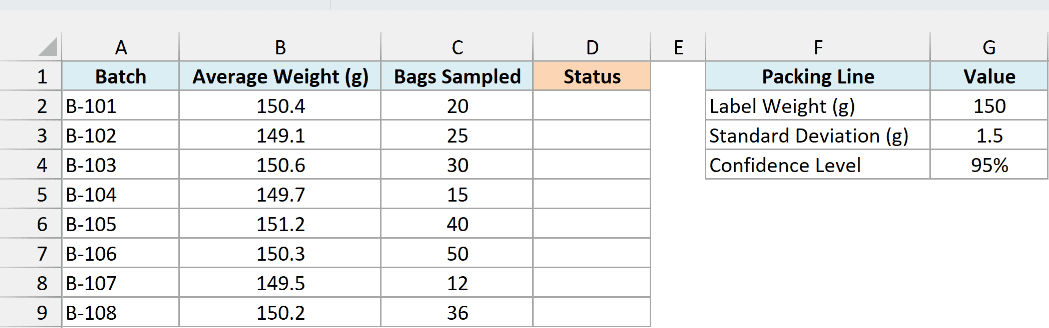
Here is the formula:
=IF(ABS(B2:B9-G2)<=CONFIDENCE.NORM(1-G4,G3,C2:C9),"OK","Check")
How this formula works:
- ABS(B2:B9-G2) gives how far each batch’s average is from the 150 g label weight, ignoring whether it’s above or below.
- CONFIDENCE.NORM(1-G4,G3,C2:C9) gives each batch its own margin of error, using the confidence level in G4, the standard deviation in G3, and the number of bags sampled from that batch.
- IF returns OK when the gap is within the margin (so 150 g is inside that batch’s interval), and Check when it isn’t.
The results spill into D2:D9, and three batches get flagged.
Look at B-103. Its average is 0.6 g above the label, and its 30 sampled bags give it a margin of just 0.54 g, so it gets Check.
If only 12 bags had been sampled from B-103, like B-107, its margin would be 0.85 g and the same 0.6 g gap would get OK. Smaller samples give wider intervals, so they need a bigger gap before a batch gets flagged.
If you are using Excel 2019 or earlier, enter the below formula in cell D2 and then copy it down the range:
=IF(ABS(B2-$G$2)<=CONFIDENCE.NORM(1-$G$4,$G$3,C2),"OK","Check")
Example 6: CONFIDENCE.NORM vs CONFIDENCE.T
Finally, let’s compare CONFIDENCE.NORM with the CONFIDENCE.T function, since the two are easy to mix up.
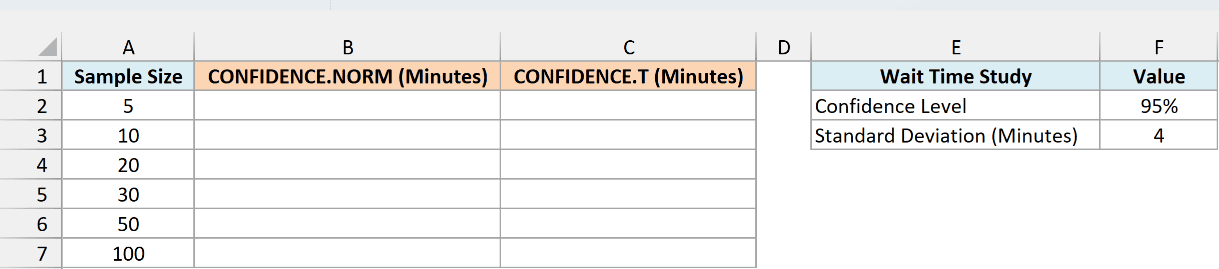
Below I have a list of sample sizes for a restaurant wait time study, and I want the margin of error from CONFIDENCE.NORM in column B and from CONFIDENCE.T in column C, using the confidence level in F2 and the standard deviation in F3.
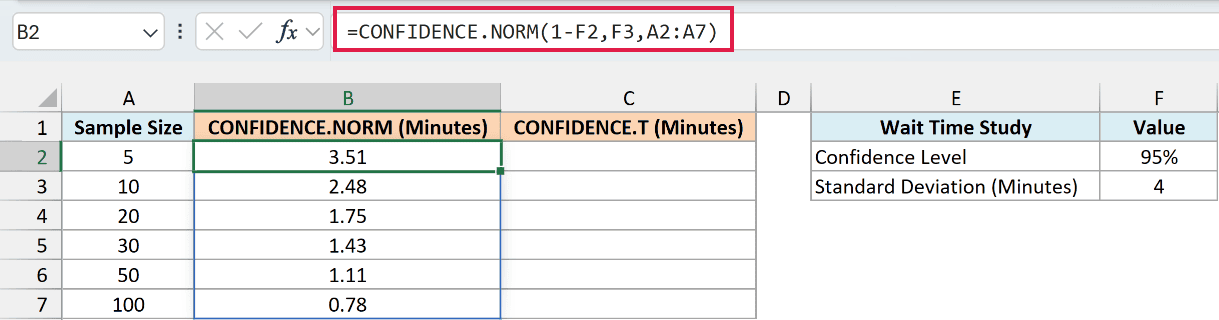
Here is the CONFIDENCE.NORM formula:
=CONFIDENCE.NORM(1-F2,F3,A2:A7)
And here is the CONFIDENCE.T formula, with the same arguments:
=CONFIDENCE.T(1-F2,F3,A2:A7)
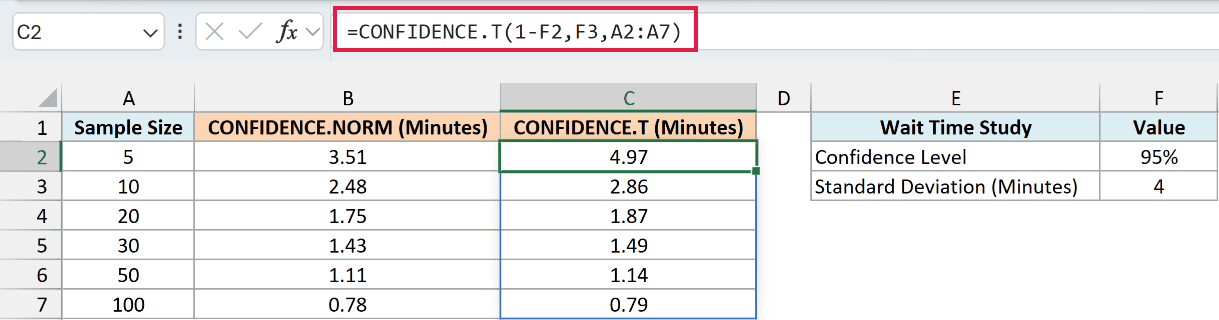
With a sample of 5, CONFIDENCE.T gives a margin of 4.97 minutes, while CONFIDENCE.NORM gives 3.51. By a sample of 100, the two are almost the same (0.79 and 0.78).
CONFIDENCE.T uses the t-distribution, which adds extra width for small samples. That extra width covers the uncertainty of working out the standard deviation from the sample itself, and it fades as the sample grows.
So use CONFIDENCE.NORM when you know the population standard deviation, like the packing line’s known standard deviation in Example 4. If you calculated the standard deviation from your sample with the STDEV.S function, use CONFIDENCE.T.
Important: Using CONFIDENCE.NORM with a standard deviation from a small sample makes your interval too narrow. With 5 values, it’s about 30% narrower than it should be.
If you are using Excel 2019 or earlier, enter the below formula in cell B2 and then copy it down the range:
=CONFIDENCE.NORM(1-$F$2,$F$3,A2)
And enter the below formula in cell C2 and copy it down the range:
=CONFIDENCE.T(1-$F$2,$F$3,A2)
So these are six ways you can use the CONFIDENCE.NORM function in Excel to work out a margin of error and build a confidence interval around an average.
I hope you found this article helpful.
Other Excel Articles You May Also Like:
