

The BETA.DIST function in Excel calculates probabilities or probability densities for a beta distribution. This distribution models values within a fixed interval, such as proportions between 0 and 1.
You give the function the shape of your model and the value to check. It can then tell you the chance of being at or below that value, or the height of the distribution’s curve there.
In this tutorial, I’ll show you four examples, including probabilities between two values and a model measured in days.
Follow along with the example file
BETA.DIST Function Examples.xlsx
BETA.DIST Function Syntax
Here is the syntax of the BETA.DIST function:
=BETA.DIST(x,alpha,beta,cumulative,[A],[B])
- x is required. It is the value you want to evaluate, within the interval from A to B.
- alpha is required. This positive number works with beta to control the distribution’s shape.
- beta is required. This is the second positive shape parameter. Neither shape parameter is automatically calculated from your data.
- cumulative is required. Use TRUE for the probability of a value at or below x, or FALSE for the probability density at x.
- A is optional. It sets the lowest value in the model and defaults to 0.
- B is optional. It sets the highest value in the model and defaults to 1. It must be greater than A.
Alpha and beta are shape settings, not a mean and standard deviation. When both equal 1, the density is flat; when both are equal and greater than 1, the curve is symmetric and concentrated toward the middle.
With the cumulative argument set to TRUE, the result is a probability between 0 and 1. Setting cumulative to FALSE returns the curve’s height, which can be greater than 1; Example 2 shows how to read that number.
Supplying A and B changes the interval for the entire distribution. It doesn’t calculate the chance between those two limits within an unchanged model.
BETA.DIST is available in Excel 2010 and later. The spilling formulas below need Microsoft 365, Excel 2024, Excel 2021, or Excel for the web; older versions can use the single-row formulas shown alongside them.
When to Use the BETA.DIST Function
Use this function when you already have a beta model and need to:
- Calculate the chance that a proportion falls below or above a threshold.
- Find the chance that a value falls between two limits.
- Calculate density values to understand or plot the distribution’s shape.
- Evaluate a model with bounds such as 2 to 10 days instead of 0 to 1.
If you already have a list of discrete outcomes and their probabilities, the PROB function can add the probabilities within a range. BETA.DIST instead calculates from a continuous beta model.
The examples use assumed shape parameters to explain the formulas. For a real analysis, choose or estimate parameters that suit your data first; BETA.DIST evaluates that model rather than fitting one for you.
Example 1: Calculate Cumulative Beta Probabilities
Let’s start with the TRUE setting.
Suppose the proportion of occupied spaces in a large bike-parking area is approximated by a continuous beta model with alpha 3 and beta 2. The thresholds below are values to check, not recorded observations.
Below are occupancy thresholds, and we want the modeled chance of being at or below each threshold in column B, then above it in column C.
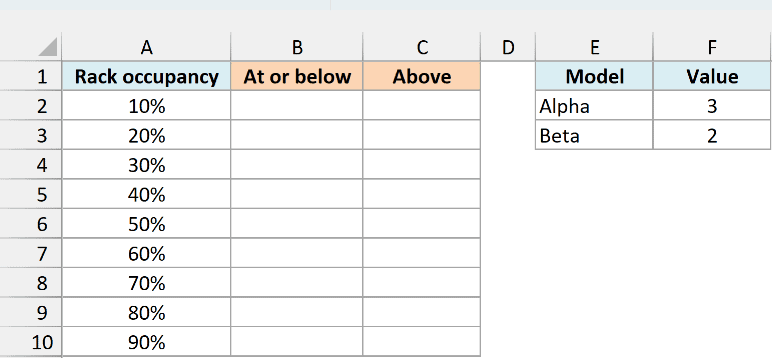
Enter this formula in cell B2:
=BETA.DIST(A2:A10,$F$2,$F$3,TRUE)
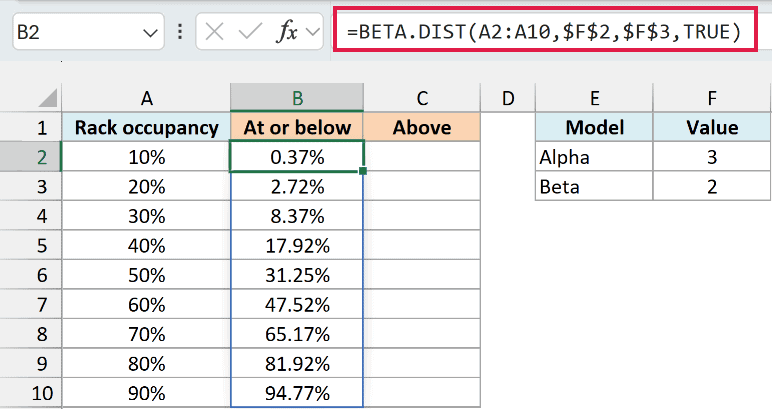
The formula uses alpha and beta from F2 and F3. Because it evaluates the whole range A2:A10, one formula fills all nine results in column B.
At the 50% occupancy threshold, the result is 31.25%. Under this assumed model, that’s the chance that the parking area is no more than half full.
The result cells use percentage formatting. For example, the underlying value 0.3125 displays as 31.25%, so you don’t need to multiply the formula by 100.
To find the chance of being above each threshold, enter this formula in C2:
=1-BETA.DIST(A2:A10,$F$2,$F$3,TRUE)
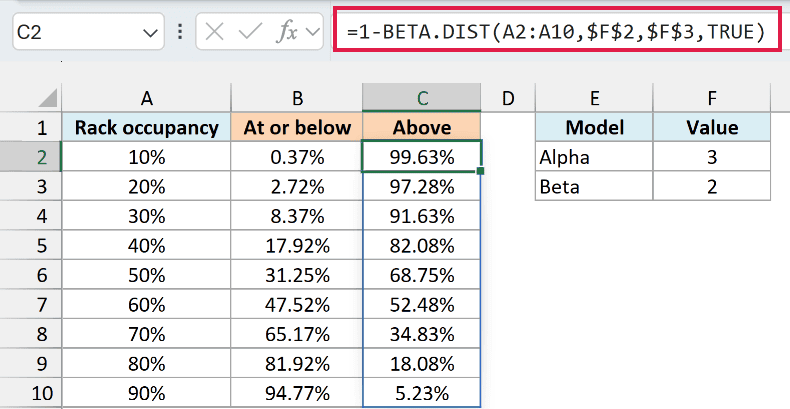
Subtracting from 1 gives the remaining probability. At 50% occupancy, the chance of being more than half full is 68.75%, and the two probabilities add to 100%.
This version repeats the BETA.DIST calculation so you can use it on its own without first calculating column B.
If you get a #SPILL! error, something may be blocking the result cells. Move that content out of the way so the formula has room to return all nine values.
Important: Enter 50% or 0.5 for a 50% threshold, not 50. With the default bounds of 0 and 1, a value of 50 is outside the interval and returns #NUM!.
Alpha and beta must both be greater than zero; zero or a negative shape parameter also returns #NUM!. If a numeric input contains text such as “high”, the function returns #VALUE!, so check the referenced inputs rather than hiding the error.
If you use Excel 2010 through 2019, enter this formula in B2 and copy it down to B10:
=BETA.DIST(A2,$F$2,$F$3,TRUE)
For the same older versions, enter this formula in C2 and copy it down to C10:
=1-BETA.DIST(A2,$F$2,$F$3,TRUE)
The absolute cell references marked with dollar signs keep the model parameters fixed when you copy the formulas down.
Example 2: Return Probability Density
Now let’s keep the same model and change the last argument to FALSE.
Below are the same occupancy thresholds, and we want the density at each threshold in column B.
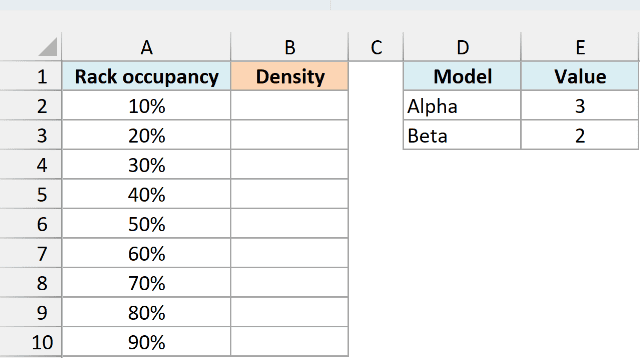
In the Example 2 sheet, enter this formula in B2:
=BETA.DIST(A2:A10,$E$2,$E$3,FALSE)
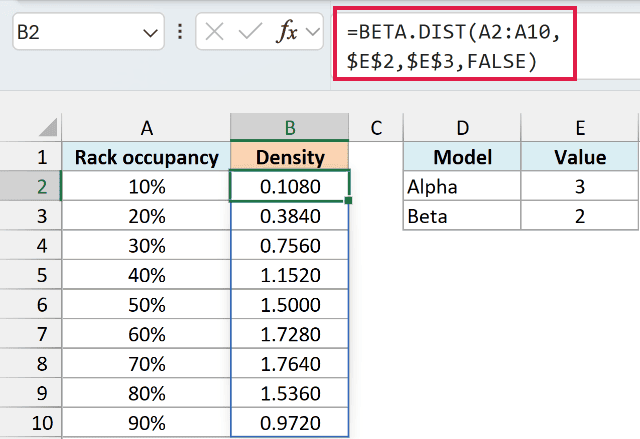
At 50% occupancy, the density is 1.5000. This is the height of the curve at 0.5, so leave it as a decimal rather than formatting it as a percentage.
A density describes how tightly probability is concentrated near a value. Probability comes from the area under the curve across an interval, not the height at one point.
Important: A density of 1.5 does not mean a 150% chance of exactly 50% occupancy. In a continuous model, a single exact point has zero probability; use cumulative probabilities to calculate the chance across a range.
You can use the threshold and density columns as the horizontal and vertical values in a scatter chart. Add more closely spaced thresholds if you want to plot a smoother curve.
If you use Excel 2010 through 2019, enter this formula in B2 and copy it down to B10:
=BETA.DIST(A2,$E$2,$E$3,FALSE)
Follow along with the example file
BETA.DIST Function Examples.xlsx
Example 3: Find Probability Between Two Values
To calculate a probability for a band, subtract one cumulative result from another.
Suppose the battery charge remaining when rental devices are returned follows an illustrative beta model with alpha 2 and beta 3.
Below are battery-charge bands, and we want the modeled probability of falling within each band in column C.
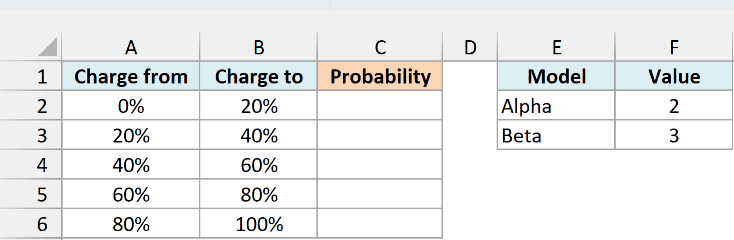
Enter this formula in C2:
=BETA.DIST(B2:B6,$F$2,$F$3,TRUE)-BETA.DIST(A2:A6,$F$2,$F$3,TRUE)
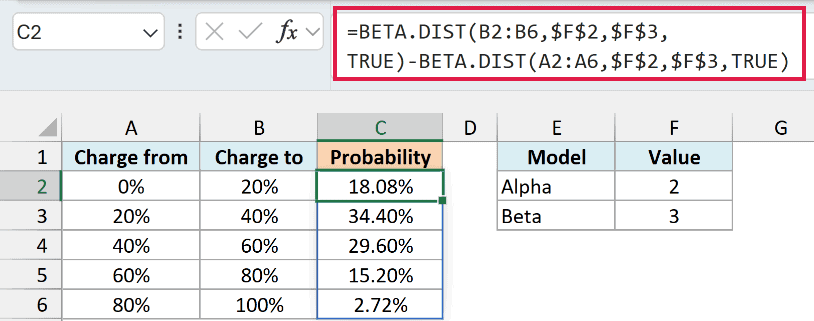
How this formula works:
- The first BETA.DIST calculates the chance of being at or below each upper limit in column B.
- The second calculates the chance of being at or below each lower limit in column A.
- Subtracting removes the probability below the band, leaving the probability inside it.
For the 20% to 40% band, the result is 34.40%. In this model, roughly a third of returned devices would have charge in that range.
The five bands cover the full 0% to 100% interval, and their probabilities add to 100%. Shared endpoints don’t double-count probability because an exact point has zero probability in this continuous model.
Keep each lower limit at or below its upper limit. If you reverse them, the subtraction gives a negative number, which isn’t a valid probability for a band.
If you use Excel 2010 through 2019, enter this formula in C2 and copy it down to C6:
=BETA.DIST(B2,$F$2,$F$3,TRUE)-BETA.DIST(A2,$F$2,$F$3,TRUE)
Example 4: Use a Custom Distribution Interval
You can also work in units such as days instead of converting everything to a proportion first.
Suppose repair turnaround time follows an illustrative beta model between 2 and 10 days, with alpha and beta both 2. Time is continuous here, so a repair can take 4.5 days even though we check whole-day thresholds.
Below are turnaround thresholds in days, and we want the modeled chance of completion by each threshold in column B.
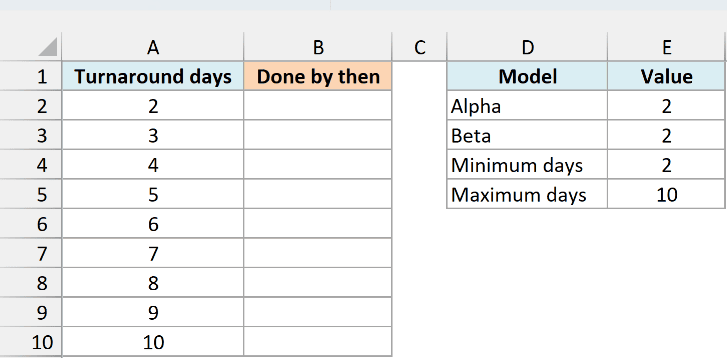
Enter this formula in B2:
=BETA.DIST(A2:A10,$E$2,$E$3,TRUE,$E$4,$E$5)
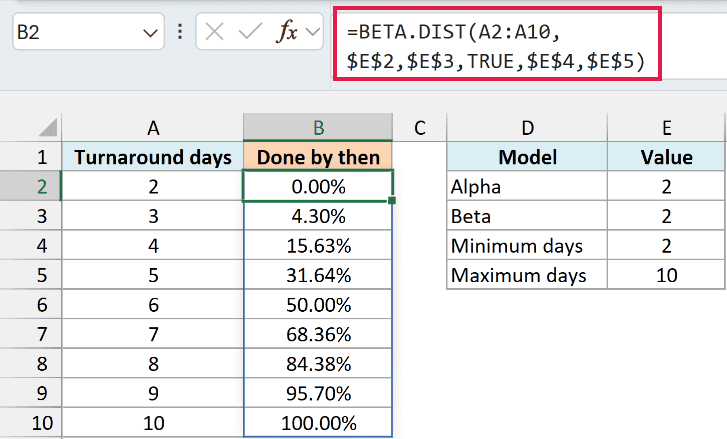
The last two arguments take the minimum of 2 days from E4 and the maximum of 10 days from E5. The x values can now be actual days within that interval.
At 6 days, the result is 50.00%; at 8 days, it is 84.38%. These are the modeled chances of finishing by those thresholds, not percentages of repairs counted in an actual dataset.
Because the shape parameters are equal, this curve is symmetric around the midpoint of 6 days. The 2-day and 10-day boundaries return cumulative probabilities of 0% and 100%.
Important: A and B define the model’s full interval. Setting them to 4 and 8 would create a different model, not find the chance of taking 4 to 8 days in the original model.
For that 4-to-8-day question, use the subtraction method from Example 3 while keeping the original bounds of 2 and 10 in both BETA.DIST calls.
An x value outside the stated bounds returns #NUM!, as do equal bounds. Keep the minimum strictly below the maximum and check that every threshold is inside the interval.
If you use Excel 2010 through 2019, enter this formula in B2 and copy it down to B10:
=BETA.DIST(A2,$E$2,$E$3,TRUE,$E$4,$E$5)
BETA.DIST starts with a value and returns a probability. When you know the cumulative probability and want the corresponding value instead, the BETA.INV function works in the opposite direction.
The older BETADIST function supports cumulative probabilities only and has no TRUE/FALSE argument. Use BETA.DIST for these examples so the fourth argument selects the intended calculation.
In this tutorial, I showed you how to calculate cumulative probabilities, densities, and probabilities within a band using BETA.DIST. I hope you found it useful.
Other Excel Articles You May Also Like:
