

The F.INV.RT function in Excel finds a cutoff in an F distribution. For example, a 5% right-tail probability gives the value that 5% of that distribution lies above.
This distribution is used in tests involving ratios of variance estimates. You compare the ratio calculated from your data, called the F statistic, with the cutoff to assess the test result.
The examples below cover variance tests and ANOVA, including how to choose degrees of freedom and set two-tailed cutoffs.
Follow along with the example file
F.INV.RT Function Examples.xlsx
F.INV.RT Function Syntax
Here is the syntax of the F.INV.RT function:
=F.INV.RT(probability, deg_freedom1, deg_freedom2)
- probability is required. It is the area to the right of the F value you want. For a 5% upper-tail test, use 0.05 or 5%.
- deg_freedom1 is required. It is the numerator degrees of freedom, so it must match the quantity on top of your F ratio.
- deg_freedom2 is required. It is the denominator degrees of freedom, so it must match the quantity on the bottom of your F ratio.
Degrees of freedom describe the independent information available for a calculation. Their values depend on the test, which is why a two-sample variance test and a one-way ANOVA use different rules.
Supply positive whole numbers for both degrees of freedom. Excel drops the decimal part of a fractional value rather than rounding it, so a fractional input can silently use the wrong degrees of freedom.
F.INV.RT is available in Excel 2010 and later, including Microsoft 365, Excel 2024, 2021, 2019, 2016, and Mac. The spilling examples below need Microsoft 365, Excel 2024, Excel 2021, or Excel for the web.
When to Use the F.INV.RT Function
Use this function when you need to:
- Find an upper critical F value from a significance level and two degrees of freedom.
- Compare critical values for several significance levels or sample sizes.
- Calculate the critical F value for an ordinary one-way ANOVA.
- Set the lower and upper cutoffs for a two-tailed comparison of variances.
Let me show you how these work in the example file.
Example 1: Find F Critical Values in Excel
For the first example, the probability and degrees of freedom are already known.
Below is a list of right-tail probabilities with the same numerator and denominator degrees of freedom, and I want the critical F values in column D.
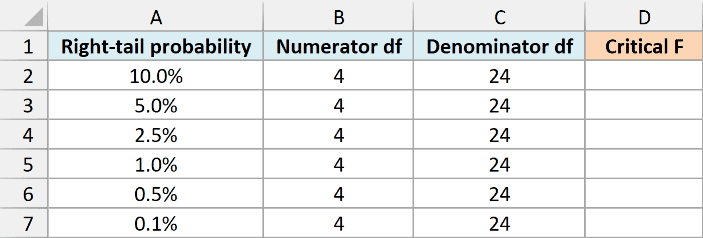
In cell D2 on the Example 1 sheet, enter this formula:
=F.INV.RT(A2:A7,B2:B7,C2:C7)
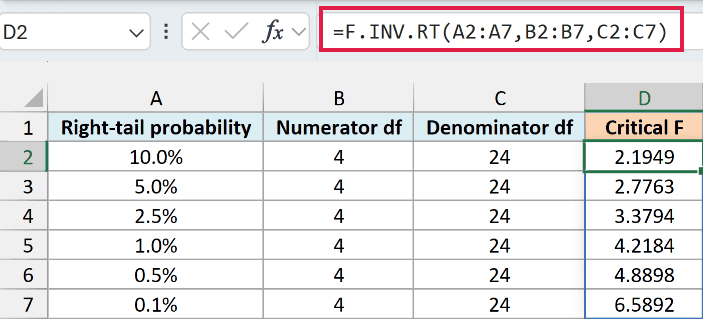
The formula calculates one cutoff for each row and spills the results into D2:D7. At a 5% right-tail probability with 4 numerator and 24 denominator degrees of freedom, the result is approximately 2.7763.
That means 5% of this F distribution lies above 2.7763. For an upper-tail hypothesis test with these degrees of freedom, an observed F statistic above the cutoff falls in the rejection region.
As the probability drops from 10% to 0.1%, the cutoff rises from 2.1949 to 6.5892. A smaller upper-tail area puts the cutoff farther to the right.
Important: Enter 5% as 0.05 or 5%, not 5. The probability is a right-tail area, so entering 0.95 asks for a different cutoff.
For hypothesis-test cutoffs, use a probability greater than 0 and less than 1. Probability 0, a negative value, or a value above 1 returns #NUM!; probability 1 returns 0.
A word such as “low” in a numeric input produces #VALUE!. Degrees of freedom below 1 produce #NUM!, so check the inputs before changing the formula.
Keep D3:D7 clear before entering the spilling formula. If another value blocks that area, Excel returns #SPILL! instead of the six cutoffs.
If you are using Excel 2019 or earlier, enter the below formula in cell D2 and copy it down to D7:
=F.INV.RT(A2,B2,C2)
The F.INV function uses the area to the left of a cutoff. F.INV.RT takes the right-tail area directly, which makes it convenient when your test gives you an upper-tail significance level.
Example 2: Get Cutoffs From Sample Sizes
For a comparison of two sample variances, each sample’s degrees of freedom is its sample size minus one.
Below are sample sizes for six comparisons of variability, and I want the 5% upper critical F values for variance A divided by variance B in column D.
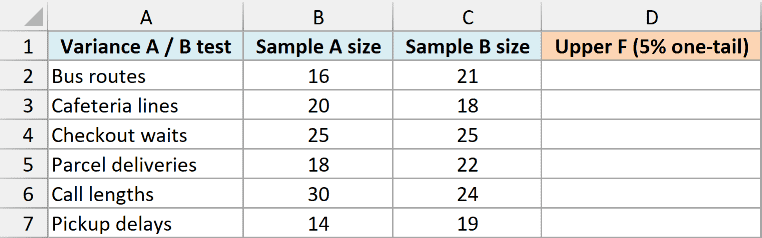
Enter this formula in cell D2 on the Example 2 sheet:
=F.INV.RT(0.05,B2:B7-1,C2:C7-1)
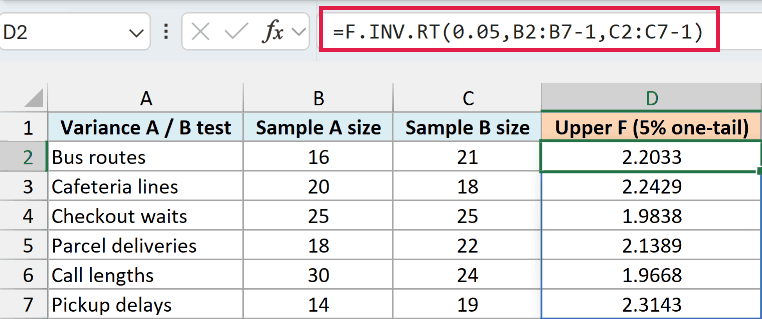
The formula subtracts 1 from each sample size before finding the cutoff. For the bus routes comparison, the sample sizes are 16 and 21, so the numerator and denominator degrees of freedom are 15 and 20.
The resulting upper cutoff is approximately 2.2033. If the observed sample variance A divided by sample variance B exceeds that value, you reject equal population variances in favor of A having the larger variance at the 5% significance level.
The direction matters here. This is a one-sided test of whether population A is more variable than population B; a test for a difference in either direction needs two cutoffs, as shown in Example 4.
Choose that direction before examining the result, and keep sample A in the numerator. Swapping the samples also swaps the degrees of freedom and changes the test you are doing.
These classical variance tests assume independent random samples from normal populations. Wait times can be skewed, so the sample-size examples show the cutoff calculation without establishing that an F-test is appropriate for actual wait-time data.
If you need to calculate the sample variances from raw observations first, see how to calculate variance in Excel.
If you are using Excel 2019 or earlier, enter the below formula in cell D2 and copy it down to D7:
=F.INV.RT(0.05,B2-1,C2-1)
Example 3: Find an ANOVA Critical Value
ANOVA compares group means, even though its F statistic is a ratio of variance estimates. For an ordinary one-way ANOVA, you need the number of groups and the total number of observations across those groups.
Below are six one-way ANOVA study plans, and I want their critical F values at the 5% significance level in column D.
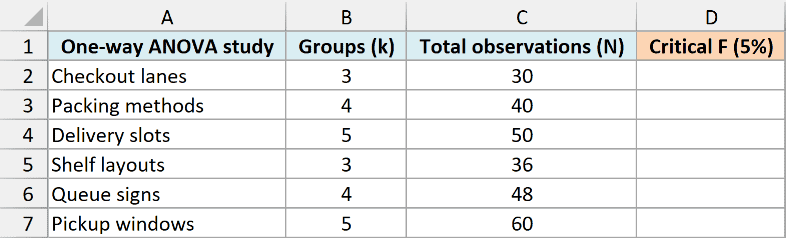
Enter this formula in cell D2 on the Example 3 sheet:
=F.INV.RT(0.05,B2:B7-1,C2:C7-B2:B7)
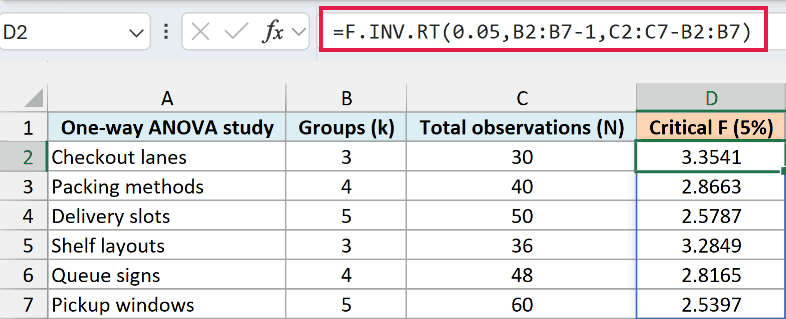
Here is how this formula works:
0.05sets the upper-tail significance level to 5%.B2:B7-1calculates the numerator degrees of freedom, the number of groups minus 1.C2:C7-B2:B7calculates the denominator degrees of freedom, total observations minus the number of groups.
For the checkout lanes study, there are 3 groups and 30 observations in total. The degrees of freedom are 2 and 27, giving a critical F value of approximately 3.3541.
If the calculated ANOVA F statistic exceeds this cutoff, reject the hypothesis that all group means are equal. This tells you there is evidence of a difference, but does not identify which groups differ.
The formula gives the cutoff only; it doesn’t calculate the ANOVA F statistic from the observations. Ordinary one-way ANOVA also assumes independent observations, normal errors within groups, and equal population variances.
If you are using Excel 2019 or earlier, enter the below formula in cell D2 and copy it down to D7:
=F.INV.RT(0.05,B2-1,C2-B2)
Example 4: Set Two-Tailed Variance Cutoffs
A two-tailed variance test looks for a difference in either direction. With an overall significance level of 5%, each tail gets 2.5% of the F distribution.
Below are the overall significance level, two sample sizes, and an observed variance ratio, and I want the lower and upper cutoffs in cells B6 and B7.
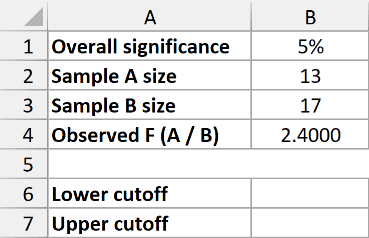
The Example 4 sheet keeps sample A’s variance on top and sample B’s variance on the bottom. The sizes are 13 and 17, so the degrees of freedom are 12 and 16.
For the lower cutoff, enter this formula in cell B6:
=F.INV.RT(1-B1/2,B2-1,B3-1)
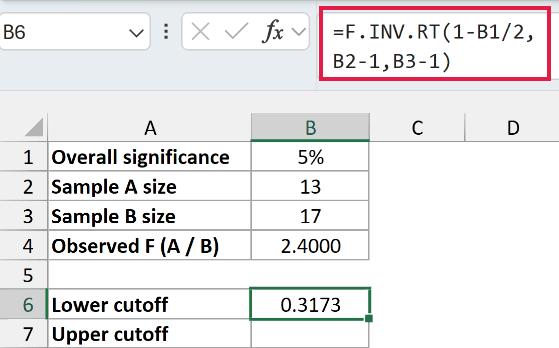
The lower cutoff is approximately 0.3173. Since F.INV.RT always takes the area to the right, the formula supplies 97.5% to leave 2.5% on the left.
The F.INV function can take that 2.5% left-tail area directly. Using F.INV.RT for both bounds lets you see how each tail converts into the right-tail probability this function needs.
For the upper cutoff, enter this formula in cell B7:
=F.INV.RT(B1/2,B2-1,B3-1)
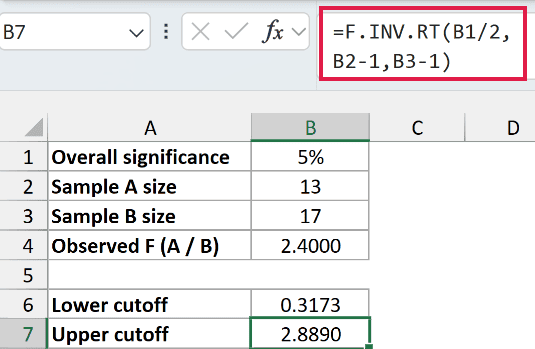
This returns approximately 2.8890. The formula uses 2.5% as its right-tail probability, so the rejection regions are below 0.3173 or above 2.8890.
The observed ratio of 2.4000 is between these cutoffs, so this test does not reject equal population variances at the 5% significance level. That does not prove the variances are equal.
Important: Keep the same sample order in the observed ratio and both cutoff formulas. The lower and upper bounds are different because the F distribution is asymmetric; they are not a positive and negative pair.
F.INV.RT gives you a cutoff when you already know the tail probability. If you have raw samples and want the two-tailed p-value instead, the F.TEST function handles that different job; see the guide to calculating p-values in Excel.
I hope you found this tutorial helpful.
Other Excel Articles You May Also Like:
