

The LOGNORM.INV function in Excel finds the value at a chosen percentile of a lognormal distribution. You give it a probability such as 90%, and it returns the time or amount that 90% of modeled values fall below.
A lognormal model describes positive values with a long upper tail. Their natural logs follow a normal distribution, which is why this function needs the mean and standard deviation of the logs.
In this tutorial, I’ll show you how to use supplied model parameters, work with an exceedance chance, and estimate the inputs from a small sample.
Follow along with the example file
LOGNORM.INV Function Examples.xlsx
LOGNORM.INV Function Syntax
Here is the syntax of the LOGNORM.INV function:
=LOGNORM.INV(probability, mean, standard_dev)
- probability is the cumulative probability, or the share of modeled values at or below the result. For the 90th percentile, enter 90% or 0.9.
- mean is the mean of the natural logarithms of the values, often written as LN(x).
- standard_dev is the standard deviation of those natural logarithms. It describes their spread on the log scale.
All three arguments are required. The mean and standard deviation must describe the logged values, so you can’t put the average of your original times or amounts into the mean argument.
The probability must be greater than 0 and less than 1. Entering 0%, 100%, or a value outside that interval returns a #NUM! error.
The standard deviation must be greater than zero. A zero or negative standard deviation also returns #NUM!.
LOGNORM.INV is available in Excel 2010 and later. The spilling examples below use dynamic arrays in Excel 365, 2024, 2021, or the web; older-version alternatives are included.
When to Use the LOGNORM.INV Function
Use this function when you need to:
- Find a modeled time or amount at a chosen percentile.
- Turn a chance of exceeding a limit into the corresponding limit.
- Compare percentile values across several lognormal models.
- Calculate a model percentile after estimating log parameters from observations.
The examples assume a lognormal model is appropriate for the data. Calculating the parameters doesn’t test that assumption, so check the fit before relying on the model for a real decision.
Let’s work through the examples, starting with supplied parameters.
Example 1: Find Packing-Time Percentiles
Let’s start with a set of percentiles for one model.
Below is a set of packing-time probabilities, and I want the corresponding modeled times in column B.
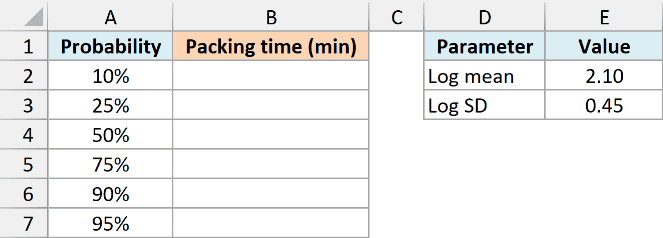
For this example, the natural logs of packing times have a mean of 2.1 and a standard deviation of 0.45. These are supplied model parameters, stored in E2 and E3.
Enter the following formula in cell B2:
=LOGNORM.INV(A2:A7,$E$2,$E$3)
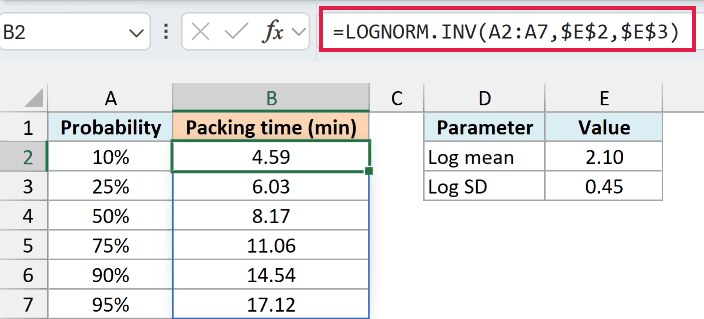
The formula takes all six probabilities from A2:A7 and returns six packing times. In dynamic-array Excel, the results spill into B2:B7 after you press Enter once.
At 90%, the result is about 14.54 minutes. Under this model, 90% of packing times are at or below that value, while 10% are above it.
At 50%, the result is about 8.17 minutes, which is the model’s median. The results are already back in minutes; you don’t need to take their logs or convert them again.
If an argument contains nonnumeric text, LOGNORM.INV returns #VALUE!. Check the probability and parameter cells for text entered in place of numbers.
If you get #SPILL!, one of the cells needed for the output is occupied. Clear the blocking cells in B3:B7; also remove an automatically inserted @ before LOGNORM.INV if you want the whole range to spill.
If you are using Excel 2019 or earlier, enter the following formula in B2 and copy it down to B7:
=LOGNORM.INV(A2,$E$2,$E$3)
Example 2: Convert an Exceedance Chance
Sometimes your starting probability describes values above a limit.
Below is a set of chances that a delivery takes longer than a limit, and I want to calculate those limits in days in column B.
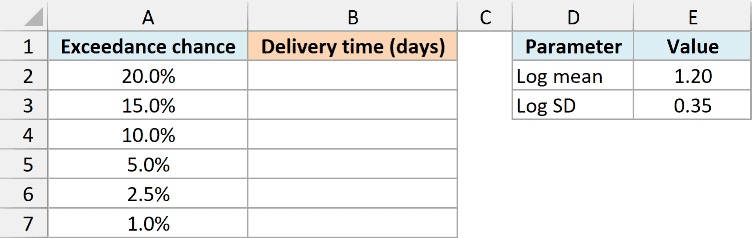
Here, the delivery-time model has a log mean of 1.2 and a log standard deviation of 0.35. An exceedance chance of 5% means 95% of modeled deliveries finish at or below the limit.
Enter the following formula in B2:
=LOGNORM.INV(1-A2:A7,$E$2,$E$3)
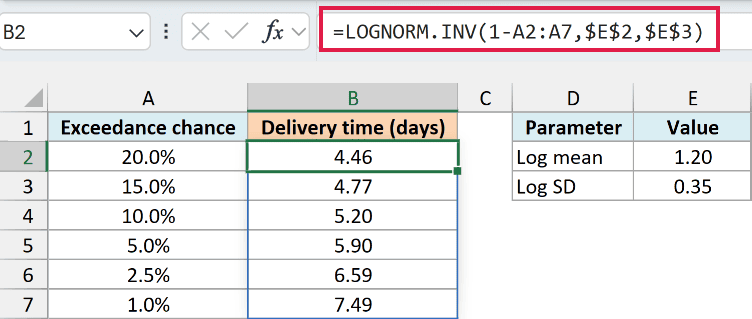
The expression 1-A2:A7 subtracts each exceedance chance from 1. This gives LOGNORM.INV the cumulative probabilities it needs, and the six results spill down column B.
For the 5% exceedance chance, the result is about 5.90 days. Under this model, only 5% of deliveries take longer than roughly 5.90 days.
Important: Passing 5% directly would find the lower 5th percentile. When your probability means the chance of exceeding the limit, subtract it from 1 first.
These are continuous durations, so a result such as 5.90 days is expected. The formula doesn’t convert a duration into a calendar date or count working days.
If you are using Excel 2019 or earlier, enter the following formula in B2 and copy it down to B7:
=LOGNORM.INV(1-A2,$E$2,$E$3)
Example 3: Compare Order-Amount Models
You can also keep the probability fixed while changing the model parameters.
Below are lognormal parameters for six order groups, and I want each group’s 90th-percentile order amount in column D.
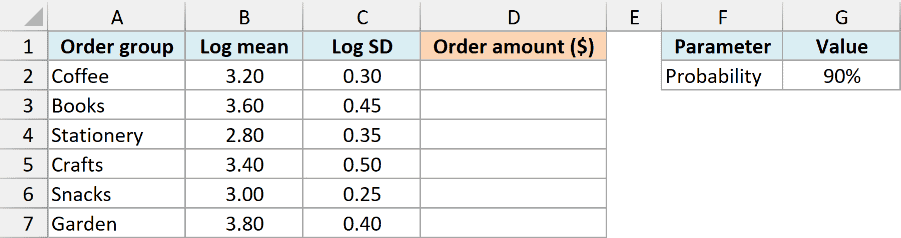
The common probability is 90% in G2. Each row supplies that order group’s log mean and log standard deviation.
Enter the following formula in D2:
=LOGNORM.INV($G$2,B2:B7,C2:C7)
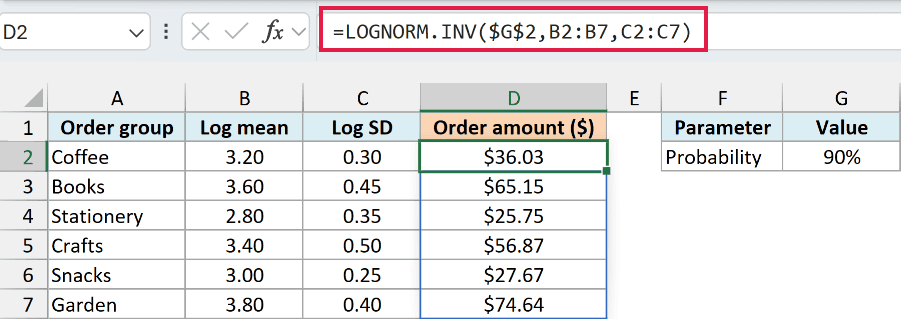
LOGNORM.INV uses the same probability for every row and pairs each mean in B2:B7 with the standard deviation on the same row in C2:C7. The formula spills six amounts into D2:D7.
The 90th-percentile amount is $36.03 for Coffee and $74.64 for Garden. Each amount belongs to its own group’s assumed distribution, so these aren’t percentiles calculated from six observed orders.
Changing G2 to another valid probability recalculates all six groups together. Keep the mean and standard deviation ranges the same size and in the same row order so the parameters stay paired correctly.
If you are using Excel 2019 or earlier, enter the following formula in D2 and copy it down to D7:
=LOGNORM.INV($G$2,B2,C2)
Follow along with the example file
LOGNORM.INV Function Examples.xlsx
Example 4: Estimate Inputs From Task Times
So far, the log parameters have been supplied. Now let’s calculate them from observations.
Below are ten observed task times, and I want their natural logs in column C and a fitted model’s 90th-percentile time in F5.
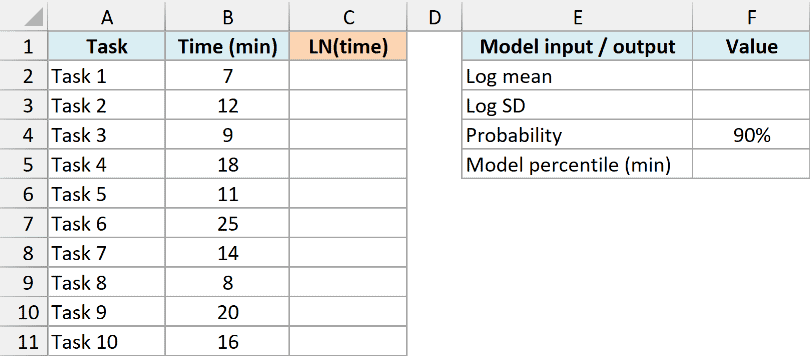
We will treat these ten observations as a sample of a wider task-time process. This is a calculation example; ten values alone don’t establish that a lognormal model fits that process.
First, enter the following formula in C2 to calculate each time’s natural logarithm:
=LN(B2:B11)
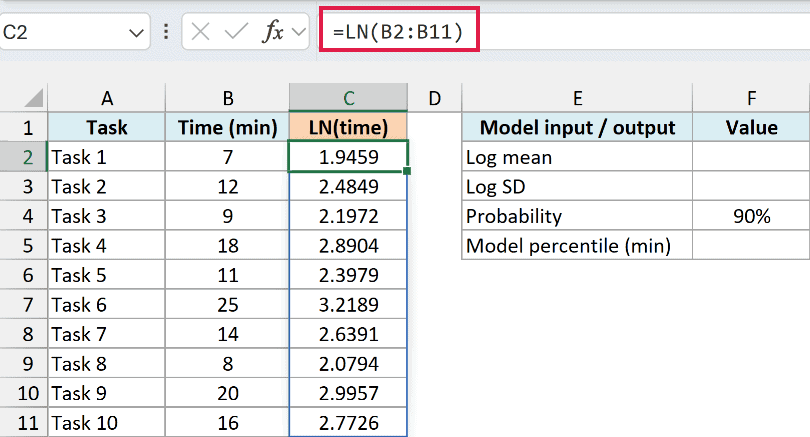
The LN function transforms all ten times, and the results spill into C2:C11. Keeping these logged values visible makes it easier to see which scale goes into the model.
Important: Every time must be greater than zero because LN returns #NUM! for zero or a negative number. Investigate invalid observations before estimating the model rather than replacing them with arbitrary positive values.
If you are using Excel 2019 or earlier, enter the following formula in C2 and copy it down to C11:
=LN(B2)
Next, calculate the mean of the logged values by entering this formula in F2:
=AVERAGE(C2:C11)
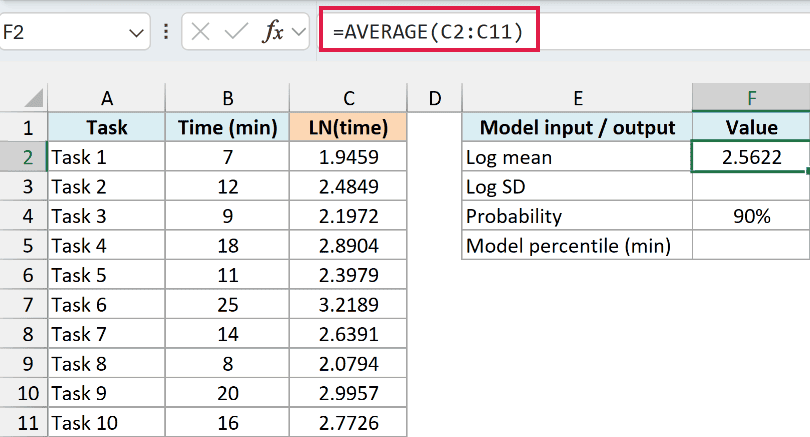
The AVERAGE function returns approximately 2.5622. This is the mean of the natural logs, not the average task time in minutes.
To estimate the log standard deviation from this sample, enter the following formula in F3:
=STDEV.S(C2:C11)
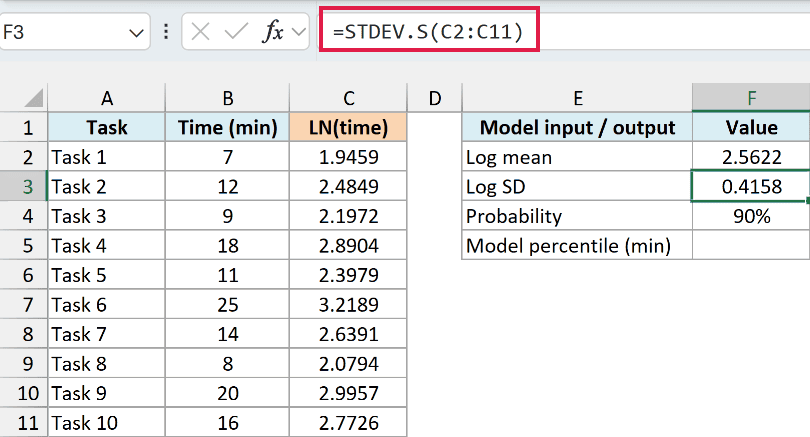
The sample standard deviation is approximately 0.4158. The STDEV.S function is appropriate here because we’re using a sample to estimate the spread of the logged values for a wider process.
Finally, with 90% in F4, enter the following formula in F5:
=LOGNORM.INV(F4,F2,F3)
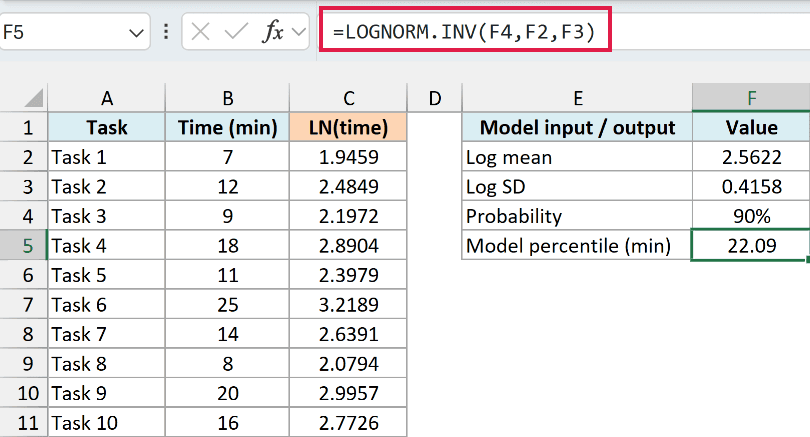
The fitted model’s 90th percentile is approximately 22.09 minutes. Under the assumed model with these estimated parameters, 90% of task times fall at or below that duration.
This is a model-based percentile, so it can differ from a percentile calculated directly from the ten observed times. If you want to interpolate a percentile of the actual sample, use the PERCENTILE.INC function instead.
In this tutorial, I’ve shown how to find lognormal percentiles from supplied parameters and from logged sample values. Keep that input scale in mind: the parameters describe the logs, while the result uses the original units.
Other Excel Articles You May Also Like:
