

The CHISQ.INV function gives you the chi-square value that has a given probability to its left. Tell it 90% and the degrees of freedom, and it returns the point that 90% of the chi-square distribution falls below.
That makes it the formula version of a chi-square table. You can use it to find critical values for variance tests and to build confidence intervals for a standard deviation, without looking anything up.
The one catch is the tail. CHISQ.INV works with the area on the left, while most chi-square tables (and the CHISQ.INV.RT function) work with the area on the right, so the same 5% can give you two very different answers.
Follow along with the example file
CHISQ.INV Function Examples.xlsx
CHISQ.INV Function Syntax
Here is the syntax of the CHISQ.INV function:
=CHISQ.INV(probability,deg_freedom)
- probability is the area to the left of the chi-square value you want. For example, 0.95 (or 95%) asks for the value that 95% of the distribution falls below.
- deg_freedom is the number of degrees of freedom, which sets the shape of the distribution. For a test on a single sample’s variance, this is the sample size minus 1.
Both arguments are required.
The probability can be anywhere from 0 up to, but not including, 1. A probability of 0 returns 0, while 1, a negative number, or anything above 1 returns the #NUM! error.
The degrees of freedom must be at least 1. Excel drops any decimal part, so 5.9 is treated as 5, and anything below 1 returns #NUM!.
Both arguments need to be numbers. Text that Excel can’t read as a number, such as “high”, returns the #VALUE! error.
The CHISQ.INV function works in Excel 2010 and later, including Microsoft 365, Excel 2024, 2021, 2019, 2016, Excel for Mac, and Excel for the web. The spilling formula in Example 2 needs a version with dynamic arrays, such as Microsoft 365, Excel 2024, or 2021.
When to Use the CHISQ.INV Function
Use this function when you need to:
- Find the chi-square value below which a given share of the distribution falls.
- Build your own chi-square table for any probabilities and degrees of freedom.
- Get the lower critical value for a left-tailed test, such as checking whether variation has dropped.
- Calculate a confidence interval for a standard deviation or a variance.
Let me show you a few practical examples of how to use the CHISQ.INV function.
Example 1: Find the Chi-Square Value for a Left-Tail Probability
Let’s start with a simple example.
Below I have a left-tail probability of 90% and 5 degrees of freedom, and I want the matching chi-square value in cell B5.
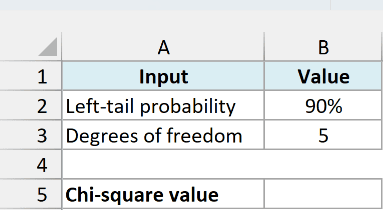
Here is the formula:
=CHISQ.INV(B2,B3)
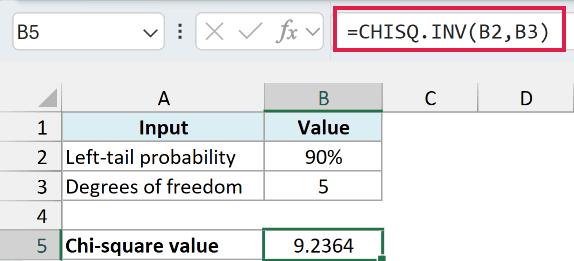
The result is 9.2364. With 5 degrees of freedom, 90% of the chi-square distribution falls below 9.2364, and the remaining 10% sits above it.
You’ll get the same 9.2364 from =CHISQ.INV.RT(10%,5), because the CHISQ.INV.RT function asks for the area on the right instead. The older CHIINV function also uses the right tail, so it matches CHISQ.INV.RT, not CHISQ.INV.
Important: CHISQ.INV wants the area to the left. So for a right-tailed test at 5% significance, such as the usual chi-square test, enter 95% to get the critical value (11.0705 with 5 degrees of freedom), because 5% gives the small value 1.1455 instead.
Example 2: Build a Chi-Square Table With One Formula
Now let’s look at something more interesting.
Below I have degrees of freedom from 1 to 10 in column A and six left-tail probabilities in row 2, and I want a chi-square value for every combination in the grid starting at B3.
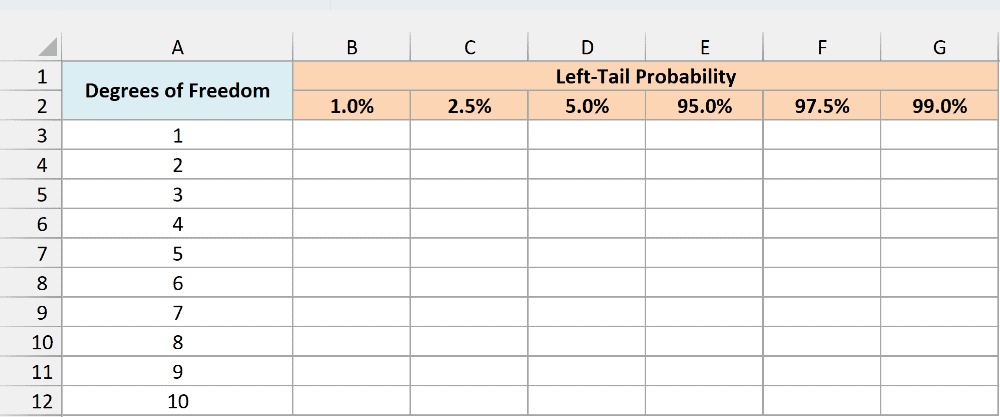
Here is the formula:
=CHISQ.INV(B2:G2,A3:A12)
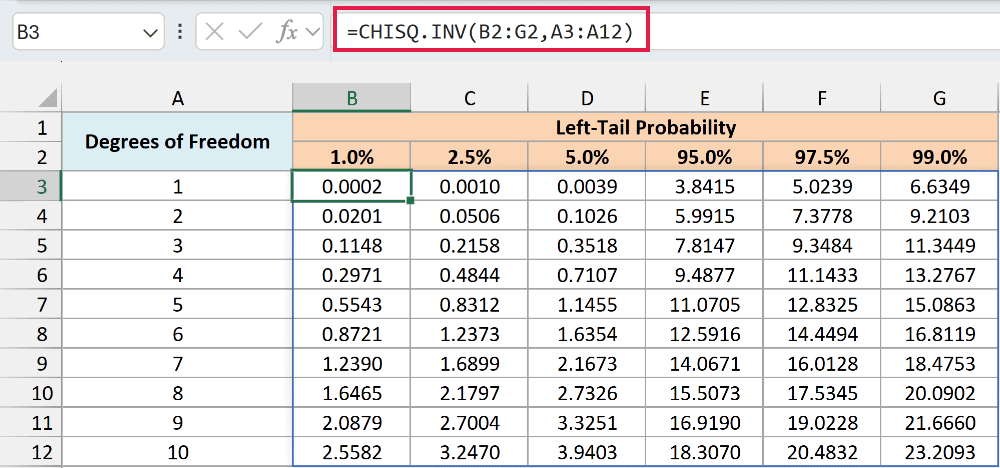
This one formula fills all 60 cells in B3:G12. Because the probabilities run across a row and the degrees of freedom run down a column, Excel pairs every probability with every degree of freedom and spills the full grid.
To read the table, go down to the row for your degrees of freedom and across to your probability. For example, 4 degrees of freedom at 95% gives 9.4877.
The 1%, 2.5%, and 5% columns hold the small values at the bottom of each distribution. The 95%, 97.5%, and 99% columns hold the large values at the top, which are the ones a right-tail table lists against 5%, 2.5%, and 1%.
If Excel shows the #SPILL! error, something is already sitting in B3:G12. Clear those cells so the formula has room to fill the grid.
If you are using Excel 2019 or earlier, enter the below formula in cell B3 and then copy it across and down to G12:
=CHISQ.INV(B$2,$A3)
Example 3: Get the Lower Critical Value for a Left-Tailed Test
Here’s a practical scenario where the left tail is exactly what you need.
A bakery switched to a new dough portioner and wants to know if cookie weights are now more consistent. The old portioner had a standard deviation of 4 grams.
Below I have a summary of 12 cookies weighed from the new portioner, with their standard deviation and a 5% significance level, and I want the test statistic in cell B7 and the critical value in cell B8.
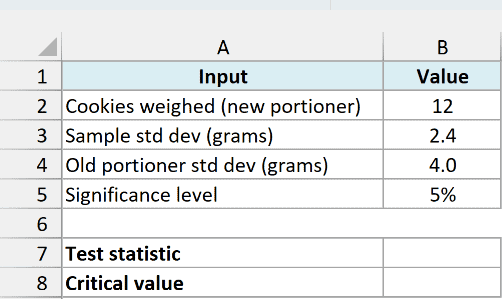
Here is the formula for the test statistic:
=(B2-1)*B3^2/B4^2
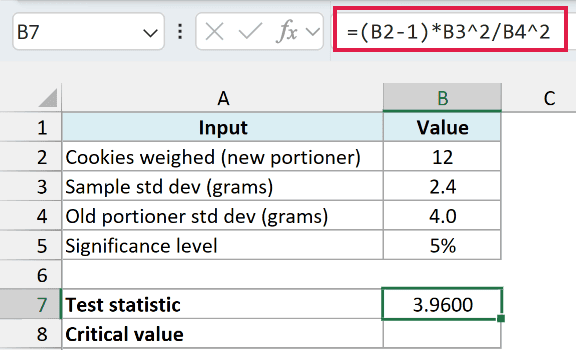
This returns 3.9600. It’s the standard chi-square statistic for a variance test: the sample size minus 1, times the sample variance (the standard deviation squared), divided by the old variance.
Here is the formula for the critical value:
=CHISQ.INV(B5,B2-1)
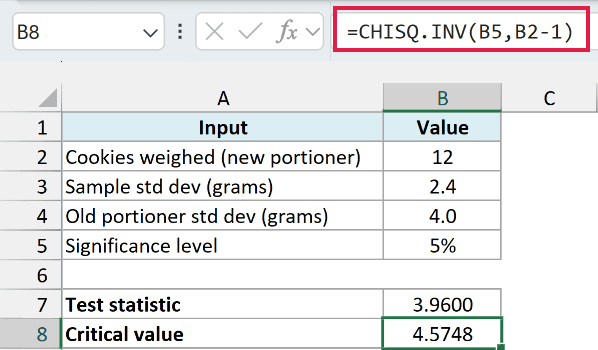
This returns 4.5748. The 5% significance level goes in as the left-tail probability, and B2-1 gives 11 degrees of freedom.
Since we’re testing whether the variation went down, a test statistic below 4.5748 is the signal. Our 3.9600 is below it, so at the 5% level the data gives evidence that the new portioner makes more consistent cookies.
This test assumes the cookie weights roughly follow a normal distribution. If your data is counts in categories instead, the chi-square test in Excel tutorial covers that.
Example 4: Calculate a Confidence Interval for a Standard Deviation
Let’s step it up with a more advanced use case.
Below I have a summary of 16 timed pizza deliveries, and I want a 95% confidence interval for the standard deviation of delivery times in cells B6 and B7.
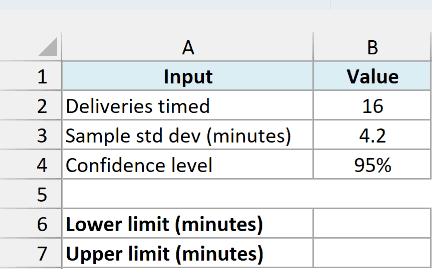
Here is the formula for the lower limit:
=SQRT((B2-1)*B3^2/CHISQ.INV((1+B4)/2,B2-1))
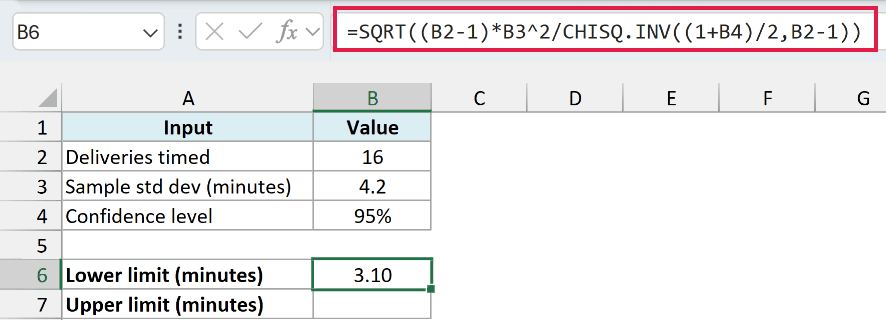
This returns 3.10 minutes.
Here is the formula for the upper limit:
=SQRT((B2-1)*B3^2/CHISQ.INV((1-B4)/2,B2-1))
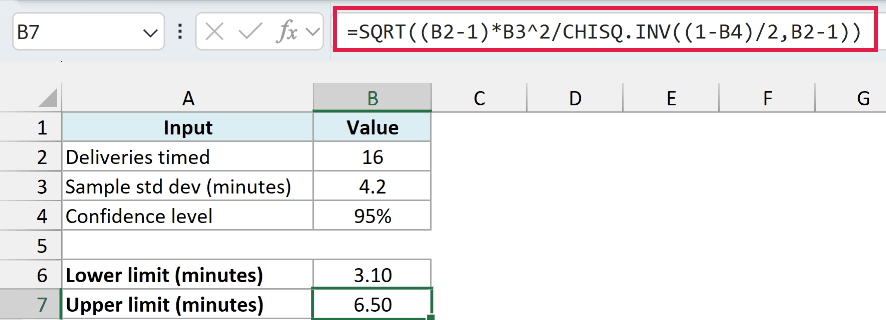
This returns 6.50 minutes. So with 95% confidence, the true standard deviation of delivery times is somewhere between 3.10 and 6.50 minutes.
Like the test in Example 3, this interval assumes the delivery times roughly follow a normal distribution.
How these formulas work:
- (1+B4)/2 turns the 95% confidence level into 97.5%, and (1-B4)/2 turns it into 2.5%. That leaves 2.5% in each tail.
- CHISQ.INV(…,B2-1) returns the chi-square value for each probability with 15 degrees of freedom: 27.4884 at 97.5% and 6.2621 at 2.5%.
- (B2-1)*B3^2 is 15 times the sample variance. Dividing it by each chi-square value gives the limits for the variance.
- SQRT turns those variance limits into standard deviation limits, so they’re in minutes like the original data.
Important: The lower limit uses the larger chi-square value (the 97.5% one), because dividing by a bigger number gives a smaller result. If you swap the two probabilities, the lower and upper limits trade places.
If you need a confidence interval for the variance instead, use the same formulas without the SQRT function. You can read more about confidence intervals in Excel for the mean, which uses a different function.
So these are a few ways you can use the CHISQ.INV function in Excel, from a single chi-square value to a full table, a left-tailed variance test, and a confidence interval for a standard deviation.
I hope you found this Excel tutorial useful.
Other Excel Articles You May Also Like:
