

The FISHER function in Excel converts a correlation coefficient into its Fisher z value. That sounds like an odd thing to want, but it’s the step that lets you average correlations, compare them, and put a margin of error around them.
A correlation can’t go past 1 or -1, so the closer it gets to either end, the less room it has to move. That makes the usual averaging and margin-of-error math unreliable for correlations, and FISHER rescales them so that math works again.
In this tutorial, I’ll show you how FISHER works on its own, how to use it with the CORREL function, and how it fits into three common correlation calculations.
Follow along with the example file
FISHER Function Examples.xlsx
FISHER Function Syntax
Here is the syntax of the FISHER function:
=FISHER(x)
- x – The number you want to transform, which is usually a correlation coefficient. It must be greater than -1 and less than 1.
FISHER keeps the sign of x, and values close to 0 come out almost unchanged. As x gets closer to 1 or -1, the result grows faster and faster, with no upper limit.
If x is exactly 1 or -1, or outside that range, FISHER returns the #NUM! error. If x is text that isn’t a number, it returns the #VALUE! error.
The FISHER function works in all Excel versions, including 365, 2024, 2021, 2019, 2016, Mac, and the web.
When to Use the FISHER Function
Use this function when you need to:
- Turn a correlation coefficient into a Fisher z value for a statistical test
- Average correlations that come from samples of different sizes
- Build a confidence interval around a correlation
- Check whether two correlations from separate groups are really different
Let me show you a few practical examples of how to use the FISHER function.
Example 1: Convert Correlations to Fisher z Values
Let’s start with a simple example.
Below is a list of products with the correlation between each product’s daily sales and the temperature, and I want the Fisher z value for each one in column C.
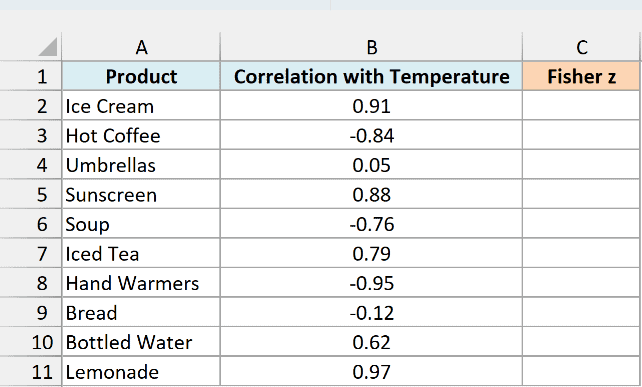
Here is the formula:
=FISHER(B2:B11)
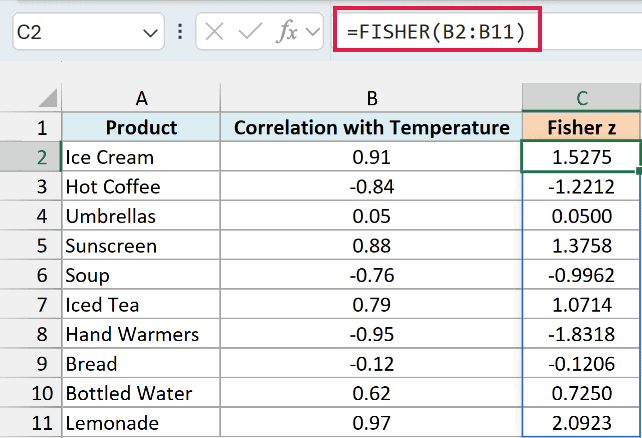
Since B2:B11 holds ten correlations, the formula spills ten Fisher z values into C2:C11, one for each product.
Look at how the values change. Umbrellas has a tiny correlation of 0.05, and its Fisher z value is almost the same at 0.0500.
Lemonade is a different story. Its correlation of 0.97 becomes 2.0923, because FISHER stretches values more and more as they get close to 1.
Negative correlations work the same way, just with a minus sign. Hand Warmers has a correlation of -0.95, which becomes -1.8318.
This stretching is what makes FISHER useful. Ice Cream (0.91) and Lemonade (0.97) are only 0.06 apart as correlations, but their Fisher z values (1.5275 and 2.0923) are about 0.56 apart.
Near 1, even a small change in the correlation is a big deal, and the Fisher z scale shows that. On this scale, a gap of a given size means roughly the same thing anywhere, so averages and margins of error come out right.
If you are using Excel 2019 or earlier, enter the below formula in cell C2 and then copy it down the range:
=FISHER(B2)
If a cell in column B is empty, FISHER treats it as 0 and returns 0 instead of an error. So make sure every row has a correlation before you rely on the results.
Example 2: Use FISHER With the CORREL Function
In most cases, you won’t type correlations in by hand. You’ll calculate them from raw data first.
Below I have the daily screen time and sleep hours for 12 people, and I want the Fisher z value of the correlation between these two columns in cell F2.
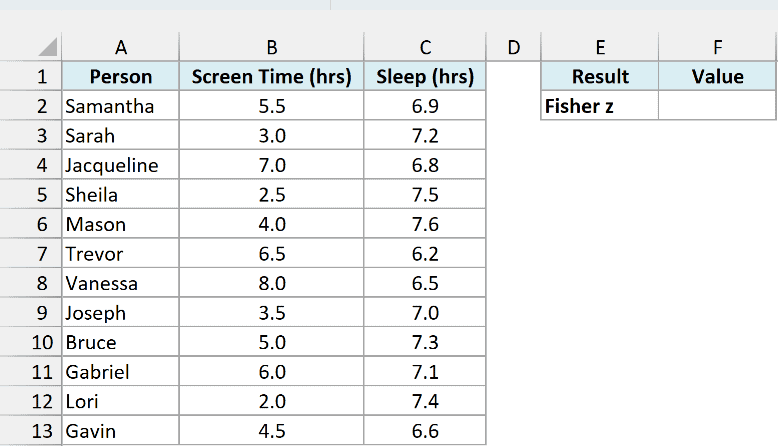
Here is the formula:
=FISHER(CORREL(B2:B13,C2:C13))
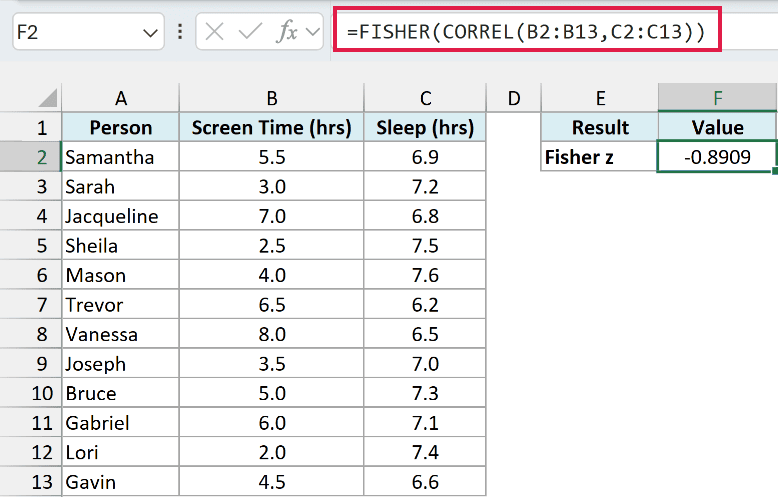
This returns -0.8909.
In the above formula, the CORREL function calculates the correlation between screen time in B2:B13 and sleep in C2:C13, which is about -0.71. FISHER then converts that correlation into its Fisher z value.
The result is negative because, in this data, people with more screen time tend to sleep less.
There is one thing to watch for here. If one column is an exact straight-line version of the other (for example, one column is just the other times 2), the correlation should be exactly 1 or -1, which FISHER can’t handle.
But because of tiny rounding differences, the CORREL function can return 0.9999999999999998 instead of 1. FISHER then gives you a huge number (around 18) instead of the #NUM! error.
So if you get a Fisher z value above 5 or below -5, check whether one column was calculated from the other. A Fisher z of 5 already means a correlation of about 0.9999.
Example 3: Average Correlations From Different Sample Sizes
Now let’s look at something a bit more interesting.
Below I have the correlation between weekly gym visits and weight lost at eight branches, each based on a different number of members, and I want the average correlation in cell F2.
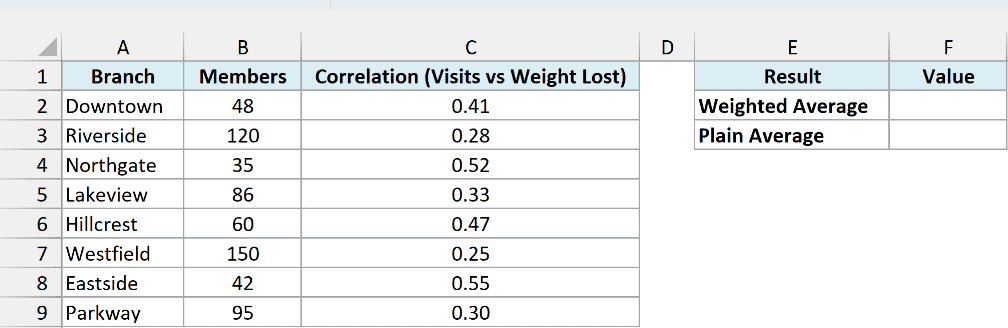
Here is the formula:
=FISHERINV(SUMPRODUCT((B2:B9-3)*FISHER(C2:C9))/SUMPRODUCT(B2:B9-3))
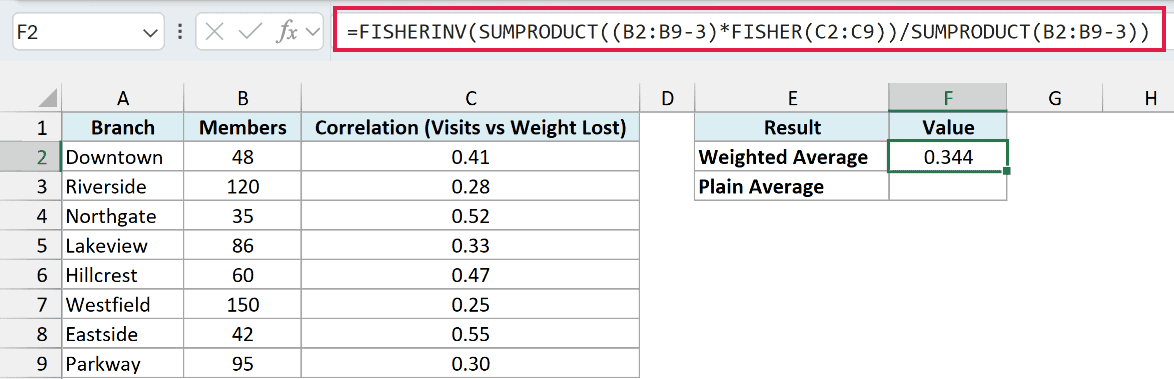
This returns 0.344 as the average correlation.
How this formula works:
FISHER(C2:C9)converts each branch’s correlation into a Fisher z value.(B2:B9-3)gives each branch a weight equal to its member count minus 3, so branches with more members count for more.- The first SUMPRODUCT function adds up each Fisher z value multiplied by its weight, and the second one adds up the weights. Dividing the two gives the weighted average Fisher z value.
- The FISHERINV function, which reverses FISHER, converts that average back into a correlation.
The correlations go through FISHER before they’re averaged because correlations aren’t spread evenly, so averaging them directly gives a biased result. Fisher z values can be averaged like ordinary numbers, and the FISHERINV function turns that average back into a correlation.
The weight is the member count minus 3 because a Fisher z value from a sample of n members has a variance of 1/(n-3).
A smaller variance means the value moves less from sample to sample. So each branch is weighted by 1 divided by its variance, which works out to n-3, and bigger branches get more say.
The SUMPRODUCT function is used here instead of the SUM function because it handles the array math in every Excel version, without needing Control + Shift + Enter.
Here is the plain average for comparison:
=AVERAGE(C2:C9)
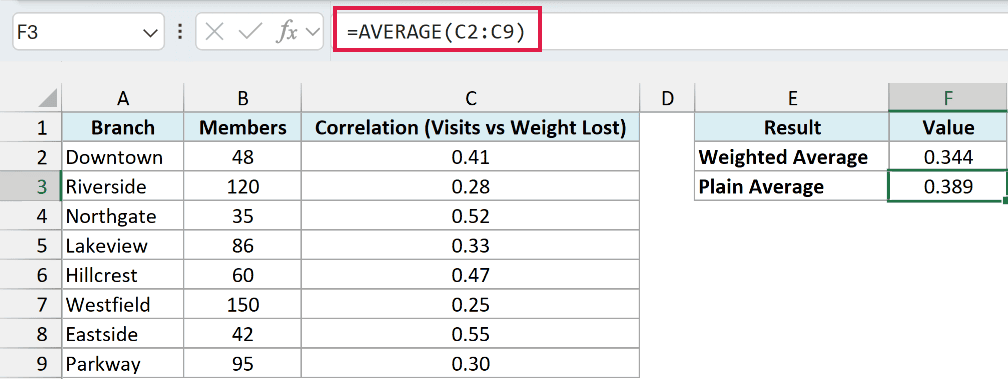
This returns 0.389, which is higher than the weighted result of 0.344.
The difference comes from the weights. The two biggest branches, Riverside with 120 members and Westfield with 150, have the weakest correlations, and the plain average treats them the same as Northgate with just 35 members.
These correlations are fairly small, so the Fisher step on its own moves the average only a little here. With correlations closer to 1, skipping it makes a bigger difference.
If all your correlations come from samples of the same size, you can skip the weights and average the Fisher z values directly. The ATANH function tutorial shows that version, since the ATANH function gives the same result as FISHER.
Example 4: Confidence Interval for a Correlation Using FISHER
Let’s step it up with a more advanced use case.
Below are the results of a survey of 60 online shoppers, where the correlation between delivery time and the rating they gave is -0.42, and I want the standard error in B5 and the 95% confidence interval in B6 and B7.
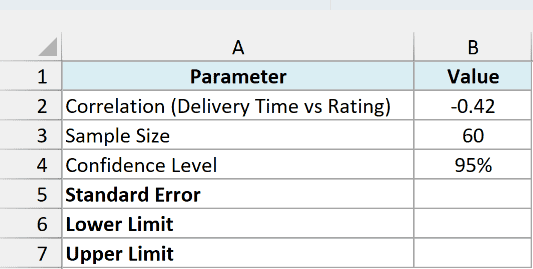
Here is the formula for the standard error:
=1/SQRT(B3-3)
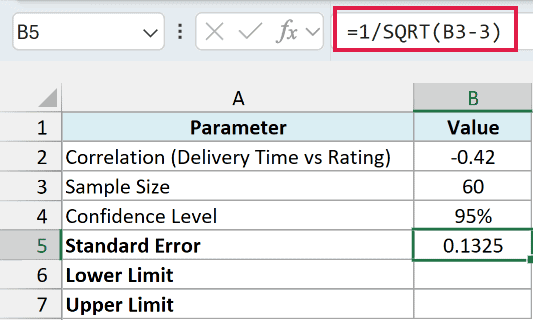
This returns 0.1325. It tells you how much a Fisher z value typically varies for a sample of 60 responses, and it gets smaller as the sample gets bigger.
The sample size needs to be more than 3. Otherwise, B3-3 is zero or negative, and the formula returns an error.
Here is the formula for the lower limit:
=FISHERINV(FISHER(B2)-NORM.S.INV((1+B4)/2)*B5)
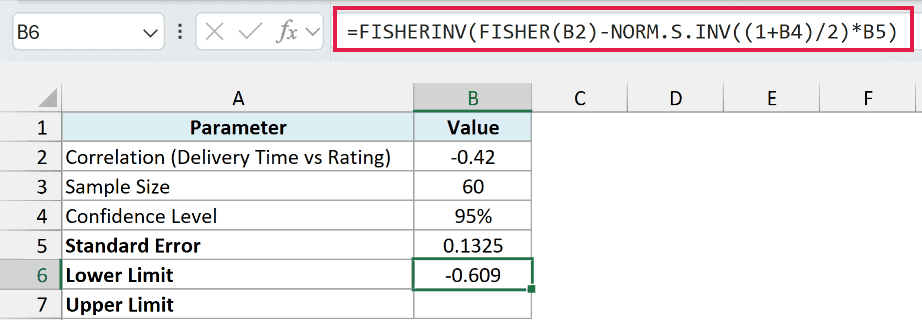
This returns -0.609.
How this formula works:
FISHER(B2)converts the correlation of -0.42 into a Fisher z value.NORM.S.INV((1+B4)/2)returns the multiplier, which is how many standard errors the margin spans. For 95%, (1+0.95)/2 gives 0.975, because the 5% left outside the interval is split evenly between the two ends, and the multiplier comes out to about 1.96.- Multiplying that by the standard error in B5 gives the margin, and subtracting the margin from the Fisher z value gives the lower limit.
- The FISHERINV function converts that lower limit back into a correlation.
And here is the formula for the upper limit, which adds the margin instead of subtracting it:
=FISHERINV(FISHER(B2)+NORM.S.INV((1+B4)/2)*B5)
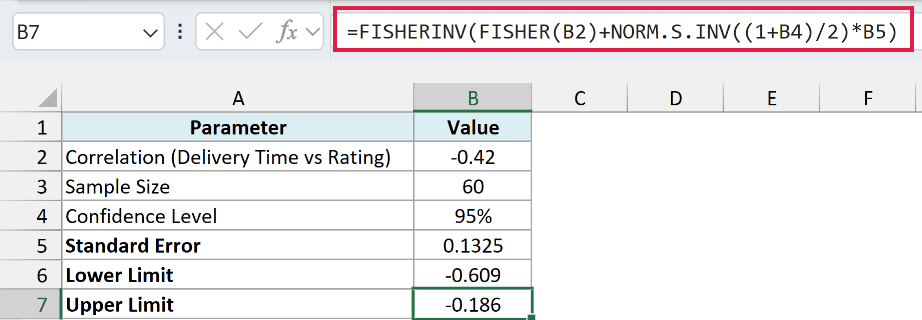
This returns -0.186.
So you can be 95% confident that the true correlation between delivery time and rating is somewhere between -0.609 and -0.186. The interval doesn’t include 0, so the negative relationship is unlikely to be just chance.
This assumes the 60 responses are a random sample of shoppers. If only certain kinds of shoppers answered, the interval can miss the true correlation.
Notice that the interval isn’t centered on -0.42. It reaches further toward 0 than away from it, because the limits are worked out on the Fisher z scale and then squeezed back between -1 and 1.
Pro Tip: To get a 90% or 99% interval, just change the confidence level in B4. Both limits update on their own, because the formulas calculate the multiplier with the NORM.S.INV function instead of hard-coding 1.96.
If you want a refresher on how confidence intervals work in general, check out this guide on how to calculate a confidence interval in Excel.
Example 5: Compare Two Correlations With FISHER
Finally, let’s use FISHER to check whether two correlations are really different.
Below I have the correlation between price and units sold for an online store and an in-store shop, based on 45 and 60 products, and I want the test statistic in F2 and the p-value in F3.

Here is the formula for the test statistic:
=(FISHER(B2)-FISHER(C2))/SQRT(1/(B3-3)+1/(C3-3))
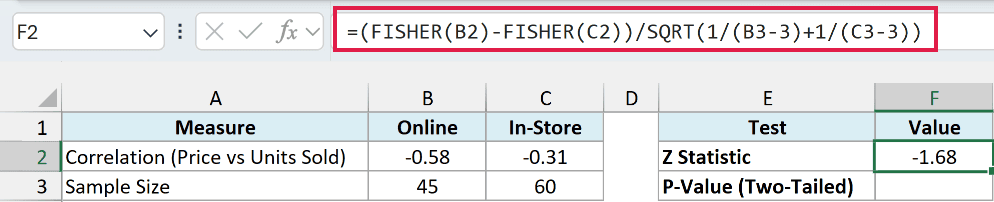
This returns -1.68.
How this formula works:
FISHER(B2)-FISHER(C2)converts both correlations into Fisher z values and subtracts one from the other.SQRT(1/(B3-3)+1/(C3-3))is the standard error of that difference, based on each group’s sample size.- Dividing the difference by the standard error gives a z statistic, which tells you how many standard errors apart the two correlations are.
Here is the formula for the two-tailed p-value:
=2*(1-NORM.S.DIST(ABS(F2),TRUE))
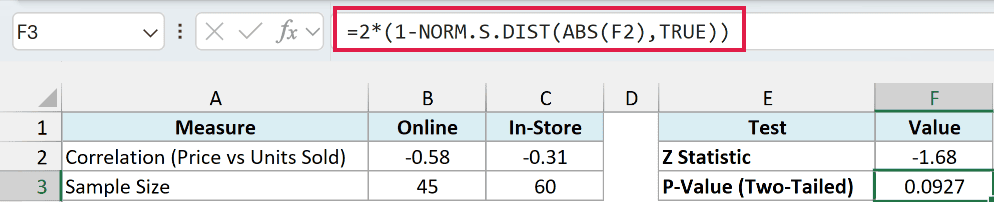
This returns 0.0927. It means that if the two true correlations were the same, there would be about a 9% chance of seeing a gap at least this big just from sampling.
In the above formula, ABS(F2) drops the minus sign, and the NORM.S.DIST function returns the chance of getting a z value up to that number. Subtracting it from 1 gives the chance of a z value further out than that.
Multiplying by 2 counts both directions, since we’re asking whether the two correlations differ, not which one is stronger.
Since 0.0927 is above the usual 0.05 cutoff, there isn’t enough evidence that the two correlations are different. Even though -0.58 and -0.31 look far apart, a gap like that can easily show up by chance with samples of this size.
Important: This test only works for correlations from two separate groups. If both correlations come from the same people or products, the samples aren’t independent, and this formula gives the wrong p-value.
So these are the ways you can use the FISHER function in Excel, from converting a single correlation to comparing two of them. I hope you found this tutorial useful.
Other Excel Articles You May Also Like:
