

The FISHERINV function in Excel turns a Fisher z value back into a correlation coefficient. It’s the reverse of the FISHER function, so if FISHER converted a correlation of 0.64 into a z value, FISHERINV gives you the 0.64 back.
You’ll mostly need it when you do the math on the z scale, such as averaging correlations or building a confidence interval, and then want the answer as a correlation you can read.
In this tutorial, I’ll show you how FISHERINV works on a list of z values, how it reverses FISHER, how to use it for confidence intervals and combined correlations, and which inputs give surprising results.
Follow along with the example file
FISHERINV Function Examples.xlsx
FISHERINV Function Syntax
Here is the syntax of the FISHERINV function:
=FISHERINV(y)
- y – the Fisher z value you want to convert back into a correlation. It can be a number, a cell reference, or a formula. In Excel 365 and Excel 2021 or later, it can also be a range, and you get one result for each cell in it.
The y value can be any number, positive or negative. The result always lands between -1 and 1, which is the range every correlation coefficient has to stay in.
The sign carries straight through. A negative z value gives a negative correlation, and 0 gives 0.
The FISHERINV function works in all Excel versions, including Microsoft 365, 2024, 2021, 2019, 2016, Mac, and the web.
When to Use the FISHERINV Function
Use this function when you need to:
- Convert Fisher z values from a report or a stats tool back into correlation coefficients.
- Undo a FISHER calculation and get the original correlation back.
- Turn the limits of a confidence interval, worked out on the z scale, into correlation values.
- Combine several correlations into one, after averaging them as Fisher z values.
Let me show you a few practical examples of how to use the FISHERINV function.
Example 1: Convert Fisher z Values to Correlations
Let’s start with a simple example.
Below is a list of Fisher z values for the link between temperature and hot drink sales at eight coffee shop branches, and I want to convert them into correlations in column C.
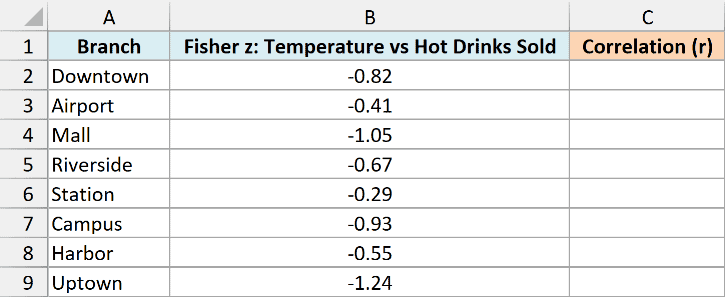
Here is the formula:
=FISHERINV(B2:B9)
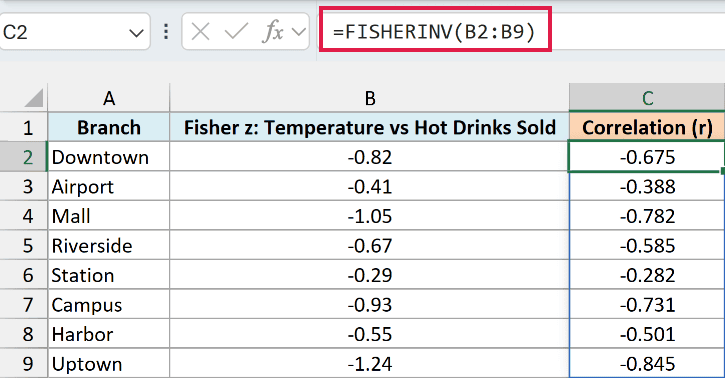
You enter this formula once in cell C2, and the results spill down to C9. FISHERINV converts every z value in B2:B9 into a correlation.
All the z values are negative, so all the correlations are negative too. That makes sense here, because hot drink sales drop as the temperature goes up.
Notice how the gap between the z value and the correlation grows as the z value moves further from 0. A z value of -0.29 becomes -0.282, almost the same number, while -1.24 becomes -0.845, because FISHERINV squeezes larger values to keep them between -1 and 1.
Make sure the cells below C2 are empty before you enter the formula. If anything is in the way, Excel shows a #SPILL! error instead of the results.
If you are using Excel 2019 or earlier, enter the below formula in cell C2 and then copy it down the range:
=FISHERINV(B2)
Example 2: Reverse the FISHER Function With FISHERINV
The FISHER function and FISHERINV are a matched pair. The FISHER function turns a correlation into a Fisher z value, and FISHERINV turns that z value back into the correlation.
Below are the correlations between discount size and units sold for eight product categories, and I want their Fisher z values in column C and the correlations recovered from them in column D.
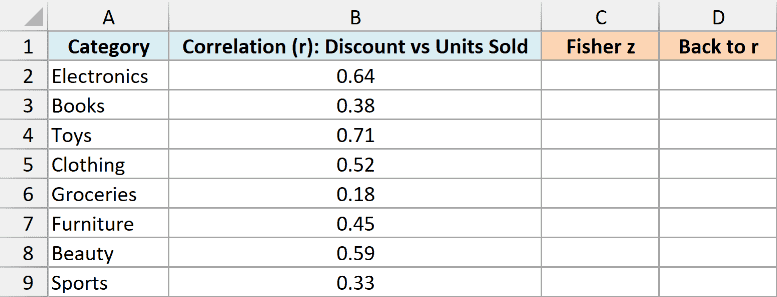
Here is the formula to get the Fisher z values in column C:
=FISHER(B2:B9)
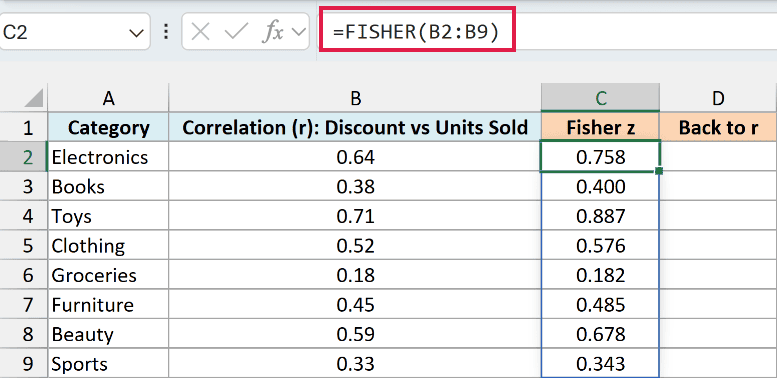
The z values come out a little larger than the correlations, and the gap grows as the correlation gets higher. For example, 0.18 becomes 0.182, while 0.71 becomes 0.887.
If you are using Excel 2019 or earlier, enter the below formula in cell C2 and then copy it down the range:
=FISHER(B2)
Now here is the FISHERINV formula that reverses those z values in column D:
=FISHERINV(C2:C9)
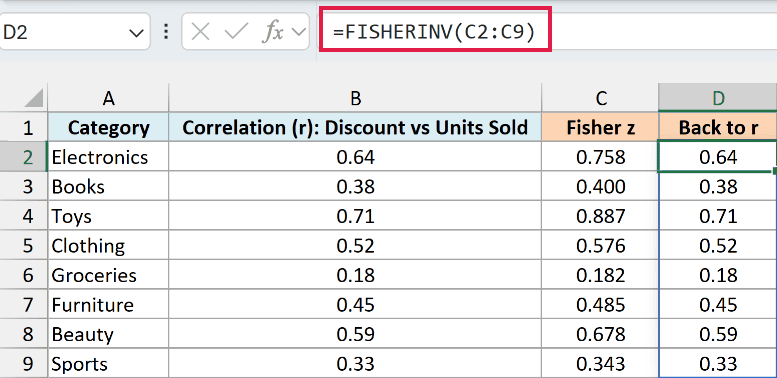
Every correlation comes back exactly as it started. Toys goes from 0.71 to 0.887 and back to 0.71, and Groceries goes from 0.18 to 0.182 and back to 0.18.
If you are using Excel 2019 or earlier, enter the below formula in cell D2 and then copy it down the range:
=FISHERINV(C2)
This round trip breaks only for a correlation of exactly 1 or -1. The FISHER function returns #NUM! for those, and FISHERINV then returns the same #NUM! error, because it gets an error instead of a number.
Example 3: Confidence Interval for a Correlation
This is one of the most common uses of FISHERINV.
A correlation you calculate from a small sample is only an estimate. A 95% confidence interval gives the range the true correlation most likely falls in.
You can’t add an even margin on both sides of a correlation, because it can’t go past -1 or 1. So the margin goes on the Fisher z value instead, which has no such limit, and FISHERINV converts the two limits back into correlations.
Below is the temperature and the number of iced coffees sold over 12 days, and I want the lower and upper limits of the 95% confidence interval for their correlation in cells F5 and F6.
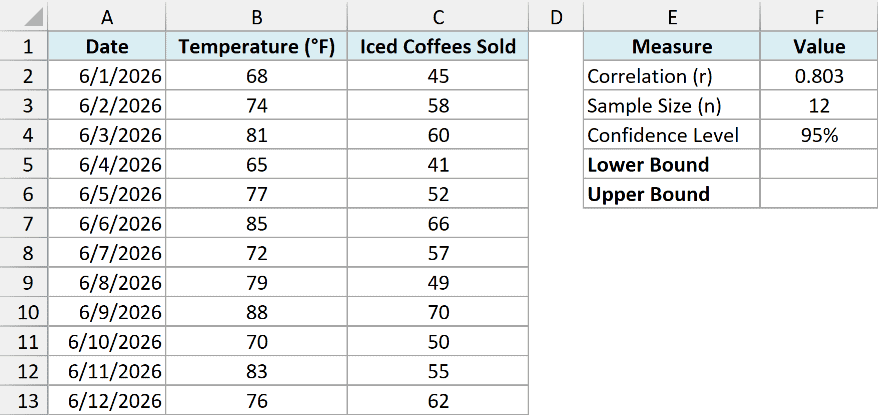
Cell F2 has the correlation from the CORREL function, =CORREL(B2:B13,C2:C13), which returns 0.803. Cell F3 counts the days with =COUNT(B2:B13), and F4 holds the 95% confidence level.
Here is the formula for the lower limit:
=FISHERINV(FISHER(F2)-NORM.S.INV((1+F4)/2)/SQRT(F3-3))
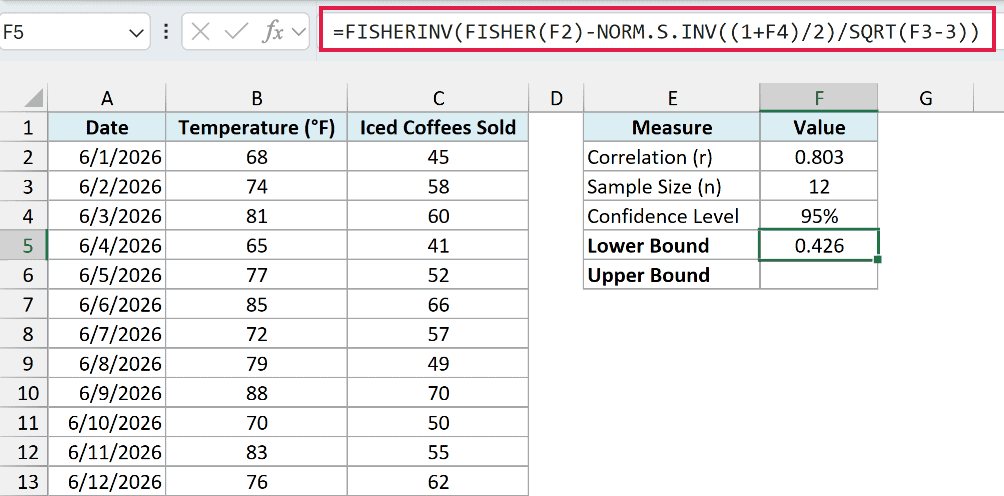
This returns 0.426.
How this formula works:
- FISHER(F2) converts the correlation of 0.803 into a Fisher z value.
- NORM.S.INV((1+F4)/2) uses the NORM.S.INV function to return 1.96, the multiplier for 95% confidence. With 95% in F4, (1+F4)/2 is 0.975, and NORM.S.INV(0.975) is 1.96.
- SQRT(F3-3) is the square root of the number of days minus 3. A Fisher z value from n data points has a standard error of 1/SQRT(n-3), which is where the 3 comes from. Dividing the multiplier by SQRT(F3-3) gives the margin, so more days give a smaller margin.
- Subtracting the margin from the z value gives the lower limit on the z scale, and FISHERINV converts it back into a correlation.
And here is the formula for the upper limit, which adds the margin instead of subtracting it:
=FISHERINV(FISHER(F2)+NORM.S.INV((1+F4)/2)/SQRT(F3-3))
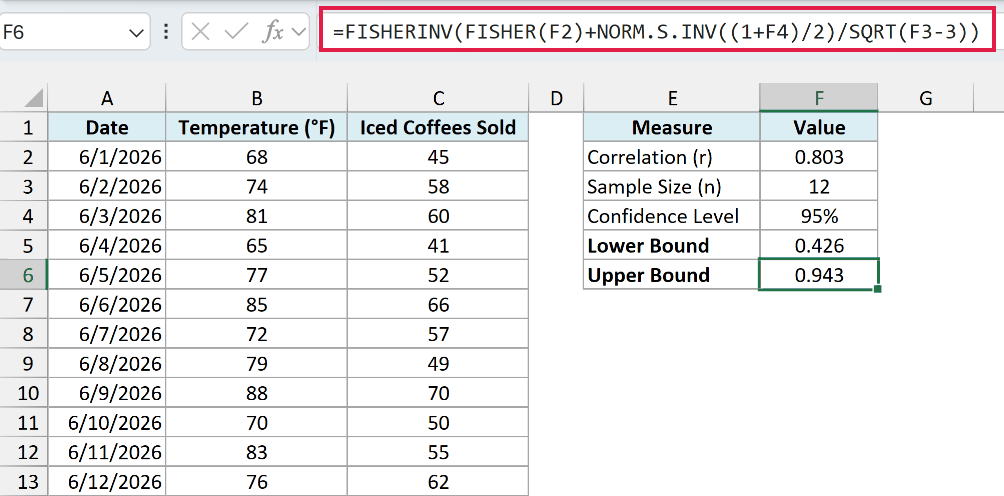
This returns 0.943. So you can be 95% confident that the true correlation between temperature and iced coffee sales is somewhere between 0.426 and 0.943.
That’s a wide range, because 12 days is a small sample. Notice also that it isn’t centered on 0.803, since FISHERINV squeezes values more as they get closer to 1.
Pro Tip: To get a 99% interval, change F4 to 99%. Both formulas pick up the new multiplier from NORM.S.INV, so you don’t need to edit them.
Example 4: Combine Several Correlations Into One
Now let’s use FISHERINV to combine correlations from different groups.
Correlations are squeezed between -1 and 1, so a plain average of them tends to come out too close to 0. The better way is to convert each one into a Fisher z value, average those, and convert the average back with FISHERINV.
Below are the correlations between customer wait time and rating at six stores, along with the number of days each store was tracked, and I want one combined correlation in cell B9.
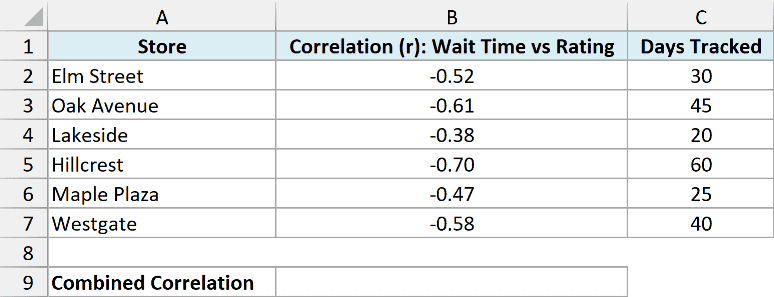
Here is the formula:
=FISHERINV(SUMPRODUCT(FISHER(B2:B7),C2:C7-3)/SUM(C2:C7-3))
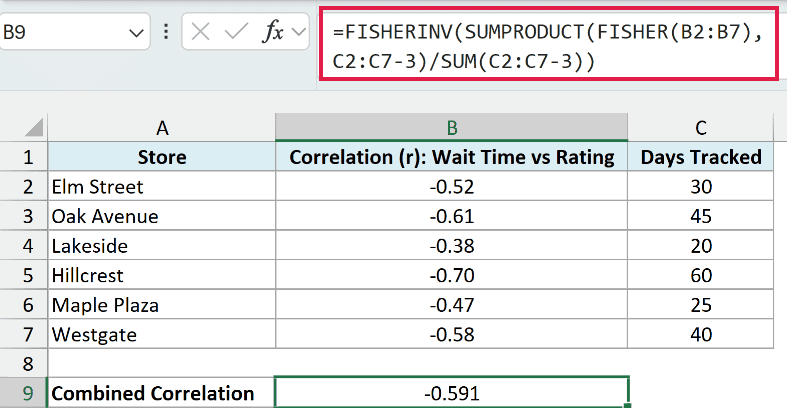
This returns -0.591 as the combined correlation.
How this formula works:
- FISHER(B2:B7) converts the six correlations into Fisher z values.
- C2:C7-3 gives each store a weight equal to its number of days minus 3. That’s the same n minus 3 from Example 3, so stores with more precise z values count more, and a store tracked for 60 days gets a bigger say than one tracked for 20.
- SUMPRODUCT multiplies each z value by its weight and adds them up, and dividing by SUM(C2:C7-3) turns that into a weighted average.
- FISHERINV converts the weighted average back into a correlation.
For comparison, a plain average of the six correlations is -0.543. That skips both the Fisher step and the weights, so the 20-day store counts as much as the 60-day one.
If every group has the same number of days, you don’t need the weights. In that case, =FISHERINV(AVERAGE(FISHER(B2:B7))) returns exactly the same result as the weighted formula, and it’s simpler to read.
Important: If you are using Excel 2019 or earlier, enter either of these formulas with Control + Shift + Enter instead of just Enter. Otherwise, Excel can’t process the ranges inside them as a whole, and the formula returns a #VALUE! error.
Example 5: Inputs That Give Surprising Results
Lastly, let’s look at what FISHERINV does with very large z values and with inputs that aren’t plain numbers.
Below is a list of test inputs, starting with four ordinary z values for comparison, and I want to see what FISHERINV returns for each one in column C.
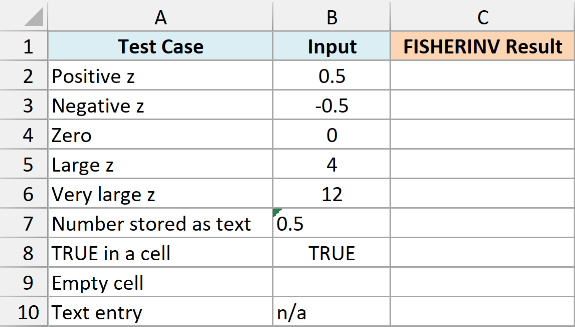
Here is the formula:
=FISHERINV(B2:B10)
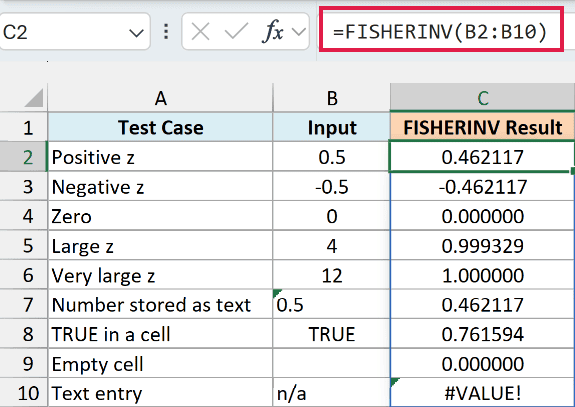
The first four rows behave as expected, with 0.5 and -0.5 giving the same result with opposite signs. A z value of 4 already returns 0.999329, very close to 1.
A z value of 12 shows 1.000000, even though FISHERINV never quite reaches 1 for a z value like this. The real result is 0.99999999992, which rounds to 1 at six decimals, so very large z values all look like a perfect correlation.
The number 0.5 stored as text still works and returns 0.462117, the same as the real number 0.5. FISHERINV converts the text to a number for you.
TRUE returns 0.761594, because Excel treats TRUE as 1 here. If a TRUE ends up in your z column by mistake, you get a correlation that looks valid but means nothing.
Important: An empty cell doesn’t return an error. Excel treats it as 0 and FISHERINV returns 0, which looks like “no correlation”, so make sure every input cell has a value.
The text n/a returns #VALUE! because FISHERINV can’t get a number out of it. Replace it with the actual z value, or leave that row out of the range.
If you are using Excel 2019 or earlier, enter the below formula in cell C2 and then copy it down the range:
=FISHERINV(B2)
So these are some ways you can use the FISHERINV function in Excel. Whenever you do the math on the Fisher z scale, it’s the step that turns the answer back into a correlation you can read.
I hope you found this article helpful.
Other Excel Articles You May Also Like:
