

The LENB function in Excel returns the length of a text string in bytes instead of characters. On a regular English install of Excel, that gives you exactly the same number as the LEN function.
The two only differ when Excel’s default language is Japanese, Chinese, or Korean, whose text includes double-byte characters (characters that older encodings store in 2 bytes, like あ or 中). In that case, LENB counts each one as 2.
So LENB matters mostly if you work with Japanese, Chinese, or Korean text, or check text against a byte limit.
In this article, I’ll show you what LENB returns on a normal install, how to check which behavior your own Excel has, and what to use when you need a real byte count.
Follow along with the example file
LENB Function Examples.xlsx
LENB Function Syntax
Here is the syntax of the LENB function:
=LENB(text)
- text – The text you want to measure. It can be text typed in double quotes, a cell reference, or a whole range of cells.
LENB counts every character as 1 byte, with one exception. When a double-byte language (Japanese, Chinese Simplified, Chinese Traditional, or Korean) is enabled for editing and set as Excel’s default language, LENB counts each double-byte character as 2.
On every other setup, LENB returns the same number as the LEN function. That’s why the two so often show identical results.
Microsoft lists LENB as a deprecated function. It still works in current versions of Excel, so existing workbooks that use it keep working.
The LENB function works in all Excel versions, including 365, 2024, 2021, 2019, 2016, Mac, and the web.
When to Use the LENB Function
Use it when you need to:
- Count the bytes in a text string in an Excel that has a double-byte language as its default.
- Check whether a cell contains double-byte characters, by comparing LENB with LEN.
- Test whether your own copy of Excel counts double-byte characters as 2.
- Keep text within a byte limit set by an older database or form, when double-byte counting is on.
Let me show you five examples of how this works.
Example 1: Count Bytes in English Text
Let’s start with plain English text, which is what most people will use first.
Below is a list of workshop titles, and I want to get the number of bytes in each title in column B.

Here is the formula:
=LENB(A2:A11)
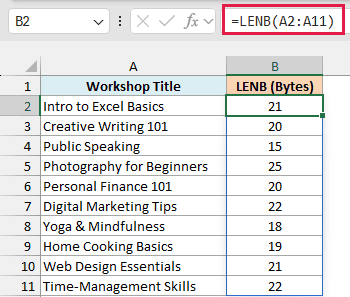
LENB counts every letter, digit, space, and symbol in a title as 1 byte, so “Intro to Excel Basics” returns 21. The ampersand in “Yoga & Mindfulness” and the hyphen in “Time-Management Skills” count too.
You enter the formula once in cell B2, and in Excel 365 and 2021 or later it spills the results down to B11. If any cell below B2 already has something in it, you’ll get a #SPILL! error until you clear it.
Now, to see how LENB compares with LEN, here is the LEN formula in column C:
=LEN(A2:A11)
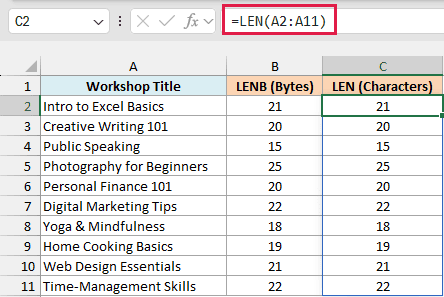
Both columns match on every row. With English text, one character takes up one byte, so LENB and LEN have nothing to disagree about.
If you are using Excel 2019 or earlier, enter the below formula in cell B2 and then copy it down the range:
=LENB(A2)
Example 2: Count Bytes in Numbers, Dates, and Spaces
Now let’s see what LENB does with entries that aren’t plain text.
Below is a list of different kinds of entries, from plain text to a date and an empty cell, and I want to get the number of bytes in each one in column C.
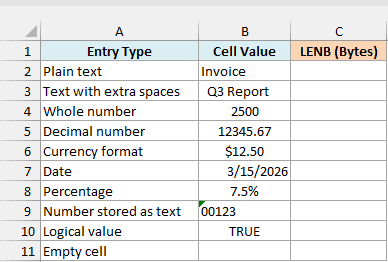
Here is the formula:
=LENB(B2:B11)
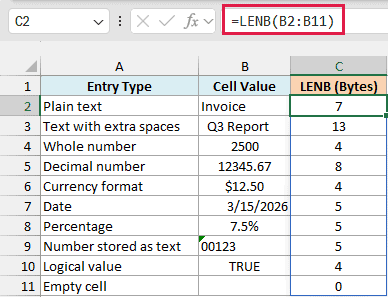
LENB counts the value stored in the cell, not the way the cell looks. The currency cell shows $12.50, but Excel stores 12.5, so LENB returns 4.
The same goes for the date. It shows 3/15/2026, but Excel stores it as the number 46096, so LENB returns 5.
The percentage works the same way. The cell shows 7.5%, but the stored value is 0.075, which is 5 bytes.
Spaces count too, even the ones you can’t easily see. ” Q3 Report ” has 9 characters plus 2 spaces on each side, so it returns 13.
The text “00123” returns 5 because it’s stored as text, so its leading zeros are part of the string. TRUE returns 4 for the four letters, and the empty cell returns 0.
Pro Tip: To count a date as it looks on screen, wrap it in the TEXT function first, like =LENB(TEXT(B7,”m/d/yyyy”)). That returns 9, the length of 3/15/2026.
Example 3: Count Bytes in Japanese Text
Here’s where LENB is supposed to behave differently, so let’s try it on Japanese text.
Below is a list of Japanese words and phrases with their meaning, and I want to get the number of bytes in column C.
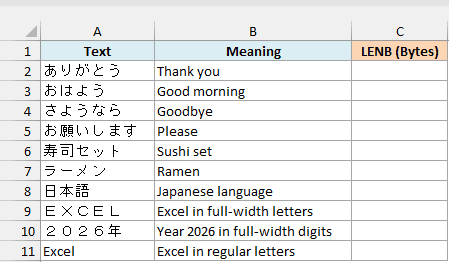
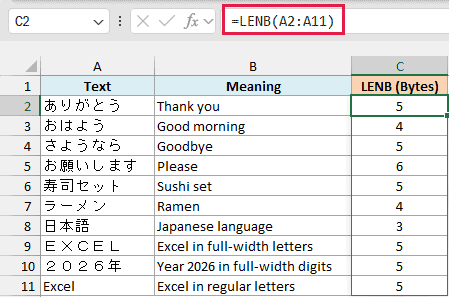
Here is the formula for the bytes:
=LENB(A2:A11)
And here is the formula for the characters, which goes in column D:
=LEN(A2:A11)
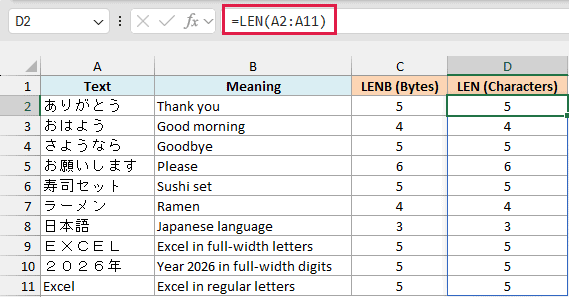
Both columns show the same numbers, even though every Japanese character here is a double-byte character. That’s because the Excel in these screenshots has an English default language, so LENB counts each character as 1 byte.
With a double-byte language as the default, LENB counts each double-byte character as 2, which is how Microsoft’s Office documentation describes it. So =LENB(“中国香港”) returns 8 in that setup and 4 in any other.
By that rule, ありがとう would return 10 instead of 5, while LEN would still return 5. The full-width letters in EXCEL are double-byte characters too, so the same rule would give 10 for them.
You can spot full-width letters by their width, since they look wider than the regular letters in the last row.
I can’t show the double-byte numbers in a screenshot because they only appear in an Excel set up with a double-byte default language, so that part comes from Microsoft’s documented rule.
Example 4: Check If Your Excel Counts Double-Byte Characters
To find out which behavior your own Excel has, you can use a small test formula.
Below I have a Japanese character in cell B1, and I want to get an On or Off answer in cell B2 for whether Excel counts it as 2 bytes.
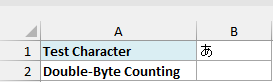
Here is the formula:
=IF(LENB(B1)>LEN(B1),"On","Off")
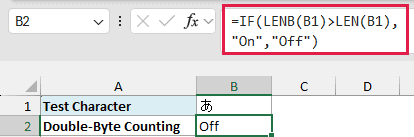
LEN always counts the character as 1, while LENB counts it as 2 only when double-byte counting is on. The IF function compares the two, so it returns “On” when LENB is bigger and “Off” when they match.
It returns “Off” here, which is what you’ll get on a regular English install. If your Excel has Japanese, Chinese, or Korean as its default language, the same formula returns “On”.
To try it yourself, copy the character from cell B1 of the example file into any cell in your workbook and point the formula at it.
Example 5: Count the Actual UTF-8 Bytes in a Cell
On a regular install, LENB isn’t a real byte counter, so let’s build a formula that is.
Below is a list of desserts, some with accents and some in Japanese, and I want to get the number of characters in column B and the number of bytes in column C.
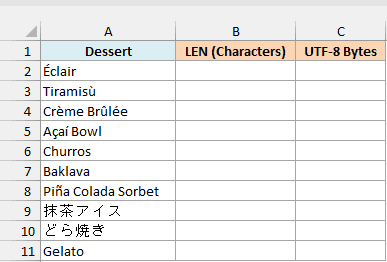
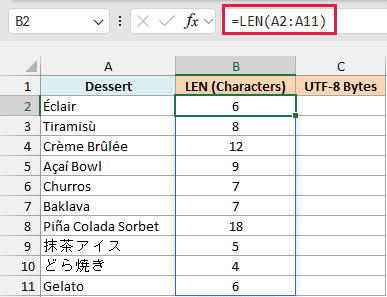
Here is the formula for the characters:
=LEN(A2:A11)
And here is the formula for the bytes:
=LET(c,UNICODE(MID(A2,SEQUENCE(LEN(A2)),1)),SUM(1+(c>127)+(c>2047)))
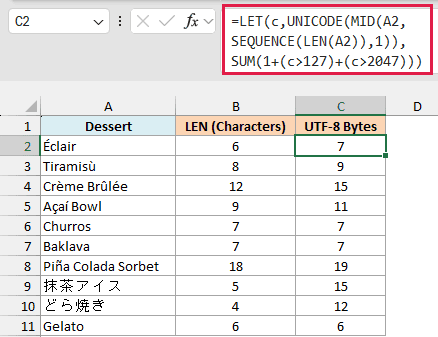
This counts bytes the way UTF-8 does, the encoding most websites, databases, and APIs use. In UTF-8, a regular letter takes 1 byte, an accented letter like É takes 2, and a Japanese character takes 3.
Which one applies depends on the character’s code number. Codes up to 127 (regular letters, digits, and symbols) take 1 byte, 128 to 2047 (accented letters like É) take 2, and anything higher (like Japanese characters) takes 3.
LENB can’t do this job, even with double-byte counting on. It follows the 2-bytes-per-character rule above, so it wouldn’t match the 3 bytes UTF-8 uses for a Japanese character.
How this formula works:
- MID(A2,SEQUENCE(LEN(A2)),1) splits the name into a list of single characters.
- UNICODE(…) turns each character into its code number, using the UNICODE function. The LET function stores that list of numbers as c.
- 1+(c>127)+(c>2047) gives every character 1 byte, plus 1 more if its code is above 127, plus 1 more if it’s above 2047.
- SUM adds up the bytes for the whole name.
So Éclair has 6 characters but 7 bytes, and 抹茶アイス has 5 characters but 15 bytes. Names with only regular letters, like Churros, have the same number of each.
I’m keeping the byte formula per-row because the SEQUENCE function inside it builds a list of characters for a single name at a time. Enter it in cell C2 and copy it down to C11.
The byte formula needs Excel 365 or 2021 or later, since that’s where the LET function and the SEQUENCE function are available.
Important: This formula is meant for text without emoji or blank cells. An emoji such as 😀 takes 4 bytes in UTF-8 but is counted as 3, and a blank cell returns a #CALC! error.
So these are five ways to work with the LENB function in Excel, from counting plain text to checking your own setup and counting real UTF-8 bytes.
I hope you found this article helpful.
Other Excel Articles You May Also Like:
