

The Text.BeforeDelimiter function gives you the part of a text value that comes before a character you pick, like the first name before a space or the username before the @ sign in an email.
In this article, I’ll show you how it works, how to stop at a later occurrence of the delimiter (or count from the end), and what you get back when the delimiter isn’t there.
Follow along with the example file
Text.BeforeDelimiter Function Examples.xlsx
Text.BeforeDelimiter Function Syntax
Text.BeforeDelimiter(text as nullable text, delimiter as text, optional index as any) as any
- text – the text value you want to extract from.
- delimiter – the character (or characters) that marks where the part you want ends.
- index (optional) – which occurrence of the delimiter to use. It counts from 0, so 0 is the first one (the default) and 1 is the second. You can also give a list like {0,RelativePosition.FromEnd} to count from the end of the text instead.
What it returns – the text before the delimiter, without the delimiter itself.
The delimiter is case-sensitive, so “ext” won’t match “Ext”. When the case is different, there’s no match, so you get the whole text back without an error.
The function also only accepts text. Pointing it at a number column gives you a “We cannot convert the value” error, so convert those values with Text.From first.
When to Use the Text.BeforeDelimiter Function
Use this function when you need to:
- Get the first name from a full name
- Get the username from an email address
- Pull the number out of a value with a unit, like “45 min”
- Keep the first part of a code or ID, like the team and year in “HR-2026-0417”
- Remove a file extension from file names
- Strip extra details from the end of a value, like a query string from a URL or an extension from a phone number
Example 1: Get the Text Before a Colon
Let’s start with a simple one.
Suppose you have a note that says “Invoice 4471: Paid in full”, and you only want the invoice part that comes before the colon.
Create a new blank query (in Excel, go to Data > Get Data > From Other Sources > Blank Query) and use this formula:
= Text.BeforeDelimiter("Invoice 4471: Paid in full",":")
Result: Invoice 4471

Here, “:” is the delimiter. Text.BeforeDelimiter finds the first colon in the text and returns everything before it, and the colon itself is not part of the result.
Example 2: Get the First Name From a Full Name
This is probably the most common use of this function.
Below is an Employees table with each person’s full name and department, and I want the first name in a new First Name column.
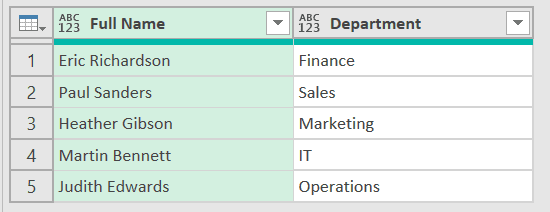
To follow along, select any cell in the Employees table and go to Data > From Table/Range.
This opens the table in the Power Query Editor, where the Source step holds it (if Power Query adds a Changed Type step too, you can delete it).
Add a new step (by clicking on the fx icon next to the formula bar) and use this formula:
= Table.AddColumn(Source,"First Name",each Text.BeforeDelimiter([Full Name]," "),type text)
Result: A new First Name column with Eric, Paul, Heather, Martin, and Judith.
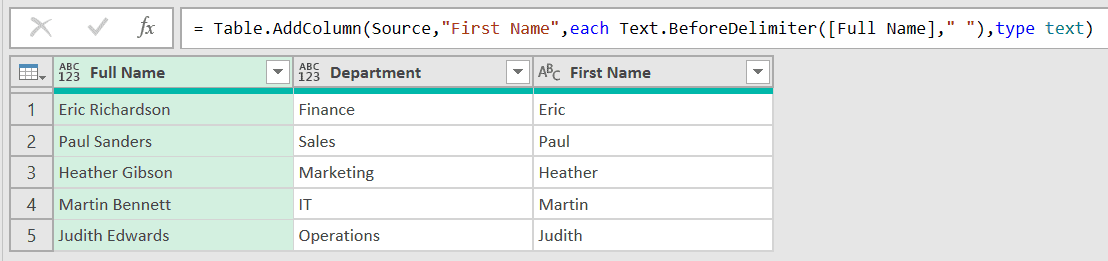
In the above formula, Table.AddColumn adds a new column called First Name. For each row, Text.BeforeDelimiter looks at the Full Name value and returns the text before the first space.
Here, each tells Power Query to run the formula once for every row, and [Full Name] is the value in the Full Name column of that row. The last argument, type text, sets the data type of the new column to text.
Since it stops at the first space, a name like “Mary Ann Smith” gives you just Mary. And if a name starts with a space, you get an empty value, so clean those with Text.Trim first.
Example 3: Get the Username From an Email Address
Here’s another one you’ll use a lot.
Below is a Members table with each member’s name and email address, and I want the part of the email before the @ sign in a new Username column.
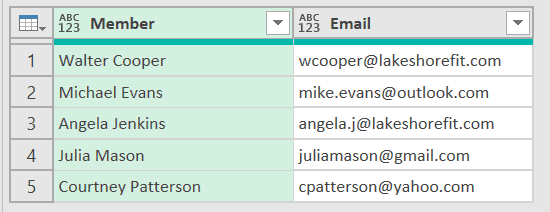
Add a new step (by clicking on the fx icon next to the formula bar) and use this formula:
= Table.AddColumn(Source,"Username",each Text.BeforeDelimiter([Email],"@"),type text)
Result: A new Username column with wcooper, mike.evans, angela.j, juliamason, and cpatterson.
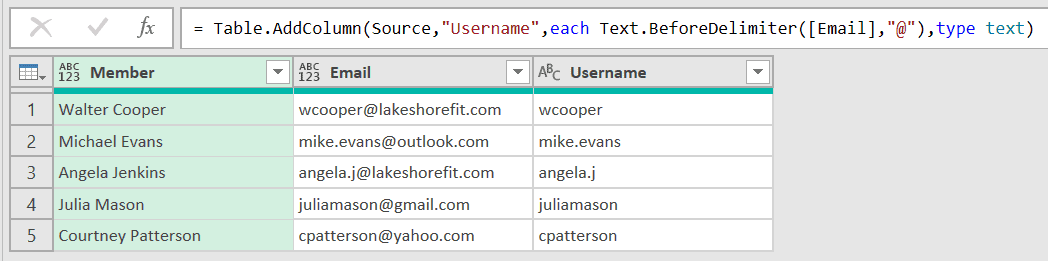
In these addresses, the text before the first @ sign is the username. Dots inside the username (like in mike.evans) don’t matter because the delimiter is @.
If you want the other side of the @ sign (the domain), use Text.AfterDelimiter instead. It works the same way but returns the text after the delimiter.
Example 4: Get the Number Before a Unit
This one comes up when numbers are stored with a unit next to them.
Below is a Workouts table where each duration is written like “35 min”, and I want the minutes as a number in a new Minutes column.
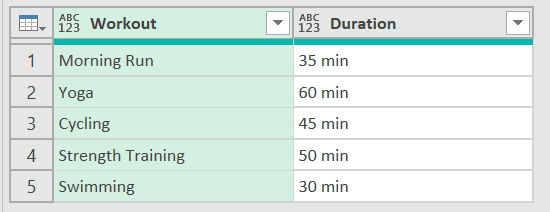
Add a new step (by clicking on the fx icon next to the formula bar) and use this formula:
= Table.AddColumn(Source,"Minutes",each Number.From(Text.BeforeDelimiter([Duration]," ")),Int64.Type)
Result: A new Minutes column with 35, 60, 45, 50, and 30.
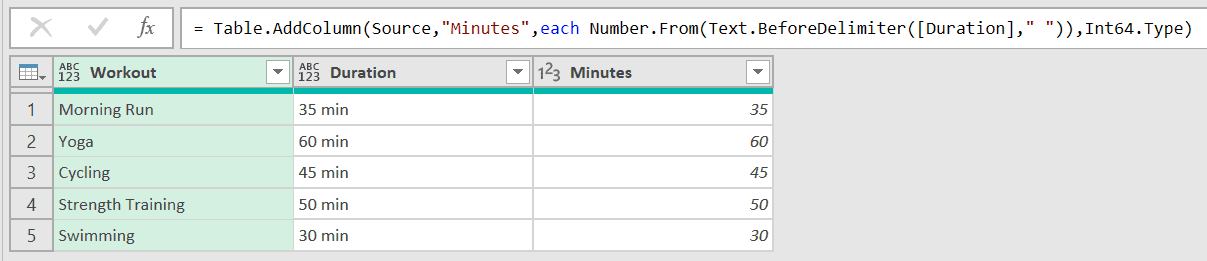
Here, Text.BeforeDelimiter returns the text before the space, like “35”. It always returns text, so Number.From converts “35” into the number 35.
Int64.Type then sets the new column as a whole number column, so you can sum or average it right away.
Example 5: Use More Than One Character as the Delimiter
The delimiter doesn’t have to be a single character. You can use a space-hyphen-space or even a whole word.
Below is a Listings table where each listing has the product name, size, and color separated by ” – “, and I want only the product name in a new Product column.
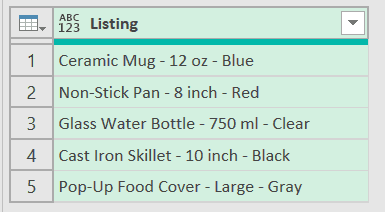
Add a new step (by clicking on the fx icon next to the formula bar) and use this formula:
= Table.AddColumn(Source,"Product",each Text.BeforeDelimiter([Listing]," - "),type text)
Result: A new Product column with Ceramic Mug, Non-Stick Pan, Glass Water Bottle, Cast Iron Skillet, and Pop-Up Food Cover.
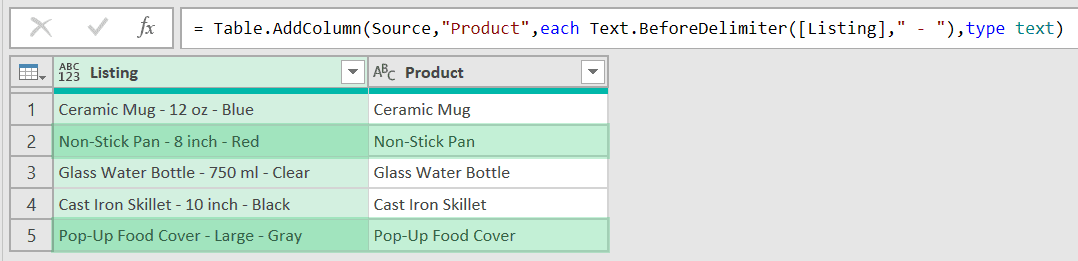
Here, the delimiter is ” – ” (a hyphen with a space on each side). This matters because some product names have a hyphen in them.
If you use just “-” as the delimiter, “Non-Stick Pan – 8 inch – Red” gives you “Non”, because that’s the text before the first hyphen. With ” – “, the hyphen in Non-Stick doesn’t match, and you get the full product name.
Example 6: Get the Text Before the Second Hyphen
So far, every example used the first occurrence of the delimiter. The third argument lets you pick a later one.
Below is a Cases table with case IDs like HR-2026-0417, where the first part is the team and the second part is the year, and I want the team and year together in a new Team and Year column.
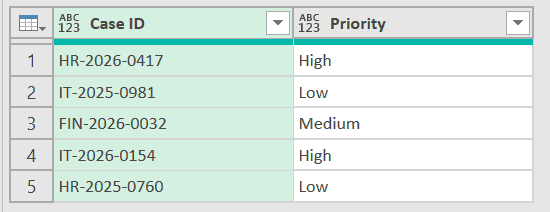
Add a new step (by clicking on the fx icon next to the formula bar) and use this formula:
= Table.AddColumn(Source,"Team and Year",each Text.BeforeDelimiter([Case ID],"-",1),type text)
Result: A new Team and Year column with HR-2026, IT-2025, FIN-2026, IT-2026, and HR-2025.
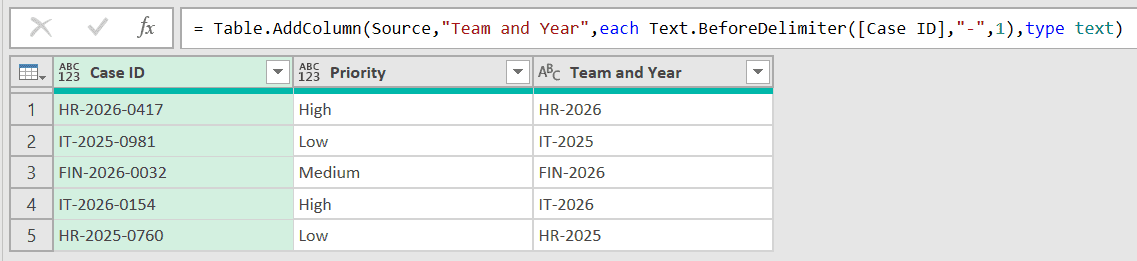
The 1 in the third argument tells Power Query to stop at the second hyphen. The count starts at 0, so 0 is the first hyphen (the default) and 1 is the second.
The result keeps the first hyphen, because it’s part of the text before the second one. And since the team codes have different lengths (HR, IT, FIN), this works better than taking a fixed number of characters with Text.Start.
If you ask for an occurrence that doesn’t exist, say 1 in “HR-0417” with only one hyphen, you get the whole text back instead of an error.
Example 7: Remove the File Extension From File Names
Sometimes the delimiter you need is the last one in the text, and the number of delimiters before it changes from row to row.
Below is an Attachments table with file names, some of which have dots in the name itself (like Q3.Sales.Report.xlsx), and I want the name without the extension in a new Name column.
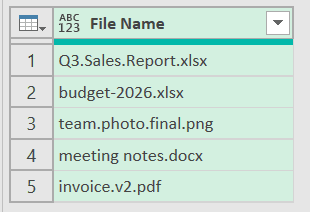
Using “.” as the delimiter with the default index won’t work here, because it stops at the first dot. For Q3.Sales.Report.xlsx, that would give you just Q3.
Add a new step (by clicking on the fx icon next to the formula bar) and use this formula:
= Table.AddColumn(Source,"Name",each Text.BeforeDelimiter([File Name],".",{0,RelativePosition.FromEnd}),type text)
Result: A new Name column with Q3.Sales.Report, budget-2026, team.photo.final, meeting notes, and invoice.v2.

Here, {0,RelativePosition.FromEnd} tells Power Query to count the dots from the end of the text, and 0 means the last dot. So you get everything before the last dot, no matter how many dots the name has.
Be careful with names that have no dot. When you count from the end and the text has no dot at all (like a file named “Read Me”), you get an empty value, not the whole text.
This is different from the default, which returns the whole text when the delimiter is missing.
If some of your file names have no extension, check for a dot first and keep the name as it is when there isn’t one:
= Table.AddColumn(Source,"Name",each if Text.Contains([File Name],".") = true then Text.BeforeDelimiter([File Name],".",{0,RelativePosition.FromEnd}) else [File Name],type text)
The Text.Contains check goes to the first branch only when it returns true. A name with no dot stays as it is, and a blank file name stays null.
Example 8: When the Delimiter Is Missing
Not every row will have the delimiter you’re looking for, and it helps to know what you get back.
Below is a PageViews table with page URLs, where some have a query string after a “?” (like ?ref=newsletter) and some don’t, and I want the clean page path in a new Page column.
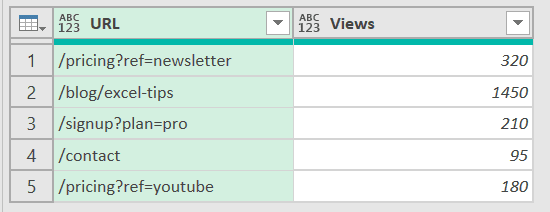
Add a new step (by clicking on the fx icon next to the formula bar) and use this formula:
= Table.AddColumn(Source,"Page",each Text.BeforeDelimiter([URL],"?"),type text)
Result: A new Page column with /pricing, /blog/excel-tips, /signup, /contact, and /pricing.
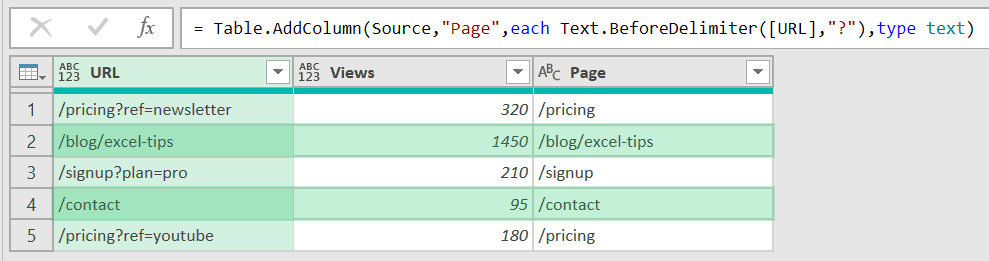
When the delimiter isn’t in the text, Text.BeforeDelimiter doesn’t give an error. It returns the whole text, so /blog/excel-tips and /contact come through as they are.
That’s exactly what you want here, because a URL without a “?” is already a clean page path. Now both /pricing rows show the same page, so you can group them with Table.Group and add up their views.
The same thing happens when the case doesn’t match. If the formula looks for “Ref:” but the text says “ref:”, you get the whole text back without any warning, so it’s worth checking a few rows after you add the step.
Example 9: Clean a Column in Place
All the examples so far added a new column. If you’d rather fix the values in the existing column, you can use Text.BeforeDelimiter with Table.TransformColumns.
Below is an Offices table with each office’s phone number, where some numbers have an extension at the end (like “ext. 22”), and I want to remove the extensions right in the Phone column.
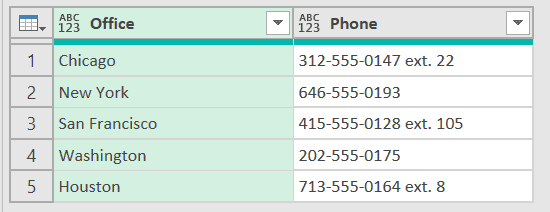
Add a new step (by clicking on the fx icon next to the formula bar) and use this formula:
= Table.TransformColumns(Source,{{"Phone",each Text.BeforeDelimiter(_," ext."),type text}})
Result: The Phone column now shows 312-555-0147, 646-555-0193, 415-555-0128, 202-555-0175, and 713-555-0164.
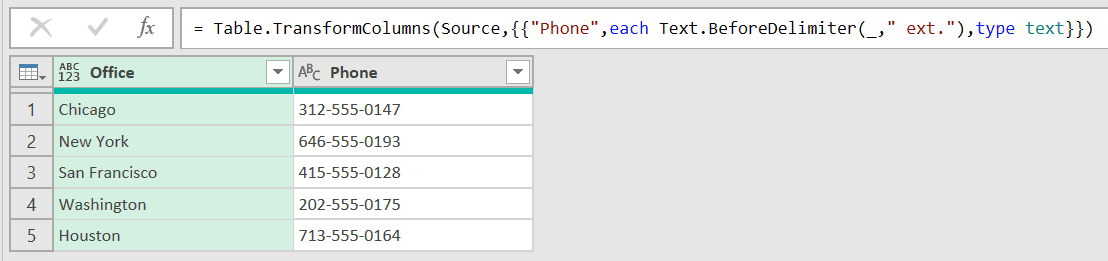
Here, Table.TransformColumns changes the values in the Phone column instead of adding a new one. The _ stands for the current value in that column, so Text.BeforeDelimiter runs once on each phone number.
The inner list {“Phone”,each …,type text} holds the column to change, what to do to each value, and the column type. The outer braces can hold one such list per column, so you can clean several columns in one step.
The delimiter ” ext.” starts with a space, so the result doesn’t end with a space. And the numbers without an extension come back unchanged, because the delimiter is missing (just like in Example 8).
Other Excel Articles You May Also Like:
- Text.AfterDelimiter Function in Power Query M
- Text.BetweenDelimiters function
- Text.PositionOf
- Text.Split – Use Text.Split in Power Query M to split text into a list.
- Splitter.SplitTextByDelimiter – Use Splitter.SplitTextByDelimiter in Power Query M to split text.
- Text.TrimEnd – Use Text.TrimEnd in Power Query M to remove trailing spaces or characters.
- Text.StartsWith – Use Text.StartsWith in Power Query M to check whether text begins with a prefix.
- Text.PadStart – Use Text.PadStart in Power Query M to pad text to a fixed length by adding characters to the front.
