

The Text.PositionOf function tells you where a piece of text sits inside another text. You give it the text and what to look for, and it returns the position as a number, or -1 when it can’t find it.
That position is handy on its own, and even more useful when you pass it to other text functions to pull out the part you need.
In this article, I’ll show you how to find the first, last, or every match, ignore upper and lower case, and handle blank cells.
Follow along with the example file
Text.PositionOf Function Examples.xlsx
Text.PositionOf Function Syntax
Text.PositionOf(text as text, substring as text, optional occurrence as nullable number, optional comparer as nullable function) as any
- text – the text you want to search in.
- substring – the text you want to find. It can be a single character like “#” or a longer piece of text like “INV-“.
- occurrence (optional) – which match to return. Use Occurrence.First for the first match (the default), Occurrence.Last for the last one, or Occurrence.All to get a list with the positions of every match.
- comparer (optional) – controls how the text is compared. Use Comparer.OrdinalIgnoreCase to ignore upper and lower case.
What it returns – the position of the match as a number, or a list of positions when you use Occurrence.All. If the text isn’t found, you get -1.
Positions start at 0, not 1. So the first character of the text is at position 0, the second at position 1, and so on.
The Text.PositionOf function is part of the Power Query M language, so it works wherever Power Query does in Excel: Excel 365, 2024, 2021, 2019, and 2016 for Windows, and Excel for Microsoft 365 on Mac.
When to Use the Text.PositionOf Function
Use this function when you need to:
- Find where a character or word starts in a text value
- Check which rows contain a piece of text and which don’t (it returns -1 for those)
- Find the last space in a name, or the last occurrence of any character
- Get the position of the second or third occurrence of a character
- Count how many times a word appears in a text value
- Pull out a code that can start anywhere in the text, together with Text.Middle
Example 1: Find the Position of a Character
Let’s start with a simple one.
Suppose you have the text “Invoice #8027” and you want to know where the # sign is.
In Excel, go to Data > Get Data > From Other Sources > Blank Query. In the Power Query Editor that opens, type this formula in the formula bar:
= Text.PositionOf("Invoice #8027","#")
Result: 8

Here, the # sign is the ninth character in “Invoice #8027”, but the result is 8. That’s because Power Query counts positions from 0, so the “I” at the start is at position 0.
If you’re used to Excel’s FIND function, this is the main difference. FIND starts counting at 1, so FIND(“#”,”Invoice #8027″) returns 9.
Example 2: Find a Character in Every Row of a Column
Now let’s do the same thing for a whole column.
Below is a Parts table with part numbers and descriptions, and I want the position of the hyphen in each part number in a new Hyphen Position column.
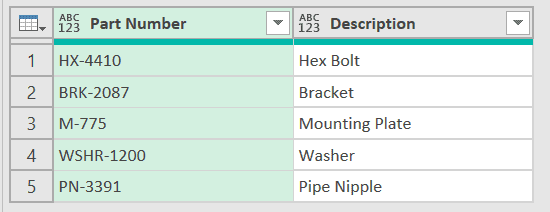
To follow along, select any cell in the Parts table and go to Data > From Table/Range. This opens the table in the Power Query Editor, where the Source step holds it (if Power Query adds a Changed Type step too, you can delete it).
Add a new step (by clicking on the fx icon next to the formula bar) and use this formula:
= Table.AddColumn(Source,"Hyphen Position",each Text.PositionOf([Part Number],"-"),Int64.Type)
Result: A new Hyphen Position column with 2, 3, 1, 4, and 2.
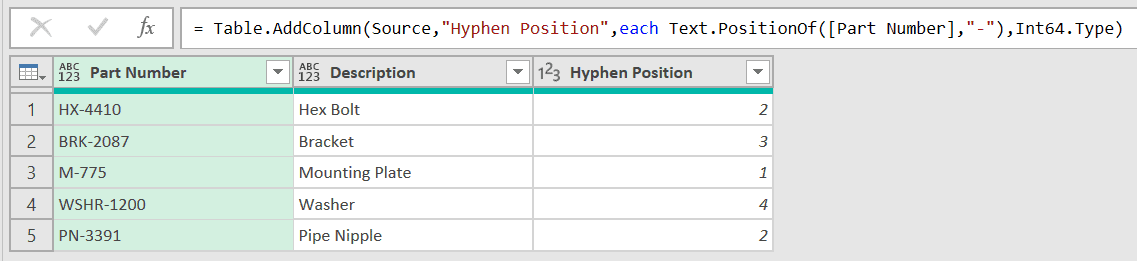
In the above formula, Table.AddColumn adds a new column called Hyphen Position. For each row, Text.PositionOf looks at the Part Number value and returns where the first hyphen is.
Here, each tells Power Query to run the formula once for every row, and [Part Number] is the value in that row. Int64.Type sets the new column’s data type to whole number.
Since positions start at 0, the hyphen’s position is also the number of characters before it. So “BRK-2087” returns 3, because its prefix “BRK” is three characters long.
If you want the prefix itself rather than its length, Text.BeforeDelimiter([Part Number],”-“) returns it directly.
Example 3: What You Get When the Text Isn’t Found
Not every row will have the text you’re looking for. In that case, Text.PositionOf returns -1.
Below is a Tracks table with song titles and their play counts, and some titles end with a version tag in parentheses, like “(Live)”. I want the position of the opening bracket in a new Bracket Position column.
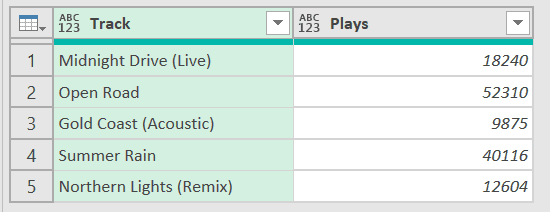
Add a new step (by clicking on the fx icon next to the formula bar) and use this formula:
= Table.AddColumn(Source,"Bracket Position",each Text.PositionOf([Track],"("),Int64.Type)
Result: A new Bracket Position column with 15, -1, 11, -1, and 16.
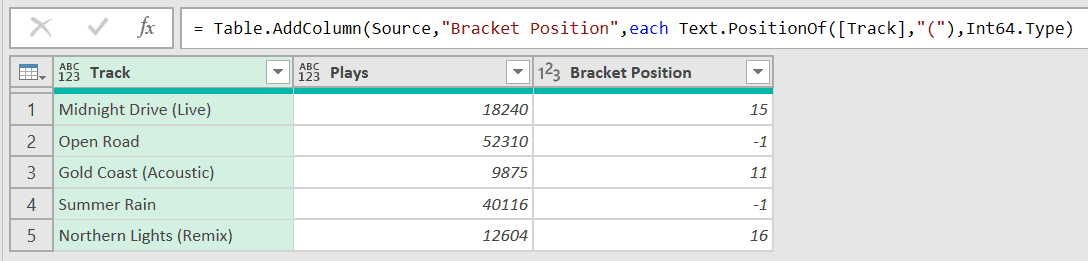
Here, “Open Road” and “Summer Rain” have no bracket, so they return -1. The other three titles return the position where their version tag starts.
The -1 is useful because you can test for it. For example, Text.PositionOf([Track],"(") = -1 is true for the tracks without a version tag.
If all you need is a yes or no answer, though, Text.Contains is simpler. Text.Contains([Track],”(“) returns TRUE or FALSE directly, so use Text.PositionOf when you also need the position.
Example 4: Ignore Upper and Lower Case
By default, Text.PositionOf is case-sensitive. So “fragile” won’t match “FRAGILE” or “Fragile”.
Below is a Deliveries table with order numbers and delivery instructions, and some instructions mention the word fragile in different cases. I want to find where “fragile” appears, first with the default comparison in a Default column, then ignoring case in an Ignore Case column.
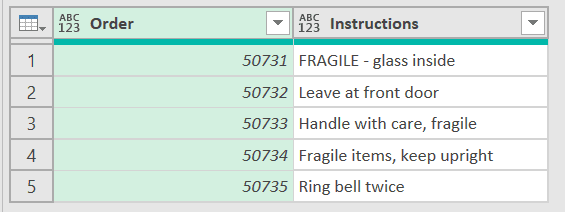
Add a new step (by clicking on the fx icon next to the formula bar) and use this formula:
= Table.AddColumn(Source,"Default",each Text.PositionOf([Instructions],"fragile"),Int64.Type)
Power Query names that step Custom1 by default. Right-click it in Applied Steps, choose Rename, and call it Added Default, because the next formula refers to it by that name.
Then add one more step and use this formula:
= Table.AddColumn(#"Added Default","Ignore Case",
        each Text.PositionOf([Instructions],"fragile",Occurrence.First,Comparer.OrdinalIgnoreCase),
        Int64.Type)
Result: A Default column with -1, -1, 18, -1, and -1, and an Ignore Case column with 0, -1, 18, 0, and -1.
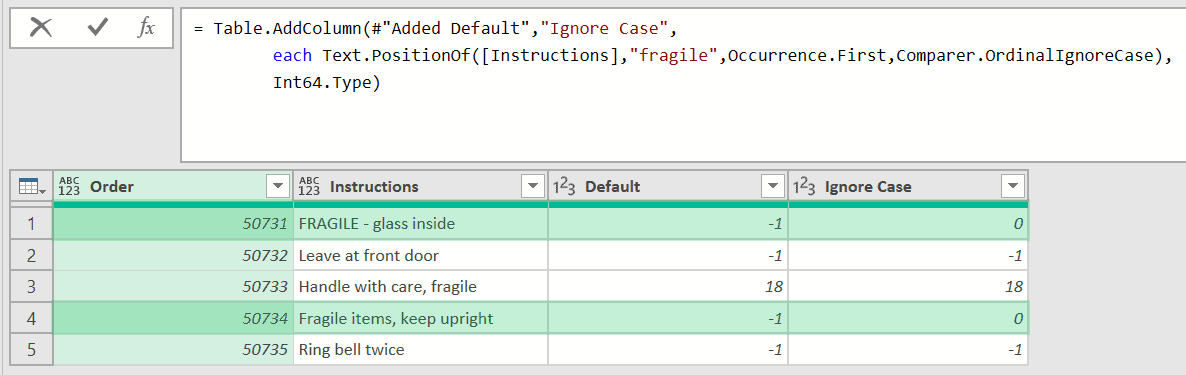
In the Default column, only “Handle with care, fragile” finds a match, because it’s the only instruction with “fragile” in lowercase. “FRAGILE – glass inside” and “Fragile items, keep upright” return -1, even though they clearly mention it.
In the second formula, Comparer.OrdinalIgnoreCase tells Power Query to ignore case. Now those two rows return 0, since the word is at the very start of the text.
Note that the comparer is the fourth argument, so you need to fill in the third one too. Occurrence.First keeps the default behavior of returning the first match.
Example 5: Find the Last Occurrence
Sometimes the match you care about is the last one, not the first.
Below is a Members table with each member’s full name and plan, and some names have a middle name. I want the position of the last space in each name in a new Last Space column.
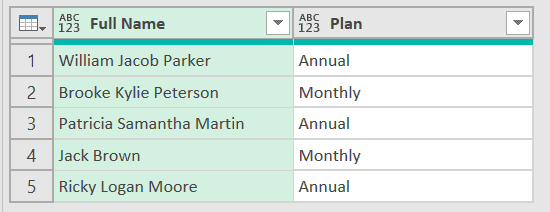
Add a new step (by clicking on the fx icon next to the formula bar) and use this formula:
= Table.AddColumn(Source,"Last Space",each Text.PositionOf([Full Name]," ",Occurrence.Last),Int64.Type)
Result: A new Last Space column with 13, 12, 17, 4, and 11.
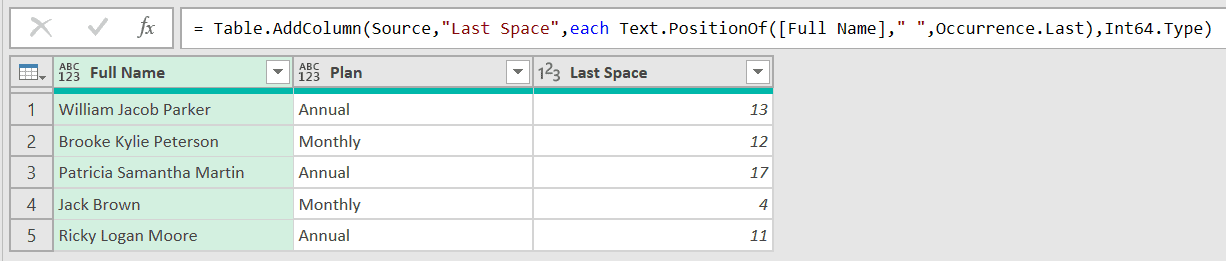
Here, Occurrence.Last makes Text.PositionOf search for the last space instead of the first. For “William Jacob Parker”, that’s the space before “Parker”, at position 13.
It works the same for “Jack Brown”, which has only one space, so the first and the last space are the same one (position 4).
The last name starts one character after this position. If you only need the last name itself, Text.AfterDelimiter([Full Name],” “,{0,RelativePosition.FromEnd}) returns it in one step.
Follow along with the example file
Text.PositionOf Function Examples.xlsx
Example 6: Get the Positions of Every Match
When you use Occurrence.All, Text.PositionOf returns a list with every position instead of a single number.
Suppose you have the phone number “555-201-3344” and you want the positions of both hyphens.
Create a new blank query (as in Example 1) and use this formula:
= Text.PositionOf("555-201-3344","-",Occurrence.All)
Result: A list with 3 and 7.
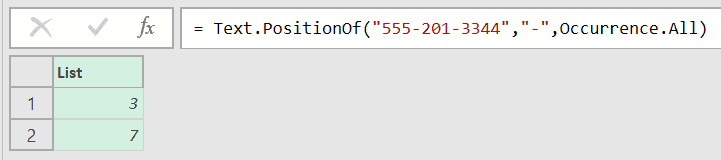
Here, the first hyphen is at position 3 and the second at position 7. Power Query shows the result as a list, with one position per row.
If the text isn’t found, Occurrence.All doesn’t return -1. You get an empty list instead.
Note that these are positions inside a text value. If you need the position of an item inside a list (like “Shipped” in a list of statuses), use the List.PositionOf function instead.
Example 7: Find the Position of the Second Occurrence
There’s no argument for “the second match”. But since Occurrence.All gives you a list of every position, you can pick any item from that list.
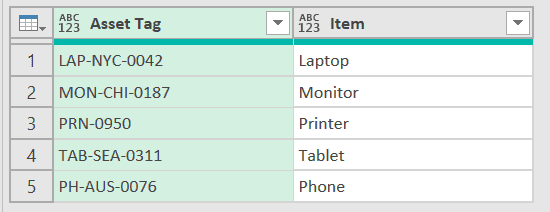
Below is an Assets table with asset tags and items, and most tags have two hyphens. I want the position of the second hyphen in a new Second Hyphen column.
Add a new step (by clicking on the fx icon next to the formula bar) and use this formula:
= Table.AddColumn(Source,"Second Hyphen",
        each Text.PositionOf([Asset Tag],"-",Occurrence.All){1}?,
        Int64.Type)
Result: A new Second Hyphen column with 7, 7, null, 7, and 6.
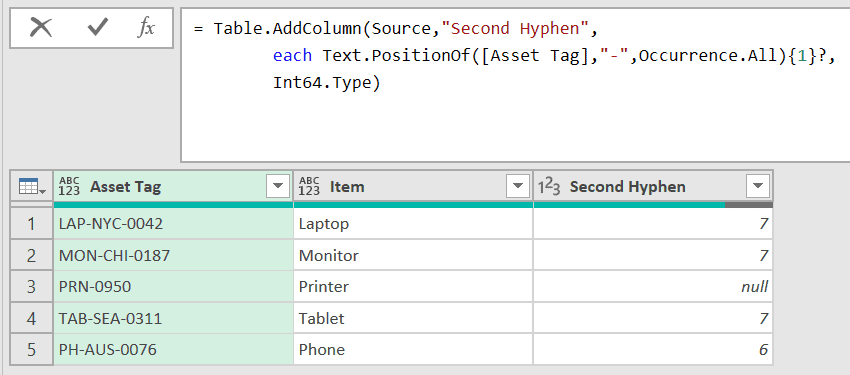
Here, Text.PositionOf returns the list of all hyphen positions, and {1} picks the second item from it. Lists in Power Query also count from 0, so {0} is the first item and {1} is the second.
“PRN-0950” has only one hyphen, so its list has no second item. Without the question mark, that row would show an Error (“There weren’t enough elements in the enumeration to complete the operation”).
The ? after {1} tells Power Query to return null instead of an error when the item doesn’t exist. You can change {1} to {2} for the third occurrence, and so on.
Example 8: Count How Many Times a Word Appears
Since Occurrence.All returns one position per match, counting the items in that list tells you how many matches there are.
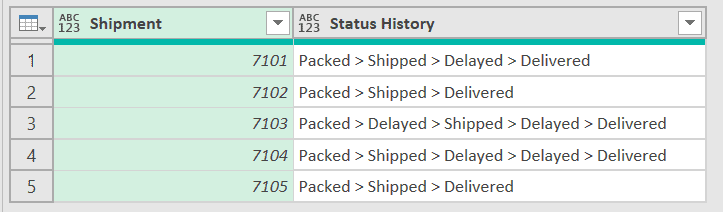
Below is a Shipments table with each shipment’s status history, and some shipments were delayed more than once. I want the number of times “Delayed” appears in a new Times Delayed column.
Add a new step (by clicking on the fx icon next to the formula bar) and use this formula:
= Table.AddColumn(Source,"Times Delayed",
        each List.Count(Text.PositionOf([Status History],"Delayed",Occurrence.All)),
        Int64.Type)
Result: A new Times Delayed column with 1, 0, 2, 2, and 0.
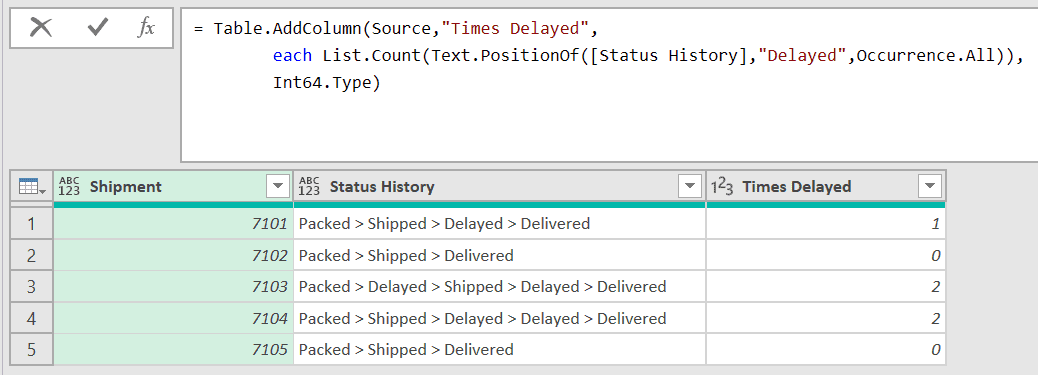
Here, Text.PositionOf returns a list of positions where “Delayed” appears, and List.Count counts the items in that list. For shipments that were never delayed, the list is empty, so the count is 0.
Note that this counts every place the text appears, even inside a longer phrase. A status like “Not Delayed” would also be counted, and the match is case-sensitive.
If you need exact status matches only, a better route is to split the history at ” > ” with Text.Split and count the items that equal “Delayed”.
Example 9: Extract a Code That Can Start Anywhere
Here’s where the position gets useful. You can pass it to another function to tell it where to start.
Below is a Transactions table with bank descriptions and amounts, and most descriptions mention a nine-character invoice number like INV-20431 somewhere in the text. I want that invoice number in a new Invoice column.
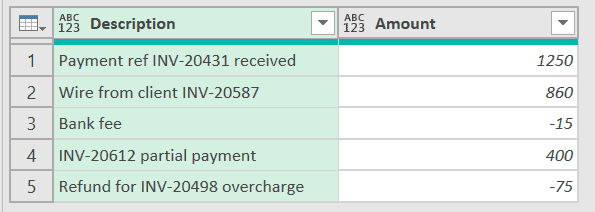
Add a new step (by clicking on the fx icon next to the formula bar) and use this formula:
= Table.AddColumn(Source,"Invoice",each
        let Start = Text.PositionOf([Description],"INV-")
        in if Start = -1 then null else Text.Middle([Description],Start,9),
        type text)
Result: A new Invoice column with INV-20431, INV-20587, null, INV-20612, and INV-20498.
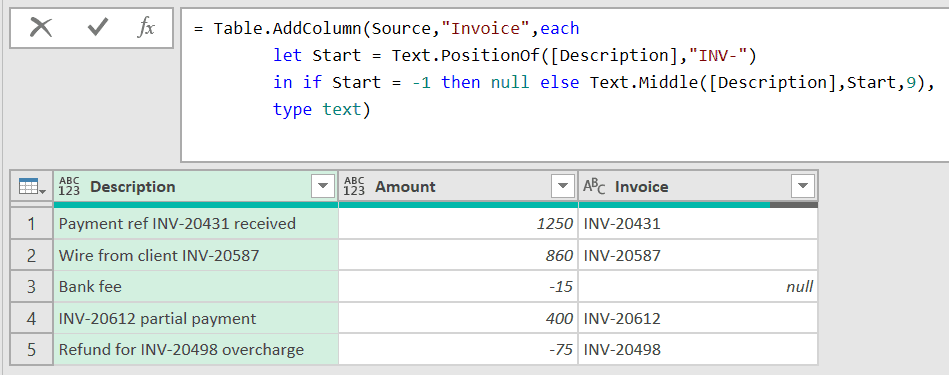
Here, Text.PositionOf finds where “INV-” starts in each description, and the let part stores that position as Start. Text.Middle then takes 9 characters from that position, which is the full invoice number.
The invoice number can sit at the start, in the middle, or at the end of the description, and the formula still finds it. That’s because Text.Middle starts wherever Text.PositionOf says the code begins.
The 9 works because every invoice number here is “INV-” plus five digits. If your codes vary in length, a fixed count would cut some of them short, so check the lengths first.
“Bank fee” has no invoice number, so Start is -1. Text.Middle can’t start at -1 (it returns an Error that says “The ‘start’ argument is out of range”), which is why the formula returns null for those rows instead.
Example 10: Handle Blank Cells
Text.PositionOf doesn’t accept blank (null) values. A blank cell gives you an Error, not -1.
Below is a Tasks table with tasks and notes, and some tasks don’t have any notes yet. I want the position of “Due:” in each note in a new Due Position column.
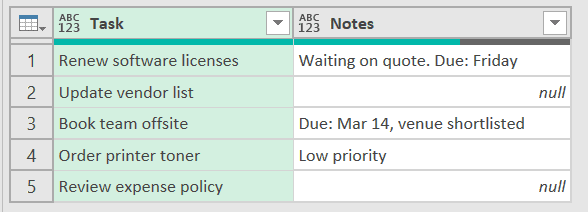
Add a new step (by clicking on the fx icon next to the formula bar) and use this formula:
= Table.AddColumn(Source,"Due Position",
        each if [Notes] = null then null else Text.PositionOf([Notes],"Due:"),
        Int64.Type)
Result: A new Due Position column with 18, null, 0, -1, and null.
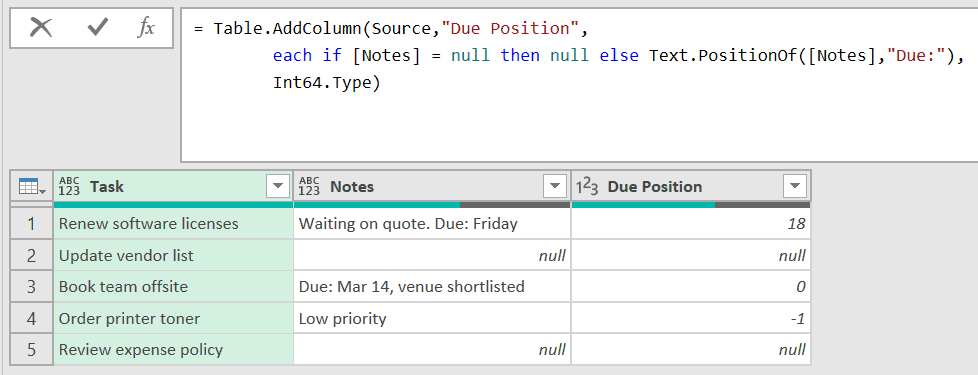
Here, the formula checks whether the Notes value is null first. If it is, the row gets null, and if it isn’t, Text.PositionOf runs as usual.
Without that check, the two tasks with no notes would show an Error (“We cannot convert the value null to type Text”). The same thing happens if you point Text.PositionOf at a number column, so convert numbers with Text.From first.
Now you can tell the three cases apart: a number means “Due:” was found, -1 means the note has no due date, and null means there’s no note at all.
Other Excel Articles You May Also Like:
- Text.BeforeDelimiter
- Text.AfterDelimiter – Use Text.AfterDelimiter in Power Query M to get text after a delimiter.
- Text.BetweenDelimiters – Use Text.BetweenDelimiters in Power Query M to extract text between delimiters.
- Text.Start – Use Text.Start in Power Query M to grab the first few characters from a text value.
- Text.StartsWith – Use Text.StartsWith in Power Query M to check whether text begins with a prefix.
- Text.Replace – Use Text.Replace in Power Query M to replace text in a string.
- Text.PadStart – Use Text.PadStart in Power Query M to pad text to a fixed length by adding characters to the front.
- Text.Format – Use Text.Format in Power Query M to slot values into a text template.
