

The Text.From function converts a value into text. You give it a number, a date, a time, a true/false value, or a duration, and it gives you back the same thing as a text value.
You’ll need it most when you join a number or a date with some text, because Power Query gives an error if you try to join them directly.
In this article, I’ll show you how Text.From works with practical examples, including what it does to dates that come from an Excel table and how it handles blank cells.
Follow along with the example file
Text.From Function Examples.xlsx
Text.From Function Syntax
Text.From(value as any, optional culture as nullable text) as nullable text
- value – the value you want to convert to text. It can be a number, date, time, datetime, datetimezone, logical (true/false), duration, or binary value.
- culture (optional) – a culture code such as “en-US” or “de-DE”. It decides how dates and decimal numbers are written in the text. If you leave it out, Text.From uses the regional settings Power Query runs with.
What it returns – the value as text. If the value is null, you get null back, not an empty text.
Text.From has no format argument, so you can’t ask it for thousands separators, a fixed number of decimals, or a custom date pattern. For that, use the Number.ToText or Date.ToText function instead.
The Text.From function is part of the Power Query M language, so it works wherever Power Query does in Excel: Excel 365, 2024, 2021, 2019, and 2016 for Windows, and Excel for Microsoft 365 on Mac.
When to Use the Text.From Function
Use this function when you need to:
- Join a number or a date with text, like “8 spots left” or “Hired on 3/9/2026”
- Fix the “We cannot apply operator &” error when you combine a number with text
- Turn a whole number column into text, such as ZIP codes or IDs that need leading zeros
- Write dates or decimal numbers in another country’s format with the culture argument
- Combine a list of numbers into one comma-separated text with Text.Combine
- Convert values of mixed types into text in one go
Example 1: Convert a Number to Text
Let’s start with a simple one.
In Excel, go to Data > Get Data > From Other Sources > Blank Query. In the Power Query Editor that opens, type this formula in the formula bar:
= Text.From(349.95)
Result: 349.95
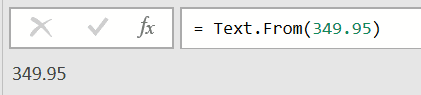
It looks the same as the number, but it’s now a text value. That means you can join it with other text, use text functions on it, or write it into a label.
Example 2: Join a Number With Text
This is the most common reason to use Text.From.
Below is a ClassSpots table with gym classes and the number of spots left in each, and I want a label like “8 spots left” in a new Label column.
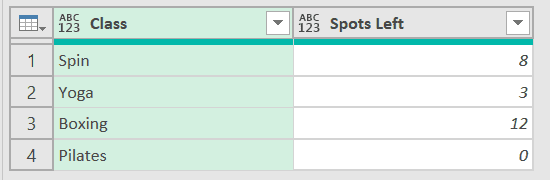
To follow along, select any cell in the ClassSpots table and go to Data > From Table/Range. This opens the table in the Power Query Editor, where the Source step holds it.
If Power Query also adds a Changed Type step, delete it, because the formulas in this article build on the Source step.
Now add a new step (by clicking on the fx icon next to the formula bar) and try to join the number with text directly, like this:
= Table.AddColumn(Source,"Label",each [Spots Left] & " spots left")
Result: Every row in the Label column shows Error.
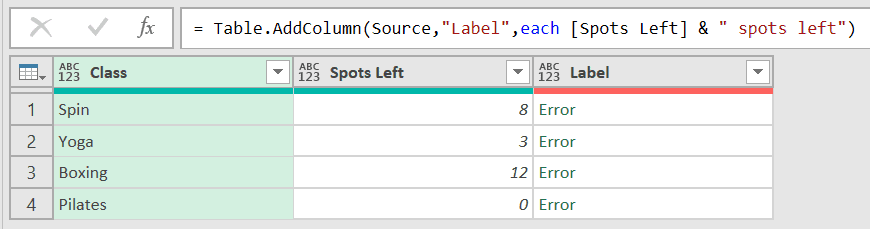
Click any Error cell and you’ll see the message “We cannot apply operator & to types Number and Text.” The & operator can join text with text, but it won’t join a number with text.
So convert the number to text first. Replace the formula in the step you just added with this one:
= Table.AddColumn(Source,"Label",each Text.From([Spots Left]) & " spots left",type text)
Result: A new Label column with 8 spots left, 3 spots left, 12 spots left, and 0 spots left.
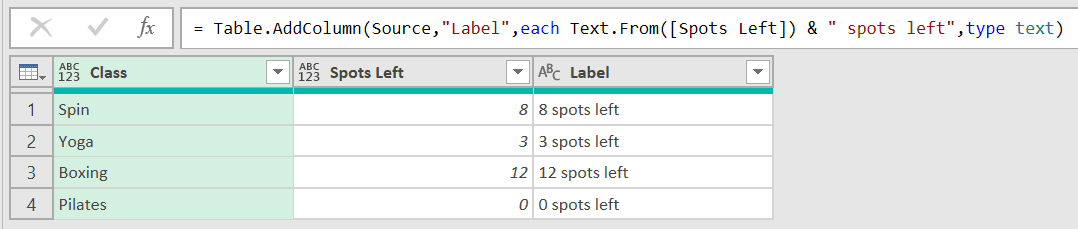
Here, Table.AddColumn adds the Label column, Text.From turns each Spots Left value into text, and then & joins it with ” spots left”. The last argument, type text, sets the data type of the new column to text.
Example 3: See What Text.From Returns for Different Value Types
Text.From works on more than numbers. This example puts one value of each common type side by side, so you can see the text you get for each.
Create a new blank query, open the Advanced Editor (Home > Advanced Editor), and use this code:
let
    Source = #table({"Type","Value"},{{"Number",1250.75},{"Date",#date(2026,3,9)},{"Time",#time(14,30,45)},{"Date/Time",#datetime(2026,3,9,14,30,45)},{"Duration",#duration(0,1,30,0)},{"Logical",true},{"Null",null}}),
    #"Added Text" = Table.AddColumn(Source,"As Text",each Text.From([Value]),type text)
in
    #"Added Text"
Result: The As Text column shows 1250.75, 3/9/2026, 2:30 PM, 3/9/2026 2:30:45 PM, 01:30:00, true, and null.
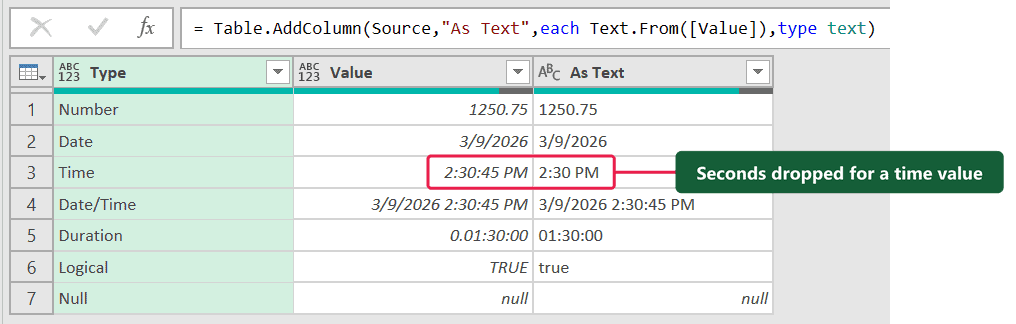
Here, the Source step builds a small table with the #table function, and the Added Text step runs Text.From on each value.
The time 14:30:45 becomes “2:30 PM”, so the seconds are dropped for a time value, while the date/time keeps them. A duration of 1 hour 30 minutes becomes “01:30:00”, and true becomes “true” in lowercase.
The Null row stays null, because Text.From returns null for null (more on that in Example 10).
The dates and times follow the US regional settings on my computer. On a computer with other settings, you may see the day before the month, or 24-hour time.
Example 4: Convert Dates From an Excel Table to Text
Dates from an Excel table have a catch that trips up a lot of people.
Below is a NewHires table with each employee’s hire date, and I want the hire date as text in a new Hire Text column.
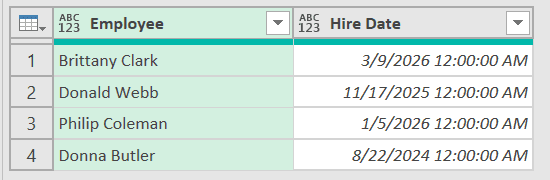
Load the NewHires table into Power Query the same way as in Example 2 (Data > From Table/Range). Then add a new step (by clicking on the fx icon next to the formula bar) and use this formula:
= Table.AddColumn(Source,"Hire Text",each Text.From([Hire Date]),type text)
Result: The Hire Text column shows 3/9/2026 12:00:00 AM, 11/17/2025 12:00:00 AM, 1/5/2026 12:00:00 AM, and 8/22/2024 12:00:00 AM.
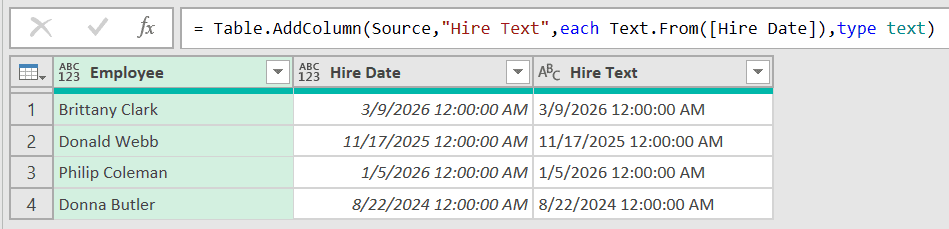
The extra “12:00:00 AM” shows up because dates from an Excel sheet come into Power Query as date/time values, not plain dates. Text.From writes out everything the value holds, so you get the midnight time too.
To get only the date, change the column type to date first. Delete the step you just added, then right-click the Hire Date column header and choose Change Type > Date. Power Query adds a Changed Type step with this formula:
= Table.TransformColumnTypes(Source,{{"Hire Date",type date}})
Now add a new step (by clicking on the fx icon next to the formula bar) and use this formula:
= Table.AddColumn(#"Changed Type","Hire Text",each Text.From([Hire Date]),type text)
Result: The Hire Text column shows 3/9/2026, 11/17/2025, 1/5/2026, and 8/22/2024.
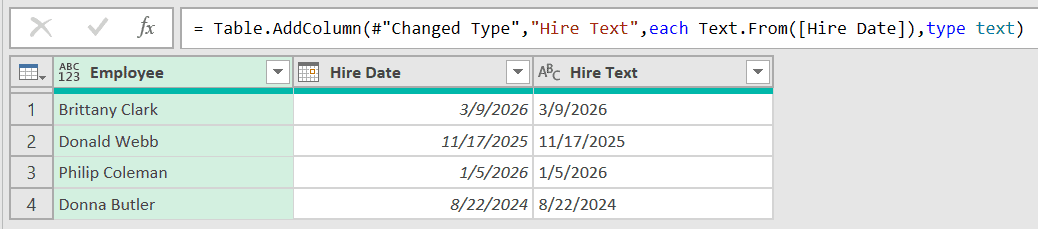
Here, Table.TransformColumnTypes changes Hire Date to the date type, which drops the time part. Text.From then has only the date to write, so you get 3/9/2026 without the time.
If you’d rather keep the column as it is, you can also convert inside the formula with Text.From(Date.From([Hire Date])), which gives the same date text.
The date text follows the regional settings Power Query runs with, so the order of day and month can differ on your computer. The next example shows how to pick the format yourself.
Example 5: Write the Same Date in Different Country Formats
This is where the culture argument comes in.
Below is a LaunchDates table with four offices, each with its culture code and the same launch date, and I want the date written the way each office reads it in a new Local Date column.
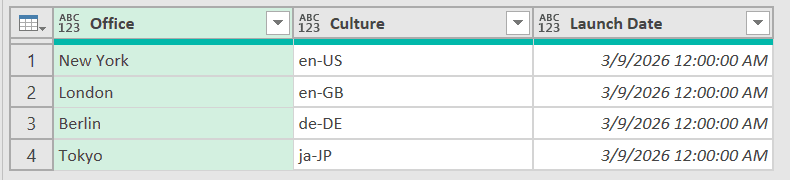
Load the LaunchDates table into Power Query the same way as in Example 2. Then right-click the Launch Date column header and choose Change Type > Date, like in Example 4. Power Query adds a Changed Type step with this formula:
= Table.TransformColumnTypes(Source,{{"Launch Date",type date}})
Now add a new step (by clicking on the fx icon next to the formula bar) and use this formula:
= Table.AddColumn(#"Changed Type","Local Date",each Text.From([Launch Date],[Culture]),type text)
Result: New York shows 3/9/2026, London shows 09/03/2026, Berlin shows 09.03.2026, and Tokyo shows 2026/03/09.

All four rows hold the same date, March 9, 2026. The only thing that changes is the culture code that Text.From gets from the Culture column of each row.
This matters when you send data to people in another country. The text 3/9/2026 means March 9 in the US, but someone in London would read it as 3 September, so 09/03/2026 is the safer version for them.
You can also type the culture code straight into the formula, like Text.From([Launch Date],”en-GB”), when every row needs the same format.
Follow along with the example file
Text.From Function Examples.xlsx
Example 6: Use a Decimal Comma for European Files
The culture argument changes how numbers are written too.
Below is a CoffeeSacks table with the price of each coffee sack, and I want the price written with a German decimal comma in a new German Price column.
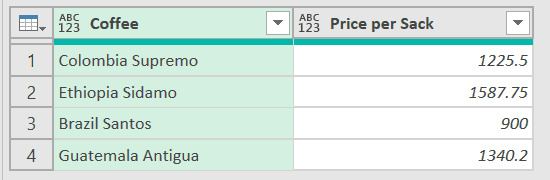
Load the CoffeeSacks table into Power Query the same way as in Example 2. Then add a new step (by clicking on the fx icon next to the formula bar) and use this formula:
= Table.AddColumn(Source,"German Price",each Text.From([Price per Sack],"de-DE"),type text)
Result: A new German Price column with 1225,5, 1587,75, 900, and 1340,2.
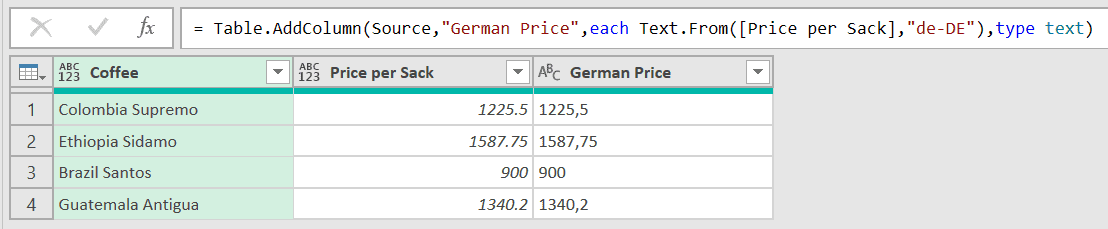
Here, “de-DE” is the culture code for German (Germany), which uses a comma as the decimal separator. So 1225.5 becomes the text 1225,5.
Notice that there’s no thousands separator, and 1225.5 doesn’t become 1225,50. Text.From writes the number as it is, in any culture.
If you need 1.225,50, use Number.ToText([Price per Sack],”N2″,”de-DE”) instead.
Example 7: Round a Calculated Number Before Converting It
When you divide numbers, the result can have a lot of decimal places, and Text.From keeps all of them.
Below is a Ratings table with the total stars and the number of reviews for each product, and I want the average rating as text, like “4.3 / 5”, in a new Rating column.
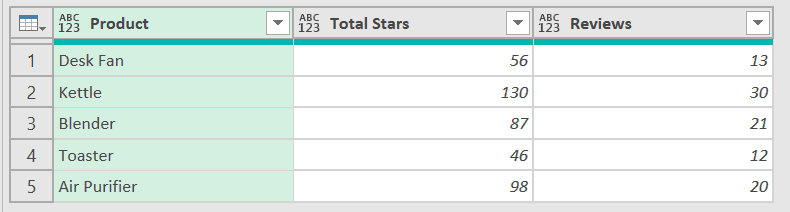
Load the Ratings table into Power Query the same way as in Example 2. Then add a new step (by clicking on the fx icon next to the formula bar) and use this formula:
= Table.AddColumn(Source,"Rating",each Text.From(Number.Round([Total Stars]/[Reviews],1)) & " / 5",type text)
Result: A new Rating column with 4.3 / 5, 4.3 / 5, 4.1 / 5, 3.8 / 5, and 4.9 / 5.
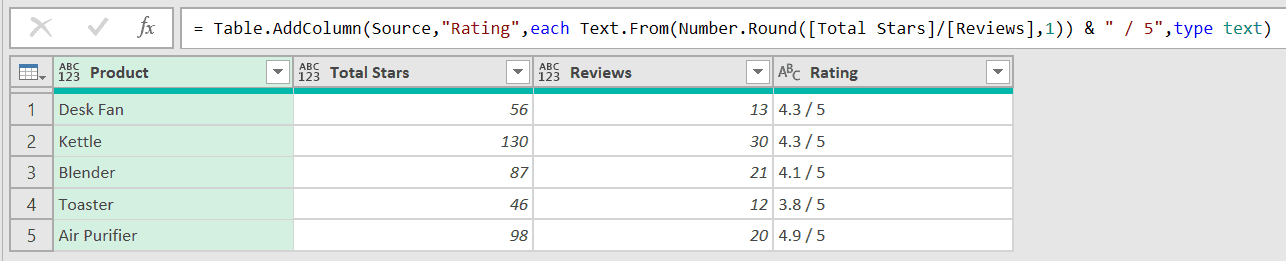
Here, [Total Stars]/[Reviews] works out the average. For the Desk Fan, that’s 56/13, and Text.From on its own would give you “4.3076923076923075”.
So the Number.Round function rounds the average to one decimal first, and then Text.From turns 4.3 into “4.3”. The & operator adds ” / 5″ at the end.
One thing to watch: if an average comes out to exactly 4, Text.From gives “4”, not “4.0”. If you always want one decimal, use Number.ToText([Total Stars]/[Reviews],”F1″) instead, which turns 4 into “4.0”.
Example 8: Convert a Whole Column to Text and Keep Leading Zeros
So far, every example added a new column. If you want to change the values in the same column, you can use Text.From with the Table.TransformColumns function.
Below is a Branches table where the ZIP codes are stored as numbers, so the leading zero is missing from codes like 2134, and I want the ZIP column as five-digit text.
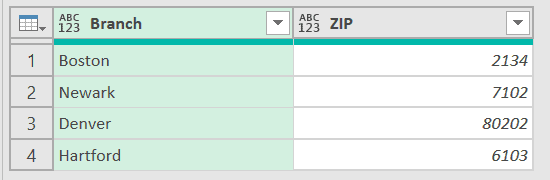
Load the Branches table into Power Query the same way as in Example 2. Then add a new step (by clicking on the fx icon next to the formula bar) and use this formula:
= Table.TransformColumns(Source,{{"ZIP",each Text.PadStart(Text.From(_),5,"0"),type text}})
Result: The ZIP column now shows 02134, 07102, 80202, and 06103.
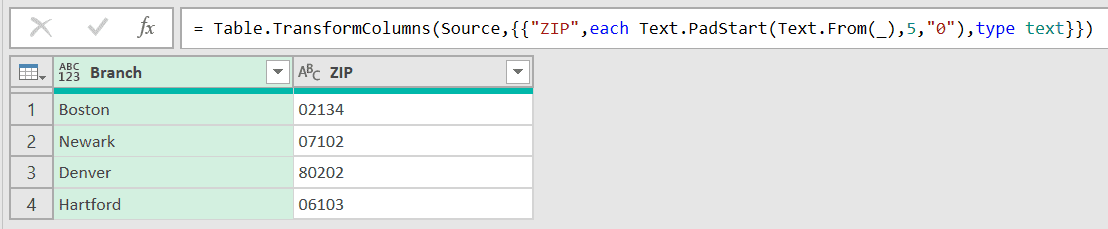
Here, Table.TransformColumns runs the formula on every value in the ZIP column and puts the result back in the same column. The _ stands for the current value, so Text.From(_) turns 2134 into the text “2134”.
Then the Text.PadStart function adds zeros at the start until the text is 5 characters long. Denver’s 80202 is already 5 characters, so it stays as it is.
Number.ToText(_,”00000″) would give the same result in one function. But Text.From with Text.PadStart also works if some ZIP codes come in as text, where Number.ToText would give an error.
Example 9: Combine a List of Numbers Into One Text
This next one comes up a lot when you group data.
Below is a Tickets table with support ticket numbers and the customer who raised each one, and I want one row per customer with all their ticket numbers in a Tickets column, separated by commas.
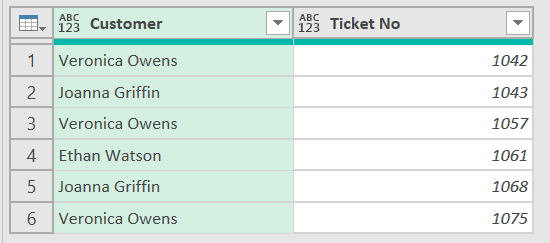
Load the Tickets table into Power Query the same way as in Example 2. Then add a new step (by clicking on the fx icon next to the formula bar) and use this formula:
= Table.Group(Source,{"Customer"},{{"Tickets",each Text.Combine(List.Transform([Ticket No],Text.From),", "),type text}})
Result: Veronica Owens gets “1042, 1057, 1075”, Joanna Griffin gets “1043, 1068”, and Ethan Watson gets “1061”.

Here, the Table.Group function makes one row per customer, and [Ticket No] is the list of that customer’s ticket numbers.
The Text.Combine function only joins text, so passing it the numbers directly gives an error that starts with “We cannot convert the value”. So the List.Transform function runs Text.From on each number first, and Text.Combine joins the results with a comma and a space.
You can’t pass the whole list to Text.From, since it converts one value at a time. Text.From({1042,1057}) gives the error “We cannot convert a value of type List to type Text.”, which is why List.Transform is needed here.
Example 10: Handle Blank Cells (null) With Text.From
Blank cells need a little extra care, because Text.From returns null for them.
Below is an Extensions table with staff names and their phone extensions, where two people don’t have one, and I want a label like “Evelyn Phillips (Ext 204)” in a new Label column.
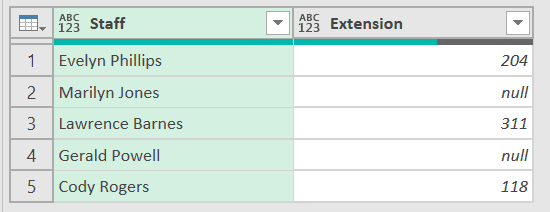
Load the Extensions table into Power Query the same way as in Example 2. Then add a new step (by clicking on the fx icon next to the formula bar) and use this formula:
= Table.AddColumn(Source,"Label",each [Staff] & " (Ext " & Text.From([Extension]) & ")",type text)
Result: The rows with an extension get a label like Evelyn Phillips (Ext 204), but Marilyn Jones and Gerald Powell get null.
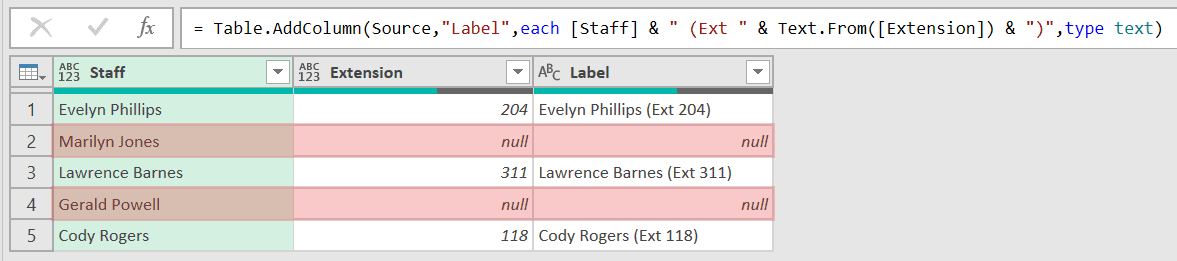
A blank cell comes into Power Query as null, and Text.From(null) returns null. When you join null with text using &, the whole result becomes null, so the staff name gets lost too.
To keep the name for those rows, check for null first. Replace the formula in the step you just added with this one:
= Table.AddColumn(Source,"Label",each if [Extension] = null then [Staff] else [Staff] & " (Ext " & Text.From([Extension]) & ")",type text)
Result: Marilyn Jones and Gerald Powell now show just their names, and the other rows keep their extension labels.

Here, the if checks whether the Extension cell is null. If it is, the label is only the staff name, and if it isn’t, Text.From converts the extension and the formula builds the full label.
Other Excel Articles You May Also Like:
- DateTime.FromText Function in Power Query M
- DateTime.From function
- Number.FromText function
- Table.Pivot function
- Table.ToList Function in Power Query M
- Number.From – Use Number.From in Power Query M to convert values to numbers.
- Date.From – Use Date.From in Power Query M to turn a datetime, serial number, or text into a clean date value.
- Text.Format – Use Text.Format in Power Query M to slot values into a text template.
