

The Number.FromText function reads a number that’s stored as text and gives it back as a real number. So “2,480.75” becomes 2480.75, and you can use it in calculations, comparisons, and filters.
It can also read numbers written in another country’s format, like the German “1.249,00” (which is 1249). In this article, I’ll show you how it works with practical examples.
Follow along with the example file
Number.FromText Function Examples.xlsx
Number.FromText Function Syntax
Number.FromText(text as nullable text, optional culture as nullable text) as nullable number
- text – the text you want to convert. It has to be a number written in a common format, such as “15”, “3,423.10”, or “5.0E-10”.
- culture (optional) – a culture code such as “en-US” or “de-DE”. It tells Number.FromText which character is the decimal separator and which one separates thousands. If you leave it out, it uses the regional settings Power Query runs with.
What it returns – the text as a number. If the text is null or empty, you get null.
Text that isn’t a number, like “N/A”, gives the error “We couldn’t convert to Number.” And if you pass it something that isn’t text, like the number 50, you get “We cannot convert the value 50 to type Text.”
The Number.FromText function is part of the Power Query M language, so it works wherever Power Query does in Excel: Excel 365, 2024, 2021, 2019, and 2016 for Windows, and Excel for Microsoft 365 on Mac.
When to Use the Number.FromText Function
Use this function when you need to:
- Do a calculation or comparison with numbers stored as text, without changing the original column
- Filter rows on a number that came in as text
- Read numbers in scientific notation, percentages, or amounts with a trailing minus sign
- Read numbers written in a European format, like “1.249,00”
- Get the number out of text like “12.5 kg” (after removing the unit)
- Replace values that can’t be converted with null, instead of getting errors
Example 1: Convert Text to a Number
Let’s start with the basic use.
In Excel, go to Data > Get Data > From Other Sources > Blank Query. In the Power Query Editor that opens, type this formula in the formula bar:
= Number.FromText("2,480.75")
Result: 2480.75

Here, Number.FromText reads the text “2,480.75”, drops the comma that separates the thousands, and gives you the number 2480.75.
This works because my computer uses US settings, where the dot is the decimal separator. All the examples in this article assume US settings unless they pass a culture code, and Example 6 shows what changes when you do.
Example 2: Read Numbers in Scientific Notation
Lab equipment and some databases export very small or very large numbers in scientific notation, like “4.2E-3”.
Below is a WaterTests table with the lead level of each water sample in milligrams per liter, stored as text, and I want to flag the samples above 0.015 in a new Status column.
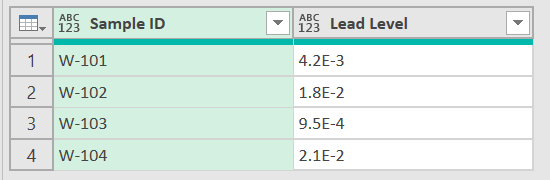
To follow along, select any cell in the WaterTests table and go to Data > From Table/Range. This opens the table in the Power Query Editor, where the Source step holds it.
If Power Query also adds a Changed Type step, delete it. The formulas in this article build on the Source step, where the values are still text.
Now add a new step (by clicking on the fx icon next to the formula bar) and use this formula:
= Table.AddColumn(Source,"Status",each if Number.FromText([Lead Level])>0.015 then "Above Limit" else "OK",type text)
Result: A new Status column with OK, Above Limit, OK, and Above Limit.

Here, the Table.AddColumn function adds the Status column, and Number.FromText reads “4.2E-3” as 0.0042 and “1.8E-2” as 0.018. The E-3 means the decimal point moves three places to the left.
Once the reading is a number, the if expression can compare it with 0.015. You can’t compare the text directly, because Power Query won’t compare text with a number and gives an error instead.
Example 3: Filter Rows by a Number Stored as Text
You can also use Number.FromText inside a filter, so the column you filter on stays as it is.
Below is an ExamScores table with each student’s score, where the scores came in as text, and I want to keep only the students who scored 75 or more.
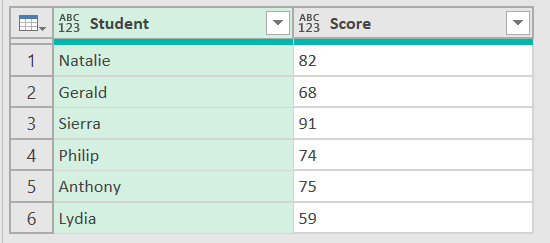
Load the ExamScores table into Power Query the same way as in Example 2 (Data > From Table/Range). Then add a new step (by clicking on the fx icon next to the formula bar) and use this formula:
= Table.SelectRows(Source,each Number.FromText([Score])>=75)
Result: Three rows are left: Natalie (82), Sierra (91), and Anthony (75).
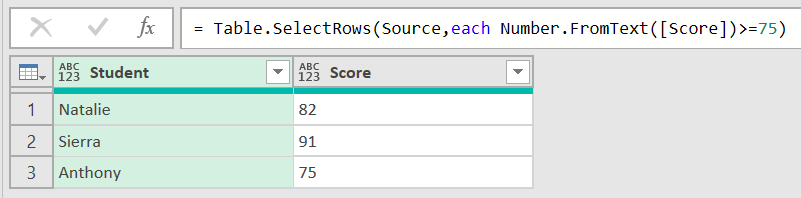
Here, the Table.SelectRows function keeps the rows where the condition is true. For each row, Number.FromText turns the score into a number, and the >= 75 check runs on that number.
Anthony’s 75 stays, because >= includes 75 itself. The Score column is still text in the result, which is fine if you only needed the filter.
If you’ll use the scores in later steps too, change the column type instead (right-click the Score header and choose Change Type > Whole Number). Then you can filter on [Score] directly.
Example 4: Remove the Unit Before Converting
Number.FromText can’t read text that has a unit after the number, like “12.5 kg”, and gives the error “We couldn’t convert to Number.” So you take the number part out first.
Below is a Parcels table with the weight of each parcel written with “kg” after it, and I want the weight as a number in a new Weight (kg) column.
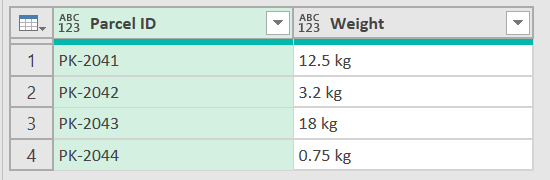
Load the Parcels table into Power Query the same way as in Example 2. Then add a new step (by clicking on the fx icon next to the formula bar) and use this formula:
= Table.AddColumn(Source,"Weight (kg)",each Number.FromText(Text.BeforeDelimiter([Weight]," ")),type number)
Result: A new Weight (kg) column with 12.5, 3.2, 18, and 0.75.

Here, the Text.BeforeDelimiter function returns the text before the first space, so “12.5 kg” becomes “12.5”. Then Number.FromText turns that into the number 12.5.
This depends on a space between the number and the unit. If a cell says “18kg” with no space, Text.BeforeDelimiter gives back the whole text, and Number.FromText gives an error for that row.
Example 5: Use a Percentage Stored as Text
Percentages often come in as text with a % sign, and Number.FromText reads them as the fraction they stand for.
Below is a RepSales table with each sales rep’s sales and their commission rate as text, and I want the commission amount in a new Commission column.
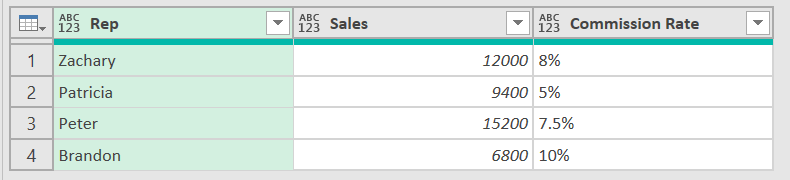
Load the RepSales table into Power Query the same way as in Example 2. Then add a new step (by clicking on the fx icon next to the formula bar) and use this formula:
= Table.AddColumn(Source,"Commission",each [Sales]*Number.FromText([Commission Rate]),type number)
Result: A new Commission column with 960, 470, 1140, and 680.

Here, Number.FromText reads “8%” as 0.08 and “7.5%” as 0.075. So for Zachary, the commission is 12000 × 0.08, which gives 960.
Because the % sign is already handled, you don’t need to divide by 100 yourself. If you did, every commission would come out 100 times too small.
Follow along with the example file
Number.FromText Function Examples.xlsx
Example 6: Same Text, Different Culture
This example shows why the culture argument exists.
Create a new blank query the same way as in Example 1, and use this formula in the formula bar:
= {Number.FromText("2,500","en-US"),Number.FromText("2,500","de-DE")}
Result: A list with two values, 2500 and 2.5.

Here, the curly brackets create a list, and each item reads the same text, “2,500”, with a different culture code.
In the US format (“en-US”), the comma separates thousands, so you get 2500. In the German format (“de-DE”), the comma is the decimal separator, so the same text gives 2.5.
That’s why you should pass the culture when you know where the data came from. Without it, Number.FromText uses your computer’s regional settings, so the same query can give different numbers on another computer.
Dates stored as text have a similar problem with the order of day and month. The Date.FromText function takes a culture for them too, so “04/01/2026” read with “en-GB” gives January 4, 2026.
Example 7: Read Prices in a European Format
Now let’s use the culture argument on real data.
Below is a SupplierInvoice table from a German supplier with the quantity and unit price of each item, where the prices use a comma for decimals and a dot for thousands, and I want the line total in a new Line Total column.
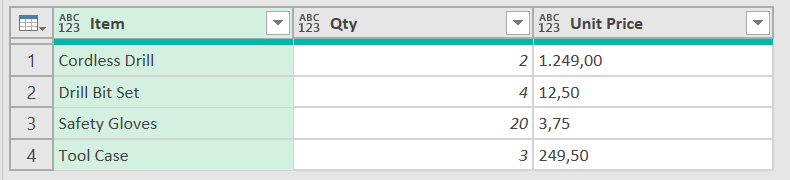
Load the SupplierInvoice table into Power Query the same way as in Example 2. Then add a new step (by clicking on the fx icon next to the formula bar) and use this formula:
= Table.AddColumn(Source,"Line Total",each [Qty]*Number.FromText([Unit Price],"de-DE"),type number)
Result: A new Line Total column with 2498, 50, 75, and 748.5.

Here, “de-DE” tells Number.FromText that the text is in the German format. So “1.249,00” is read as 1249 and “12,50” as 12.5, and each one is multiplied by the quantity.
Without “de-DE”, US settings would read “12,50” as 1250, because the comma would be a thousands separator. That’s wrong without any warning, and “1.249,00” would give an error.
If you just need the whole Unit Price column as numbers, you can right-click its header, choose Change Type > Using Locale, and pick Decimal Number and German (Germany). Use Number.FromText when the conversion is part of a formula, like this one.
Example 8: Read Numbers With a Trailing Minus Sign
Some accounting and inventory systems put the minus sign after the number, so a stock reduction of 125 shows up as “125-“.
Below is a StockMoves table with the change in quantity for each item, where reductions end with a minus sign, and I want the net change across all items as a single number.
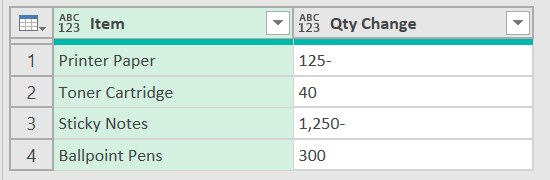
Load the StockMoves table into Power Query the same way as in Example 2. Then add a new step (by clicking on the fx icon next to the formula bar) and use this formula:
= List.Sum(List.Transform(Source[Qty Change],Number.FromText))
Result: -1035

Here, Source[Qty Change] gets the Qty Change column as a list. The List.Transform function runs Number.FromText on each item, and the List.Sum function adds them up.
Number.FromText reads “125-” as -125 and “1,250-” as -1250. So the total is -125 + 40 – 1250 + 300, which gives -1035.
Notice that Number.FromText is passed without brackets or a column name. List.Transform gives it each item in the list, one at a time.
Example 9: Handle Values That Can’t Be Converted
Real data often has entries like “N/A” in a number column, and Number.FromText gives an error for those.
Below is a MeterReadings table with the electricity reading of each apartment, where two readings are “N/A” and “-“, and I want the readings as numbers in a new kWh column.
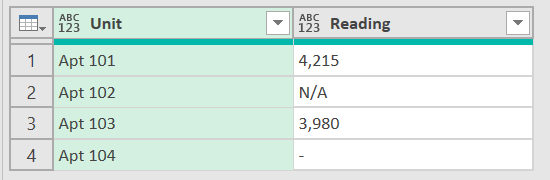
Load the MeterReadings table into Power Query the same way as in Example 2. Then add a new step (by clicking on the fx icon next to the formula bar) and use this formula:
= Table.AddColumn(Source,"kWh",each try Number.FromText([Reading]) otherwise null,type number)
Result: A new kWh column with 4215, null, 3980, and null.
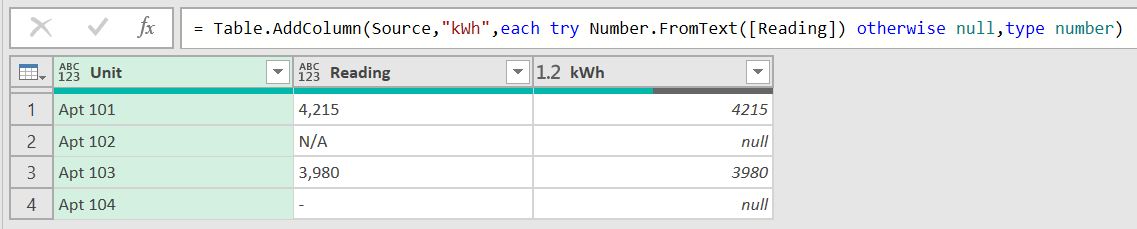
Here, try runs Number.FromText, and if it gives an error, otherwise returns null instead. Without try, Apt 102 and Apt 104 would show Error, and a later step that adds up the kWh column would fail too.
Null is the safer choice here, because a missing reading isn’t the same as a reading of zero. Put 0 after otherwise only when a missing value really means zero.
Keep in mind that try hides any error. If a cell held a real number, Number.FromText would fail on it and try would quietly turn it into null (Example 10 shows how to handle a column like that).
Example 10: When the Column Has Real Numbers Too
Number.FromText only takes text, so it gives an error on cells that already hold a number.
Below is a Timesheet table with the hours each employee worked, where some hours were typed as numbers and some came in as text, and I want all of them as numbers in a new Hours (Number) column.
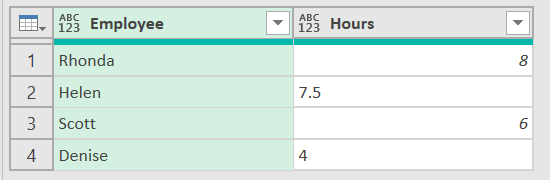
Load the Timesheet table into Power Query the same way as in Example 2. Once it’s loaded, notice that the text values sit on the left of the Hours column (7.5 and 4), and the numbers sit on the right (8 and 6).
Then add a new step (by clicking on the fx icon next to the formula bar) and use this formula:
= Table.AddColumn(Source,"Hours (Number)",each Number.FromText([Hours]),type number)
Result: Helen and Denise show 7.5 and 4, while Rhonda and Scott show Error.
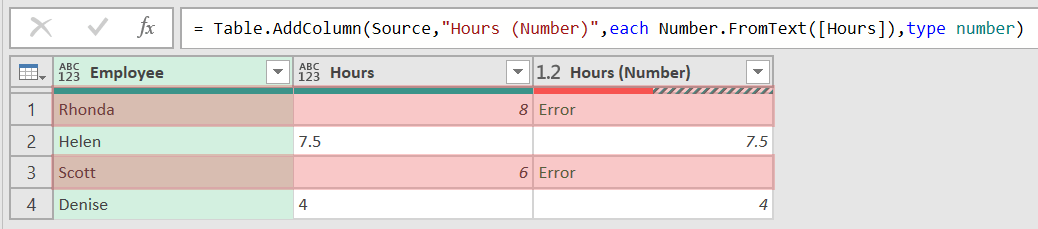
Click Rhonda’s Error cell and you’ll see “We cannot convert the value 8 to type Text.” Her 8 is already a number, and Number.FromText won’t accept anything that isn’t text.
When a column mixes numbers and text like this, use the Number.From function instead, because it takes a value of any type.
Replace the formula in the step you just added with this one:
= Table.AddColumn(Source,"Hours (Number)",each Number.From([Hours]),type number)
Result: The Hours (Number) column now shows 8, 7.5, 6, and 4.
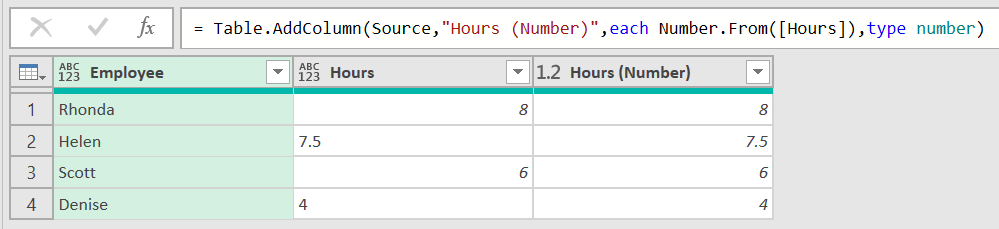
Here, Number.From converts the text “7.5” to 7.5 and gives back the number 8 as it is. So use Number.FromText when the values are always text, and Number.From when they might not be.
Other Excel Articles You May Also Like:
- DateTime.FromText function
- Number.ToText – Use Number.ToText in Power Query M to format numbers as text.
- Text.From – Use Text.From in Power Query M to convert values to text.
- Table.TransformColumnTypes – Use Table.TransformColumnTypes in Power Query M to set column data types.
- DateTime.From – Use DateTime.From in Power Query M to convert values to date and time.
- Date.From – Use Date.From in Power Query M to turn a datetime, serial number, or text into a clean date value.
- Text.End – Use Text.End in Power Query M to get the last characters of text.
- Text.Remove – Use Text.Remove in Power Query M to strip characters from text.
