

Since I have started this blog, the Excel timesheet calculator template has been one of the most requested templates.
I often get queries on how to calculate regular hours and overtime hours of employees based on the ‘In time’ and ‘Out time’.
I also couldn’t find a good Excel timesheet template online, so I decided to make one.
Click here to download the Excel Timesheet Calculator
This is a dynamic timesheet template in Excel where you can change the start date and the weekends. You can also specify hourly rates (regular/overtime).
There is a weekly, bi-weekly, and monthly timesheet template in the download file (each in a separate worksheet tab).
Also, when you print this timesheet template, it will fit perfectly on a single page.
Excel Timesheet Calculator Template
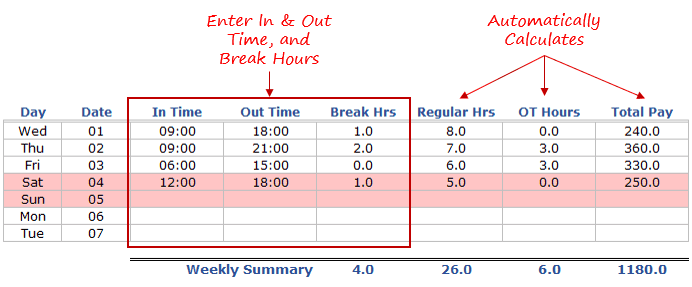
Here is a snapshot of the Weekly Excel Timesheet Template:
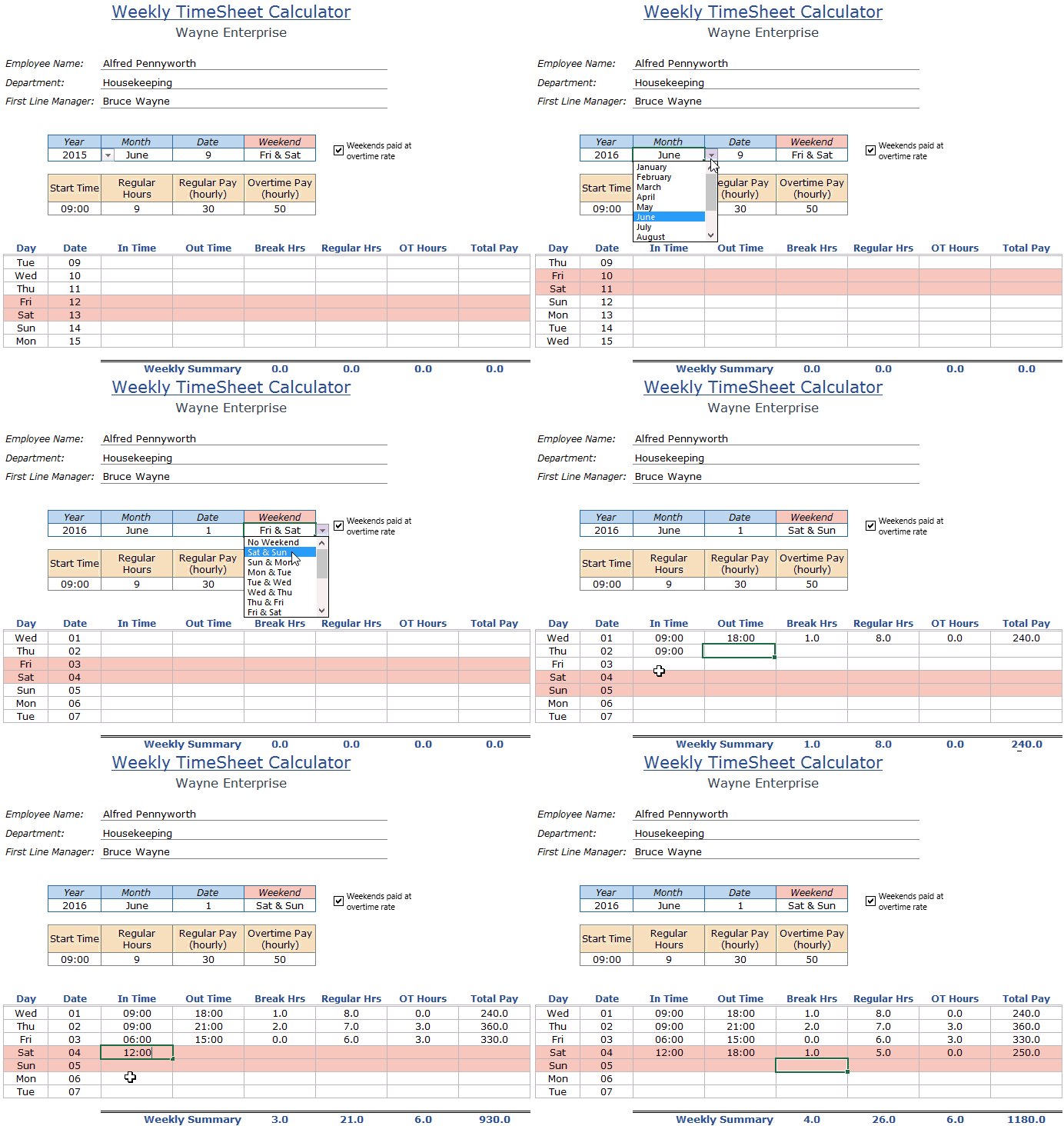
As soon as you enter the ‘In time’ and the ‘Out time’, the template automatically calculates the regular and overtime hours.
If there are any breaks (such as lunch breaks) that are not paid, you can also enter that. Based on it, it also calculates the total pay (considering there are hourly rates).
This Excel template is available in three formats – Weekly Timesheet, Bi-weekly Timesheet, and Monthly Timesheet (provided as different tabs in the download file).
How to Use this Excel Timesheet Calculator Template
Here are the steps to use this Excel Timesheet Template:
- Select the Week Start Date.
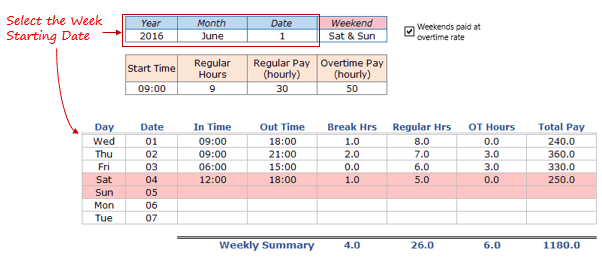
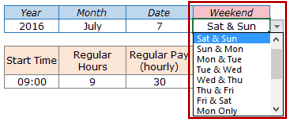
- Specify the weekend. You can select from various options in the drop-down. The options include – No Weekend, 1-day weekend (Mon, Tue…) or 2-days Weekend (Fri & Sat, Sat & Sun..). As soon as you select the weekend, those days get shaded in red on the timesheet.
- Specify the Start Time, # of Regular Hours, and Hourly Rate (Regular and Overtime). The start time should be in the hh:mm format (24-hour format). For example, 6 AM would be 06:00 and 6 PM would be 18:00.

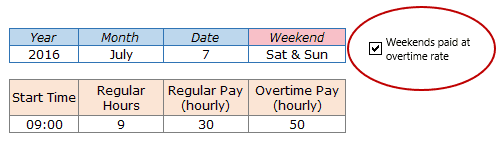
- If all the Weekend hours are to be treated as overtime, select the checkbox. If unchecked, weekend hours would also be split into regular and overtime hours.
- Enter the In and Out time for a date, and break hours (if any). This Excel timesheet has formulas that will automatically calculate the total number of Regular hours and Overtime (OT) hours.
- Note that break hours are deducted automatically from regular hours.
A couple of points to keep in mind while using this Excel Timesheet template:
- There is an inbuilt check to make sure ‘In time’ is not later than the ‘Out time’. The template would not let the user enter the time in such a case. [This has been made possible using the data validation rules].
- If the work shift of an employee or team member spans to the next day (for example, starts at 6 PM and ends at 6 AM the other day), then make sure Day 1 time is 18:00 to 24:00 and Day 2 time is 0:00 to 6:00.
- Do not change any formulas in the timesheet. Only make the entries in the ‘In time’ and ‘Out time’ columns. While deleting entries, delete it only from the ‘In time’, ‘Out Time’, and ‘Break Hours’ columns.
- I have changed the page margins to make it fit on a single sheet when printed.
What went into making this Excel Timesheet Calculator template
- Excel Formulas: A number of Excel functions such as DATE, MATCH, INT, IF, and IFERROR is used to calculate the values (such as the date from selection or regular/overtime hours) in this timesheet template.
- Excel Drop Down List: It is used to allow the user to select the month name.
- Check Box -it is used to allow the user to specify if the weekends are to be charged at the overtime rate or not.
- Named Ranges/: These are used to refer to the data in the back end (in the data tab).
- Conditional Formatting.: It is used to highlight the rows when a given date is a weekend.
Download the Excel Timesheet Calculator Template

If there is an Excel template you wish existed, let me know in the comments section.
Frequently Asked Questions (FAQs)
Since I get a lot of queries about using this timesheet template, I thought of creating this FAQ section to answer some of your queries. If you have got a question, you can ask me in the comment section, but I would request you to go through this section first.
Q: I only see the Weekly timesheet template. Where are the bimonthly and monthly templates?

Ans: All three timesheet templates I provided as separate tabs. You will find the other templates when you click on the tab for the template (tabs have been named accordingly).

Q: What if I want to track the timing of multiple employees using this timesheet template. How do I do it?

Ans: this template is made for one person per sheet. If you need to track multiple employees or team members, you need to create multiple sheets in that case.

Q: Can I have multiple sheets being recorded in the same template?

Ans: This template is made for one time-shift only - which you can specify by mentioning the start time and the number of regular hours.

Q: Can I print this timesheet template?

Ans: Yes, these timesheet templates have been made to fit a single page when printed. You can go to File and then clic on Print, or use the keyboard shortcut Control + P. This will open the Print preview page.

Q: In monthly timesheet template, when I select February 1 as the start date, why does it still show me dates from the next month?

Ans: The monthly timesheet is made to cover 31 days in total. So it will show you 31 days, starting from the date that you have specified.
You May Also find the following Excel Templates useful:
- Calendar Integrated with a To Do List
- Calculate Time in Excel (Time Difference, Hours Worked, Add/ Subtract)
- Excel To Do List (4 Templates).
- Holiday Calendar Template (US Only).
- Project Management – Employee Leave Tracker.
- Shared Expense Calculator.
- Vacation Itinerary and Packing List Template.
- Excel Calendar Template (Monthly & Yearly)
If you are looking for an online timesheet calculator, check this.

The timesheet calculator timesheet is great. I work as a volunteer but need to submit my hours monthly and until the 1st of the year it was perfect. My problem now is the year dropdown box only goes to 2025, is there a way to update the spreadsheet without rewriting the entire thing?
Hi Michael, I have updated the template. You can download it again, and it should show you 2026 and years after that as well.
Hi,
loved using this over the last 3 years. Now with the new year I cannot select 2026, even when inputted into the data sheet. Any ideas how to update it for the years to come?
Thanks James… I have updated the template, so now when you download it, you will be able to select 2026.
Hi Sumit,
I am having the same issue and need 2026 added to the Timesheet Calculator. I have downloaded but it is still the old version. Please can you upload the newer version with 2026!
Hi Vicky,
I have updated the template. Kindly try and download it again. It should work.
Hello, I need help creating a timesheet with the following criteria because I am tracking when I have overtime I need to use, or I have not worked enough hours and need to work overtime to make up for the time I missed:
* Date and Work Location as the first two columns.
* Start Time, Out (Lunch), In (Lunch), and End Time in 12-hour format.
* Hours Worked calculated with or without a lunch break.
* A 7-hour workday baseline.
* A single Overtime Used / Owed column (positive = used, negative = owed).
* A final Accumulated Hours cell that sums all overtime values.
* Red font for negative values in Overtime and Accumulated Hours.
* No calculations if Work Location is “Off” or blank.
* Every second work week highlighted light gold
* All formulas are visible in the Excel cells.
* All time-based values are formatted as H:MM .
* This time sheet is to only track hours worked, not pay
Can someone please help me?
Hi.. I have build a table to handle the progress of working hrs every 3 hrs, and I am interested to make it work in VBA.. for example: shift starts 7am-3pm.. OT is From 3pm-6pm at 1.5 times, 6pm-9pm 1.75 times, 9pm-11pm at 2 times.. but when the shift starts 11pm
How to add the public holidays? Kindly help
How to add noon time in and out for timesheet template
Very Helpful. Do you perhaps have a yearly time sheet also. Emme
Can you do an excell spreadsheet to find amounts owed for the ‘flexable’ workweek method of paying overtime?
Thanks
Let’s say your employee works 35 hours one week, 40 hours the next, 37 hours the third week, and 45 hours the following week. You pay them a fixed rate of $800 per week.
If you want to determine the employee’s hourly rate from week to week, divide their weekly salary by hours worked:
Week 1: $22.86 per hour ($800 / 35)
Week 2: $20 per hour ($800 / 40)
Week 3: $21.62 per hour ($800 / 37)
Week 4: $17.78 per hour ($800 / 45)
You must calculate the employee’s overtime pay for the week they worked 45 hours.
To find the employee’s overtime rate, multiply their week 4 hourly rate of $17.78 by 0.5, or divide by two:
$17.78 X 0.5 = $8.89
Now, multiply the employee’s overtime pay by how much overtime they worked (5 hours):
$8.89 X 5 = $44.45
Finally, add the employee’s overtime pay and their fixed salary to get their total pay for the week:
$800 + $44.45 = $844.45
With overtime, you must pay the employee $844.45 for the week.
I’ve been trying to make a timesheet for my work, so my overtime gets paid to me.
Looking for a monthly timesheet starting 20th of every month to the 19th.
Monday to Thursday, but paid in 15 minute intervals, so if I clock in at 0520, I get paid from 0530, if I clock out at 1720, I get paid to 1715. as the round it back if before clock out early, and round it forward if I clock in early.
So a time sheet, with Day, Date, Start Time, 30 Min Break deduction, Finish Time, Showing my 10 hrs normal time with the break, anything over is overtime, so 10hrs 30mins normal, as they deduct the break,
At the bottom, total hours worked, plus total overtime at the bottom?
I can’t get it myself, tried, tried and tried, without any success.
Can you get 24hr clock displayed, so start time 0520 and 1730 end time ?
Any chance you can throw one together, so I can tweak it if needed?
Monthly Timesheet, I’ve been trying to get date to display day and month without success.
Considering this is free, all I can do is say THANK YOU! The template is great and I’m grateful.
The calculation is absolutely interesting but have question to asked Alphonse.
1.what if there is no Overtime in the work schedule and there is no Sat&Sunday included what is the formulae needed.
2. what if you want to add an amount for in the formulae different from an hourly rate e.g Hourly Rate is =25$ and overtime is half of that amount how do you fixed it into the formulae.
Hi. Good day,
Why are 9:00-9:15=0.3?
I need it to be 0.25…
Hi. Good Day,
Appreciate if you can guide me on how to set checkbox for Public Holiday
Thank you,
Hi,
It’s a nice excel file template for a normal office job. But, in some situations, persons work more hours non stop for emergency situations (IT).. in this case, this file is not showing how to…. example starting 08:00 am on 1st of a month and ends at 03:00 hrs next day morning non stop. The excel sheet can’t go beyond 23:59hrs..!!!
Hope to consider it