

A bell curve (also known as a normal distribution curve) is a chart that shows how values are spread around their average. It gets its name from its shape, which looks like a bell.
In the bell curve, the highest point is the one that has the highest probability of occurring, and the probability of occurrences goes down on either side of the curve.
It is often used during employee performance appraisals or during evaluation in exams (*ever heard “You will be graded on the curve”?*).
In this tutorial, I will show you how to make a bell curve in Excel with the NORM.DIST function, how to build one from your own data, and how to mark the standard deviations on the chart.
Now before I jump in on how to create a bell curve in Excel, let’s get a better understanding of the concept by taking an example.
Follow along with the example file
Bell Curve in Excel.xlsx
Understanding the Bell Curve
Suppose you work in a team of 100 members and your manager tells you that your performance will be relative to others and will be evaluated on the bell curve.
This means that even if your team is the best team ever and you’re all superheroes, only a handful of you would get the top rating.
Most of the people in your team would get an average rating, and a handful will get the lowest rating.
But why do we need the bell curve?
Fair question!
Suppose you have a class of 100 students that appear for an exam. According to your grading system, anyone who gets above 80 out of 100 gets an A grade.
But since you set a really easy paper, everyone scored above 80 and got the A grade.
Now there is nothing wrong in this kind of grading system. However, using it, you can not differentiate between someone who got 81 and someone who got 95 (as both would get the A grade).
To keep the comparison fair and keep the competitive spirit alive, a bell curve is often used to evaluate performances (at least that’s how it was when I was in college).
Using the bell curve approach, the marks of students are converted into percentiles that are then compared with each other.
Students getting higher marks are on the right side of the curve and students getting low marks are on the left of the curve (with most of the students being in the middle around mean score).
Now to understand bell curve, you need to know about two metrics:
- Mean – the average value of all the data points
- Standard Deviation – it shows how much the dataset deviates from the mean of the dataset
For example, suppose you have a group of 50 people, and you are recording their weight (in kgs). In this dataset, the average weight is 60 kg, and the standard deviation is 4 kg.
If the weights follow a bell curve, it means that about 68% of the people’s weight is within 1 standard deviation from the mean, which would be 56-64 kg. Similarly, about 95% of the people are within 2 standard deviations, which would be 52-68 kg.
When you have a dataset that is normally distributed, your bell curve will follow the below rules:
- The center of the bell curve is the mean of the data point (also the highest point in the bell curve).
- About 68% of the total data points lie in the range (Mean – Standard Deviation to Mean + Standard Deviation).
- About 95% of the total data points lie in the range (Mean – 2Standard Deviation to Mean + 2Standard Deviation).
- About 99.7% of the total data points lie in the range (Mean – 3Standard Deviation to Mean + 3Standard Deviation).
Now let’s see how to create a bell curve in Excel.
How to Make a Bell Curve in Excel Using NORM.DIST
Let’s take an example of a class of students that have been scored in an exam.
The mean score of the class is 65 and the standard deviation is 10. (You can calculate the mean using the AVERAGE function in Excel and Standard Deviation using the STDEV.P function).
To draw the curve, Excel needs two columns. One has the scores from Mean – 3Standard Deviation (35) to Mean + 3Standard Deviation (95), and the other has the height of the curve at each of those scores.
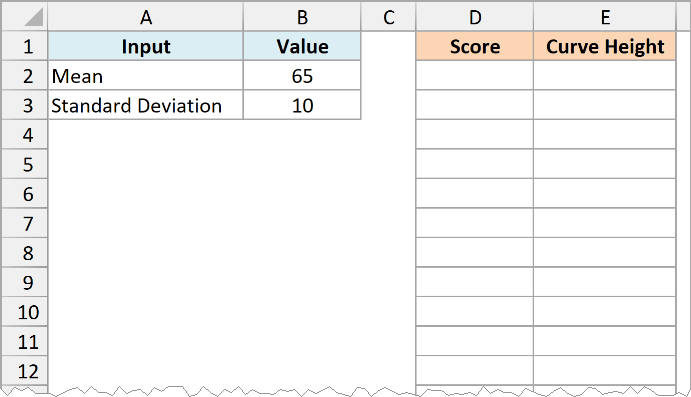
Below I have the mean and standard deviation of the exam scores in cells B2 and B3, and I want to list the scores for the curve in column D and the curve height in column E.
Here is the formula to enter in cell D2 that will give us the scores:
=SEQUENCE(61,1,B2-3*B3,B3/10)
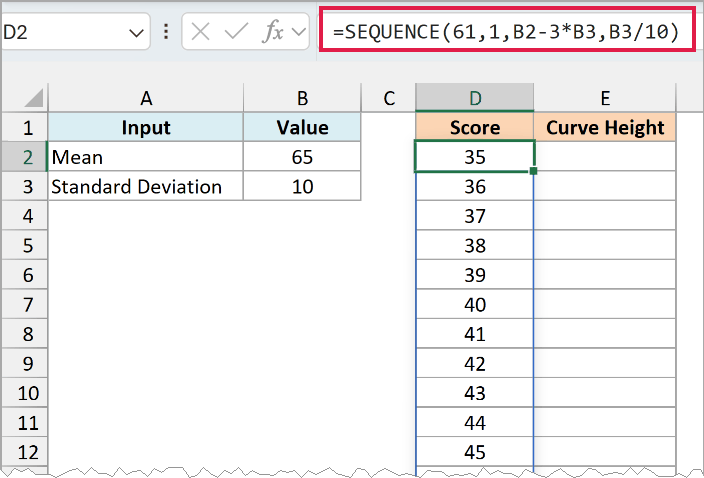
The SEQUENCE function returns 61 numbers in one column. It starts at B2-3B3 (65-310, which is 35) and adds B3/10 (which is 1) each time, so the list ends at 95.
Using a tenth of the standard deviation as the step means you always get 61 points covering three standard deviations on each side of the mean. That’s enough points for a smooth curve, whatever mean and standard deviation you use.
You only enter it once, and it spills down to D62 on its own.
The SEQUENCE function works in Excel 365, 2024, and 2021, on both Windows and Mac. If you’re using Excel 2019 or earlier, use the formulas shown later in this section.
Now, in cell E2, enter the below formula to get the height of the curve for each score:
=NORM.DIST(D2#,B2,B3,FALSE)
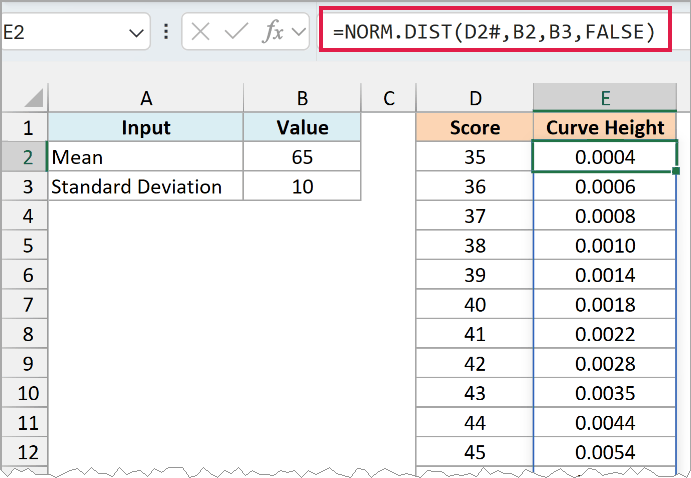
The NORM.DIST function takes each score in D2# (the # refers to the whole list that spilled from D2), along with the mean in B2 and the standard deviation in B3.
The last argument is FALSE, which tells Excel to return the height of the curve at that score. With TRUE, you would get the cumulative probability instead, and the chart would come out S-shaped instead of a bell.
Pro Tip: Keep the mean and standard deviation in their own cells (like B2 and B3) instead of typing them into the formula. Then you can change either one, and the scores, the curve heights, and the chart all update on their own.
If you’re using Excel 2019 or earlier (which doesn’t have the SEQUENCE function), enter the below formula in cell D2 to get the first score:
=B2-3*B3
Then enter the below formula in cell D3 and copy it down to D62 (you can use the fill handle and drag it down):
=D2+$B$3/10
You can also type the scores instead. Enter 35 in D2 and use the autofill option to create a series from 35 to 95, but then the scores won’t change when you change the mean or standard deviation.
And then enter the below formula in cell E2 and copy it down to E62:
=NORM.DIST(D2,$B$2,$B$3,FALSE)
The example file has this version on the Older Excel Versions tab. In Excel 2019 or earlier, the other tabs won’t work because they use the SEQUENCE function, so use that tab instead.
Now that you have the scores and the curve heights, here are the steps to create the bell curve chart:
- Select the scores and curve heights, including the headers (D1:E62).
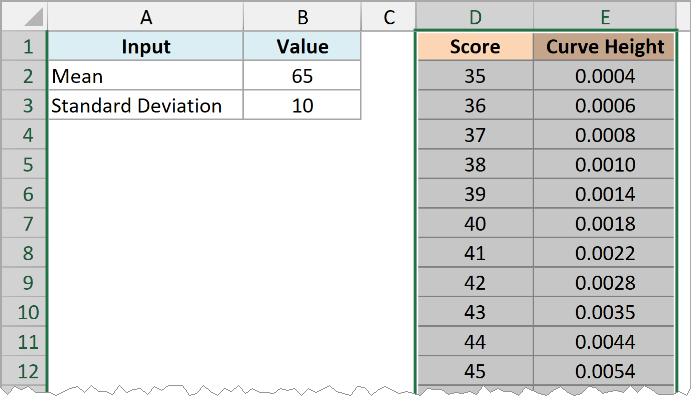
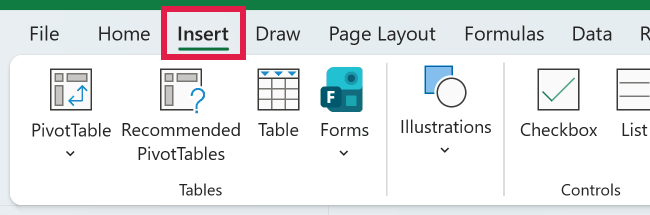
- Click the Insert tab.
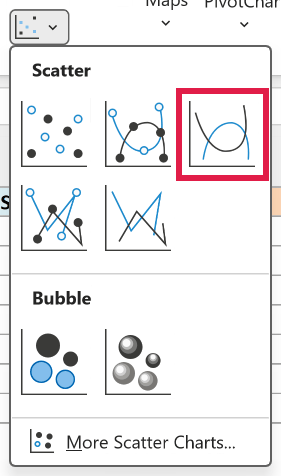
- In the Charts group, click the ‘Insert Scatter (X, Y) or Bubble Chart’ icon and choose ‘Scatter with Smooth Lines’.
- Click the chart title and type a name for the chart (I’ve used ‘Bell Curve’).
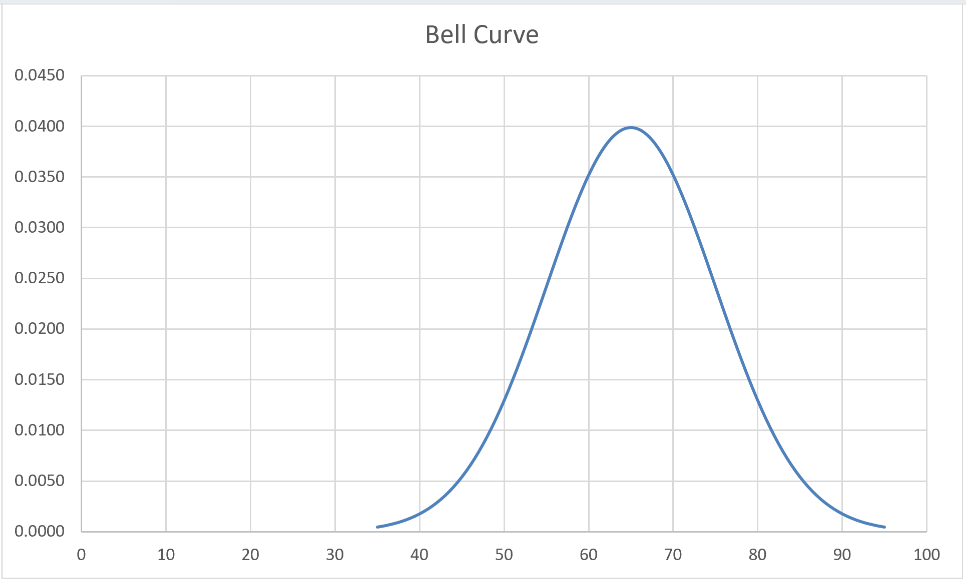
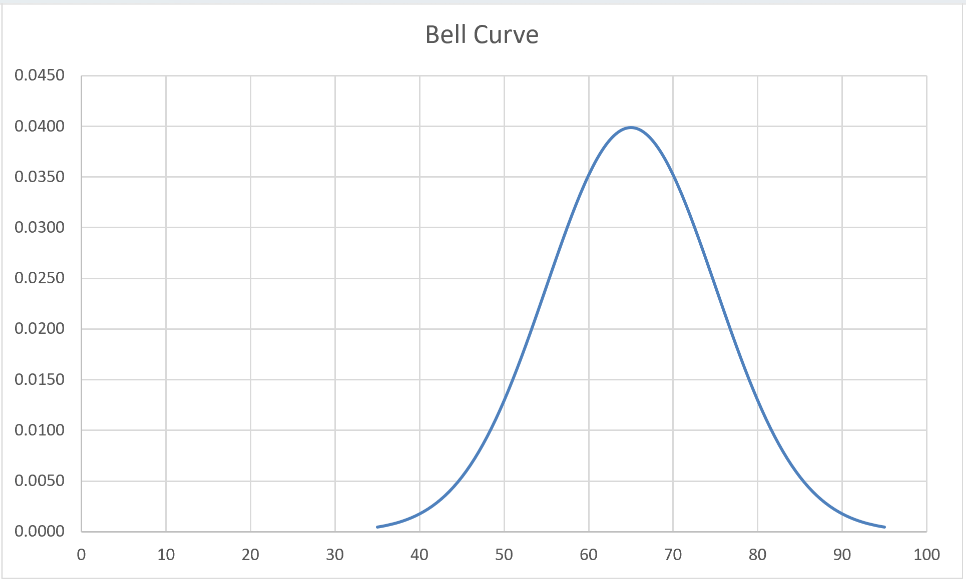
This will give you a bell curve in Excel.
You’ll notice some empty space on the left, because the horizontal axis starts at 0 while the scores start at 35. Leave it that way, since starting the axis at a higher number can make the chart misleading.
If Excel starts the horizontal axis at a number other than 0 (it can when your scores are far from zero), right-click the axis, choose Format Axis, and set the Minimum bound to 0.
Note that when you have a low standard deviation, you get a packed slim bell curve, and when you have a high standard deviation, the bell curve is wide and covers more area on the chart.
This kind of bell curve can be used to identify where a data point lies in the chart.
For example, in case a team is full of high performers, someone can get an average rating when evaluated on a curve, despite being a high performer, as they were in the middle of the curve.
Create a Bell Curve From Your Own Data
In the previous section, the mean and standard deviation were already known. More often, you have the actual scores and need to work them out first.
Below I have the performance scores of 12 employees in a team, and I want to calculate their mean and standard deviation in column E and plot their bell curve.
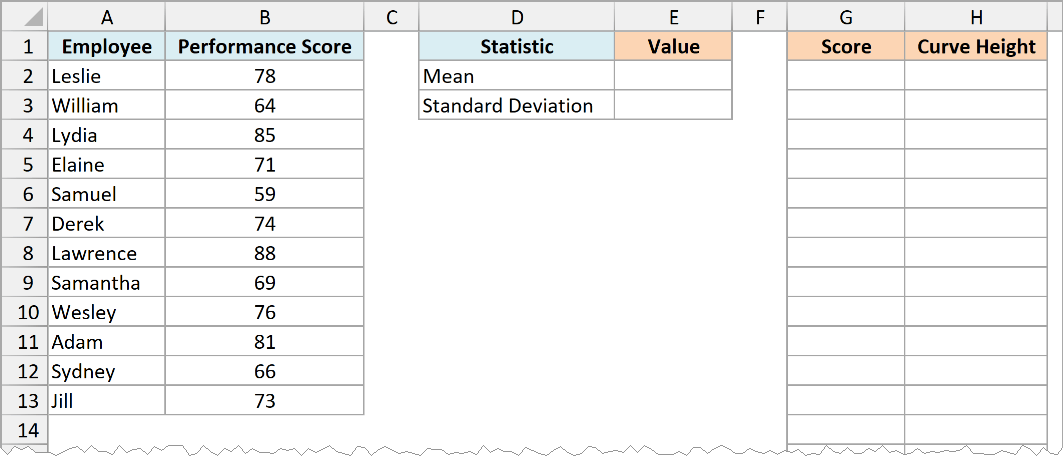
Here is the formula that will give us the mean in cell E2:
=AVERAGE(B2:B13)
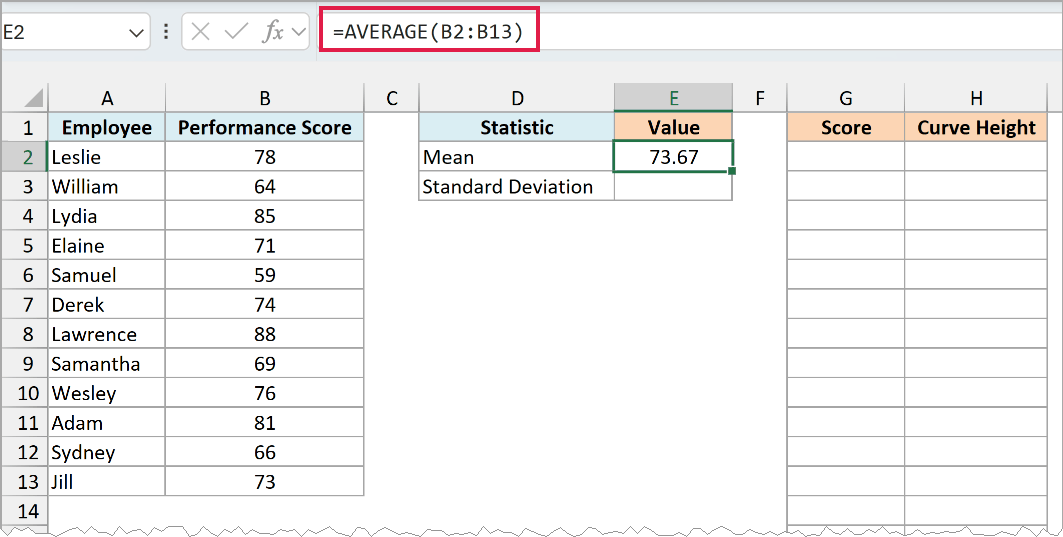
And here is the formula for the standard deviation in cell E3:
=STDEV.P(B2:B13)
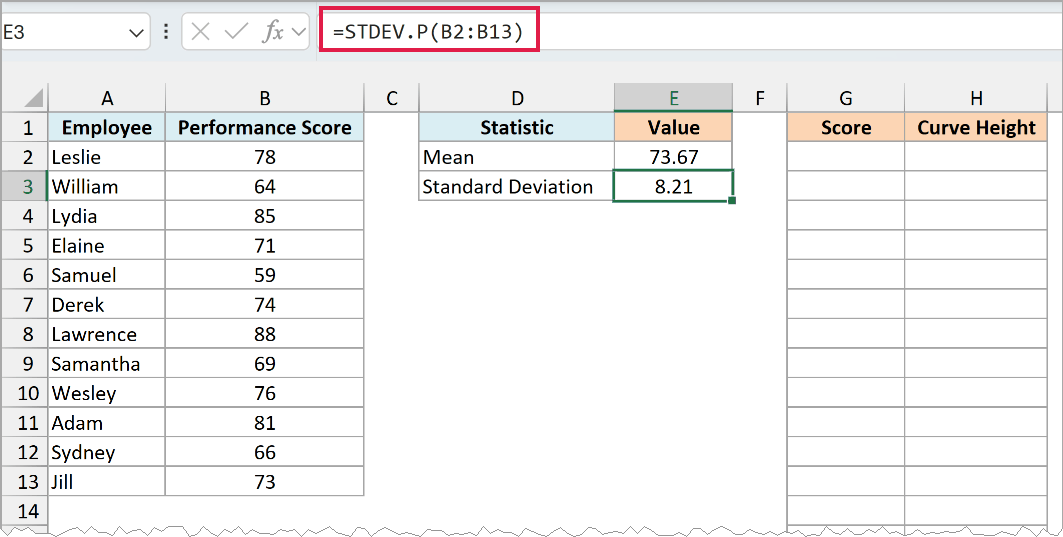
The mean comes out as 73.67 and the standard deviation as 8.21.
I’ve used STDEV.P because these 12 employees are the whole team. If your data is only a sample from a bigger group (say 12 employees picked out of a company of 500), use STDEV.S instead.
Now enter the below formula in cell G2 to get the scores for the curve:
=SEQUENCE(61,1,E2-3*E3,E3/10)
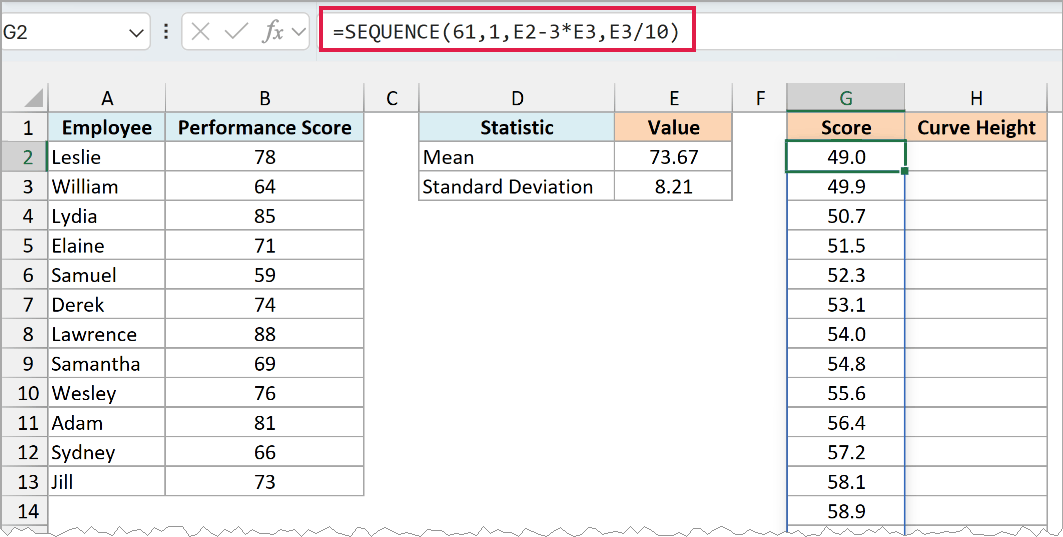
This is the same formula as before, but it now points to the mean and standard deviation in E2 and E3. The scores run from 49.0 to 98.3, which is three standard deviations on each side of 73.67.
And this formula in cell H2 gives the height of the curve for each score:
=NORM.DIST(G2#,E2,E3,FALSE)
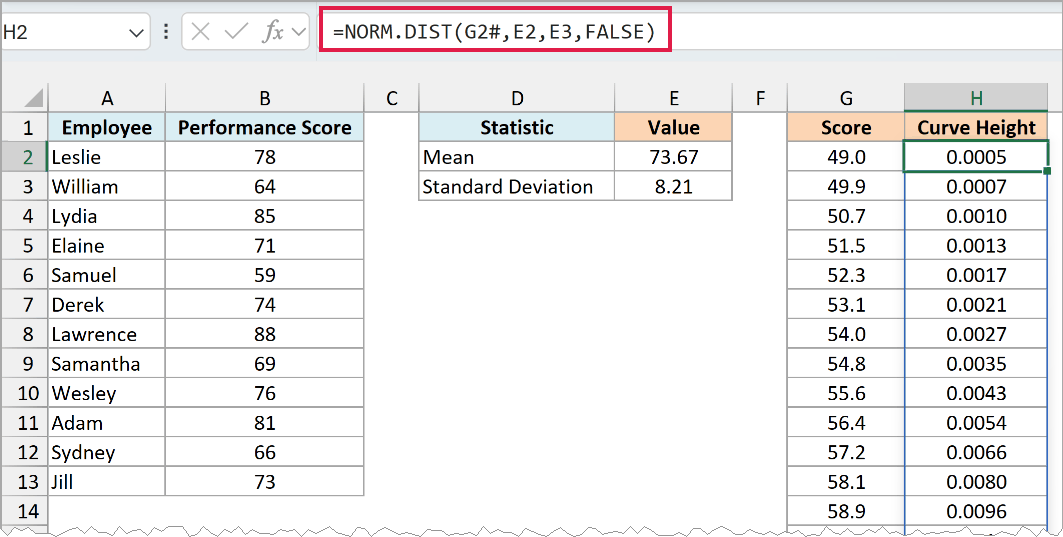
Now select G1:H62, and insert a ‘Scatter with Smooth Lines’ chart from the Insert tab (the same way as in the previous section). If you haven’t worked with these charts before, here’s my guide on scatter plots in Excel.
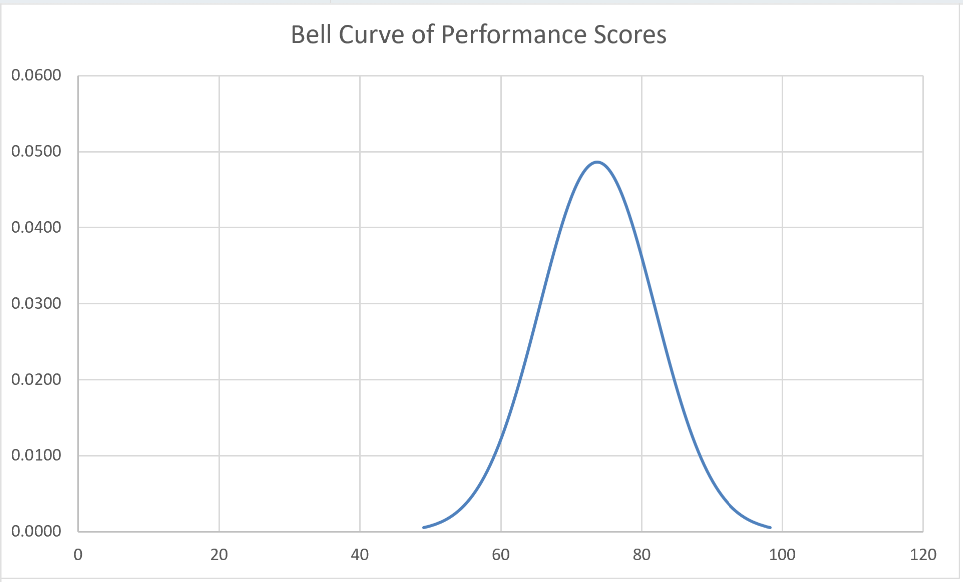
The curve peaks at 73.67, which is the team’s average score.
Keep in mind that this is the bell curve that matches the team’s mean and standard deviation, not a picture of how the 12 scores are actually spread. To see the actual spread of your scores, use a histogram.
To use this with your own data, paste your scores in column B and change B2:B13 in the AVERAGE and STDEV.P formulas to your data range. The curve and the chart update on their own.
Show Standard Deviations on a Bell Curve
A plain bell curve shows the shape, but it doesn’t tell you where one standard deviation ends and the next begins. You can mark these points on the chart, with a line from each point down to the axis.
Below I have the same exam bell curve data (mean 65 and standard deviation 10) and a list of markers from -3 SD to +3 SD in column G, and I want to get the score and curve height for each marker in columns I and J.
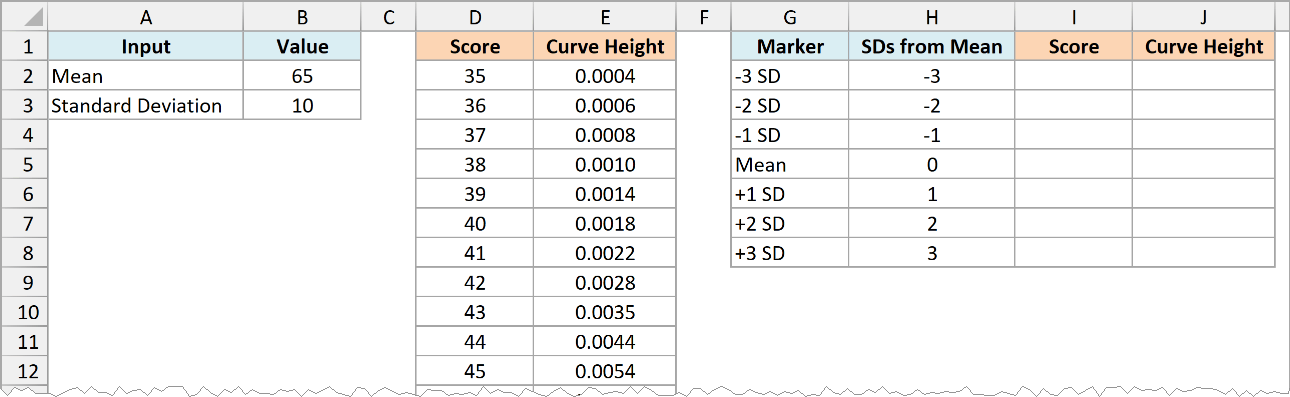
Here is the formula to enter in cell I2 that will give us the score for each marker:
=B2+H2:H8*B3
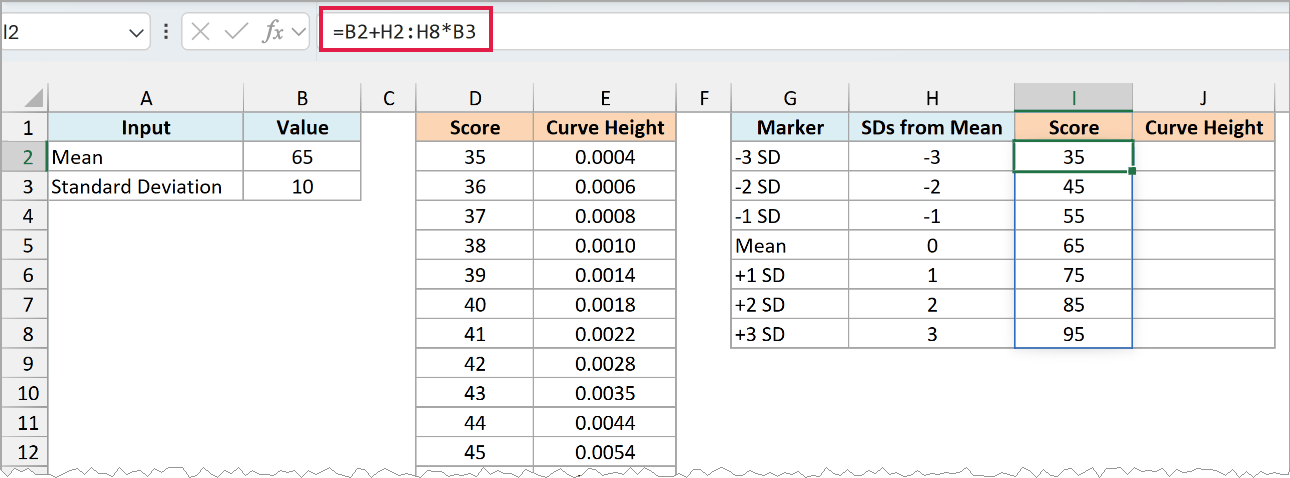
It multiplies each value in H2:H8 (the number of standard deviations from the mean) by the standard deviation in B3, and adds the mean in B2. So -3 becomes 35, 0 becomes 65, and 3 becomes 95.
And this formula in cell J2 gives the height of the curve at each marker, so the points sit right on the curve:
=NORM.DIST(I2#,B2,B3,FALSE)
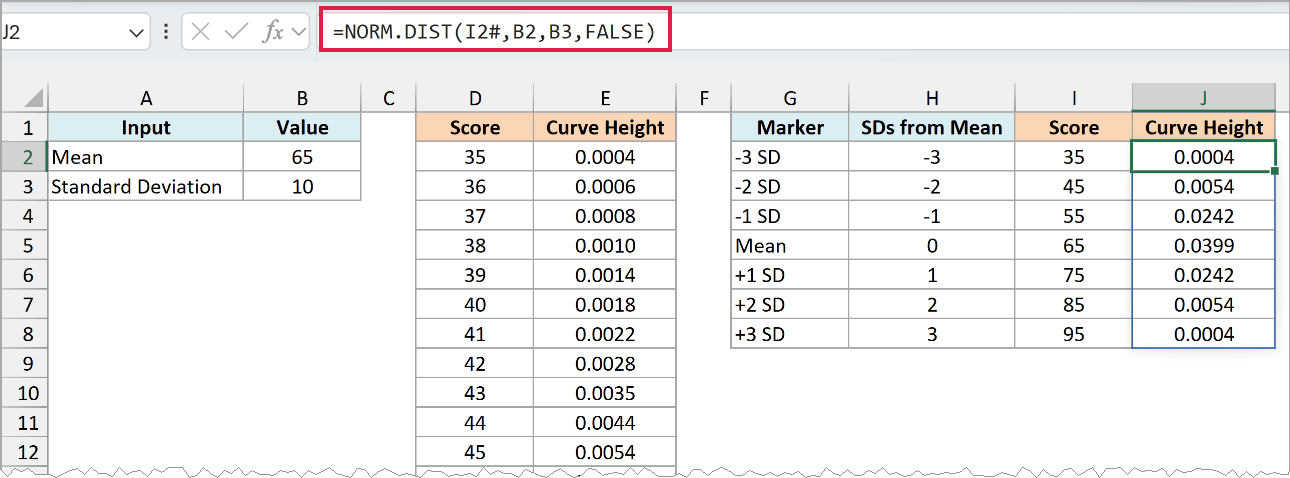
Columns D and E on this tab hold the same scores and curve heights as before, made with the SEQUENCE and NORM.DIST formulas.
So first create the bell curve chart from D1:E62 (using the steps in the NORM.DIST section above), and then follow the below steps to add the markers:
- Right-click the chart and click ‘Select Data’.
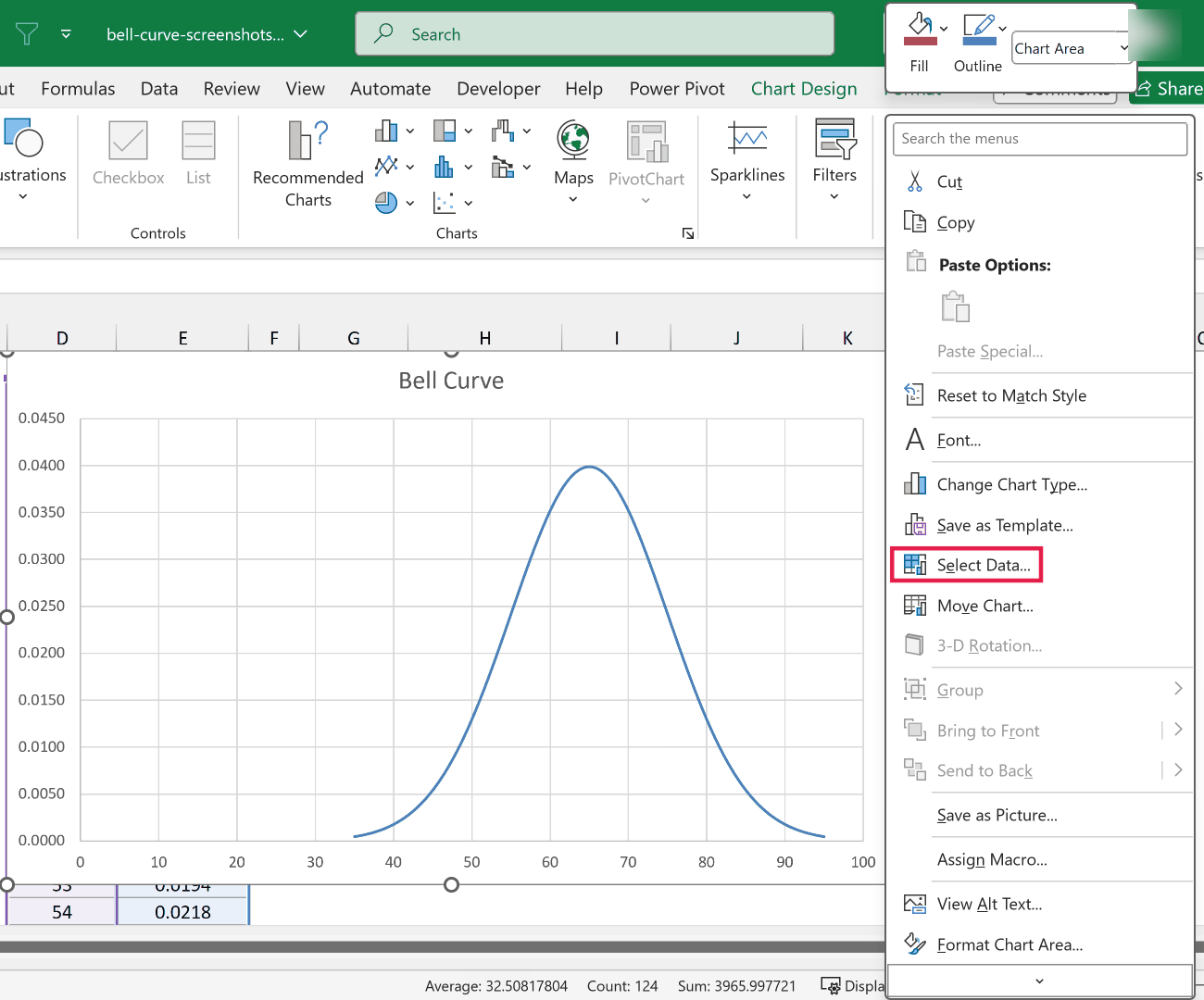
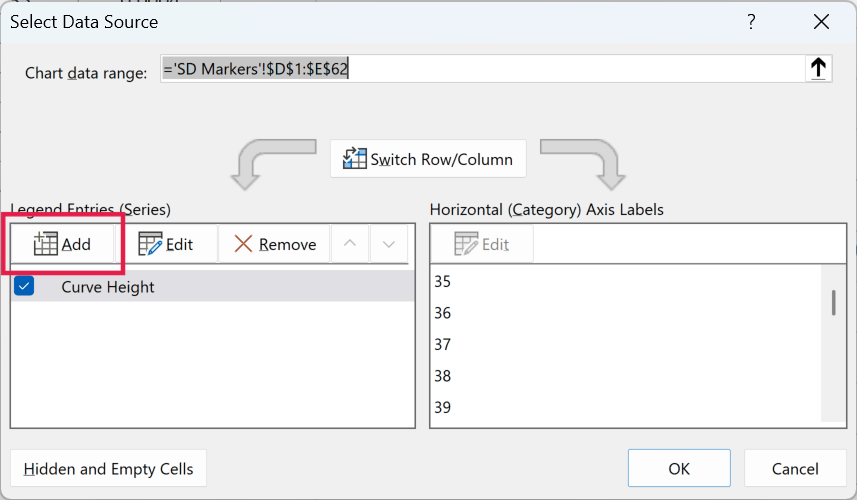
- In the Select Data Source dialog box, click the Add button.
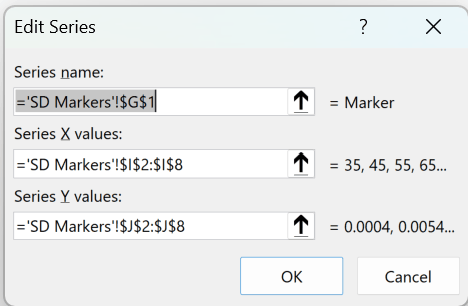
- In the Edit Series dialog box, select G1 for ‘Series name’, I2:I8 for ‘Series X values’, and J2:J8 for ‘Series Y values’. Then click OK, and OK again.
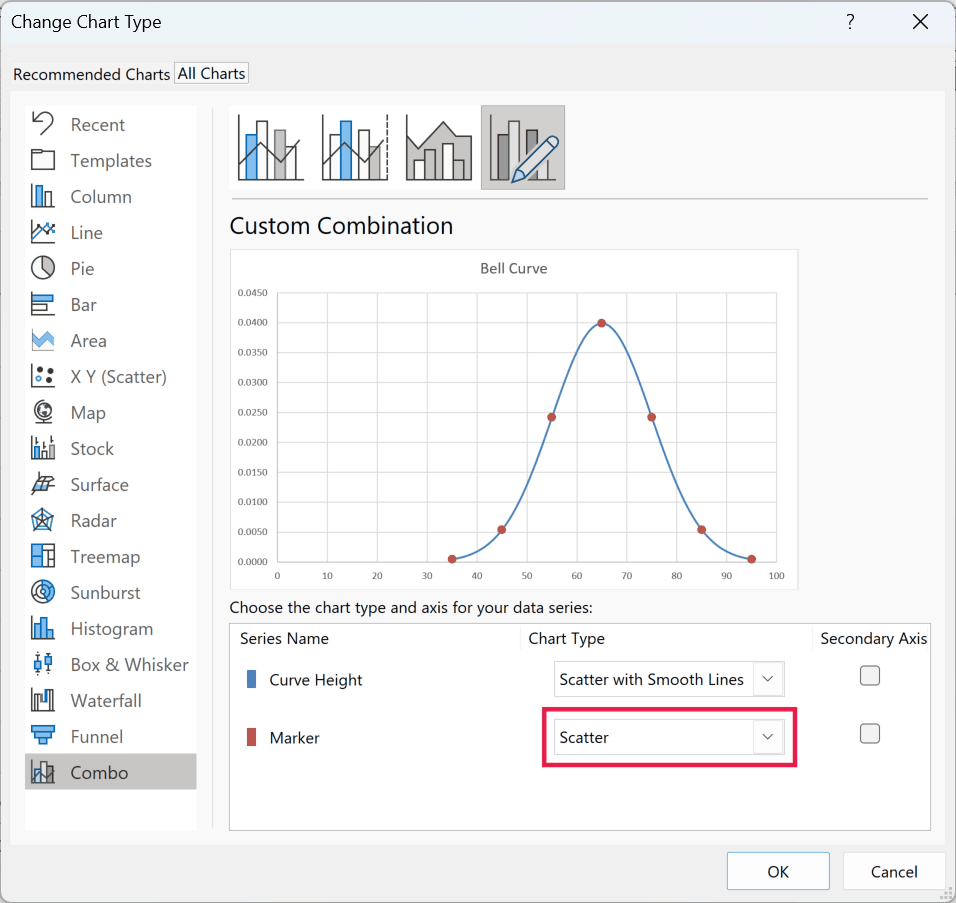
- Right-click the new series on the chart, click ‘Change Series Chart Type’, and change the chart type of the Marker series to ‘Scatter’.
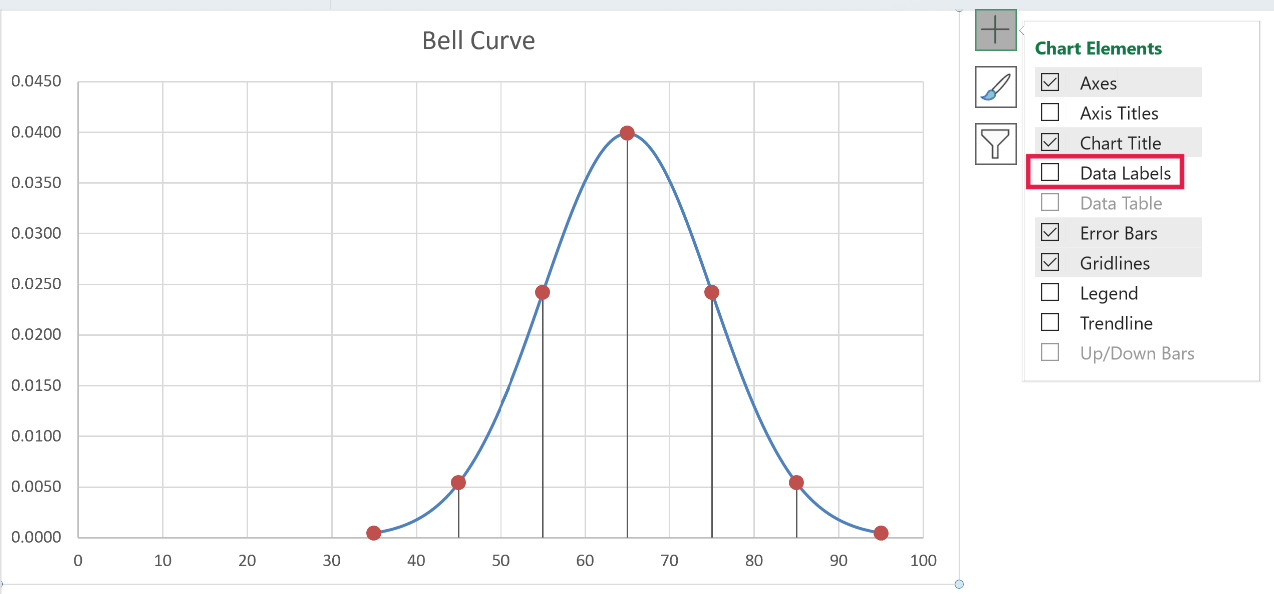
- With the markers selected, click the Chart Elements button (the plus icon next to the chart), hover over Error Bars, click the arrow next to it, and click ‘More Options’.
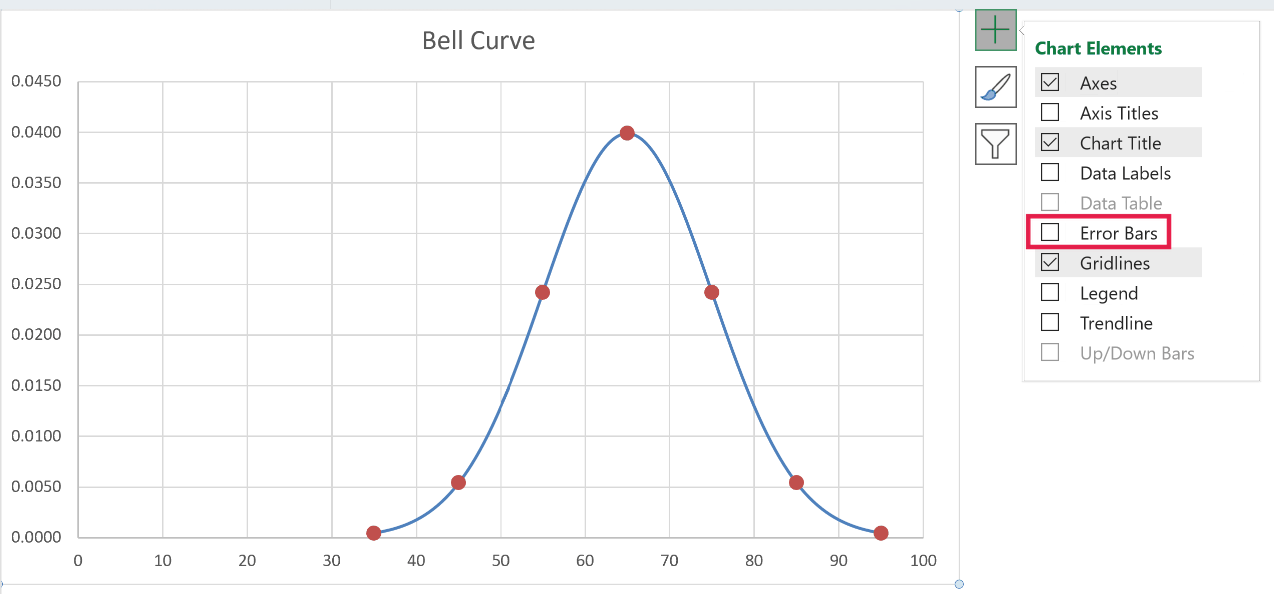
If you’re on a Mac, there’s no Chart Elements button next to the chart. Use Chart Design > Add Chart Element instead, here and in step 7.
Excel adds the error bars with a fixed value of 1 in both directions, so the vertical axis stretches and the curve looks flat. That’s expected, and the next step fixes it.
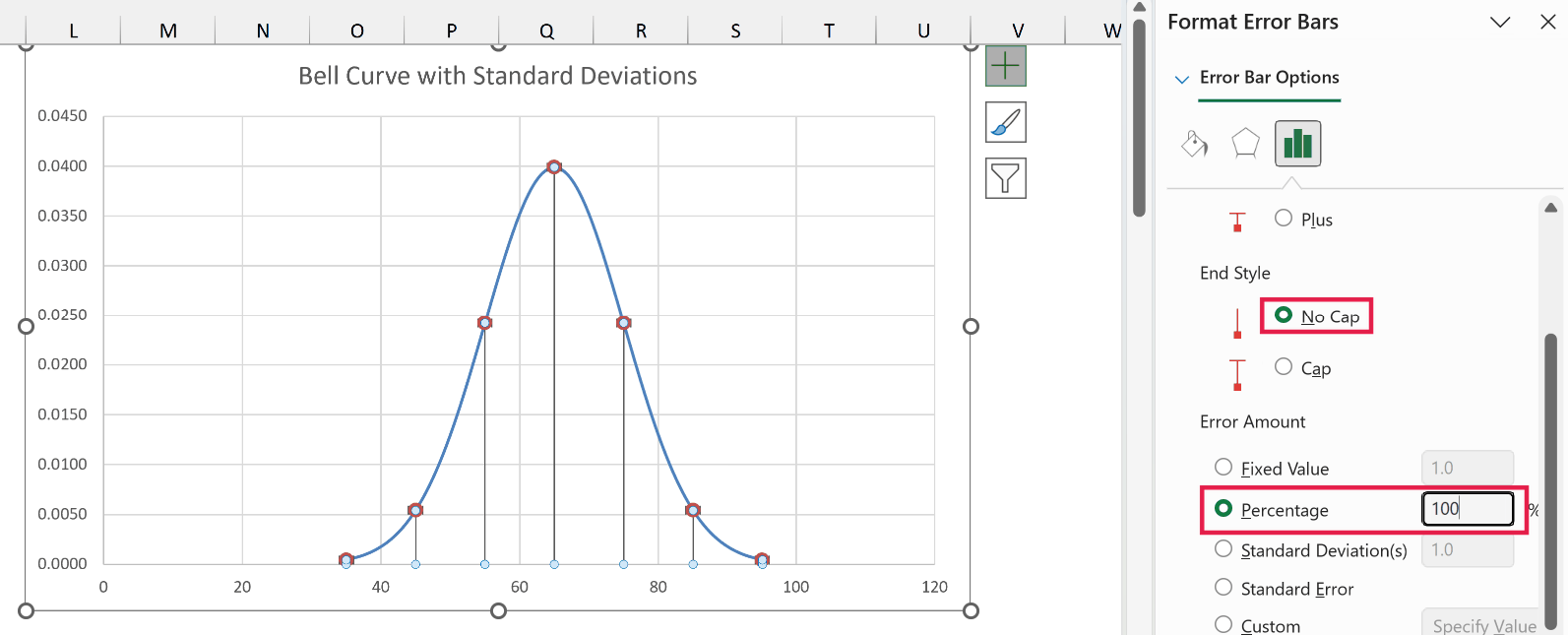
- Click any of the vertical error bars. Then, in the Format Error Bars pane, choose ‘Minus’ for Direction, ‘No Cap’ for End Style, and set Percentage to 100%.
The error bars are still selected after step 6, so select the markers again before adding labels. Click any of the marker points, or pick Series “Marker” from the Chart Elements drop-down on the left of the Format tab.
Make sure it’s only the markers. If the whole chart or the curve is selected instead, the labels go on the curve’s 61 points.
- With only the markers selected, click the Chart Elements button, click the arrow next to Data Labels, and click ‘More Options’.
- In the Format Data Labels pane, check ‘Value From Cells’, select G2:G8 in the Data Label Range dialog box, and click OK. Then uncheck ‘Y Value’.
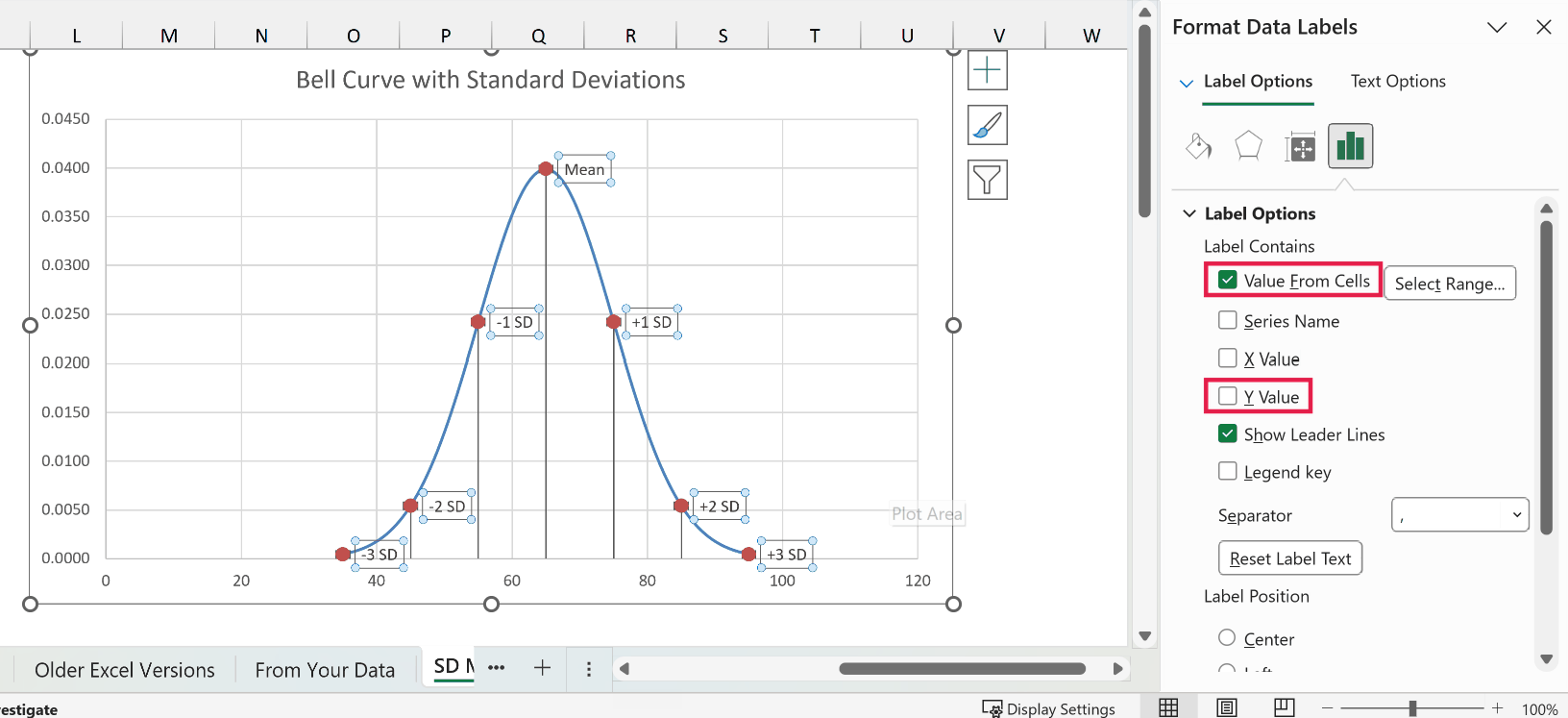
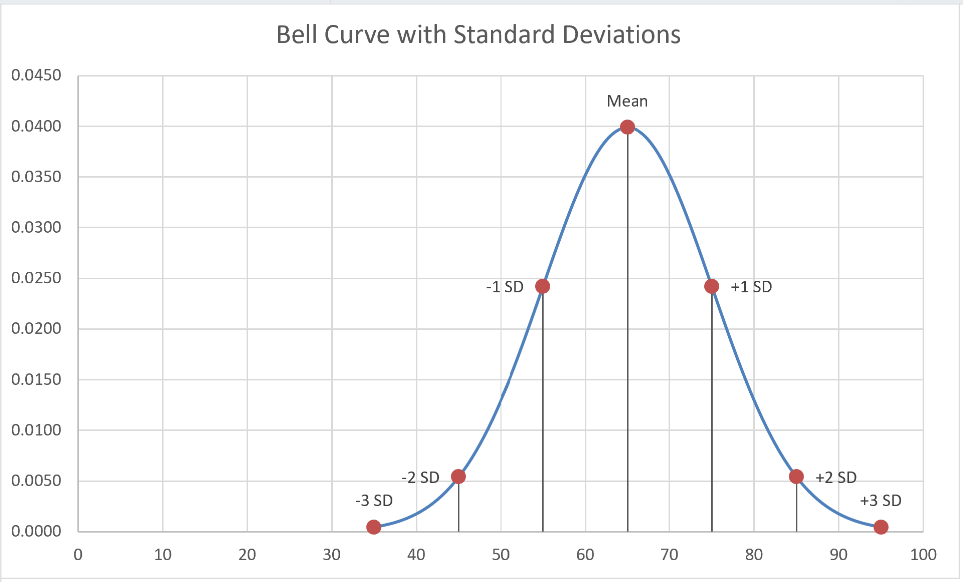
The bell curve now shows a labeled point at the mean and at each standard deviation, with a line down to the axis.
If a label sits on top of the curve, click it twice to select just that label and drag it to the side.
With the markers in place, you can see the rule from earlier on the chart.
If the exam scores follow a bell curve, about 68% of them would fall between the -1 SD and +1 SD lines (55 to 75), and about 95% between -2 SD and +2 SD (45 to 85).
So this is how you can make a bell curve in Excel, build one from your own data, and mark the standard deviations on it.
Note: In this blog post, I have discussed the concept of a bell curve and how to create it in Excel. A statistician would be better suited to talk about the efficacy of the bell curve and limitations associated with it.
I am more of an Excel guy and my involvement with Bell curve has been limited to the calculations I did when I worked as a Financial Analyst.
Hope you found this tutorial useful!
Let me know your thoughts in the comments section.
You May Also like the following Excel Tutorials:
- How to Calculate Compound Interest in Excel + FREE Calculator.
- How to Create a Heat Map in Excel.
- Step Chart in Excel.
- How to Create a Timeline / Milestone Chart in Excel.
- Creating a Pareto Chart in Excel.
- Calculate P-value in Excel
- Creating a Pie Chart in Excel
- Advanced Excel Charts
- How to Find Slope in Excel? Using Formula and Chart
- Calculate Area Under Curve in an Excel

It’s 2023 and you’re still helping students!
THANK YOU!
very useful.
Thank you.
This was the easiest step-by-step guide for bell curves I’ve come across, many thanks!
is there any excel chart to create a rough predictive estimate of a pandemic based on previous known data applying present know data to project an estimate . now that would be very popular right now. A bell Gaussian distributions curve I think its called.
Thanks…very helpful
Hi. The standard deviation of the calculated weights is 17.7 and not 10. So, this bell curve does not comply with the created data.
Am I right (or I’m not)?
Best regards
ALSH
this is what I get too.
Many thanks
Thank you, life saver!
It is valuable
Useful. Thank you.
Thank very much you explain clarify good luck
Helped me a lot set up an activity for my class, than you!
Thank you so much for your step by step instructions, it was really usefull.
how can shade the curve which the area that i want to find
Could you please explain from where you got (mean value 65 AND STD deviation 10)
also from where do we got this role ( mean-3*STD Deviation )
For the mean, you can use the AVERAGE function, and for the deviation you can use the STDEV.P function. Both using your results as the range.
Thank you very much. Very nice and clear presentation. Just one question please: In which area of financial analysis did you meet the normal distribution? Aren’t the distributions of returns almost always leptokurtic?
QUITE USEFUL. THANK YOU
this doesnt work, you are idiot
it works perfectly
instead of saying (Thank you) you’re saying that, by the way the above example working with all the people
Very useful and helpful post. Thank you so much
This is really good tutorial but I was thinking if our data increases on daily basis so how we can maintain automatically this curve?
GREAT!!!!!
You have done a wonderful job.
Keep it up.
Good, very good. Thank you so much for this man, people like you who spread knowledge like this and make the lives of others easier for free are amazing. God bless you brother.
I wanted to know how to shade in all three standard deviations i.e. 68.2%, 95%, and 99.7%. I can create the curve. I just cannot figure out how to get the shading.
one thing which is not clear for me. When you said “In cell A1 enter 35. This value can be calculated using Mean – 3* Standard Deviation (65-3*10)”. Now what is the idea of writing 35, 36 and 37 and so on in the cells… may be there is no student in the class who got 35 marks.
So how can you transfer the actual student marks into the excel sheet.. We are like using the lowest value as 3 SD from the mean, is n’t it?