
Working with a large Excel workbook that has multiple sheets could be challenging. Even advanced Excel users feel overwhelmed when trying to switch between multiple worksheets in the same workbook.
Imagine working on an Excel workbook with 15 worksheets, and having to constantly switch between worksheets #3 and #12.
There are multiple ways to switch between worksheets in Excel, and in this tutorial, I’m going to show you some really cool and advanced tricks that will help switch between tabs a little easier and faster.
We’ll start with the keyboard shortcut (including the Mac version and what to do when your laptop has no Page Up key), and then go through seven more ways to jump to the exact sheet you want.
Follow along with the example file
Switch Between Sheets Excel.xlsx
Keyboard Shortcut to Switch Between Sheets (Page Up/Down)
If you need to move between sheets in the same workbook that are not far apart (i.e., there are not many worksheets in between the two sheets in which you want to switch), then you can use the below keyboard shortcuts.
Keyboard Shortcut to Move to the Sheet on the Right:
Control + Page Down
Keyboard Shortcut to Move to the Sheet on the Left:
Control + Page Up
To use this shortcut, you need to keep the Control key pressed and then use the Page Up or Page Down key.
If you want to move to the next sheet on the right/left, hit the Page Down/Page Up key only once. If you keep it pressed, it will move through multiple sheets till you keep the key pressed (or till it reaches the last/first worksheet).
Important: This method is best suited when you only have a few sheets. In case you have a lot of sheets (10 or more), even this method could feel a bit overwhelming, so the other methods below will work better.
You can also make it easier by moving the sheets (between which you want to switch) next to each other (but that may not always be possible).
If you use Excel in a web browser, Control + Page Down may switch browser tabs instead (Microsoft notes this for Chrome). In that case, use Control + Alt + Page Down and Control + Alt + Page Up to move between sheets.
Shortcut to Switch Between Sheets in Excel on a Mac
On a Mac, Control + Page Down also takes you to the next sheet. But there’s an easier pair that doesn’t need the Page keys at all:
Option + Right Arrow
This takes you to the next sheet on the right. Option + Left Arrow takes you to the sheet on the left.
If your MacBook keyboard has no Page Up and Page Down keys, you can also hold the Fn key with the Up or Down Arrow (Fn + Down Arrow works as Page Down). So Control + Fn + Down Arrow moves to the next sheet.
If you switch between Windows and Mac a lot, I also have a full list of Excel keyboard shortcuts for Windows and Mac.
Switch Sheets Without Page Up and Page Down Keys (Windows Laptops)
A lot of Windows laptop keyboards don’t have separate Page Up and Page Down keys. They’re usually printed as a second label on the Up and Down Arrow keys, and you get them by holding the Fn key.
So on such a laptop, Control + Fn + Down Arrow moves to the next sheet, and Control + Fn + Up Arrow moves to the previous one. The exact key varies by laptop brand, so check the small labels on your arrow keys.
Move from One Sheet to Another Using Watch Window
This method is probably the best way to switch between multiple sheets in Excel.
Watch Window is a less known feature in Excel that allows you to keep a track of values in specific cells in the workbook.
Although its primary purpose is not to help us move between sheets in the workbook, it’s a pretty good solution for this use case.
Suppose you have a workbook with a Summary sheet and twelve month sheets (Jan to Dec), and you want to switch between the Summary sheet and the Dec sheet.
Below are the steps to make this possible using the Watch Window:
- Select cell A1 in the Summary sheet (one of the sheets between which you want to move back and forth)
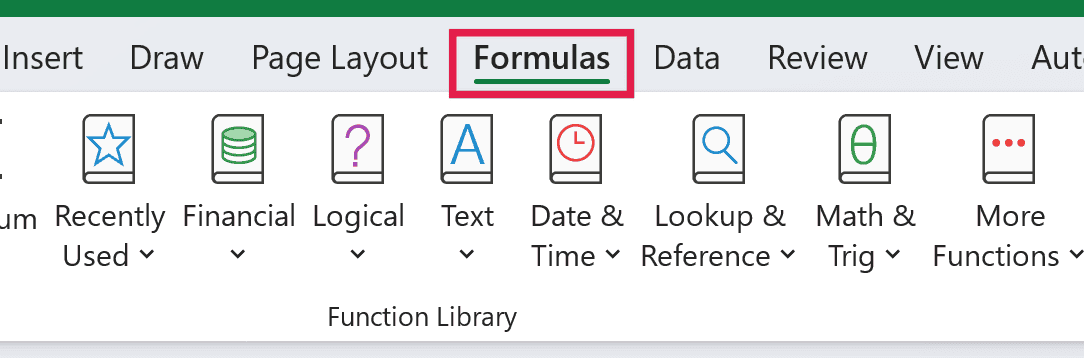
- Click the Formulas tab in the ribbon
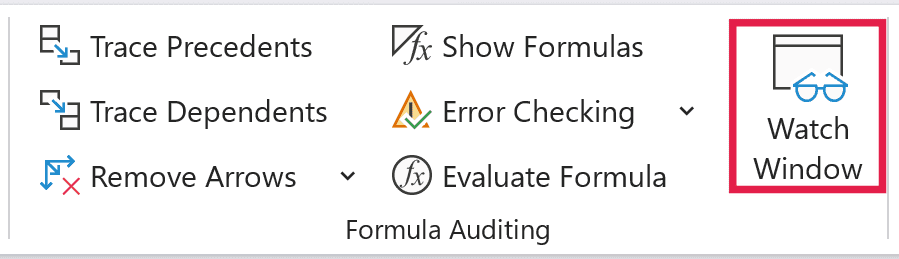
- Click on the Watch Window option (it’s in the Formula Auditing group)
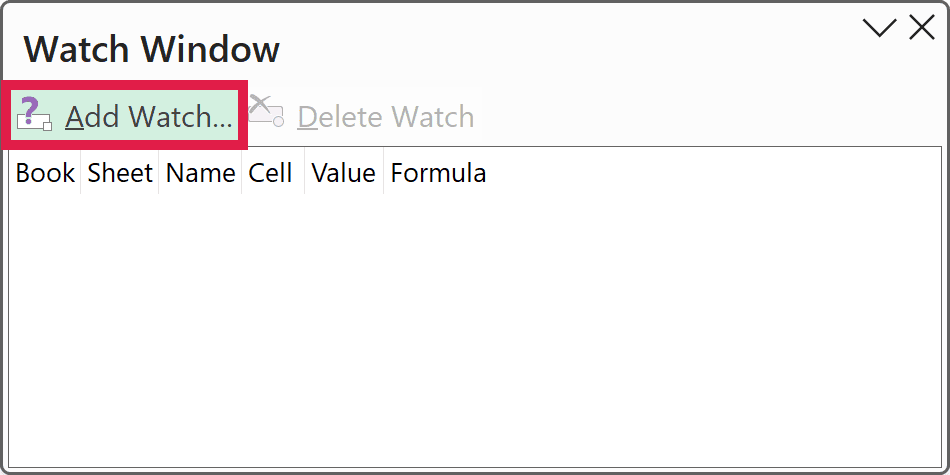
- In the Watch Window dialog box, click on Add Watch
- Make sure the right cell is selected in the Add Watch box. You can change the cell reference if you want
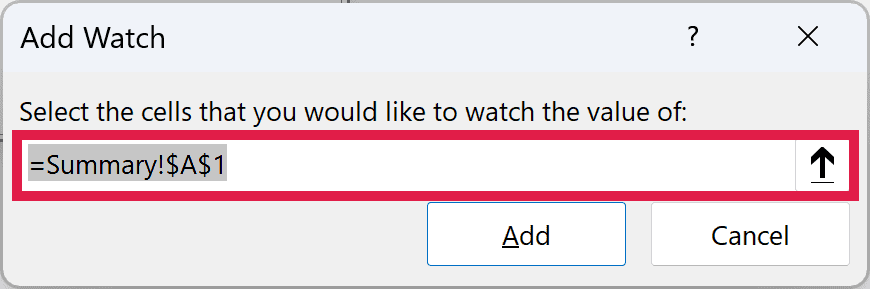
- Click on Add. This will add the watch instance to the Watch Window
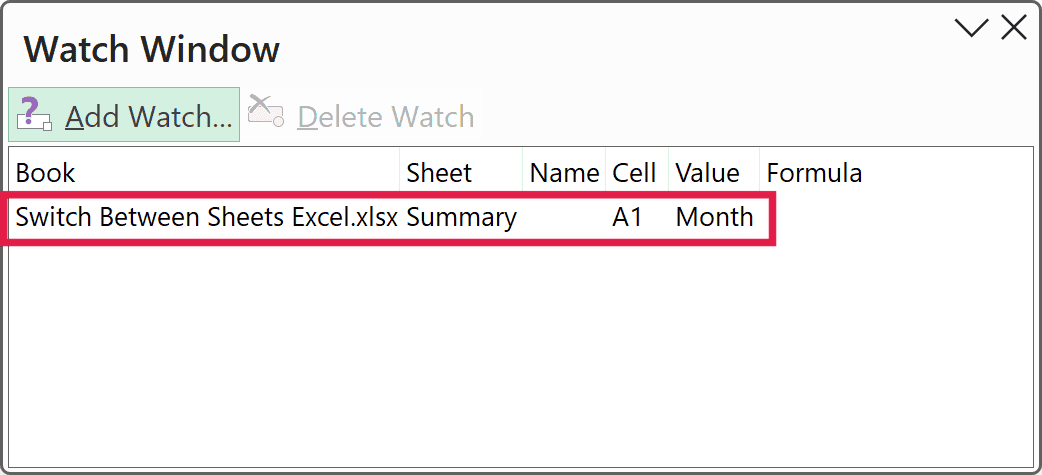
- Click on the Add Watch button again
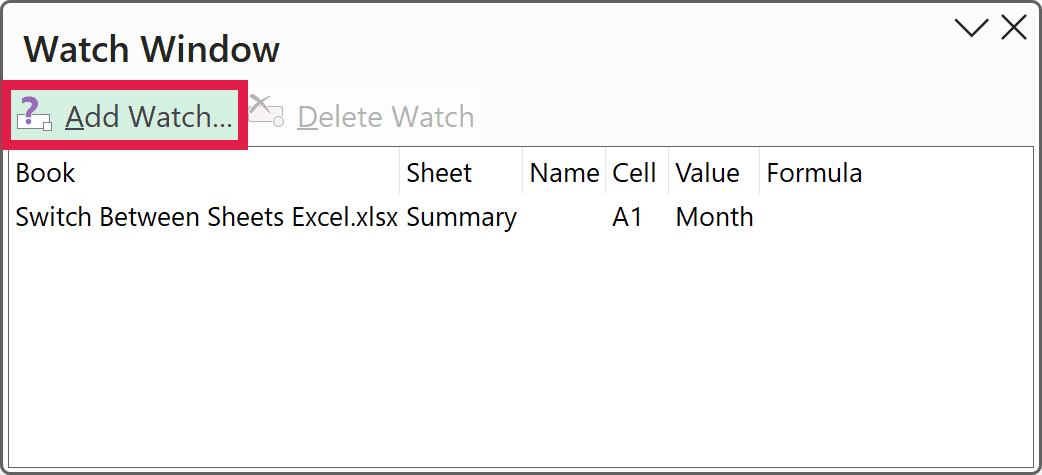
- In the Add Watch box, go to the Dec sheet (the other sheet you want to switch to) and select any cell there
- Click on Add. This will add a second watch instance to the Watch Window
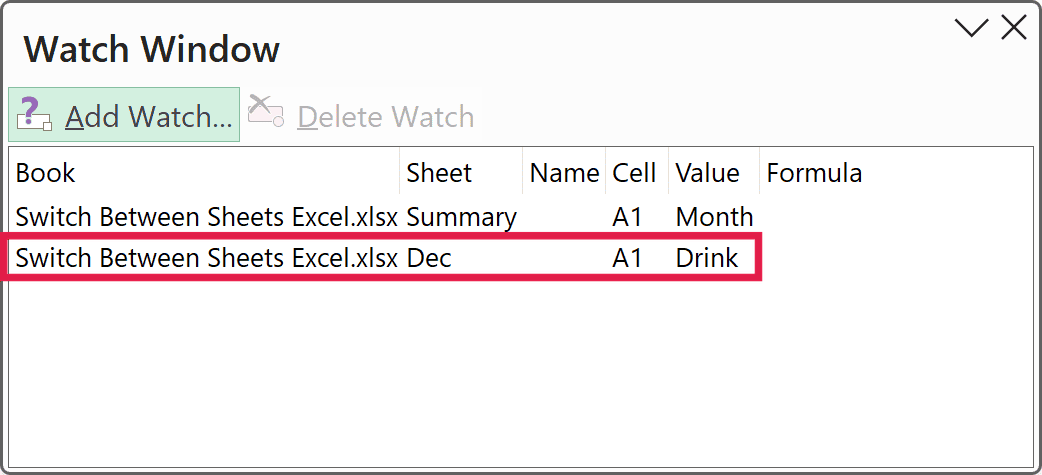
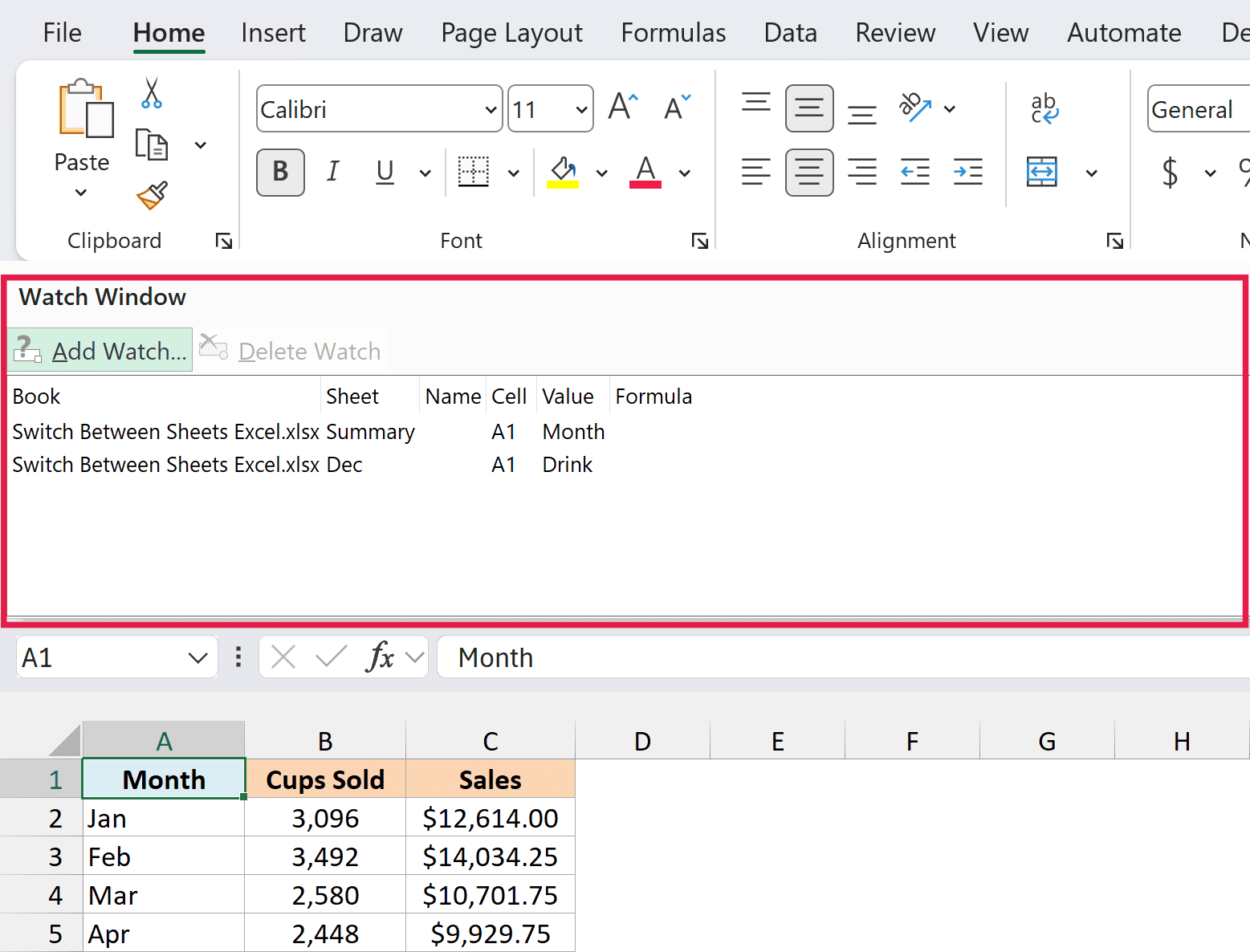
Once done, you will have two instances in the Watch Window, and when you double-click on any of the instances, you will instantly be taken to that cell.
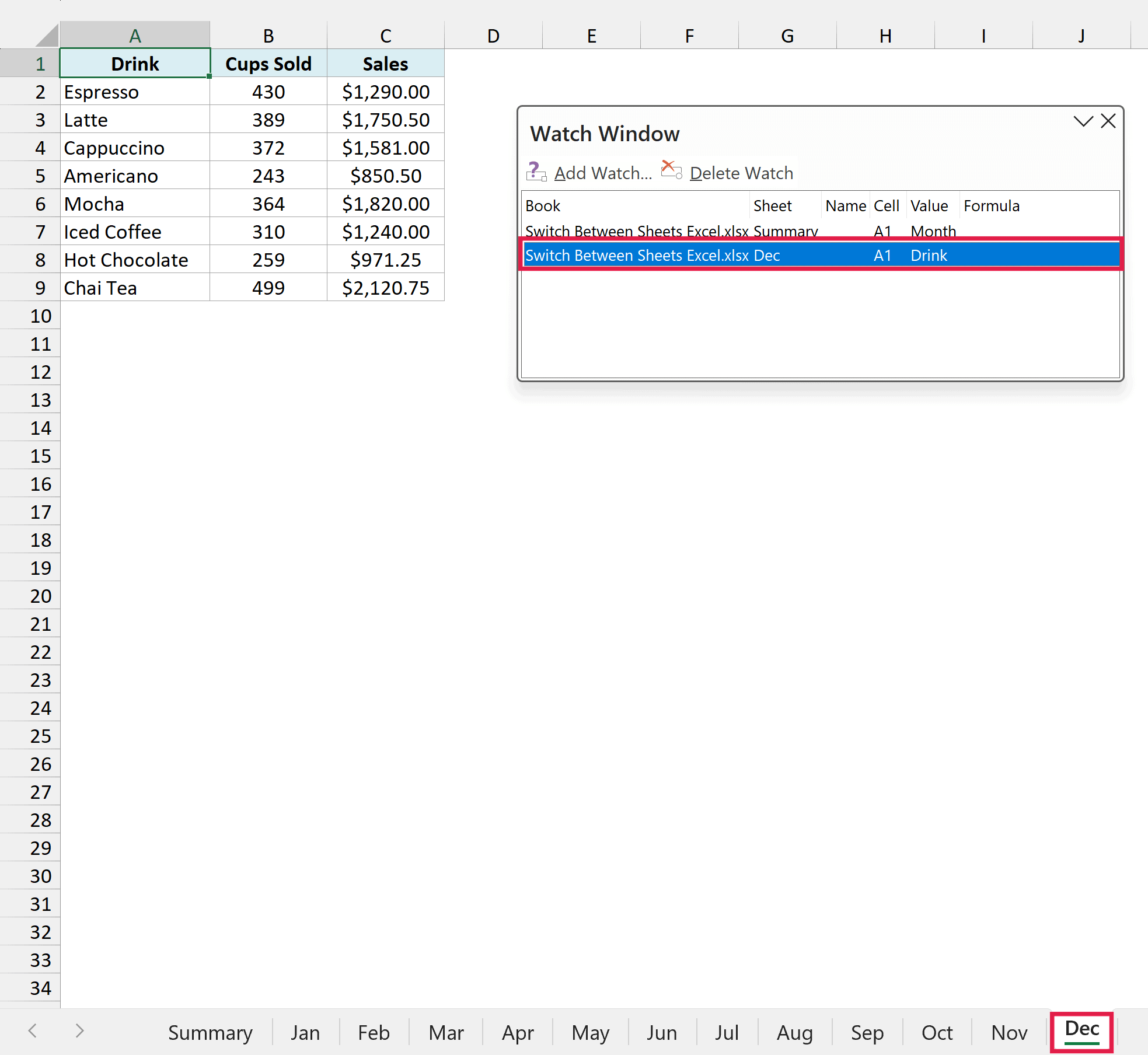
And since these two cells are in different sheets, it means that whenever you double-click on the other instance, it will jump to that cell in the different worksheet.
There are quite a few merits to this method for switching between sheets:
- You can create as many instances as you want, and a simple double-click will take you there
- If you close the workbook and open it later, the Watch Window will still be configured and you can continue to use it
- Watch Window will remain active and will be placed above the worksheet so it’s always visible. So you can reduce its size and place it anywhere in the worksheet and always have access to it.
You can also drag it and place it below the ribbon (where it gets docked and is always available), or slide it to the right and dock it as a pane.
Go To Any Sheet with the Activate Sheet Option
There is an ‘Activate’ sheet option in Excel that shows all the sheets in the workbook as a list, and you can easily select and jump to that sheet.
So if you need to switch back and forth between two or more sheets, you can easily do that.
But where is this Activate Sheet option?
For that, you need to know a little trick.
- Go to the gray area to the left of the first sheet tab in your workbook
- Place the cursor in between the two gray arrow icons
- Click the right mouse key (or trackpad). Note it’s the right key, not the left key. This will open the ‘Activate’ dialog box that has all the sheet names
- Double-click on the sheet where you want to go
You can repeat the same process if you want to go to any other sheet. So if you want to switch between two or more sheets, you can do that using the Activate Sheet option.
Note that when you click on any sheet, it will take you to the cell in that sheet that was last activated when you were in that sheet.
If you’re using Excel for the web, you don’t need the right-click trick. There’s an All Sheets button at the bottom-left of the window that lists every sheet.
And if you can’t see the sheet tabs (or the arrows next to them) at all, get the missing sheet tabs back first.
Switch Between Sheets Using the Navigation Pane
If you use Excel for Microsoft 365 (Windows or Mac), there’s a newer option that keeps a list of all your sheets open on the side of the screen. It’s called the Navigation pane.
Unlike the Activate dialog box, which closes once you pick a sheet, the Navigation pane stays open while you work. So you can jump to another sheet with a single click.
Here are the steps to open it:
- Click the View tab in the ribbon
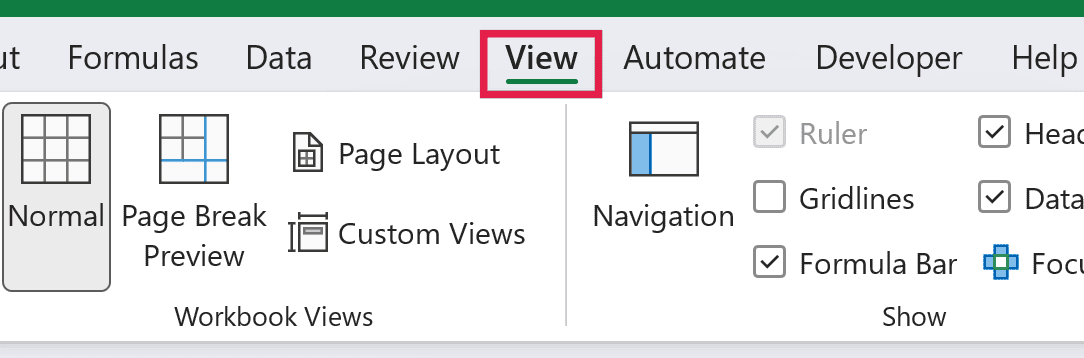
- Click on Navigation (in the Show group)
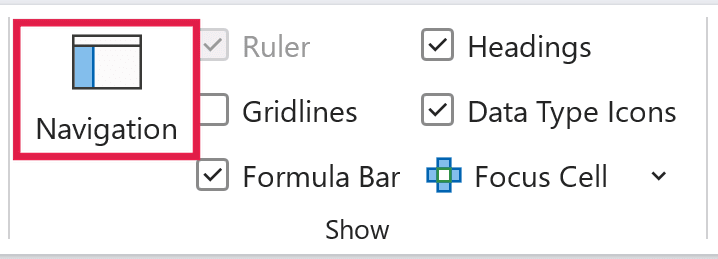
This opens the Navigation pane on the right, with a section for every sheet in the workbook. Click on any sheet name, and Excel takes you to that sheet.
The pane also lists the tables, charts, PivotTables, and images on each sheet. Click the arrow next to a sheet name to see them, and click on any of these to jump straight to it, even if it’s on another sheet.
Pro Tip: You can also get to this list from the status bar. Right-click the status bar at the bottom of Excel and enable Sheet Number, then click on the sheet number to open the Navigation pane.
Switch Between Sheets Using the Name Box
The Name Box in Excel allows you to quickly jump to any Named Range in the workbook.
We can use this to our advantage by creating named ranges that refer to a cell or a range of cells in the sheets between which we need to switch.
Let me explain how it works.
Suppose I want to switch between the Summary sheet and the Dec sheet.
First, I would create two named ranges that would refer to a cell in the Summary sheet and the Dec sheet.
Below are the steps to do this:
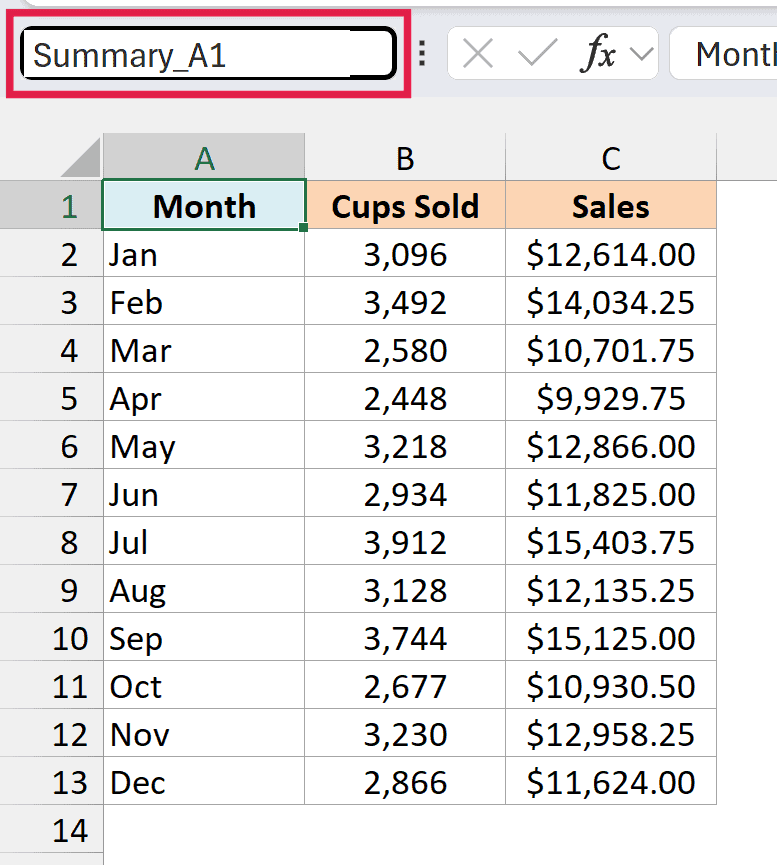
- Select cell A1 in the Summary sheet
- Enter Summary_A1 in the Name Box and press Enter (you can use any name you want, but it should not have a space character in the name)
- Go to the Dec sheet and select cell A1
- Enter Dec_A1 in the Name Box and press Enter
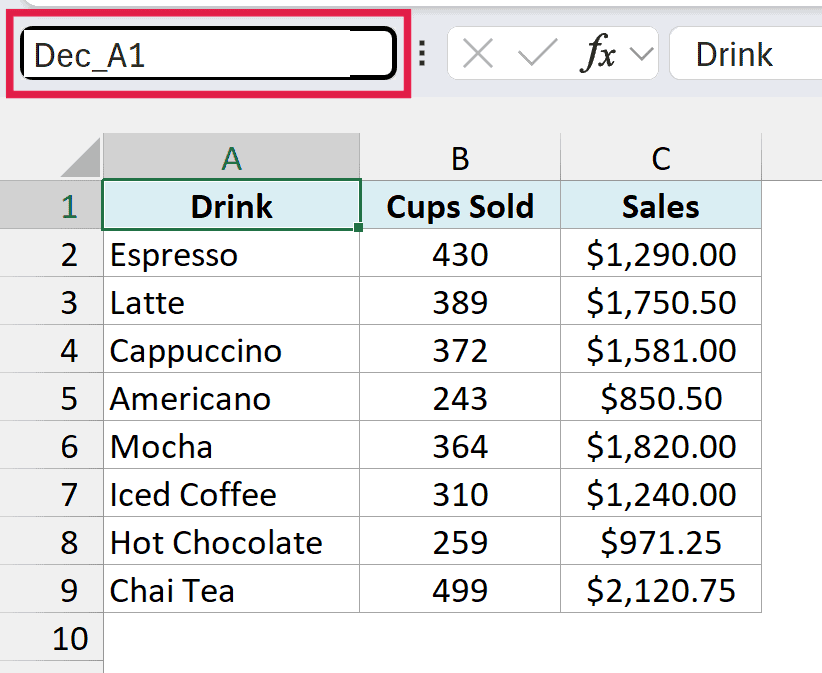
The above steps would create two named ranges in the workbook. Summary_A1 would refer to cell A1 in the Summary sheet, and Dec_A1 would refer to cell A1 in the Dec sheet.
Now, to switch between these two sheets, click on the drop-down icon in the Name Box. You will see all the named range names show up in the drop-down.
So if you’re in the Dec sheet and want to switch to the Summary sheet, select Summary_A1 from the options in the drop-down.
While I have only shown you how to do this for two sheets, you can do this for as many sheets as you want.
Also, I have shown you how to switch and go to cell A1, but you can jump to any cell or range of cells using this method.
Just select the cell or range of cells to which you want to jump, and then create a named range for it.
Pro Tip: Keep the names of the Named Ranges simple and descriptive. Also, you can not have a space character in the name.
Switch Between Sheets Using the Go To Dialog Box
Another fast way to quickly move to a specific sheet and a specific cell or range of cells is by using the Go To dialog box.
In the Go To dialog box, you can manually enter the sheet name and the cell address, and it will instantly take you there.
Suppose you have a workbook and you want to go to cell C9 in the Dec sheet.
Below are the steps to do this using the Go To dialog box:
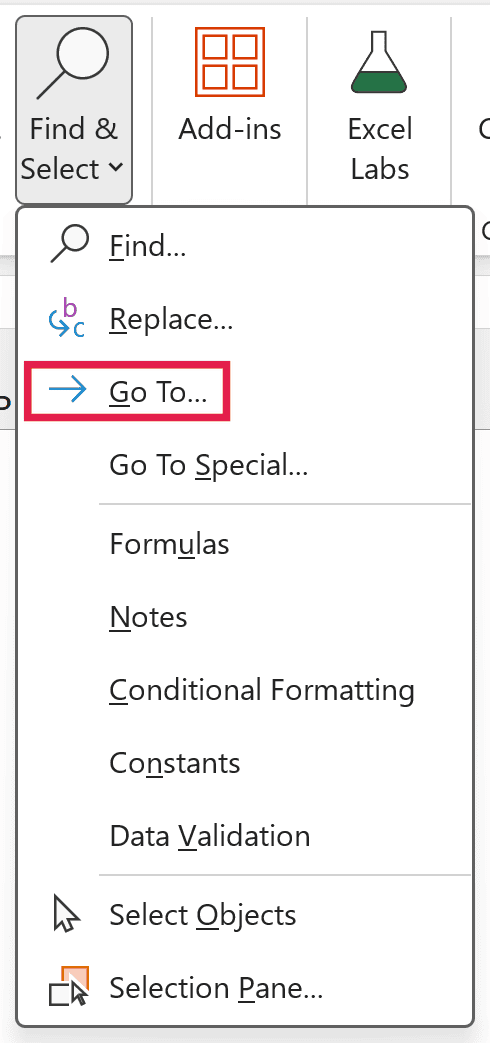
- Use the keyboard shortcut F5 to open the Go To dialog box (you can also get this by going to Home > Editing > Find & Select > Go To)
- In the Reference field, enter Dec!C9
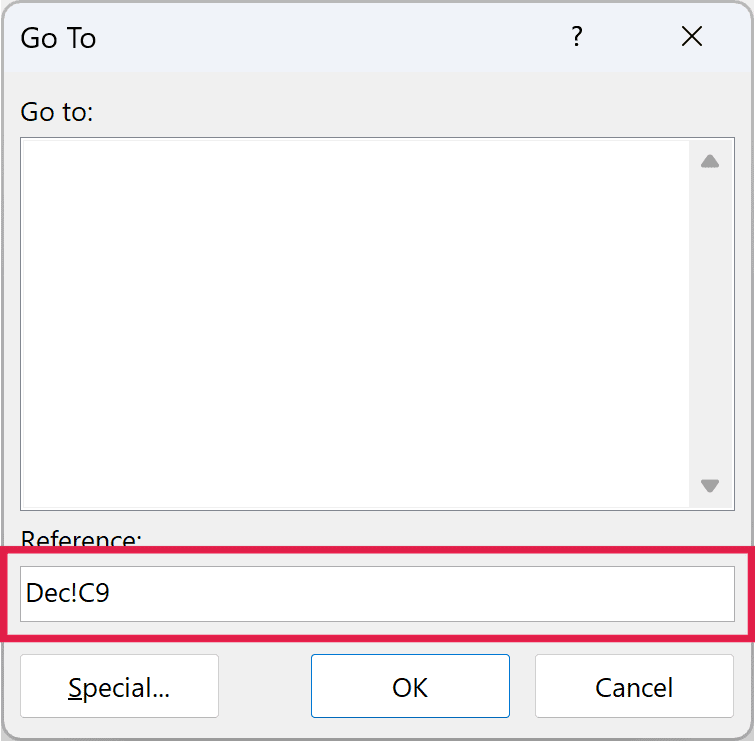
- Hit Enter (or click on the OK button)
The above steps would instantly take you to cell C9 in the Dec sheet.
So if you want to switch between sheets and you don’t mind typing the name of the sheet followed by the cell reference in the Go To dialog box, this could be one way to switch between two or more sheets.
If a sheet name has a space in it, wrap it in single quotes, like ‘Sales Data’!A1. Otherwise, Excel won’t recognize the reference.
Pro Tip: The Go To dialog box has a temporary memory, so if you use it to go to a specific cell, you will see that option the next time you open it.
So if you see the reference of the cell where you want to jump to, you can simply double-click on it instead of typing it.
Jump from One Sheet to Another Using Hyperlinks
Adding hyperlinks is another good way to allow a user to jump from one sheet to another with a click of a button.
You can have a hyperlink in a cell or add it to a shape or image. When added, as soon as the user clicks on the hyperlink, they will instantly be taken to the linked cell or range.
And if this cell or range is in another sheet, clicking on the hyperlink would also activate that sheet.
Let me explain using an example.
Suppose I want to turn the month names in the Summary sheet into links, so that clicking on Jan in cell A2 takes me to cell A1 in the Jan sheet.
Below are the steps to do this:
- Activate the Summary sheet
- Right-click on cell A2 (the cell where I want to create the hyperlink)
- Click on ‘Link’. This will open the ‘Insert Hyperlink’ dialog box
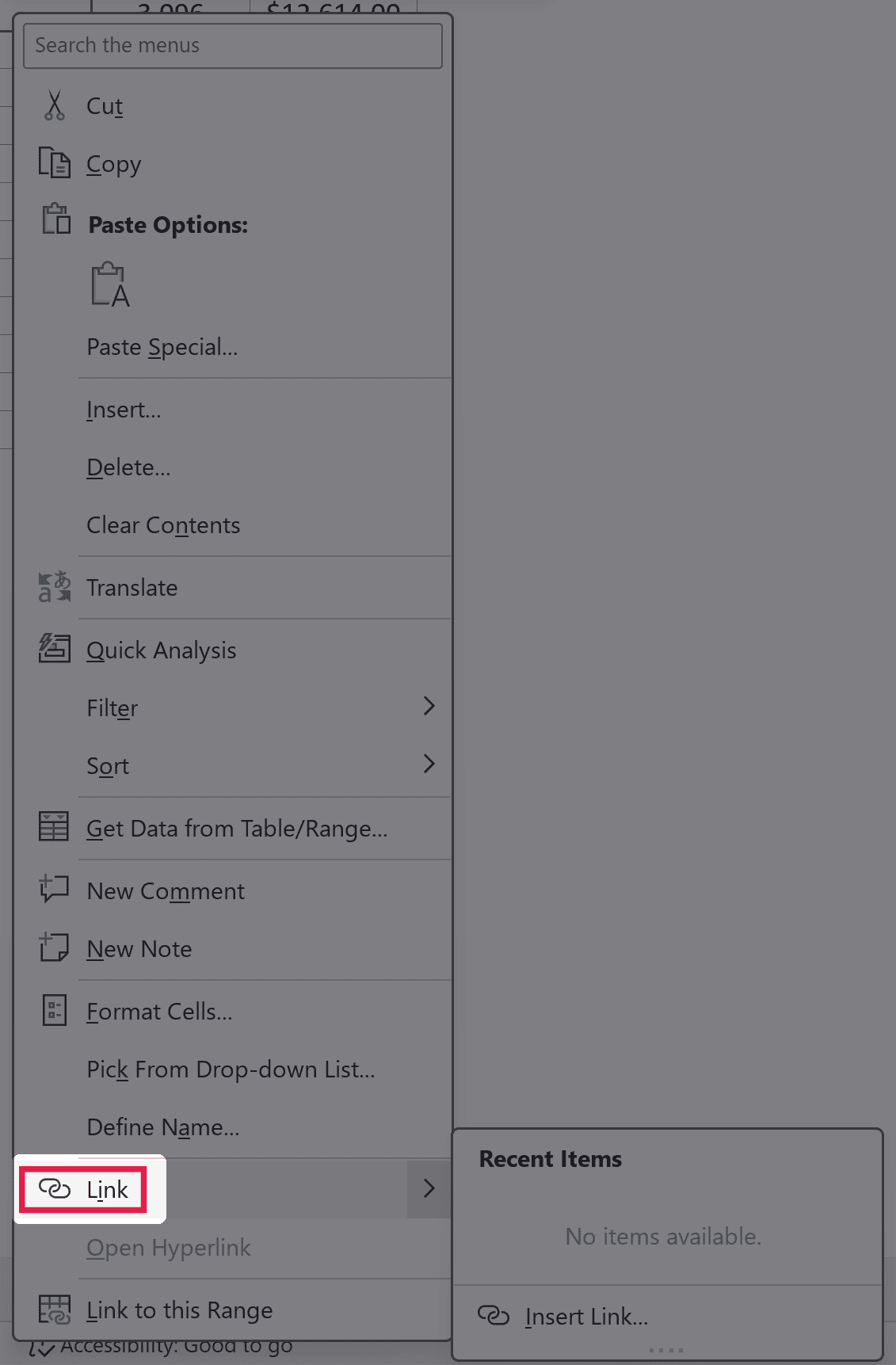
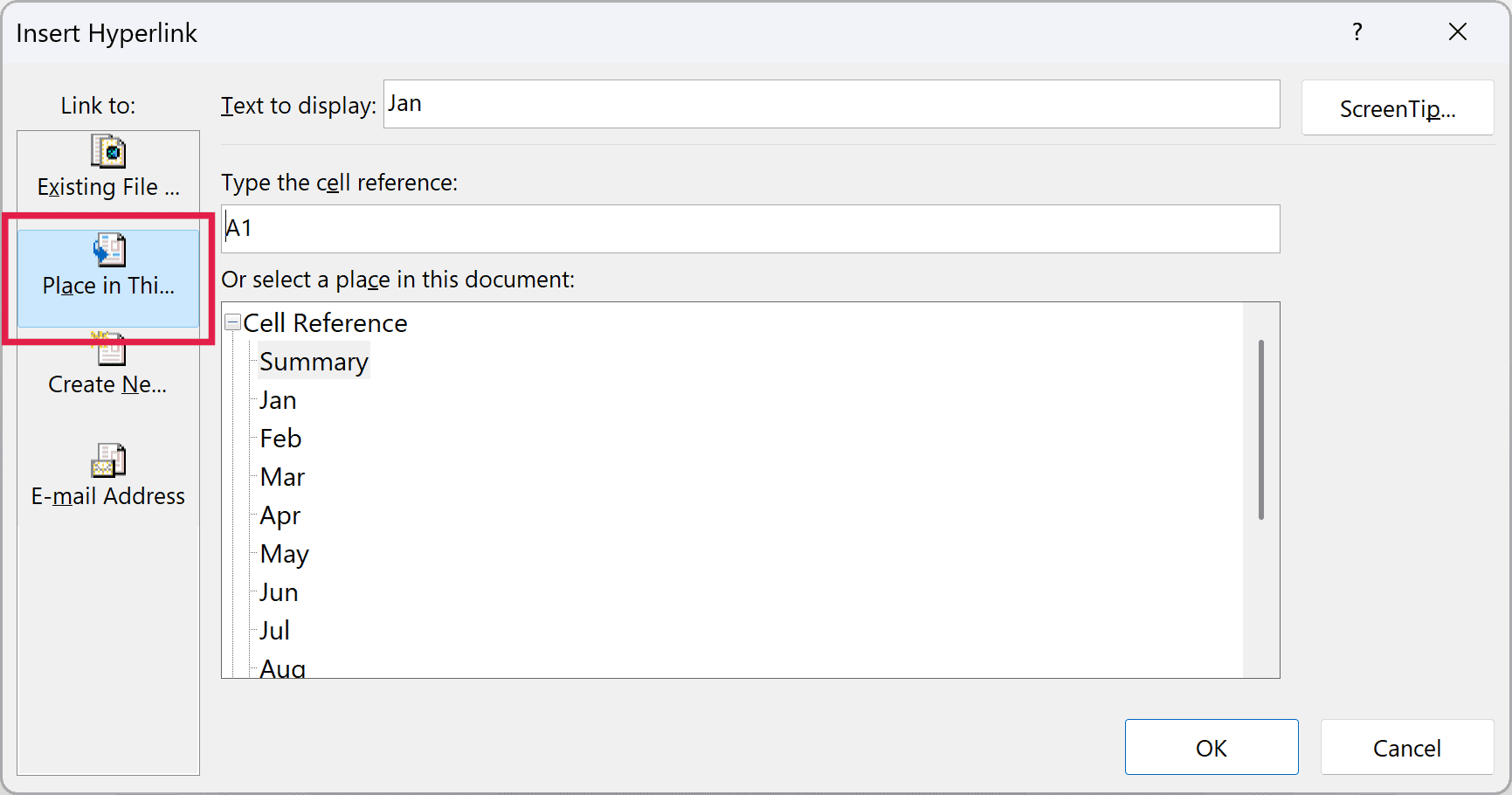
- In the ‘Link to:’ options on the left, click on the ‘Place in This Document’ option
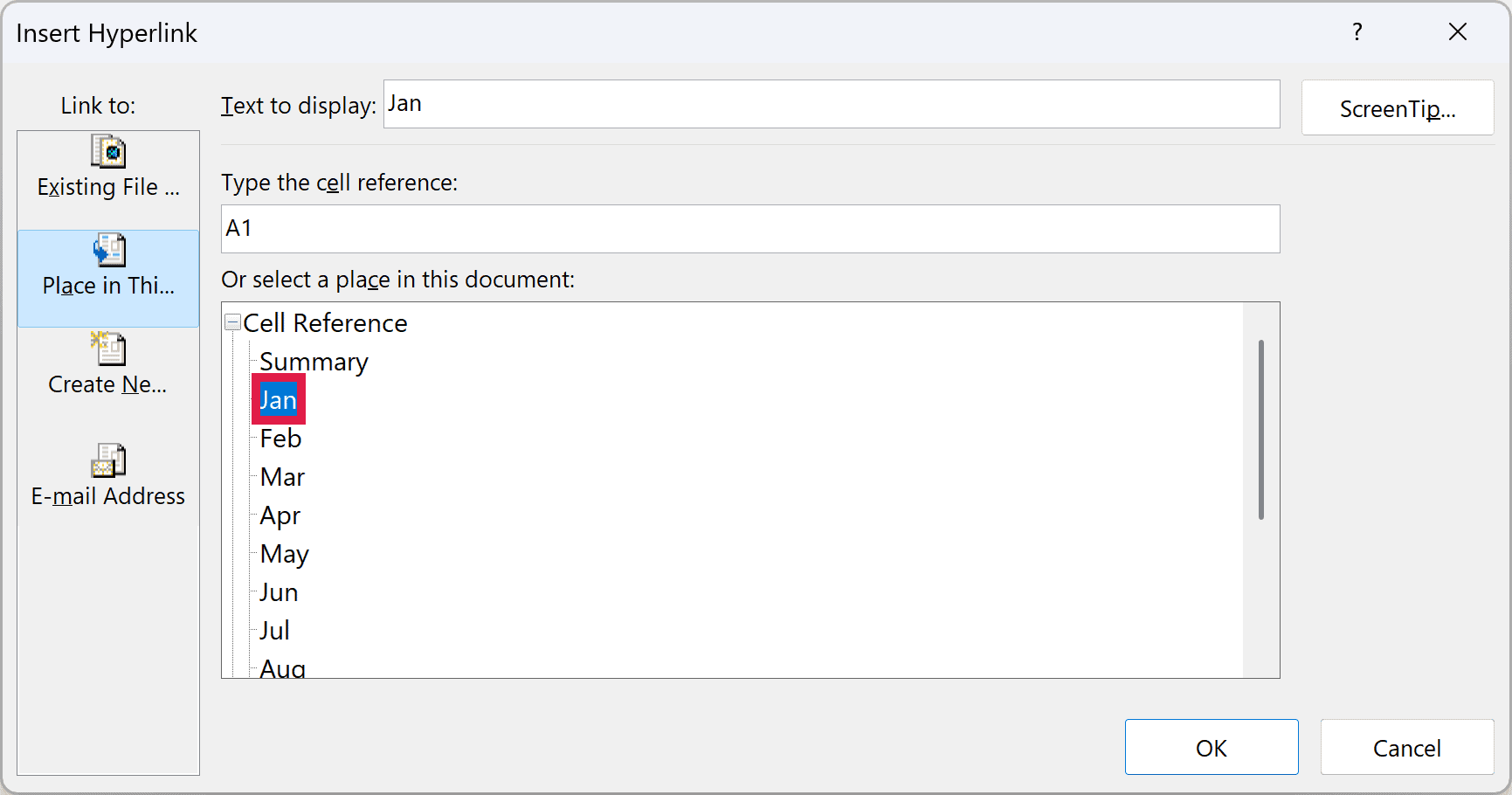
- In the sheet names that show up, select Jan (or whatever sheet to which you want to jump)
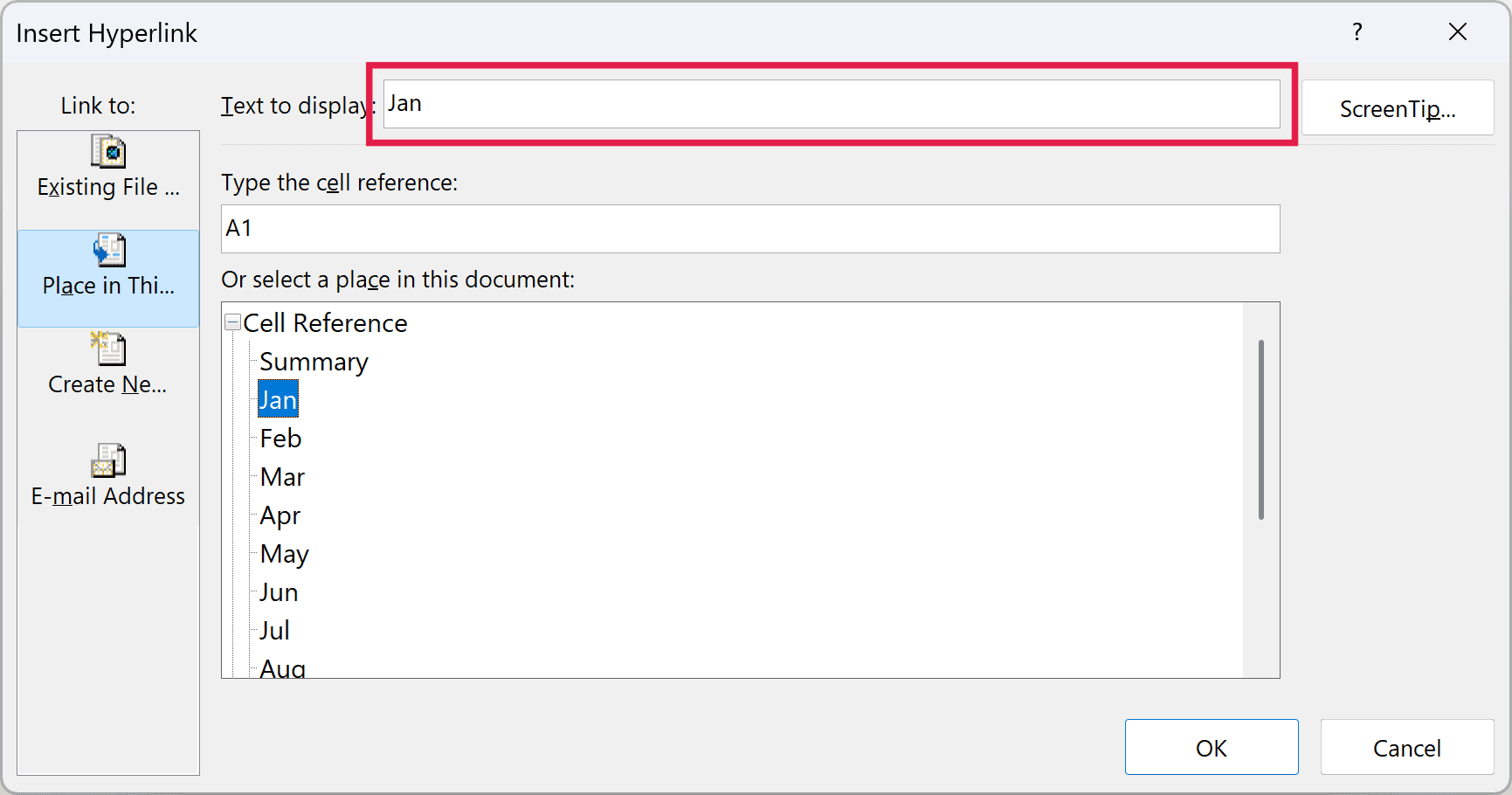
- In the ‘Text to display’ field, keep Jan (this is the text that shows in cell A2). You can type any other text here, such as ‘Go to Jan’, if you want the cell to show something else
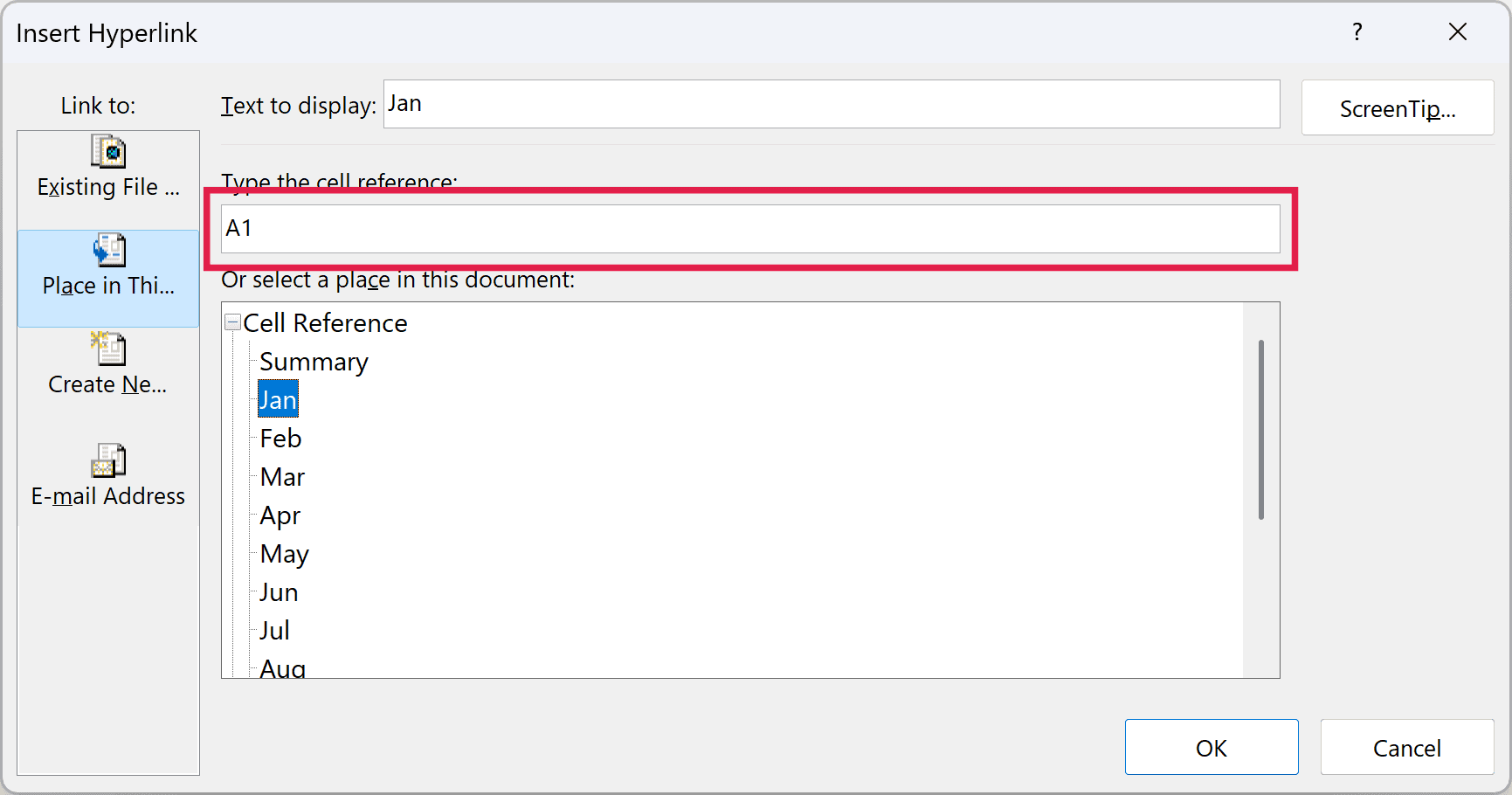
- In the ‘Type the cell reference’ field, enter A1 (this is the cell in the Jan sheet where the hyperlink would take us)
- Click OK
The above steps would create a hyperlink in cell A2, which, when clicked, would take us to cell A1 in the Jan sheet. You can repeat this for the other months to turn the Summary sheet into a quick index of the whole workbook.
Pro Tip: To open the Insert Hyperlink dialog box, select the cell (or the range of cells) and then use the keyboard shortcut Control + K (or Command + K if you’re using a Mac).
Note that you can also use the same steps shown above to create a hyperlink to a shape in the workbook.
Once done, when you click on that shape, it would take you to the specified location (which could be in the same sheet or any other worksheet).
If you have a lot of sheets and don’t want to add these links one by one, you can create a summary worksheet with hyperlinks using VBA instead.
Easy VBA Macro to Switch Between Sheets/Tabs
And the final method that I want to cover is by using VBA macro code.
You can create a macro and put an icon in the Quick Access Toolbar so that whenever you click on that icon, it would switch the sheets.
Below is the macro code that will switch between the Summary sheet and the Dec sheet whenever it is run.
'This macro code has been developed by Sumit Bansal of https://trumpexcel.com
Sub SwitchSheets()
If ActiveSheet.Name = "Summary" Then
Sheets("Dec").Activate
Else
Sheets("Summary").Activate
End If
End SubThe above code checks the active sheet name, and if the active sheet is Summary, it will activate the Dec sheet. If the active sheet is anything else, it will activate the Summary sheet.
You can add this code in a module in the VB Editor, and then add it to the Quick Access Toolbar. This way, it will act as a toggle icon that will switch between sheets with a click.
To add the code, press Alt + F11 to open the VB Editor, click Insert > Module, and paste the code in the module window that opens.
In this code, I have used the names Summary and Dec. You can change these with the sheet names in your workbook (here is more on working with worksheets using VBA).
Since this workbook now has a macro, save it as a macro-enabled file (.xlsm). If you save it as a regular .xlsx file, Excel will remove the code.
So these are some of the methods that you can use to quickly switch between worksheets in Excel. Instead of manually trying to switch between sheets (which can be time-consuming and error-prone), you can use one or more of these workarounds.
As I already mentioned, using the Watch Window method to switch between sheets is probably the best and most efficient way to do it.
Other Excel Articles You May Also Like:
- How to Rename a Sheet in Excel
- Count Sheets in Excel (using VBA)
- How to Get the Sheet Name in Excel?
- How to Insert New Worksheet In Excel
- How to Delete Sheets in Excel (Shortcuts + VBA)
- How to Group Worksheets in Excel
- 7 Easy Ways to Select Multiple Cells in Excel
- HYPERLINK function
- How to Unhide Sheets in Excel (All In One Go)
- How to Sort Worksheets in Excel using VBA