

The FORECAST function in Excel predicts a value based on the numbers you already have. It fits a straight line through your past data, like rent by year or members by month, and tells you where that line lands at a point you choose.
It isn’t limited to future dates, either. You can also use it to estimate one number from another, or to fill in a value that sits between two known points.
In this article, I’ll show you how FORECAST works with six practical examples.
Follow along with the example file
FORECAST Function Examples.xlsx
FORECAST Function Syntax
Here is the syntax of the FORECAST function:
=FORECAST(x,known_y's,known_x's)
- x – the point you want a prediction for, such as next year or a future date. It has to be a number, and dates count because Excel stores them as numbers.
- known_y’s – the values you already have and want to predict, such as rent amounts or member counts.
- known_x’s – the matching points for those values, such as years or dates. It must have the same number of cells as known_y’s.
Important: If x points to an empty cell, FORECAST doesn’t show an error. It treats the empty cell as 0 and returns a forecast for x = 0, which can be a strange number, so make sure the x cell is filled in.
If known_y’s and known_x’s are different sizes, FORECAST returns #N/A. If x is text, like “next year”, you get #VALUE!, and if every value in known_x’s is the same, you get #DIV/0!.
An empty cell or a text entry inside the known ranges is not counted as zero. FORECAST skips that whole x and y pair, so one missing month doesn’t drag your forecast down.
The FORECAST function works in all Excel versions, including 365, 2024, 2021, 2019, 2016, Mac, and the web.
When to Use the FORECAST Function
Use this function when you need to:
- Predict next month’s or next year’s number from past data that follows a steady trend
- Forecast several future periods with one formula
- Estimate one value from another, such as a test score from hours of study
- Forecast a single group (one store, one product) from a table that mixes several groups
- Fill in a value between two rows of a lookup table
Let me show you a few practical examples of how to use the FORECAST function.
Example 1: Forecast Next Year’s Rent
Let’s start with a simple example.
Below is the monthly rent for an apartment from 2015 to 2026, and I want to forecast the rent for 2027 in cell E2.
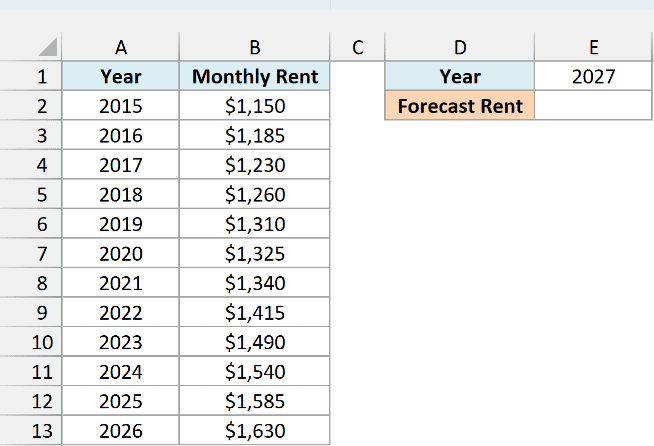
Here is the formula:
=FORECAST(E1,B2:B13,A2:A13)
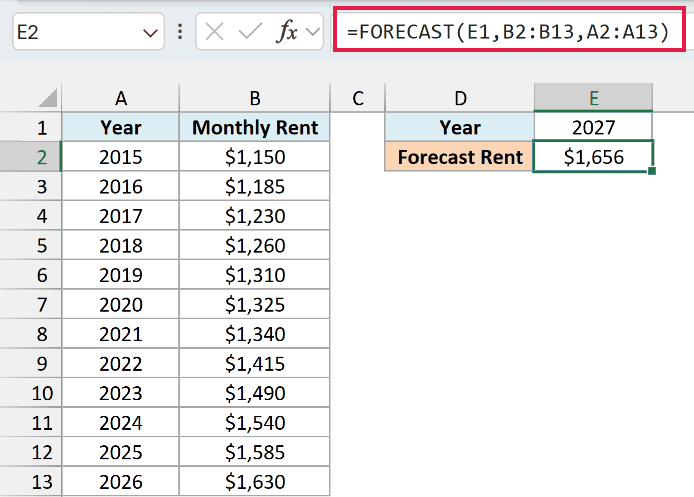
In the above formula, E1 has the year I want a forecast for (2027), B2:B13 has the rents (the known_y’s), and A2:A13 has the years (the known_x’s).
FORECAST fits a straight line through those twelve years of rent and returns where that line sits in 2027, which is $1,656.
Note that the x values here are years like 2015 and 2027, not a count like 1, 2, 3. FORECAST works with any numbers, as long as x is in the same units as known_x’s.
Pro Tip: In Excel 2016 and later, you’ll also see FORECAST.LINEAR. It’s the newer name for this same function (same arguments, same $1,656 result), and Microsoft suggests switching to it because FORECAST will eventually be deprecated.
Example 2: Forecast Several Months at Once
Here’s another practical scenario.
Below is the member count of a new gym for its first 12 months, and I want to forecast the members for months 13, 14, and 15 in column E.
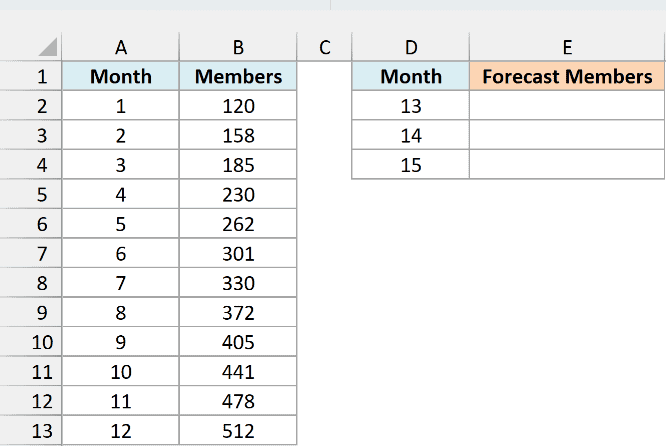
Here is the formula:
=FORECAST(D2:D4,B2:B13,A2:A13)
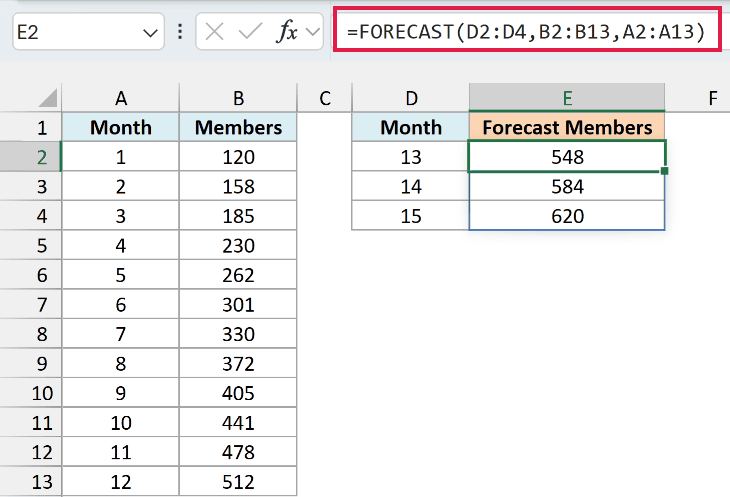
Here, x is the range D2:D4 instead of a single cell. So FORECAST returns one forecast for each month in that range (548, 584, and 620 members), and the results spill into E2:E4.
If E3 or E4 already has something in it, you’ll get a #SPILL! error instead, so keep those cells empty.
If you are using Excel 2019 or earlier, enter the below formula in cell E2 and then copy it down the range:
=FORECAST(D2,$B$2:$B$13,$A$2:$A$13)
Pro Tip: The TREND function fits the same straight line and gives the same three numbers. Its arguments come in a different order (known_y’s, known_x’s, then the new x values), so the formula is =TREND(B2:B13,A2:A13,D2:D4).
Example 3: Use Dates as the X Values
So far, the x values have been plain numbers. Dates work just as well.
Below is the number of newsletter subscribers at the start of each week, and I want to forecast the subscriber count for the week of 9/14/2026 in cell E2.
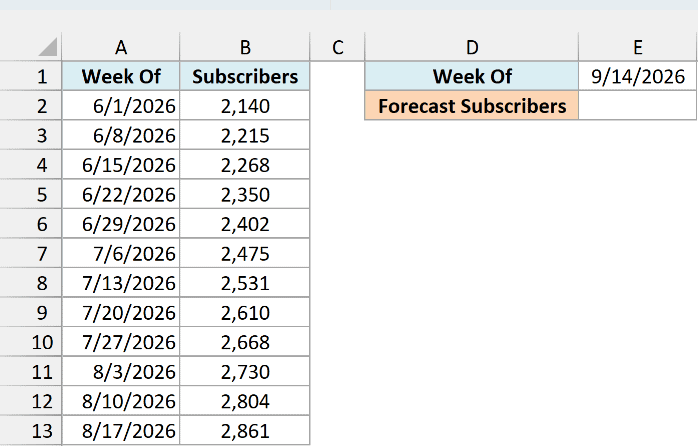
Here is the formula:
=FORECAST(E1,B2:B13,A2:A13)
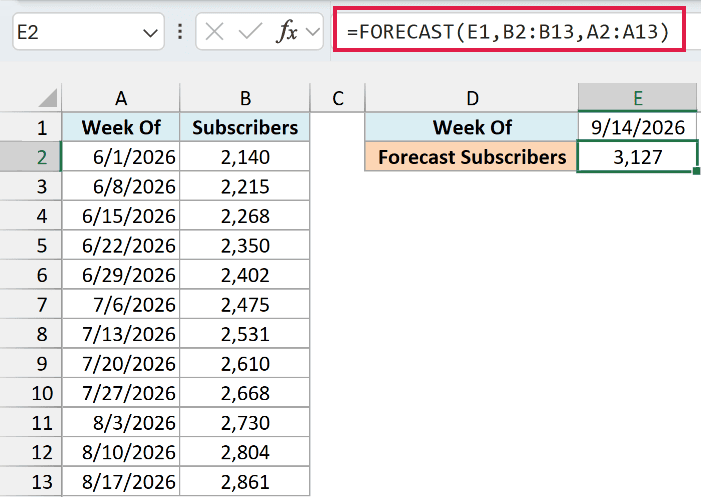
This returns 3,127 subscribers. Excel stores every date as a number (the count of days since January 1, 1900), so FORECAST treats the dates in A2:A13 as x values like any other number.
This works well here because the subscriber count grows at a steady pace. If your numbers rise and fall with the seasons, like sales that jump every December, a straight line will miss that pattern.
For seasonal data, FORECAST.ETS is the better choice, and I cover it in this guide on how to forecast in Excel.
Example 4: Estimate a Test Score From Hours Studied
Now let’s use FORECAST for something that has nothing to do with time.
Below are the hours ten students studied and the score each one got on a test, and I want to estimate the score for 4.5 hours of study in cell E2.
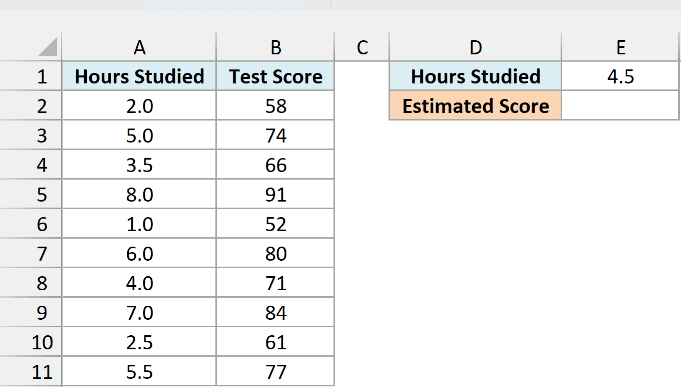
Here is the formula:
=FORECAST(E1,B2:B11,A2:A11)
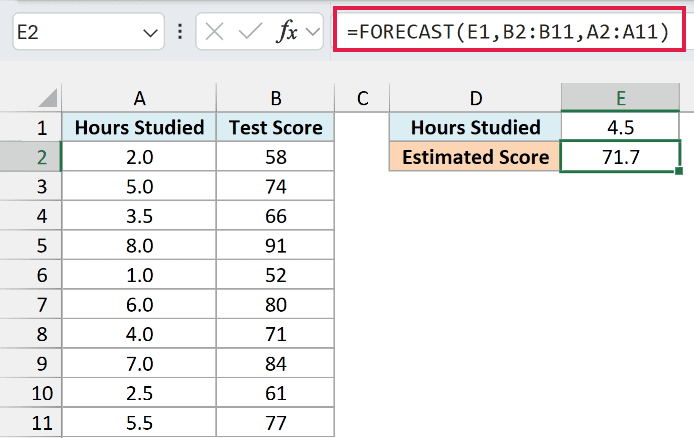
This returns an estimated score of 71.7. FORECAST finds the line that best fits the hours and scores, then reads the score on that line at 4.5 hours.
A straight line just keeps going. If you ask for 10 hours of study, FORECAST returns 101.5, which is more than the 100 points a test allows.
So an estimate is safest when x sits inside the range of your data (1 to 8 hours here).
Also, notice that the hours in column A aren’t sorted. That doesn’t matter, because FORECAST only cares about which x goes with which y.
Example 5: Forecast One Group From a Mixed Table
Let’s step it up with a more advanced use case.
Below are the cups sold each month at two coffee shops, listed in one table, and I want to forecast the cups sold for the shop in cell F1 and the month in cell F2, with the result in cell F3.
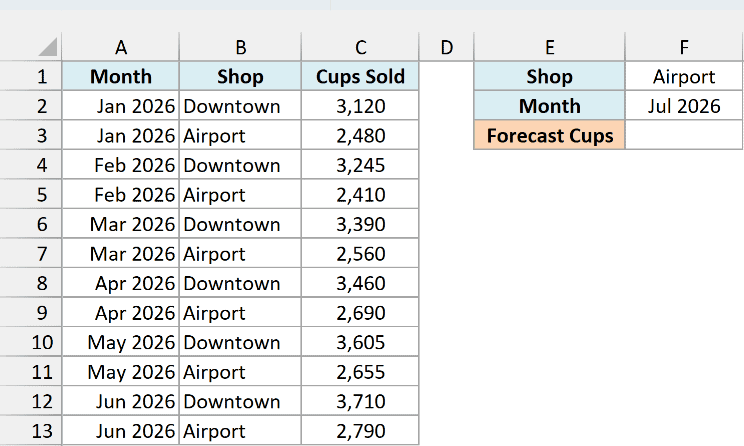
Here is the formula:
=FORECAST(F2,FILTER(C2:C13,B2:B13=F1),FILTER(A2:A13,B2:B13=F1))
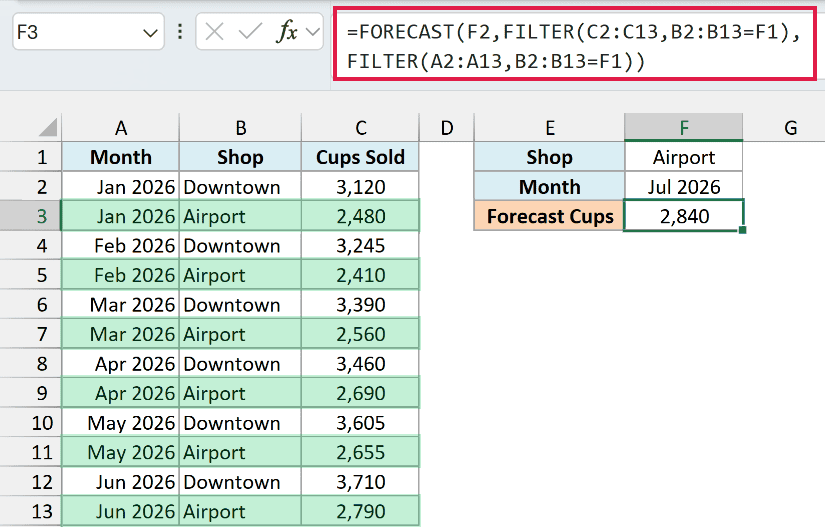
How this formula works:
FILTER(C2:C13,B2:B13=F1)keeps only the cups sold for the Airport shop, which becomes known_y’s.FILTER(A2:A13,B2:B13=F1)keeps the matching months, which become known_x’s.- FORECAST fits a line through those six Airport months only and returns the forecast for the month in F2 (July 2026), which is 2,840 cups.
If you change F1 to Downtown, the forecast changes to 3,833. You don’t have to sort or split the table first.
The FILTER function is available in Excel 2021 and later (including 365) and on the web, so this version won’t work in Excel 2019 or earlier.
Example 6: Linear Interpolation Between Two Rows of a Table
In this last example, I’ll use FORECAST to find a value between two rows of a table, which is called linear interpolation.
Below is a table of approximate stopping distances at different speeds, and I want to estimate the stopping distance at 45 mph in cell E2.
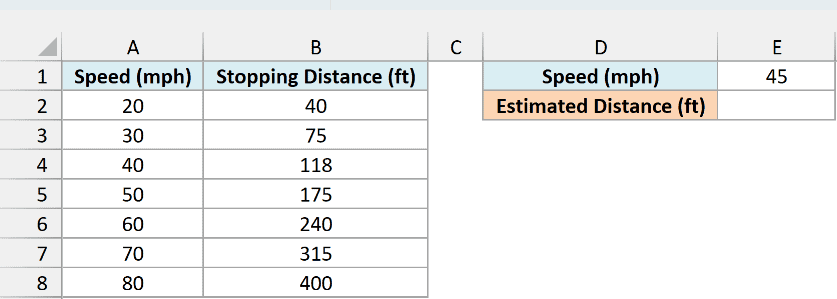
Here is the formula:
=LET(r,XMATCH(E1,A2:A8,-1),FORECAST(E1,CHOOSEROWS(B2:B8,r,r+1),CHOOSEROWS(A2:A8,r,r+1)))
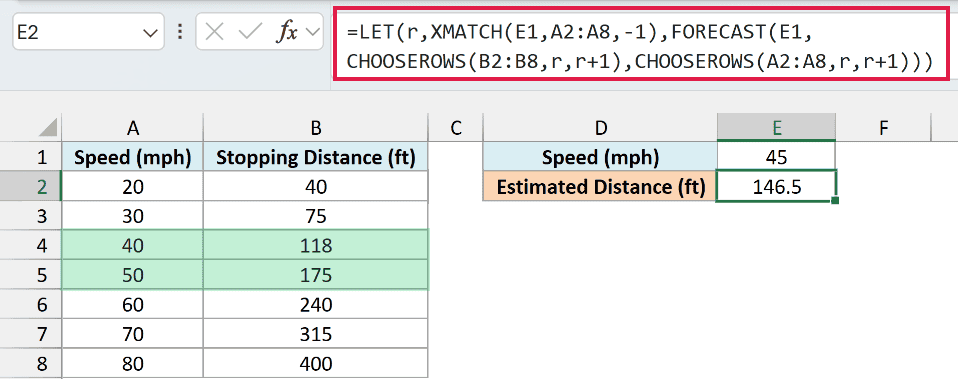
This returns 146.5 feet, which is exactly halfway between 118 feet (40 mph) and 175 feet (50 mph).
You might wonder why I don’t just use =FORECAST(E1,B2:B8,A2:A8). That’s because stopping distance doesn’t grow in a straight line, it curves upward.
A line through the whole table gives 164.7 feet at 45 mph, about 18 feet more than the 146.5 you get by reading between the 40 and 50 mph rows. So the trick is to give FORECAST only the two rows around your speed.
How this formula works:
XMATCH(E1,A2:A8,-1)finds the position of 40 mph, the 3rd value in A2:A8. The -1 tells XMATCH to take the closest speed at or below 45. LET stores that position as r.CHOOSEROWS(B2:B8,r,r+1)picks the distances for that row and the next one (118 and 175), andCHOOSEROWS(A2:A8,r,r+1)picks their speeds (40 and 50).- FORECAST draws a line through just those two points and reads the distance at 45 mph.
This works for any speed from 20 up to just below 80. At exactly 80 mph or above there’s no next row, so you get #VALUE!, and below 20 mph you get #N/A.
This formula needs Excel 365 or Excel 2024, because CHOOSEROWS isn’t available in earlier versions. If you are using Excel 2021 or earlier, enter the below formula in cell E2 instead:
=FORECAST(E1,INDEX(B2:B8,MATCH(E1,A2:A8)):INDEX(B2:B8,MATCH(E1,A2:A8)+1),INDEX(A2:A8,MATCH(E1,A2:A8)):INDEX(A2:A8,MATCH(E1,A2:A8)+1))
Here, MATCH does the job of XMATCH (it finds 40 mph, the closest speed at or below 45), and each INDEX(...):INDEX(...) pair builds the same two-row range that CHOOSEROWS picked.
So these are six ways to use the FORECAST function in Excel, from a one-year rent forecast to filling in a value between two rows of a table. As long as your data follows a fairly straight trend, FORECAST gives you a quick, reasonable estimate.
If you want the slope and intercept behind the line, or more detail on how well it fits, the LINEST function returns them.
I hope you found this article helpful.
Other Excel Articles You May Also Like:
