

The TRUNC function cuts a number down to the digits you want to keep and throws the rest away. It doesn’t round, so 19.99 becomes 19, not 20.
That makes it handy whenever rounding up would give the wrong answer, like points earned only for full dollars or a per-person share that shouldn’t go over the bill.
In this tutorial, I’ll show you how TRUNC works with decimals, negative numbers, dates, and a few practical formulas.
Follow along with the example file
TRUNC Function Examples.xlsx
TRUNC Function Syntax
Here is the syntax of the TRUNC function:
=TRUNC(number, [num_digits])
- number – The number you want to truncate. This can be a value, a cell reference, a range, or a calculation.
- num_digits – (Optional) How many digits to keep. If you leave it out, Excel uses 0.
When you leave out num_digits, TRUNC keeps only the whole number part. So =TRUNC(48.75) gives you 48.
A positive num_digits keeps that many digits after the decimal point, so =TRUNC(12.3456,2) returns 12.34. A negative num_digits works on the left side of the decimal point and turns those digits into zeros, so =TRUNC(48762,-3) returns 48000.
In every case, TRUNC cuts at that position and never looks at the digit that comes after it. So =TRUNC(7.999,2) returns 7.99, even though 7.999 is a hair away from 8.
The TRUNC function works in all Excel versions, including Microsoft 365, Excel 2024, 2021, 2019, 2016, Excel for Mac, and Excel for the web.
When to Use the TRUNC Function
Use this function when you need to:
- Remove decimals from numbers without rounding them up
- Cut a number to two decimal places (or any number of decimals)
- Cut large numbers down to the thousand or hundred below, without rounding up
- Remove the time from a date and time value
- Get the decimal part of a number, or spot values that aren’t whole numbers
Let me show you a few practical examples of how to use TRUNC in Excel.
Example 1: Remove Decimals Without Rounding
Let’s start with a simple example.
Below is a list of customer purchases, and I want to give one loyalty point for every full dollar spent in column C.
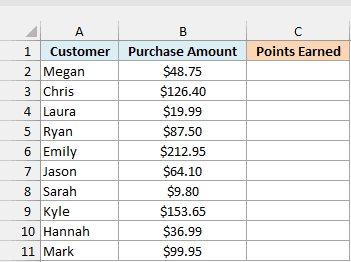
Here is the formula:
=TRUNC(B2:B11)
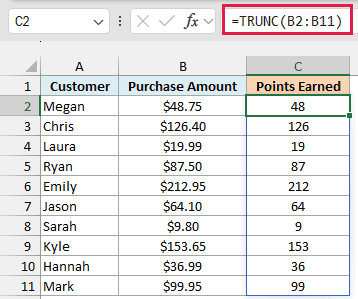
The formula takes all the purchase amounts in B2:B11, drops everything after the decimal point, and spills the results down column C. You enter it only once, in C2.
Spilling a range like this needs Excel 365 or Excel 2021 and later. If you are using Excel 2019 or earlier, enter the below formula in cell C2 and then copy it down the range:
=TRUNC(B2)
The same single-cell approach works for every spilling formula in this article.
Look at Laura’s purchase of $19.99. TRUNC gives 19 points, while the ROUND function (=ROUND(B4,0)) would give 20, which is a point she didn’t earn.
Also note that TRUNC changes the actual value in the cell, not just how it looks.
If you only hide the decimals with the Decrease Decimal button, the cell still holds 19.99, and any formula that uses it still sees 19.99 (more on this in how to stop Excel from rounding numbers).
Example 2: Truncate to 2 Decimal Places
Now let’s keep some decimals instead of removing all of them.
Below is a list of shared expenses from a group trip with the number of people splitting each one, and I want each person’s share in column D, cut to the cent so nobody pays more than the bill.
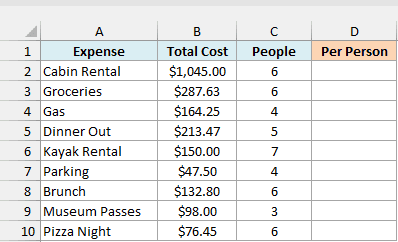
Here is the formula:
=TRUNC(B2:B10/C2:C10,2)
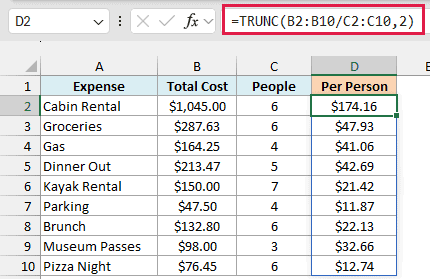
The formula first divides each total cost by the number of people, then TRUNC keeps two decimal places and drops the rest.
For the cabin rental, $1,045 split six ways is $174.1666…, and TRUNC returns $174.16. If you rounded it to $174.17 instead, the six shares would add up to $1,045.02, which is two cents more than the bill.
The ROUNDDOWN function gives you the same result here with =ROUNDDOWN(B2:B10/C2:C10,2). The only difference is that ROUNDDOWN needs the second argument, while TRUNC lets you skip it when you want a whole number.
Example 3: Truncate Numbers Down to the Thousand (Negative num_digits)
Here’s where a negative num_digits comes in.
Below is a list of YouTube channels with their subscriber counts, and I want to show the last thousand milestone each channel has crossed in column C.
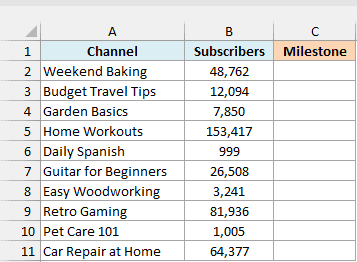
Here is the formula:
=TRUNC(B2:B11,-3)
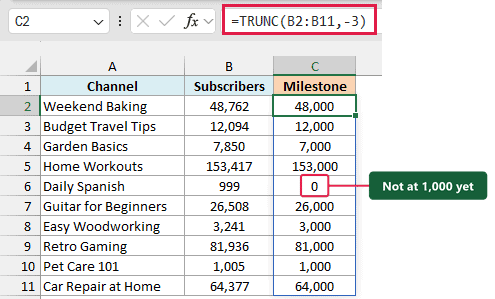
A num_digits of -3 tells TRUNC to keep everything above the thousands and turn the last three digits into zeros. So 48,762 becomes 48,000.
Since TRUNC never rounds up, a channel only gets credit for a milestone it has actually reached. Daily Spanish, with 999 subscribers, shows 0 because it hasn’t hit its first thousand yet.
You can use -1 for tens and -2 for hundreds in the same way.
Example 4: TRUNC With Negative Numbers (TRUNC vs INT)
Negative numbers are where TRUNC and the INT function give you different answers.
Below is a list of weight changes from a fitness challenge, where a negative number means pounds lost, and I want the whole pounds gained or lost in column C, with the INT result in column D for comparison.
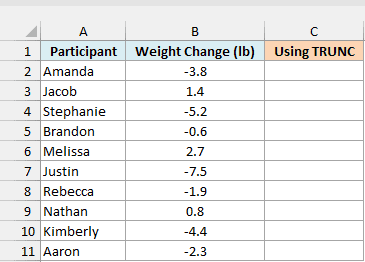
Here is the formula:
=TRUNC(B2:B11)
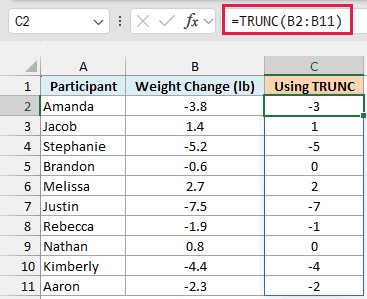
TRUNC just removes the decimal part, so it always moves toward zero. Amanda’s -3.8 becomes -3, because she has lost three full pounds so far.
Now here is the same thing with the INT function, entered in cell D2:
=INT(B2:B11)
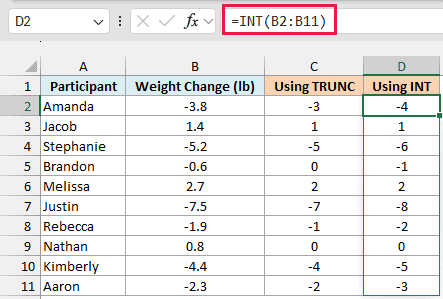
INT rounds down to the next lower whole number. For positive numbers that’s the same as TRUNC, but for negative numbers it moves away from zero, so -3.8 becomes -4.
Brandon’s -0.6 shows the gap clearly. TRUNC gives 0 because he hasn’t lost a full pound yet, while INT gives -1.
So when your data can have negative numbers, use TRUNC if you only want to drop the decimals, and use INT if you really want to round down.
Example 5: Truncate a Date (Remove the Time)
TRUNC works on dates too.
Below is a log of support tickets with the date and time each one was opened, and I want only the date in column C.
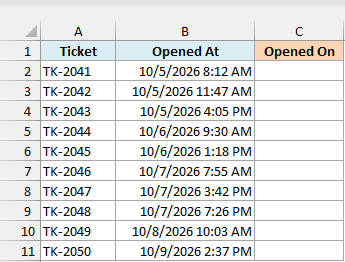
Here is the formula:
=TRUNC(B2:B11)
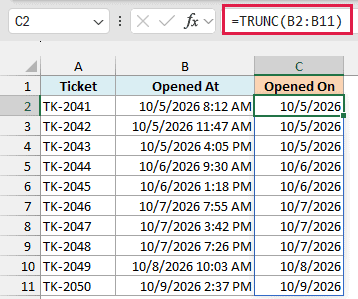
This works because Excel stores a date as a whole number and the time as the decimal part. 10/5/2026 8:12 AM is really 46300.34, so TRUNC keeps 46300, which is the date with the time set to midnight.
When you try this on your own data, Excel may show C2 as a date with 12:00 AM and the cells below as plain numbers like 46301.
Both are the right dates in a different display format, so select C2:C11 and pick Short Date from the number format drop-down in the Home tab.
The INT function gives you the same result here, since dates are never negative. I’ve covered a few more ways to remove the time from a date in Excel in a separate tutorial.
Example 6: Get the Decimal Part of a Number
Sometimes you want the part TRUNC throws away.
Below is a list of products with their prices, and I want the cents part of each price in column C so I can see which prices end in 99.
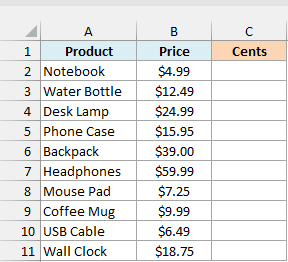
Here is the formula:
=ROUND((B2:B11-TRUNC(B2:B11))*100,0)
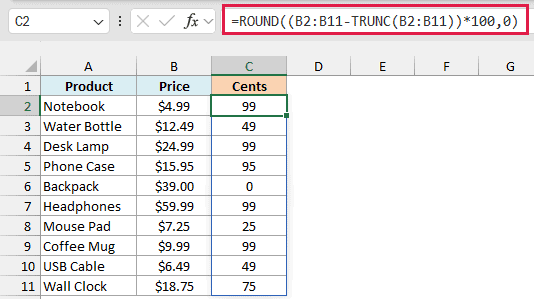
How this formula works:
- TRUNC(B2:B11) gives the whole dollar part of each price, so 24.99 becomes 24.
- B2:B11-TRUNC(B2:B11) subtracts that from the price, which leaves only the decimal part (0.99).
- Multiplying by 100 turns the decimal part into cents (99).
- ROUND(…,0) cleans up the tiny leftover that Excel’s decimal math can leave behind.
Important: You might be tempted to skip ROUND, or use TRUNC again to get whole cents. Without ROUND, the cents for $24.99 come out as 98.99999999999984, which shows as 99 but isn’t exactly 99, so TRUNC on it gives 98 (and 94 for $15.95).
This happens because Excel stores numbers in binary, and a value like 24.99 can’t be stored exactly. Any time you subtract and then truncate again, round the result first.
Example 7: Find Values That Aren’t Whole Numbers (TRUNC With FILTER)
Let’s step it up and use TRUNC inside the FILTER function, which works in Excel 365 and Excel 2021 and later.
Below is a stock count sheet where every count should be a whole number, and I want a list of the items with a decimal in their count (most likely typing mistakes) in column D.
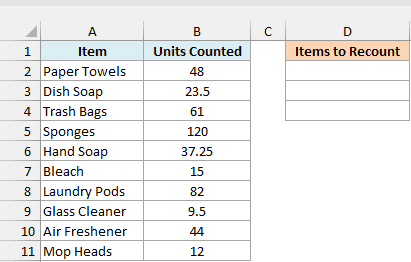
Here is the formula:
=FILTER(A2:A11,B2:B11<>TRUNC(B2:B11))
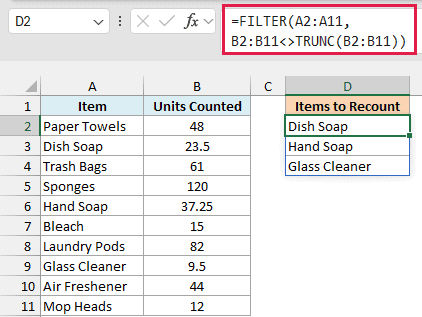
How this formula works:
- TRUNC(B2:B11) removes the decimals from every count.
- B2:B11<>TRUNC(B2:B11) compares each count with its truncated version. A whole number like 48 matches itself, but 23.5 doesn’t match 23, so it returns TRUE.
- FILTER returns the item names where that check is TRUE, which gives us Dish Soap, Hand Soap, and Glass Cleaner.
If every count is a whole number, FILTER has nothing to return and shows a #CALC! error. You can add a third argument like "None found" to show a message instead.
So these are some practical ways to use the TRUNC function in Excel, from dropping decimals and handling negative numbers to working with dates and finding values that aren’t whole numbers.
I hope you found this Excel tutorial useful.
Other Excel Articles You May Also Like:
