

The CHOOSECOLS function returns only the columns you ask for from a range of data. You give it the data and the column numbers you want, and it gives you back just those columns, in the order you listed them.
It’s handy when your data has more columns than you need, and you only want a few of them (or want them in a different order) without copying and pasting anything.
In this tutorial, I’ll show you how CHOOSECOLS works, starting with simple column picks and moving on to combining it with other functions like FILTER, SORT, and XLOOKUP.
Follow along with the example file
CHOOSECOLS Function Examples.xlsx
CHOOSECOLS Function Syntax
Here is the syntax of the CHOOSECOLS function:
=CHOOSECOLS(array, col_num1, [col_num2], ...)
- array – The range or array that has the columns you want. This can be a cell range or the result of another formula.
- col_num1 – The number of the first column you want to get from the array.
- [col_num2], … – (Optional) The numbers of any more columns you want.
The column numbers count from the first column of the array, not from column A of the sheet. So if your array is C2:F11, column 1 is C and column 3 is E.
The order of the numbers decides the order of the columns in the result. You can also use the same number twice if you want a column to show up twice.
A negative number counts from the right side of the array, so -1 is the last column and -2 is the one before it.
If a number is 0, bigger than the number of columns in the array, or a negative number that goes past the first column (like -7 on a six-column array), CHOOSECOLS returns a #VALUE! error.
You get the same #VALUE! error if a column number comes from a cell that’s empty.
Instead of typing each number as a separate argument, you can also give all of them at once, either as an array constant like {1,3,4} or as a range of cells that holds the numbers.
The CHOOSECOLS function is available in Excel for Microsoft 365 and Excel 2024, on Windows and Mac, and in Excel for the web. It isn’t available in Excel 2021, 2019, or 2016, where the formula returns a #NAME? error.
When to Use the CHOOSECOLS Function
Use this function when you need to:
- Pull out a few columns from a dataset that has a lot more
- Change the order of columns without copying and pasting them
- Get the last few columns of your data, like the most recent months
- Pick columns by their header names instead of their positions
- Show only some columns from the result of FILTER, SORT, or XLOOKUP
Let me show you a few practical examples of how to use the CHOOSECOLS function in Excel.
Example 1: Extract Specific Columns with CHOOSECOLS
Let’s start with a simple example.
Below is a youth soccer team roster with each player’s details and a parent contact, and I want just the Player, Position, and Jersey No. columns in column H.
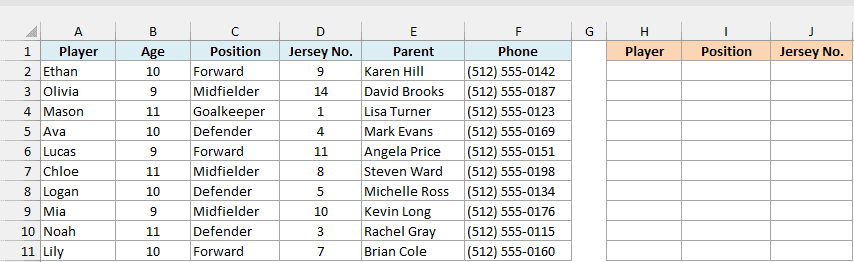
Here is the formula:
=CHOOSECOLS(A2:F11,1,3,4)
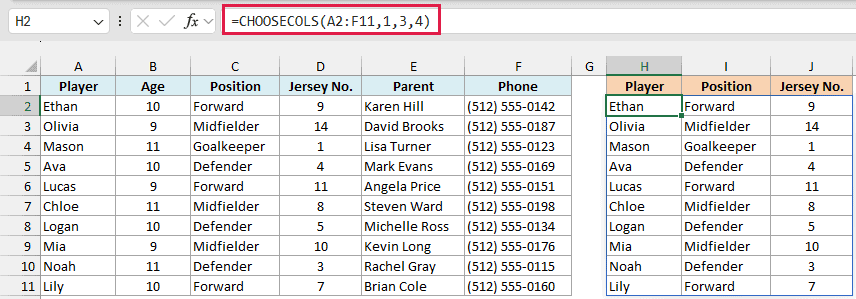
The formula takes the roster in A2:F11 and returns its first, third, and fourth columns, which are Player, Position, and Jersey No. You enter it only once, in cell H2, and the results spill into H2:J11.
I typed the headers in H1:J1 myself. If you want CHOOSECOLS to bring the headers along too, include the header row in the array, like =CHOOSECOLS(A1:F11,1,3,4).
The spill needs empty cells to land in. If anything is already sitting in the H2:J11 range, the formula returns a #SPILL! error until you clear those cells.
If you’re using Excel 2021, which doesn’t have CHOOSECOLS but does have the SEQUENCE function, enter the below formula in cell H2 to get the same three columns:
=INDEX(A2:F11,SEQUENCE(ROWS(A2:F11)),{1,3,4})
Example 2: Rearrange Columns in a Different Order
Here’s another practical scenario.
Below is a list of newsletter sign-ups, and I want the Email column first, followed by First Name and Last Name, in column G (the order an email tool might ask for when you import a list).
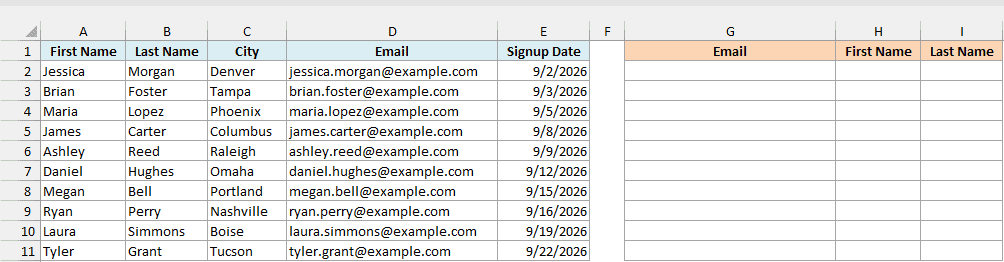
Here is the formula:
=CHOOSECOLS(A2:E11,4,1,2)
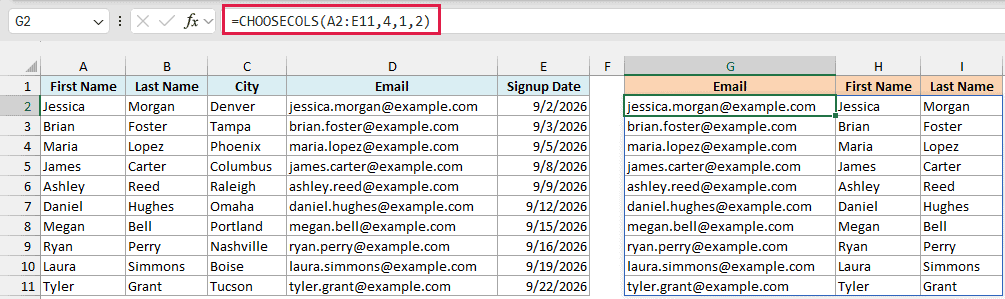
Since the column numbers are 4, 1, and 2, CHOOSECOLS returns the fourth column (Email) first, and then the first two columns (First Name and Last Name).
The original list stays exactly as it is. You get a reordered copy that updates on its own when anything in A2:E11 changes, which is a lot easier than moving columns around with cut and paste.
Example 3: Get the Last Few Columns Using Negative Numbers
Negative numbers let you pick columns by counting from the end of your data.
Below is a log of how many times each gym member visited every month from January to June, and I want the member names along with the last three months in column I.
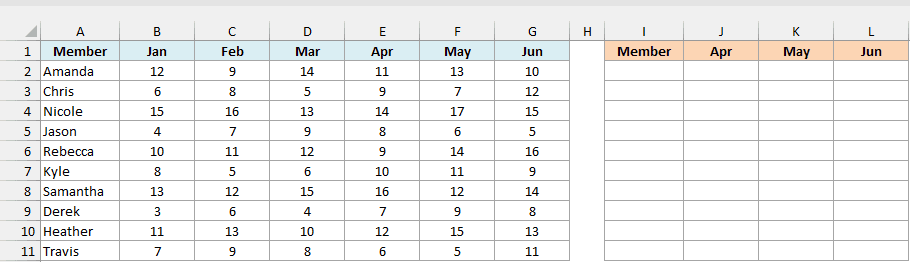
Here is the formula:
=CHOOSECOLS(A2:G11,1,-3,-2,-1)
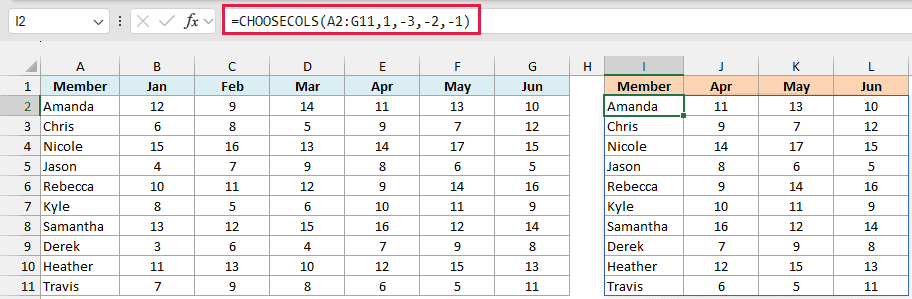
The 1 returns the Member column. Then -3, -2, and -1 count from the right side of the array, so they return the third-last, second-last, and last columns, which are Apr, May, and Jun.
You could get the same result here with =CHOOSECOLS(A2:G11,1,5,6,7). But the negative numbers always point to the last columns, however wide the range is.
So if you add July in column H later and change the range to A2:H11, the same formula returns May, Jun, and Jul without changing any of the column numbers (you only need to update the headers above the result).
Example 4: Choose Columns by Header Name (with XMATCH)
Counting columns gets tedious when your data is wide. In this example, you’ll pick the columns by their header names instead.
Below is a product list from a home goods store, and I want to get, in column I, the columns whose names I’ve typed in cells I1:K1 (Product, Stock, and Price).
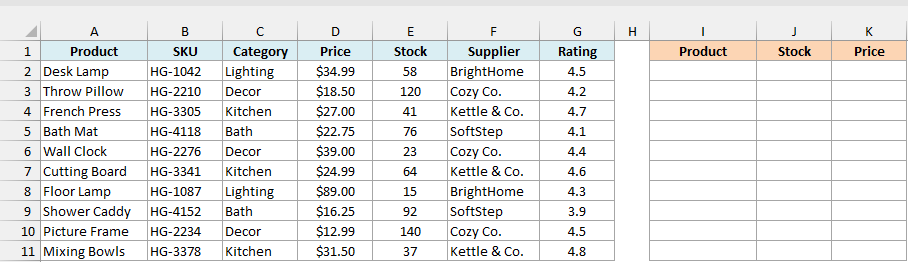
Here is the formula:
=CHOOSECOLS(A2:G11,XMATCH(I1:K1,A1:G1))
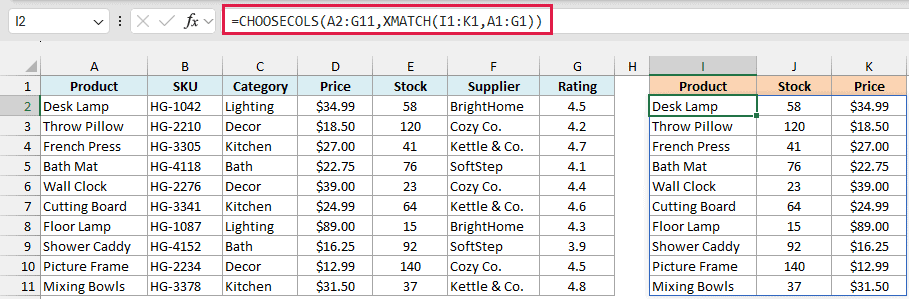
The XMATCH function looks for each header in I1:K1 within the original headers in A1:G1 and returns its position. For Product, Stock, and Price, that’s {1,5,4}.
CHOOSECOLS then uses those positions as its column numbers. So the result follows the order of the headers you typed, with Stock before Price, even though Price comes first in the original data.
Since you type these headers yourself and the formula reads them, you can change the result just by changing a header. Type Rating in place of Stock in cell J1, and the second column of the result switches to the ratings.
Important: The headers you type must match the original headers exactly (spaces included). If even one of them doesn’t match, like Prodct instead of Product, XMATCH returns #N/A for it and the whole formula returns a single #N/A error.
Example 5: Use CHOOSECOLS with FILTER to Show Selected Columns
CHOOSECOLS works well with the FILTER function when you want to filter the rows and then show only some of their columns.
Below is a list of trip bookings with their status, and I want the Traveler, Depart Date, and Nights for only the confirmed trips in column H.
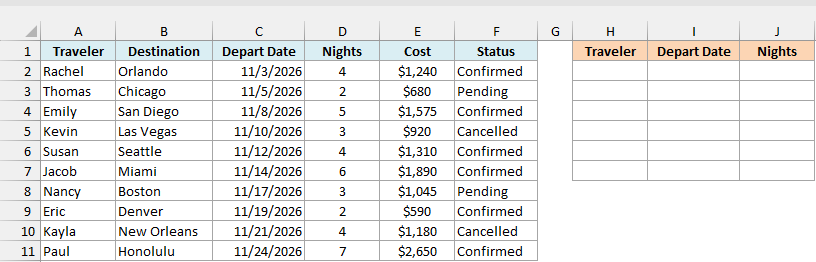
Here is the formula:
=FILTER(CHOOSECOLS(A2:F11,1,3,4),F2:F11="Confirmed")
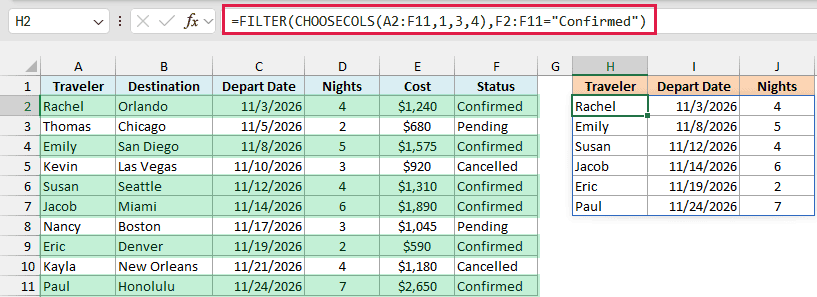
First, CHOOSECOLS picks the Traveler, Depart Date, and Nights columns (1, 3, and 4) from the bookings. Then the FILTER function keeps only the rows where the Status in column F is Confirmed, which gives us the six confirmed trips.
The filter condition still checks column F, even though the Status column isn’t part of the result. FILTER only needs the condition range to have the same number of rows as the data it filters.
You could also nest them the other way round, with FILTER inside CHOOSECOLS. Both versions return the same six trips here, but the nesting makes a difference when you use FILTER’s third argument, which shows a message of your choice when nothing matches.
Say you’ve told FILTER to show “None” and there are no confirmed trips. With FILTER inside, CHOOSECOLS gets that one-cell “None” and asks for its third column, which doesn’t exist, so you get a #VALUE! error instead of the message.
With CHOOSECOLS inside FILTER, as in the formula above, adding “None” as FILTER’s third argument works the way you’d expect and shows “None” when nothing matches.
Example 6: Get the Top 3 Records with SORT, TAKE, and CHOOSECOLS
Let’s step it up with a small report.
Below is a list of volunteers from a school bake sale, and I want the names and amounts of the top three fundraisers in column G.
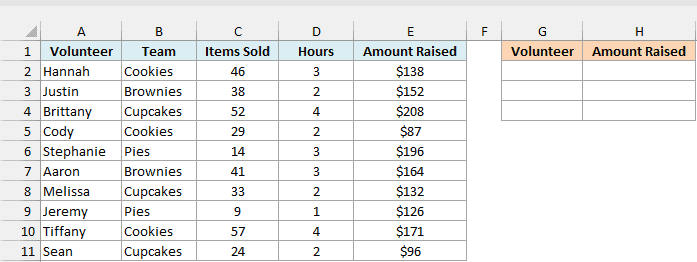
Here is the formula:
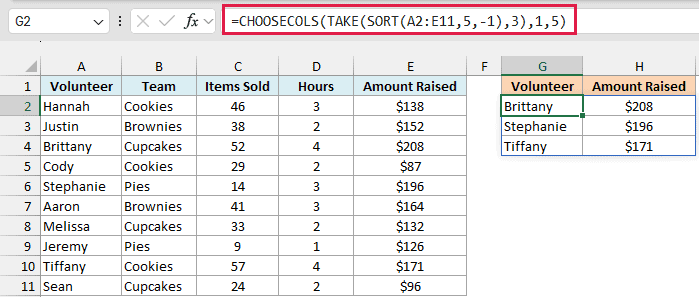
=CHOOSECOLS(TAKE(SORT(A2:E11,5,-1),3),1,5)
How this formula works:
SORT(A2:E11,5,-1)sorts the whole list by the fifth column (Amount Raised), from largest to smallest. The SORT function keeps every column, so each row stays together.TAKE(...,3)keeps only the first three rows of that sorted list, which are the three highest amounts. Learn more about the TAKE function.CHOOSECOLS(...,1,5)returns just the Volunteer and Amount Raised columns from those three rows.
So you get Brittany ($208), Stephanie ($196), and Tiffany ($171).
To show the top five instead, change the 3 to 5. And if you want to see their teams too, include the Team column by changing the column numbers to 1,2,5.
Example 7: Return Multiple Columns with XLOOKUP and CHOOSECOLS
This last one is a lookup that brings back several details in one go.
Below is a library catalog, and I want to get the Title, Status, and Shelf of the book whose ID is in cell H2 (BK-2207).
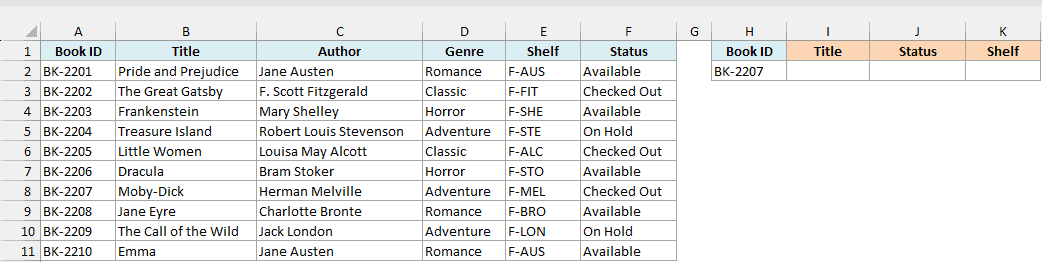
Here is the formula:
=XLOOKUP(H2,A2:A11,CHOOSECOLS(B2:F11,1,5,4))
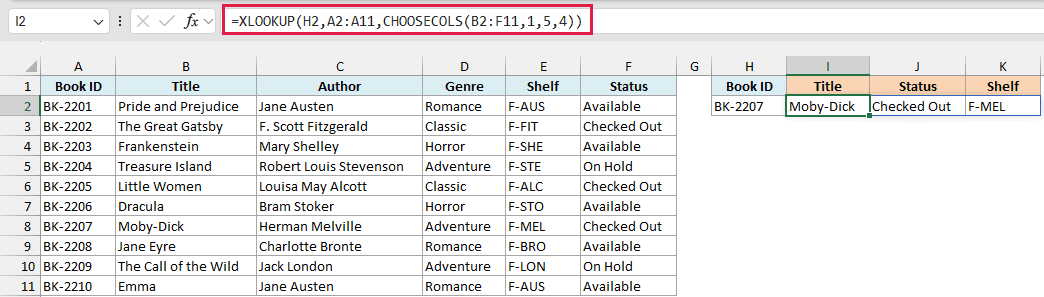
Here, CHOOSECOLS builds the return array for the XLOOKUP function. Since CHOOSECOLS works on B2:F11, the column numbers count from column B, so 1 is Title, 5 is Status, and 4 is Shelf.
XLOOKUP then finds BK-2207 in column A and returns that book’s row from this new array, so you get Moby-Dick, Checked Out, and F-MEL in I2:K2.
Without CHOOSECOLS, you’d either need three separate XLOOKUP formulas, or you’d get all five columns from Title to Status, including the Author and Genre you didn’t want.
So these are some practical ways to use the CHOOSECOLS function in Excel. Use it on its own to pick and reorder columns, and pair it with XMATCH, FILTER, SORT, TAKE, or XLOOKUP when you want only certain columns from a bigger result.
Other Excel Articles You May Also Like:
