

The ACOS function in Excel gives you the inverse cosine (also called the arccosine) of a number. You give it a cosine value, and it tells you which angle has that cosine.
That’s handy when you know the sides of a triangle and need one of its angles. ACOS gives you that angle in radians, so I’ll also show you how to get it in degrees.
Along the way, you’ll see how to deal with the #NUM! error and one limit of ACOS worth knowing about.
Follow along with the example file
ACOS Function Examples.xlsx
ACOS Function Syntax
Here is the syntax of the ACOS function:
=ACOS(number)
- number is the cosine of the angle you want. It must be a value from -1 to 1, and it can be a number, a cell reference, a calculation, or a range.
The answer is an angle in radians, always between 0 and 3.1416 (that’s π). In degrees, that’s 0 to 180.
A cosine can never be bigger than 1 or smaller than -1. So if the number is outside that range, like 1.5, ACOS returns a #NUM! error.
If the cell you point ACOS to has text like “abc”, you get a #VALUE! error.
An empty cell is read as 0, so ACOS returns 1.5708 (90 degrees) instead of an error. If you see 1.5708 where you didn’t expect it, check whether the input cell is blank.
The ACOS function works in all Excel versions, including Microsoft 365, 2024, 2021, 2019, 2016, Mac, and the web.
When to Use the ACOS Function
Use this function when you need to:
- Turn a cosine value back into an angle.
- Find an angle in a right triangle when you know the side next to it and the longest side.
- Work out the angles of any triangle from the lengths of its three sides.
- Solve math, physics, or engineering problems that give you a cosine and ask for the angle.
Let me show you a few practical examples of how to use the ACOS function.
Example 1: Find the Inverse Cosine of Numbers in Excel
Let’s start with a simple example.
Below is a list of numbers from 1 to -1, and I want the arccosine of each one in column B.
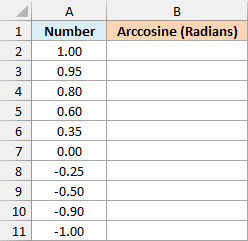
Here is the formula to enter in cell B2:
=ACOS(A2:A11)
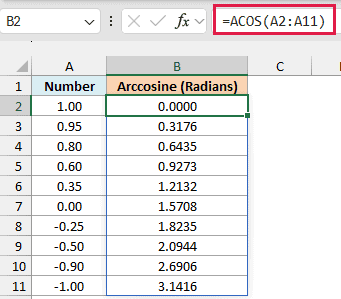
The results are angles in radians, and they grow as the number goes down. ACOS of 1 is 0, ACOS of 0 is 1.5708 (a right angle), and ACOS of -1 is π itself.
You only enter the formula in cell B2. Since A2:A11 is a range, the results spill down to B11 on their own.
If any cell in B3:B11 already has something in it, you’ll get a #SPILL! error instead of results. Clear those cells, and the results show up.
Spilling formulas need Excel for Microsoft 365 or Excel 2021 and later. If you are using Excel 2019 or earlier, enter the below formula in cell B2 and then copy it down to B11:
=ACOS(A2)
The same idea works for the other spilling formulas in this article. Use the first row’s cells instead of the whole range, and copy the formula down.
Example 2: Get the Inverse Cosine in Degrees
Most of the time, you’ll want the angle in degrees, not radians.
Below is a list of common cosine values (rounded to four decimal places), and I want the angle for each one in degrees in column B.
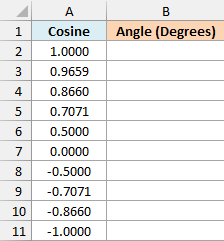
Here is the formula to enter in cell B2:
=DEGREES(ACOS(A2:A11))
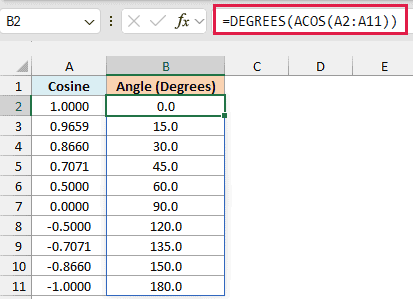
ACOS returns each angle in radians, and the DEGREES function converts it to degrees. So 0.5 gives 60 degrees, and -0.5 gives 120 degrees.
You’ll also see this done by multiplying by 180/PI(), as in =ACOS(A2:A11)*180/PI(). It gives the same results, but I find the DEGREES version easier to read.
Example 3: Find a Ramp’s Angle From Its Length and Run
Now let’s use ACOS for something practical.
A ramp, the flat ground under it, and the height it climbs form a right triangle. The cosine of the ramp’s angle is the flat distance it covers (the run) divided by the length of the ramp itself.
Below is a list of ramps a contractor built, with the horizontal run and the ramp length for each one, and I want the angle of each ramp in degrees in column D.
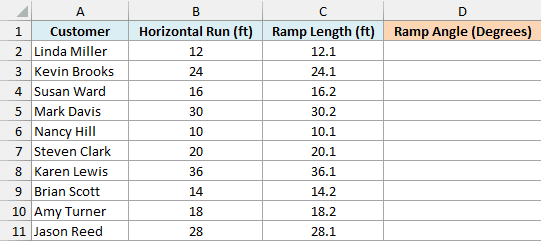
Here is the formula to enter in cell D2:
=DEGREES(ACOS(B2:B11/C2:C11))
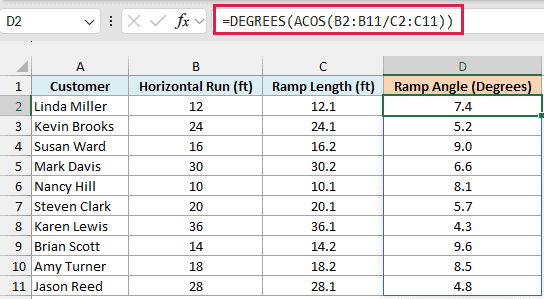
Linda Miller’s ramp, which covers 12 feet of ground with a 12.1-foot ramp, sits at 7.4 degrees. Karen Lewis has the gentlest ramp at 4.3 degrees.
Make sure the longest side (the ramp length) goes at the bottom of the division. If you flip them, the ratio is more than 1 and ACOS returns #NUM!.
Example 4: Find a Triangle’s Angle From Three Sides
Let’s step it up. ACOS also works on triangles that don’t have a right angle, as long as you know all three sides.
The law of cosines turns those three sides into the cosine of any angle in the triangle. ACOS then turns that cosine into the angle.
Below is a list of triangular garden beds with the length of each side, and I want the angle at the corner where sides A and B meet in column E.
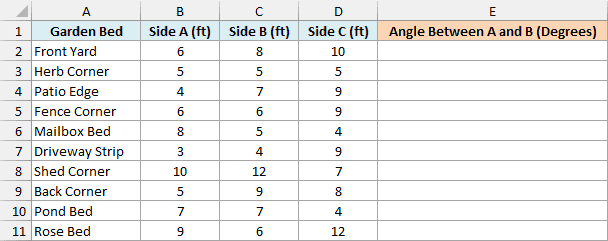
Here is the formula to enter in cell E2:
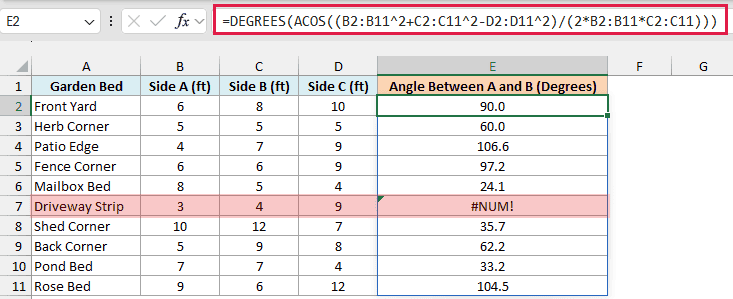
=DEGREES(ACOS((B2:B11^2+C2:C11^2-D2:D11^2)/(2*B2:B11*C2:C11)))
How this formula works:
B2:B11^2+C2:C11^2-D2:D11^2squares sides A and B, adds them, and subtracts the square of side C.- Dividing that by
2*B2:B11*C2:C11(two times side A times side B) gives the cosine of the angle between sides A and B. This is the law of cosines. - ACOS turns each cosine into an angle, and DEGREES converts it to degrees.
So the Front Yard bed, with sides of 6, 8, and 10 feet, has a 90-degree corner. The Herb Corner bed has all three sides at 5 feet, so its corner is 60 degrees.
Now look at the Driveway Strip row, which shows #NUM!. Its sides are 3, 4, and 9 feet, and those can’t make a triangle, because 3 and 4 together are shorter than 9.
For sides like these, the law of cosines gives a value below -1, so ACOS returns the error. In real data, this usually means one of the lengths was entered wrong.
To show a clear message instead of the error, check the cosine before passing it to ACOS. Here is the formula to enter in cell F2:
=LET(c,(B2:B11^2+C2:C11^2-D2:D11^2)/(2*B2:B11*C2:C11),IF(ABS(c)>1,"Not a triangle",DEGREES(ACOS(c))))
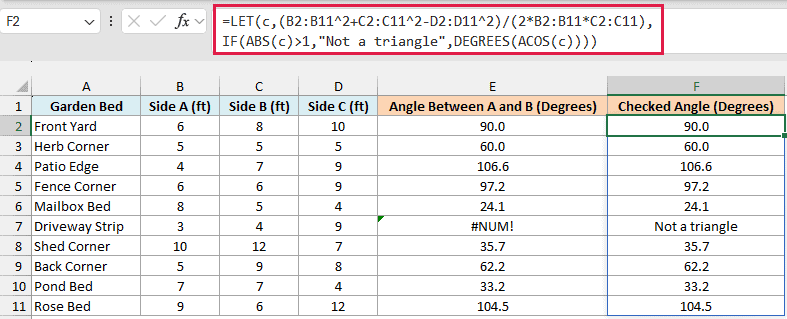
The LET function stores the law of cosines result in a variable named c, so you write that long calculation only once. IF then checks c, and if it’s more than 1 or less than -1, the formula shows “Not a triangle”.
For every other row, c is a valid cosine, so the formula returns the angle just like column E did.
LET needs Excel 2021 or Microsoft 365. If you are using Excel 2019 or earlier, enter the below formula in cell F2 and then copy it down to F11:
=IF(ABS((B2^2+C2^2-D2^2)/(2*B2*C2))>1,"Not a triangle",DEGREES(ACOS((B2^2+C2^2-D2^2)/(2*B2*C2))))
Without LET, the law of cosines part has to be written twice, once for the check and once for ACOS.
Pro Tip: You could wrap the formula in IFERROR instead, but then a side typed as text would also show “Not a triangle” and hide the real problem. The ABS check only catches sides that really can’t form a triangle.
Example 5: Why ACOS Never Returns More Than 180 Degrees
There’s one limit of ACOS that can catch you out when you work with angles bigger than 180 degrees.
Below is a list of angles from 0 to 360 degrees, and I want to take the cosine of each one and turn it back into an angle with ACOS in column B.
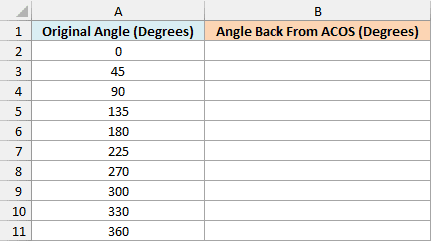
Here is the formula to enter in cell B2:
=DEGREES(ACOS(COS(RADIANS(A2:A11))))
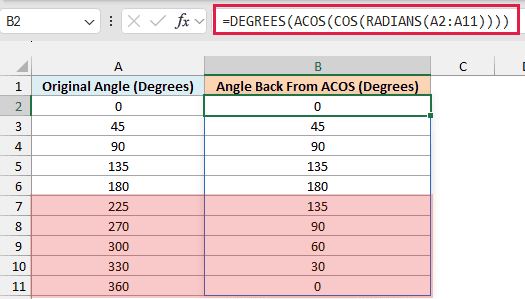
The formula converts each angle to radians, gets its cosine with the COS function, and then uses ACOS to go back to an angle in degrees.
Up to 180 degrees, you get the same angle back. But 225 comes back as 135, 300 comes back as 60, and 360 comes back as 0.
This happens because two angles can share the same cosine. For example, 60 and 300 degrees both have a cosine of 0.5, so ACOS gives you the one between 0 and 180.
For triangles, this never matters, since every angle in a triangle is less than 180 degrees. But ACOS can’t give you a direction on a map or any other angle that can go all the way around the circle.
For that, the ATAN2 function is the better fit, because it looks at both the east-west and the north-south distance.
So these are a few ways you can use the ACOS function in Excel. If a result ever looks off, check whether you need it in degrees, and whether the value you passed in is between -1 and 1.
I hope you found this tutorial useful.
Other Excel Articles You May Also Like:
