

The CUMIPMT function tells you how much interest you pay on a loan between two payments. You can use it to get the interest for the first year, for any single year, or for the whole life of the loan.
The name stands for cumulative interest payment. You give it the loan details plus the first and last payment you care about, and it adds up the interest part of every payment in between.
In this tutorial, I’ll show you how CUMIPMT works with car loans, student loans, and mortgages. You’ll also see how to break interest down by year, compare loan offers, and work out how much interest you save by paying off early.
Follow along with the example file
CUMIPMT Function Examples.xlsx
CUMIPMT Function Syntax
Here is the syntax of the CUMIPMT function:
=CUMIPMT(rate, nper, pv, start_period, end_period, type)
- rate – The interest rate for each payment period. For monthly payments, this is the annual rate divided by 12.
- nper – The total number of payments on the loan. A 5-year loan paid monthly has 60.
- pv – The loan amount (the present value).
- start_period – The payment number where you want to start adding up interest. The first payment is 1.
- end_period – The payment number where you want to stop.
- type – When each payment is made. Use 0 for the end of the period or 1 for the start.
All six arguments are required, including type. If you leave type out, Excel won’t accept the formula, so use 0 when your payments are made at the end of each period.
The start and end payments are both included. So a start of 13 and an end of 24 adds up the interest in payments 13 through 24, which is the second year of a monthly loan.
Enter pv as a positive number. If you put the loan amount in as a negative value, CUMIPMT returns a #NUM! error.
You also get a #NUM! error when start_period is less than 1, when it’s bigger than end_period, when end_period goes past the last payment, or when type is anything other than 0 or 1.
The CUMIPMT function works in all Excel versions, including Microsoft 365, Excel 2024, 2021, 2019, 2016, Excel for Mac, and Excel on the web.
When to Use the CUMIPMT Function
Use this function when you need to:
- Find the total interest you’ll pay over the full term of a loan
- See how much interest you pay in the first year, or in each year of the loan
- Compare the interest cost of different loan offers
- Work out how much interest you’d save by paying a loan off early
- Get the mortgage interest you paid in a calendar year
Let me show you a few practical examples of how to use the CUMIPMT function in Excel.
Example 1: Calculate Total Interest on a Car Loan
Let’s start with a simple example.
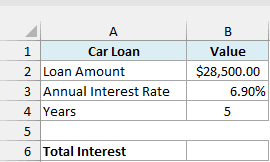
Below are the details of a car loan with the loan amount, annual interest rate, and term in years, and I want to calculate the total interest paid over the life of the loan in cell B6.
Here is the formula:
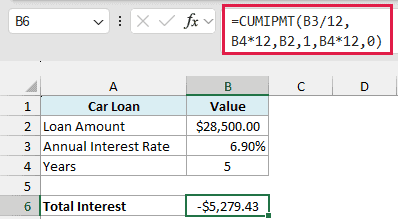
=CUMIPMT(B3/12,B4*12,B2,1,B4*12,0)
How this formula works:
B3/12turns the 6.90% annual rate into a monthly rate, since the payments are monthly.B4*12turns 5 years into 60 monthly payments.B2is the loan amount of $28,500.00.1andB4*12tell CUMIPMT to add up the interest from the first payment through the 60th, which covers the whole loan.0means each payment is made at the end of the month.
The result is -$5,279.43, so you pay $5,279.43 in interest on this loan. CUMIPMT shows interest as a negative number because it’s money going out of your pocket.
You’ll see how to show this as a positive number in the next example.
Important: The rate and the number of payments must use the same time unit. If you use B3 instead of B3/12 here, Excel treats 6.90% as a monthly rate and returns -$91,683.70, which is way off.
If you also want the monthly payment for this loan, the PMT function gives you that. With the same inputs, it returns -$562.99, again negative because it’s money you pay out.
Example 2: Interest Paid in the First Year as a Positive Number
Now let’s look at only part of a loan.
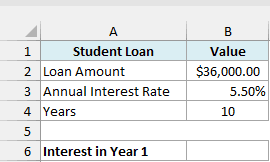
Below are the details of a student loan with a 10-year term, and I want to calculate how much interest is paid in the first 12 months in cell B6.
Here is the formula:
=-CUMIPMT(B3/12,B4*12,B2,1,12,0)
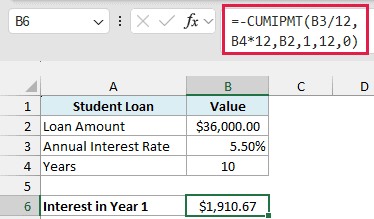
This gives $1,910.67, which is the interest paid in the first year.
The rate and the number of payments work the same way as before. The difference is in start_period and end_period: 1 and 12 tell CUMIPMT to stop after the 12th payment instead of running to the end of the loan.
The minus sign at the start of the formula flips the negative result into a positive one. This reads better when you’re presenting the number to someone else.
You can also wrap CUMIPMT in the ABS function to get the same $1,910.67. I’ll use the minus sign in the rest of this tutorial since it’s shorter.
Example 3: Payments at the Start vs End of the Month
The last argument, type, decides when each payment is made, and it changes how much interest you pay.
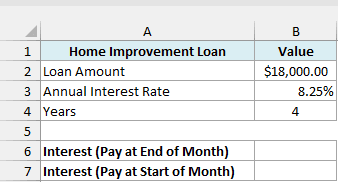
Below are the details of a home improvement loan, and I want to compare the total interest when payments are made at the end of each month versus at the start, in cells B6 and B7.
Here is the formula for payments at the end of each month:
=-CUMIPMT(B3/12,B4*12,B2,1,B4*12,0)
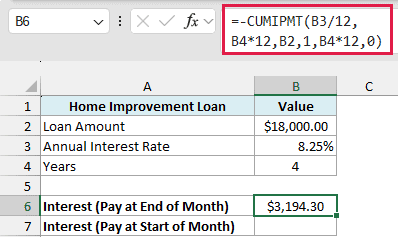
With type set to 0, the total interest over the 4 years is $3,194.30. This is the usual setup for most loans.
And here is the formula for payments at the start of each month:
=-CUMIPMT(B3/12,B4*12,B2,1,B4*12,1)
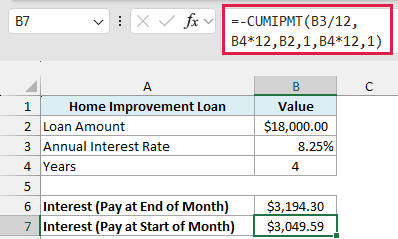
With type set to 1, the total interest drops to $3,049.59, which is $144.71 less.
That’s because each payment goes in before the month’s interest is charged, so the balance is always a bit lower.
The very first payment goes entirely toward the loan amount. So payment 1 has $0 of interest, compared to $123.75 when you pay at the end of the month.
Make sure the type you use matches how your lender actually takes payments. If it doesn’t, the interest CUMIPMT gives you will be slightly off.
Example 4: CUMIPMT Formula for Interest Paid Each Year
Now let’s get the interest for every year of a loan with one formula.
Below are the details of a 5-year personal loan, along with a list of year numbers in column A, and I want to calculate the interest paid in each year in column B.
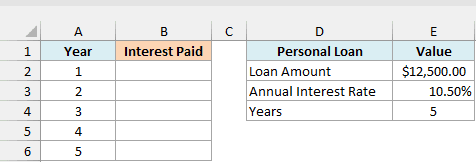
Here is the formula:
=-CUMIPMT(E3/12,E4*12,E2,(A2:A6-1)*12+1,A2:A6*12,0)
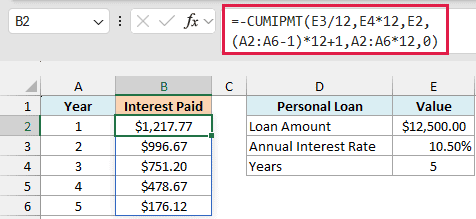
I entered this formula only in cell B2, and it spills the results down to B6.
How this formula works:
(A2:A6-1)*12+1gives the first payment of each year: 1, 13, 25, 37, and 49.A2:A6*12gives the last payment of each year: 12, 24, 36, 48, and 60.- Since both arguments hold five values, CUMIPMT runs once for each year and returns five results.
Year 1 has $1,217.77 of interest, and it drops every year down to $176.12 in year 5. That happens because each payment chips away at the balance, so there’s less left to charge interest on.
The five yearly amounts add up to $3,620.43, which is the same as the total interest for the whole loan.
Both range arguments in this formula have math on them, and that matters. CUMIPMT can’t spill from a plain range reference, which is the same quirk that stops functions like EOMONTH from spilling (I’ve covered it in how to fix Excel functions that won’t spill).
Important: If you already have the start and end payment numbers listed in two columns and use those ranges as is, CUMIPMT returns a #VALUE! error. Put a plus sign in front of each range (for example, +A2:A6 instead of A2:A6) and it spills.
If you are using Excel 2019 or earlier, enter the below formula in cell B2 and then copy it down to B6:
=-CUMIPMT($E$3/12,$E$4*12,$E$2,(A2-1)*12+1,A2*12,0)
Example 5: Compare Total Interest Across Mortgage Offers
Here’s a more practical one if you’re shopping for a loan.
Below is a list of mortgage offers with the term in years and the annual interest rate for each, along with the loan amount in cell G2, and I want to calculate the total interest for each offer in column D.
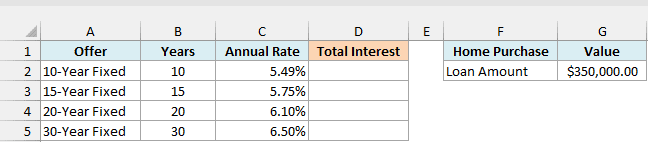
Here is the formula:
=-CUMIPMT(C2:C5/12,B2:B5*12,G2,1,B2:B5*12,0)
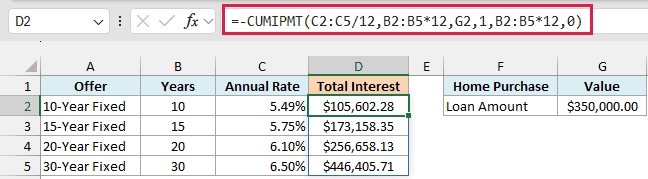
This single formula in cell D2 spills the total interest for all four offers.
This time the rate and the term come from the table. C2:C5/12 gives a monthly rate for each offer, and B2:B5*12 gives each offer’s number of payments, which is also used as the end period so each offer is added up over its full term.
The difference is huge. The 10-year offer costs $105,602.28 in interest, while the 30-year offer costs $446,405.71, which is more than the $350,000 you borrowed.
A longer loan does come with a smaller monthly payment, so the right choice depends on your budget. But this comparison shows you exactly how much that lower payment costs over time.
If you are using Excel 2019 or earlier, enter the below formula in cell D2 and then copy it down to D5:
=-CUMIPMT(C2/12,B2*12,$G$2,1,B2*12,0)
Example 6: Calculate Interest Saved by Paying Off a Loan Early
You can also use CUMIPMT to see how much interest you avoid by clearing a loan ahead of schedule.
Below are the details of a 6-year truck loan, along with the number of years after which I plan to pay it off in cell B5, and I want to calculate the interest saved in cell B7.
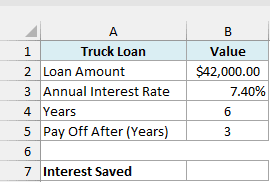
Here is the formula:
=-CUMIPMT(B3/12,B4*12,B2,B5*12+1,B4*12,0)
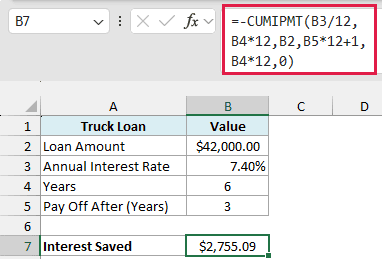
This gives $2,755.09, which is the interest you’d skip by paying the loan off after 3 years.
The trick is in the periods. B5*12+1 is payment 37, the first payment you’d no longer make, and B4*12 is payment 72, the last one on the original schedule.
So the formula adds up all the interest you would have paid from payment 37 onward.
This assumes you pay off the remaining balance in one go right after payment 36, and that your lender doesn’t charge a fee for paying early. If there is a fee, subtract it from this number to see what you really save.
To find out how much that one-time payoff would be, see the remaining balance example in my FV function tutorial.
Example 7: Mortgage Interest Paid in a Calendar Year
Let’s finish with something a little more advanced.
Below are the details of a mortgage whose first payment is due on April 1, 2026, along with a list of tax years in column A, and I want to calculate the interest paid in each calendar year in column B.
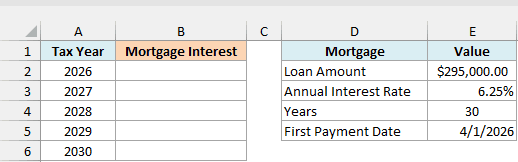
Here is the formula:
=LET(first,E5,start,(A2:A6-YEAR(first))*12-MONTH(first)+2,-CUMIPMT(E3/12,E4*12,E2,IF(start<1,1,start),start+11,0))
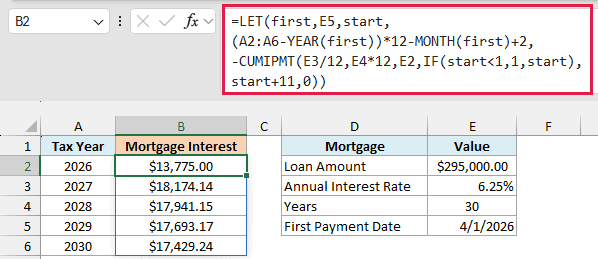
Like the yearly breakdown in Example 4, this single formula in B2 spills one result for each tax year.
The tricky part is that the loan starts in April, so the payment numbers don’t line up with calendar years. Payments 1 to 9 fall in 2026 (April to December), payments 10 to 21 fall in 2027, and so on.
How this formula works:
firstis the first payment date in E5.startworks out the payment number for January of each tax year. For 2027, that’s(2027-2026)*12-4+2, which is 10.IF(start<1,1,start)fixes the first year. For 2026, start comes out as -2, because the loan didn’t exist in January, so the formula uses payment 1 instead. I used IF here instead of MAX, because MAX would collapse the five values into a single number.start+11is the payment number for December of the same year, which is 9 for 2026 and 21 for 2027.CUMIPMTthen adds up the interest between those two payments for each year.
That’s why 2026 shows only $13,775.00 (nine payments), while 2027 shows $18,174.14 for a full twelve months.
Your lender’s figure can differ slightly from this (for example, if they charge interest by the day). So for your tax return, use the number on the lender’s year-end statement.
Important: If you extend the list to the loan’s final year, December can fall after the last payment, and CUMIPMT returns a #NUM! error. To avoid that, replace start+11 with IF(start+11>E4*12,E4*12,start+11).
The LET function is available in Excel 365, Excel 2024, and Excel 2021 (you can learn more in my LET function tutorial).
If you are using Excel 2019 or earlier, enter the below formula in cell B2 and then copy it down to B6. Since each copy works on one year at a time, MAX is fine here:
=-CUMIPMT($E$3/12,$E$4*12,$E$2,MAX(1,(A2-YEAR($E$5))*12-MONTH($E$5)+2),(A2-YEAR($E$5))*12-MONTH($E$5)+13,0)
So these are some practical ways to use the CUMIPMT function in Excel. Keep the rate and the number of payments in the same unit, enter the loan as a positive number, and you’ll get the right interest for any stretch of a loan.
If you need the principal you’ve paid instead of the interest, the CUMPRINC function works the same way and takes the same six arguments.
I hope you found this Excel tutorial useful.
Other Excel Articles You May Also Like:
