

The COMBIN function in Excel tells you how many different groups you can make when you pick a set number of items from a larger list, and the order of the picks doesn’t matter.
You can use it to count the topping combos on a menu, the games a league has to schedule, or the odds that a random pick goes your way.
Below, I’ll walk you through seven examples. They start with a simple count on a menu and work up to probability, and the last two show how COMBIN differs from PERMUT and COMBINA.
Follow along with the example file
COMBIN Function Examples.xlsx
COMBIN Function Syntax
Here is the syntax of the COMBIN function:
=COMBIN(number, number_chosen)
- number is the total number of items you can pick from.
- number_chosen is how many items go into each group.
Both arguments are meant to be whole numbers. If you give COMBIN a decimal, it cuts off the decimal part instead of rounding, so =COMBIN(10.9,3.7) returns 120, the same as =COMBIN(10,3).
You can’t pick more items than you have, so if number_chosen is bigger than number, COMBIN returns a #NUM! error. You get the same error when either argument is negative.
A number stored as text, like “10”, still works. But text such as “ten” gives you a #VALUE! error.
COMBIN reads an empty cell as 0. So if the cell for number is blank, you’ll usually see a #NUM! error, because you can’t pick anything from zero items.
The COMBIN function works in all Excel versions, including Microsoft 365, 2024, 2021, 2019, 2016, and Excel for Mac.
When to Use the COMBIN Function
Use this function when you need to:
- Count how many different groups or combos you can make from a set of options.
- Work out how many games a round-robin schedule needs.
- Find the chance that a random selection, like a quiz or a draw, turns out a certain way.
- Compare how many results you get when the order of the picks doesn’t matter versus when it does.
Let me show you a few practical examples of how to use the COMBIN function.
Example 1: Count Combinations for Every Row at Once
Let’s start with a simple example.
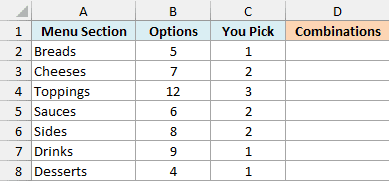
Below is the build-your-own menu of a sandwich shop, with how many options each section has and how many of them a customer gets to pick.
I want the number of possible combinations for each section in column D.
Here is the formula to enter in cell D2:
=COMBIN(B2:B8,C2:C8)
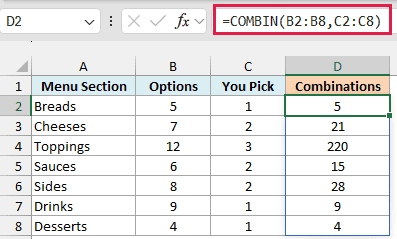
You only enter the formula in cell D2. Since both arguments are ranges, COMBIN works through the menu row by row, and the results spill down to D8 on their own.
So the toppings section, where you pick 3 out of 12, allows 220 different topping combos.
Order doesn’t matter here. Lettuce, tomato, and onions is the same sandwich as onions, lettuce, and tomato, so COMBIN counts it only once.
Also notice the rows where you pick just 1 item (Breads, Drinks, Desserts). There, the number of combinations is simply the number of options.
If any cell in D3:D8 already has something in it, you’ll get a #SPILL! error. Clear those cells, and the results show up.
Spilling formulas need Excel for Microsoft 365 or Excel 2021 and later. If you are using Excel 2019 or earlier, enter the below formula in cell D2 and then copy it down to D8:
=COMBIN(B2,C2)
Pro Tip: To get the total number of different meals a customer could order, multiply the section counts with =PRODUCT(D2#), which gives 349,272,000 for this menu. The # after D2 tells Excel to use the whole spilled range.
Example 2: Count the Games in a Round-Robin League
Here’s another practical scenario.
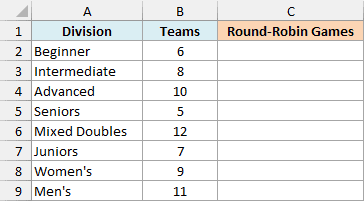
Below is a pickleball league with the number of teams in each division, where every team plays every other team in its division once. I want the number of games each division needs in column C.
Here is the formula to enter in cell C2:
=COMBIN(B2:B9,2)
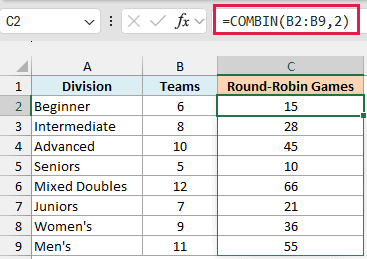
Here, number_chosen is a fixed 2 for every row, while number comes from the Teams column. Every game is a pair of teams, so the number of games is the number of ways to pick 2 teams from the division.
The order doesn’t matter either, since Team A playing Team B is the same game as Team B playing Team A.
That’s why the Beginner division with 6 teams needs 15 games, and Mixed Doubles with 12 teams needs 66.
If each pair plays twice (home and away), just multiply the result by 2 with =COMBIN(B2:B9,2)*2.
If you are using Excel 2019 or earlier, enter the below formula in cell C2 and then copy it down to C9:
=COMBIN(B2,2)
Example 3: See How the Count Changes With Group Size
Now let’s keep the total fixed and change the group size instead.
Below, a book club has shortlisted 10 books (the number in cell E1), and I want the number of different reading lists the club could make by picking 1 book, 2 books, and so on up to all 10, in column B.
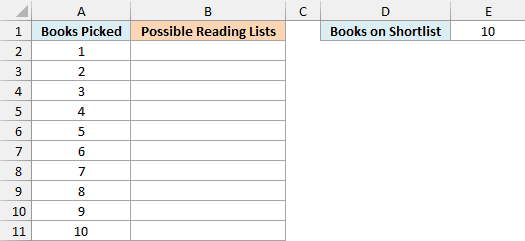
Here is the formula to enter in cell B2:
=COMBIN(E1,A2:A11)
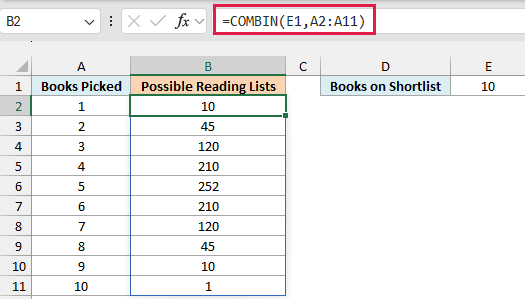
This time, number is the single cell E1, and number_chosen is the range A2:A11. So COMBIN works out one count for each group size.
The counts climb to 252 at 5 books and then come back down. That’s because picking 3 books to read is the same as picking 7 books to skip, so choosing 3 and choosing 7 both give 120.
At the very end, picking all 10 books gives just 1 reading list, since there’s only one way to take everything.
Important: Some COMBIN results are stored a hair below the whole number (both 210s here are really 209.99999999999997), so MATCH or XLOOKUP looking for 210 returns #N/A. If you’ll look up the results, wrap them in the ROUND function, as in =ROUND(COMBIN(E1,A2:A11),0).
If you are using Excel 2019 or earlier, enter the below formula in cell B2 and then copy it down to B11:
=COMBIN($E$1,A2)
The dollar signs keep the reference to E1 fixed while you copy the formula down.
Example 4: Count Combinations From a List With Duplicates
Let’s step it up with a list that isn’t as clean.
Below is a sign-up sheet for a park cleanup day, where a few volunteers signed up twice, and I want the number of different crews I can form in cell E2, using the crew size in cell E1.
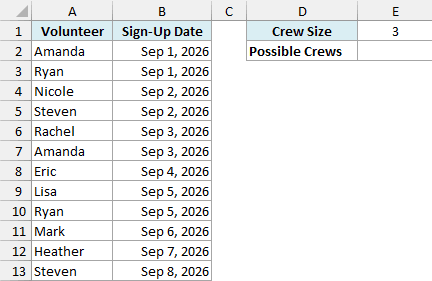
Here is the formula to enter in cell E2:
=COMBIN(COUNTA(UNIQUE(A2:A13)),E1)
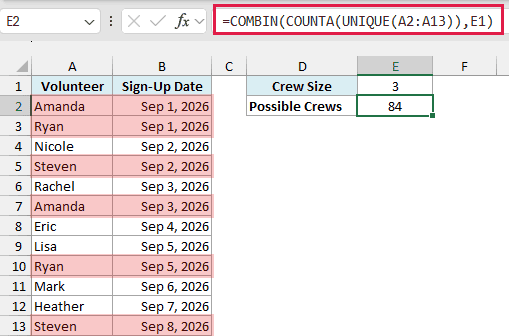
How this formula works:
- UNIQUE(A2:A13) removes the repeated names (Amanda, Ryan, and Steven each appear twice) and keeps 9 different volunteers.
- COUNTA counts those 9 names.
- COMBIN then finds the number of ways to pick 3 people from 9, which is 84.
If you just counted the rows with =COMBIN(COUNTA(A2:A13),E1), you’d get 220. That’s wrong, because it treats Amanda’s two sign-ups as two different people and counts crews that can’t exist.
The UNIQUE function needs Excel for Microsoft 365 or Excel 2021 and later. If you are using Excel 2019 or earlier, enter the below formula in cell E2 instead:
=COMBIN(SUMPRODUCT(1/COUNTIF(A2:A13,A2:A13)),E1)
Here, the SUMPRODUCT and COUNTIF part counts the unique names in place of COUNTA and UNIQUE.
Example 5: Calculate Probability With COMBIN
COMBIN is also the base of a lot of probability math, so let’s use it to work out the odds of something.
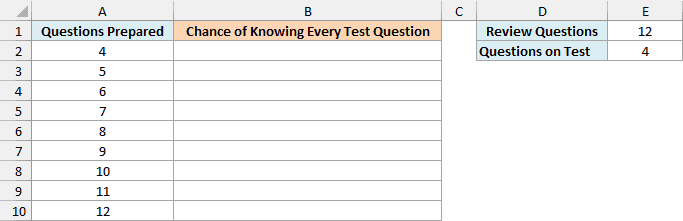
Below is a quiz prep sheet, where the teacher has 12 review questions (cell E1) and will put 4 of them on the test at random (cell E2).
I want the chance that every test question is one I prepared, for different numbers of prepared questions, in column B.
Here is the formula to enter in cell B2:
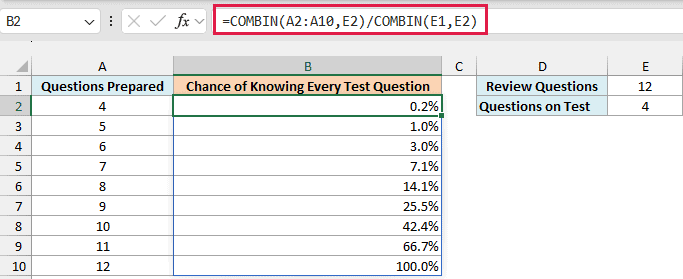
=COMBIN(A2:A10,E2)/COMBIN(E1,E2)
How this formula works:
COMBIN(E1,E2)counts every possible test, meaning every way to pick 4 questions out of 12. That’s 495 different tests.COMBIN(A2:A10,E2)counts the tests made up only of questions I prepared. If I prepared 9 questions, that’s 126 tests.- Dividing the two gives the chance, so preparing 9 questions gives 126/495, or 25.5%.
Notice how slowly the chance climbs. Even with 10 of the 12 questions prepared, I only have a 42.4% chance that the test has nothing I skipped.
Pro Tip: Excel also has a dedicated function for this kind of draw. =HYPGEOM.DIST(E2,E2,A2:A10,E1,FALSE) returns the same chances, but the COMBIN version makes it easier to see where the numbers come from.
If you are using Excel 2019 or earlier, enter the below formula in cell B2 and then copy it down to B10:
=COMBIN(A2,$E$2)/COMBIN($E$1,$E$2)
Example 6: COMBIN vs PERMUT (When Order Matters)
COMBIN only counts groups where the order doesn’t matter. When it does, you need the PERMUT function instead, so let’s look at both side by side.
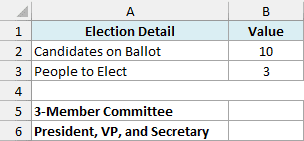
Below is a club election with 10 candidates on the ballot and 3 people to elect, and I want the number of possible results in cell B5 (a committee) and cell B6 (three officer roles).
Here is the COMBIN formula in cell B5:
=COMBIN(B2,B3)
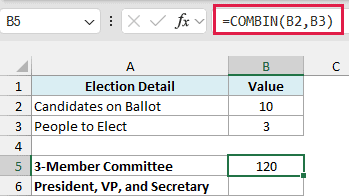
This returns 120. On a committee, all three seats are the same, so Jessica, Brian, and Maria make up one committee no matter who was elected first.
Now here is the PERMUT formula in cell B6:
=PERMUT(B2,B3)
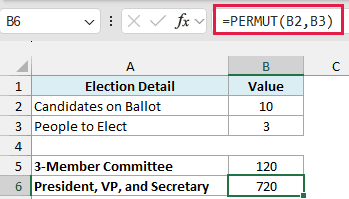
This returns 720. With named roles, Jessica as President and Brian as VP is a different result from Brian as President and Jessica as VP.
Each committee of 3 can be arranged into the three roles in 6 ways (3 x 2 x 1), and 120 x 6 is 720.
So here’s a simple way to decide. If swapping two picks gives you the same result, use COMBIN, and if it gives you a different result, use PERMUT.
Example 7: COMBIN vs COMBINA (When Repeats Are Allowed)
COMBIN also assumes that every item in a group is different. When the same item can show up more than once, the COMBINA function is the one to use (it works in Excel 2013 and later).
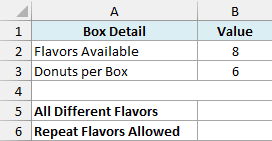
Below is a donut shop with 8 flavors and boxes of 6 donuts, and I want the number of different boxes in cell B5 (every donut a different flavor) and cell B6 (repeat flavors allowed).
Here is the COMBIN formula in cell B5:
=COMBIN(B2,B3)
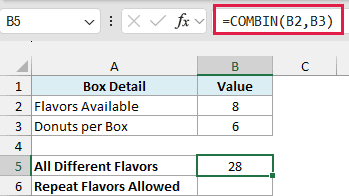
This returns 28, which is the number of ways to pick 6 different flavors out of 8.
Now here is the COMBINA formula in cell B6:
=COMBINA(B2,B3)
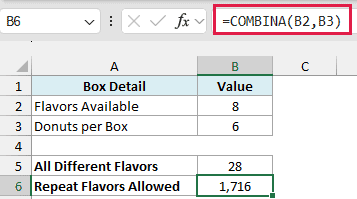
This returns 1,716. COMBINA also counts boxes like 3 glazed and 3 chocolate, or all 6 glazed, which COMBIN leaves out.
Most real donut boxes let you double up, so COMBINA is the right count for this shop.
So these are a few ways you can use the COMBIN function in Excel. Whenever you need to know how many groups are possible and the order doesn’t matter, COMBIN gives you the count in one step.
If you want to list every combination instead of just counting them, check out this guide on how to create all possible combinations from lists in Excel.
I hope you found this tutorial useful.
Other Excel Articles You May Also Like:
- FACT Function in Excel (Calculating Factorial)
- CHOOSE Function in Excel
- RANDBETWEEN Function in Excel
- 20 Advanced Excel Functions and Formulas (for Excel Pros)
- How to Shuffle a List of Items/Names in Excel? 2 Easy Formulas!
- MULTINOMIAL Function in Excel
- PERMUTATIONA Function in Excel
- HYPGEOM.DIST Function in Excel
