

The ATAN2 function in Excel returns the angle of a point from its x and y coordinates. You give it how far the point is across and how far it is up or down, and it tells you which direction the point is in.
That’s handy whenever you work with directions, like the bearing from one place to another or the way something moved between two readings.
The result comes back in radians, and points below the starting line get negative angles. So you’ll often wrap ATAN2 in another function or two to get the angle in the form you want.
In this tutorial, I’ll show you how ATAN2 works with five examples, from a basic angle to compass bearings and sorting places around a center point.
Follow along with the example file
ATAN2 Function Examples.xlsx
ATAN2 Function Syntax
Here is the syntax of the ATAN2 function:
=ATAN2(x_num, y_num)
- x_num – The x-coordinate of the point, which is how far it is to the right (positive) or left (negative) of the starting point.
- y_num – The y-coordinate of the point, which is how far it is above (positive) or below (negative) the starting point.
ATAN2 returns the angle in radians, measured from the positive x-axis (the line going right from the starting point). A positive result means the angle goes counterclockwise from that line, and a negative result means it goes clockwise.
The result is always between -π and π (-180 to 180 degrees). A point straight to the left returns π, never -π, so you don’t get two different answers for the same direction.
Important: In Excel, the x value comes first and the y value second. Most programming languages use atan2(y, x), so if you copy a formula from code with the arguments in that order, you get a wrong angle with no error to warn you.
Both arguments need to be numbers. A blank cell is treated as 0, and text that Excel can’t read as a number, like “abc”, returns a #VALUE! error.
The ATAN2 function works in all Excel versions, including Microsoft 365, 2024, 2021, 2019, 2016, Mac, and the web.
When to Use the ATAN2 Function
Use this function when you need to:
- Find the angle of a point from its x and y coordinates.
- Get a direction that’s correct in all four quadrants, including points to the left of or below the starting point.
- Work out the compass bearing from one place to another.
- Turn a list of positions into the direction of travel between readings.
- Sort places around a center point in clockwise order.
Let me show you how this works with a few practical examples.
Example 1: Get the Angle From X and Y Coordinates
Let’s start with a simple example.
Below is a list of dart throws with how far each dart landed to the right (X) and above (Y) the bullseye, in inches, and I want the angle of each throw in column D.
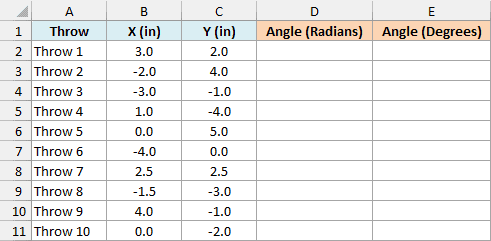
Here is the formula to enter in cell D2:
=ATAN2(B2:B11,C2:C11)
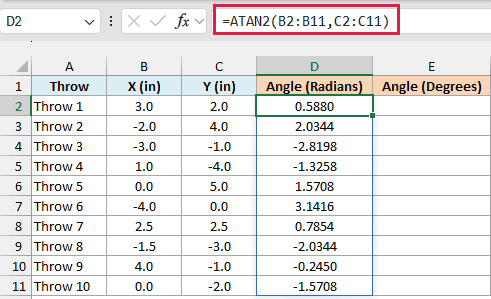
Since B2:B11 and C2:C11 are ranges, the formula returns all ten angles in one go. The results spill down to D11, so you don’t need to copy anything.
Each angle is measured from the line going right from the bullseye. Throw 1 landed 3 inches right and 2 inches up, so its angle is 0.5880 radians, counterclockwise from that line.
Throws below the bullseye get negative angles. Throw 4 landed 1 inch right and 4 inches down, and ATAN2 returns -1.3258, which means the angle goes clockwise.
Throw 6 landed 4 inches straight to the left, and its angle is 3.1416. That’s π, the largest value ATAN2 can return.
Radians are hard to read, so let’s convert these angles to degrees. Here is the formula to enter in cell E2:
=DEGREES(ATAN2(B2:B11,C2:C11))
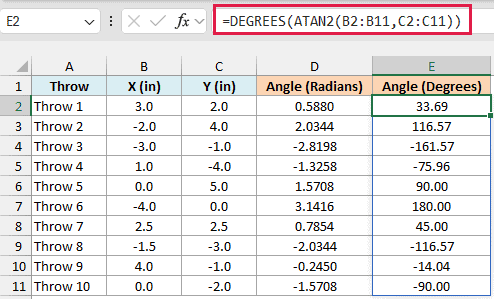
ATAN2 gets each angle in radians, and the DEGREES function converts it to degrees. Throw 1 is now 33.69 degrees, Throw 6 is 180, and Throw 3 (3 inches left and 1 inch down) is -161.57.
Spilling needs Excel for Microsoft 365, Excel 2021, or later. If you are using Excel 2019 or earlier, enter the below formula in cell D2 and then copy it down to D11:
=ATAN2(B2,C2)
The other spilling formulas in this article work the same way in older versions: point them at the first row of data and copy them down. The LET formula in Example 4 and the SORT formula in Example 5 are the exceptions, since they need Excel 2021 or later.
You might be wondering why we don’t just divide Y by X and use the ATAN function. The problem is that dividing loses the signs of the two values.
For Throw 2 (2 left, 4 up), the ratio is -2, which is the same as for a dart 2 right and 4 down. ATAN can’t tell those two apart, but ATAN2 looks at the sign of each value and gets the right direction.
Example 2: Convert ATAN2 Angles to 0 to 360 Degrees
Negative angles are fine for math, but a lot of the time you want a direction from 0 to 360 degrees, where 0 points right and the angle keeps going counterclockwise.
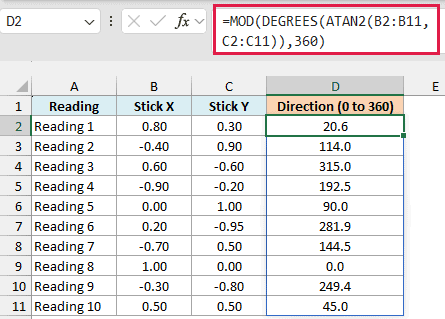
Below are joystick readings from a game controller with the stick’s X and Y position, and I want the direction of each reading from 0 to 360 degrees in column D.
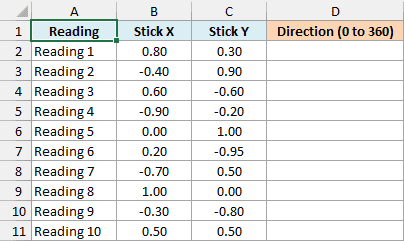
Here is the formula to enter in cell D2:
=MOD(DEGREES(ATAN2(B2:B11,C2:C11)),360)
How this formula works:
- ATAN2 gets the angle of each reading in radians, and DEGREES converts it to degrees from -180 to 180.
- The MOD function then divides each angle by 360 and returns the remainder. For a positive angle below 360, the remainder is the angle itself, so it stays the same.
- For a negative angle, MOD returns a positive remainder, which is the same as adding 360. Excel’s MOD always takes the sign of the number you divide by, so you don’t need to add 360 yourself first.
Reading 3 has the stick pushed down and to the right (0.60, -0.60). The DEGREES and ATAN2 part of the formula gives -45 for it, and MOD turns that into 315.0.
Reading 8 points straight right and returns 0.0, while Reading 5 points straight up and returns 90.0.
Follow along with the example file
ATAN2 Function Examples.xlsx
Example 3: Find the Compass Bearing Between Two Points
So far, the angles have started from the right and gone counterclockwise. A compass works differently: it starts at north (0 degrees) and goes clockwise, so east is 90, south is 180, and west is 270.
Below is a list of fishing spots with their position on a chart in miles east and north, and I want the compass bearing from the marina to each spot in column D. The marina’s position is in H2:H3.
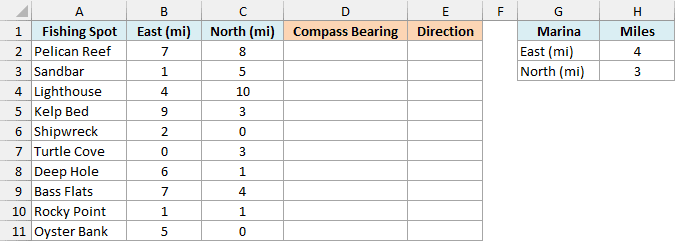
Here is the formula to enter in cell D2:
=MOD(DEGREES(ATAN2(C2:C11-H3,B2:B11-H2)),360)
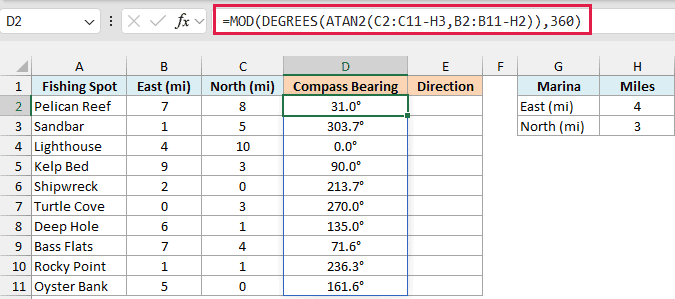
How this formula works:
- C2:C11-H3 and B2:B11-H2 work out how far north and how far east each spot is from the marina.
- The north distance goes in as x_num and the east distance as y_num. That’s the reverse of the earlier examples, and it’s what turns the angle into a compass bearing.
- DEGREES converts the result to degrees, and MOD turns the negative ones into 0 to 360, just like in Example 2.
Putting the north distance first makes north the starting line for the angle, the way the x-axis was in the earlier examples. Swapping the two also flips the direction of turn, so the angle goes clockwise, which is exactly how a compass reads.
The Lighthouse is due north of the marina and returns 0.0, the Kelp Bed is due east at 90.0, and Turtle Cove is due west at 270.0. Pelican Reef is 3 miles east and 5 miles north, so its bearing is 31.0.
If you are using Excel 2019 or earlier, enter the below formula in cell D2 and then copy it down to D11. The dollar signs keep the marina cells fixed as you copy:
=MOD(DEGREES(ATAN2(C2-$H$3,B2-$H$2)),360)
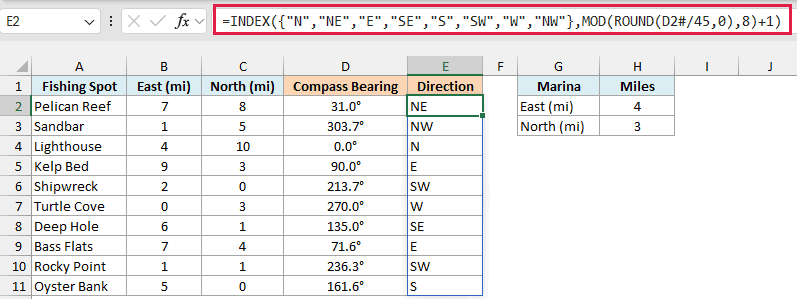
A bearing like 213.7 is precise, but sometimes you just want a direction like N or SW. Here is the formula to enter in cell E2:
=INDEX({"N","NE","E","SE","S","SW","W","NW"},MOD(ROUND(D2#/45,0),8)+1)
How this formula works:
- D2# refers to the whole spilled range of bearings in column D, so this formula spills too.
- Dividing by 45 and rounding gives the nearest of the eight compass points, counting from 0 for N. Bass Flats is at 71.6, so 71.6/45 rounds to 2.
- MOD(…,8) turns 8 (a bearing close to 360) back into 0, so it’s labeled N. Adding 1 gives the position in the list for the INDEX function, so Bass Flats gets the third label, E.
Since the marina’s position sits in its own cells, you can change H2 or H3 and all the bearings and directions update.
Example 4: Handle the #DIV/0! Error When Both Values Are 0
ATAN2 needs at least one of its arguments to be something other than 0. If both are 0, there’s no direction to measure, and the function returns a #DIV/0! error.
Below is a log from a dog’s GPS collar with its position every minute in feet east and north of home, and I want the heading the dog walked in during each minute in column D.
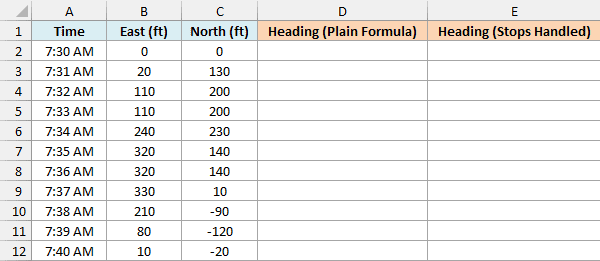
The 7:30 AM row is where the walk begins, so there’s no earlier position to compare it with. That’s why the formula starts in row 3.
Here is the formula to enter in cell D3:
=MOD(DEGREES(ATAN2(C3:C12-C2:C11,B3:B12-B2:B11)),360)
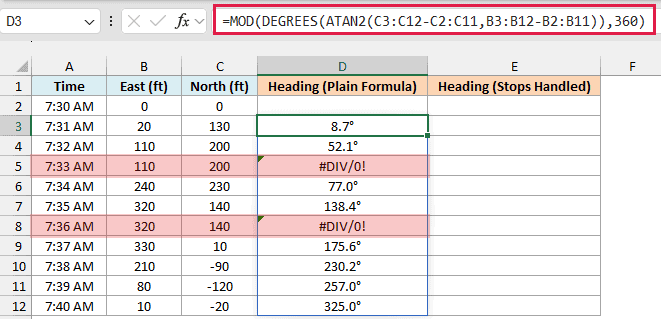
C3:C12-C2:C11 subtracts each position from the one a minute before it, which gives how far north the dog moved. B3:B12-B2:B11 does the same for east, and the rest of the formula turns those two distances into a compass bearing, as in Example 3.
At 7:33 AM and 7:36 AM, the dog stopped to sniff around, and its position didn’t change. Both distances are 0 for those rows, so ATAN2 returns #DIV/0!.
To fix this, check for that case first and return a label instead. Here is the formula to enter in cell E3:
=LET(e,B3:B12-B2:B11,n,C3:C12-C2:C11,IF((e=0)*(n=0),"Stopped",MOD(DEGREES(ATAN2(n,e)),360)))
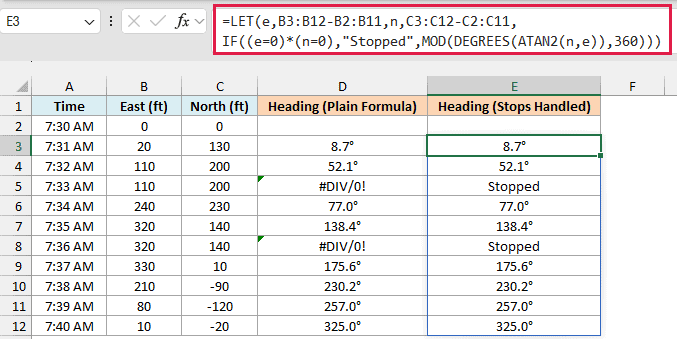
How this formula works:
- The LET function (Excel 2021 or later) stores the east distances as e and the north distances as n, so you don’t have to type the subtractions twice.
- (e=0)*(n=0) returns 1 only for rows where both distances are 0. Multiplying works like AND here, but checks every row separately.
- IF returns “Stopped” for those rows and the compass bearing for the rest.
You could wrap the first formula in IFERROR instead, but that would also label other problems as “Stopped”. For example, a typo like “1O0” in the East column gives #VALUE!, and IFERROR would hide it.
Example 5: Sort Locations Clockwise Around a Center Point
Let’s step it up with a more advanced use case.
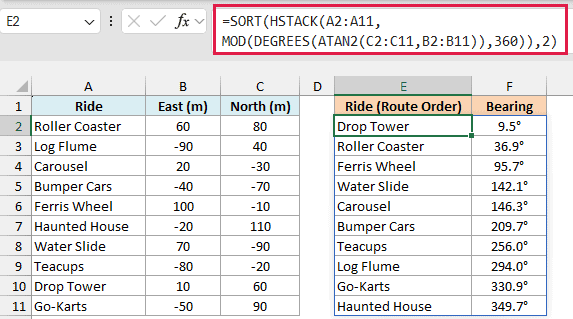
Below is a list of theme park rides with their distance in meters east and north of the central fountain, and I want to list the rides in clockwise order around the fountain in columns E and F.
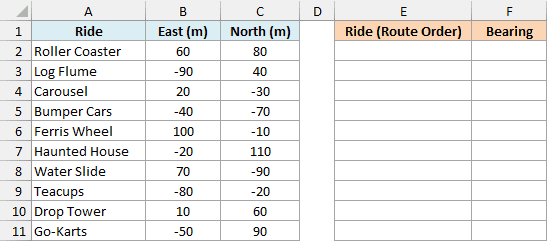
Here is the formula to enter in cell E2:
=SORT(HSTACK(A2:A11,MOD(DEGREES(ATAN2(C2:C11,B2:B11)),360)),2)
How this formula works:
- MOD(DEGREES(ATAN2(C2:C11,B2:B11)),360) gets the compass bearing of each ride from the fountain, the same way as in Example 3.
- The HSTACK function puts the ride names and their bearings side by side in a two-column array.
- The SORT function sorts that array by its second column (the bearing), from smallest to largest.
The result starts with the Drop Tower at 9.5 degrees, just past north, and goes clockwise all the way to the Haunted House at 349.7. So if you follow the list, you walk one loop around the park without doubling back.
If you want the counterclockwise order instead, add -1 as the third argument of SORT (sort_order) to sort from largest to smallest.
The HSTACK function is only available in Excel for Microsoft 365 and Excel 2024. If you are using Excel 2021, enter the below formula in cell E2 instead:
=SORT(CHOOSE({1,2},A2:A11,MOD(DEGREES(ATAN2(C2:C11,B2:B11)),360)),2)
So these are five examples of using the ATAN2 function in Excel, from a basic angle in radians to compass bearings, handling the #DIV/0! error, and sorting places around a center point.
If your point is always to the right of the starting point (like a slope’s rise over its run), the ATAN function does the job. For directions in all four quadrants, ATAN2 is the one to use.
I hope you found this tutorial useful.
Other Excel Articles You May Also Like:
