

The FILTERXML function pulls specific values out of XML text. You give it the XML and a short path that names the tags you want, and it returns every matching value.
That’s useful when data reaches you as XML, from a web feed, a system export, or something you pasted in. And since plain comma-separated text can be turned into XML, it’s also a popular way to split text in older Excel versions.
The catch is that FILTERXML relies on features of Windows. So it only works in Excel for Windows, not in Excel for Mac or Excel for the web.
In this tutorial, I’ll show you how to use FILTERXML to pull tags and attributes, filter records with a condition, split text, and read a live RSS feed.
Follow along with the example file
FILTERXML Function Examples.xlsx
FILTERXML Function Syntax
Here is the syntax of the FILTERXML function:
=FILTERXML(xml, xpath)
- xml – The XML text you want to read. It can be a cell, a range of cells, or text you build with a formula.
- xpath – The path to the values you want, written as text in double quotes, such as “//title”.
The xml has to be valid XML, which means every opening tag needs a closing tag with exactly the same name. Tag names are case-sensitive, so <title> closed with </Title> makes FILTERXML return a #VALUE! error.
The xpath tells FILTERXML which tags to return. Two forward slashes followed by a tag name, like “//title”, find every title tag in the XML, no matter where it sits.
The FILTERXML function works only in Excel for Windows, in Microsoft 365, Excel 2024, 2021, 2019, 2016, and 2013. It’s not available in Excel for Mac or Excel for the web.
When to Use the FILTERXML Function
Use this function when you need to:
- Pull specific values out of XML text, such as names, prices, or IDs
- Read the attribute values stored inside XML tags
- Get only the XML records that meet a condition
- Split comma-separated text into a list in Excel 2019 or earlier
- Get the nth or second-to-last part of delimited text
- Read data from a web feed along with the WEBSERVICE function
Let me show you a few practical examples of how to use FILTERXML in Excel.
Example 1: Extract a Value From XML in Each Row
Let’s start with a simple example.
Below is a product list from an online store export where each item’s color and size came in as XML, and I want to get the color of each product in column C.
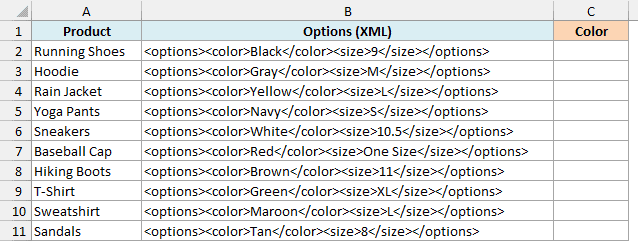
Here is the formula:
=FILTERXML(B2:B11,"//color")
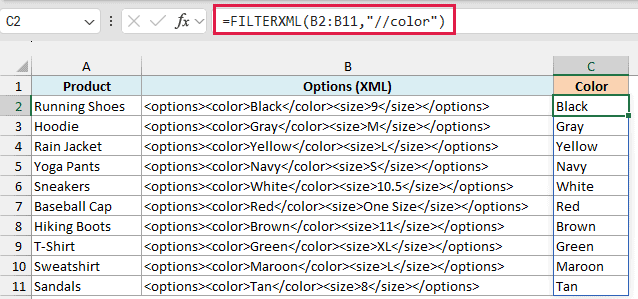
The formula reads the XML in each cell of B2:B11 and returns whatever sits between the <color> and </color> tags. You enter it once in C2, and it spills one color for each row.
With a range, FILTERXML gives you only one value per cell. So if a cell had two color tags, you’d only get the first one.
This spilling needs Excel 2021 or newer, including Microsoft 365. If you are using Excel 2019 or earlier, enter the below formula in cell C2 and then copy it down the range:
=FILTERXML(B2,"//color")
Example 2: Get All Matching Values From XML
Now let’s pull every match out of a block of XML, which is where FILTERXML is most useful.
Below is a movie watchlist in XML that I pasted into Excel, and I want to get all the movie titles in column C.
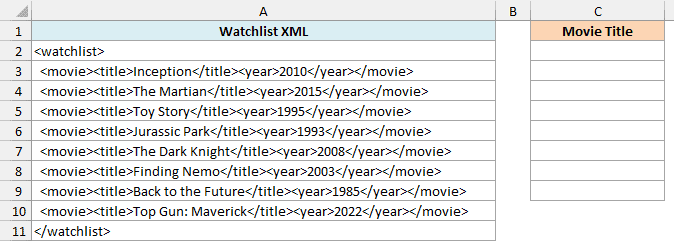
Here is the formula:
=FILTERXML(CONCAT(A2:A11),"//title")
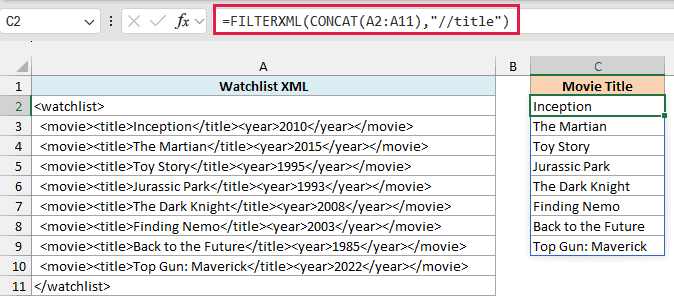
When you paste XML into Excel, each line lands in its own cell. The CONCAT function joins A2:A11 back into one piece of text, so FILTERXML can read it as a single XML document.
The xpath “//title” then finds all eight title tags, and FILTERXML returns them in the same order they appear in the XML. The results spill down from C2, so keep the cells below it empty, or you’ll get a #SPILL! error.
The CONCAT function needs Excel 2019 or later. In Excel 2016 or 2013, double-click a cell before you paste so the whole XML stays in that one cell, and then use that cell as the xml argument.
Important: In Excel 2019 and earlier, a formula that returns a list shows only its first value. To see every value, select the output cells first (C2:C9 here), type the formula, and press Control + Shift + Enter.
You’ll need the same Control + Shift + Enter step for the list formulas in Examples 3, 4, 5, and 7.
Example 3: Extract Attribute Values From XML Tags
Sometimes the values you need aren’t between the tags but inside the tag itself, as attributes.
Below is a shopping cart in XML where each item tag has a name, a quantity, and a price, and I want to list the item names in column C and get the cart total in E2.
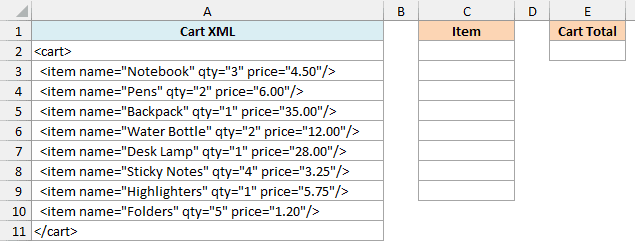
Here is the formula for the item names:
=FILTERXML(CONCAT(A2:A11),"//item/@name")
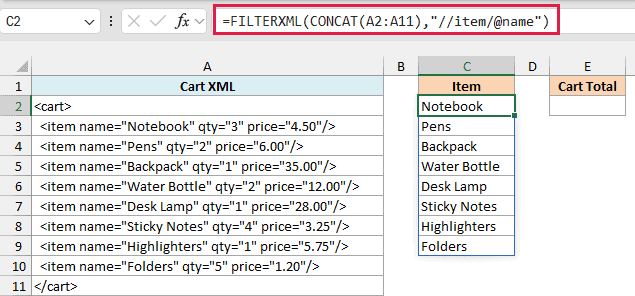
The @ sign tells FILTERXML you want an attribute rather than a tag. So “//item/@name” goes to every item tag and returns the value of its name attribute.
Here is the formula for the cart total:
=SUMPRODUCT(FILTERXML(CONCAT(A2:A11),"//item/@qty"),FILTERXML(CONCAT(A2:A11),"//item/@price"))
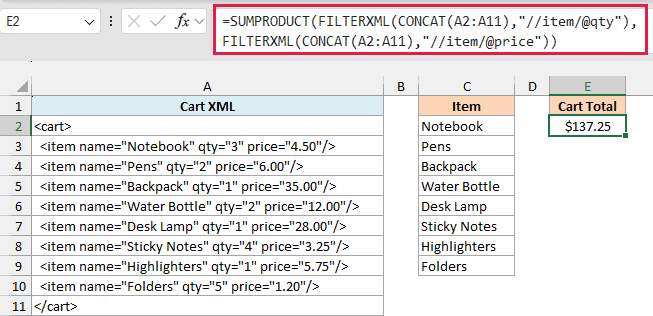
This returns $137.25. The first FILTERXML returns all the quantities, the second returns all the prices, and SUMPRODUCT multiplies each quantity by its price and adds up the results.
This works because FILTERXML turns anything that looks like a number into a real number. So the price “4.50” comes back as 4.5, ready for math, and you don’t need the VALUE function to convert it.
Example 4: Filter XML Data With a Condition
This next one is where the “filter” part of FILTERXML comes in.
Below is a gym’s class schedule in XML with the name, day, and open spots for each class, and I want the classes with open spots in column C. I also want the classes for the day in E2, listed in column G.
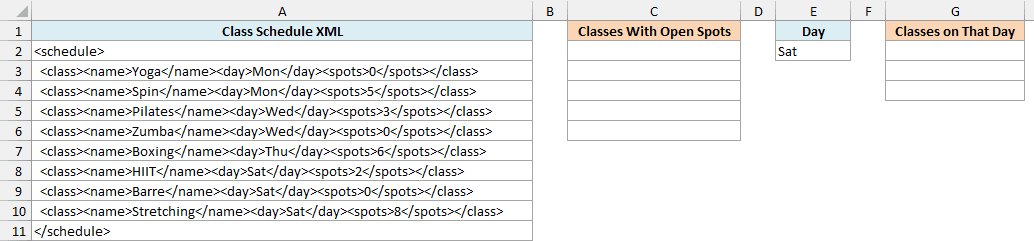
Here is the formula for the classes with open spots:
=FILTERXML(CONCAT(A2:A11),"//class[spots>0]/name")
![The condition [spots>0] returns only the classes that still have open spots](https://trumpexcel.com/wp-content/uploads/2026/10/09-ex4-open-1.png)
The part in square brackets is a condition. “//class[spots>0]” keeps only the class tags whose spots value is more than 0, and “/name” then returns the name of each of those classes.
Here is the formula that lists the classes for the day in E2:
=FILTERXML(CONCAT(A2:A11),"//class[day='"&E2&"']/name")
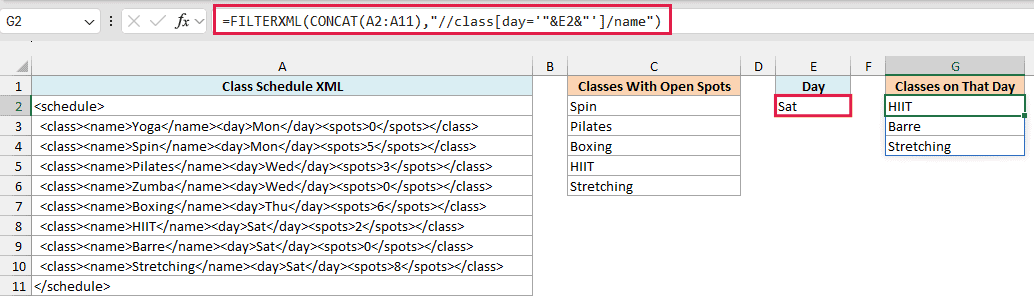
This one builds the condition from cell E2. With Sat in E2, the xpath becomes “//class[day=’Sat’]/name”, and the formula returns HIIT, Barre, and Stretching.
Note the single quotes around the day inside the xpath. XPath expects quotes around a text value in a condition, and single quotes are the easy choice because the whole xpath already sits inside Excel’s double quotes.
The double quotes and the & signs are the Excel part. They join the text before E2, the value in E2, and the text after it into one xpath.
Important: When no class matches the condition (say you type Sun in E2), FILTERXML returns a #VALUE! error. Wrap the formula in the IFERROR function to show a message like “No classes” instead.
Example 5: Split Comma-Separated Text With FILTERXML
FILTERXML isn’t only for real XML. With a small trick, you can also use it to split text.
Below is the ingredient list for a pancake recipe in one cell, separated by commas, and I want each ingredient in its own cell in column C.
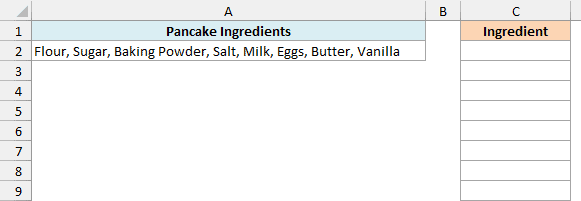
Here is the formula:
=FILTERXML("<t><s>"&SUBSTITUTE(A2,",","</s><s>")&"</s></t>","//s")
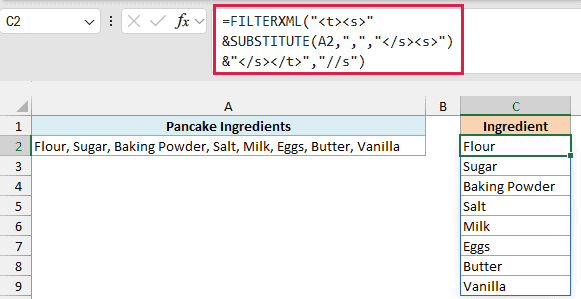
How this formula works:
- SUBSTITUTE(A2,”,”,”</s><s>”) replaces every comma with
</s><s>, which closes one tag and opens the next. - Adding “<t><s>” at the start and “</s></t>” at the end turns the whole list into valid XML, with each ingredient inside its own s tag.
- FILTERXML then returns every s tag with “//s”, so each ingredient lands in its own cell.
The tag names t and s don’t mean anything special. Any names work, as long as each opening tag has a matching closing tag.
You also don’t need to worry about the space after each comma. FILTERXML trims spaces from the start and end of each value, so you get “Sugar”, not ” Sugar”.
Important: An & or a < in your text (like “Salt & Pepper”) breaks the XML, and the formula returns #VALUE!. Use the SUBSTITUTE function to replace each & with & (and each < with <) before splitting.
If you have Excel 365 or Excel 2024, the TEXTSPLIT function does this same split with a shorter formula. The FILTERXML version is the one to use in Excel 2021 or earlier, and it’s also the starting point for the position trick in the next example.
Example 6: Get the Second-to-Last Part of Text (City From Address)
The same trick gets even more useful when the part you want isn’t always in the same position.
Below is a list of customer shipping addresses, some with an extra suite or apartment part, and I want to get the city in column C.
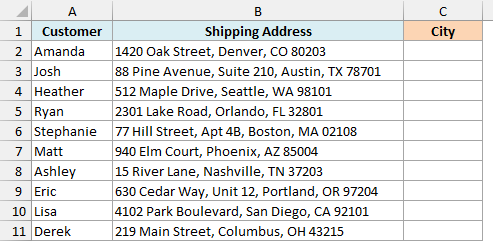
Here is the formula:
=FILTERXML("<t><s>"&SUBSTITUTE(B2:B11,",","</s><s>")&"</s></t>","//s[last()-1]")
![The //s[last()-1] path returns the second-to-last part of each address, which is the city](https://trumpexcel.com/wp-content/uploads/2026/10/14-ex6-formula-10.png)
This uses the same SUBSTITUTE trick to turn each address into XML, with one s tag per comma-separated part. Since B2:B11 is a range, the formula works on each address separately and spills one city per row.
The xpath “//s[last()-1]” picks the second-to-last part. That’s always the city in this list, whether the address has three parts (Denver) or four (Austin, which comes after Suite 210).
You can ask for other positions the same way. “//s[1]” returns the first part, and “//s[last()]” returns the last part.
Important: Because FILTERXML returns number-looking text as numbers (as you saw in Example 3), leading zeros get dropped. If an address ended with a ZIP code as its own part, like 02108, “//s[last()]” would give you 2108.
If you are using Excel 2019 or earlier, enter the below formula in cell C2 and then copy it down the range:
=FILTERXML("<t><s>"&SUBSTITUTE(B2,",","</s><s>")&"</s></t>","//s[last()-1]")
Example 7: Get the Latest Articles From an RSS Feed
Let’s end by pairing FILTERXML with the WEBSERVICE function, so you can read XML straight from the web.
Below I have the address of the TrumpExcel RSS feed in A2, and I want to list the latest article titles in column C.
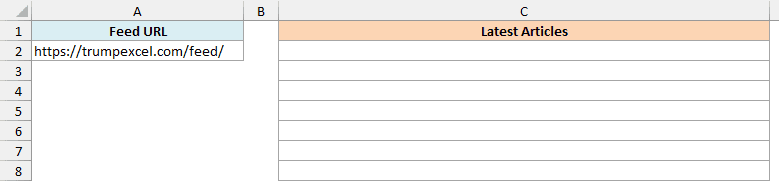
Here is the formula:
=FILTERXML(WEBSERVICE(A2),"//item/title")
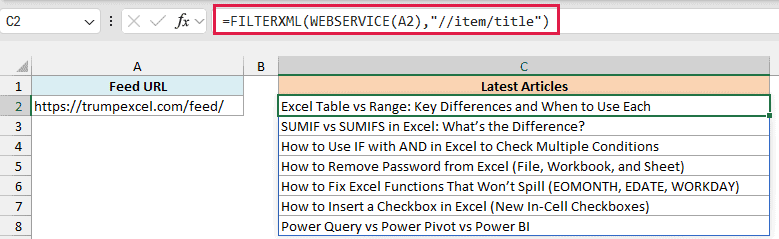
The WEBSERVICE function downloads the feed from the address in A2 and returns it as XML text. FILTERXML then picks the title out of each item tag, which is where an RSS feed keeps its posts.
The titles come from the live feed, so your list will look different from the screenshot once new articles are published. You also need an internet connection for this to work.
WEBSERVICE returns a #VALUE! error if it can’t fetch the data, or if what it gets back is longer than 32,767 characters (the most a cell can hold). And just like FILTERXML, it only works in Excel for Windows.
So these are seven practical ways to use the FILTERXML function in Excel. Most of the work happens in the xpath: “//tag” for values, @ for attributes, and square brackets for conditions.
I hope you found this tutorial useful.
Other Excel Articles You May Also Like:
