

The TOROW function takes a range of cells that spans several rows and columns and returns all its values in a single row.
That’s handy when you need your values in one row, for example to use them as report headers or to get a quick list of everything in a table.
In this article, I’ll show you how TOROW works, how to skip blanks and errors, how to change the reading order, and a few practical ways to use it.
Follow along with the example file
TOROW Function Examples.xlsx
TOROW Function Syntax
Here is the syntax of the TOROW function:
=TOROW(array,[ignore],[scan_by_column])
- array – The range or array you want to turn into a single row.
- ignore – (Optional) Tells TOROW which values to leave out. Use 0 to keep everything (the default), 1 to skip blank cells, 2 to skip errors, or 3 to skip both blanks and errors.
- scan_by_column – (Optional) The order in which TOROW reads the values. FALSE (the default) reads row by row, and TRUE reads column by column.
The TOROW function works in Excel for Microsoft 365 and Excel 2024, on both Windows and Mac. It’s not available in Excel 2021 or earlier versions.
When to Use the TOROW Function
Use this function when you need to:
- Turn a block of items spread across rows and columns into one row
- Get all the entries from a range in one row without the empty cells
- Create a row of values in the right order, such as months laid out by quarter
- Get a sorted row of unique values from several columns, for example to use as headers
- List all the matching records for a value in one row next to it
- Find the empty cells in a grid and list their labels, like the open seats in a seating chart
Let me show you a few practical examples of how to use the TOROW function.
Example 1: Convert a Range into a Single Row
Let’s start with a simple example.
Below I have a shopping list grouped by store aisle, with three items in each aisle, and I want all 12 items in one row, starting in cell B7.

Here is the formula:
=TOROW(B2:D5)
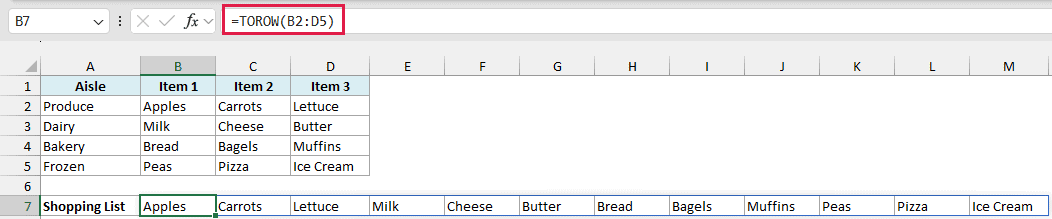
In the above formula, TOROW reads the range B2:D5 one row at a time. It takes the three Produce items first, then the three Dairy items, and so on, and returns all 12 items in one row.
You only enter the formula in cell B7, and the results spill into the cells to its right.
If any of those cells already has something in it, you’ll get a #SPILL! error instead. So make sure there are enough empty cells to the right of the formula.
This is different from what the TRANSPOSE function does. TRANSPOSE would flip this shopping list into 3 rows and 4 columns, while TOROW puts all 12 items in a single row.
If you are using Excel 2021 or an earlier version, enter the below formula in cell B7 and then copy it to the right, up to cell M7:
=INDEX($B$2:$D$5,QUOTIENT(COLUMNS($B$7:B7)-1,COLUMNS($B$2:$D$5))+1,MOD(COLUMNS($B$7:B7)-1,COLUMNS($B$2:$D$5))+1)
This formula works out which row and column of B2:D5 to pick as you copy it across, so it returns the items in the same order as TOROW.
If you copy it past cell M7, the extra cells show a #REF! error because there are no more items to pick.
Example 2: Skip Blank Cells with TOROW
Now let’s see what happens when the range has some empty cells.
Below is a weekly gym class schedule where a few time slots have no class, and I want all the classes in one row, starting in cell B7.

Here is the formula:
=TOROW(B2:D5)
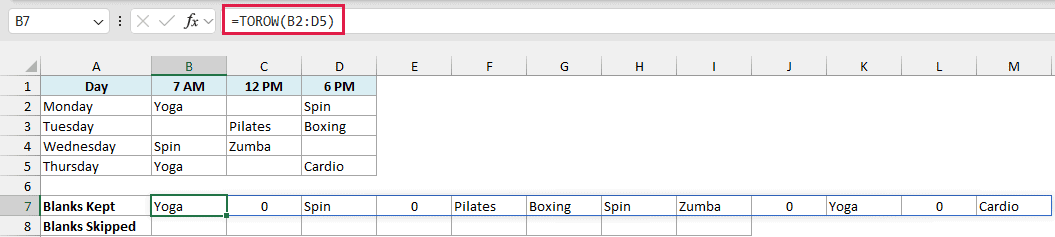
See the zeros in the result? TOROW keeps every cell by default, and an empty cell comes back as 0.
That’s why the empty 12 PM slot on Monday shows up as a 0 right after Yoga.
To skip the empty cells, set the ignore argument to 1. Here is the formula in cell B8:
=TOROW(B2:D5,1)
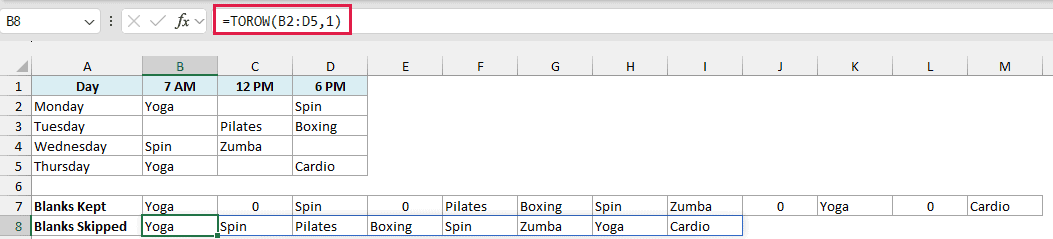
Now the result has only the eight classes, with no zeros in between.
Example 3: Read the Values Column by Column
Here’s a case where the order of the values matters.
Below I have the 12 months arranged by quarter, with each quarter in its own column, and I want the months in calendar order in one row, starting in cell B6.

Let’s first see what the default reading order gives us:
=TOROW(B2:E4)
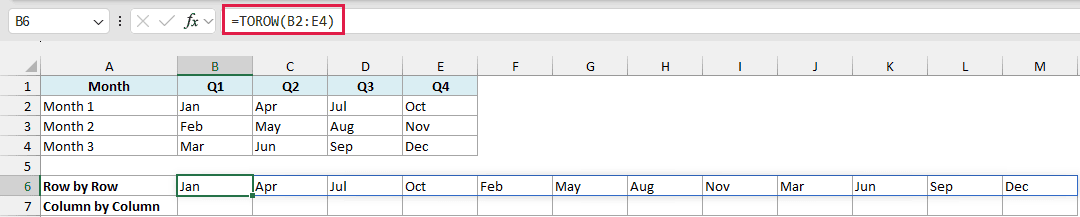
Since TOROW reads row by row, it picks the first month of every quarter (Jan, Apr, Jul, Oct) before it moves to the next row. That’s not the order we want here.
To read down each column first, set the scan_by_column argument to TRUE. Here is the formula in cell B7:
=TOROW(B2:E4,,TRUE)
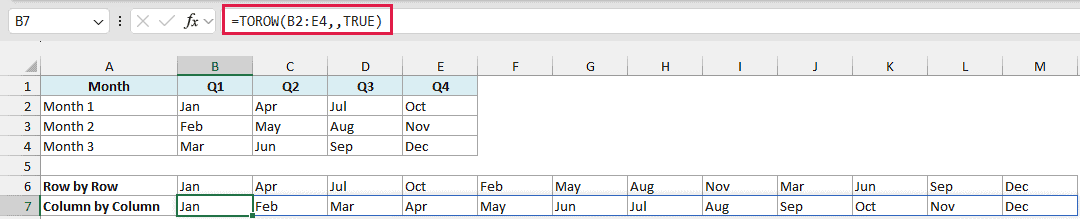
The two commas leave the ignore argument empty, so TOROW still keeps all the values. TRUE tells it to finish the Q1 column before moving to Q2, so the months now come out in calendar order, from Jan to Dec.
Example 4: Get Unique Values from Multiple Columns in a Row
Now let’s combine TOROW with the UNIQUE and SORT functions.
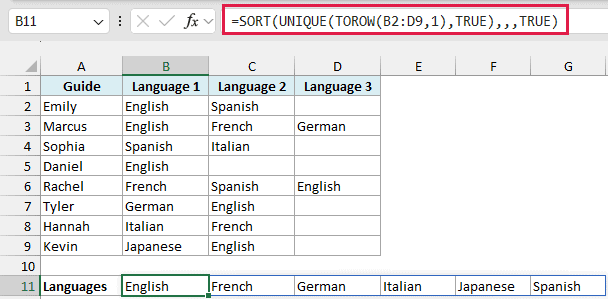
Below is a list of tour guides with the languages each one speaks, and I want a sorted list of all the languages, each shown only once, in one row starting in cell B11.
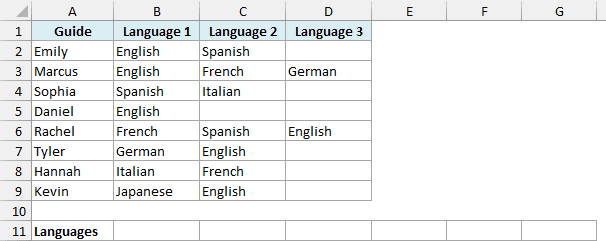
Here is the formula:
=SORT(UNIQUE(TOROW(B2:D9,1),TRUE),,,TRUE)
How this formula works:
- TOROW(B2:D9,1) puts all the languages from the three columns in one row and skips the empty cells, so no 0 ends up in the list.
- UNIQUE(…,TRUE) removes the repeated languages. The TRUE tells UNIQUE to compare the values across columns, since our data is now in a row.
- SORT(…,,,TRUE) sorts the languages from A to Z. The TRUE at the end tells the SORT function to sort across the row instead of down a column.
Important: If you leave out the TRUE in UNIQUE, you get all 17 languages back, repeats included. Leave it out in SORT, and the row stays in its original, unsorted order.
Example 5: Return Multiple Matches in a Row
TOROW is also really useful when you want to list all the matches for a value in one row.
Below is a list of students and the club each one signed up for, and I want the members of each club listed in a row next to the club name, starting in column E.
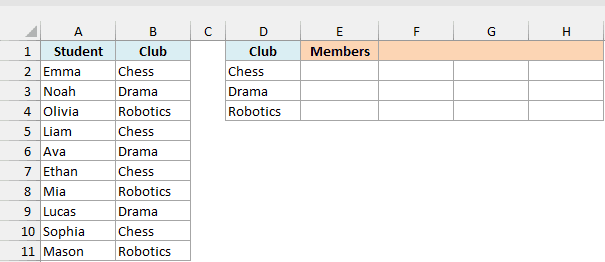
Here is the formula for the Chess club in cell E2:
=TOROW(FILTER($A$2:$A$11,$B$2:$B$11=D2))
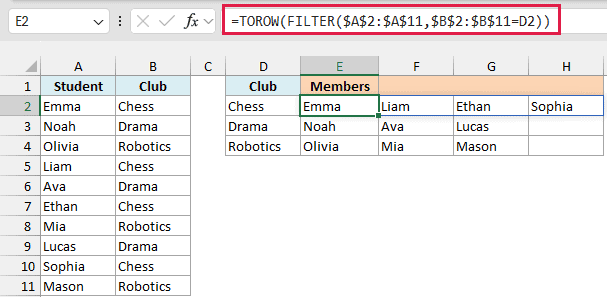
In the above formula, the FILTER function returns every student whose club matches the one in cell D2 (Chess), as a vertical list. TOROW then turns that list into a row, so the four Chess members spill across cells E2 to H2.
Copy the formula down to cells E3 and E4 to get the members of the other two clubs. The dollar signs keep the student and club ranges fixed, while D2 changes to D3 and D4.
Since FILTER returns a single column here, the TRANSPOSE function would give you the same row. TOROW has the edge when your list has blanks or errors, since TRANSPOSE has no option to skip them.
Example 6: List the Open Seats from a Seating Chart
Let’s end with an example where the ignore argument does some clever work.
Below is a seating chart where the booked seats are marked as Booked, and I want a list of all the open seats in one row, starting in cell B8.
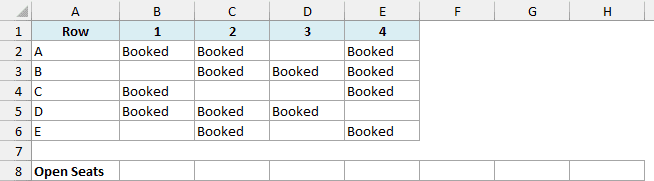
Here is the formula:
=TOROW(IF(B2:E6="",A2:A6&B1:E1,NA()),2)
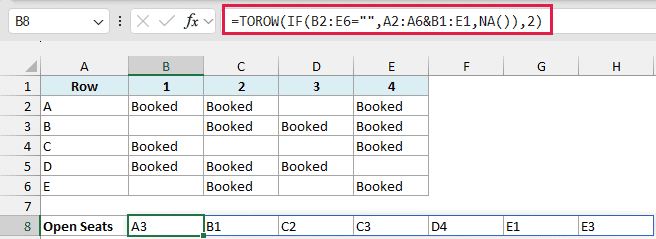
How this formula works:
- B2:E6=”” checks every seat and returns TRUE for the empty (open) ones.
- A2:A6&B1:E1 joins each row letter with each seat number, which builds a seat name for every cell in the grid (A1, A2, and so on, up to E4).
- IF returns the seat name for the open seats and an #N/A error for the booked ones.
- TOROW(…,2) puts everything in one row and, since ignore is 2, drops all the #N/A errors. Only the open seats are left: A3, B1, C2, C3, D4, E1, and E3.
Important: The ignore argument only skips cells that are truly empty, not empty strings (“”). So if IF returned “” for the booked seats instead of NA(), every booked seat would still take up a spot in the result.
So these are some of the ways you can use the TOROW function in Excel.
Use it on its own to turn a range into a single row, or combine it with functions like UNIQUE, SORT, FILTER, and IF to get exactly the list you need. I hope you found this article helpful.
Other Excel Articles You May Also Like:
