

The STANDARDIZE function in Excel converts a value into a z-score. A z-score tells you how many standard deviations a value sits above or below the average.
This is handy when you want to know whether a number is normal or unusual for its group. It also lets you compare numbers that live on completely different scales, like sales in dollars and ratings out of 5.
In this article, I’ll show you how STANDARDIZE works, starting with a single value and moving on to whole columns, outliers, and combined scores.
Follow along with the example file
STANDARDIZE Function Examples.xlsx
STANDARDIZE Function Syntax
Here is the syntax of the STANDARDIZE function:
=STANDARDIZE(x, mean, standard_dev)
- x – The value you want to convert into a z-score. This can be a number, a cell reference, or a range.
- mean – The average of the group the value belongs to.
- standard_dev – The standard deviation of that same group.
STANDARDIZE doesn’t work out the mean or the standard deviation for you. You give it both, either as known numbers or by calculating them with functions like AVERAGE and STDEV.P.
Behind the scenes, it subtracts the mean from x and divides the difference by standard_dev. So a positive result means the value is above average, a negative result means it’s below average, and 0 means it’s exactly average.
The standard_dev has to be greater than 0. If it’s 0 or negative, you get the #NUM! error, which can happen when every value in your list is the same (their standard deviation is 0).
If x points to an empty cell, Excel treats it as 0 and still returns a z-score. So check for blank cells in your data, or you’ll get a big negative z-score that means nothing.
The STANDARDIZE function works in all Excel versions, including Excel for Microsoft 365, 2024, 2021, 2019, 2016, Mac, and the web. Giving it a range so the results spill needs Excel 365 or Excel 2021 and later.
When to Use the STANDARDIZE Function
Use this function when you need to:
- Find out how far a value is from the average, in standard deviations
- Spot values that are unusually high or low compared to the rest of the data
- Compare numbers that come from groups with different averages or spreads
- Combine metrics on different scales (like dollars and ratings) into one fair score
Let me show you a few practical examples of how to use the STANDARDIZE function.
Example 1: Find the Z-Score of a Single Value
Let’s start with a simple example.
Below is the delivery time for a pizza order, along with the restaurant’s average delivery time and its standard deviation, and I want to get the z-score in cell B6.
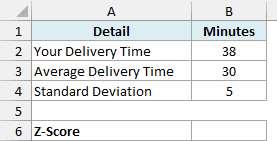
Here is the formula:
=STANDARDIZE(B2,B3,B4)
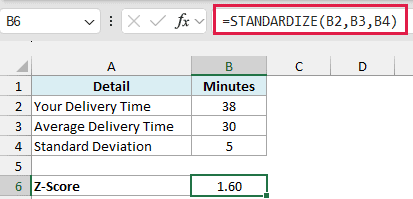
This returns 1.60. The order took 38 minutes, which is 8 minutes more than the 30-minute average, and 8 divided by the standard deviation of 5 gives 1.6.
So this delivery was 1.6 standard deviations slower than usual. That’s later than normal, but not wildly out of line.
In this example, the mean and standard deviation are known values that I typed in. In the next example, we’ll calculate them from the data.
Example 2: Calculate Z-Scores for a Whole Column
Now let’s get the z-score for every value in a list with one formula.
Below are the monthly electric bills for 2025, with the average bill and the standard deviation already calculated in F2 and F3, and I want the z-score for each month in column C.
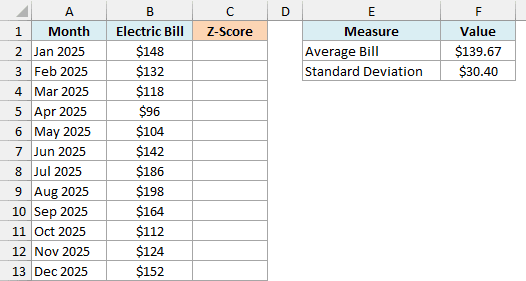
F2 uses =AVERAGE(B2:B13) and F3 uses =STDEV.P(B2:B13). I used STDEV.P because these 12 bills are the whole year (more on STDEV.P vs STDEV.S in the next example).
Here is the formula:
=STANDARDIZE(B2:B13,F2,F3)
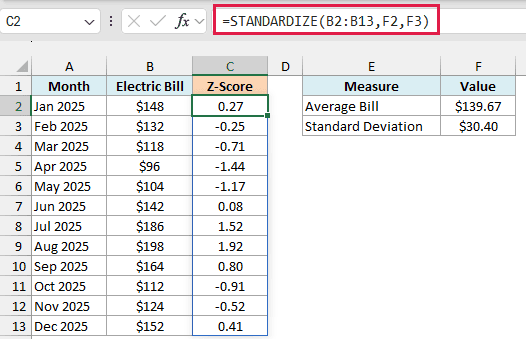
Since x is the range B2:B13, the formula returns 12 z-scores that spill into C2:C13. The mean and standard deviation stay the same for every month, so F2 and F3 are single cells.
August has the highest z-score at 1.92, so it’s the month where the bill was furthest above average. April has the lowest at -1.44, which means it was the cheapest month by a good margin.
If the cells below C2 aren’t empty, the formula can’t spill and you’ll see a #SPILL! error. Clear those cells and the results show up.
If you are using Excel 2019 or earlier, enter the below formula in cell C2 and then copy it down the range:
=STANDARDIZE(B2,$F$2,$F$3)
The dollar signs turn F2 and F3 into absolute references, so every row reads the same average and standard deviation as you copy the formula down. Without them, the references would shift to F3, F4, and so on, and you’d get wrong results or errors.
Pro Tip: Z-scores for a full list always average out to 0. If you average column C and get something other than 0 (allowing for tiny rounding), the mean in F2 isn’t the average of these bills.
Example 3: Z-Scores for Sample Data (Using STDEV.S)
Here’s a scenario where the data is only part of a bigger group.
Below are the weekly grocery spends of 10 shoppers picked at random from a store’s customers, and I want each shopper’s z-score in column C.
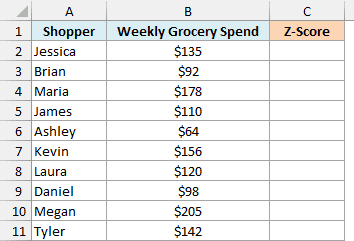
Here is the formula:
=STANDARDIZE(B2:B11,AVERAGE(B2:B11),STDEV.S(B2:B11))
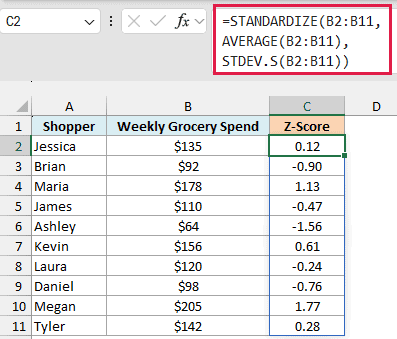
This time, there are no helper cells. AVERAGE(B2:B11) returns the mean of $130, STDEV.S(B2:B11) returns the standard deviation of about $42.29, and STANDARDIZE uses both for every shopper.
I used STDEV.S here because these 10 shoppers are a sample of a much larger customer base. STDEV.S is meant for samples, and it returns a slightly bigger standard deviation than STDEV.P to account for the missing data.
That changes the z-scores a little. With STDEV.S, Megan’s $205 gets a z-score of 1.77, while STDEV.P would give her 1.87.
So if your data covers the entire group you care about, use STDEV.P. If it’s a sample from a bigger group, use STDEV.S.
Example 4: Find Outliers Using Z-Scores
Let’s put z-scores to work on a common task, which is spotting unusual values.
Below are the expense claims submitted by 12 employees in a month, and I want to flag any claim that’s unusually large or small in column C.
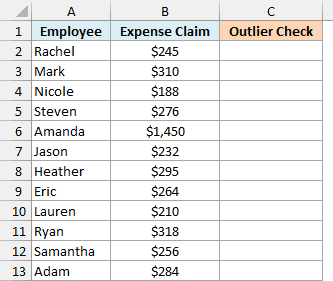
Here is the formula:
=IF(ABS(STANDARDIZE(B2:B13,AVERAGE(B2:B13),STDEV.P(B2:B13)))>2,"Outlier","")
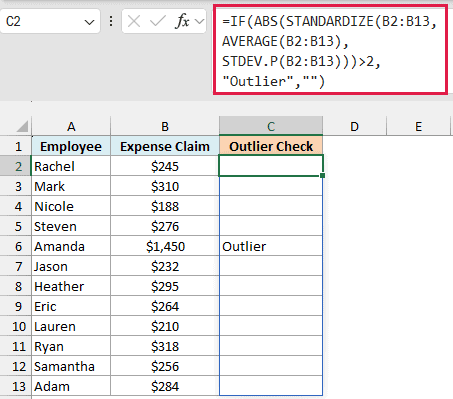
How this formula works:
- STANDARDIZE(B2:B13,AVERAGE(B2:B13),STDEV.P(B2:B13)) returns the z-score for each of the 12 claims.
- ABS(…) drops the minus sign, so a claim far below average is caught just like one far above it.
- …>2 checks whether each claim is more than 2 standard deviations away from the average.
- IF(…,”Outlier”,””) returns “Outlier” for those claims and leaves the rest blank.
Only Amanda’s $1,450 claim gets flagged. Its z-score is 3.30, while every other claim sits within about half a standard deviation of the average.
A cutoff of 2 is a good fit for a short list like this one. With 12 values, a z-score can’t go higher than about 3.3, so a stricter cutoff of 3 (common with large data sets) would only flag a value that’s close to that maximum.
Also note that one big outlier pulls the average and standard deviation up with it. Here the average claim is about $361, while the other 11 claims average about $262, which makes smaller oddities harder to spot.
If that’s a concern, the interquartile range method handles it better.
Example 5: Compare Values With Different Averages
Now let’s look at something more interesting, where each value is compared to its own baseline.
Below are 8 stores of a retail chain, each with its own average monthly sales and standard deviation from past months, and I want to find which store had the most unusually good October in column E.
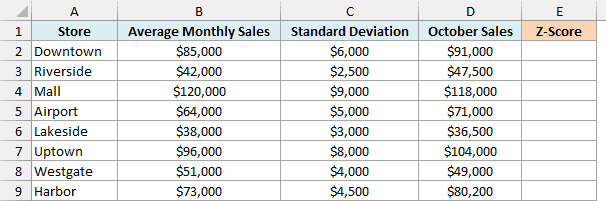
Here is the formula:
=STANDARDIZE(D2:D9,B2:B9,C2:C9)
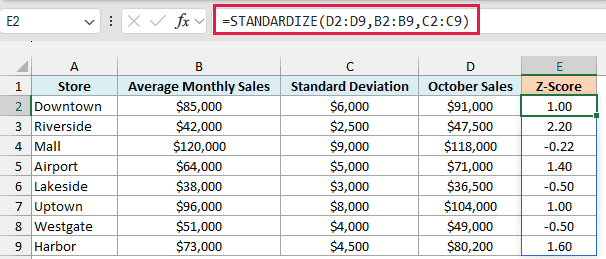
This time all three arguments are ranges. Excel pairs them up row by row, so each store’s October sales are compared with that store’s own average and standard deviation.
Look at the Mall store. It had the highest October sales at $118,000, but its z-score is -0.22, because that’s a little below what the Mall normally does.
Riverside is the one that stands out. It sold only $47,500, but that’s 2.20 standard deviations above its usual sales, the highest z-score of all eight stores.
Comparing raw sales would have completely missed this.
Example 6: Combine Two Metrics Into One Score
Let’s step it up with a more advanced use case.
Below are 8 employees with the units they sold and their average customer rating, and I want one overall score in column D that gives both metrics equal weight.
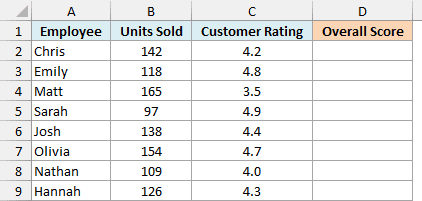
If you simply added units and rating, units would decide everything. A rating of 3.5 or 4.9 barely moves a total that’s already over 100.
Converting both columns to z-scores puts them on the same scale. Then adding them gives a fair combined score.
Here is the formula:
=STANDARDIZE(B2:B9,AVERAGE(B2:B9),STDEV.P(B2:B9))+STANDARDIZE(C2:C9,AVERAGE(C2:C9),STDEV.P(C2:C9))
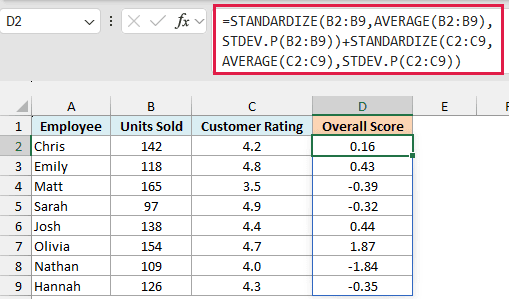
The first STANDARDIZE gives each employee’s z-score for units sold, and the second gives the z-score for rating. Adding the two returns a single overall score, where 0 is average and higher is better.
Olivia comes out on top with 1.87, even though she isn’t first in either column. She sold 154 units and has a 4.7 rating, so she’s well above average on both.
Matt sold the most units (165), but his 3.5 rating drags his score down to -0.39. Sarah has the best rating (4.9), but her 97 units leave her at -0.32.
So these are some practical ways to use the STANDARDIZE function in Excel. It’s a simple function, but once you have z-scores, comparing values across different groups and scales gets a lot easier.
If you want to turn a z-score into a percentile, you can pair it with the NORM.S.DIST function. That tells you what share of values sit below it, assuming your data roughly follows a bell curve.
I hope you found this article helpful.
Other Excel Articles You May Also Like:
