

The PRICE function in Excel works out what a bond is worth today when you know the yield you want from it. It gives you the price per $100 of face value, which is how bond prices are normally quoted.
That makes it handy when you’re offered a bond at some price and want to check whether it fits the return you’re after.
The examples go from pricing a single bond to pricing a full list with one formula, and also cover zero-coupon bonds, the dirty price, and how PRICE compares with the PV function.
Follow along with the example file
PRICE Function Examples.xlsx
PRICE Function Syntax
Here is the syntax of the PRICE function:
=PRICE(settlement,maturity,rate,yld,redemption,frequency,[basis])
- settlement – the date you buy the bond (not the date it was first issued).
- maturity – the date the bond matures and pays back its face value.
- rate – the bond’s annual coupon rate, such as 4%.
- yld – the annual yield you want to earn on the bond, such as 5.25%.
- redemption – the amount the bond pays back at maturity per $100 of face value. For most bonds, this is 100.
- frequency – the number of coupon payments per year. Use 1 for annual, 2 for semiannual, and 4 for quarterly.
- [basis] – optional. The day count method: 0 (US 30/360), 1 (actual/actual), 2 (actual/360), 3 (actual/365), or 4 (European 30/360). If you leave it out, Excel uses 0.
The result is always a price per $100 of face value. So a result of 94.03 means you pay $94.03 for every $100 the bond pays back at maturity, whatever the bond’s actual face value is.
A frequency other than 1, 2, or 4 (like 12 for monthly) returns the #NUM! error. You also get #NUM! if the settlement date is on or after the maturity date, or if the yield or coupon rate is negative.
The day count method usually changes the price by only a tiny amount (less than a cent per $100 on the bond in Example 1), so you can leave basis out unless the bond’s terms call for a specific day count.
The settlement and maturity dates should be real dates in cells, or dates built with the DATE function. If Excel can’t read a date, PRICE returns the #VALUE! error.
The PRICE function works in Excel 365, 2024, 2021, 2019, 2016, and Excel for Mac.
When to Use the PRICE Function
Use this function when you need to:
- Find what a bond should cost at the yield you want to earn
- Work out the dollar amount you’ll pay for a bond purchase
- See how a bond’s price changes when yields go up or down
- Price a whole list of bonds with one formula
- Get the full price of a bond, including the interest built up since its last coupon
Let me show you a few practical examples of how to use the PRICE function.
Example 1: Calculate the Price of a Bond in Excel
Let’s start with a single bond.
Below are the details of a bond, and I want to get its price for a 5.25% yield in cell B9.
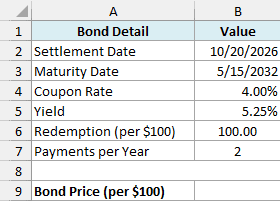
Here is the formula:
=PRICE(B2,B3,B4,B5,B6,B7)
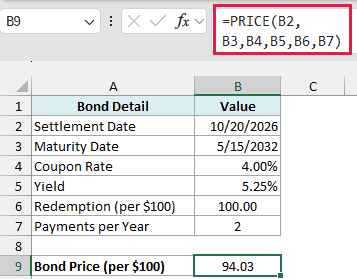
The formula returns 94.03, which is below 100. That’s because the bond’s 4% coupon is lower than the 5.25% yield you want, so the only way to earn 5.25% is to pay less than the 100 you get back at maturity.
Important: Enter the coupon rate and yield as percentages (4% and 5.25%) or decimals (0.04 and 0.0525). If you type 4 and 5.25 instead, PRICE doesn’t show an error, but it returns a wrong price (58.73 for this bond).
Example 2: Find the Dollar Cost of a Bond Purchase
To get the actual amount you’ll pay for a bond, you need one small step after PRICE.
Below are the details of a bond where I’m buying $25,000 of face value, and I want the total cost in cell B9.
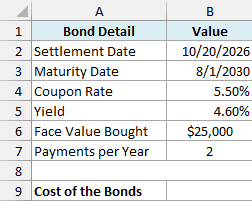
Here is the formula:
=PRICE(B2,B3,B4,B5,100,B7)*B6/100
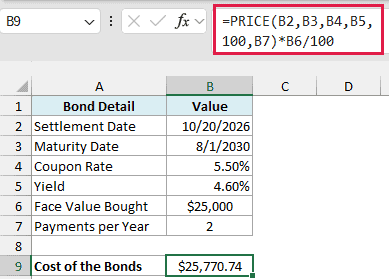
The PRICE part returns 103.08, the price per $100 of face value. Multiplying it by B6/100 (which is 250 here) scales it up to the $25,000 you’re buying, so the cost comes to $25,770.74.
This bond costs more than its face value because its 5.50% coupon is higher than the 4.60% yield.
Note that the redemption argument stays at 100 even though you’re buying $25,000 of bonds. You convert to dollars after PRICE, not inside it.
Example 3: See How Bond Price Changes With Yield
Now let’s see how a bond’s price moves as the yield changes.
Below is a list of yields from 3% to 7% next to the details of a 10-year bond with a 5% coupon, and I want the bond’s price at each yield in column B.
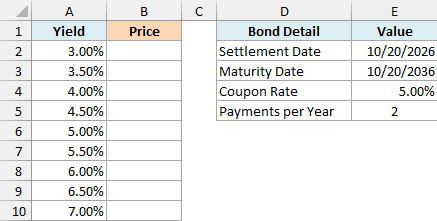
Here is the formula:
=PRICE(E2,E3,E4,+A2:A10,100,E5)
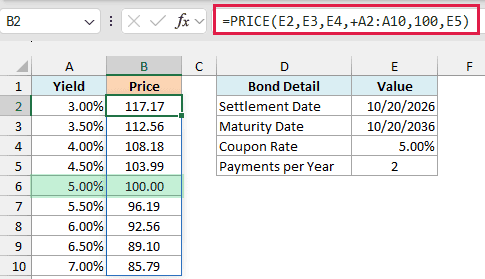
The formula spills nine prices into B2:B10, one for each yield in A2:A10. The settlement date, maturity date, coupon rate, and payments per year come from the bond details in column E.
The plus sign (+) in front of A2:A10 is what makes this work. It turns the range into a plain list of values, and PRICE returns one result for each value.
This is the same trick that fixes other Excel functions that won’t spill, like the EOMONTH and EDATE functions.
Important: If you give PRICE a plain range like A2:A10 without the plus sign, it returns a single #VALUE! error instead of spilling.
The results show that when the yield goes up, the bond’s price goes down. At a 3% yield, this bond is worth 117.17, and at 7%, it drops to 85.79.
At 5%, the yield matches the coupon rate, so the price is exactly 100.00. Every yield below that gives a price above 100, and every yield above it gives a price below 100.
If you are using Excel 2019 or earlier, enter the below formula in cell B2 and then copy it down the range:
=PRICE($E$2,$E$3,$E$4,A2,100,$E$5)
Example 4: Price a List of Bonds With One Formula
Here’s another practical scenario where you have several bonds to price.
Below is a list of ten bonds with their maturity dates, coupon rates, and yields, and I want the price of each bond in column E, using the settlement date in H2 and the payments per year in H3.
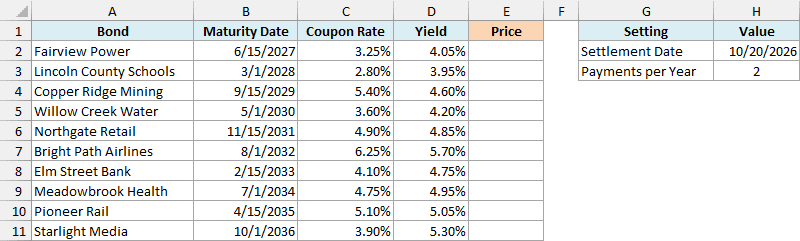
Here is the formula:
=PRICE(H2,+B2:B11,+C2:C11,+D2:D11,100,H3)
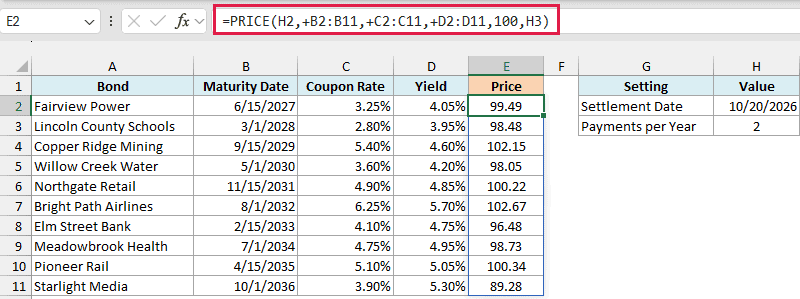
This formula spills all ten prices into E2:E11. Each bond uses its own maturity date, coupon rate, and yield, while the settlement date in H2, the redemption of 100, and the 2 payments per year in H3 apply to every bond.
Here, all three ranges need a plus sign in front of them. If you add it to only one of them, say the maturity dates, every bond still returns the #VALUE! error.
As in Example 3, a bond whose coupon is above its yield, like Copper Ridge Mining, is priced above 100 (102.15). One whose coupon is well below its yield, like Starlight Media, is priced well below 100 (89.28).
If you are using Excel 2019 or earlier, enter the below formula in cell E2 and then copy it down the range:
=PRICE($H$2,B2,C2,D2,100,$H$3)
Example 5: Calculate the Dirty Price of a Bond (Price Plus Accrued Interest)
Let’s step it up with something PRICE doesn’t give you on its own.
PRICE returns what’s called the clean price, which leaves out the interest the bond has built up since its last coupon payment. But when you buy a bond between coupon dates, you also pay the seller that accrued interest.
The clean price plus the accrued interest is called the dirty price.
Below are the details of a bond, and I want its clean price in B8, the accrued interest in B9, and the dirty price in B10.
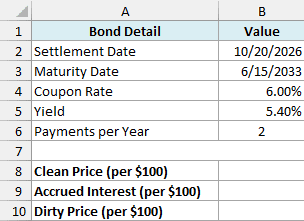
Here is the formula for the clean price:
=PRICE(B2,B3,B4,B5,100,B6)
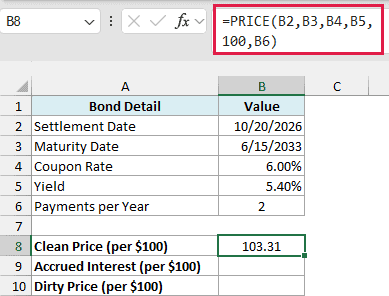
This is the regular PRICE formula, and it returns 103.31 per $100 of face value.
Here is the formula for the accrued interest:
=ACCRINT(COUPPCD(B2,B3,B6),COUPNCD(B2,B3,B6),B2,B4,100,B6)
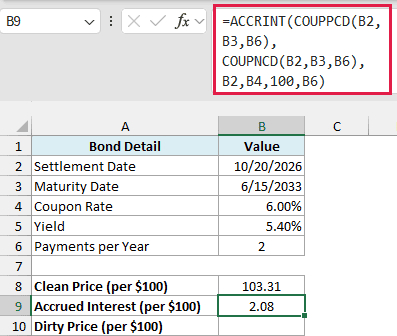
How this formula works:
- COUPPCD(B2,B3,B6) returns the last coupon date before the settlement date, which is June 15, 2026.
- COUPNCD(B2,B3,B6) returns the next coupon date after the settlement date, which is December 15, 2026. The ACCRINT function uses it as its first interest date.
- ACCRINT then works out the interest on $100 of face value at the 6% coupon rate, from June 15 to the settlement date in B2. That gives 2.08.
The ACCRINT function counts interest from whatever date you give it as its first argument (the issue date). Using COUPPCD(B2,B3,B6) there makes it count only the interest since the last coupon payment, which is what the buyer owes the seller.
And here is the formula for the dirty price:
=B8+B9
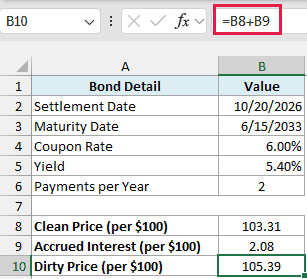
Adding the two gives a dirty price of 105.39 per $100 of face value. This is the price you actually pay, while 103.31 is the price you’d usually see quoted.
Example 6: Price a Zero-Coupon Bond
PRICE also works for bonds that don’t pay any coupons at all.
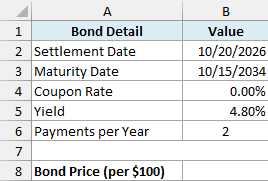
A zero-coupon bond pays nothing until maturity, when it pays back its face value. Below are the details of one, and I want its price for a 4.80% yield in cell B8.
Here is the formula:
=PRICE(B2,B3,B4,B5,100,B6)
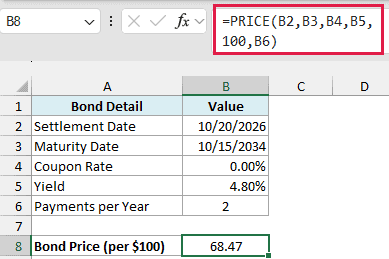
The coupon rate in B4 is 0%, and PRICE returns 68.47. So you pay $68.47 today for every $100 the bond pays back in October 2034, and the whole return comes from that gap.
Even though there are no coupons, the frequency argument still matters here. It tells PRICE how often the yield compounds, so set it to match how your yield is quoted (2 for a semiannual yield).
With a frequency of 1, the same bond would be priced at 68.77 instead of 68.47.
Example 7: PRICE vs PV for Bond Price
The PV function is another common way to price a bond in Excel, so let’s compare it with PRICE.
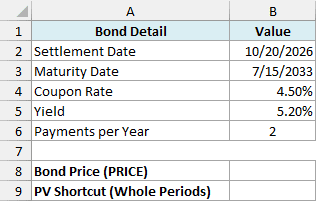
Below are the details of a bond bought between two coupon dates, and I want to compare the PRICE result in B8 with the PV shortcut in B9.
Here is the PRICE formula:
=PRICE(B2,B3,B4,B5,100,B6)
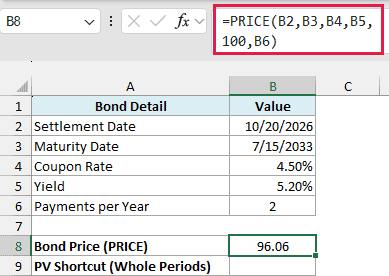
This returns 96.06 per $100 of face value, using the bond’s actual settlement and coupon dates.
And here is the PV shortcut:
=PV(B5/B6,COUPNUM(B2,B3,B6),-B4*100/B6,-100)
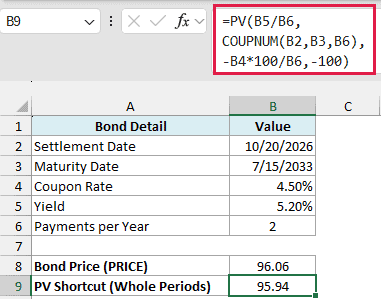
How this formula works:
- B5/B6 turns the 5.20% annual yield into a yield per coupon period (2.60%).
- COUPNUM(B2,B3,B6) counts the coupon payments left until maturity, which is 14.
- -B4*100/B6 is the coupon paid each period per $100 of face value, which is 2.25.
- -100 is the face value paid back at maturity.
The PV shortcut returns 95.94, which is a bit lower than the 96.06 from PRICE. The difference comes from buying the bond between coupon dates.
The PV function assumes the first coupon is a full six months away. But this bond was bought on October 20, 2026, and its next coupon comes on January 15, 2027, less than three months later.
PRICE works with the actual dates, so it gets this right. The two only match when you buy a bond exactly on a coupon date (with a settlement date of 1/15/2027, both return 96.18).
So these are seven practical ways to use the PRICE function in Excel. It prices a single bond or a whole list, turns that price into a dollar cost, and gives you the dirty price when you add the ACCRINT function.
And if you already know a bond’s price and need its yield instead, the YIELD function does the reverse calculation.
I hope you found this Excel tutorial useful.
Other Excel Articles You May Also Like:
