

The SHEETS function in Excel tells you how many sheets there are, either in the whole workbook or in a group of sheets you point it to. It counts every sheet, including the hidden ones you can’t see in the tab bar.
That makes it handy when you split data across sheets, like one sheet per month or per store, and want a count that updates on its own.
Just keep in mind that it counts sheets, not cells, so pointing it at a big range on one sheet still gives you 1.
In this article, I’ll show you how the SHEETS function works with five practical examples, from a simple workbook count to finding which sheets are still missing an entry.
Follow along with the example file
SHEETS Function Examples.xlsx
SHEETS Function Syntax
Here is the syntax of the SHEETS function:
=SHEETS([reference])
- reference – (Optional) A reference to the sheets you want to count. This is usually a 3D reference, such as Jan:Jun!A1, which covers every sheet from Jan to Jun.
If you leave the reference out, SHEETS counts all the sheets in the workbook that has the formula, including any hidden sheets.
Only the sheets in the reference matter, not the cells. So a reference to cells on a single sheet always returns 1, no matter how big the range is.
The reference has to be an actual reference, not text. If you type a sheet name in quotes, such as =SHEETS("Jan"), you get the #N/A error.
The SHEETS function works in Excel 2013 and later versions, including Excel 365, 2024, 2021, 2019, 2016, and Excel for Mac.
When to Use the SHEETS Function
Use this function when you need to:
- Count all the sheets in a workbook and check whether any of them are hidden
- Show a label like “Sheet 2 of 18” on a sheet
- Count the sheets in a 3D reference, such as one sheet per month
- Count the sheets that sit between two marker sheets, so the count grows as you add sheets
- Find out how many sheets are still missing a value
Let me show you a few practical examples of how to use the SHEETS function in Excel.
Example 1: Count All Sheets in a Workbook (Including Hidden Ones)
Let’s start with the simplest use of the SHEETS function.
All the examples in this article use one workbook, and below are its sheet tabs. I want the total number of sheets in this workbook in cell B2 of the Count sheet.

Here is the formula:
=SHEETS()
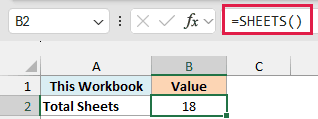
The formula returns 18. But if you count the tabs at the bottom, you’ll only find 17.
The extra one is a hidden sheet called Notes. Since there’s nothing between the parentheses, SHEETS counts every sheet in the workbook.
That includes hidden sheets, very hidden sheets (which can only be hidden and unhidden with VBA), and chart sheets.
Pro Tip: This is a quick way to check a workbook you got from someone else. If =SHEETS() returns more than the number of tabs you can see, some sheets are hidden.
To bring the Notes sheet back, right-click any tab and choose Unhide (here’s more on how to unhide sheets in Excel).
Example 2: Show “Sheet X of Y” With SHEET and SHEETS
Now let’s pair SHEETS with its sibling, the SHEET function, to show which sheet you’re on and how many sheets there are in total.
I want this label in cell B2 of the Label sheet, which is the second tab in the workbook.
Here is the formula:
="Sheet "&SHEET()&" of "&SHEETS()
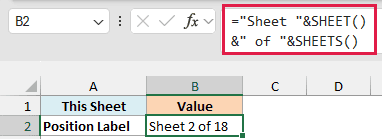
The formula returns “Sheet 2 of 18”.
Here, SHEET() returns the position of the sheet that has the formula (2), and SHEETS() returns the total number of sheets (18). The & operator joins these two numbers with the text “Sheet ” and ” of ” to build the label.
Hidden sheets are part of the total, so the 18 here matches Example 1.
The position changes on its own if you drag the Label tab to a different spot, or if a hidden sheet sits before it, since hidden sheets count toward the position too.
Example 3: Count the Sheets in a 3D Reference
Here’s where the reference argument comes in.
In the same workbook, the Jan to Jun sheets each hold one month of household bills. Here’s the Jan sheet, and I want the number of months tracked in cell B2 of the Bills sheet.
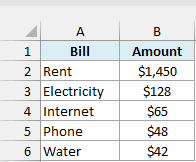
Here is the formula:
=SHEETS(Jan:Jun!A1)
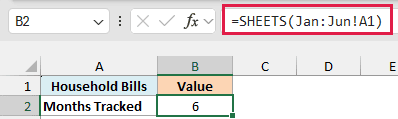
The formula returns 6.
Jan:Jun!A1 is a 3D reference. It points to cell A1 on every sheet from Jan to Jun, including both of those sheets, and SHEETS counts how many sheets that covers.
The A1 part is just a placeholder, since SHEETS only cares about the sheets. You could use B2 or A1:B6 and still get 6.
A 3D reference follows the order of the tabs, not the sheet names. If you drag the Mar tab so it sits after Jun, it’s no longer between Jan and Jun, and the formula drops to 5.
Important: If you try to type the sheet range in a cell and turn it into a reference with the INDIRECT function, it won’t work. =SHEETS(INDIRECT(“Jan:Jun!A1”)) returns the #REF! error, because INDIRECT doesn’t support 3D references.
Example 4: Count Sheets Between Two Sheets in Excel
Now let’s make the count grow on its own when you add sheets.
The workbook also has a bakery’s monthly reports, with one sheet per branch placed between two marker sheets called Start and End. I want the number of branches in cell B2 of the Branches sheet.

Here is the formula:
=SHEETS(Start:End!A1)-2
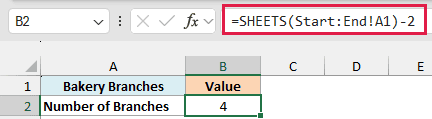
The formula returns 4.
Start:End!A1 covers six sheets: Start, the four branch sheets (Downtown, Mall, Airport, and Harbor), and End. Subtracting 2 removes the two marker sheets, so you’re left with just the branches.
The Start and End sheets work like bookends. When a new branch opens, insert its sheet anywhere between Start and End, and the count goes up to 5 without you touching the formula.
You could also write =SHEETS(Downtown:Harbor!A1), which returns 4 today. But a new sheet added before Downtown or after Harbor would be left out, and that’s exactly the mistake the bookends prevent.
Pro Tip: The same bookends work with other functions that accept 3D references. For example, =SUM(Start:End!B2) adds up the Monthly Sales from every branch sheet (here’s more on how to sum across multiple sheets).
Example 5: Find How Many Sheets Are Missing an Entry
Let’s step it up and use SHEETS to check for missing data.
Each branch sheet has its Monthly Sales in cell B2, and as you can see below, the Airport sheet’s B2 is still empty. I want the count of branches still missing their sales in cell B2 of the Pending sheet.
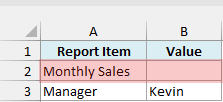
Here is the formula:
=SHEETS(Start:End!B2)-2-COUNT(Start:End!B2)
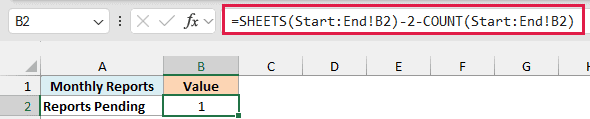
The formula returns 1, which is the Airport branch.
How this formula works:
- SHEETS(Start:End!B2)-2 gives the number of branch sheets (4), just like in Example 4.
- COUNT(Start:End!B2) counts how many of those sheets have a number in cell B2 (3). The Start and End sheets have nothing in B2, so they don’t add to this count.
- Subtracting the second number from the first gives the branches with no sales entered (4 – 3 = 1).
You might think of using the COUNTBLANK function here instead. But COUNTBLANK doesn’t accept 3D references and returns the #VALUE! error, so subtracting the filled cells from the sheet count is the way to go.
Since the COUNT function only counts numbers, if someone types “pending” in B2 instead of a number, that branch still shows up as missing, which is usually what you want.
So these are five ways to use the SHEETS function in Excel, from counting every sheet in a workbook (hidden ones included) to counting the sheets between two bookend sheets and spotting the ones that are missing data.
I hope you found this article helpful.
Other Excel Articles You May Also Like:
