

The BASE function in Excel converts a number into another number system, such as binary (base 2) or hexadecimal (base 16). You give it a regular number and the base you want, and it gives you back the converted value as text.
It’s useful when you work with binary values, hex color codes, or long ID numbers you’d like to shorten. It can also add leading zeros so every result has the same number of digits.
In this article, I’ll show you how the BASE function works with six practical examples, from a simple binary conversion to listing every possible combination of a few options.
Follow along with the example file
BASE Function Examples.xlsx
BASE Function Syntax
Here is the syntax of the BASE function:
=BASE(number, radix, [min_length])
- number – The number you want to convert. It must be a whole number from 0 up to (but not including) 2^53.
- radix – The base you want to convert the number into. This can be any whole number from 2 to 36.
- min_length – (Optional) The minimum number of characters you want in the result. If the result is shorter, BASE adds zeros to the left to make up the length.
Once a base goes above 10, it runs out of regular digits, so BASE uses letters. A stands for 10, B for 11, and so on up to Z for 35, which is why 36 is the highest base you can use.
If the number has decimals, BASE simply drops them, so =BASE(10.9,2) gives the same result as =BASE(10,2). A negative number, a number of 2^53 or more, or a radix outside 2 to 36 returns the #NUM! error.
The min_length argument only adds zeros. It never cuts a result short, so =BASE(255,16,1) still returns FF, even though you asked for one character.
The BASE function works in Excel 2013 and later versions, including Excel for Microsoft 365, 2024, 2021, 2019, 2016, Mac, and Excel on the web.
When to Use the BASE Function
Use this function when you need to:
- Convert decimal numbers to binary, octal, or hexadecimal
- Show binary or hex values with a fixed number of digits
- Build hex color codes from RGB values
- Turn long ID numbers into short codes
- List every Yes/No combination for a set of options
Let me show you a few practical examples of how to use the BASE function.
Example 1: Convert Decimal to Binary in Excel
Let’s start with a simple example.
Below is a list of numbers, and I want to convert each one to binary in column B.
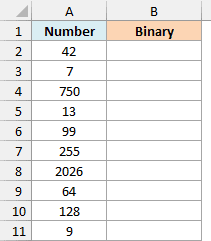
Here is the formula:
=BASE(A2:A11,2)
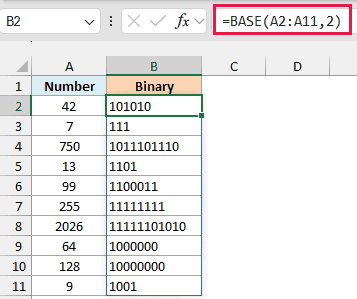
Here, the BASE function takes every number in A2:A11 and converts it to base 2. So 42 becomes 101010, and 2026 becomes 11111101010.
Since I gave BASE the whole range, this one formula in B2 spills the results down to B11. You don’t need to copy anything.
The results are text, which is why they line up on the left of the cells.
If you are using Excel 2019 or earlier, enter the below formula in cell B2 and then copy it down the range:
=BASE(A2,2)
Important: If you do math on a BASE result, Excel reads the digits as a regular number, so 101 (5 in binary) becomes one hundred and one. To get the real number back, use the DECIMAL function with the same base, like DECIMAL(B2,2).
Excel also has a DEC2BIN function for this, but it stops at 511. So it would return #NUM! for 750 and 2026 in this list, while BASE converts them without any trouble.
Example 2: Convert Decimal to Hexadecimal
Here’s another common conversion.
Below is a list of numbers, and I want to convert each one to hexadecimal (base 16) in column B.
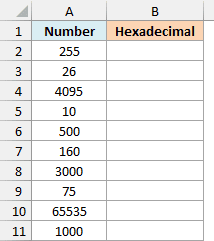
Here is the formula:
=BASE(A2:A11,16)
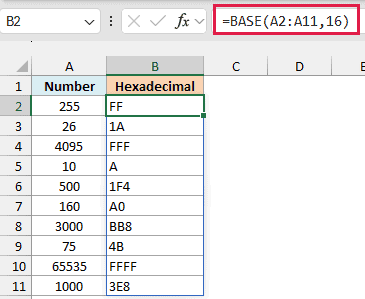
This works exactly like the binary formula, only with 16 as the radix. Hexadecimal needs sixteen digits, so after 0 to 9 it uses the letters A to F.
That’s why 10 becomes A, 255 becomes FF, and 65535 becomes FFFF.
Example 3: Add Leading Zeros with min_length
Now let’s use the optional third argument.
Below is a list of numbers that are all between 0 and 255, and I want to show each one as an 8-digit binary value in column B.
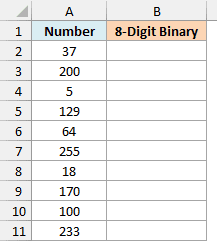
Here is the formula:
=BASE(A2:A11,2,8)
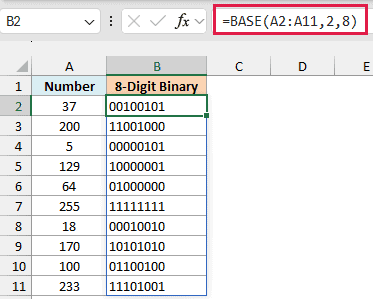
Without the third argument, 5 would show as just 101. With min_length set to 8, BASE adds five leading zeros, so you get 00000101.
Every number from 0 to 255 fits in 8 binary digits, so the whole column now has the same width. That makes the values much easier to compare digit by digit, like 10101010 for 170 and 11101001 for 233.
Example 4: Convert RGB Values to Hex Color Codes
Let’s step it up with a more practical use case.
Below is a list of colors with their red, green, and blue values (each from 0 to 255), and I want to get the hex color code for each one in column E.
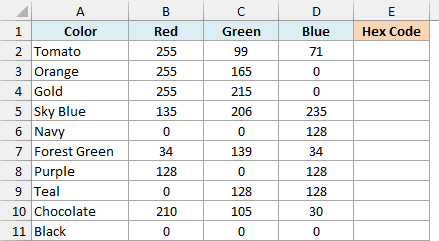
Here is the formula:
="#"&BASE(B2:B11,16,2)&BASE(C2:C11,16,2)&BASE(D2:D11,16,2)
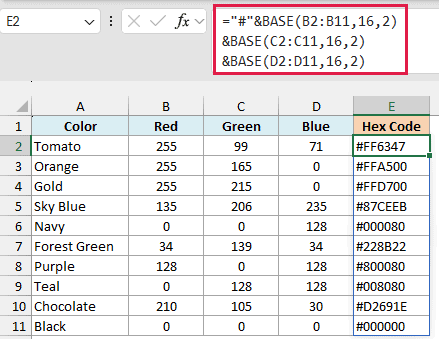
A hex color code is just the red, green, and blue values written in hexadecimal, two characters each, after a # sign. So this formula converts each of the three columns to base 16 and joins the pieces with the & operator.
For Tomato, 255 becomes FF, 99 becomes 63, and 71 becomes 47, which gives #FF6347. That’s the code you can paste into a website, Power BI, or a design tool.
Important: The min_length of 2 is what keeps this working. Without it, a 0 converts to a single 0, so Navy would come out as #0080 instead of #000080, which is the wrong code.
Example 5: Create Short Codes from Long ID Numbers
This next one shows what the higher bases are good for.
Below is a list of 7-digit customer IDs, and I want to turn each one into a short referral code in column B.
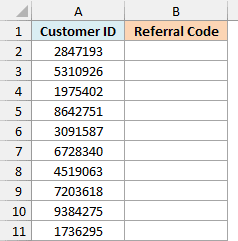
Here is the formula:
=BASE(A2:A11,36)
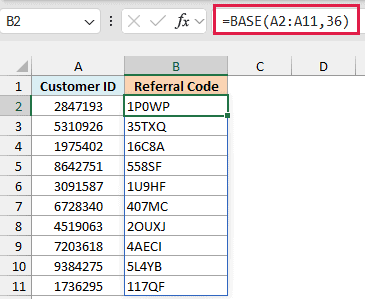
Base 36 uses all ten digits and all 26 letters, so each character carries a lot more information than a regular digit. That’s how a 7-digit ID like 2847193 shrinks to a 5-character code, 1P0WP.
The code isn’t random, so you can always get the ID back. The DECIMAL function with a base of 36 turns 1P0WP back into 2847193.
These codes can mix similar-looking characters, like the digit 0 and the letter O. So they work best where people copy and paste them (like a link), and less well when someone has to read them out or type them by hand.
Example 6: List Every Yes/No Combination of Options
Let’s finish with something a bit more advanced.
Below are three pizza add-ons (Extra Cheese, Mushrooms, and Olives), and I want to list every combination of them, with Yes or No for each add-on, in columns B to D.
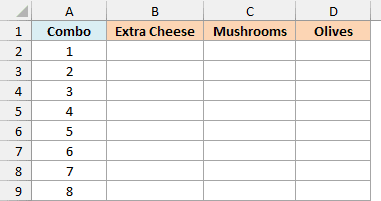
Here is the formula:
=IF(MID(BASE(SEQUENCE(8,1,0),2,3),SEQUENCE(1,3),1)="1","Yes","No")
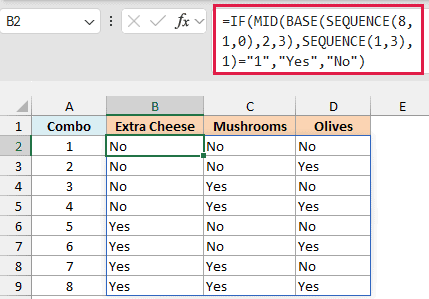
The idea is that each add-on is either on or off, just like a binary digit. Three add-ons give 2 x 2 x 2 = 8 combinations, and the binary numbers from 000 to 111 cover every one of them.
How this formula works:
- SEQUENCE(8,1,0) creates the numbers 0 to 7 in a column.
- BASE(…,2,3) converts each of them to a 3-digit binary value, from 000 to 111. The min_length of 3 keeps the leading zeros.
- MID(…,SEQUENCE(1,3),1) splits each 3-digit value into its three separate digits, one per column.
- IF(…=”1″,”Yes”,”No”) turns every 1 into Yes and every 0 into No.
Note that the SEQUENCE function is only available in Excel 2021, Excel 2024, and Microsoft 365, so this formula won’t work in older versions.
If you add a fourth add-on, change the 8 and both 3s in the formula. Use SEQUENCE(16,1,0) (since 2 x 2 x 2 x 2 is 16), a min_length of 4, and SEQUENCE(1,4).
This trick is great for simple on/off choices. If you need to combine longer lists of items, see how to create all possible combinations from lists in Excel.
So these are some practical ways to use the BASE function in Excel. Use it on its own for quick binary or hex conversions, and add min_length when you need a fixed number of digits.
I hope you found this article helpful.
Other Excel Articles You May Also Like:
