

The BIN2HEX function in Excel converts a binary number (made up of only 0s and 1s) into its hexadecimal version. So 11111111 becomes FF, and 1010 becomes A.
Hexadecimal is a much shorter way to write binary, which is why you see it in color codes, memory addresses, and other computer stuff. If you have binary values in your sheet and need them in hex, this function does it in one step.
There’s also a small catch with this function. It’s one of Excel’s older functions that only accepts values, not a range of cells, so pointing it at a whole range gives you a single #VALUE! error (Example 2 shows the fix).
Follow along with the example file
BIN2HEX Function Examples.xlsx
BIN2HEX Function Syntax
Here is the syntax of the BIN2HEX function:
=BIN2HEX(number, [places])
- number is the binary number you want to convert. It can have at most 10 characters (10 bits). This argument is required.
- places is the number of characters you want in the result. This argument is optional.
When you leave out places, BIN2HEX returns the shortest hex value it can. So =BIN2HEX(1111) gives you F, with no leading zeros.
When you use places, BIN2HEX adds zeros in front of the result until it’s that many characters long. So =BIN2HEX(1111,2) gives you 0F.
The leftmost of the 10 bits tells Excel whether the number is positive or negative. A 10-digit binary number that starts with 1 is read as a negative number, and I’ll cover how that works in Example 5.
The BIN2HEX function works in all Excel versions, including Microsoft 365, Excel 2024, 2021, 2019, 2016, Mac, and the web. The formulas in this tutorial that fill several cells at once need Microsoft 365, Excel 2024, or Excel 2021.
When to Use the BIN2HEX Function
Use this function when you need to:
- Convert a list of binary numbers into hexadecimal.
- Get fixed-width hex codes, such as two-character byte values like 0A or FF.
- Build hex color codes (like #FF6347) from binary red, green, and blue values.
- Check binary homework or work in a computer science or electronics class.
Let me show you a few practical examples of how to use BIN2HEX.
Example 1: Convert Binary to Hex in Excel
Let’s start with a simple example.
Below is a list of binary numbers, and I want to convert each one into hexadecimal in column B.
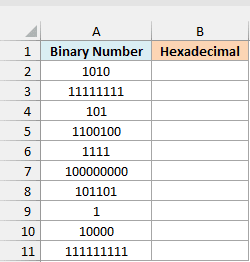
Here is the formula, entered in cell B2 and copied down to B11:
=BIN2HEX(A2)
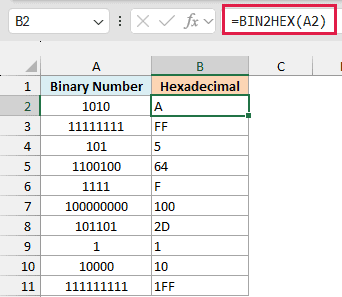
The formula converts each binary number in column A into hex. For example, 1010 becomes A, 11111111 becomes FF, and 111111111 becomes 1FF.
If you want to see how this works, split the binary number into groups of four digits, starting from the right. Each group becomes one hex character, so 11111111 is 1111 and 1111, which is F and F.
Hex uses the digits 0 to 9 and then the letters A to F for the values 10 to 15. That’s why 1010 (which is 10) becomes A, and 1111 (which is 15) becomes F.
Notice that the results are aligned to the left of the cells. That’s because BIN2HEX always returns text, even when the result looks like a number (such as 64 or 100).
Important: BIN2HEX returns a #NUM! error if the number has any digit other than 0 and 1, has a decimal point, or has more than 10 characters. So 1021, 101.1, and a long binary number like 110011001100 all give you #NUM!.
I’ve used one formula per row here because it’s the simplest form, and it works in every Excel version. In the next example, I’ll show you how to convert the whole list with one formula.
Example 2: Convert a Whole List of Binary Numbers With One Formula
Now let’s do the same thing with a single formula.
Below is another list of binary numbers, and I want the hex value of each one in column B using just one formula.
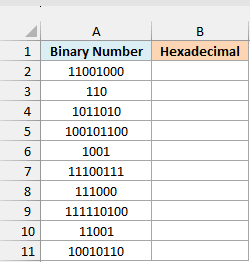
Here is the formula:
=BIN2HEX(+A2:A11)
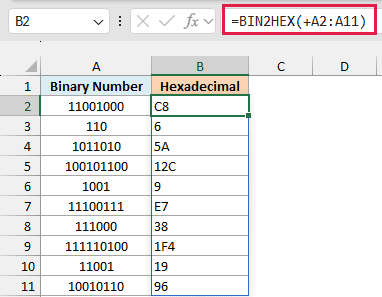
This converts all ten binary numbers at once, and the results spill down from B2 (Excel fills the cells below automatically). For example, 11001000 becomes C8, and 100101100 becomes 12C.
Notice the plus sign before A2:A11. Here is what you get if you leave it out, which I’ve entered in cell D2:
=BIN2HEX(A2:A11)
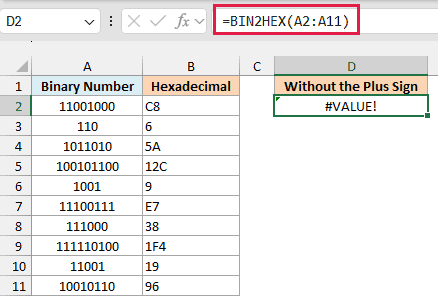
This time there’s just one #VALUE! error in D2, and nothing spills. BIN2HEX is one of the older functions (like the EOMONTH function) that won’t take a range of cells as its input, even in Microsoft 365.
Adding the plus sign turns A2:A11 into a calculation, so Excel reads the values in those cells first. BIN2HEX then gets a list of values instead of a cell range, and it returns one result for each row.
You can read more about this trick in my article on Excel functions that won’t spill.
If you are using Excel 2019 or earlier, enter the below formula in cell B2 and then copy it down to B11:
=BIN2HEX(A2)
Example 3: Add Leading Zeros to BIN2HEX Results
Here’s another practical scenario.
Below is a list of 8-bit binary numbers (up to 8 binary digits each), and I want each one as a two-digit hex code in column B. So 1111 should show as 0F, not just F.
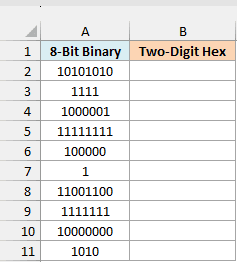
Here is the formula:
=BIN2HEX(+A2:A11,2)
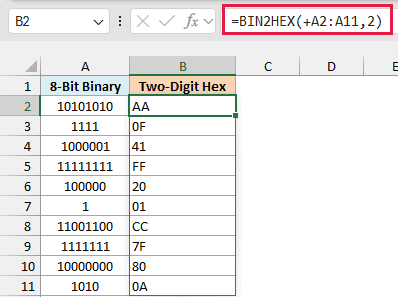
The 2 in the formula is the places argument. It tells BIN2HEX to return two characters, so short results get a zero added in front: 1111 becomes 0F, 1 becomes 01, and 1010 becomes 0A.
Results that are already two characters long (like AA or FF) stay as they are. A byte is 8 bits, and any 8-bit binary number fits in two hex characters, which is why byte values are usually written as two-digit codes.
Important: If the result needs more characters than you ask for, BIN2HEX returns #NUM! instead of cutting it short. For example, =BIN2HEX(111111111,2) fails because 1FF needs three characters.
The places value itself has to be between 1 and 10, and a decimal like 2.9 is cut down to 2. A 0, a negative number, or anything above 10 also gives you #NUM!.
You may be tempted to use the TEXT function to add the zeros, but it doesn’t work reliably here.
TEXT pads results made only of digits (1 becomes 01), but it can’t pad results with letters. So F and A come back without the zero, and you end up with a mixed column.
Example 4: Create Hex Color Codes From Binary RGB Values
Now let’s look at something more interesting.
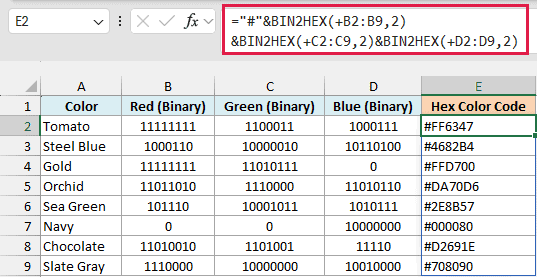
Below is a list of colors with their red, green, and blue values in binary, and I want to build the hex color code for each one in column E.
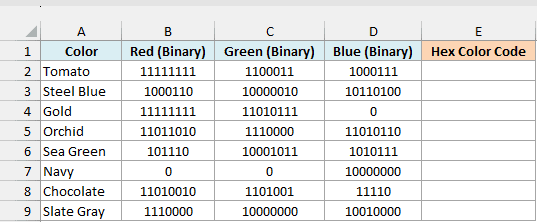
Here is the formula:
="#"&BIN2HEX(+B2:B9,2)&BIN2HEX(+C2:C9,2)&BIN2HEX(+D2:D9,2)
How this formula works:
BIN2HEX(+B2:B9,2)converts the red values into two-character hex codes. The other two BIN2HEX parts do the same for the green and blue values.- The & operator joins the three codes together, with a # in front. So Tomato’s 11111111, 1100011, and 1000111 become FF, 63, and 47, which gives you #FF6347.
A hex color code always has exactly two characters for each color, so the places argument is what makes this work. Gold has a blue value of 0, and with places set to 2, it becomes 00, giving you #FFD700.
Without places, that 0 would come back as a single 0, and you’d get #FFD70, which isn’t a valid color code. You can paste any of these codes into a web page or a design tool that takes hex colors to get that exact color.
Example 5: Convert Negative Binary Numbers to Hex
Let’s step it up with a trickier case.
Below is a list of 10-bit binary numbers (some positive and some negative), and I want their hex values in column B, with the positive ones padded to four characters.
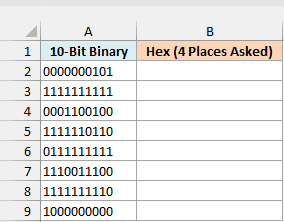
Here is the formula:
=BIN2HEX(+A2:A9,4)
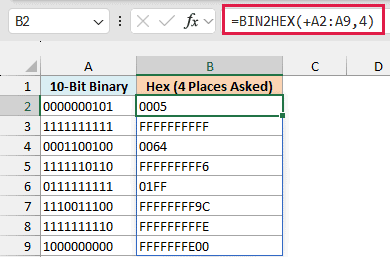
The binary numbers that start with 0 are positive, so they convert normally and get padded to four characters. For example, 0000000101 becomes 0005, and 0111111111 becomes 01FF.
The ones that start with 1 are negative. BIN2HEX reads the leftmost of the 10 bits as the sign, and uses a system called two’s complement for negative numbers.
An easy way to read a negative 10-bit number is to count the leftmost bit as -512 and add the other bits as usual. So 1111110110 is -512 + 502, which is -10, and its hex result is FFFFFFFFF6.
In the same way, 1111111111 means -1 (FFFFFFFFFF), and 1000000000 means -512, which is the smallest number BIN2HEX can take.
You’ll notice that every negative result is 10 characters long, even though I asked for 4. That’s because BIN2HEX ignores the places argument for negative numbers and always returns 10 hex characters.
I’ve stored these binary numbers as text so that the leading zeros show in the cells. If you type 0000000101 into a normal cell, Excel drops the zeros and keeps 101, which still converts to 5.
Important: When a binary number is stored as text, the leading zeros count toward the 10-character limit, and the plus sign in the formula doesn’t remove them. So the text 00000001111 (11 characters) returns #NUM!, even though 1111 on its own converts to F.
If you need the decimal value of these negative numbers, the BIN2DEC function reads them the same way and returns -1, -2, -512, and so on.
Example 6: Convert Binary Longer Than 10 Bits to Hex
Now let’s look at what to do when your binary numbers are too long for BIN2HEX.
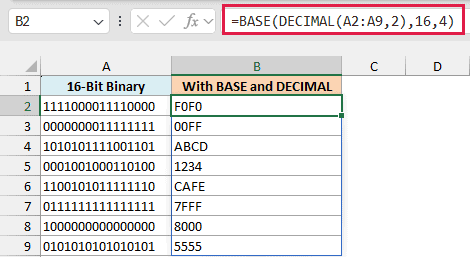
Below is a list of 16-bit binary numbers, and I want to convert each one into a four-character hex value in column B.
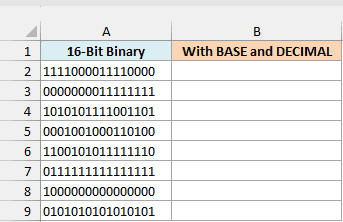
BIN2HEX can’t do this on its own, because each of these binary numbers is 16 characters long and BIN2HEX only takes 10. Instead, you can combine the DECIMAL function with the BASE function.
Here is the formula in cell B2:
=BASE(DECIMAL(A2:A9,2),16,4)
How this formula works:
DECIMAL(A2:A9,2)reads each binary number (base 2) and turns it into a regular decimal number. For example, 1111000011110000 becomes 61680.BASE(...,16,4)converts that decimal number into base 16, which is hexadecimal. The 4 makes sure every result is at least four characters long, so 0000000011111111 becomes 00FF and not just FF.
Unlike BIN2HEX, both these functions accept a range directly, so you don’t need the plus sign here.
To show you what BIN2HEX does with these numbers, I’ve entered it in cell D2:
=BIN2HEX(+A2:A9)
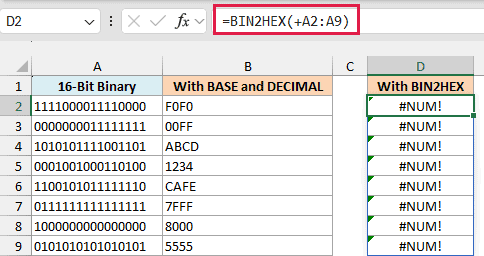
Every result is a #NUM! error, because each binary number has more than 10 characters.
The BASE and DECIMAL functions were added in Excel 2013. If you are using Excel 2013, 2016, or 2019, enter the below formula in cell B2 and then copy it down to B9:
=BASE(DECIMAL(A2,2),16,4)
I’ve stored the 16-bit numbers as text, and you should do the same with your data. Excel only keeps 15 digits in a number, so a 16-digit binary number typed into a normal cell gets its last digit changed to 0.
Important: This method reads every binary number as positive, so it doesn’t use the sign bit like BIN2HEX does. It also works only up to 53 bits, and a longer binary number returns #NUM!.
In this tutorial, I showed you how the BIN2HEX function works, how to convert a whole list with the plus-sign trick, and how to add leading zeros with the places argument.
I also showed you how to build hex color codes, how BIN2HEX handles negative binary numbers, and what to do when a binary number is longer than 10 bits. I hope you found this tutorial useful.
Other Excel Articles You May Also Like:
