

The SUMSQ function in Excel squares each number you give it and then adds all those squares together. So instead of squaring every value in a helper column and summing that column, you point SUMSQ at the range and get the total in one step.
It comes in handy whenever you need to add up squared values, such as when you’re working out areas or distances. In this article, I’ll show you how SUMSQ works with a few practical examples.
Follow along with the example file
SUMSQ Function Examples.xlsx
SUMSQ Function Syntax
Here is the syntax of the SUMSQ function:
=SUMSQ(number1, [number2], ...)
- number1 – The first number, cell, or range whose values you want to square and add. This argument is required.
- [number2], … – Optional. More numbers, cells, or ranges to include. You can use up to 255 arguments in total.
SUMSQ squares first and then adds. So =SUMSQ(3,4) returns 25 (9 plus 16), not 49, which is what you’d get if you added 3 and 4 first and then squared the total.
When you give SUMSQ a range, it only uses the numbers in it. Blank cells, text, and TRUE or FALSE values are skipped, so a column with a few gaps or notes doesn’t cause an error.
That also means a number stored as text is skipped, and your total comes out lower without any warning. If a result looks too small, check the range for numbers that are left-aligned or show a green triangle in the corner.
Errors work differently. If any cell in the range has an error, such as #N/A or #DIV/0!, SUMSQ returns that same error, so fix the source cell first.
The SUMSQ function works in all Excel versions, including Microsoft 365, 2024, 2021, 2019, 2016, Mac, and the web.
When to Use the SUMSQ Function
Use this function when you need to:
- Add up the areas of square items, like rooms, tabletops, or tiles
- Find a diagonal or straight-line distance from two sides
- Measure how far forecasts or estimates were off from the actual numbers
- Get the sum of squares of a number series
- Square and add only the values that meet a condition
Let me show you a few practical examples of how to use SUMSQ in Excel.
Example 1: Calculate the Sum of Squares for a Range
Let’s start with a simple example.
Below is a list of square rooms in a house with the length of one side in feet, and I want to get their total floor area in square feet in cell D2.
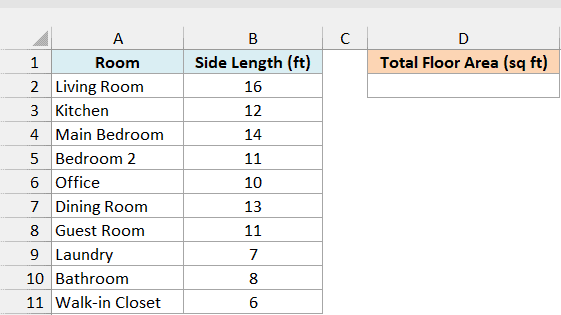
Here is the formula:
=SUMSQ(B2:B11)
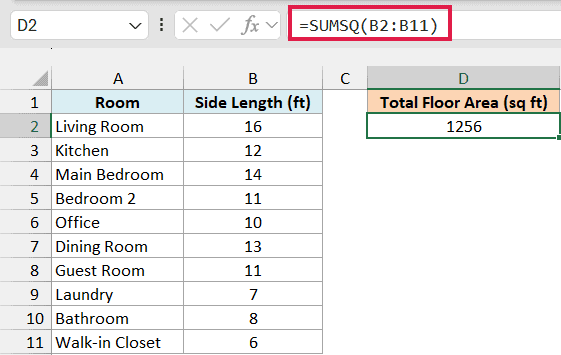
This returns 1256.
Since each room is a square, its floor area is the side length multiplied by itself.
SUMSQ squares every side length in B2:B11 (16 becomes 256, 12 becomes 144, and so on) and then adds all those squares, which gives the total floor area of all ten rooms.
Without SUMSQ, you’d have to square a number in a helper column for every room and then add that column with the SUM function. SUMSQ does both steps in one formula.
Example 2: Use SUMSQ With Multiple Ranges
Here’s another practical scenario.
Below are two lists of square tabletops at a cafe, one for the indoor tables and one for the patio, and I want the total tabletop area of both in cell G2.
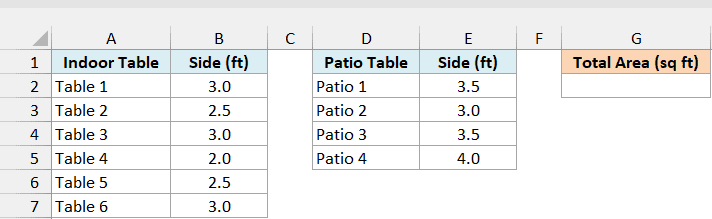
Here is the formula:
=SUMSQ(B2:B7,E2:E5)
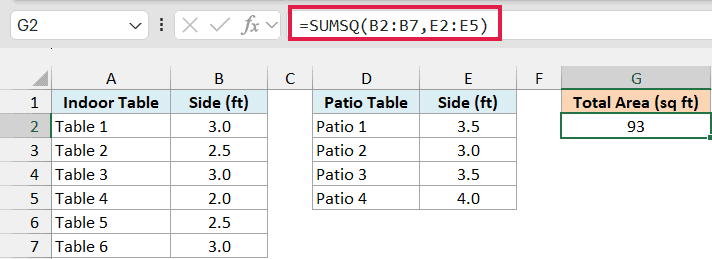
This returns 93 square feet.
Each range goes in as its own argument, separated by a comma. SUMSQ squares the side lengths of the indoor tables in B2:B7 and the patio tables in E2:E5, and then adds all of them into one total.
This is useful when the numbers you need don’t sit in one continuous block. You can also add a single cell or a typed number as another argument, and SUMSQ squares it along with the rest.
Example 3: Find a Screen’s Diagonal With SQRT and SUMSQ
Now let’s look at something a bit more interesting.
Below I have a list of TVs, monitors, and other screens with their width and height in inches, and I want to calculate the diagonal size of each screen in column D.
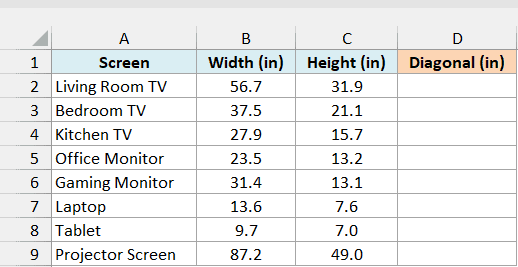
Enter the below formula in cell D2 and copy it down to D9:
=SQRT(SUMSQ(B2:C2))
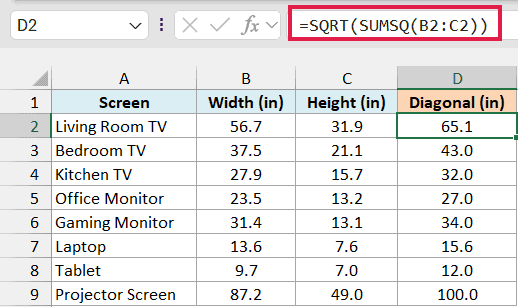
Screen sizes are measured on the diagonal, and the Pythagorean theorem says the diagonal is the square root of width squared plus height squared.
SUMSQ(B2:C2) squares the width and height and adds them, and the SQRT function then takes the square root of that total.
So the living room TV, at 56.7 by 31.9 inches, comes out to 65.1 inches. That’s a 65-inch TV.
This one has to be a per-row formula. SUMSQ always returns a single value, so if you pointed it at the whole B2:C9 range, you’d get one number for all eight screens squashed together.
Example 4: Get the Sum of Squares From 1 to N
Here’s a quick one if you work with number series.
Below I have a number n in cell B1, and I want the sum of the squares of every whole number from 1 to n in cell B2.
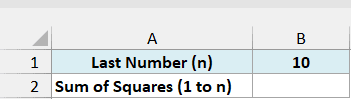
Here is the formula:
=SUMSQ(SEQUENCE(B1))
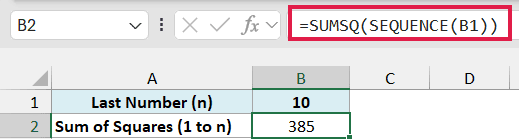
This returns 385 for n = 10.
SEQUENCE(B1) creates the list of numbers from 1 to 10 inside the formula, and SUMSQ squares each one and adds them up. Change B1 to 100 and you get 338350 right away, with no list of numbers anywhere on the sheet.
The SEQUENCE function is only available in Excel 365, 2021, and 2024. If you are using Excel 2019 or earlier, enter the below formula in cell B2 instead, which uses the math shortcut for this sum:
=B1*(B1+1)*(2*B1+1)/6
Example 5: Calculate the Sum of Squared Errors in Excel
Let’s step it up with a more advanced use case.
Below I have the forecast high temperature and the actual high for ten days, and I want to measure how far off the forecasts were, starting with the sum of squared errors in cell B13.
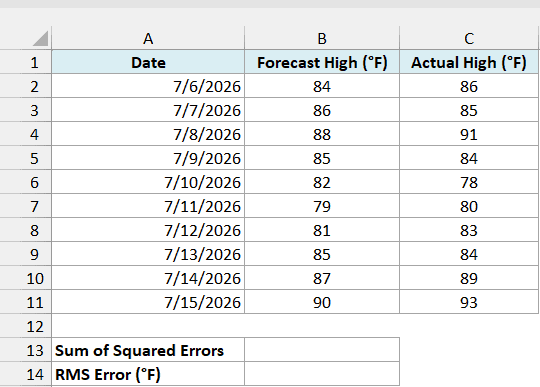
Here is the formula:
=SUMSQ(C2:C11-B2:B11)
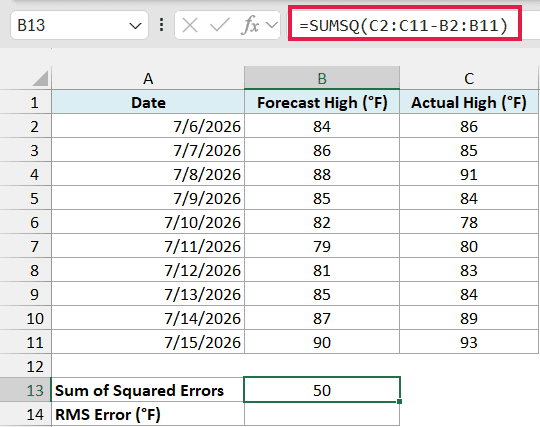
This returns 50.
How this formula works:
- C2:C11-B2:B11 subtracts each day’s forecast from the actual high, which gives the miss for each day (2, -1, 3, and so on).
- SUMSQ squares each of those misses and adds them up.
- Squaring turns every miss into a positive number, so a forecast that was 2 degrees too low counts the same as one that was 2 degrees too high. It also makes bigger misses count a lot more than small ones.
Subtracting one range from another inside SUMSQ like this works as a regular formula in Excel 365, 2021, and 2024. If you are using Excel 2019 or earlier, enter the below formula in cell B13 instead:
=SUMPRODUCT((C2:C11-B2:B11)^2)
If you’d rather not do the subtraction yourself, Excel’s SUMXMY2 function is built for this exact calculation. It returns the same 50 when you give it the actual and forecast ranges.
A sum of squared errors grows as you add more days, so on its own it’s hard to read.
To turn it into a typical miss in degrees, you can take the square root of the average squared error (called the RMS error) in cell B14.
Here is the formula:
=SQRT(B13/COUNT(C2:C11))
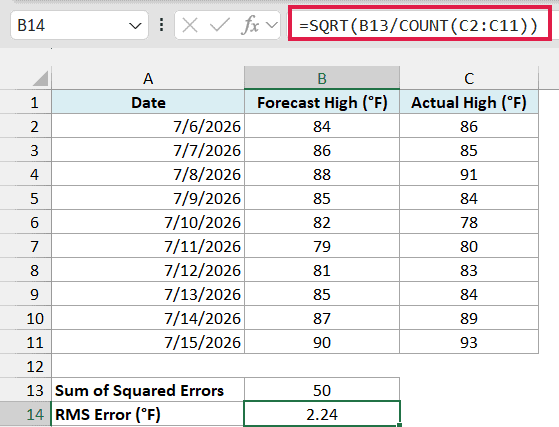
This returns 2.24, so the forecasts were off by about 2.2 degrees on a typical day.
B13/COUNT(C2:C11) divides the sum of squared errors by the 10 days to get the average squared error. SQRT then brings that back to degrees, so you can compare it directly with the temperatures.
Example 6: Sum of Squares With a Condition (SUMSQ With FILTER)
Now let’s add a condition.
Below I have a list of square photo print orders with the print size (the length of one side in inches) and the finish, and I want the total area of the glossy prints in square inches in cell E2.
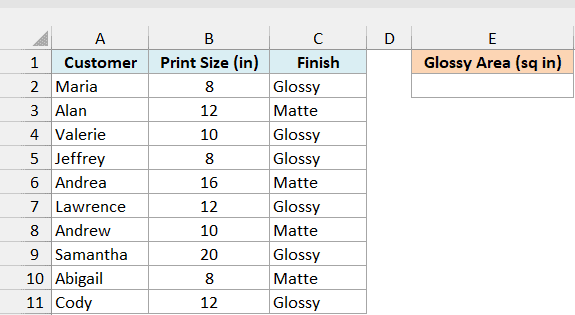
Here is the formula:
=SUMSQ(FILTER(B2:B11,C2:C11="Glossy",0))
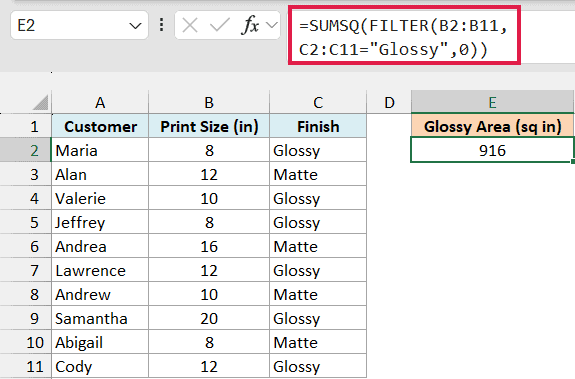
This returns 916.
How this formula works:
- FILTER(B2:B11,C2:C11=”Glossy”,0) returns only the print sizes where the finish is Glossy (8, 10, 8, 12, 20, and 12).
- SUMSQ squares those sizes and adds them up, which gives 916 square inches of glossy prints.
- The 0 at the end is what FILTER returns when no row matches. Without it, a finish with no orders makes FILTER return a #CALC! error, and SUMSQ passes that error on.
There is no SUMSQIF function in Excel, so wrapping SUMSQ around FILTER is the cleanest way to square and add only the rows that meet a condition.
The FILTER function is only available in Excel 365, 2021, and 2024. If you are using Excel 2019 or earlier, enter the below formula in cell E2 instead:
=SUMPRODUCT((C2:C11="Glossy")*B2:B11^2)
So these are some practical ways to use the SUMSQ function in Excel.
On its own, it squares and adds a list in one step, and paired with SQRT, SEQUENCE, or FILTER, it handles diagonals, number series, forecast errors, and conditional totals.
I hope you found this Excel tutorial useful.
Other Excel Articles You May Also Like:
