

The EXPON.DIST function in Excel returns the exponential distribution. In plain words, it tells you how likely it is that the next event happens within a certain amount of time, when events happen at a steady average rate.
Think of shoppers walking into a store, taxis pulling up at a stand, or orders coming into an online shop. You know roughly how many show up per minute or per hour, but the gaps between them are random.
The one thing to watch is the time unit. If the rate and the time aren’t in the same unit, the function still returns a result, it’s just the wrong one (Example 5 shows how to avoid this).
Follow along with the example file
EXPON.DIST Function Examples.xlsx
EXPON.DIST Function Syntax
Here is the syntax of the EXPON.DIST function:
=EXPON.DIST(x, lambda, cumulative)
- x – The amount of time (or any other measure) you want the probability for. It can’t be negative.
- lambda – The rate, which is the average number of events per unit of time (for example, 1.5 shoppers per minute). It must be greater than 0.
- cumulative – A TRUE or FALSE value that decides what you get back.
When cumulative is TRUE, you get the probability that the next event happens within x. This is the one you’ll use most of the time.
When cumulative is FALSE, you get the density instead, which is not a probability (Example 6 explains the difference).
If x is negative, or lambda is 0 or negative, EXPON.DIST returns the #NUM! error. If x or lambda is text that isn’t a number, you get the #VALUE! error.
The EXPON.DIST function works in Excel 2010 and later versions, including Excel for Microsoft 365 (Windows and Mac), 2024, 2021, 2019, and 2016.
When to Use the EXPON.DIST Function
Use this function when you need to:
- Find the chance that the next customer, order, or call comes within a certain time
- Find the chance that you’ll have to wait longer than a certain time
- Work out the probability for any waiting time when you only know the average rate or the average gap between events
Let me show you a few practical examples of how to use the EXPON.DIST function.
Example 1: Exponential Probability of an Arrival Within a Time
Let’s start with a simple example.
Below I have a store where, on average, 1.5 shoppers walk in every minute, and I want to find the probability that the next shopper walks in within 1 minute in cell B5.
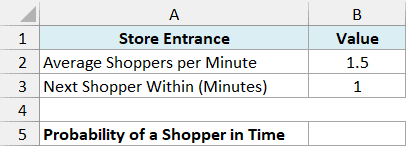
Here is the formula:
=EXPON.DIST(B3,B2,TRUE)
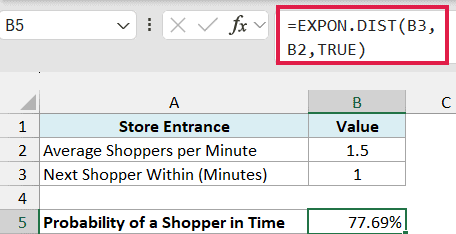
The formula returns 77.69%, so there’s roughly a 78% chance the next shopper walks in within a minute.
Here, B3 is the time (1 minute), B2 is the rate (1.5 shoppers per minute), and TRUE tells EXPON.DIST to give the probability of the event happening within that time.
The rate and the time are both in minutes here, so the formula works as is.
Example 2: Probability of Waiting Longer Than a Time
Now let’s flip the question around and look at waiting longer than a certain time.
Below I have a list of waiting times at a taxi stand where, on average, 0.2 taxis arrive every minute (one every 5 minutes), and I want to get the probability of waiting longer than each time in column B.
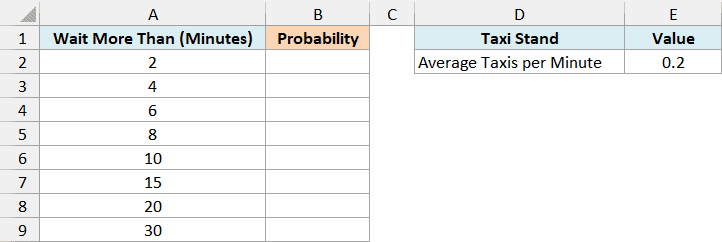
Here is the formula:
=1-EXPON.DIST(A2:A9,E2,TRUE)
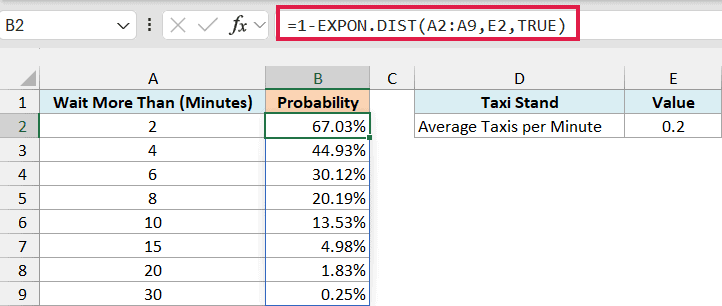
You only need to enter the formula in cell B2, and the results spill down into B2:B9. Spilling needs Excel for Microsoft 365 or Excel 2021 and later.
EXPON.DIST with TRUE gives the chance of a taxi arriving within each time. Subtracting that from 1 gives the chance that no taxi arrives in that time, which means you’re still waiting.
So there’s a 67.03% chance you’ll wait more than 2 minutes, a 13.53% chance you’ll wait more than 10 minutes, and only a 0.25% chance you’ll wait more than half an hour.
The exponential distribution also has no memory. Even if you’ve already waited 5 minutes, the chance of waiting more than 10 more minutes is still 13.53%, the same as when you first walked up.
Important: EXPON.DIST treats a blank cell as 0 and doesn’t show an error. So if a time is missing from your list, this formula returns 100.00% for it, which looks like a real answer.
If you are using Excel 2019 or earlier, enter the below formula in cell B2 and then copy it down the range:
=1-EXPON.DIST(A2,$E$2,TRUE)
The dollar signs make E2 an absolute reference, so the rate stays fixed as you copy the formula down.
Example 3: Probability Between Two Times
Next, let’s find the chance that something happens between two times, not just before one.
Below I have a food truck that gets, on average, 0.6 customers every minute, and I want to find the probability that the next customer shows up between 2 and 5 minutes from now in cell B6.
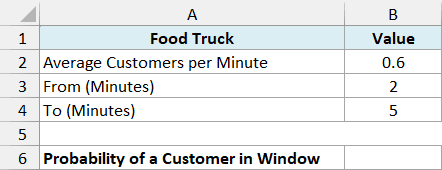
Here is the formula:
=EXPON.DIST(B4,B2,TRUE)-EXPON.DIST(B3,B2,TRUE)
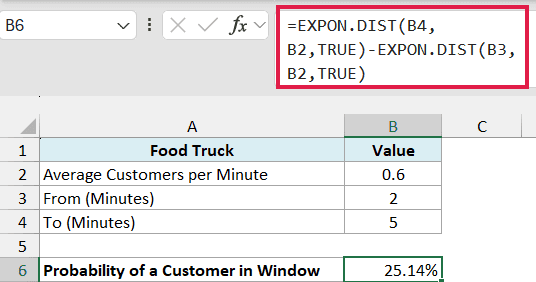
This returns 25.14%, so about one time in four, the next customer arrives somewhere between the 2-minute and 5-minute mark.
How this formula works:
- EXPON.DIST(B4,B2,TRUE) gives the chance that the next customer arrives within 5 minutes, which is 95.02%.
- EXPON.DIST(B3,B2,TRUE) gives the chance that the next customer arrives within 2 minutes, which is 69.88%.
- Subtracting the second from the first leaves only the part between 2 and 5 minutes.
Make sure the larger time goes in the first EXPON.DIST. If you swap them, you get the same number as a negative.
Example 4: Use the Average Time Between Events
Quite often, you don’t know the rate. What you know is the average time between two events.
Below I have a small business that gets a customer complaint every 6 days on average, and I want to find the probability that the next complaint comes in within 3 days in cell B5.
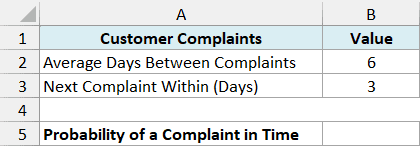
Here is the formula:
=EXPON.DIST(B3,1/B2,TRUE)
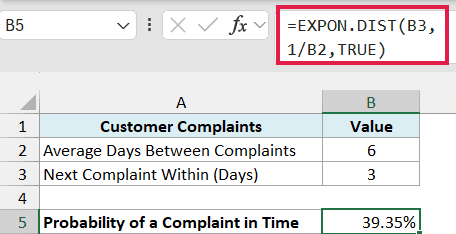
This returns 39.35%, so there’s about a 39% chance of a complaint in the next 3 days.
The trick is the 1/B2 part. Lambda is a rate (events per day), and a complaint every 6 days on average works out to 1/6 of a complaint per day.
So dividing 1 by the average gap turns it into the rate EXPON.DIST needs.
If you put 6 directly in the lambda argument, Excel reads it as 6 complaints per day, and you’d get a probability close to 100%.
Example 5: Convert the Rate to the Same Time Unit
This next one is the mistake I mentioned at the start, and it’s an easy one to make.
Below I have an online store that gets 40 orders per hour on average, and I want to find the probability that the next order comes in within 2 minutes in cell B5.
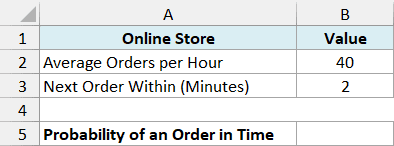
The rate is per hour, but the time is in minutes. So before using the rate, we need to turn it into orders per minute.
Here is the formula:
=EXPON.DIST(B3,B2/60,TRUE)
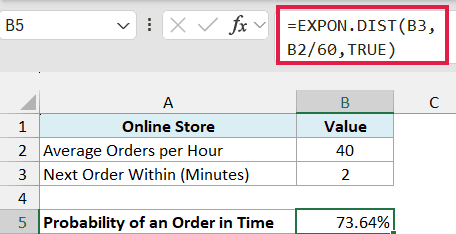
This returns 73.64%. Dividing B2 by 60 turns 40 orders per hour into about 0.67 orders per minute, so both the rate and the time are now in minutes.
Important: If you skip the conversion, =EXPON.DIST(B3,B2,TRUE) returns 100.00%, because Excel reads it as 40 orders per minute. There’s no error to warn you, so always check that the rate and the time use the same unit.
Example 6: Get the Exponential Distribution Density
So far, every formula has used TRUE in the last argument. Now let’s see what FALSE gives you.
Below I have a list of times at a movie theater ticket counter that gets 1.2 customers per minute on average, and I want to get the density for each time in column B and the cumulative probability in column C.
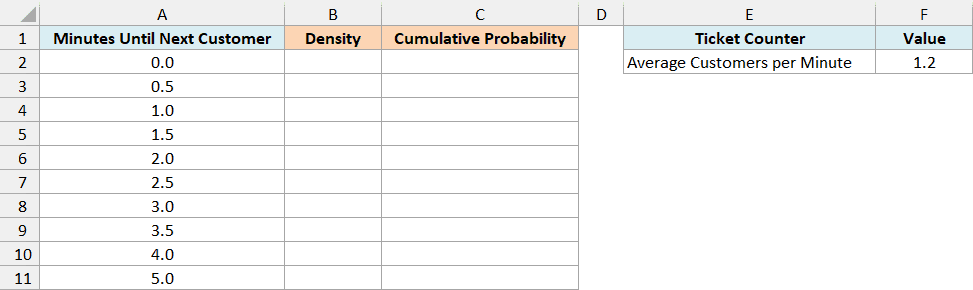
Here is the formula for the density:
=EXPON.DIST(A2:A11,F2,FALSE)
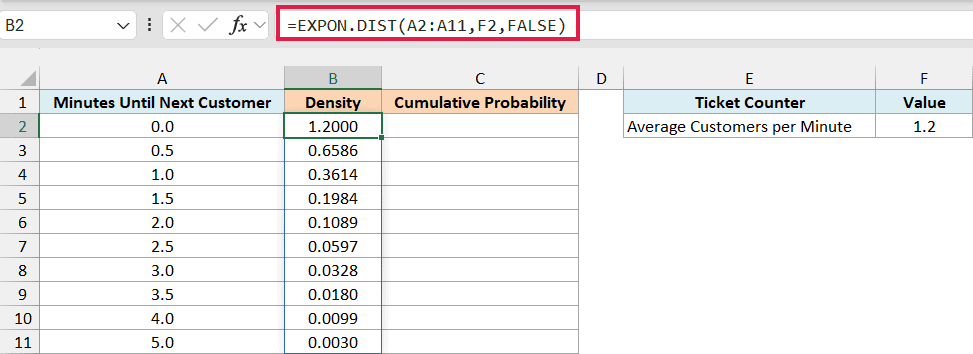
The density starts at 1.2000 for 0 minutes and keeps dropping as the time goes up. It always starts at the rate itself (1.2 here), which is why the first value is more than 1.
That’s also the reason the density isn’t a probability, because a probability can never go above 1. Think of it as the height of the exponential curve at each time, which is handy when you want to plot that curve in a scatter chart.
Now here is the formula for the cumulative probability:
=EXPON.DIST(A2:A11,F2,TRUE)
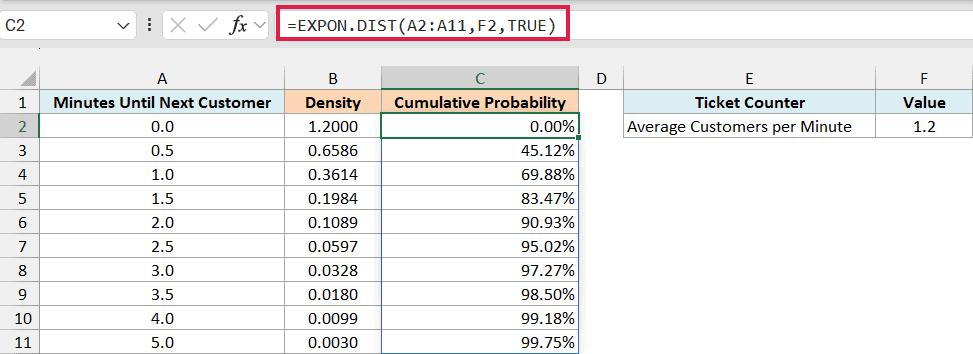
This is the probability that the next customer arrives within each time. It starts at 0.00% and climbs toward 100%, reaching 69.88% at 1 minute and 99.75% at 5 minutes.
If you are using Excel 2019 or earlier, enter the below formula in cell B2 for the density and then copy it down the range:
=EXPON.DIST(A2,$F$2,FALSE)
And enter this one in cell C2 for the cumulative probability, and copy it down too:
=EXPON.DIST(A2,$F$2,TRUE)
Example 7: Compare Several Rates with One Formula
Let’s end with an example that shows how neatly EXPON.DIST works with dynamic arrays.
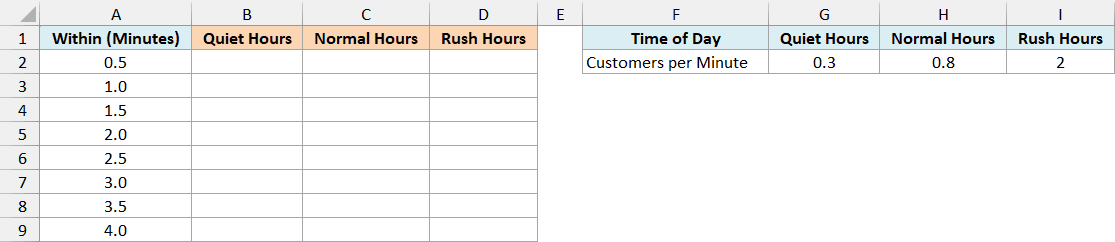
Below I have a grocery store checkout line that gets 0.3, 0.8, and 2 customers per minute in quiet, normal, and rush hours, and I want the probability of the next customer arriving within each time for all three in B2:D9.
Here is the formula:
=EXPON.DIST(A2:A9,G2:I2,TRUE)
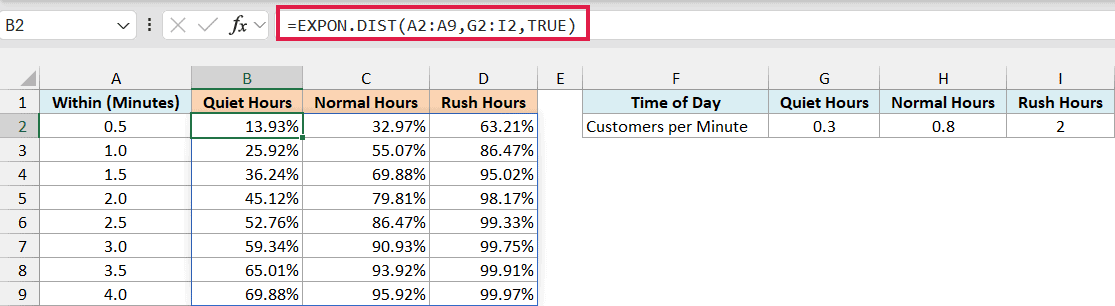
This one formula in B2 fills the whole grid. The times in A2:A9 go down the rows, the three rates in G2:I2 go across the columns, and EXPON.DIST calculates every combination.
You can see how much the rate matters here. Within 2 minutes, the chance of a new customer is 45.12% in quiet hours, 79.81% in normal hours, and 98.17% during the rush.
If you are using Excel 2019 or earlier, enter the below formula in cell B2 and then copy it across to D2 and down to row 9:
=EXPON.DIST($A2,G$2,TRUE)
The dollar sign before A keeps the formula pointing at the times in column A, and the one before 2 keeps it pointing at the rates in row 2.
So these are seven examples of how you can use the EXPON.DIST function in Excel, covering waiting times, time windows, unit conversions, and the density curve.
I hope you found this article helpful.
Other Excel Articles You May Also Like:
