

The WEIBULL.DIST function in Excel calculates probabilities using a Weibull distribution, a mathematical model often used to describe how long components last. With a suitable model, you can estimate the chance that a component fails within a given number of hours.
I’ll show you how to calculate failure probabilities, survival chances, and the chance of failure within a time interval. We’ll also look at probability density, which describes the height of the model’s probability curve.
Follow along with the example file
WEIBULL.DIST Function Examples.xlsx
WEIBULL.DIST Function Syntax
Here is the syntax of the WEIBULL.DIST function:
=WEIBULL.DIST(x,alpha,beta,cumulative)
All four arguments are required:
- x is the value you want to test, such as the number of hours a component has been used. It must be zero or greater.
- alpha is the shape parameter, which controls the shape of the distribution. It must be greater than zero.
- beta is the scale parameter, which stretches or compresses the distribution along the x-axis. It must be greater than zero and use the same units as x.
- cumulative chooses the calculation: TRUE returns the probability of a value at or below x, while FALSE returns the probability density at x. Density is the height of a curve showing how values are distributed.
When you set cumulative to TRUE, the result is between 0 and 1, so you can display it as a percentage. Setting cumulative to FALSE gives a density value, which should stay as a decimal because it isn’t a probability percentage.
For a lifetime model, alpha below 1 means the failure rate decreases with age, alpha equal to 1 means it stays constant, and alpha above 1 means it increases. Here, failure rate describes how quickly failures occur among the items still working.
WEIBULL.DIST is available in Excel 2010 and later. The range formulas below use dynamic arrays in Microsoft 365, Excel 2024, Excel 2021, or Excel for the web.
When to Use the WEIBULL.DIST Function
Use this function when you already know the shape and scale parameters and need to:
- Estimate the probability of failure by a specified age.
- Find the chance that an item lasts beyond a time limit.
- Calculate the probability of an event within a time interval.
- Calculate density values for a Weibull curve.
Let’s work through these using the example workbook. The first three examples use the same illustrative cooling-fan model so you can compare the results.
Example 1: Calculate Cumulative Failure Probability
Suppose a rental company models the life of projector cooling fans with a shape of 2 and a scale of 2,400 hours. These are assumed values for the example, not parameters estimated from actual fan records.
Below is a list of operating times for this fan model, and I want the probability of failure by each time in column B.
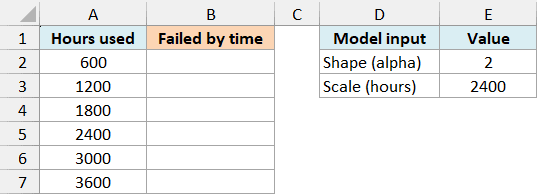
On the Failed by Time sheet, enter this formula in cell B2:
=WEIBULL.DIST(A2:A7,$E$2,$E$3,TRUE)
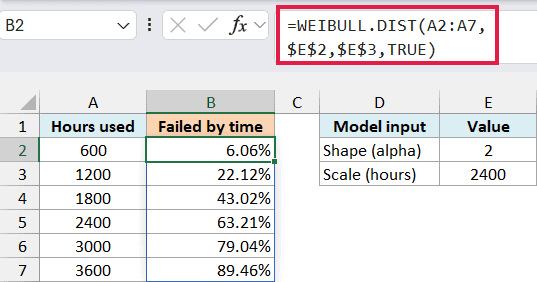
The formula returns six probabilities, one for each time in A2:A7. Excel spills the answers down from B2, so you don’t need to copy the formula into the other result cells.
Here, E2 supplies the shape and E3 supplies the scale. Setting the cumulative argument to TRUE tells Excel to calculate the probability of failure by each time.
The dollar signs in $E$2 and $E$3 make them absolute references, so these parameter cells stay fixed if you copy the formula elsewhere.
The first result is about 0.060587, displayed as 6.06%. Under this model, a fan has about a 6.06% chance of failing within its first 600 operating hours.
At 2,400 hours, the result is 63.21%. This is the meaning of the scale parameter: when x equals beta, the cumulative probability is about 63.21%, whatever positive shape parameter you use.
That doesn’t mean the average fan life is 2,400 hours. The scale parameter generally differs from the mean, and WEIBULL.DIST doesn’t calculate the mean for you.
The workbook already uses Percentage format with two decimal places. If you’re creating your own sheet, format the probability results as percentages to show 6.06% instead of 0.060587.
Important: WEIBULL.DIST evaluates the model you supply. It doesn’t estimate alpha and beta from your observations, so real failure forecasts need parameters fitted to appropriate data.
If the formula returns #SPILL!, check for existing content in the cells below B2 and move anything blocking the results. If Excel has added an @ before the function, remove it when you want the full range of answers.
Negative times or a shape or scale of zero or less return #NUM!. Nonnumeric text in these arguments returns #VALUE!, so keep the units in the labels and enter the inputs as numbers.
If you’re using Excel 2019 or earlier, enter the following formula in B2 and copy it down to B7:
=WEIBULL.DIST(A2,$E$2,$E$3,TRUE)
This evaluates one time per row. You can use the same single-row approach for the later examples if your version doesn’t support spilling.
Example 2: Find the Survival Probability
The previous example calculated the probability that a fan fails by each time. A fan either fails by that time or lasts longer, so subtracting the failure probability from 1 gives the chance that it lasts longer.
Below is the same set of operating times, and I want the probability of a fan surviving beyond each time in column B.
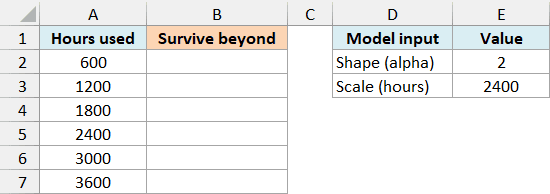
On the Survival sheet, enter this formula in B2:
=1-WEIBULL.DIST(A2:A7,$E$2,$E$3,TRUE)
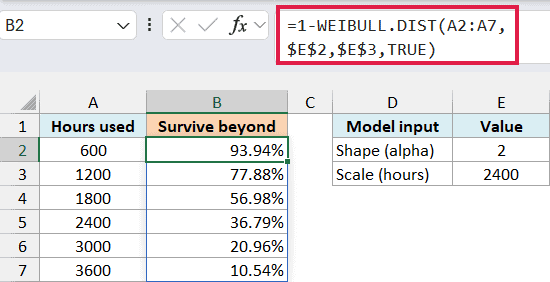
At 1,200 hours, the cumulative failure probability is about 22.12%. Subtracting it from 100% gives a 77.88% chance that a new fan lasts longer than 1,200 hours.
At 2,400 hours, survival is 36.79%. It complements the 63.21% failure probability from the first example.
Each result starts from a new fan at time zero. It doesn’t tell you how much longer a particular fan will last after it has already survived several thousand hours.
Important: At very long lifetimes, Excel may round the cumulative failure probability to 1, making this subtraction return zero. Don’t interpret that zero as an impossible survival chance; this formula can lose accuracy for extremely small probabilities.
The survival probabilities in this example are large enough that this rounding issue doesn’t affect the displayed results.
Example 3: Find Probability Between Two Times
Sometimes you need the chance of failure during a particular operating period. Subtract the cumulative probability at the beginning of the period from the cumulative probability at its end.
Below are six operating-time intervals for the fan model, and I want the probability of failure within each interval in column C.
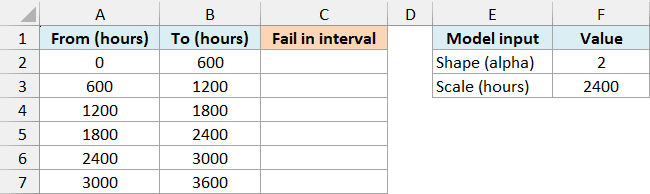
On the Time Intervals sheet, enter this formula in C2:
=WEIBULL.DIST(B2:B7,$F$2,$F$3,TRUE)-WEIBULL.DIST(A2:A7,$F$2,$F$3,TRUE)
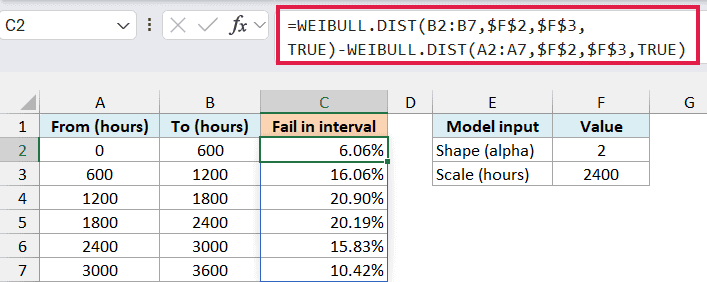
How this formula works:
- The first WEIBULL.DIST calculates the probability of failure by each ending time in column B.
- The second calculates the probability of failure by each starting time in column A.
- Subtracting the second result removes the probability of failure before the interval, leaving the probability within it.
For the interval from 1,200 to 1,800 hours, the result is 20.90%. The cumulative probability rises from about 22.12% to 43.02% over that period.
This is the probability that a new fan’s eventual failure time falls within the interval. It isn’t the probability of failure among only the fans that have already survived to the starting time.
Make sure each ending time is at least as large as its starting time. Reversing them gives a negative answer, which cannot be a probability.
For intervals at very long operating times, both cumulative probabilities can round to 1. Their difference then becomes zero even when a tiny chance of failure remains, so this subtraction is unsuitable when you need accurate probabilities for those extreme intervals.
Example 4: Calculate Weibull Probability Density
Setting the cumulative argument to FALSE gives probability density instead of the chance of finishing by a specified time. This example shows how to interpret that density value.
Suppose a coating’s curing time follows an illustrative Weibull model with a shape of 3 and a scale of 45 minutes. As with the fan model, these parameters are assumed for the example.
Below are curing times for this model, and I want the density at each time in column B.
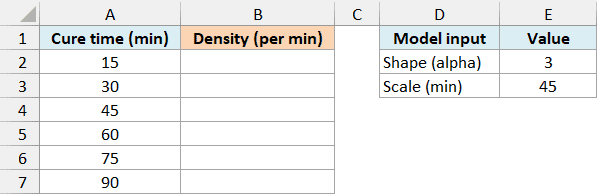
On the Curing Density sheet, enter this formula in B2:
=WEIBULL.DIST(A2:A7,$E$2,$E$3,FALSE)
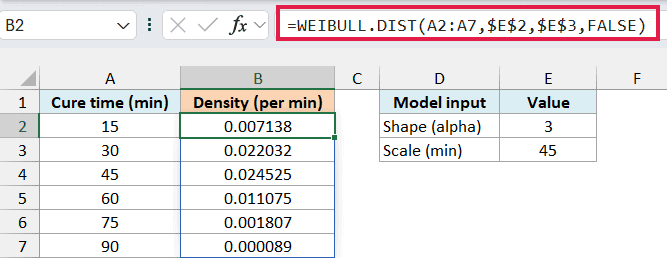
At 45 minutes, the density is approximately 0.024525 per minute. This is the height of the density curve at that time.
Probability comes from the area under the curve over an interval. For example, to find the chance of curing between 30 and 45 minutes, use the cumulative-probability subtraction from Example 3 with this curing model’s parameters.
Important: The density value 0.024525 doesn’t mean a 2.4525% chance of curing at exactly 45 minutes. A continuous model assigns zero probability to an exact instant, so keep density results as decimals rather than percentages.
The workbook displays six decimal places so you can read the small densities. Changing this display format doesn’t change the values Excel uses in calculations.
You may see the older WEIBULL function in existing workbooks. Microsoft keeps it for compatibility and recommends WEIBULL.DIST for new work.
Use TRUE for the cumulative argument when you want probabilities, including the failure and survival calculations shown above. Set cumulative to FALSE when you need density values, and keep those results as decimals rather than percentages.
Other Excel Articles You May Also Like:
