

The MAXA function in Excel finds the largest value in a set of values. When you give it a cell range, it also counts TRUE as 1, FALSE as 0, and text as 0.
This makes it useful when TRUE and FALSE belong in your calculation. But it can also give you a surprising answer when your data contains negative numbers or numbers stored as text.
In this article, I’ll show you four examples of how to use the MAXA function and when its treatment of text and logical values matters. Each MAXA formula returns one value, even when you give it a range.
Follow along with the example file
MAXA Function Examples.xlsx
MAXA Function Syntax
Here is the syntax of the MAXA function:
=MAXA(value1,[value2],...)
- value1: The first value or group of values to compare. This is required and can be a number, cell reference, range, or array.
- value2, …: Additional values or groups of values to compare. These are optional, and you can supply up to 255 arguments in total.
A range counts as one argument, regardless of how many cells it contains. You can also supply separate ranges or individual values in the same formula.
The MAXA function is available in Excel 365, 2024, 2021, 2019, and 2016, including supported Mac versions.
When to Use the MAXA Function
Use this function when you need to:
- Find the largest value in a range while counting TRUE as 1 and FALSE as 0.
- Compare progress values where TRUE means complete, FALSE means not started, and percentages show partial completion.
- Find the largest value in a spilled range while including the logical values in its cells.
Let me show you how this works, along with a few cases where the result needs a closer look.
Example 1: Include TRUE and FALSE in MAXA
Let’s start with a progress tracker that uses both percentages and logical values.
Below is a list of lessons and their progress, and I want to get the highest completion level in cell B9.
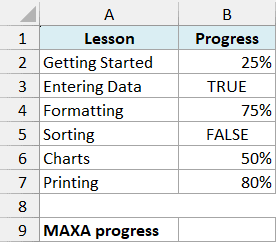
In this tracker, TRUE means a lesson is complete, FALSE means it hasn’t been started, and a percentage shows partial completion.
Enter the following formula in cell B9:
=MAXA(B2:B7)
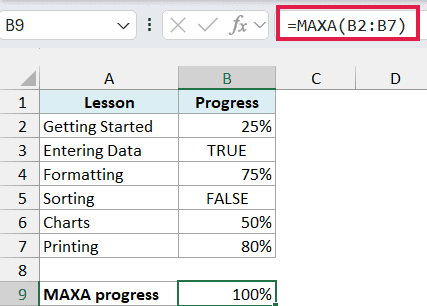
The formula returns 100%, because the TRUE in cell B3 counts as 1. Cell B9 uses a percentage format, so that 1 is displayed as 100%.
The numeric percentages keep their values, while FALSE counts as 0. This lets the formula compare all three types of progress values using the tracker’s meaning of complete and not started.
Now let’s compare this with the MAX function. Enter the following formula in cell B10:
=MAX(B2:B7)
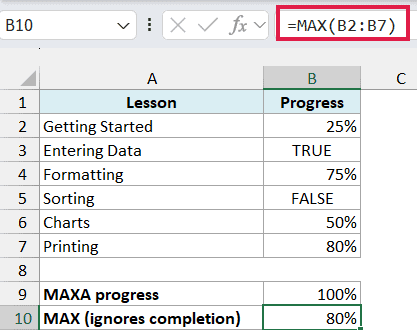
This returns 80%, because the MAX function ignores TRUE and FALSE in the referenced cells. It finds the largest numeric percentage but misses the completed lesson.
So, for this tracker, the MAXA function gives the answer we want. If you only want to compare actual numbers in a range, the MAX function is the better choice.
This difference applies to values in referenced cells. If you type TRUE or FALSE directly as an argument, both functions count them as 1 or 0.
If the source range contains an error such as #N/A, that error passes through to the result. Check the source cell instead of treating the error as a progress value.
Example 2: Why MAXA Can Return Zero
Text can change the result even when it doesn’t look like a value you want to compare.
Below is a list of daily balance changes, and I want to find the largest recorded change in cell B9.
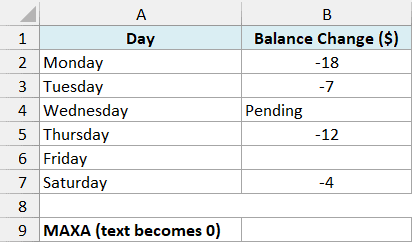
All the recorded changes are negative, Wednesday says Pending, and Friday is blank. Let’s see what happens with this formula in cell B9:
=MAXA(B2:B7)
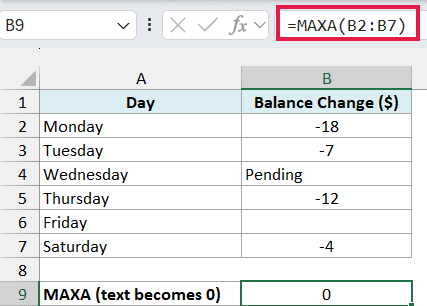
The result is 0, even though none of the recorded amounts is zero. The text Pending counts as 0, which is larger than every negative number in the range.
The blank Friday cell is ignored. If you clear the Pending entry too, the result becomes -4, because a genuinely empty cell doesn’t add a zero to the comparison.
To find the largest recorded amount, enter the following formula in cell B10:
=MAX(B2:B7)
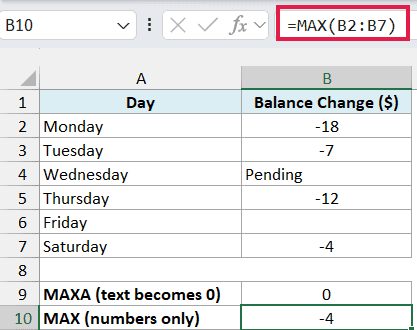
This returns -4. The MAX function ignores the text and the empty cell, so it compares only the recorded numbers.
Important: A MAXA result of 0 doesn’t prove that your source data contains the number 0. Text or FALSE in the referenced cells can produce that result when the numeric values are negative.
If the entire referenced range is empty, the MAXA function returns 0 as well. Keep that in mind if you use it on a range that hasn’t been filled in yet.
Follow along with the example file
MAXA Function Examples.xlsx
Example 3: Handle Numbers Stored as Text
A value can look like a number without being stored as one.
Below is a list of parcels and their weights, and I want to find the heaviest parcel’s weight in cell B9.
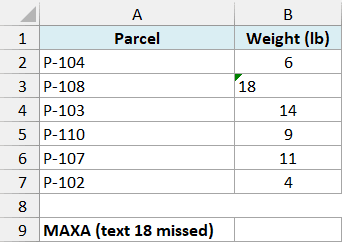
Cell B3 contains 18 stored as text, while the other weights are numbers. Enter the following formula in cell B9:
=MAXA(B2:B7)
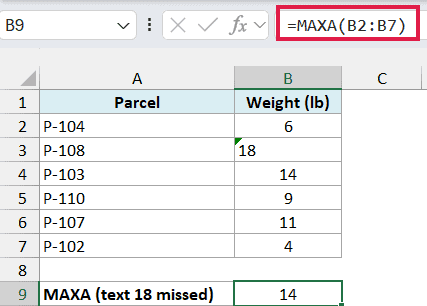
The formula returns 14, not 18. Because B3 is a referenced cell containing text, the MAXA function counts its value as 0.
However, numeric text behaves differently when you type it directly into the formula. To see the difference, enter the following formula in cell B10:
=MAXA("18",B2:B7)
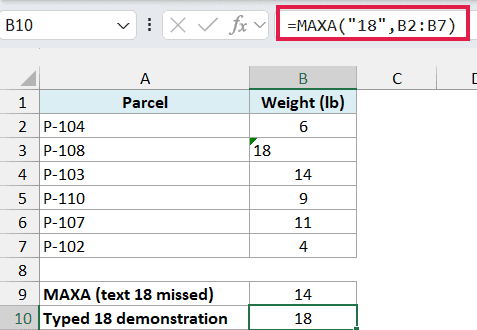
This returns 18, because the directly supplied text “18” can be converted to a number. The 18 stored in cell B3 still counts as 0 in this formula.
Important: Typing “18” into the formula only demonstrates the difference between a direct argument and a cell reference. For the parcel list, convert the text weights to numbers, then use the MAX function to find the heaviest weight.
The direct-argument conversion only works with text Excel can convert. If you type a word such as “Pending” directly as an argument, the formula returns #VALUE!, instead of counting that word as 0.
Example 4: Use MAXA with a Filtered Range
There’s one more distinction to watch for: values passed directly from another formula can behave differently from the same values in worksheet cells.
Below is a list of home tasks and their progress, and I want to find the highest progress level for the Kitchen tasks in cell B11.
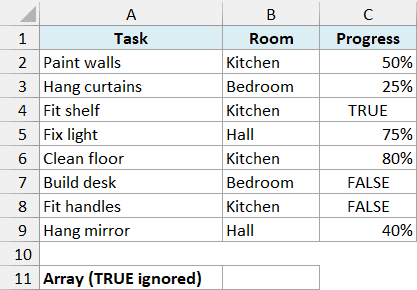
As in the first example, TRUE means complete and FALSE means not started. This example uses the FILTER function and the spill reference operator (#), which require Excel 365, 2024, or 2021.
It may seem that you can filter the Kitchen rows and pass the result straight to the MAXA function. Enter this formula in cell B11 to see the problem:
=MAXA(FILTER(C2:C9,B2:B9="Kitchen"))
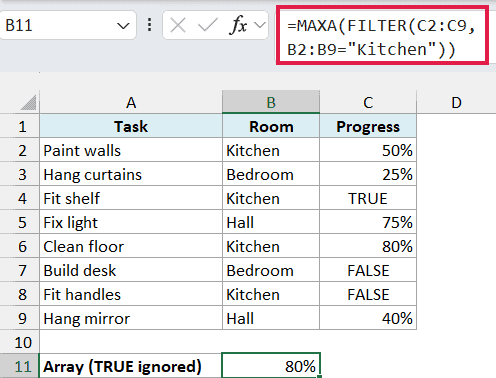
The result is 80%, even though Fit shelf is marked TRUE. The FILTER function returns an array of values, and the MAXA function ignores logical values in that array.
To include the completed task, first put the filtered values into worksheet cells. Enter the following formula in cell E2:
=FILTER(C2:C9,B2:B9="Kitchen")
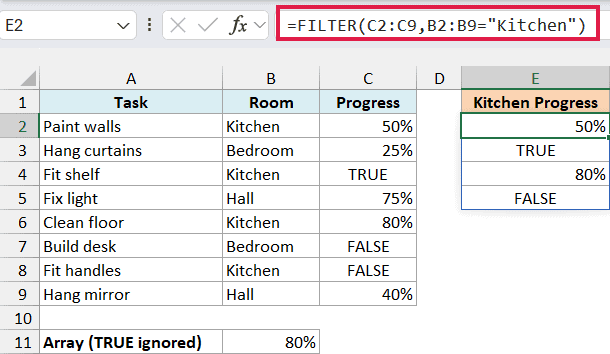
The formula returns the four Kitchen progress values: 50%, TRUE, 80%, and FALSE. They spill into cells E2:E5.
If those destination cells contain anything, clear them before entering the formula. Otherwise, the blocked spill can produce a #SPILL! error.
Now enter the following formula in cell B12 to find the highest progress level from those cells:
=MAXA(E2#)
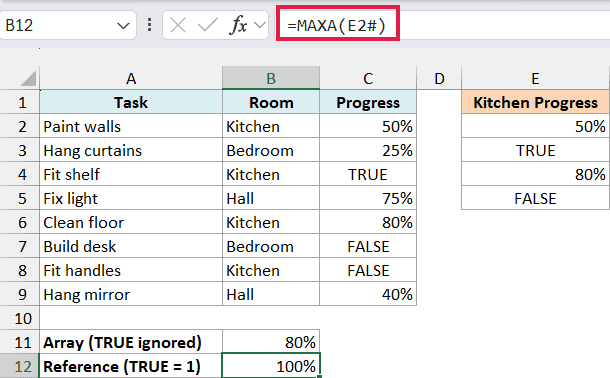
This returns 100%. The reference E2# points to the whole spilled range starting at E2, so the MAXA function counts the TRUE in those cells as 1.
The # also follows the size of the spill if the FILTER result changes. You don’t need to replace E2:E5 with a different ending row yourself.
Important: Passing the FILTER result directly to MAXA and referring to its spilled cells are not interchangeable here. The first ignores the logical values; the second includes them, which changes the answer from 80% to 100%.
If no rows match Kitchen, the FILTER formula returns #CALC! because this example doesn’t supply an empty-result value. Check that the room name matches your data before calculating its highest progress.
In this article, I showed you how the MAXA function handles logical values, text, and filtered results. Check what your values mean and whether you’re passing them as cell references or directly into the formula.
I hope you found this article helpful.
Other Excel Articles You May Also Like:
