

The ARABIC function in Excel converts Roman numerals into numbers. For example, it converts XIV to 14, so you can use a Roman numeral in a calculation or sort a list by its numeric value.
This is useful when your data contains book volumes, page labels, or numbered editions written as Roman numerals. In this tutorial, I will show you how to convert them, calculate with them, and handle entries that Excel cannot convert.
Follow along with the example file
ARABIC Function Examples.xlsx
ARABIC Function Syntax
Here is the syntax of the ARABIC function:
=ARABIC(text)
- text: The Roman numeral you want to convert. This argument is required, and you can supply the text directly or refer to a cell containing it.
When you type a Roman numeral directly into the formula, put it in double quotes, such as "XIV". When you use a cell reference, such as B2, leave the reference outside quotes.
The text argument can contain up to 255 characters.
ARABIC is available in Excel 2013 and later, with copied-down alternatives included below for Excel 2013, 2016, and 2019. The range formulas use dynamic arrays and work in Microsoft 365, Excel 2024, and Excel 2021.
When to Use the ARABIC Function
Use this function when you need to:
- Convert Roman labels, such as book volume numbers, into numbers you can calculate with.
- Find the number of pages between two Roman page labels.
- Sort Roman-numbered records by their numeric order.
Let me show you how this works with a few examples.
Example 1: Convert Roman Numerals to Numbers
Let’s start with a list of book volumes. On the Book Volumes sheet, I have Roman volume labels that I want to convert into numbers in column C.
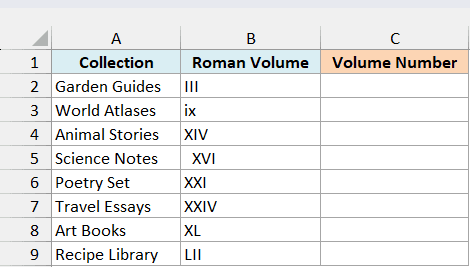
In Microsoft 365, Excel 2024, or Excel 2021, enter the below formula in cell C2:
=ARABIC(B2:B9)
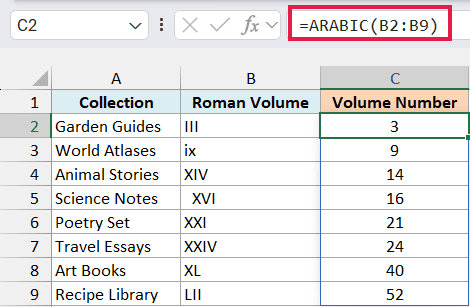
The formula converts each Roman numeral in B2:B9 and returns the corresponding number. For example, III becomes 3, XIV becomes 14, and XL becomes 40.
With a range as the input, this formula fills C2:C9 from C2. This is called spilling, so you don’t need to copy the formula down.
Make sure the cells below C2 are empty before you enter the formula. If something blocks the results, Excel returns a #SPILL! error until you clear the obstruction.
ARABIC ignores letter case, which is why the lowercase ix in B3 returns 9. It also ignores leading and trailing spaces, so the spaces around XVI in B5 do not stop it from returning 16.
If you are using Excel 2013, 2016, or 2019, enter the below formula in C2 and copy it down to C9:
=ARABIC(B2)
Example 2: Count Pages with Roman Labels
Now let’s use the converted numbers in a calculation. On the Page Counts sheet, I have the first and last Roman page labels for six booklets, and I want the number of pages in column D.
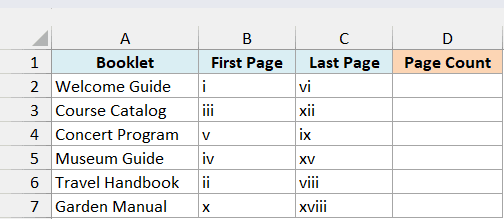
Enter the below formula in cell D2:
=ARABIC(C2:C7)-ARABIC(B2:B7)+1
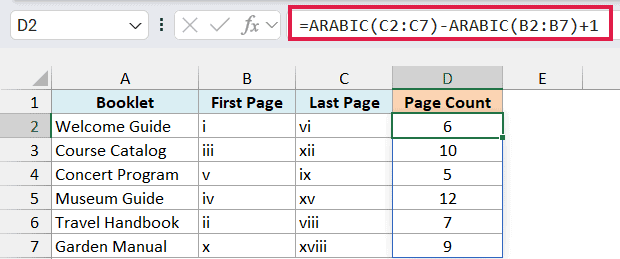
The first ARABIC converts the last page label, and the second converts the first page label. Subtracting the first number from the last gives the gap between the pages.
We then add 1 because we want to count both the first and last pages. For the Course Catalog, iii through xii becomes 12 minus 3 plus 1, which gives us 10 pages.
This formula assumes each booklet has consecutive pages and the last page comes after, or is the same as, the first page. Check those endpoints before treating the result as a page count.
If you are using Excel 2013, 2016, or 2019, enter the below formula in D2 and copy it down to D7:
=ARABIC(C2)-ARABIC(B2)+1
Example 3: Handle Blanks and Conversion Errors
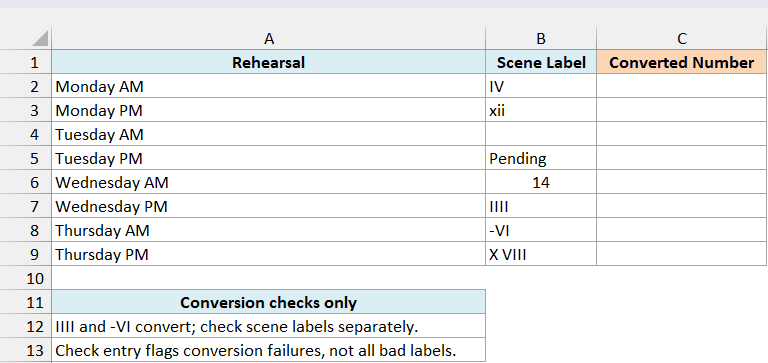
Imported labels may contain more than Roman numerals. On the Imported Scenes sheet, I have rehearsal scene labels that I want to convert in column C, while leaving missing entries blank and flagging conversion failures.
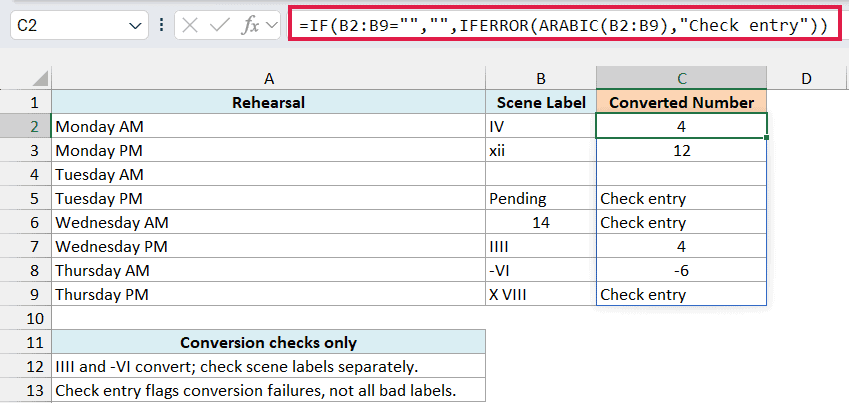
Enter the below formula in cell C2:
=IF(B2:B9="","",IFERROR(ARABIC(B2:B9),"Check entry"))
How this formula works:
- The IF function checks whether each source cell is blank. If it is, the formula returns empty text (
""), which displays as a blank result. - For the other cells, ARABIC attempts to convert the label into a number.
- The IFERROR function keeps successful results and replaces conversion errors with the message Check entry.
The blank check matters because ARABIC converts an empty cell or empty text to 0. Using IFERROR alone would leave that zero in the results, since zero is not an error.
In this example, Pending and the ordinary number 14 cannot be converted by ARABIC. The label X VIII also fails because its space is inside the numeral, rather than before or after it.
All three entries would produce #VALUE! without IFERROR, so they show Check entry here. The message gives you a way to find and review these inputs without replacing them with a misleading zero.
Notice that IIII returns 4, even though IV is the standard Roman form. ARABIC also accepts a leading minus sign, so -VI returns -6.
Important: A successful conversion does not prove that a scene label is valid. This formula flags conversion failures only, so check nonstandard labels and negative scene numbers separately before using the results.
If you are using Excel 2013, 2016, or 2019, enter the below formula in C2 and copy it down to C9:
=IF(B2="","",IFERROR(ARABIC(B2),"Check entry"))
Example 4: Sort Roman Numerals Numerically
A text sort does not give you numeric Roman-numeral order. On the Sort Editions sheet, I have sports-meet editions and their venues, and I want the records sorted by edition number in columns D and E.
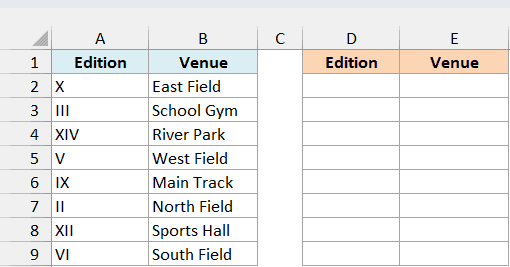
In Microsoft 365, Excel 2024, or Excel 2021, enter the below formula in cell D2:
=SORTBY(A2:B9,ARABIC(A2:A9),1)
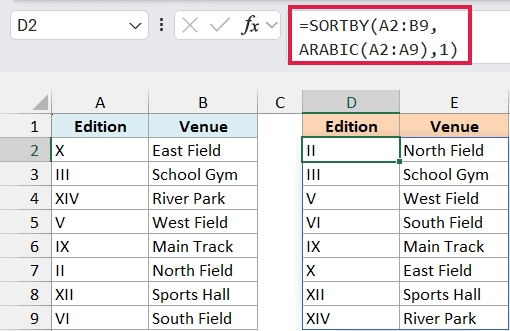
The SORTBY function sorts a range using values you provide. Here, A2:B9 supplies the complete edition-and-venue records, while ARABIC(A2:A9) supplies their numeric edition numbers.
The final argument, 1, tells SORTBY to sort those numbers in ascending order. The result runs from II to XIV, and each venue stays beside its original edition.
ARABIC supplies the sort values without changing the labels in the returned table. For example, edition IX still appears as IX, but it is placed after VI and before X because its numeric value is 9.
Make sure D2:E9 is empty before entering the formula, since the result needs room to fill both columns.
In Excel 2013, 2016, or 2019, use a helper column instead. Type Numeric Edition in C1, then enter the below formula in C2 and copy it down to C9:
=ARABIC(A2)
Select A1:C9 and use Data > Sort to sort by Numeric Edition, from smallest to largest. Keep all three columns in the selection so the edition labels and venues move together.
So these are a few ways to use ARABIC to convert Roman numerals, calculate page counts, and sort numbered records. When your labels come from an import, remember to check their meaning as well as whether Excel can convert them.
Other Excel Articles You May Also Like:
