

The COMBINA function in Excel tells you how many different groups you can make when you pick a set number of items from a list, and the same item can be picked more than once. The order of the picks doesn’t matter.
You need it whenever a box or pack can hold two of the same thing, like a cookie box with two cookies of the same flavor.
In this tutorial, I’ll show you how COMBINA works, how it differs from COMBIN, and a couple of traps that can give you a wrong count without any error.
Follow along with the example file
COMBINA Function Examples.xlsx
COMBINA Function Syntax
Here is the syntax of the COMBINA function:
=COMBINA(number, number_chosen)
- number is how many different items you can pick from, such as the number of colors or flavors.
- number_chosen is how many items go into each group.
Both arguments are meant to be whole numbers. If you give COMBINA a decimal, it cuts off the decimal part instead of rounding, so =COMBINA(10.9,3.7) returns 220, the same as =COMBINA(10,3).
A negative number in either argument returns a #NUM! error. You also get #NUM! when the number argument is 0 and number_chosen is more than 0, since there’s nothing to pick from.
If number_chosen is 0, COMBINA returns 1, because there’s exactly one way to pick nothing.
A number stored as text, like “10”, still works. But text such as “ten” gives you a #VALUE! error.
The COMBINA function works in Excel 2013 and later, including Excel 365, 2024, 2021, 2019, 2016, Mac, and the web. The formulas below that spill results need Excel 365, 2024, 2021, or the web.
When to Use the COMBINA Function
Use this function when you need to:
- Count the different packs or boxes you can put together when an item can show up more than once.
- Count the possible results when you roll several dice and only care which numbers come up.
- Work out how many options you need to offer to reach a target number of combinations.
- Compare the count with repeats allowed against the count without repeats.
Let me show you a few practical examples of how to use the COMBINA function.
Example 1: Count Combinations With Repetition
Let’s start with a simple example.
Below is a list of mix-and-match packs at a gift shop, with how many options each product comes in and how many items go in a pack, and I want the number of different packs for each product in column D.
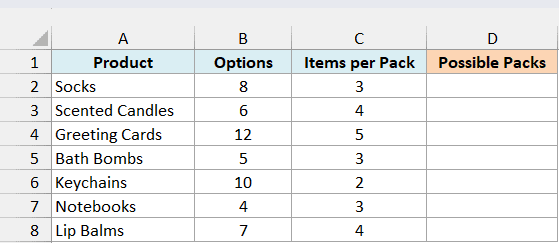
Here is the formula to enter in cell D2:
=COMBINA(B2:B8,C2:C8)
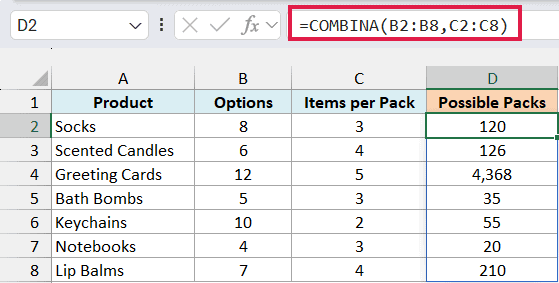
You only enter the formula in cell D2. Since both arguments are ranges, COMBINA works through the list row by row, and the results spill down to D8.
Take the socks. They come in 8 colors, and a pack has 3 pairs, so there are 120 different packs a customer could put together.
That count includes packs with repeats, like two navy pairs and one gray pair, or all three navy. And since the order doesn’t matter, navy-navy-gray is the same pack as gray-navy-navy.
If any cell in D3:D8 already has something in it, you’ll get a #SPILL! error. Clear those cells, and the results show up.
If you are using Excel 2019 or earlier, enter the below formula in cell D2 and then copy it down to D8:
=COMBINA(B2,C2)
Example 2: Pick More Items Than There Are Options
Unlike the COMBIN function, which counts groups without repeats, COMBINA lets you pick more items than there are options.
Below are the balloon bundle sizes at a party store that sells balloons in 6 colors (cell E1), and I want the number of different color mixes for each bundle size in column B.
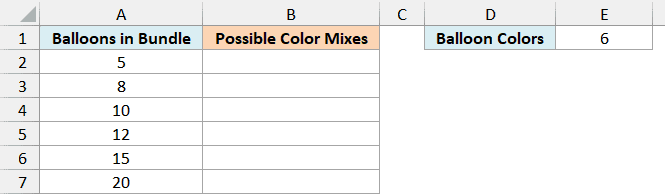
Here is the formula to enter in cell B2:
=COMBINA(E1,A2:A7)
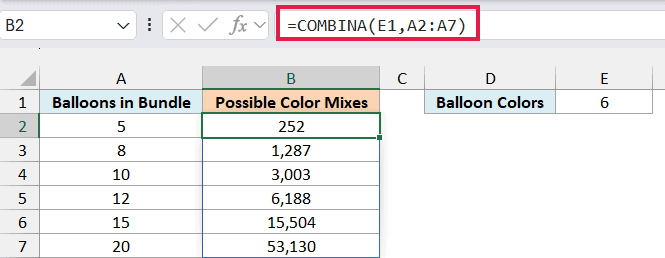
Here, number is the single cell E1, and number_chosen is the range A2:A7. So COMBINA works out one count for each bundle size.
Except for the 5-balloon bundle, every bundle here has more balloons than there are colors. That’s not a problem for COMBINA, because colors can repeat, so a bundle of 20 balloons in 6 colors can come in 53,130 different color mixes.
Microsoft’s documentation says number must be greater than or equal to number_chosen, but Excel calculates these without any error. COMBIN would return #NUM! for every bundle bigger than 6, since it can’t pick more balloons than there are colors.
Important: COMBINA gives a different count if you swap the two arguments. For the 12-balloon bundle, =COMBINA(6,12) gives 6,188, but =COMBINA(12,6) returns 12,376, so make sure number is the count of colors and number_chosen is how many balloons you pick.
If you are using Excel 2019 or earlier, enter the below formula in cell B2 and then copy it down to B7:
=COMBINA($E$1,A2)
The dollar signs keep the reference to E1 fixed while you copy the formula down.
Example 3: COMBINA vs COMBIN When Rolling Dice
Here’s a scenario where you can see COMBINA and COMBIN side by side.
Below is the number of dice rolled at once, with the 6 faces of a die in cell F1, and I want the number of possible results in column B and the number of results with no repeated numbers in column C.
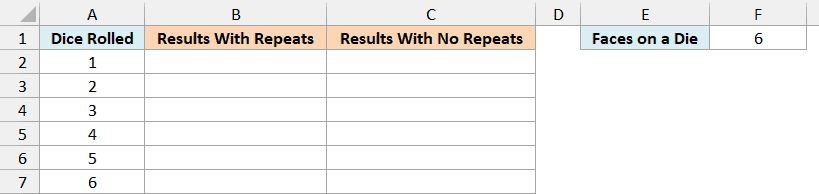
A result here is just which numbers came up, like 2, 2, and 5. It doesn’t matter which die showed which number.
Here is the COMBINA formula to enter in cell B2:
=COMBINA(F1,A2:A7)
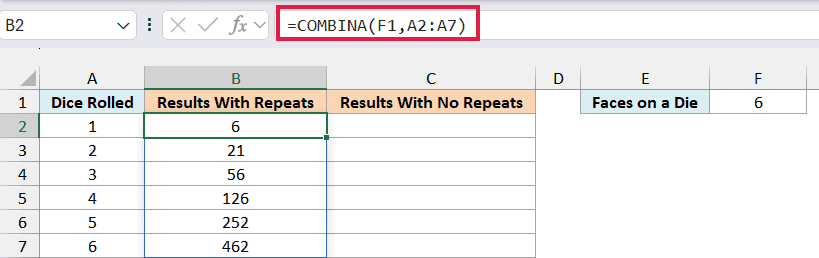
This counts every possible result, including ones with repeated numbers. So rolling 3 dice can give you 56 different results, from 1-1-1 all the way to 6-6-6.
Now here is the COMBIN formula to enter in cell C2:
=COMBIN(F1,A2:A7)
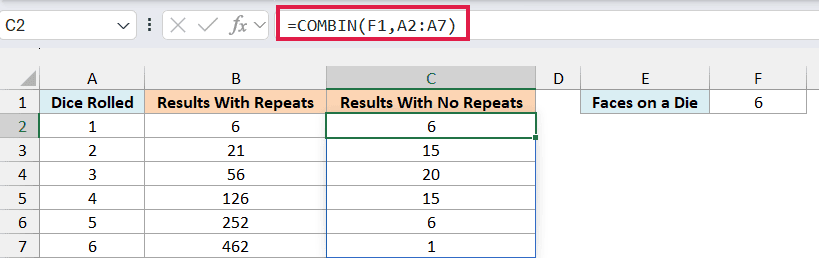
The COMBIN function only counts results where every die shows a different number. With 3 dice, that’s 20 results, because rolls like 2-2-5 or 6-6-6 are left out.
The gap grows as you add dice. With 6 dice, COMBINA counts 462 results, while COMBIN counts just 1, since the only way to get six different numbers is 1-2-3-4-5-6.
These results aren’t equally likely, though. If you track which die shows what, 3 dice can land in 216 ways (6 x 6 x 6).
A 6-6-6 shows up in only one of those 216 ways. But 1, 2, and 3 can land on the three dice in 6 different orders, so that result is six times as likely.
Important: COMBINA tells you how many results are possible, not how likely each one is. So don’t treat 1/56 as the chance of rolling any one result with 3 dice.
If you are using Excel 2019 or earlier, enter the below formula in cell B2 and then copy it down to B7:
=COMBINA($F$1,A2)
And for the COMBIN column, enter the below formula in cell C2 and then copy it down to C7:
=COMBIN($F$1,A2)
Example 4: Find How Many Options You Need
Let’s step it up with a more practical question.
Below is a cupcake box planner for a bakery that wants at least 1,000 different 4-cupcake boxes, and I want the box count for 1 to 12 flavors in column B and the fewest flavors that reach the goal in cell E4.
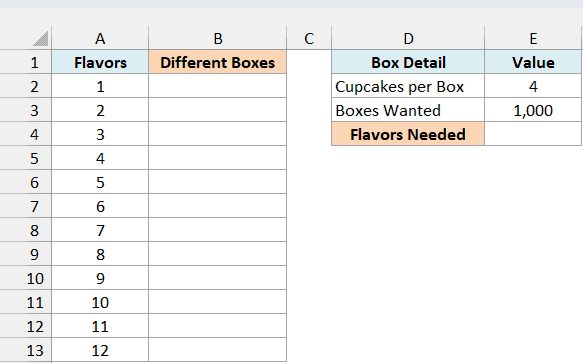
Here is the formula to enter in cell B2:
=COMBINA(A2:A13,E2)
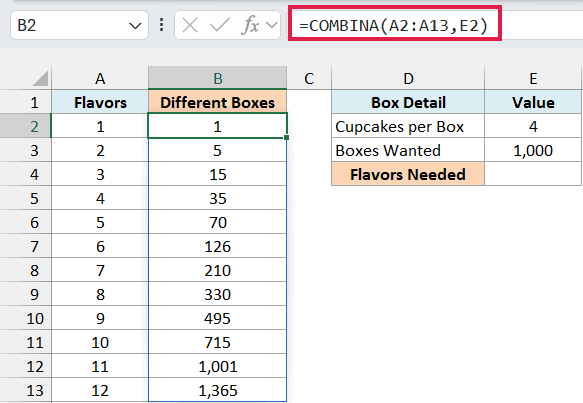
This time, number is the range A2:A13, and number_chosen is the fixed box size in E2. So you get the number of different boxes for every flavor count from 1 to 12.
The count grows fast. With 10 flavors, the bakery can make 715 different boxes, and with 11 flavors, it can make 1,001.
Now here is the formula to enter in cell E4 to find the fewest flavors that reach the goal:
=XLOOKUP(TRUE,B2:B13>=E3,A2:A13)
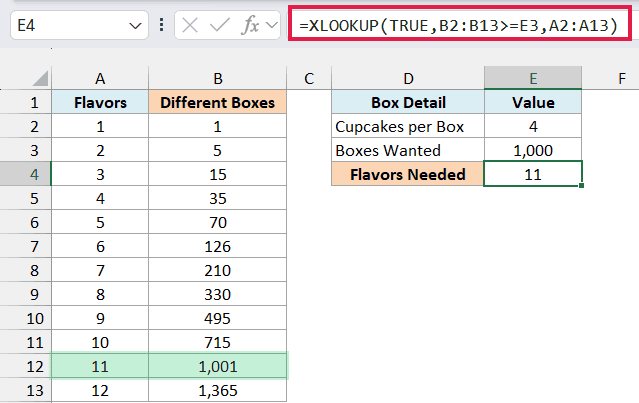
How this formula works:
B2:B13>=E3checks each box count against the goal in E3 (1,000), which gives a list of TRUE and FALSE values.- The XLOOKUP function finds the first TRUE in that list and returns the flavor count from the same row in column A.
- Since the box counts only go up as you add flavors, the first TRUE is the smallest number of flavors that works, which is 11.
You might think of looking up the goal directly with XLOOKUP’s “exact match or next larger” mode, as in =XLOOKUP(E3,B2:B13,A2:A13,,1). That also returns 11 here, but it can give a wrong answer for other goals.
Important: Some COMBINA results are stored a hair below the whole number. The 210 for 7 flavors in B8 is really 209.99999999999997, so if you change E3 to 210, the “next larger” version skips it and returns 8 flavors.
The formula in E4 doesn’t have this problem, because it compares with >= (B2:B13>=E3). Excel’s comparison operators ignore a difference that tiny (=COMBINA(7,4)=210 returns TRUE), so the E4 formula correctly returns 7 for a goal of 210.
If no row reaches the goal, XLOOKUP returns #N/A. In that case, add more flavor counts below A13, then extend A2:A13 in the COMBINA formula in B2 and both ranges in the XLOOKUP formula in E4.
XLOOKUP needs Excel 365, 2024, 2021, or the web, so this example doesn’t work in older versions.
Example 5: Handle Blank Cells With COMBINA
Let’s finish with a problem that can give you a wrong count without any error.
Below is a coffee subscription planner with the roasts available for each plan and the bags in each delivery, where two plans don’t have a bag count yet, and I want the number of possible mixes for each plan in column D.
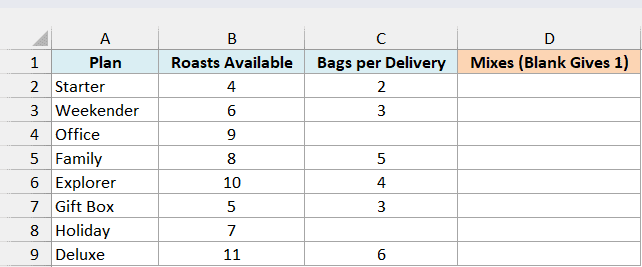
Here is the formula to enter in cell D2:
=COMBINA(B2:B9,C2:C9)
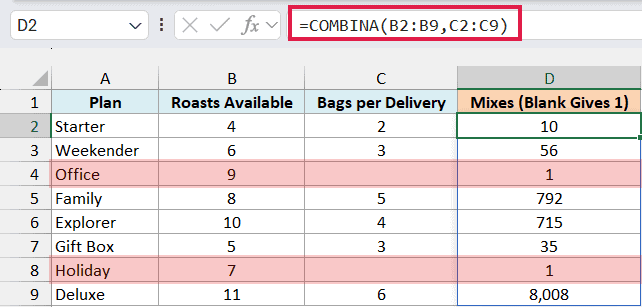
Most rows look right, but notice the Office and Holiday plans. Their bag count is empty, and COMBINA still returns 1 for both.
That’s because COMBINA treats an empty cell as 0, and there’s exactly one way to pick zero items. So a missing number quietly turns into a result that looks real.
To leave those rows empty until the bag count is filled in, enter this blank-safe version in cell E2, next to the original, so you can compare the two columns:
=IF(C2:C9="","",COMBINA(B2:B9,C2:C9))
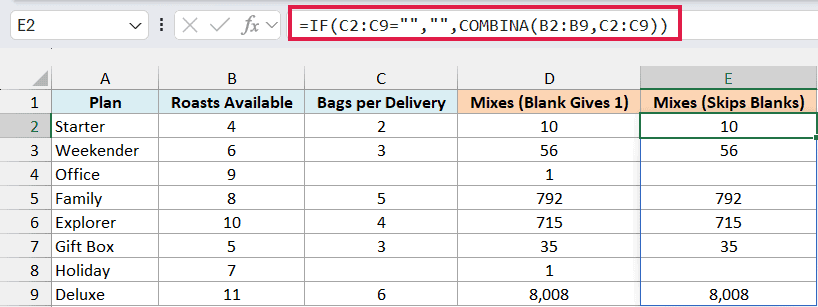
Here, the IF function checks each bag count first. When the cell is empty, it returns an empty string, and otherwise, it runs COMBINA as usual.
An empty Roasts Available cell behaves differently. It also counts as 0, but picking any bags from 0 roasts returns #NUM!, so you’d at least see that something’s missing.
If you are using Excel 2019 or earlier, enter the below formula in cell E2 and then copy it down to E9:
=IF(C2="","",COMBINA(B2,C2))
So these are a few ways you can use the COMBINA function in Excel. Whenever repeats are allowed and the order doesn’t matter, COMBINA gives you the count in one step.
I hope you found this tutorial useful.
Other Excel Articles You May Also Like:
