

The AVEDEV function in Excel returns the average absolute deviation (also called the mean absolute deviation) of a set of numbers. In plain words, it tells you how far the values sit from their average, on average.
That makes it a simple way to see how consistent your numbers are, and the answer comes back in the same units as your data.
In this tutorial, I’ll show you how to use AVEDEV on one list and on multiple ranges, how it treats zeros and blank cells, how it compares with standard deviation, and how to use it with a condition.
Follow along with the example file
AVEDEV Function Examples.xlsx
AVEDEV Function Syntax
Here is the syntax of the AVEDEV function:
=AVEDEV(number1, [number2], ...)
- number1 – The first number, cell reference, or range you want to measure. This one is required.
- number2, … – Optional. More numbers, cell references, or ranges. You can supply up to 255 arguments in total.
In most cases, you’ll give AVEDEV a single range. You only need the extra arguments when your numbers sit in separate places on the sheet.
Inside a range, AVEDEV ignores text, TRUE/FALSE values, and empty cells, but it does count cells that contain 0.
If none of the arguments contain a number, AVEDEV returns the #NUM! error.
The AVEDEV function works in all Excel versions, including Microsoft 365, 2024, 2021, 2019, 2016, Mac, and the web.
When to Use the AVEDEV Function
Use this function when you need to:
- See how much a set of values typically varies from its average, in the same units as the data.
- Compare how consistent two groups of numbers are, such as delivery times or monthly bills.
- Check the typical variation within one category of a larger list.
Let me show you a few practical examples of how to use AVEDEV in Excel.
Example 1: Calculate the Average Deviation of Prices
Let’s start with a simple example.
Below is a list of latte prices at ten coffee shops, and I want to find how much these prices typically differ from their average, with the result in cell E2.
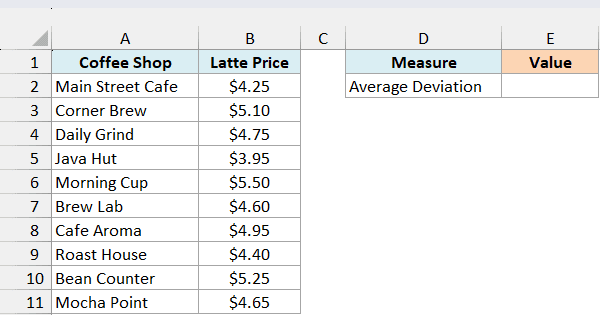
Here is the formula:
=AVEDEV(B2:B11)
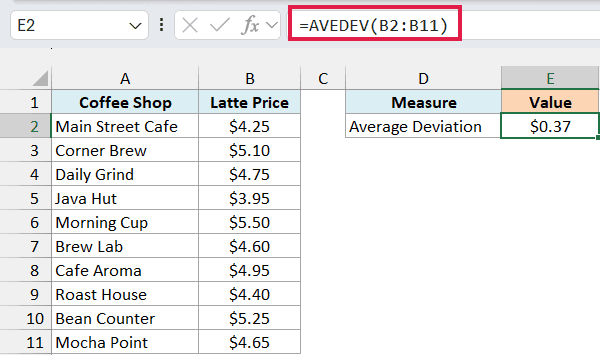
The formula returns $0.37.
Behind the scenes, AVEDEV first works out the average of B2:B11, which is $4.74. It then measures how far each price is from $4.74, ignores whether that gap is above or below, and averages those gaps.
So a $0.37 result means that, on average, a shop’s latte price is 37 cents away from the average price. A smaller number would mean the shops charge more similar prices.
Example 2: AVEDEV With Multiple Ranges
Now let’s see what to do when your numbers are not in one block.
Below are gas prices at six stations on the north side of town and six on the south side, in two separate tables, and I want the average deviation of all twelve prices in cell H2.

Here is the formula:
=AVEDEV(B2:B7,E2:E7)
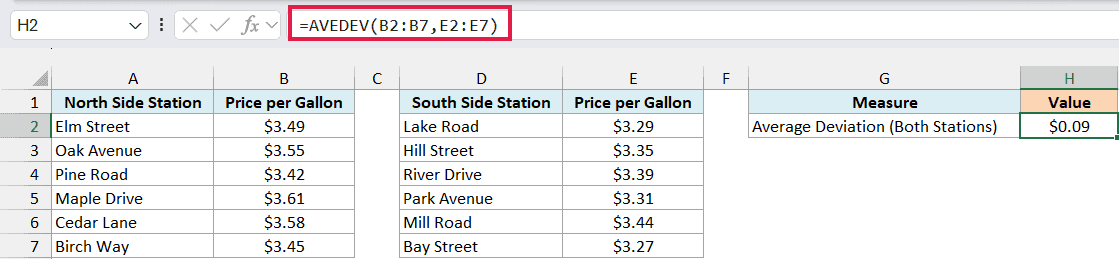
The formula returns $0.09 (0.091 before rounding to cents).
Even though the ranges are separate, AVEDEV pools every value from all its arguments into one set. So it finds the average of all twelve prices and then the average distance from that combined average.
North side stations charge more on average ($3.52 vs $3.34), so once the two lists are combined, the gap between the two sides also counts as variation.
That’s why the result is bigger than what you’d get for each side on its own (0.063 for the north and 0.052 for the south).
If you want each side’s own number, use a separate formula for each range, such as =AVEDEV(B2:B7).
Example 3: How AVEDEV Treats Zeros, Blanks, and Text
This next example shows how zeros, blank cells, and text can change your result.
Below is a 10-day guitar practice log entered twice, once with 0 on the no-practice days and once with those cells blank (one day says Sick in both), and I want the average deviation of the minutes for each version in F2 and F3.
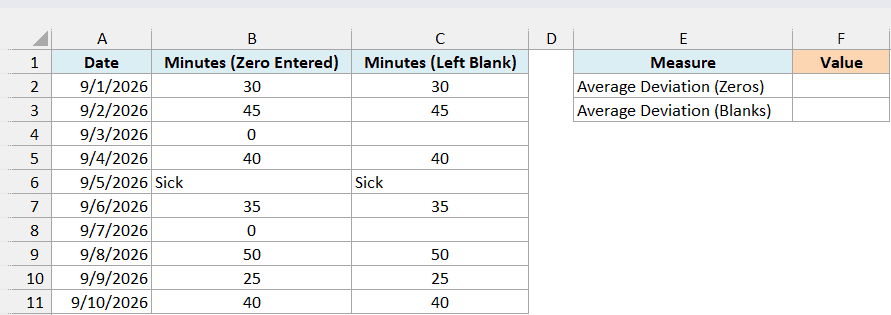
Here is the formula for the column with zeros:
=AVEDEV(B2:B11)
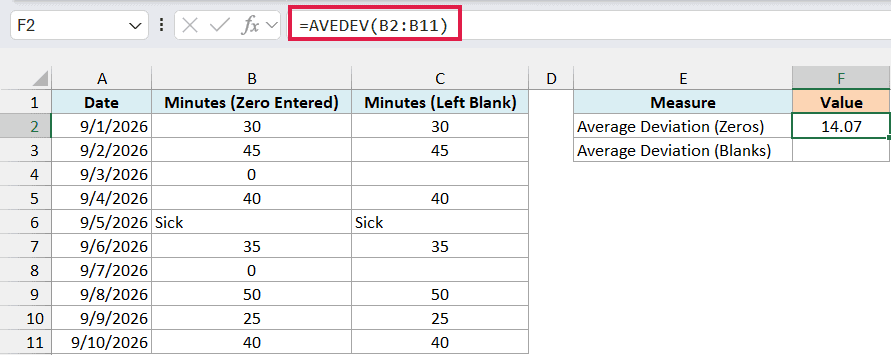
This returns 14.07 minutes.
And here is the formula for the column with blank cells:
=AVEDEV(C2:C11)
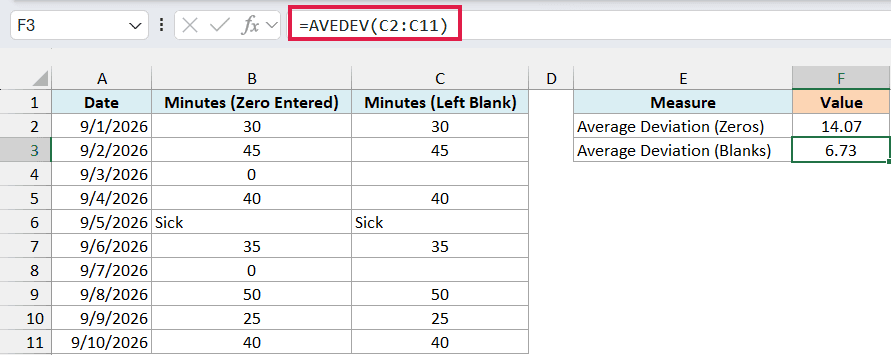
This returns 6.73 minutes, less than half of the first result.
The difference comes from how AVEDEV reads the cells. In column B, the two 0s are real numbers, so they’re included, and since they sit far below the other days, they push the deviation up.
In column C, the blank cells are skipped, so only the seven days with practice minutes are measured.
The “Sick” text in both columns is ignored, just like the blank cells, which is why it isn’t counted as a practice day in either version.
Important: Enter 0 only when zero is the real value, and leave a cell blank when there is no data. Mixing them up gives you a wrong average deviation without any error to warn you.
Example 4: Calculate Mean Absolute Deviation Step by Step
This example breaks AVEDEV into its steps so you can see exactly what it calculates.
Below are eight weekly grocery bills, and I want to see each week’s distance from the average bill in column C and then compare their average with AVEDEV in column F.
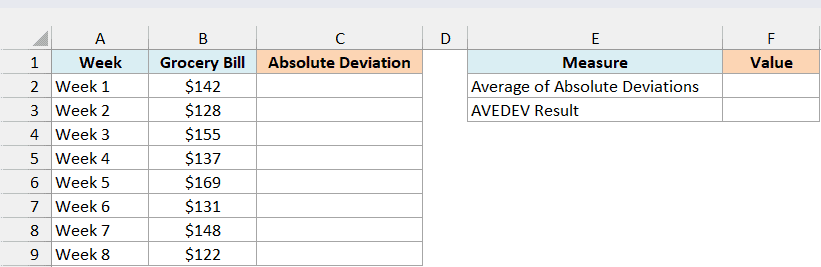
First, enter this formula in C2 to get the absolute deviation for every week:
=ABS(B2:B9-AVERAGE(B2:B9))
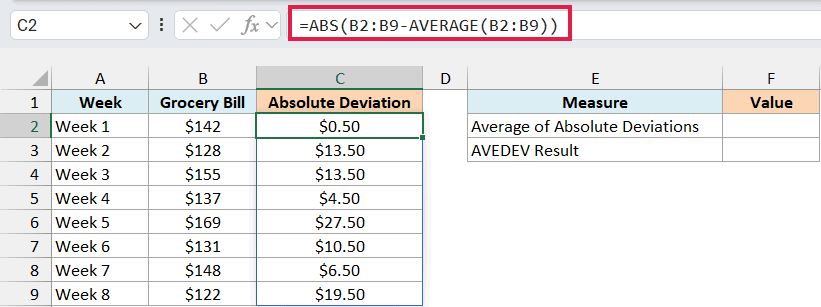
The average bill is $141.50, so the formula subtracts $141.50 from each bill and the ABS function removes the minus sign. The results spill down to C9 from a single formula.
Now enter this formula in F2 to average those distances with the AVERAGE function:
=AVERAGE(C2#)
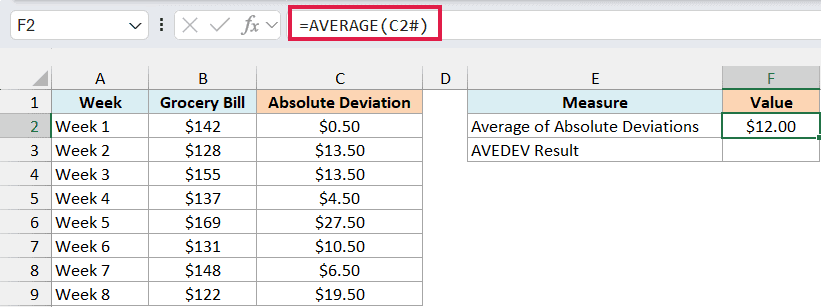
This returns $12.00. The C2# part refers to the whole spilled range, so you don’t have to type C2:C9.
The spilling formula in C2 and the C2# reference need Excel 365, 2024, 2021, or Excel on the web. If you are using Excel 2019 or earlier, enter the below formula in cell C2 and then copy it down to C9:
=ABS(B2-AVERAGE($B$2:$B$9))
Then, in Excel 2019 or earlier, use this formula in F2 instead of the spill reference:
=AVERAGE(C2:C9)
Finally, enter AVEDEV in F3:
=AVEDEV(B2:B9)
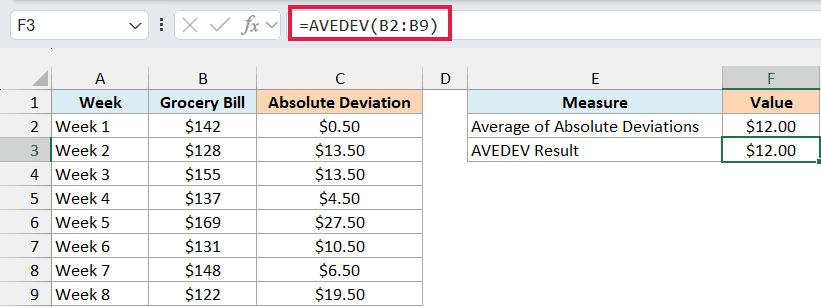
It also returns $12.00, so AVEDEV does exactly these steps in one go.
You don’t need the helper column in your own work. AVEDEV gives the same answer from one formula, and unlike the ABS formula, it skips text in the range instead of returning a #VALUE! error.
Example 5: AVEDEV vs Standard Deviation With an Outlier
AVEDEV and standard deviation both measure spread, but they react differently to one extreme value.
Below are twelve monthly electric bills with one unusually high bill in July, and I want to compare AVEDEV and STDEV.P for these bills in E2 and E3.
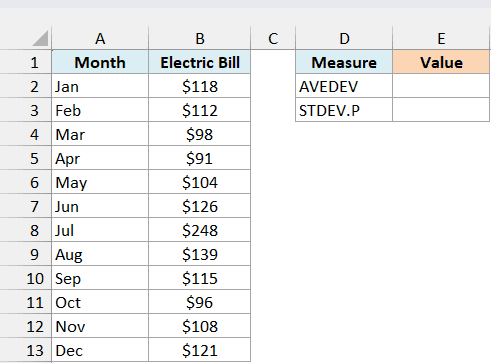
Here is the AVEDEV formula:
=AVEDEV(B2:B13)
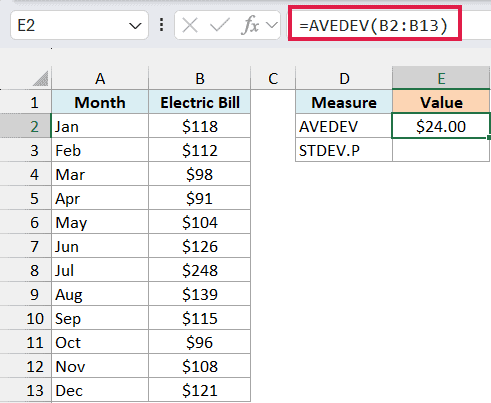
This returns $24.00.
And here is the standard deviation formula:
=STDEV.P(B2:B13)
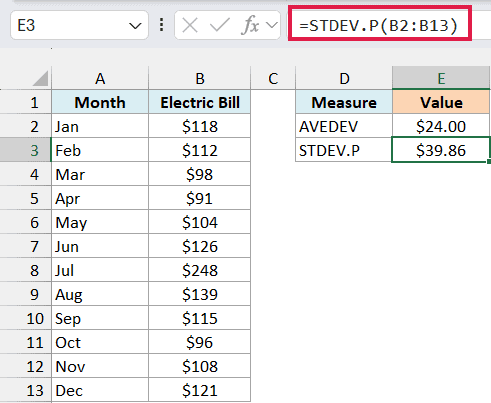
This returns $39.86.
The July bill is $125 above the yearly average of $123. AVEDEV adds that gap as it is, while standard deviation squares every gap before averaging, so one big gap gets far more weight.
You can see this by taking July out. Without it, the two results are close, $11.12 for AVEDEV and $13.56 for STDEV.P.
With July in, AVEDEV roughly doubles, while the standard deviation almost triples.
I used the STDEV.P function here because it divides by the number of values (12 here), just like AVEDEV does. STDEV.S divides by one fewer, because it’s meant for a sample.
These twelve bills cover the whole year rather than a sample, so STDEV.P is the like-for-like comparison. STDEV.S would give $41.63, and the comparison works the same way.
So when a few extreme values shouldn’t dominate your measure of spread, AVEDEV is the easier number to read. It still moves with an outlier, just much less than standard deviation does.
Example 6: AVEDEV With a Condition Using FILTER
AVEDEV has no built-in way to apply a condition, but you can feed it a filtered list.
Below is a list of online orders with the shipping method and the days each order took to arrive, and I want the average deviation of delivery days for the shipping method in F2, with the result in F3.
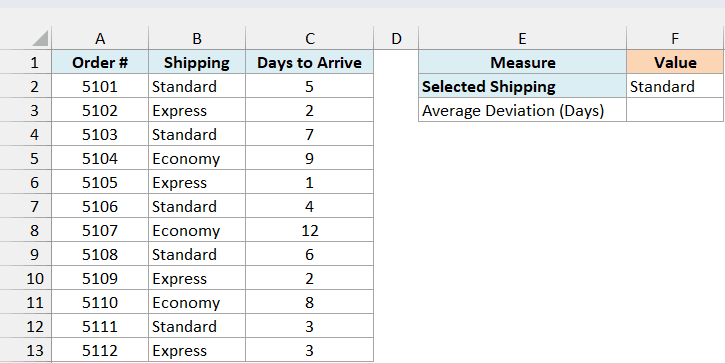
Here is the formula:
=AVEDEV(FILTER(C2:C13,B2:B13=F2))
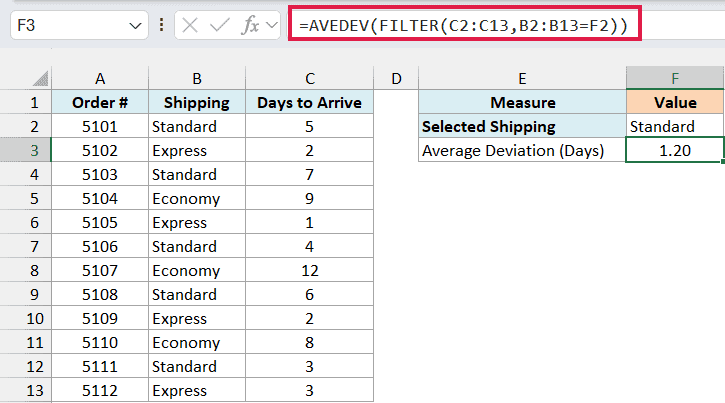
The formula returns 1.20 days.
How this formula works:
B2:B13=F2checks which orders used the shipping method in F2 (Standard).- The FILTER function keeps only the days for those orders: 5, 7, 4, 6, and 3.
- AVEDEV then finds the average deviation of those five values. They average 5 days, and on average a Standard order’s delivery time is 1.2 days away from that.
Since F2 is a regular cell, you can change it to Express or Economy and the result updates. Express returns 0.50 days and Economy returns about 1.56 days, so Express is the most consistent option.
If F2 has a method that isn’t in the list, FILTER finds nothing and the formula shows a #CALC! error. That’s a useful signal that the value in F2 needs checking, so it’s better to fix the input than to hide the error.
FILTER is available in Excel 365, 2024, 2021, and Excel on the web. If you are using Excel 2019 or earlier, enter the below formula in cell F3 and press Control + Shift + Enter:
=AVEDEV(IF(B2:B13=F2,C2:C13,""))
For orders with a different shipping method, IF returns empty text. AVEDEV ignores text inside that list just like it ignores text in a range, so only the matching days are measured.
So these are the ways you can use the AVEDEV function in Excel to measure how much your numbers typically vary from their average. I hope you found this tutorial useful.
Other Excel Articles You May Also Like:
