

The MULTINOMIAL function in Excel counts distinct arrangements when some items are identical, or ways to divide distinct items into named groups of fixed sizes.
You give it the count for each group, and it returns the number of possibilities. It’s useful for counting arrangements and working out probabilities without writing a long factorial calculation yourself.
In this tutorial, I’ll show you four examples, including how to calculate a separate answer for each row of counts.
Follow along with the example file
MULTINOMIAL Function Examples.xlsx
MULTINOMIAL Function Syntax
Here is the syntax of the MULTINOMIAL function:
=MULTINOMIAL(number1, [number2], ...)
- number1 is required. Supply the first count, a reference to a count, or a range containing several counts.
- [number2], … are optional additional counts or ranges. You can supply up to 255 arguments in total.
All counts belong to the same calculation. Passing a range returns one answer for all its values, rather than a separate answer for each cell.
MULTINOMIAL is available in Excel for Microsoft 365, Excel 2024, 2021, 2019, and 2016, including supported Mac versions. The BYROW example below needs Microsoft 365 or Excel 2024.
When to Use the MULTINOMIAL Function
Use this function when you need to:
- Count the different orders of items that include identical copies.
- Assign distinct people or objects to named groups with fixed capacities.
- Calculate the number of possible outcome sequences as part of a probability calculation.
- Compare arrangement counts for several different sets of quantities.
Let me show you how these work with a few small datasets.
Example 1: Arrange Flags With Repeated Colors
Let’s start with a row of colored flags.
Below are the counts of three flag colors, and I want to count their distinct arrangements in a straight line in cell B6.
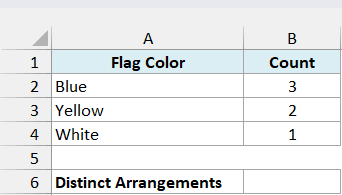
Enter this formula in cell B6 on the Flag Arrangements sheet:
=MULTINOMIAL(B2:B4)
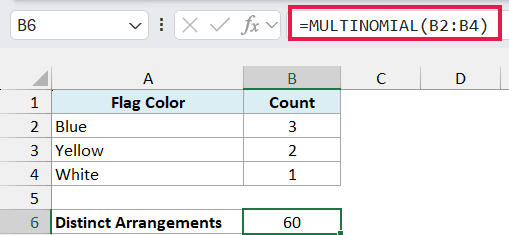
The result is 60. There are six flags altogether: three blue, two yellow, and one white.
Flags of the same color are identical for this calculation. Swapping two blue flags doesn’t create a new color arrangement, but moving a blue flag into a yellow flag’s position does.
MULTINOMIAL calculates the factorial of the total count, then divides it by the factorial of each color’s count. A factorial multiplies a whole number by every positive whole number below it, so 3! means 3 × 2 × 1.
Here, the calculation is 6! ÷ (3! × 2! × 1!), which is 720 ÷ 12, or 60. In Excel, the FACT function calculates individual factorials, but MULTINOMIAL handles this whole calculation in one step.
Point the formula at the counts only. Including a color name or the Count header causes a #VALUE! error because that text isn’t a number.
Important: Use whole-number counts of zero or more, since negative counts return #NUM!. Excel discards the decimal part of a count, so 2.9 becomes 2 and gives you an answer for different counts than you entered.
Example 2: Assign Students to Named Rooms
The same function also counts assignments where the people are different from each other.
Below are the capacities of three named rooms, and I want to count ways to assign six distinct students to those rooms in cell B6.
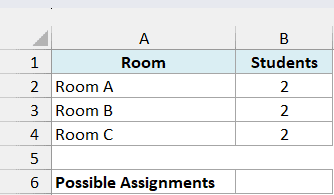
Enter this formula in cell B6 on the Room Assignments sheet:
=MULTINOMIAL(B2:B4)
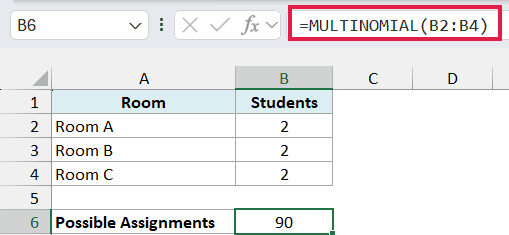
The result is 90 possible assignments, with two students in each room.
There are 15 ways to choose two of the six students for Room A. For each choice, there are six ways to choose two of the remaining four students for Room B, and the last two go to Room C.
That gives 15 × 6 × 1 = 90. The order of the two students within a room doesn’t matter because we’re assigning rooms, not seats.
The room labels matter even though all three rooms hold the same number of students. Swapping the students in Room A with those in Room B creates a different assignment.
If your groups have no labels and swapping entire groups counts as the same outcome, this result overcounts them. Make sure you’re counting assignments to distinct groups before using it this way.
Example 3: Calculate an Exact Record Probability
Now let’s use the arrangement count as part of a probability calculation.
Suppose a team has a 50% chance of winning, a 30% chance of drawing, and a 20% chance of losing each match. Assume the matches are independent and these probabilities stay the same throughout.
Below are the desired outcome counts and their probabilities, and I want the probability of exactly three wins, two draws, and one loss in six matches in cell B6.
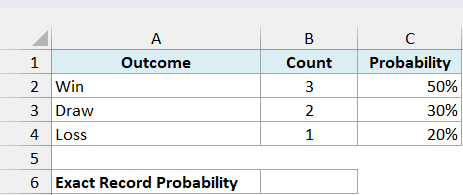
Enter this formula in cell B6 on the Match Probability sheet:
=MULTINOMIAL(B2:B4)*C2^B2*C3^B3*C4^B4
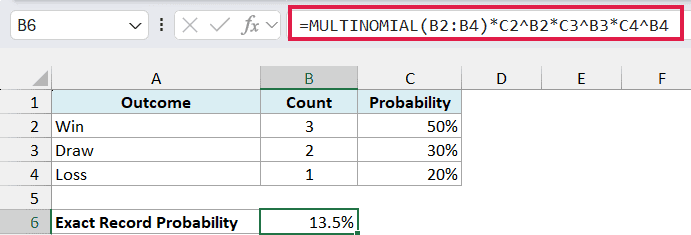
The result is 13.5%, with cell B6 formatted as a percentage. This is the probability of that exact record in any order.
Here is how the formula works:
MULTINOMIAL(B2:B4)counts the 60 possible orders of three wins, two draws, and one loss.C2^B2raises the win probability to the number of wins. The other two powers do the same for draws and losses.- Multiplying the three powers gives 0.00225, the probability of one particular order under these assumptions.
- Multiplying by 60 includes every order that produces the required record, giving 0.135, or 13.5%.
MULTINOMIAL alone returns the arrangement count, not the probability. The probability terms are what turn that count into the answer we want.
The formula spells out the three probability terms so it also works without dynamic arrays. If you add another possible outcome, extend both the count range and the probability multiplication.
Important: The probabilities must total 100%, and each match must have exactly one outcome. If probabilities change between matches or one result affects another, this formula doesn’t model that situation.
Example 4: Compare Several Workout Schedules
For several sets of counts, you need a separate calculation for each row.
Below are six plans for a six-day period, and I want the number of ways to arrange each plan’s cardio, strength, and rest days in column E.
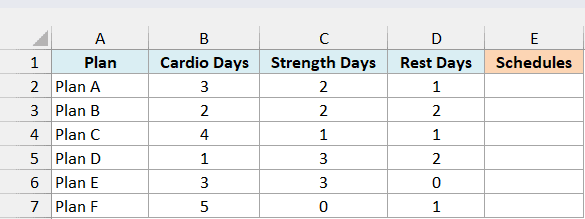
This example counts only the order of the day types. All cardio days are interchangeable, as are the strength days and rest days, and there are no restrictions on which types can follow each other.
In Microsoft 365 or Excel 2024, enter this formula in E2 on the Workout Schedules sheet:
=BYROW(B2:D7,LAMBDA(counts,MULTINOMIAL(counts)))
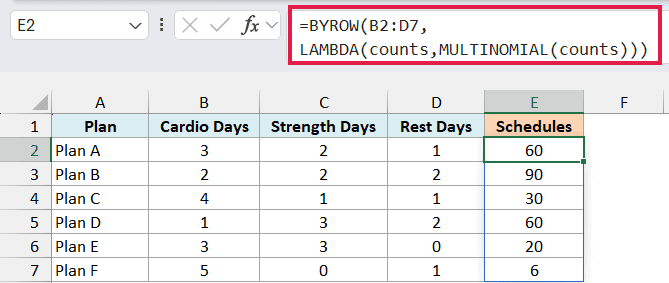
The results spill into E2:E7: 60, 90, 30, 60, 20, and 6.
The BYROW function passes one row of counts at a time to the LAMBDA function. Here, counts is the name for that row, and MULTINOMIAL returns its arrangement count.
For Plan B, two days of each type give 90 schedules. Plan F has five cardio days and one rest day, so there are only six schedules, one for each possible position of the rest day.
Zero counts are allowed. Plan E has no rest days, and its three cardio days and three strength days give 20 schedules.
MULTINOMIAL by itself treats the entire range as one set of counts. The BYROW function is what keeps the six plans separate and produces six answers.
If you use Excel 2021, Excel 2019, or another version without BYROW, enter the following formula in E2 and copy it down through E7:
=MULTINOMIAL(B2:D2)
When using the spilling version, leave E3:E7 empty before entering the formula. Otherwise, Excel returns #SPILL! because those cells block its results.
For much larger counts, MULTINOMIAL can return #NUM! because of its calculation limits, even when the final mathematical answer would fit in Excel. This makes it unsuitable as a general-purpose calculator for very large counting problems.
These examples show how to use MULTINOMIAL for repeated arrangements, assignments to named groups, and a probability calculation. Before using the result, make sure the count matches which items and groups you consider different.
Other Excel Articles You May Also Like:
