

The MINA function finds the smallest value in a list. When you give it a range of cells, it also counts text as 0, TRUE as 1, and FALSE as 0.
This can be useful when a price list contains the word “Free” and you want that entry included as zero. It can also explain why a minimum unexpectedly comes back as 0 when all the numbers are positive.
The function returns one answer in one cell, even when you give it an entire range. Let me show you how it handles numbers, text, logical values, and a filtered list.
Follow along with the example file
MINA Function Examples.xlsx
MINA Function Syntax
Here is the syntax of the MINA function:
=MINA(value1, [value2], ...)
- value1 is required. It is the first number, cell reference, range, or array to include.
- value2, … are optional additional inputs. You can supply up to 255 arguments in total.
A range counts as one argument, so you do not need a separate argument for each cell. Additional arguments let you include values from other cells or ranges in the same minimum.
The MINA function works in Excel 365, 2024, 2021, 2019, and 2016, including the corresponding Mac versions where available.
When to Use the MINA Function
Use the MINA function when you want to:
- Include a text label such as “Free” as zero when finding the lowest fee.
- Get a numeric 0 or 1 from a range of TRUE/FALSE values.
- Understand why including text cells changes a minimum calculation.
Let’s start with numbers, then look at the inputs that make this function different.
Example 1: Find the Shortest Walking Time
Let’s start with a simple example.
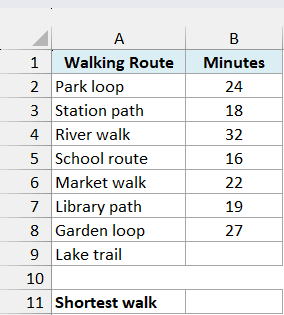
Below is a list of walking routes and their times in minutes, and I want to show the shortest recorded time in cell B11.
Enter this formula in cell B11:
=MINA(B2:B9)
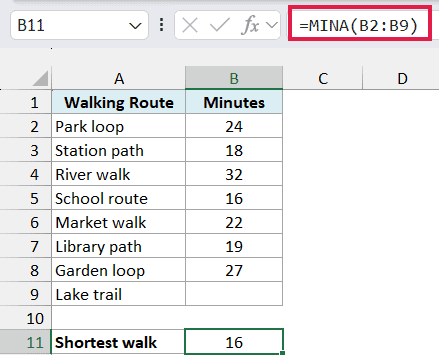
The formula returns 16, which is the time for the School route. It checks the values in B2:B9 and returns the smallest one.
The Lake trail time is missing, so B9 is empty. The MINA function ignores that cell; it does not treat a genuinely empty cell as a zero-minute walk.
If every cell in the range is empty, however, the function returns 0 because there are no values to compare. For a list containing only numbers and blanks like this one, the MIN function would give the same result.
Example 2: Compare MIN and MINA With Text
Now let’s include a fee written as text.
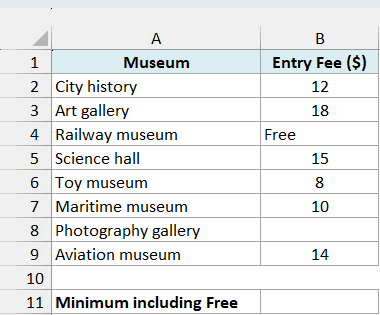
Below is a list of museum entry fees, and I want the lowest fee, including the museum marked “Free”, in cell B11.
Enter this formula in cell B11:
=MINA(B2:B9)
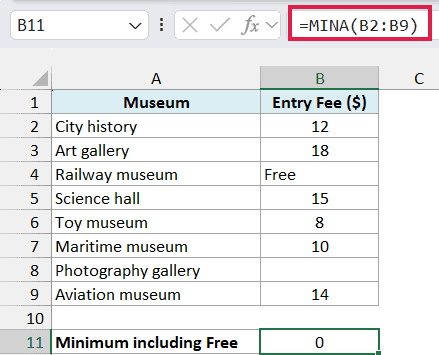
The result is 0 because B4 contains the text “Free”. The MINA function treats that text cell as zero, which is the correct fee for the Railway museum.
The empty fee for the Photography gallery is ignored. That tells us nothing about its actual admission price, so the answer is the lowest fee among the entries we have.
For comparison, enter this formula in cell B12:
=MIN(B2:B9)
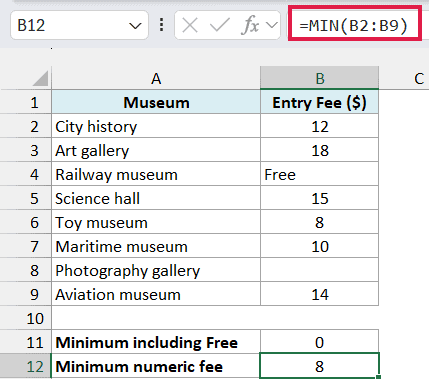
The MIN function returns 8, the Toy museum fee. It ignores the text in B4, so it finds the smallest numeric fee instead of including the free museum.
Important: The MINA function treats any referenced text as zero. A label such as “Pending” would also count as 0, so use this approach only when treating the text as zero matches what the data means.
A number stored as text in a referenced cell also counts as zero. If a fee looks like 12 but is stored as text, convert it to a real number before using this calculation.
Text typed directly into the formula behaves differently: numeric text can be converted to a number, while a word such as “Free” causes a #VALUE! error. Here, the word is in a worksheet cell, and the formula references that cell.
Errors already present in the referenced range also pass through to the result. For example, a #N/A fee must be corrected before the formula can return a minimum.
Example 3: Check a TRUE/FALSE Packing List
Text is not the only input the MINA function includes.
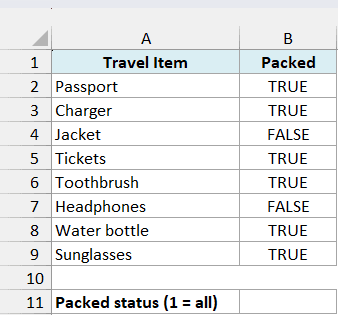
Below is a travel packing checklist with TRUE for packed items and FALSE for unpacked items, and I want a numeric completion flag in cell B11.
Enter this formula in cell B11:
=MINA(B2:B9)
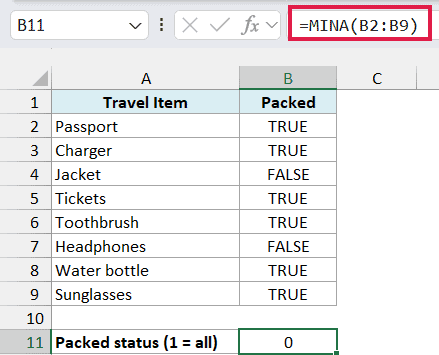
The formula returns 0 because the Jacket and Headphones entries are FALSE. The MINA function treats TRUE as 1 and FALSE as 0, so any FALSE makes the minimum zero.
If you change both FALSE entries to TRUE, the result becomes 1. In this complete checklist, 1 means every listed item is packed, while 0 means at least one is still unpacked.
Make sure every item has a real TRUE or FALSE value. Empty cells are ignored, so this formula does not tell you whether someone forgot to fill in a status.
This example shows how to get a numeric flag with the MINA function. If you want the answer displayed as TRUE or FALSE, the AND function is the more direct choice.
Follow along with the example file
MINA Function Examples.xlsx
Example 4: Use MINA With FILTER Results
There is one difference to watch for when you combine the MINA function with the FILTER function.
The FILTER function returns the values that match a condition. That result is an array, or a list of values calculated by the formula, and passing it directly to the MINA function does not handle text the same way as a cell reference.
This example requires Excel 365, Excel 2024, or Excel 2021 because it uses the FILTER function and spilled results.
Below is a list of weekend activities and their fees, and I want the lowest Saturday fee, including “Free”, in column B.
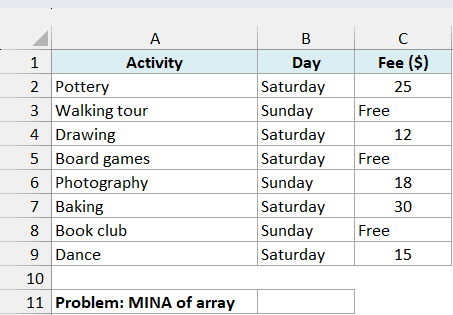
First, enter this formula in B11 to see the problem:
=MINA(FILTER(C2:C9,B2:B9="Saturday"))
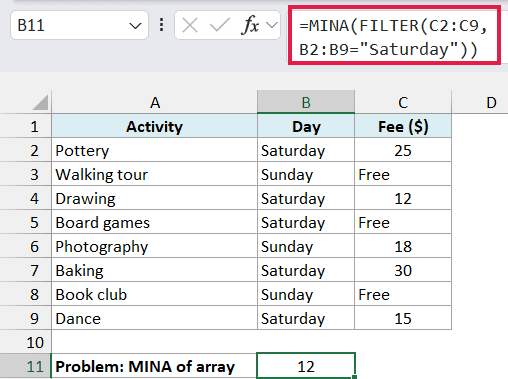
The formula returns 12, even though Board games is a free Saturday activity. The FILTER function returns 25, 12, “Free”, 30, and 15, but the MINA function ignores the text in this calculated array.
To include “Free” as zero, put the filtered list into worksheet cells first. Enter this formula in cell E2:
=FILTER(C2:C9,B2:B9="Saturday")
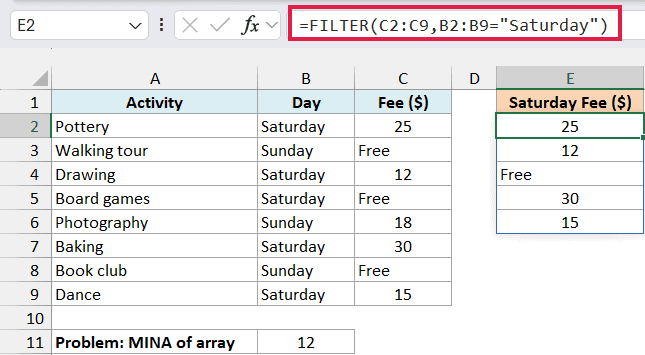
The five matching fees appear in E2:E6. This is called a spill: you enter the formula once in E2, and Excel fills the cells below it with the remaining results.
Now the fees are available through a cell reference. The reference E2# means the entire spilled range starting at E2, so it adjusts if the number of matching activities changes.
Enter this formula in cell B12:
=MINA(E2#)
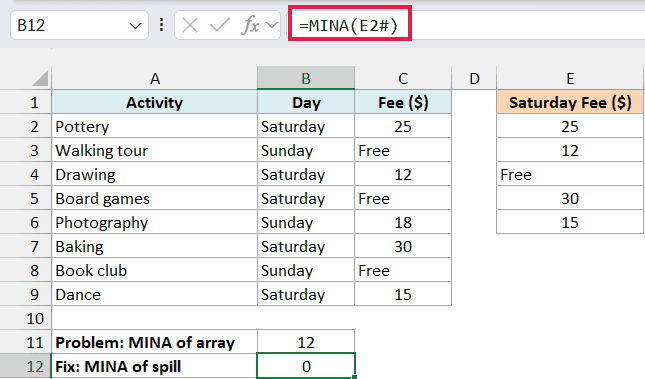
The result is now 0. The MINA function receives a reference to E2:E6 and includes the text “Free” as zero, just as it did with the museum fees.
Keep the cells below E2 clear so the filtered results have room to spill. If another value blocks that space, the FILTER formula returns a #SPILL! error.
If no activities match the day, this FILTER formula returns #CALC!. That means there are no matching fees; it should not be interpreted as a free activity.
So when you use the MINA function, check what the text in your cells represents. A zero result is useful when it means “Free”, but it can be misleading when the text means a fee is still unknown.
Other Excel Articles You May Also Like:
