

The SINH function in Excel calculates the hyperbolic sine of a number. You’ll come across it in mathematical models, including calculations for the shape and length of a hanging cable.
The extra H matters: hyperbolic sine behaves differently from the ordinary sine used with angles. Below, I’ll show you how to calculate it, compare the two functions, and use SINH in a couple of worked calculations.
Follow along with the example file
SINH Function Examples.xlsx
SINH Function Syntax
Here is the syntax of the SINH function:
=SINH(number)
- number is the required real number whose hyperbolic sine you want. You can supply a number, a reference to a cell, a calculation, or a range of numbers.
The input can be positive, negative, or zero. You don’t need to keep it between -1 and 1.
SINH works in Excel 365, 2024, 2021, 2019, and 2016, including Mac. The range formulas below use dynamic arrays in Excel 365, 2024, or 2021; older versions can use the single-cell alternatives.
When to Use the SINH Function
Use the SINH function when you need to:
- Calculate hyperbolic sine values for a mathematical model or a table of inputs.
- Recover values that were transformed using the ASINH function.
- Evaluate a formula that contains hyperbolic sine, such as an ideal hanging-cable length calculation.
Let’s start with the function on its own, then use it in those calculations.
Example 1: Calculate Hyperbolic Sine for a List
Let’s start with a few positive and negative numbers.
Below is a list of signed numbers, and I want to calculate their hyperbolic sine values in column B.
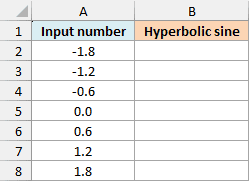
Enter this formula in cell B2:
=SINH(A2:A8)
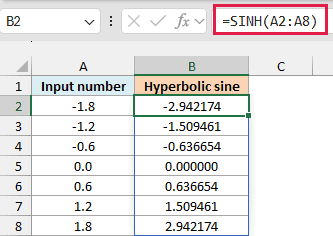
The formula calculates one answer for each number in A2:A8. Press Enter once, and Excel fills B2:B8 automatically, which is called spilling.
For example, 1.2 gives approximately 1.509461, while -1.2 gives approximately -1.509461. Zero gives zero, and changing an input’s sign changes the result’s sign without changing its size.
The workbook displays six decimal places so the results are easy to compare. Excel keeps more precision behind those displayed numbers.
Mathematically, hyperbolic sine of x is (e^x - e^(-x))/2, where e is approximately 2.71828. SINH calculates that value directly, so you don’t need to build the exponential expression yourself.
If another value is already in B3:B8, Excel returns a #SPILL! error because it can’t put the results there. Move or clear the blocking entry, then enter the formula again if needed.
If you are using Excel 2019 or earlier, enter the below formula in B2 and copy it down to B8:
=SINH(A2)
A cell containing text such as “missing” gives a #VALUE! error. A genuinely empty input cell is treated as zero, so check for missing inputs if a zero result would be misleading.
The absolute size of the SINH result grows quickly as the input gets farther from zero. An input of 1000 or -1000 returns #NUM! because the result is too large for Excel; check the input and units if that happens.
Example 2: Compare SINH With SIN
The names look similar, but the results soon move apart.
Below is another list of numbers, and I want to compare hyperbolic sine in column B with ordinary sine in column C.
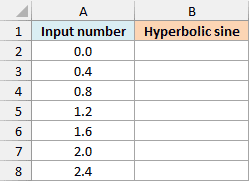
First, enter the SINH formula in B2:
=SINH(A2:A8)
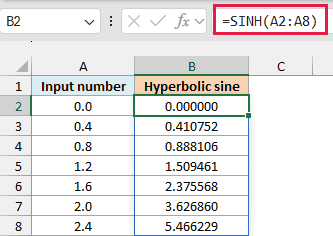
The hyperbolic sine increases from 0 to approximately 5.466229 over this list. Now enter the SIN function formula in C2 to compare the same numbers:
=SIN(A2:A8)
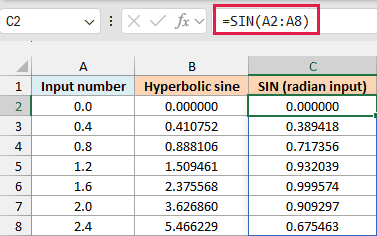
For the input 2.4, SINH gives approximately 5.466229, while the SIN function gives approximately 0.675463. The SIN function’s results stay between -1 and 1; SINH has no such bound.
The SIN function interprets these numbers as angles in radians. SINH uses the real-number input from the hyperbolic calculation, so you shouldn’t automatically convert that input from degrees.
Important: If your task is to find the ordinary sine of an angle, use the SIN function. Adding H changes the calculation; it doesn’t change the angle unit.
If you are using Excel 2019 or earlier, enter the below formula in B2 and copy it down to B8:
=SINH(A2)
For the sine comparison in Excel 2019 or earlier, enter the below formula in C2 and copy it down to C8:
=SIN(A2)
Follow along with the example file
SINH Function Examples.xlsx
Example 3: Reverse an ASINH Transformation
SINH can also take you back to an original measurement.
The ASINH function calculates inverse hyperbolic sine. If a measurement was passed through that function, applying SINH to the transformed value recovers the measurement, subject to normal calculation precision.
Below are measurements already transformed with the ASINH function, and I want to recover their original values in column B.
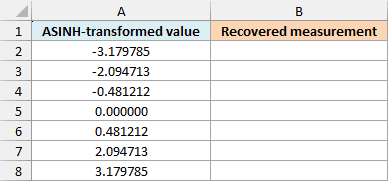
Enter this formula in B2:
=SINH(A2:A8)
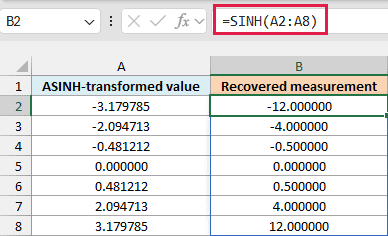
The results recover -12, -4, -0.5, 0, 0.5, 4, and 12 to the precision shown. For instance, the input displayed as 3.179785 gives 12.000000 in the final row.
That input has more decimal places stored than the screenshot shows. Use the example workbook to reproduce the result, because retyping only the six displayed decimals introduces a small rounding difference.
Important: This reversal assumes the original transformation was ASINH applied directly to the measurement. If the original formula also scaled or shifted the data, you’ll need to undo those operations too.
If you are using Excel 2019 or earlier, enter the below formula in B2 and copy it down to B8 on this sheet:
=SINH(A2)
Example 4: Calculate an Ideal Cable Length
Here’s a calculation where hyperbolic sine is part of the model.
An ideal, uniformly weighted, flexible cable hanging under its own weight forms a curve called a catenary. When its positive shape parameter is known, SINH helps calculate the length along the cable from its lowest point.
The model is s = a × sinh(x/a), where a is the shape parameter, x is the horizontal distance to the right of the lowest point, and s is the length along the curve. Use the same length unit for a and x.
Below are a shape parameter of 18 meters and a horizontal distance of 12 meters, and I want the cable length in B4.
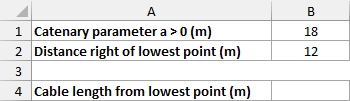
Enter this formula in B4:
=B1*SINH(B2/B1)
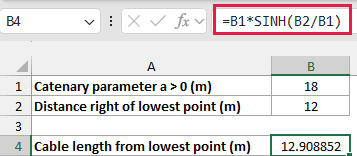
The result is approximately 12.908852 meters along the cable. That’s longer than the 12-meter horizontal distance because the cable curves.
Here’s how the formula works:
B2/B1divides the horizontal distance by the shape parameter. Since both are in meters, the units cancel.SINH(B2/B1)calculates the hyperbolic sine of that ratio.- Multiplying by
B1converts the result back to a length in meters.
Keep a greater than zero and x nonnegative for this one-sided length calculation. The 18-meter parameter describes the curve’s shape; it isn’t the cable’s total length or the distance between supports.
This is a worked example of the ideal model, with the shape parameter supplied. It doesn’t determine a real cable’s shape from the spacing of its supports alone.
You can now use SINH with individual numbers, a range, or as part of a larger calculation. The example workbook includes all four examples so you can change the inputs and see the results.
Other Excel Articles You May Also Like:
