

The SUMX2MY2 function in Excel takes two lists of numbers, squares every value, subtracts each square in the second list from its partner in the first, and adds up all those differences.
The odd-looking name is the math written out, and it stands for the sum of x squared minus y squared.
That sounds like something only a statistics class would need, but it comes in handy for everyday area math. For example, when one square sits inside a bigger one, it gives you the area left over around it.
In this tutorial, I’ll show you how SUMX2MY2 works with five examples, including what it does with blank and text cells and how to use it with the FILTER function.
Follow along with the example file
SUMX2MY2 Function Examples.xlsx
SUMX2MY2 Function Syntax
Here is the syntax of the SUMX2MY2 function:
=SUMX2MY2(array_x, array_y)
- array_x is the first range or array of numbers. Each value is squared, and the squares are added to the total.
- array_y is the second range or array of numbers. Each value is squared, and the squares are subtracted from the total.
SUMX2MY2 pairs the values by position, so the first value in array_x goes with the first value in array_y, and so on.
For example, in =SUMX2MY2({3,4},{1,2}), the curly brackets hold two small lists of numbers typed straight into the formula. It returns 20, because (9 – 1) + (16 – 4) = 20.
Both arguments need the same number of values. If one range has eight cells and the other has seven, you get a #N/A error.
The SUMX2MY2 function works in all Excel versions, including 365, 2024, 2021, 2019, 2016, and Mac.
When to Use the SUMX2MY2 Function
Use this function when you need to:
- Find the area left over when a smaller square sits inside a bigger one, like a rug in a room or a photo in a frame.
- Find how much area you gain when square sizes go up, like moving to bigger cake pans.
- Get the area of rings around round shapes, by multiplying the result by PI.
- Total x squared minus y squared across two lists in one formula, without a helper column.
Let me show you a few practical examples of how to use the SUMX2MY2 function.
Example 1: Find the Uncovered Floor Area Around Rugs
Let’s start with a simple example.
Below is a list of square rooms with the side length of each room and of the square rug that goes in it, and I want the total floor area the rugs leave uncovered in cell B11.
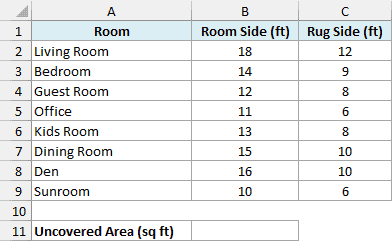
Here is the formula:
=SUMX2MY2(B2:B9,C2:C9)
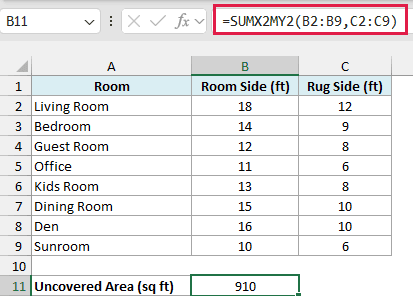
This returns 910 square feet.
For each room, SUMX2MY2 squares the room side to get the room’s area and squares the rug side to get the rug’s area. Then it subtracts the rug area from the room area.
For the Living Room, that’s 324 – 144 = 180 square feet of bare floor.
It does the same for all eight rooms and adds up the eight results, so you get the total in one cell without a helper column.
You’d get the same answer with the SUMSQ function, using =SUMSQ(B2:B9)-SUMSQ(C2:C9). That works here because every room has a rug, but it can go wrong when your data has gaps (more on that in Example 4).
Example 2: SUMX2MY2 Argument Order (Cake Size Upgrades)
Here’s another practical scenario.
Below is a bakery’s list of square cake orders where each customer upgraded to a bigger pan, and I want the total extra top area the bakery has to decorate in cell B11.
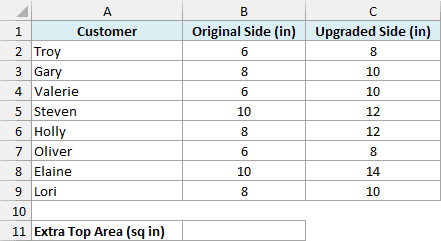
Here is the formula:
=SUMX2MY2(C2:C9,B2:B9)
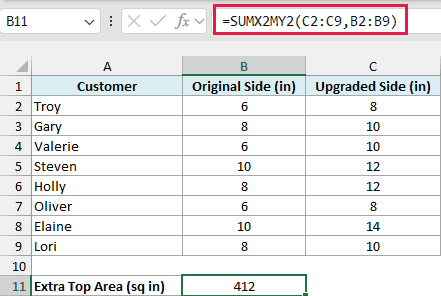
This returns 412 square inches.
The upgraded sizes in column C go first because they’re the bigger squares. For Troy, the cake went from 6 inches to 8 inches, so the top grew from 36 to 64 square inches, an extra 28.
Now here is what happens when you swap the two ranges:
=SUMX2MY2(B2:B9,C2:C9)
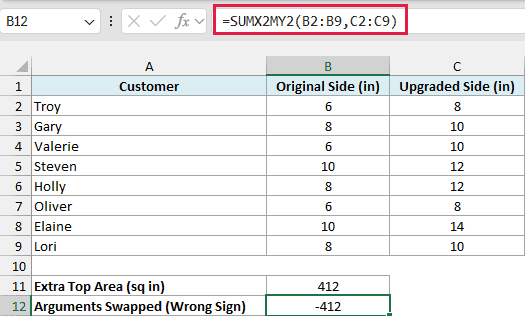
This returns -412. Every pair is now calculated as the smaller square minus the bigger one, so you get the same number with the sign flipped.
Important: SUMX2MY2 always subtracts the squares of the second range from the squares of the first. If you get a negative result where you expected a positive one, check that the range with the bigger values comes first.
Example 3: Calculate Ring Area for Round Shapes
Now let’s use SUMX2MY2 for round shapes.
Below is a list of round flower beds with the outer radius of each bed and the radius of the planted circle inside its ring of mulch, and I want the total mulch area in cell B11.
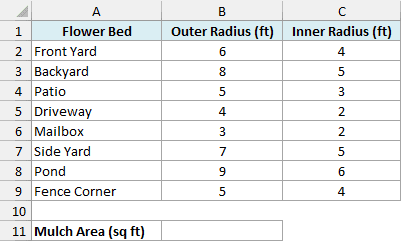
Here is the formula:
=PI()*SUMX2MY2(B2:B9,C2:C9)
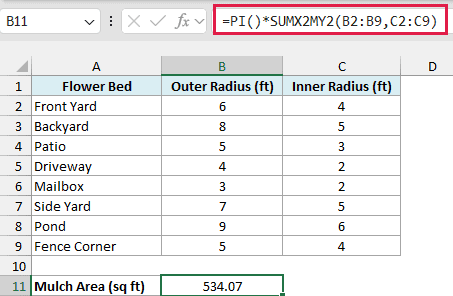
This returns 534.07 square feet.
The area of a circle is PI times the radius squared. So the area of each mulch ring is the area of the outer circle minus the area of the planted circle.
That works out to PI times (outer radius squared minus inner radius squared).
SUMX2MY2 adds up the outer radius squared minus the inner radius squared for all eight beds, which comes to 170. The PI function then multiplies that total by 3.14159…, so you only need PI once.
If your list has diameters instead of radii, divide the result by 4. A radius is half the diameter, so a squared diameter is four times bigger than a squared radius.
Example 4: How SUMX2MY2 Handles Blank and Text Cells
Here’s a situation you’ll run into with real data.
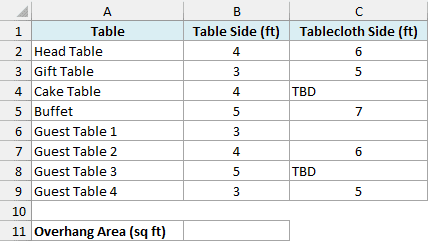
Below is a list of square tables for a party with the side of each table and of its square tablecloth, where some tablecloths are still marked TBD or left blank, and I want the total tablecloth overhang area in cell B11.
Here is the formula:
=SUMX2MY2(C2:C9,B2:B9)
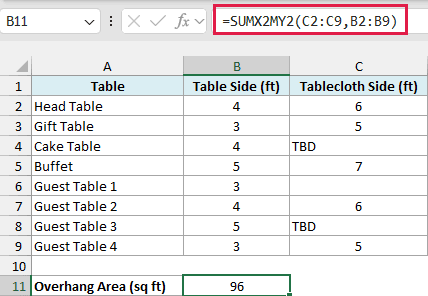
This returns 96 square feet.
When either value in a pair is text, a blank cell, or TRUE/FALSE, SUMX2MY2 skips the whole pair, including the number next to it. That leaves out three tables here.
The Cake Table and Guest Table 3 say TBD, and Guest Table 1’s tablecloth cell is empty on purpose (it hasn’t been picked yet). So 96 is the overhang for the other five tables.
A skipped pair adds nothing to the total. If the TBD for the Cake Table were treated as a 0 instead, the formula would subtract that table’s 16 square feet and the total would drop.
So type 0 only when you really mean a size of zero, because a 0 is a real number and does get used. To keep a pair out of the total, leave the cell blank or put text like TBD in it.
Important: Don’t replace this with =SUMSQ(C2:C9)-SUMSQ(B2:B9) when your data has gaps. The SUMSQ function skips each cell on its own, so it still subtracts the squares of the three tables with no tablecloth and returns 46 instead of 96.
A formula that does the squaring itself, like =SUM(C2:C9^2-B2:B9^2), has a different problem. It returns a #VALUE! error as soon as it hits the TBD text.
Example 5: Use SUMX2MY2 With FILTER for One Category
Let’s step it up with a dynamic array formula.
Below is a frame shop’s order list with the material, outer size, and opening size of each square frame, and I want the total border area of the frames made from the material in cell G1, with the result in cell G2.
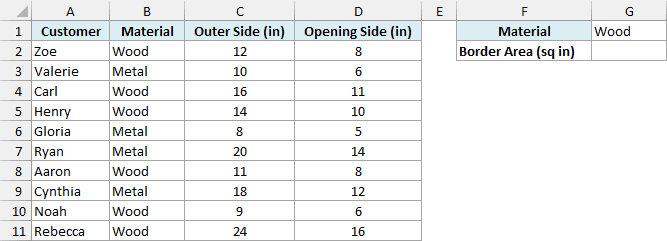
Here is the formula:
=SUMX2MY2(FILTER(C2:C11,B2:B11=G1),FILTER(D2:D11,B2:B11=G1))
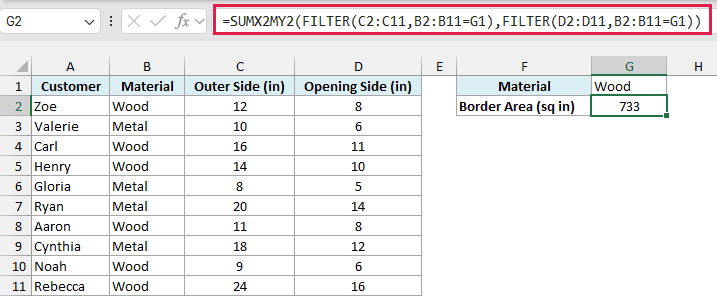
With Wood in G1, this returns 733 square inches of wood border.
How this formula works:
- FILTER(C2:C11,B2:B11=G1) returns the outer sizes of the Wood frames, which are 12, 16, 14, 11, 9, and 24.
- FILTER(D2:D11,B2:B11=G1) returns the opening sizes of the same frames, which are 8, 11, 10, 8, 6, and 16.
- Both FILTER functions use the same condition, so the two lists line up by position. SUMX2MY2 then adds up outer size squared minus opening size squared for the six Wood frames.
Change G1 to Metal, and the result changes to 487. If G1 holds a material that isn’t in the list, FILTER returns a #CALC! error, and so does the whole formula.
The FILTER function needs Excel 365 or Excel 2021 and later. If you are using Excel 2019 or earlier, enter the below formula in cell G2:
=SUMPRODUCT((B2:B11=G1)*(C2:C11^2-D2:D11^2))
This one uses the SUMPRODUCT function. It works out outer size squared minus opening size squared for every frame, multiplies the rows that don’t match G1 by 0, and adds up the rest.
So these are a few ways you can use the SUMX2MY2 function in Excel. Whenever you need the total of one set of squares minus another, it does the whole thing in one formula.
SUMX2MY2 has two close relatives. The SUMX2PY2 function adds the two squares instead of subtracting them, and the SUMXMY2 function squares the difference of each pair.
I hope you found this tutorial useful.
Other Excel Articles You May Also Like:
