

The YIELDDISC function in Excel gives you the annual yield on a security you buy at a discount, like a Treasury bill. You pay less than face value today, get the full amount back at maturity, and YIELDDISC turns that gain into a yearly rate.
It’s the number to look at when you want to know what your money actually earns. T-bills are usually quoted with a discount rate, which measures the gain against the face value instead of what you paid, so it always comes out a little lower.
In this article, I start with one T-bill and then compare several bills at once. I also show how the way you count days changes the yield.
After that, I compare the yield with the discount rate from the DISC function and work out the yield on a bill you sell early.
Follow along with the example file
YIELDDISC Function Examples.xlsx
YIELDDISC Function Syntax
Here is the syntax of the YIELDDISC function:
=YIELDDISC(settlement, maturity, pr, redemption, [basis])
- settlement – the date you buy the security.
- maturity – the date the security matures and pays you back.
- pr – the price you pay per $100 of face value.
- redemption – the amount you get back per $100 of face value. For a T-bill, this is 100.
- [basis] – optional. This decides how the days between the two dates are counted and how many days a year has: 0 (US 30/360), 1 (actual/actual), 2 (actual/360), 3 (actual/365), or 4 (European 30/360). If you leave it out, Excel uses 0. Example 3 shows what each one does.
YIELDDISC divides your gain by the price you paid and then scales it up to a full year. Because it only works with the ratio between the two, you can also enter dollar amounts, as long as pr and redemption use the same scale.
For example, if you paid $9,896.74 for a $10,000 bill, entering 9896.74 and 10000 gives the same result as entering 98.9674 and 100.
If the price is higher than the redemption value, you don’t get an error. YIELDDISC returns a negative yield, because you’d get back less than you paid.
You get the #NUM! error if the settlement date is on or after the maturity date, if pr or redemption is 0 or less, or if basis isn’t a number from 0 to 4.
If a date argument is text that Excel can’t turn into a date (like “abc”), YIELDDISC returns the #VALUE! error. So keep the dates in cells as real dates, or build them with the DATE function.
The YIELDDISC function works in Excel 365, 2024, 2021, 2019, and 2016. It’s also available in Excel for Mac.
When to Use the YIELDDISC Function
Use this function when you need to:
- Find the yield on a T-bill or other discounted security from its price
- Compare the yields on several bills with different terms
- Check your number against the investment rate the Treasury publishes
- See how much a bill’s yield differs from its quoted discount rate
- Work out what you earned on a bill you sold before it matured
Let me show you a few practical examples of how to use the YIELDDISC function.
Example 1: Calculate the Yield on a Treasury Bill
Let’s start with a single T-bill.
Below are the details of a 13-week Treasury bill bought at auction, and I want to get its yield in cell B8.
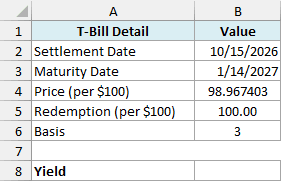
Here is the formula:
=YIELDDISC(B2,B3,B4,B5,B6)
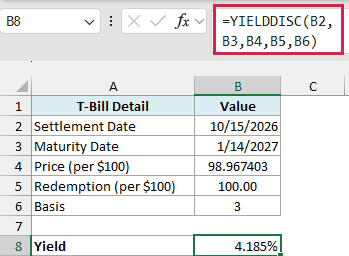
The formula returns 4.185%. You pay 98.967403 and get 100 back, so the gain is 1.032597, which is about 1.0434% of what you paid.
That gain is for the 91 days between October 15, 2026 and January 14, 2027. With basis 3 (actual/365), YIELDDISC scales it to a 365-day year, so 1.0434% × 365/91 gives 4.185%.
This is a real 13-week bill from the October 2026 auctions. Along with the discount rate, the US Treasury publishes an investment rate for every bill, which measures the yield on the price you paid instead of the face value.
For this bill, the Treasury’s investment rate is exactly 4.185%, the same as the formula result. That’s why I used basis 3 here.
Important: Basis 3 only matches the Treasury’s investment rate for bills of 26 weeks or less. For the 52-week bill issued October 1, 2026 at 95.551111, YIELDDISC returns 4.669%, while the Treasury quotes 4.616%.
The gap comes from how the Treasury handles bills longer than half a year. Its formula for those assumes the interest compounds twice a year, like a bond, while YIELDDISC always gives a simple yield.
So if you need the Treasury’s figure for a bill longer than 26 weeks, use the TBILLEQ function with the bill’s discount rate instead. For this 52-week bill, TBILLEQ with its 4.400% discount rate returns 4.616%.
There’s one more small catch. When the year after a bill’s issue date includes February 29, the Treasury uses a 366-day year, so its rate comes out slightly higher than the basis 3 result.
Example 2: Compare Several T-Bill Yields With One Formula
Now let’s say you want to see which term paid the most in a given week.
Below are six T-bills from the auctions in the week of October 5, 2026, and I want the yield for each bill in column E.
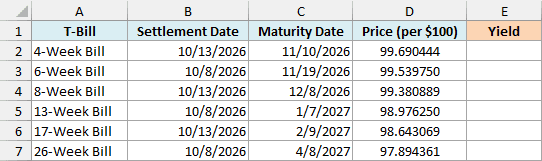
Here is the formula:
=YIELDDISC(+B2:B7,+C2:C7,+D2:D7,100,3)
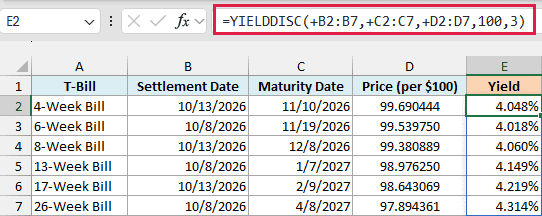
This one formula spills all six yields into E2:E7, so those cells need to be empty, or you get the #SPILL! error.
The redemption value is 100 for every bill, so I typed it straight into the formula, along with the basis of 3.
Important: YIELDDISC doesn’t accept plain ranges. If you use B2:B7 instead of +B2:B7 (even in just one argument), you get a single #VALUE! error instead of six yields.
The plus sign (+) in front of each range turns it into a list of values, which YIELDDISC can then work through one bill at a time. It’s the same trick that fixes other Excel functions that won’t spill when you give them a range.
Since each result is a yearly rate, you can compare a 4-week bill with a 26-week bill directly. That week, the 26-week bill had the highest yield (4.314%) and the 6-week bill the lowest (4.018%).
All six results also match the investment rates the Treasury published for these auctions.
If you are using Excel 2019 or earlier, enter the below formula in cell E2 and then copy it down the range:
=YIELDDISC(B2,C2,D2,100,3)
Example 3: See How the Basis Changes the Yield
The basis argument is optional, so it’s easy to leave out. Let’s see what each basis does to the same bill.
Below are the details of an 8-week T-bill, along with the five basis values, and I want the yield for each basis in column F.
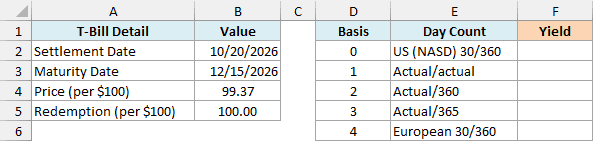
Here is the formula:
=YIELDDISC(B2,B3,B4,B5,+D2:D6)
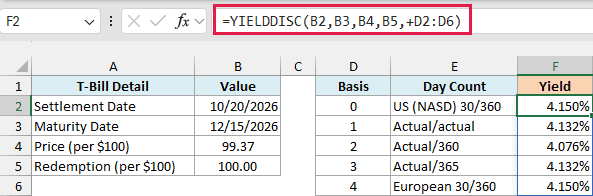
The formula spills five yields, one for each basis. The plus sign in front of D2:D6 is needed here too, for the same reason as in Example 2.
The bill runs for 56 actual days, from October 20 to December 15, 2026.
Basis 2 and 3 both use those 56 days, but they scale the gain up to a different year length. Basis 3 multiplies it by 365/56 and basis 2 by 360/56, so the longer year gives basis 3 the higher yield (4.132% vs 4.076%).
Basis 0 and 4 treat every month as 30 days long, so they count 55 days instead of 56 (the same count the DAYS360 function gives).
They also use a 360-day year, so the gain is multiplied by 360/55, which gives the highest yield of the five (4.150%).
Basis 1 matches basis 3 here because 2026 isn’t a leap year, so actual/actual also counts a 365-day year. These are the same five day count methods the YEARFRAC function uses.
If you leave out the basis, you get the basis 0 result. It counts 30-day months instead of the actual days, so it gives 4.150% here instead of the 4.132% you’d get with the Treasury’s actual-day method from Example 1.
So for T-bills, enter the basis yourself. Use 3 to match the Treasury’s investment rate, or 2 if you want the actual/360 yield (that’s also what the TBILLYIELD function returns).
Example 4: YIELDDISC vs DISC (Yield vs Discount Rate)
You’ll often see T-bills quoted with a discount rate, which is what the DISC function returns. Here’s how that compares with the yield on the same bill.
Below are the details of a 17-week T-bill, and I want its discount rate in cell B7 and its yield in cell B8.
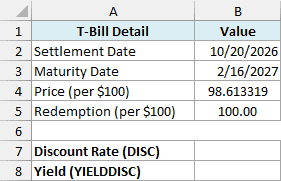
Here is the DISC formula:
=DISC(B2,B3,B4,B5,2)
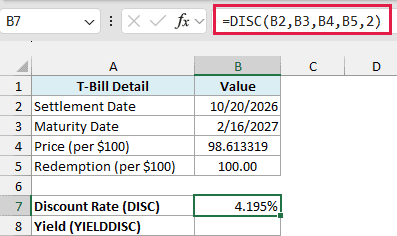
This returns 4.195%, which is the discount rate the Treasury published for this bill. DISC divides the gain of 1.386681 by the $100 face value and scales it over 119 days on a 360-day year.
And here is the YIELDDISC formula:
=YIELDDISC(B2,B3,B4,B5,2)
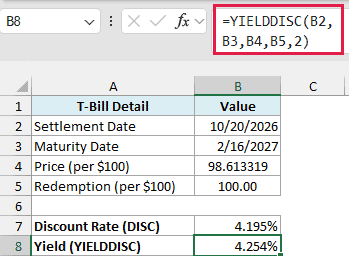
This returns 4.254%. It’s the same gain over the same 119 days, but YIELDDISC divides it by the 98.613319 you actually paid instead of 100.
I used basis 2 in both formulas so the only difference is what the gain is divided by. Since you always pay less than 100 for a T-bill, the yield always comes out higher than the discount rate.
If you want the rate you actually earn on your money, YIELDDISC is the one to use. The discount rate is just the way T-bills are traditionally quoted.
You’d get the same 4.254% from the INTRATE function with basis 2, since it also divides the gain by the amount you paid.
Example 5: Find the Yield on a T-Bill You Sell Early
You don’t have to hold a T-bill until it matures. If you sell it early, you can still use YIELDDISC to see what you earned while you held it.
Below are the details of a 26-week T-bill bought at auction and sold three months later at 98.95 (a sale price I picked for this example), and I want the yield for the time it was held in cell B8.
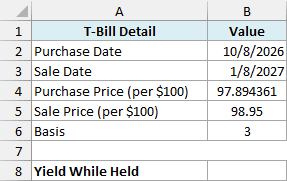
Here is the formula:
=YIELDDISC(B2,B3,B4,B5,B6)
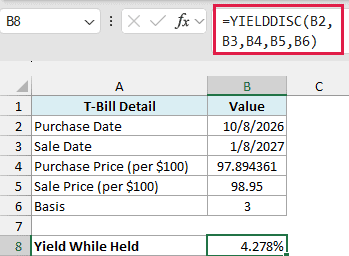
The formula returns 4.278%. Here, the sale date goes in place of the maturity date, and the sale price goes in place of the redemption value.
This works because YIELDDISC only needs a start price, an end price, and the days in between. The bill was bought at 97.894361 and sold at 98.95, a gain of about 1.078% over 92 days, which comes to 4.278% a year on basis 3.
That makes the result the simple yearly return for the time the bill was held, not a quoted market yield. This is the same 26-week bill as in Example 2, and held to maturity it yields 4.314%.
So these are five practical ways to use the YIELDDISC function in Excel.
It gives you the yield on a T-bill or any other discounted security from its price, and it works on a whole list of bills, with any basis, and on bills you sell before they mature.
For a bond that pays interest along the way, use the YIELD function instead.
I hope you found this Excel tutorial useful.
Other Excel Articles You May Also Like:
